Agent Flows
Hand a blank Word, Excel or PDF form to an agent flow and get it back filled in from your workspace documents, with every answer traced to its source and yours to review before you download it.
Filling in the same questionnaire for the tenth time is work a computer should do. Agent Flows is where you hand a blank form to an agent and let it answer the questions using the documents already in your workspace — policies, handbooks, anything indexed under Files or synced from a knowledge source.
Each upload starts one run. A run is durable: it keeps going on the server even if you close the tab, and you come back to a draft you can edit before anything leaves the platform. Nothing is filled in silently — every answer carries a confidence score and the source it came from, and you decide what is good enough to keep.
Today the catalogue holds one flow type, Autofill, which handles Word
(.docx), Excel (.xlsx) and PDF forms.
Prerequisites
- Membership of the workspace. Agent Flows is not permission-gated — every member sees the page and can start a run.
- Documents in the workspace worth answering from. A run against an empty workspace still completes, it just has nothing to draw on and leaves most fields for you to fill in by hand.
- A working language model for the workspace (Admin → Model Provider). Without one, a run fails part-way through instead of producing a draft.
Open Agent Flows
-
Click the flows icon in the left sidebar — the third one down, under Projects. A workspace that has never run a flow says so and offers the only action available from here.
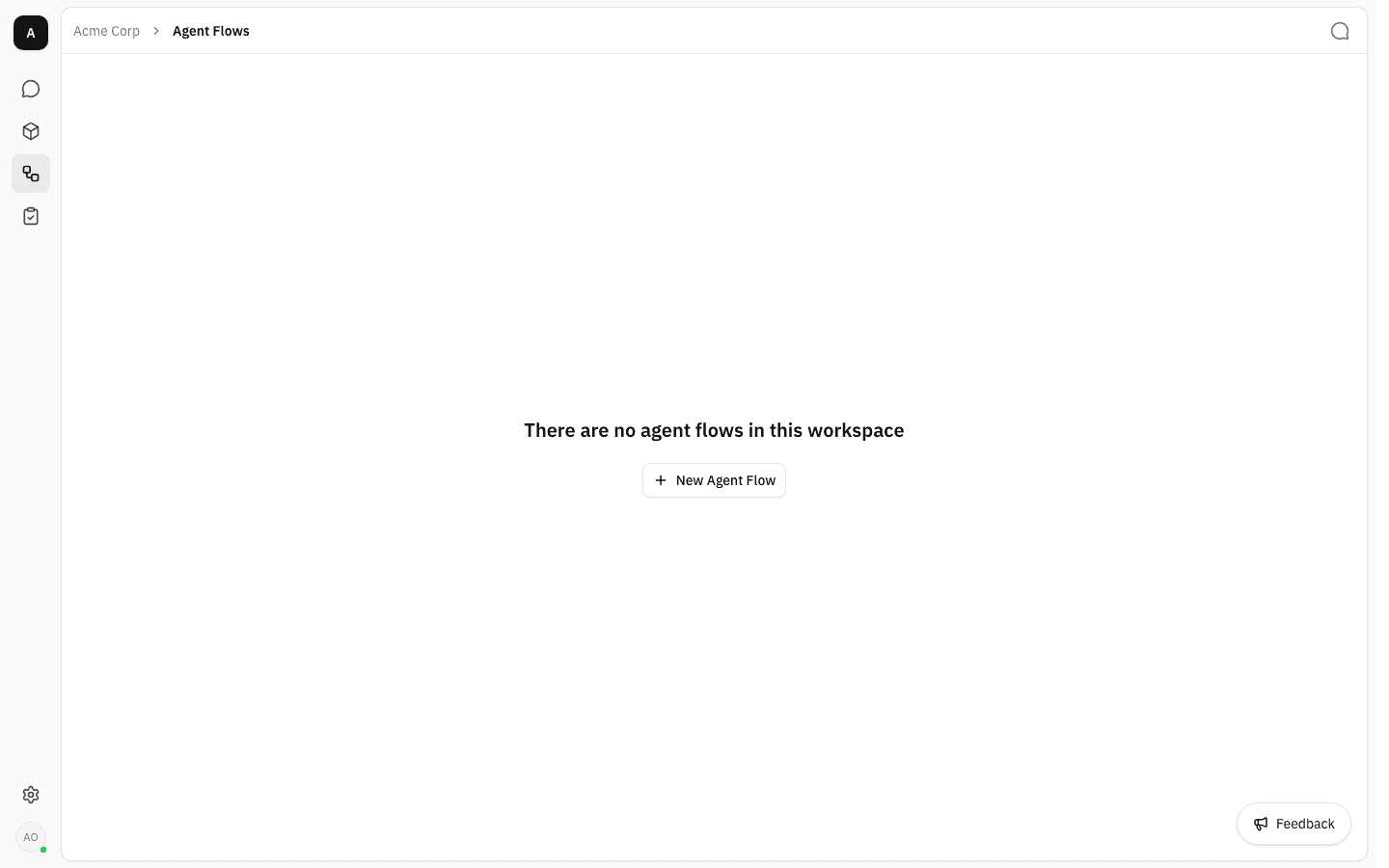
The page lists every run started in this workspace, not just your own — a colleague's run appears here with their name on the card. Runs started inside a project stay in that project and do not show up here.
Start an Autofill run
-
Click New Agent Flow. The menu lists the flow types available to you, each with a one-line description of what it does.
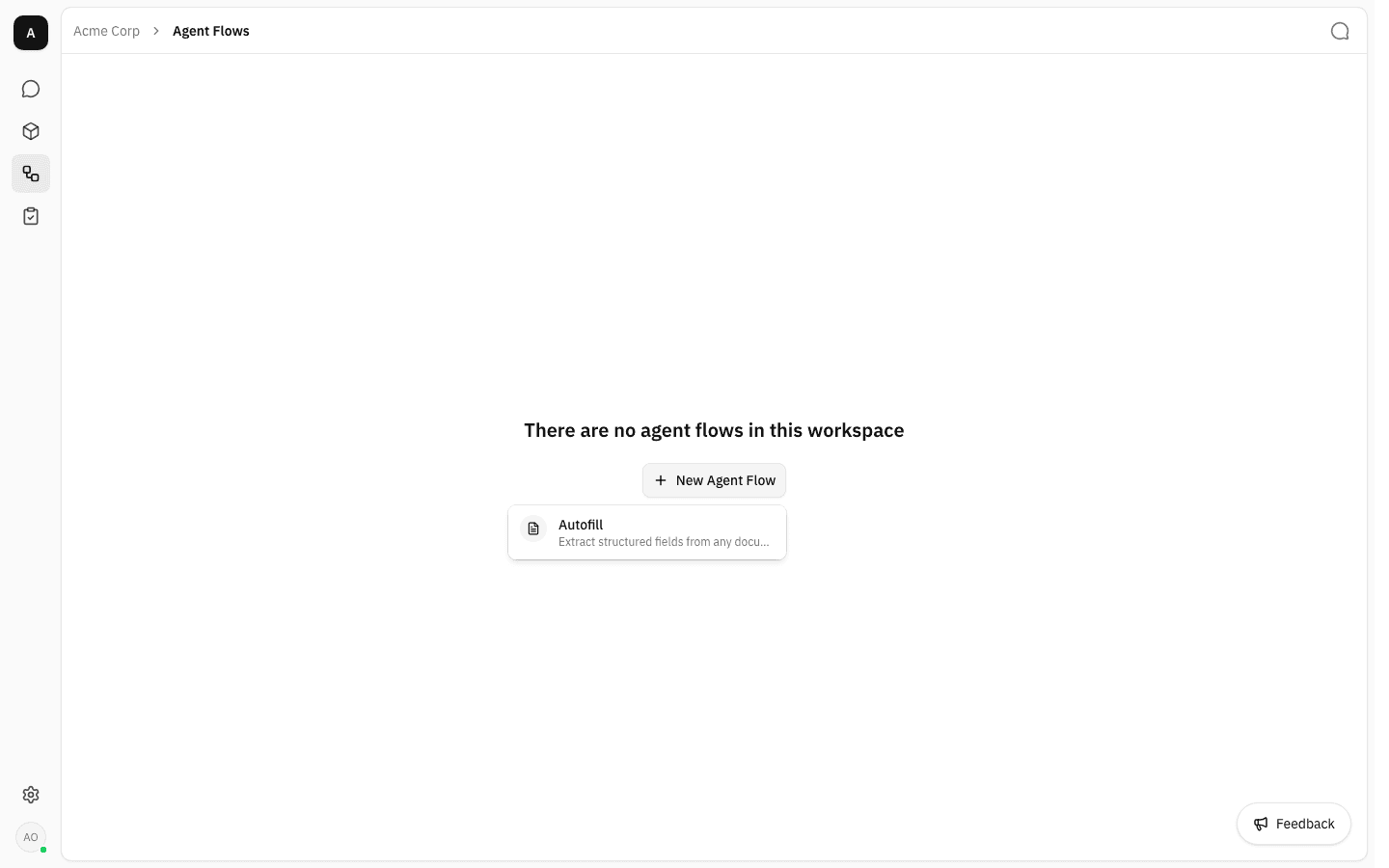
-
Choose Autofill. The launcher asks for the forms themselves. There is nothing else to configure — no template to pick, no field mapping to draw.
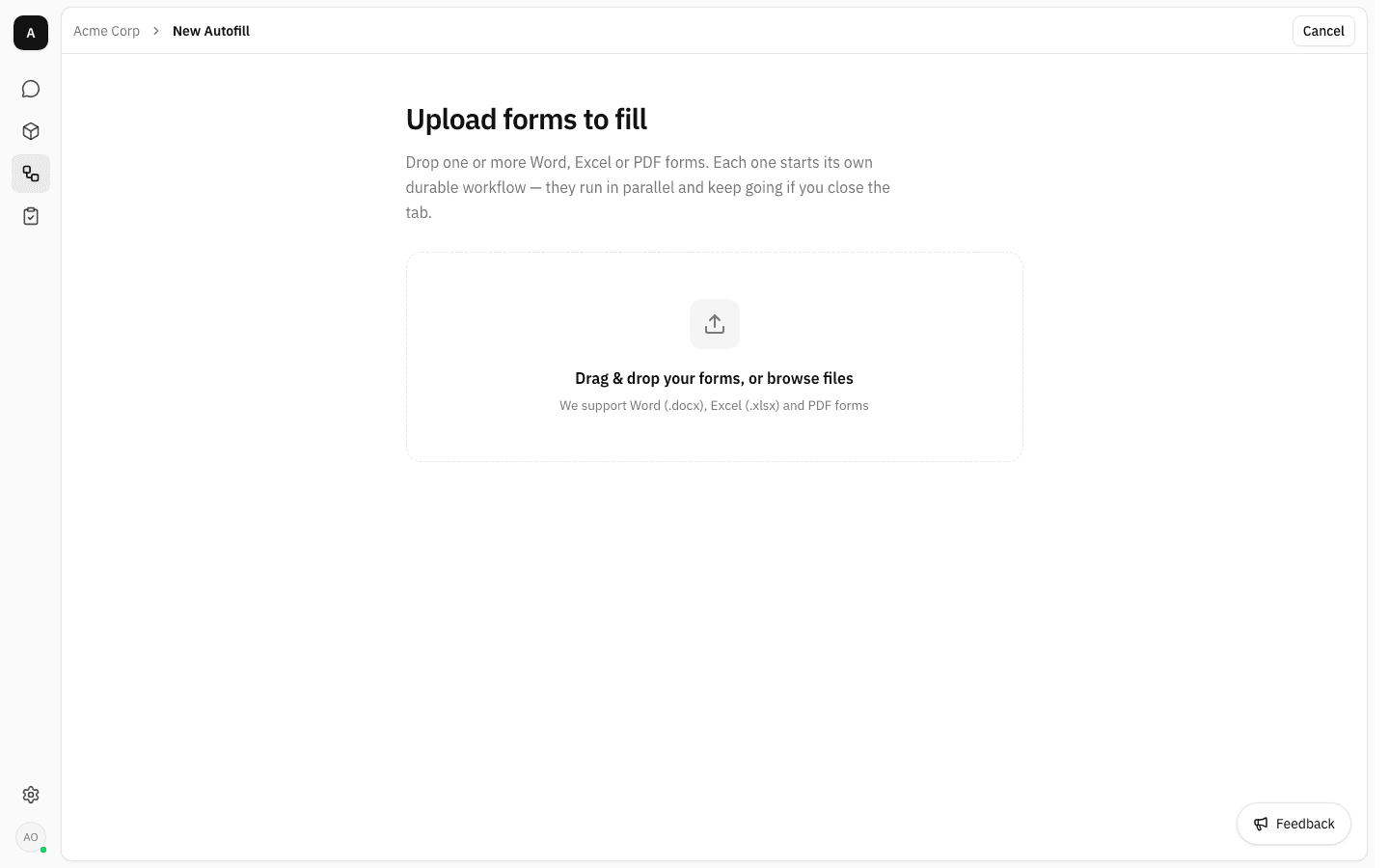
-
Drop in one or more forms, or click the area to browse. Each file is checked as it arrives; anything that is not a
.docx,.xlsxor PDF is rejected with a message instead of being uploaded. The selected file shows its size and the kind of form it was recognised as.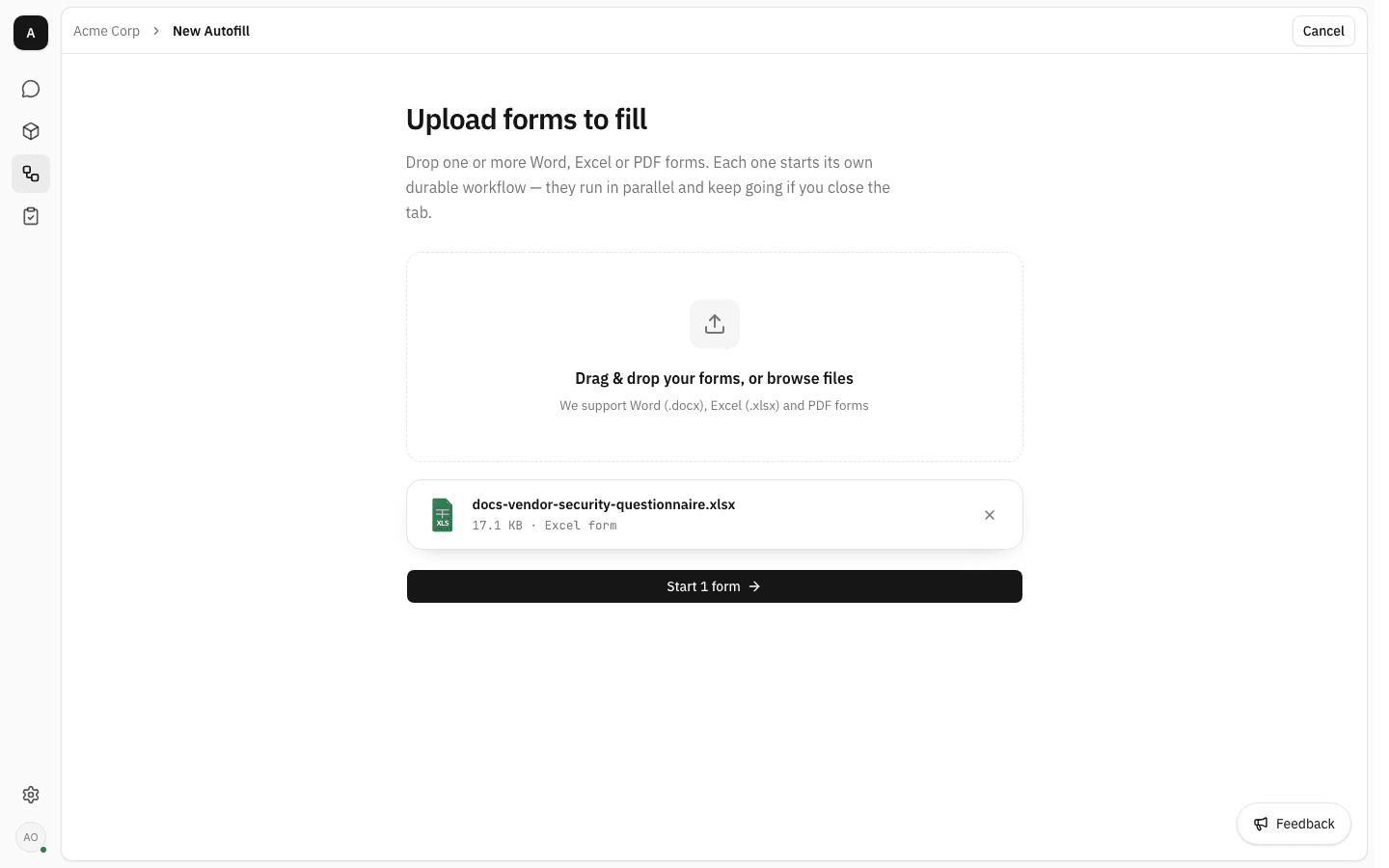
Several forms at once
Every file you add starts its own separate run, and they run in parallel. The button counts them for you — Start 3 forms.
-
Click Start 1 form. You land back on the Agent Flows list, where the new run appears as a card with a progress bar and a plain-language description of what the agent is doing right now.
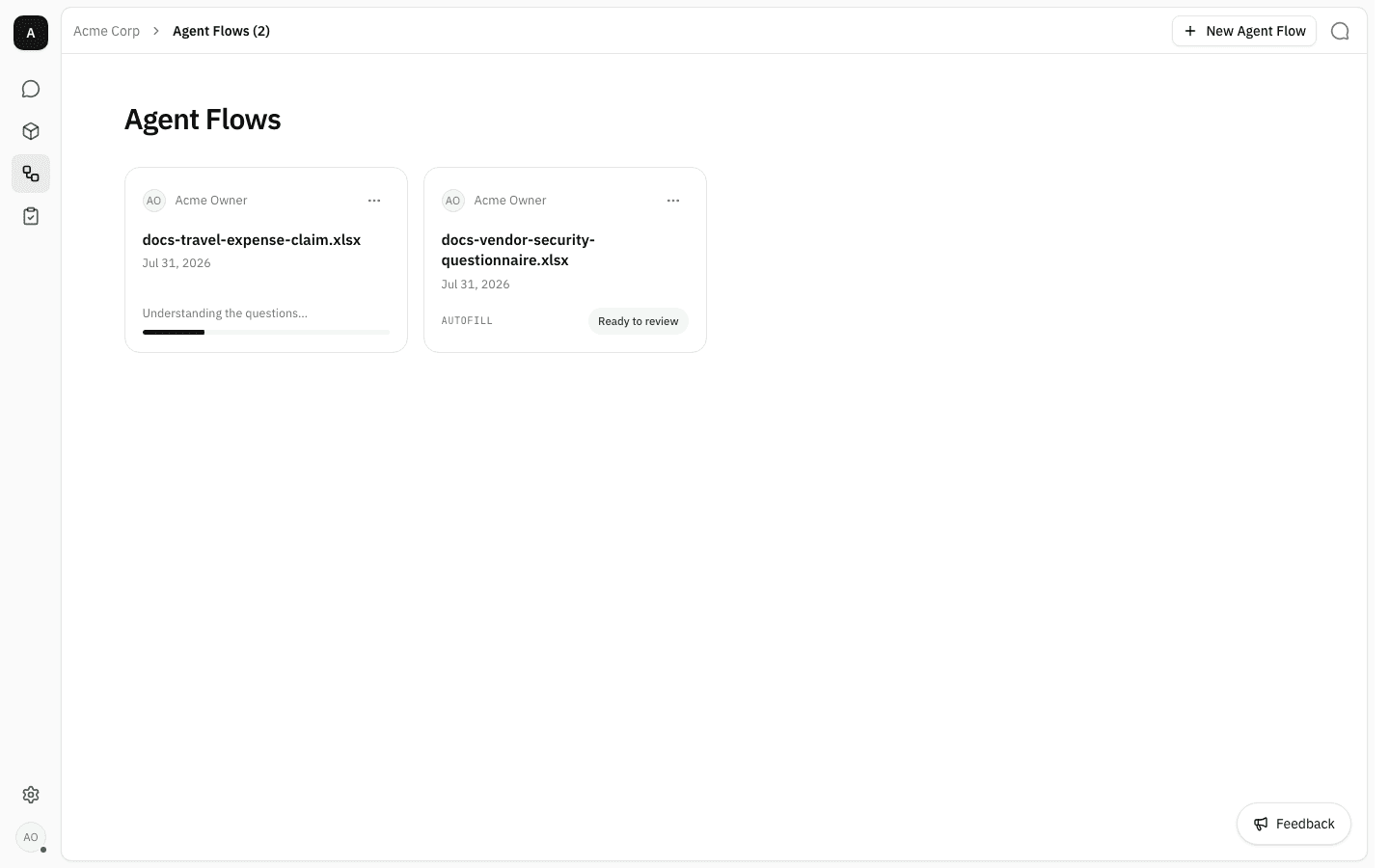
A card is a live view — it keeps updating while you are on the page, and it is safe to navigate away or close the tab. The work is happening on the server, not in your browser. When a run finishes, its card swaps the progress bar for a green Ready to review badge.
Review the draft
-
Click the card. The run page opens with the form's name, how long the run took, and its status.
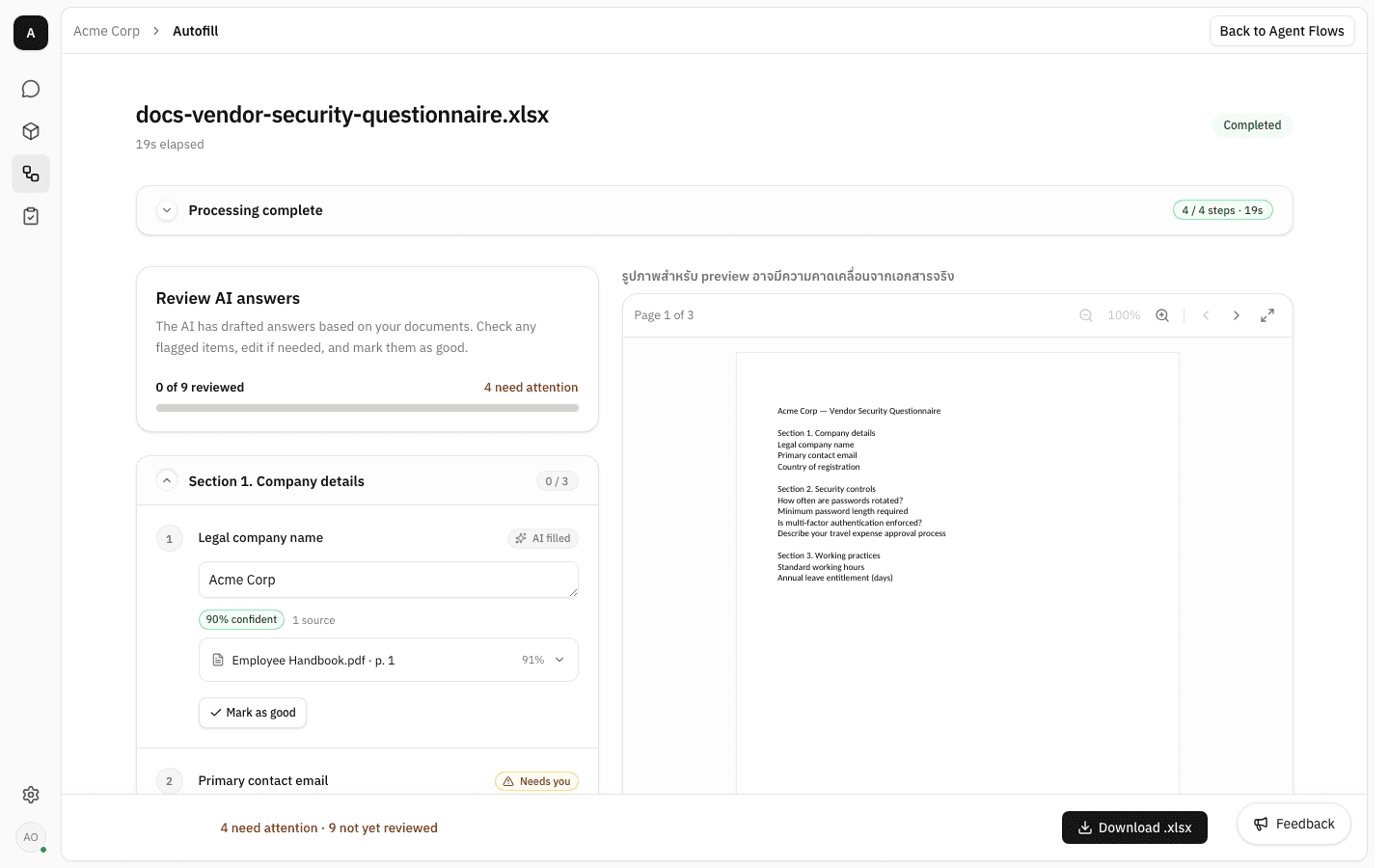
The page has two halves. On the left, the questions the agent found and the answers it drafted. On the right, a live preview of the actual document with your answers in place — it re-renders as you edit, so you can see the file you are about to download.
-
Expand Processing complete to see what the agent did. Each stage is described in plain language rather than as a technical step name, and the list is the same one the progress bar on the card was walking through.
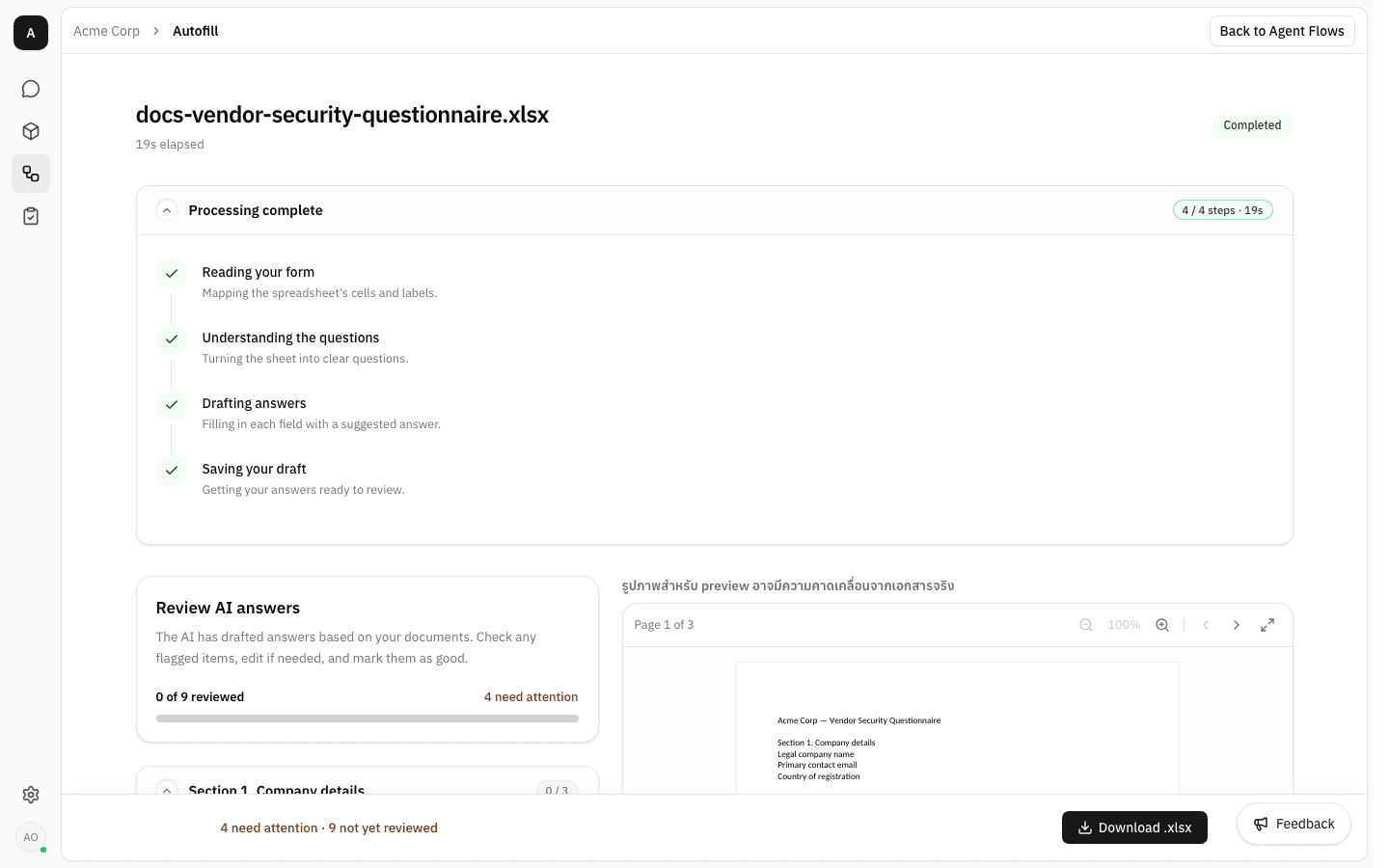
The stages differ by form type — a spreadsheet is mapped cell by cell, a Word form by its tables, a PDF by its fields and checkboxes — but the shape is always the same: read the form, work out the questions, draft the answers, save the draft.
-
Work down the questions. An answer the agent was able to draft is badged AI filled and carries a confidence figure plus the documents it used. Click a source to read the exact passage the answer came from.
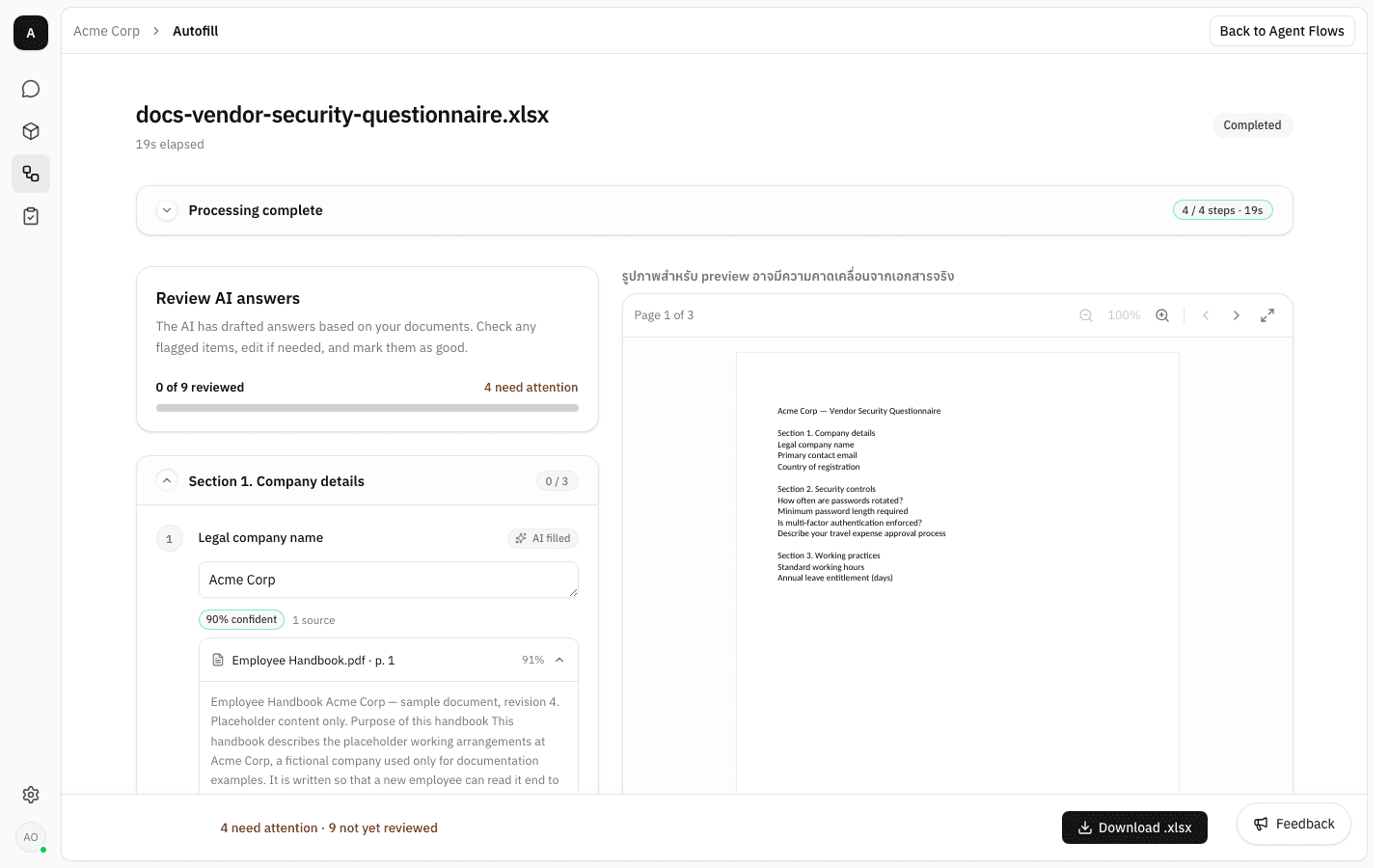
This is the part worth slowing down for: the score is the agent's own confidence, and the passage is your evidence. An answer with no source behind it was not found in your documents.
-
Questions the agent could not answer are badged Needs you and left blank — it does not guess. A section header counts how many of its questions you have signed off, and the bar at the bottom of the page keeps a running total.
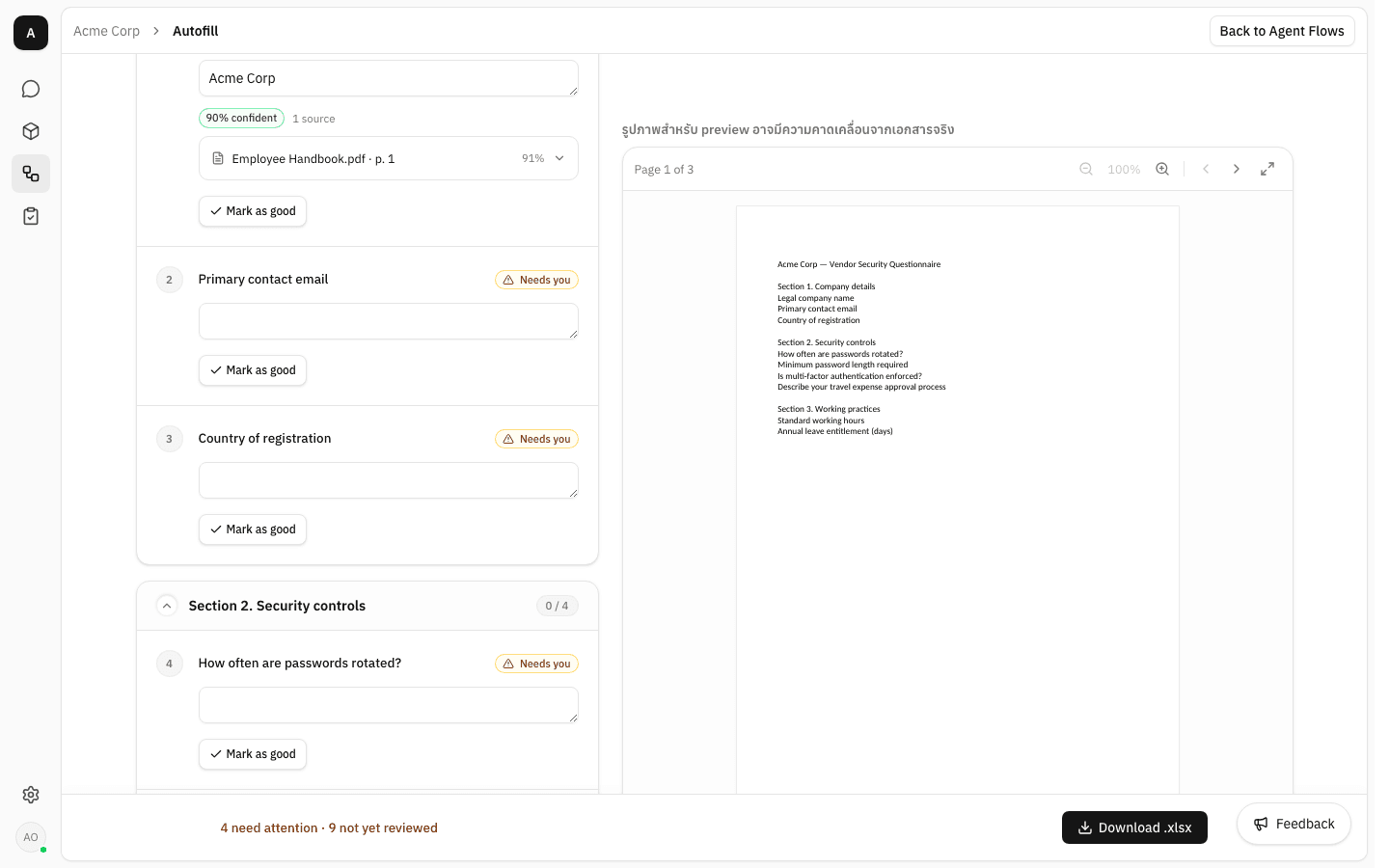
-
Type over anything you disagree with, or fill in what was left blank. An answer you touch is badged Edited and gains a Revert to AI button, so changing your mind costs nothing.
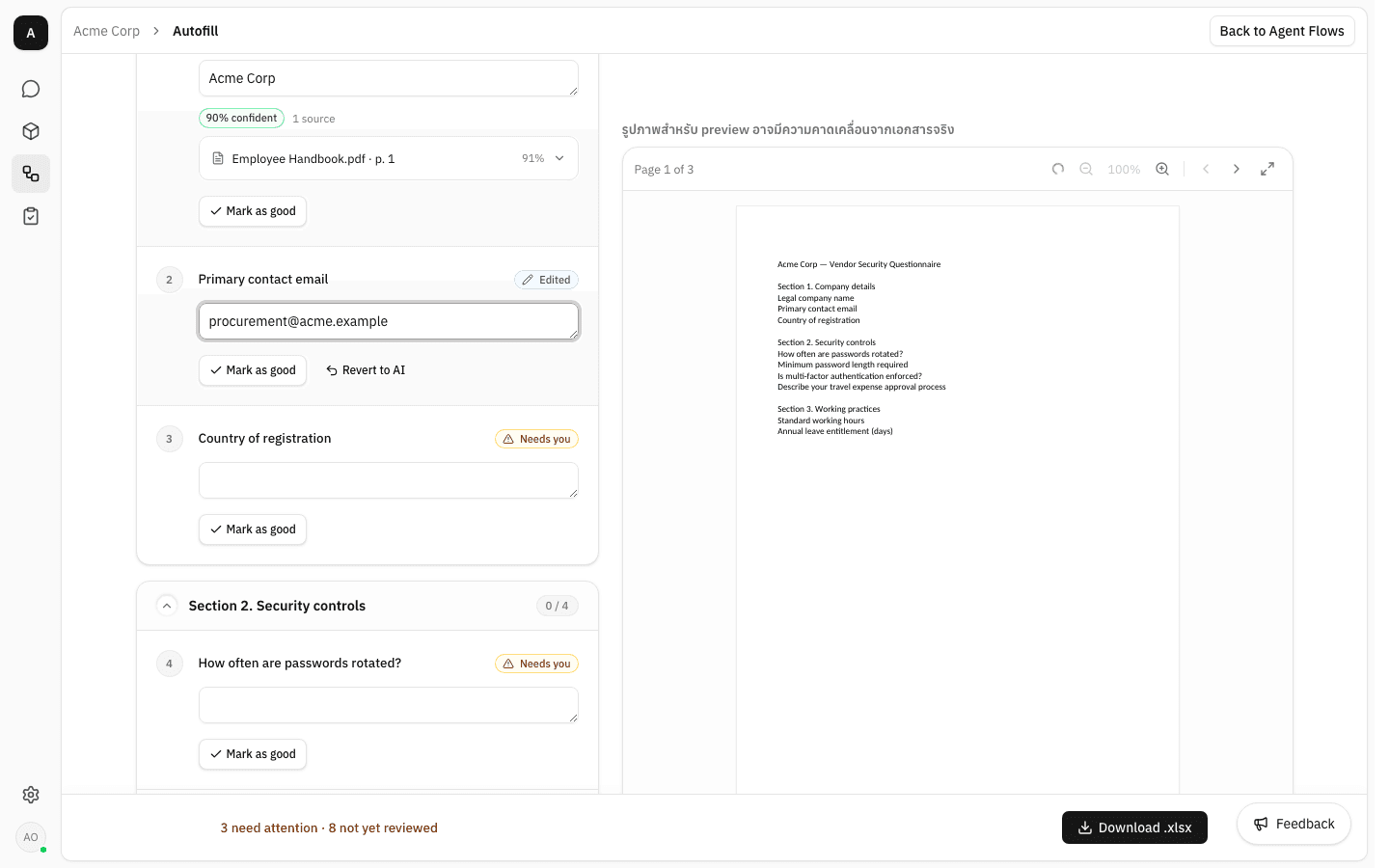
-
Click Mark as good on each answer you are happy with. The badge turns into Looks good, the section counter ticks up, and the footer changes to Everything reviewed — good to download once nothing is left.
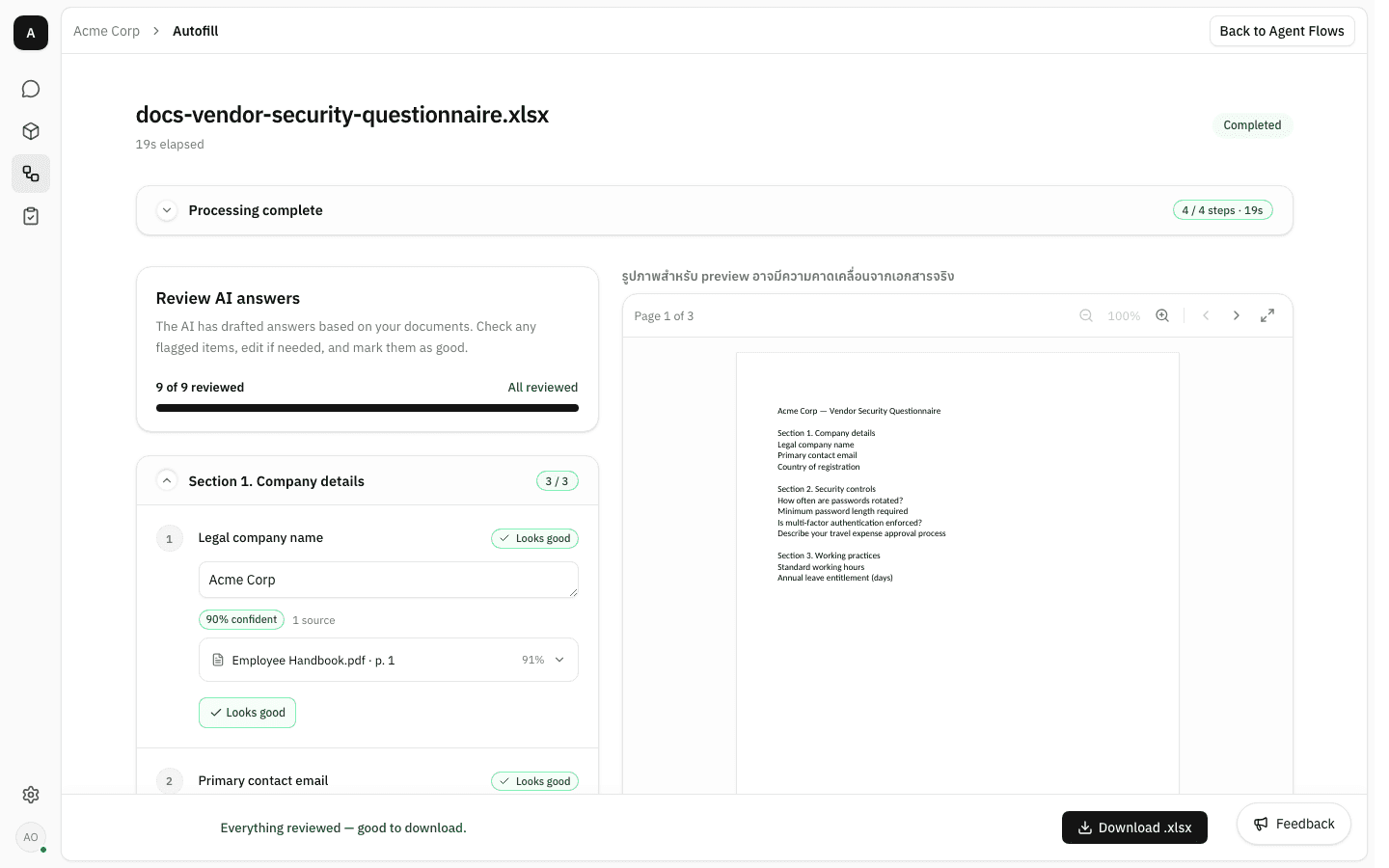
-
Click the download button — Download .xlsx here, Download .docx for a Word form, Download .pdf for a PDF. The platform fills your reviewed answers into the original file and hands it back with its layout, styling and any untouched content intact.
Reviewing is a single sitting
The agent's draft is stored on the server and reloads whenever you open the run again. Your edits and sign-offs are not — they live in the open page only. Finish a review and download the file before you close the tab; coming back later means starting the review over from the AI draft.
Remove a run
-
Click the … button on a run's card. Open goes to the run page; Remove takes it off the list.
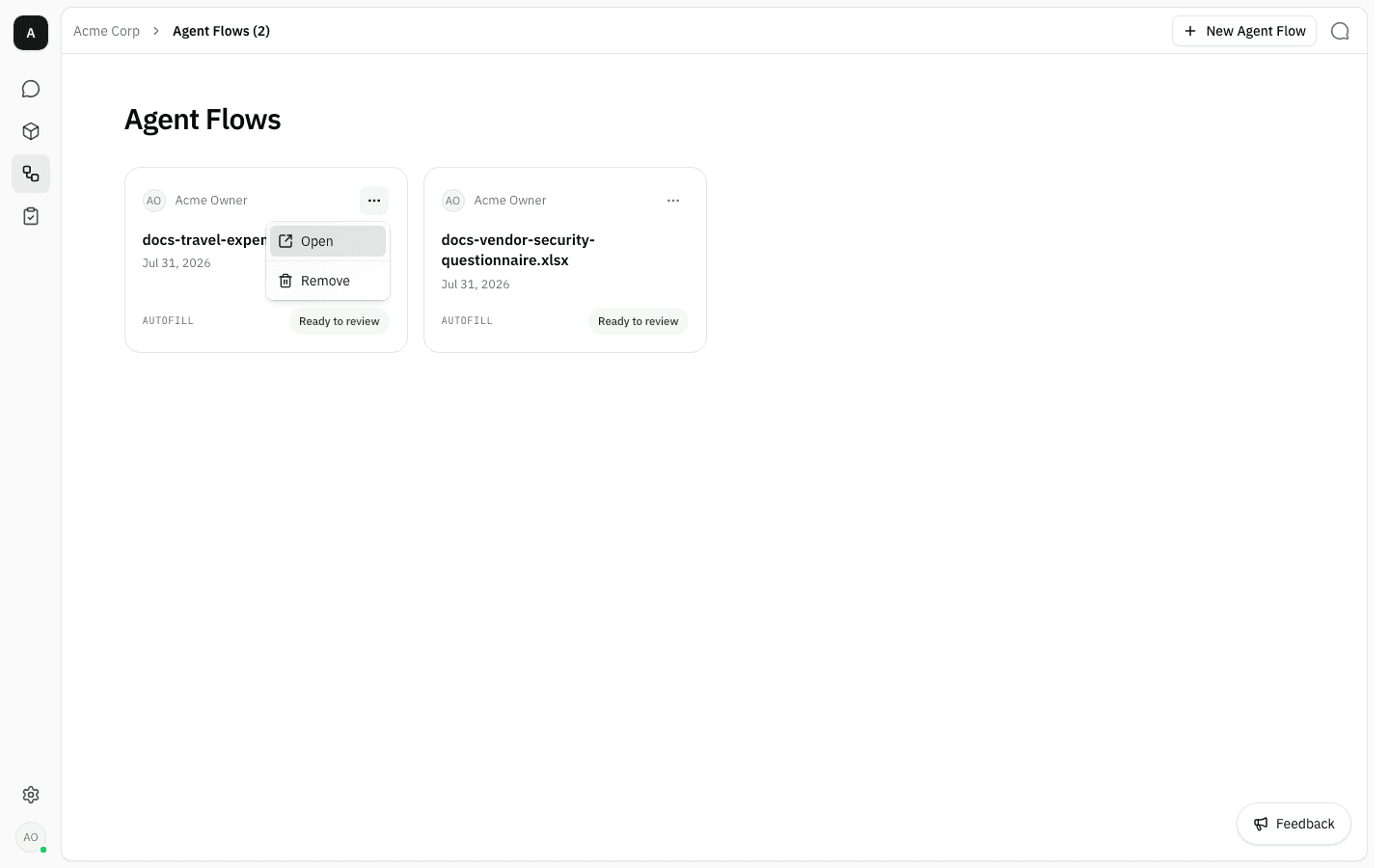
-
Click Remove. The card disappears immediately, with no confirmation step, and the count in the breadcrumb drops.
You can always remove a run you started yourself. Removing someone else's run needs the
workspace:managepermission — workspace owners and admins have it, a plain member does not.
When a run will not start
If the form cannot be handed to the agent at all, the launcher keeps your file selected and says so above it, so you can simply try again.
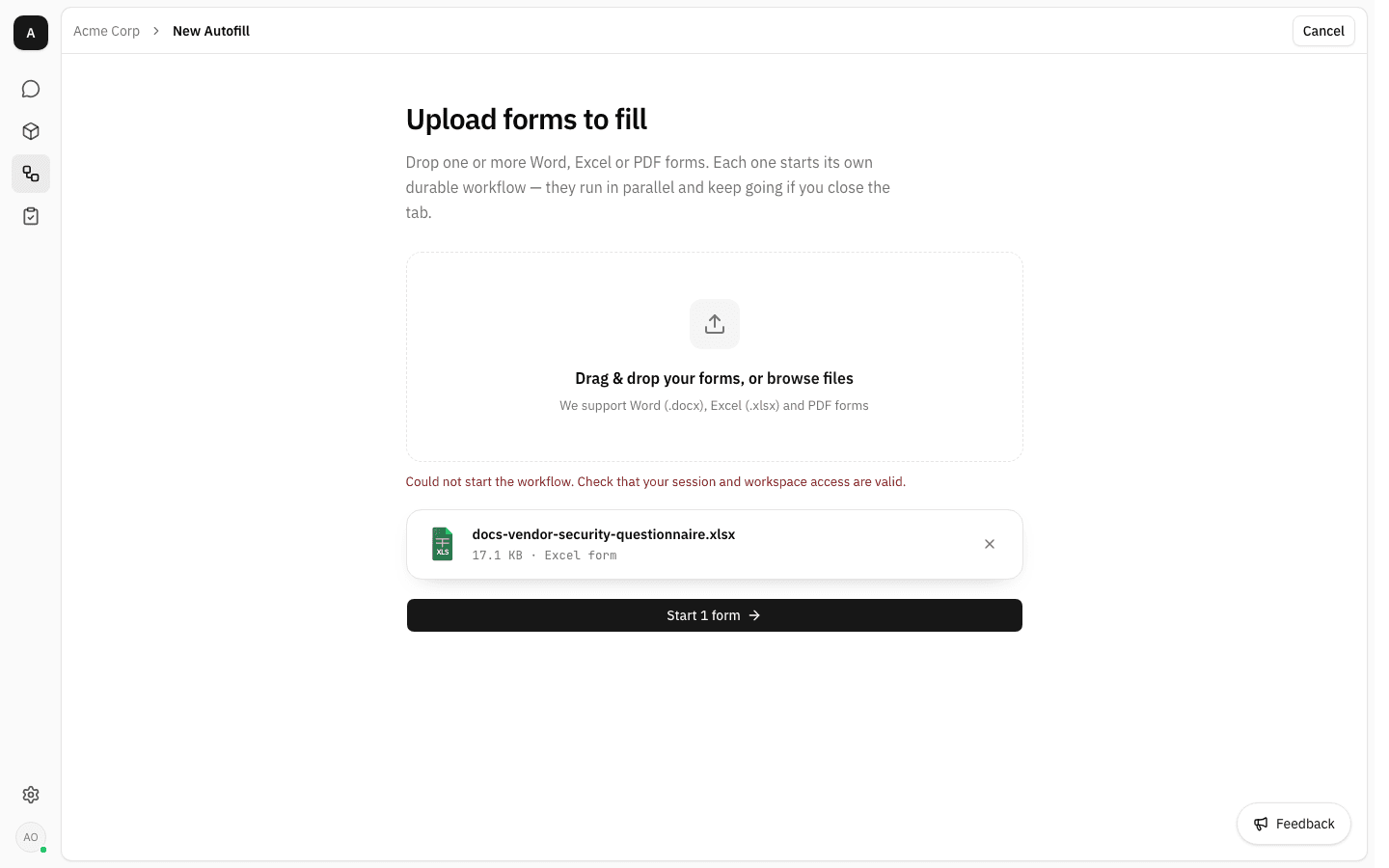
The usual causes are a session that expired while the page was open, or the document-processing service being temporarily unavailable. Reload the page and press Start again; if it keeps failing, ask a workspace admin to check that the platform's processing service is running.
A run that starts and then fails behaves differently: it reaches the run page and shows Autofill couldn't finish there, with the stage it stopped on marked in the list — most often Drafting answers, which is where a missing or unreachable language model shows up. Upload the form again once the model is configured.
Notes
- The list holds the workspace's 200 most recent runs, newest first.
- Remove hides a run rather than erasing it. The record is kept behind the scenes, but there is no way to bring a removed run back through the interface — treat the click as final.
- A run searches with your own identity, so it draws on the same workspace library you would search from chat — no more, no less.
- The original form you uploaded is stored with the run, which is what lets the preview and the download rebuild the file long after the run finished.
Chat with the assistant
Ask questions in plain language and get answers drawn from your workspace's documents, with the sources behind every claim.
Projects
Create projects to give a piece of work its own document library, its own members and its own permissions, separate from the rest of the workspace.