Projects
Create projects to give a piece of work its own document library, its own members and its own permissions, separate from the rest of the workspace.
A project is a walled-off corner of the workspace. It has its own files, its own assistant, its own member list, its own groups and its own audit log — so a project is the right home for anything that should be visible to some people but not to the whole company: a client engagement, a product launch, an internal investigation.
Anything the whole team should be able to find belongs in workspace files instead. Use a project when access needs to be narrower than the workspace.
This page covers the Projects list: the workspace-level screen where projects are created, searched and opened. What you do inside a project is documented separately — see Project chat, Project files and Project settings.
Prerequisites
- Membership of the workspace, to see the Projects list at all.
- Creating a project needs the Create project permission. Workspace owners and admins have it by default; a plain member gets it only through a workspace group that grants it. Without the permission the page still works — you simply see no New project button.
Open the Projects list
-
Click the projects icon in the left sidebar — the second one down, under Chat. A workspace with nothing in it yet says so, and offers the only action available from here.
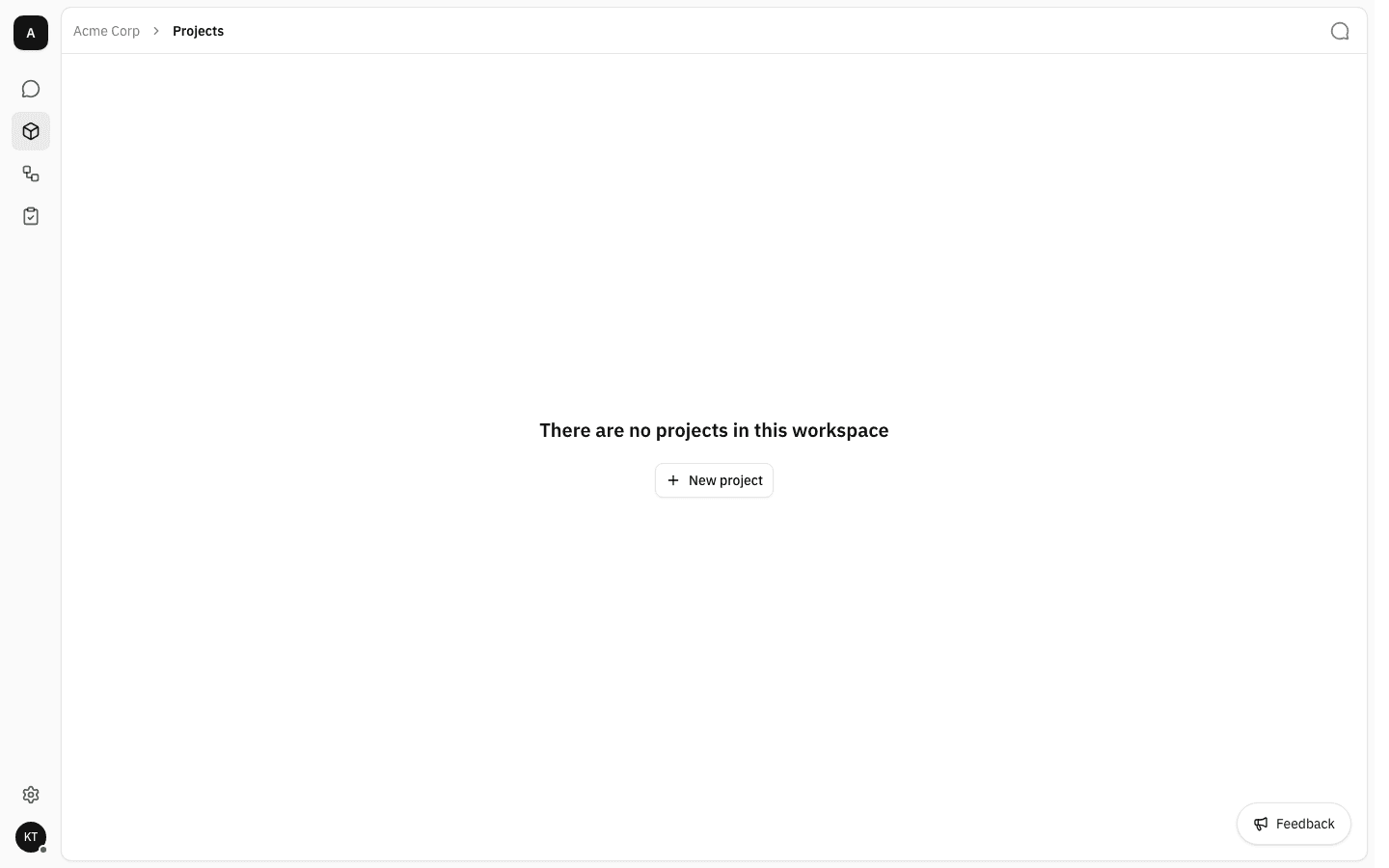
A different empty message?
If the page reads "You don't have access to any projects in this workspace yet", the workspace does have projects — you are just not a member of any of them. Ask a workspace admin to add you to the one you need.
Create a project
-
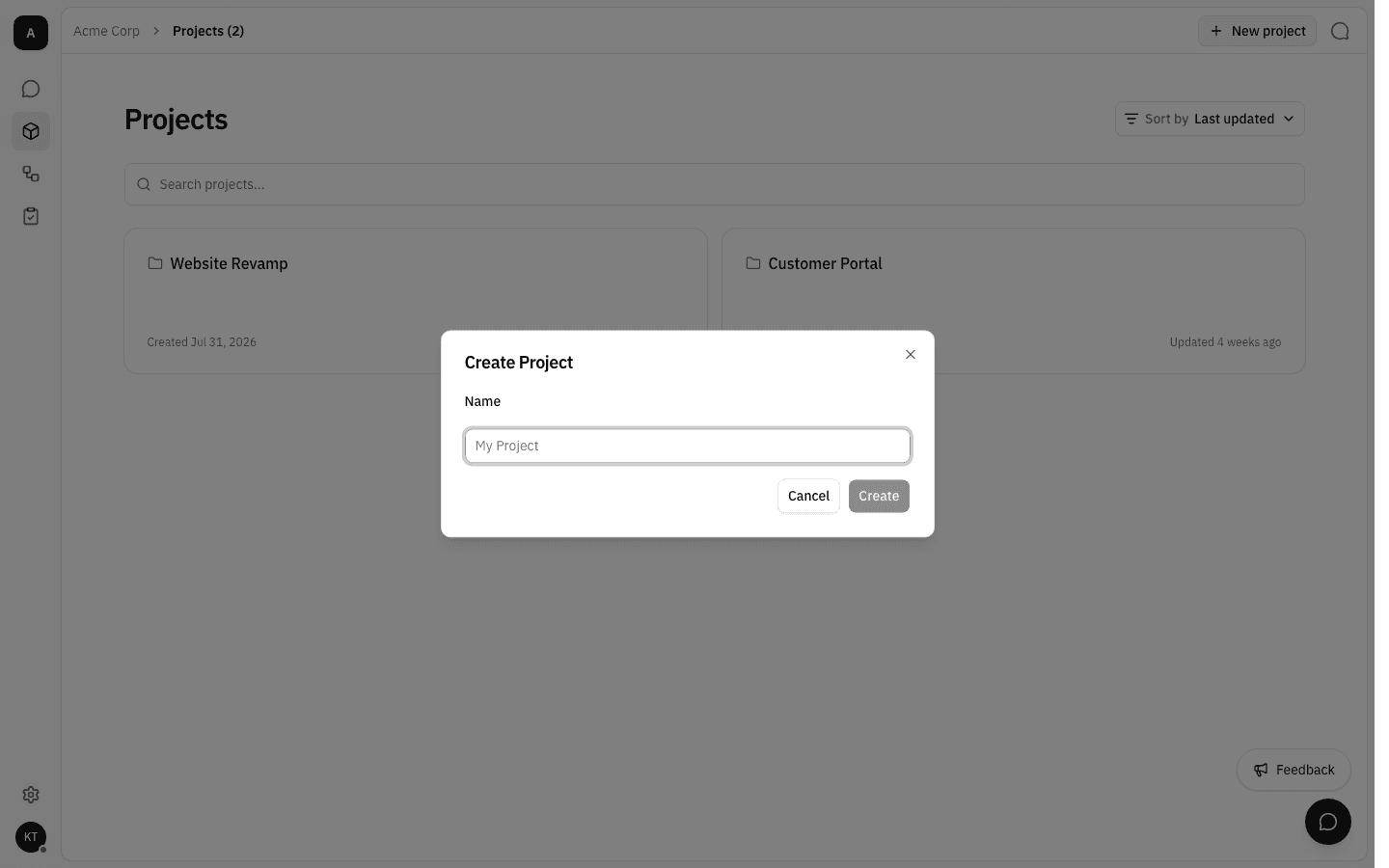
Click New project. The dialog asks for one thing: a name. Everything else — files, members, permissions, models — is set up inside the project afterwards.
-
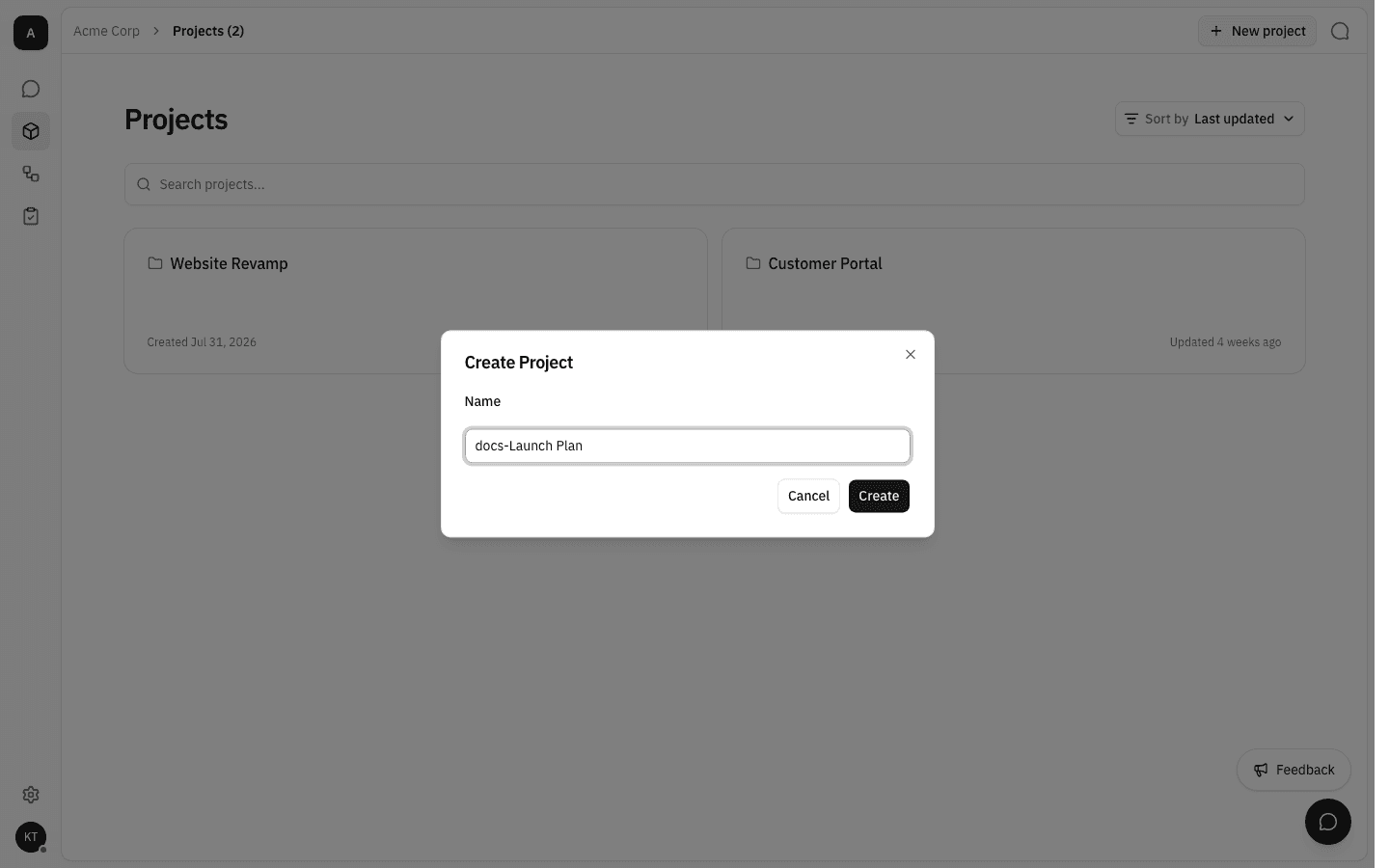
Type the name. Create stays disabled until the field has something other than spaces in it, and the name can be up to 255 characters.
-
Click Create. The dialog closes, you stay on the list, and the new project appears as a card — first in the grid, because the list is ordered by last activity and nothing is newer. The breadcrumb count goes up, and once at least one project exists the New project button lives in the page header.
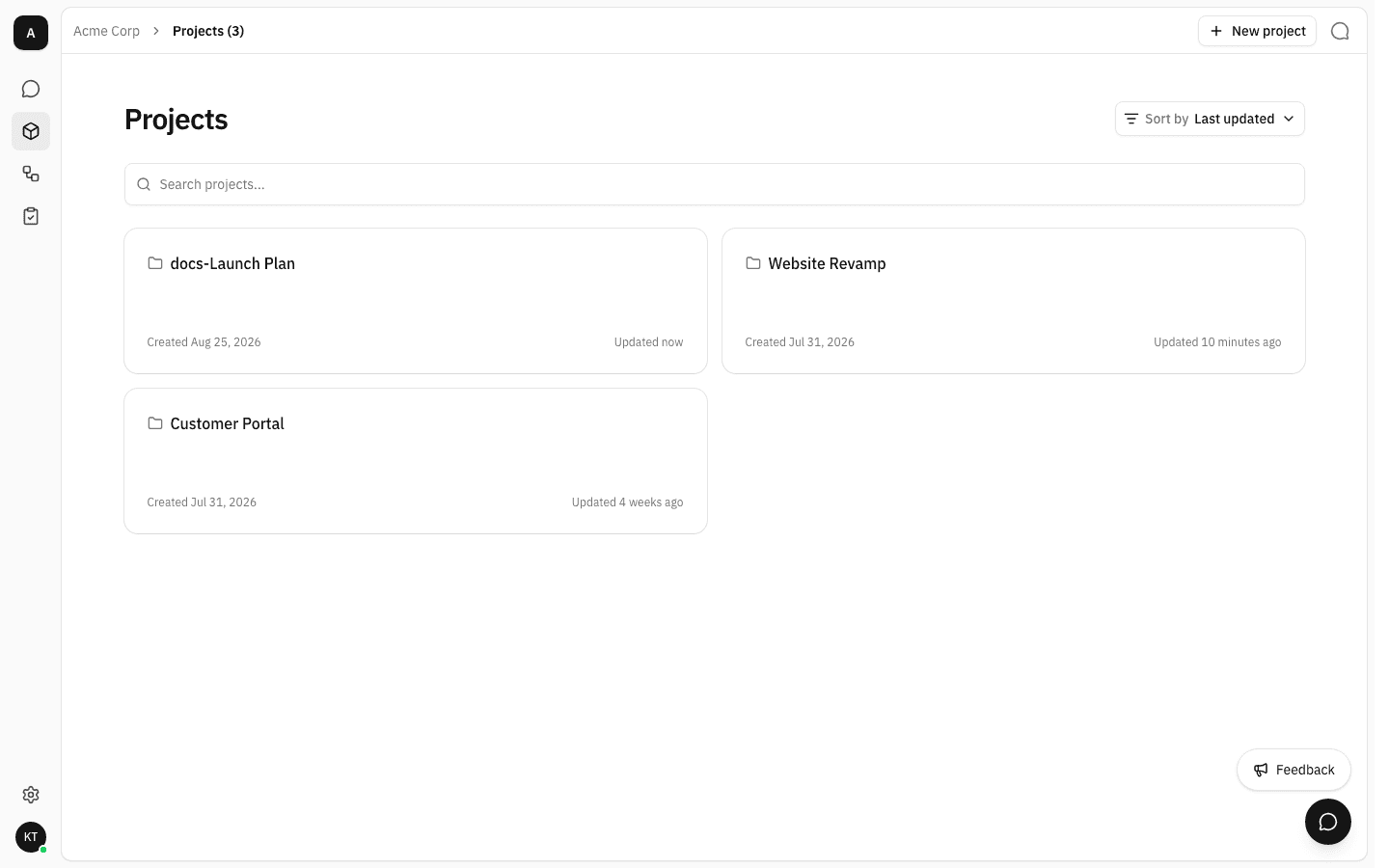
Each card shows when the project was created and when it was last active. Updated tracks real activity in the project — a file added, a member changed — not just edits to the project's name.
You are added to the new project as its owner, so it is yours to fill and to share. Other members only see it once you add them under Members — workspace owners and admins are the exception, they see every project.
Find a project
-
Type into Search projects... to narrow the list by name. Matching is case-insensitive and matches anywhere in the name, so "portal" finds Customer Portal.
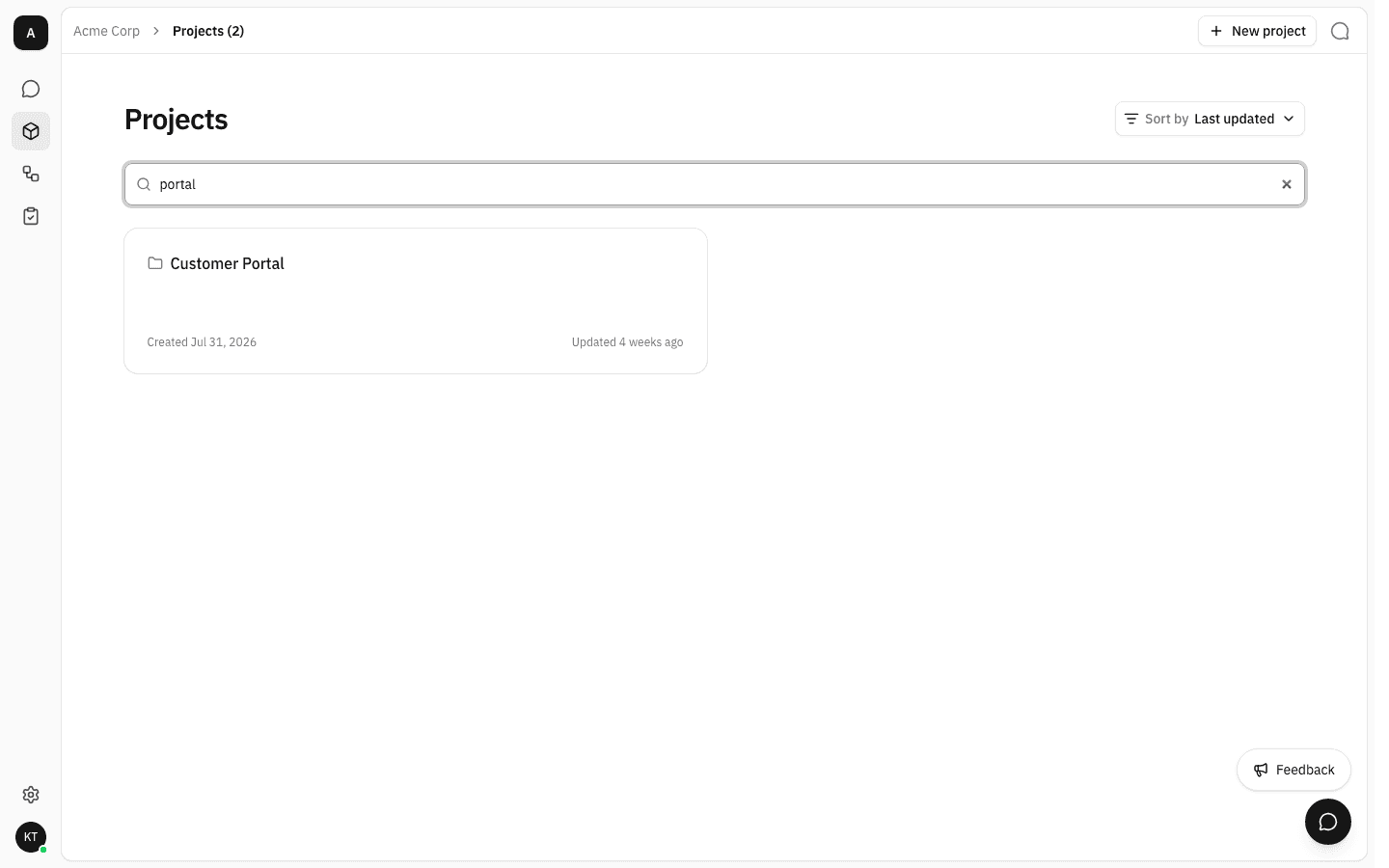
The search text lives in the page address, so a filtered list can be bookmarked or pasted to a colleague and it opens the same way.
-
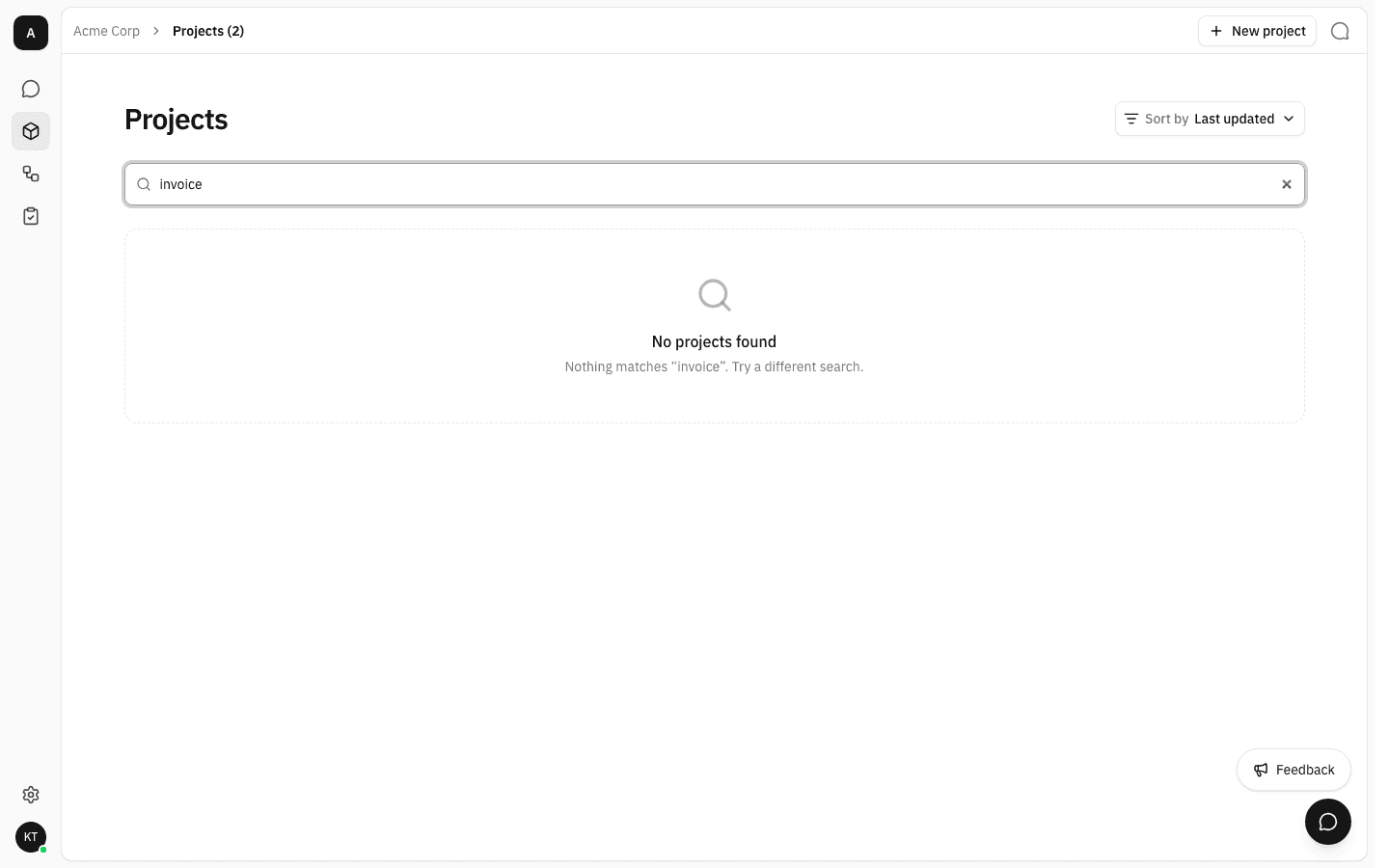
When nothing matches, the page says so and leaves the search box filled, so you can correct the text rather than start again.
-
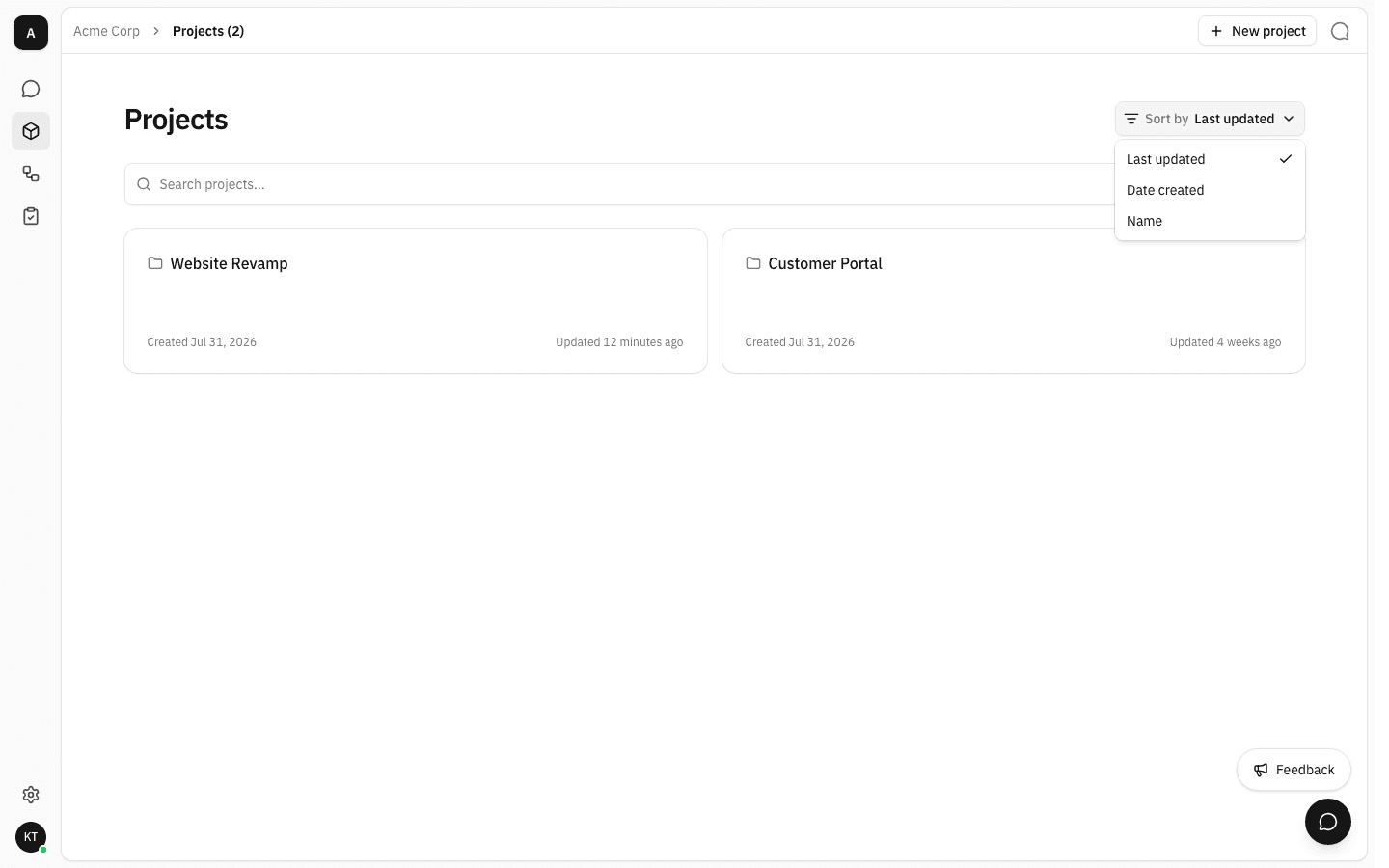
Use Sort by to reorder the cards. Last updated — the default — puts the most recently active project first; Date created puts the newest first; and Name sorts alphabetically.
Open a project
-
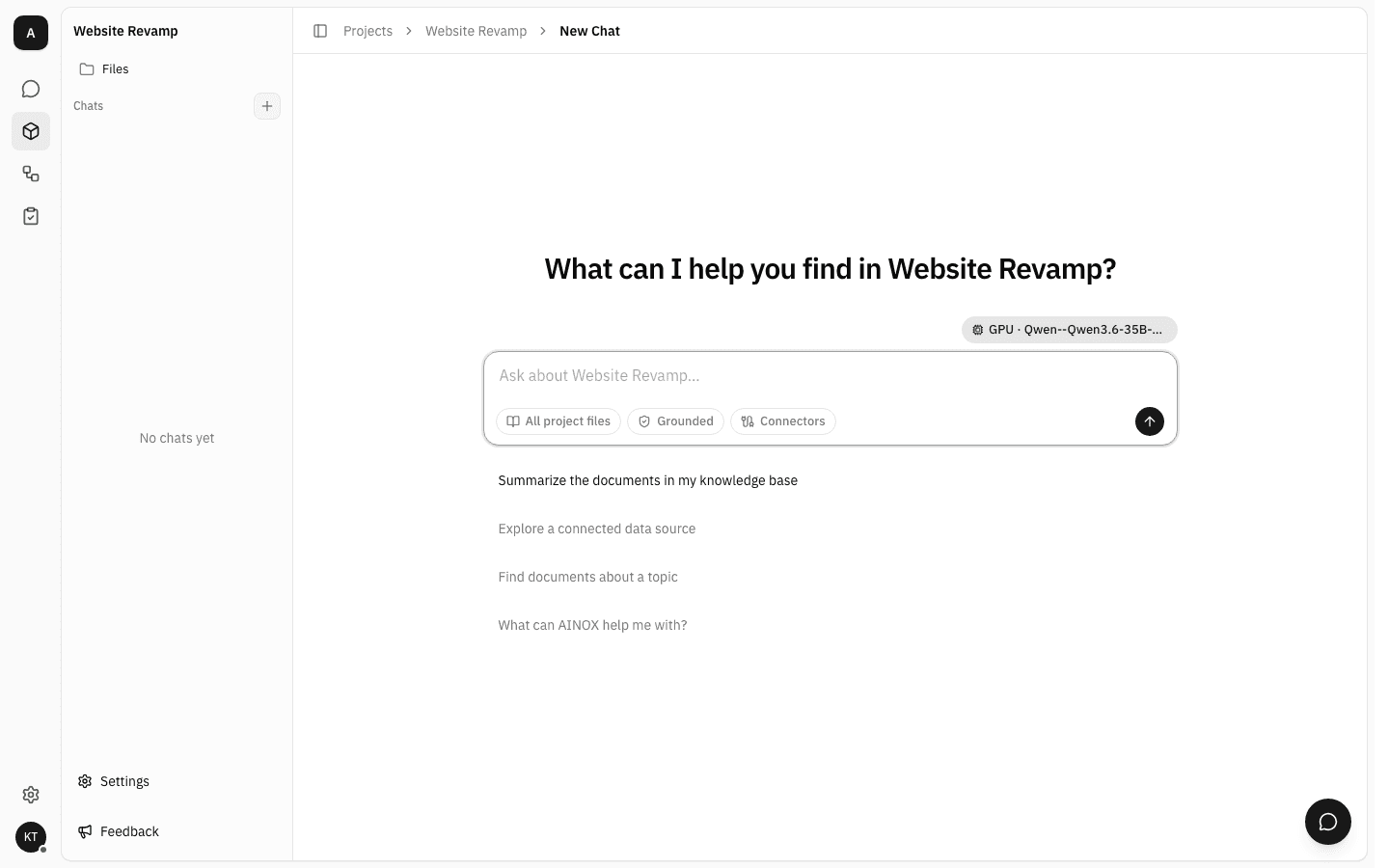
Click anywhere on a project's card. The project opens on its chat — an assistant that can read this project's documents and nothing else — and the left sidebar becomes the project's own navigation.
A project has no overview page
There is no summary screen to land on. A project's created date and last activity are shown on its card in this list, and everything else about the project is reached from the project sidebar.
The sidebar holds the project's two everyday screens — its Chats and its Files. Everything administrative sits behind the Settings control at the bottom of that sidebar: flipping it swaps the sidebar for a panel listing Groups, Audit Log, Members, Models and the project's own Settings page, where the project is renamed or deleted.
The breadcrumb's Projects link takes you back to the list.
Notes
- What you see in the list depends on your role. Workspace owners and admins see every project in the workspace. Everyone else sees only the projects they have been added to — so two people can open the same page and count a different number of projects.
- Project names do not have to be unique. Two projects can carry the same name, so prefer names that stay distinguishable in a card grid.
- Search and sort only affect your own view. They change the address of the page, never the projects themselves.
Workflows
Hand a blank Word, Excel or PDF form to a workflow and get it back filled in from your workspace documents, with every answer traced to its source and yours to approve before you download it.
Project settings
Open a project's settings panel, rename the project, and delete it permanently when the work is finished.