Project chat
A project's own assistant — ask questions about that project's documents, in conversations that live inside the project.
Project chat is the front page of a project. Open a project from anywhere in AINOX PLATFORM and this is what you land on: a message box, the project's own list of conversations, and an assistant that searches only that project's documents.
It works the same way as workspace chat — the same citations, the same Grounded and Explore modes, the same connectors and model picker — with one difference that changes everything about how it feels: the scope. A question asked here cannot reach the shared workspace library or another project. You get answers about this project and nothing else, and the conversations stay with the project rather than mixing into your personal chat history.
Prerequisites
- Membership of the project (or workspace owner/admin) to open it at all.
- The project-level
file:readpermission to use chat. Without it the page shows an Access Denied panel — "You do not have permission to chat with files in this project" — and the Chats section disappears from the project sidebar. Everything else about the project stays reachable. - A working model provider, and at least one project document that has finished indexing and reached Ready. An empty project gives you an assistant with nothing to read.
Ask a question about a project
-
Open a project from the Projects list. It opens straight into chat — the heading names the project, and so does the message box.
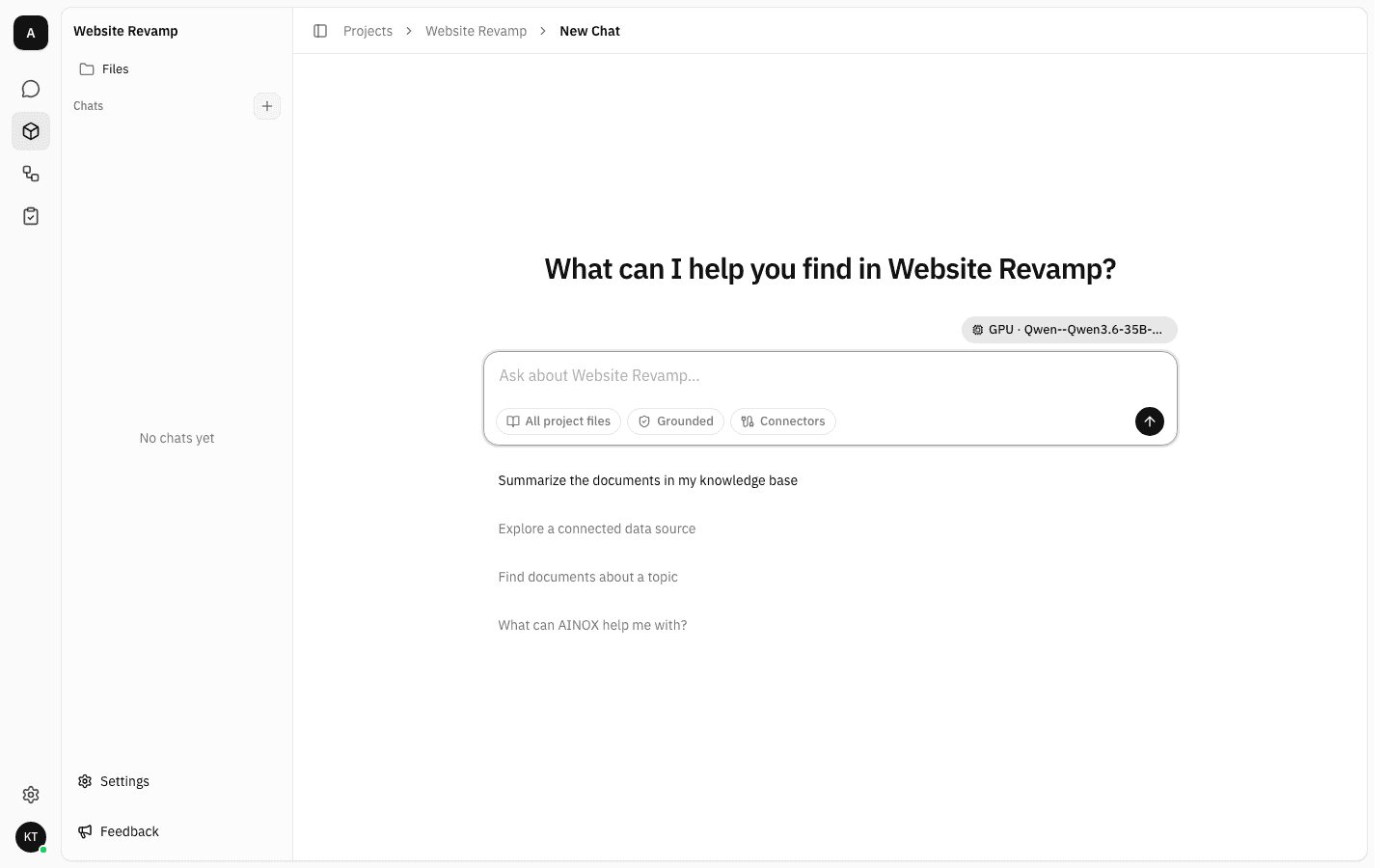
The chip row under the box is the same as in workspace chat, except for the first one: it reads All project files, not "Focus". That is the scope telling you where answers will come from.
The sidebar on the left belongs to the project — Files for its documents, Chats for these conversations, and Settings at the bottom for everything else about the project.
-
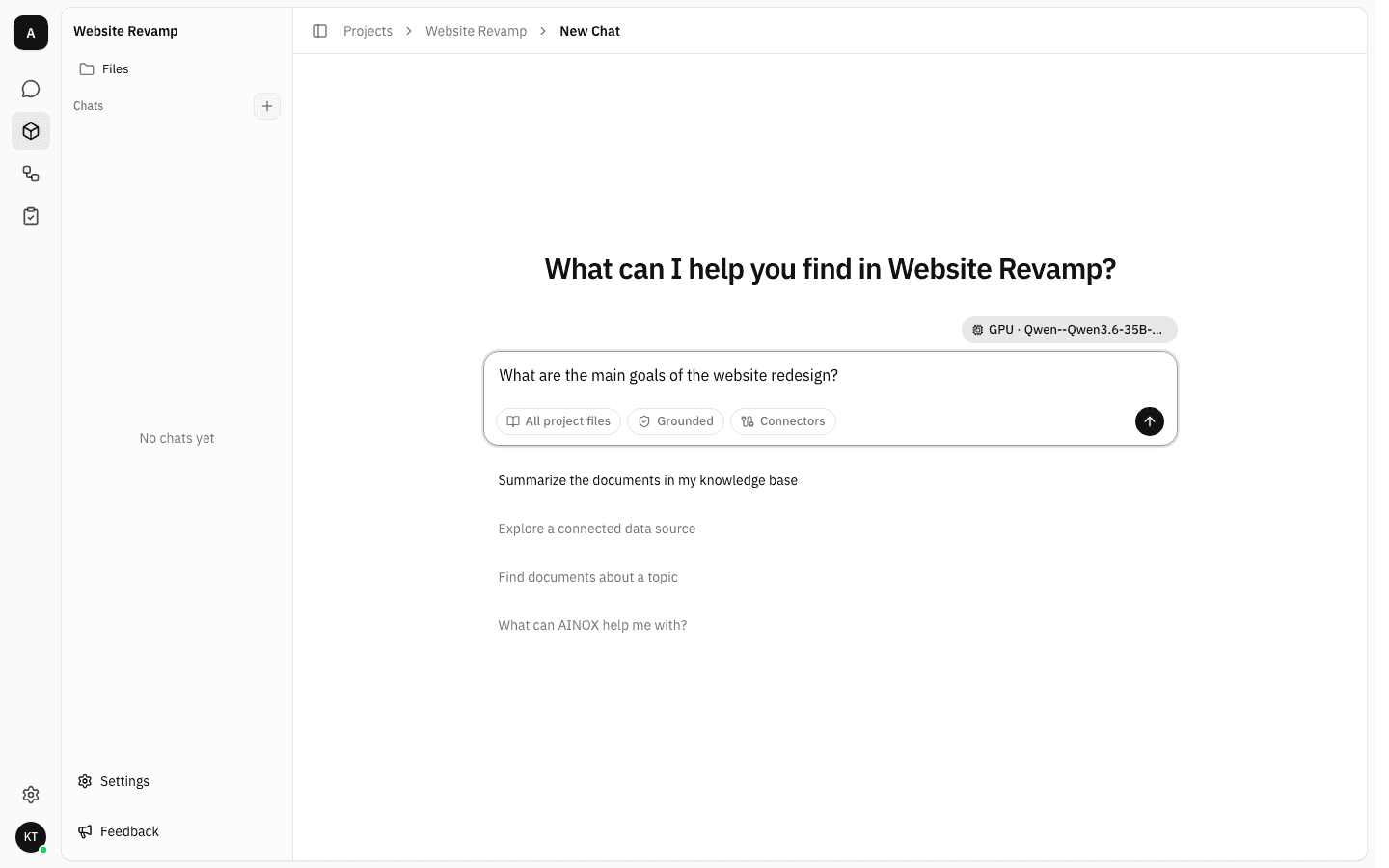
Type your question and press Enter. The four suggestions below the box fill it in for you rather than sending, so you can edit first.
-
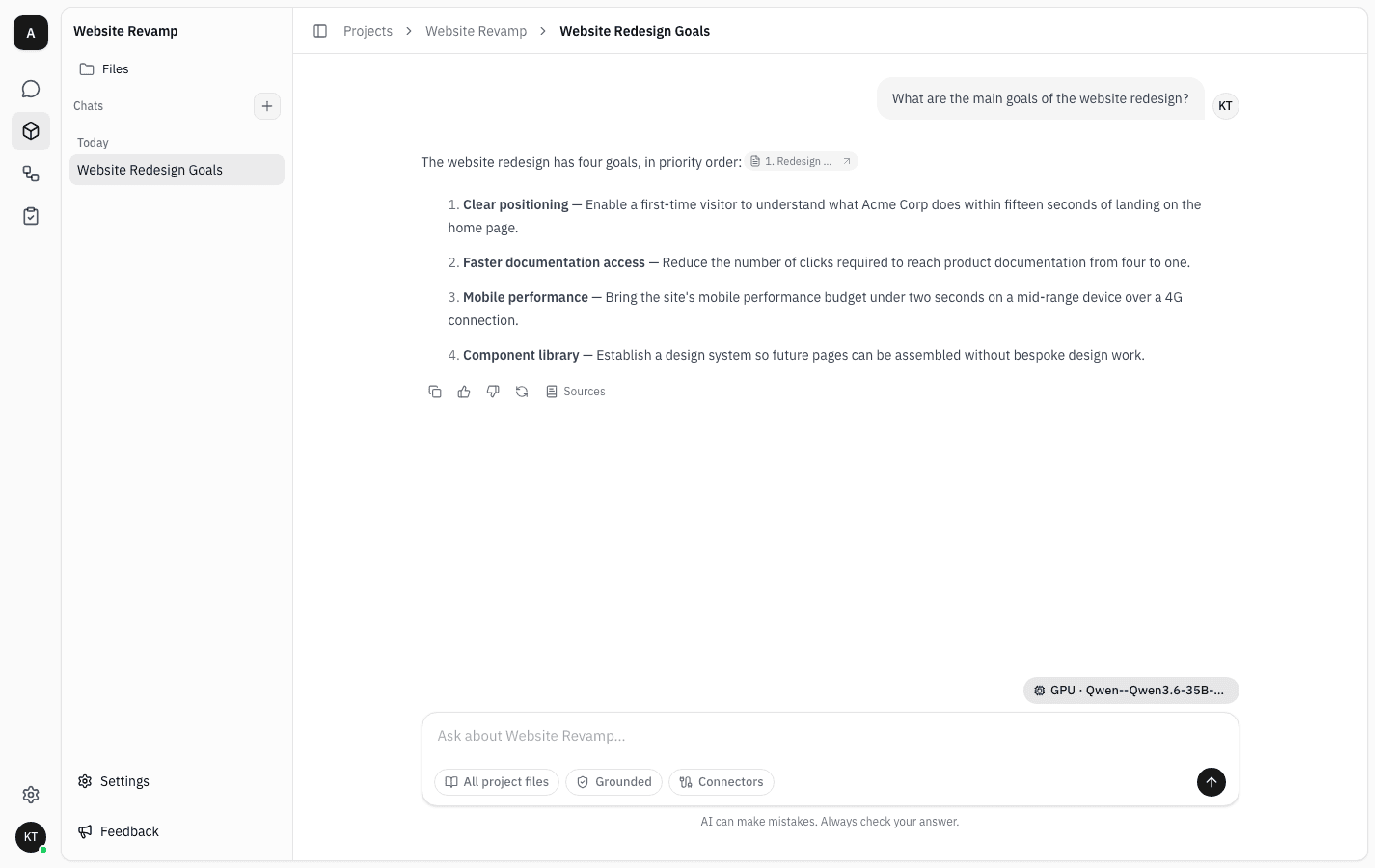
The answer streams in, the conversation gets a name of its own, and it appears in Chats in the sidebar under Today.
Check where a project answer came from
-
Hover the answer and click Sources. Every entry is a document from this project — that is the scope working.
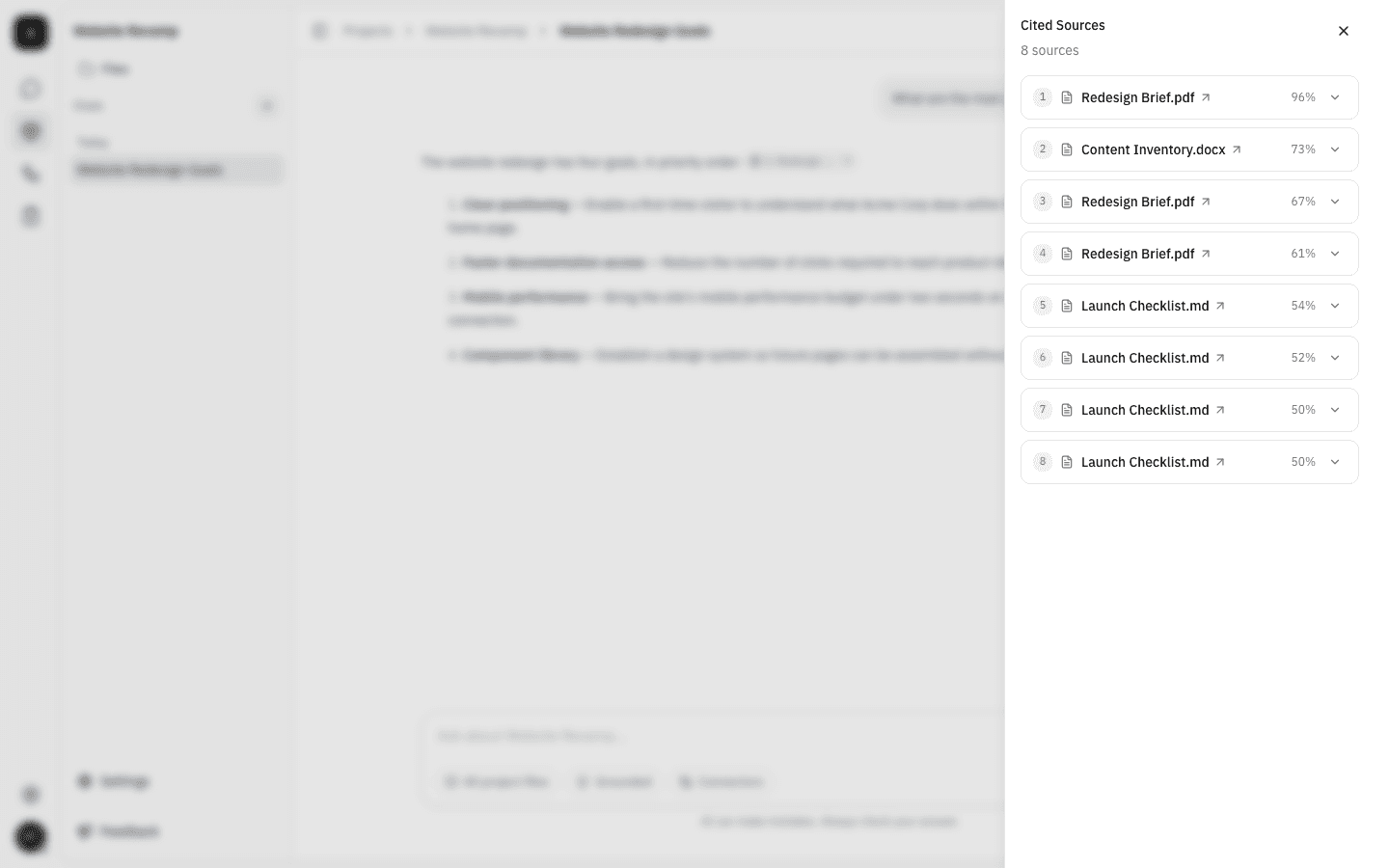
If a document you expected is missing from the list, check it is in the project's Files and has reached Ready — a file that lives in the workspace library instead will never appear here, however relevant it is.
Narrow a question to specific project files
-
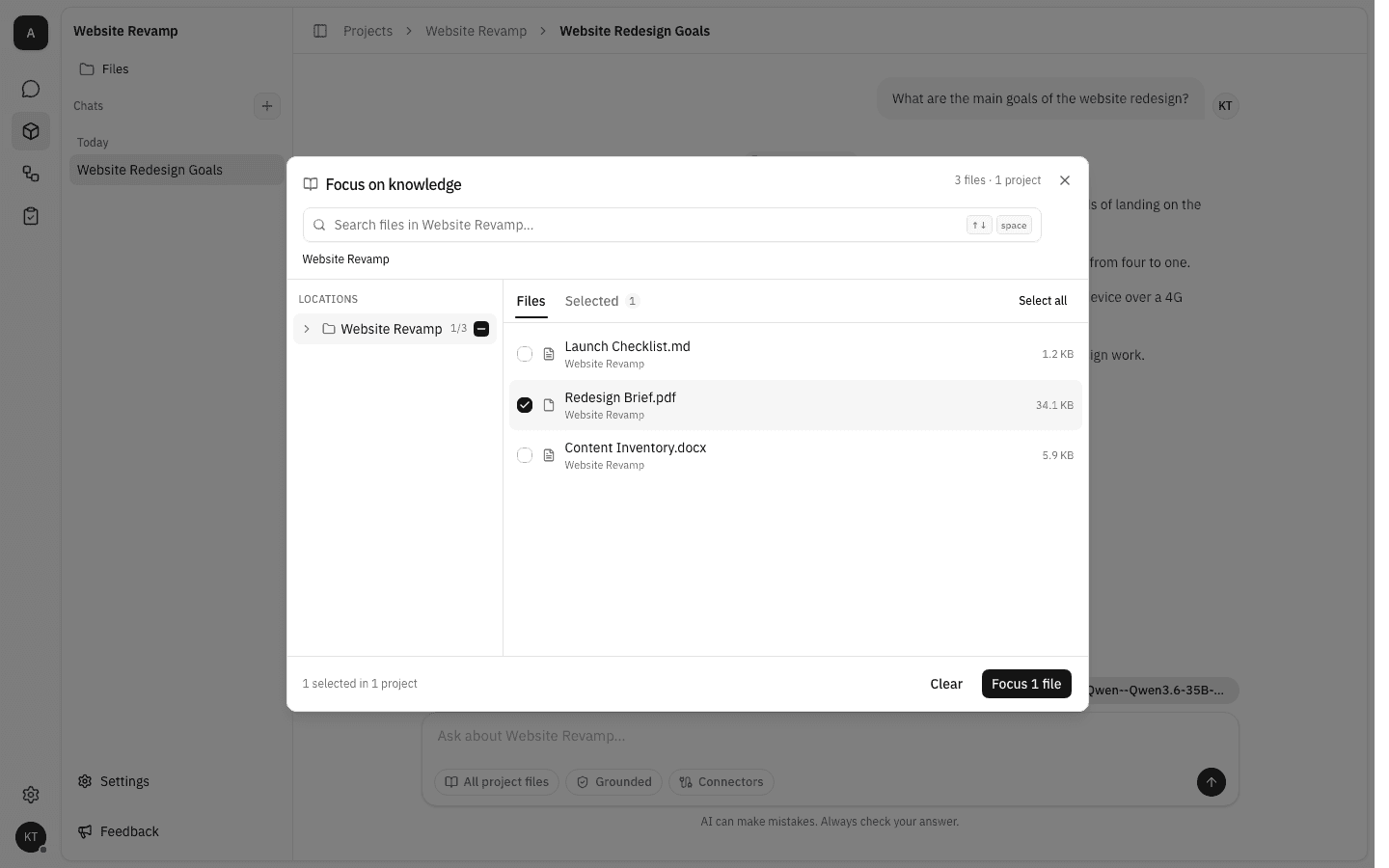
Click All project files to open the picker. It is rooted at the project, so the whole tree you can browse is the project's own documents — the count in the corner reads 3 files · 1 project. Tick what the question needs and click Focus.
-
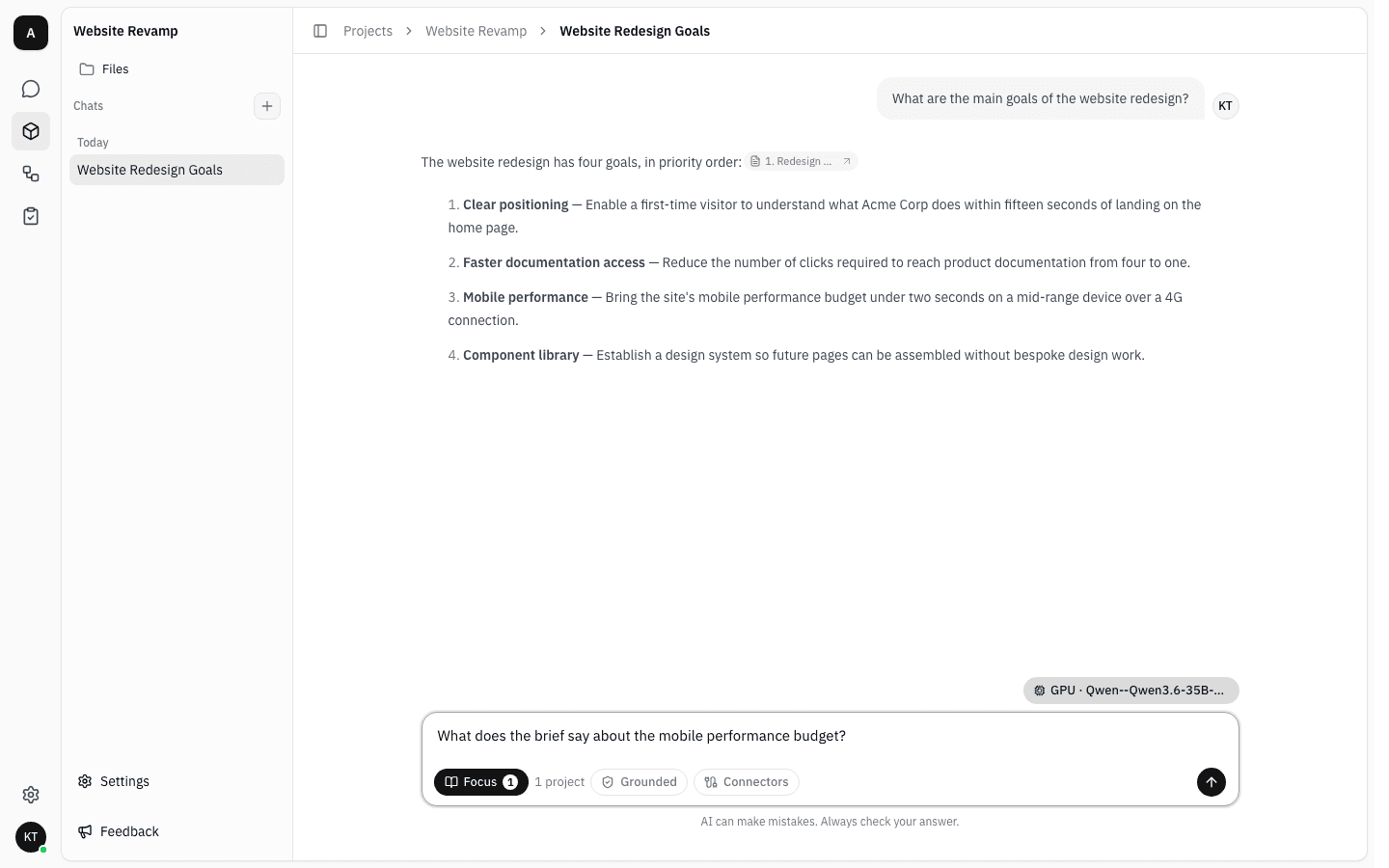
The chip changes to Focus 1 · 1 project, and stays that way for the rest of the conversation.
-
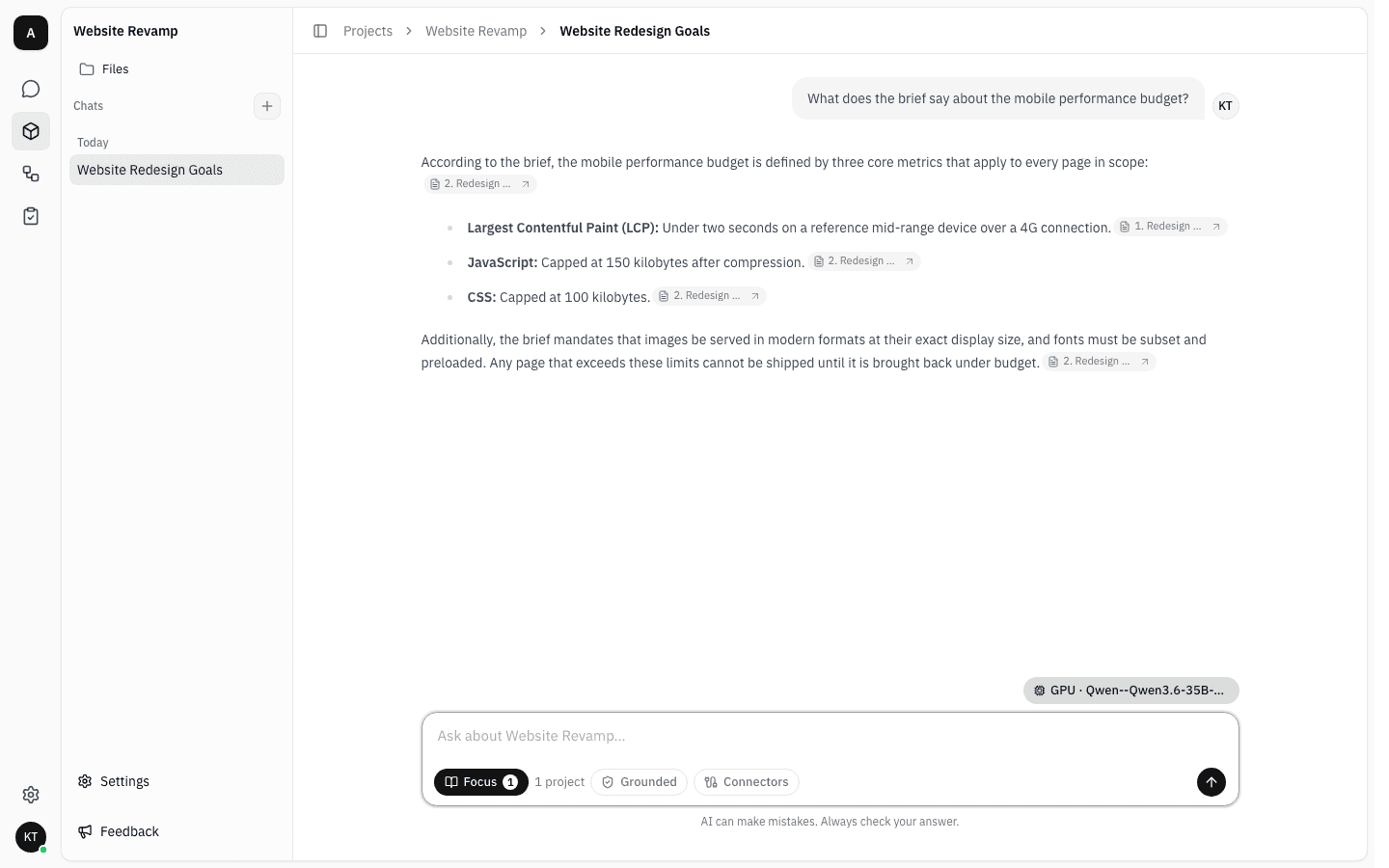
Ask, and the answer is built from those files alone.
Switch models
-
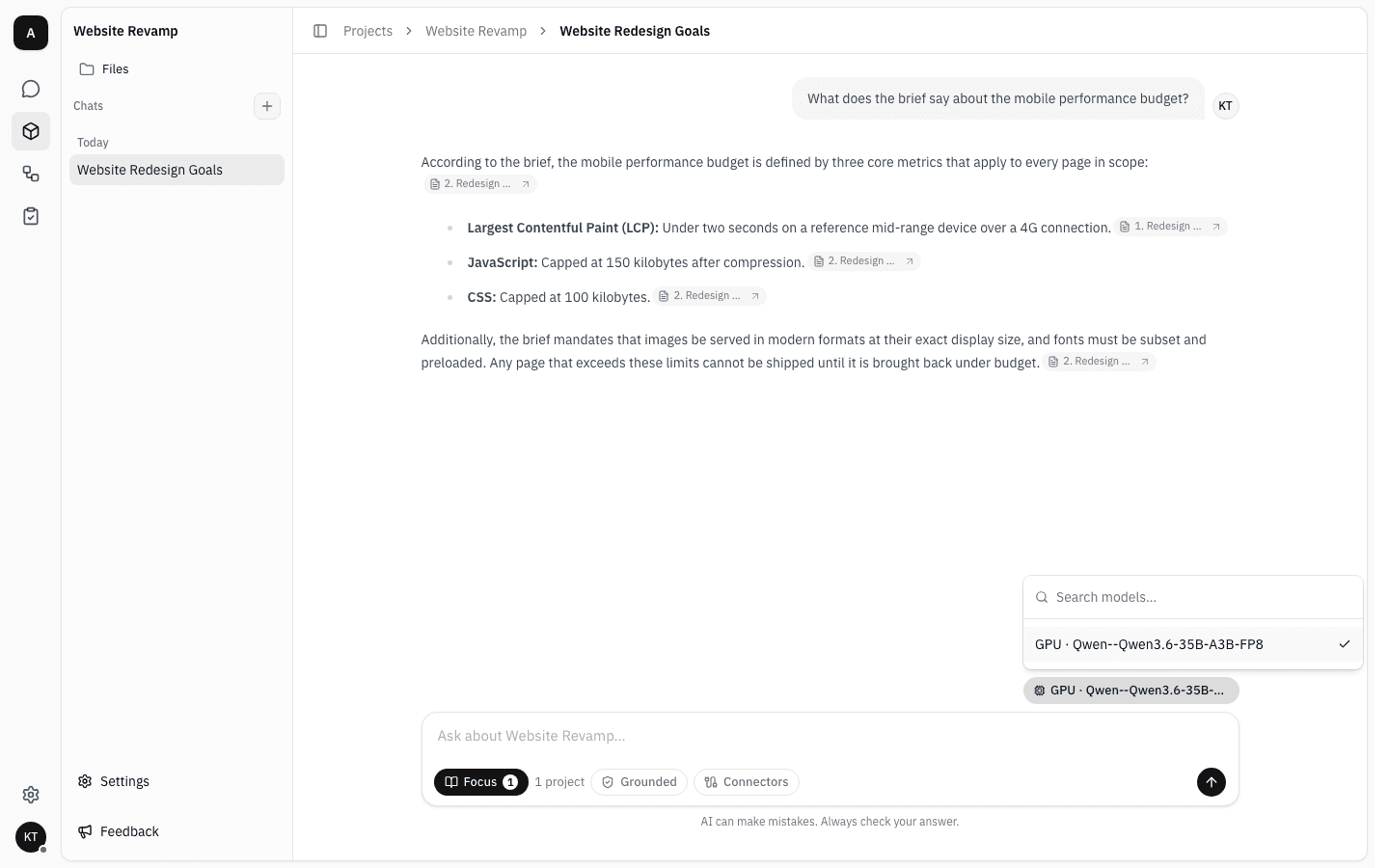
Click the model chip above the message box. The list shows the models available to this project — a project can be given a narrower set than the workspace, so this list is not always the one you see in workspace chat.
Keep several conversations in a project
-
The + next to Chats starts a fresh conversation without leaving the project. Each one keeps its own history, and a new chat starts from the default scope again — All project files — so a focus you set earlier does not follow you.
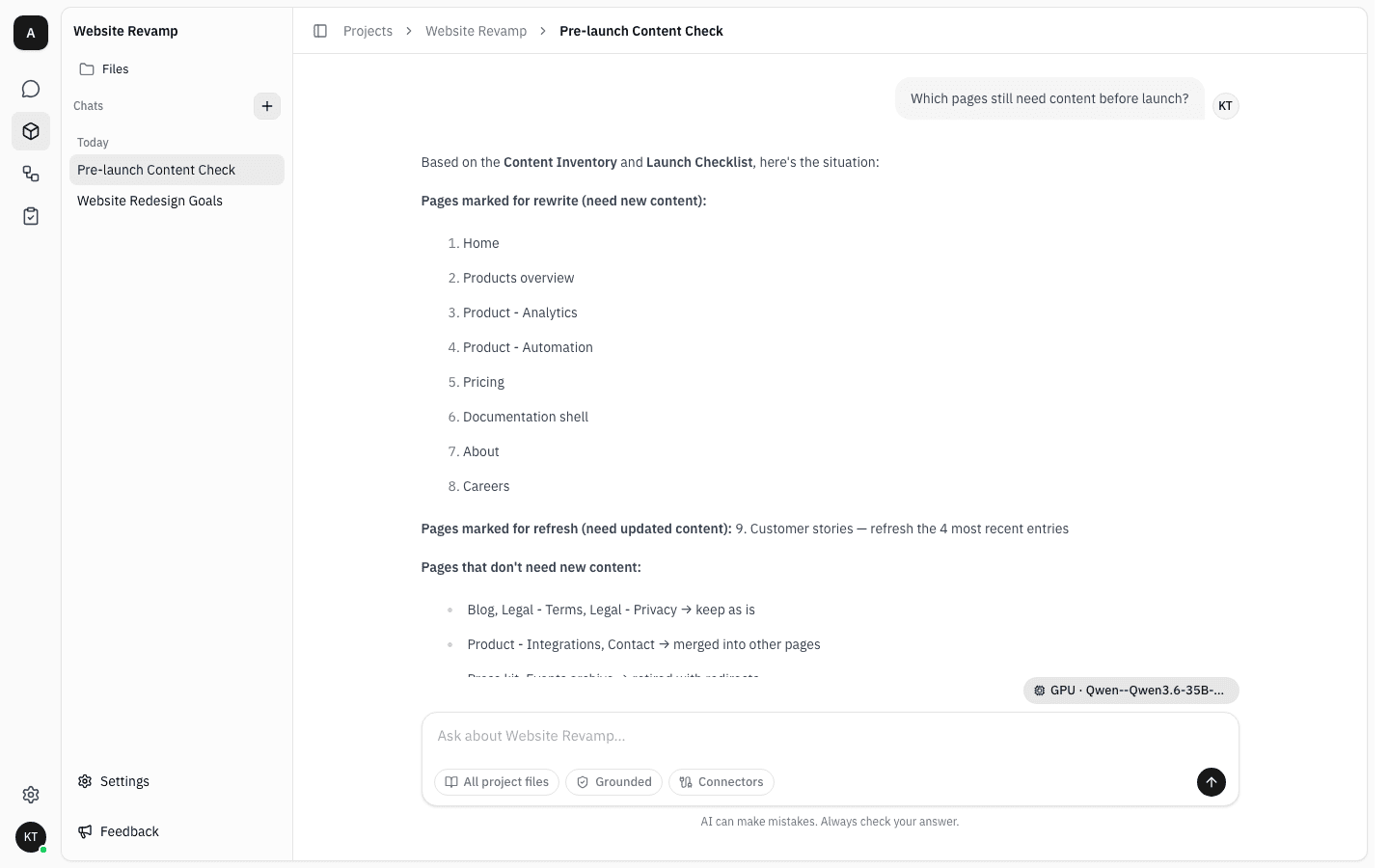
The list is grouped by when each conversation was last used, newest first, and loads more as you scroll. These conversations belong to the project's chat list, not to your personal Chat page.
Delete a conversation
-
Hover a row in Chats and click the bin icon at the end of it.
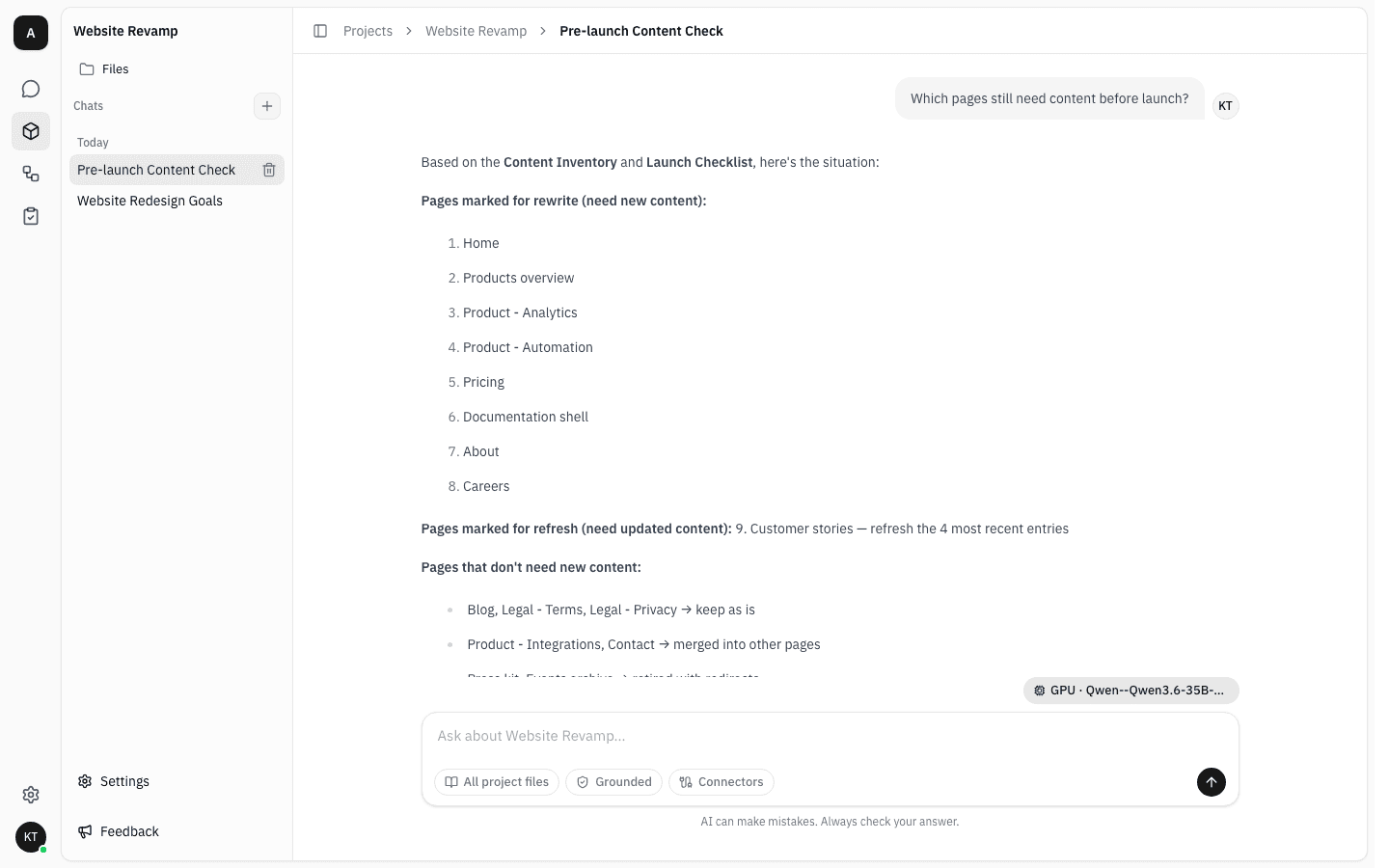
-
Confirm. Deleting is permanent — the conversation and its messages go, with no undo.
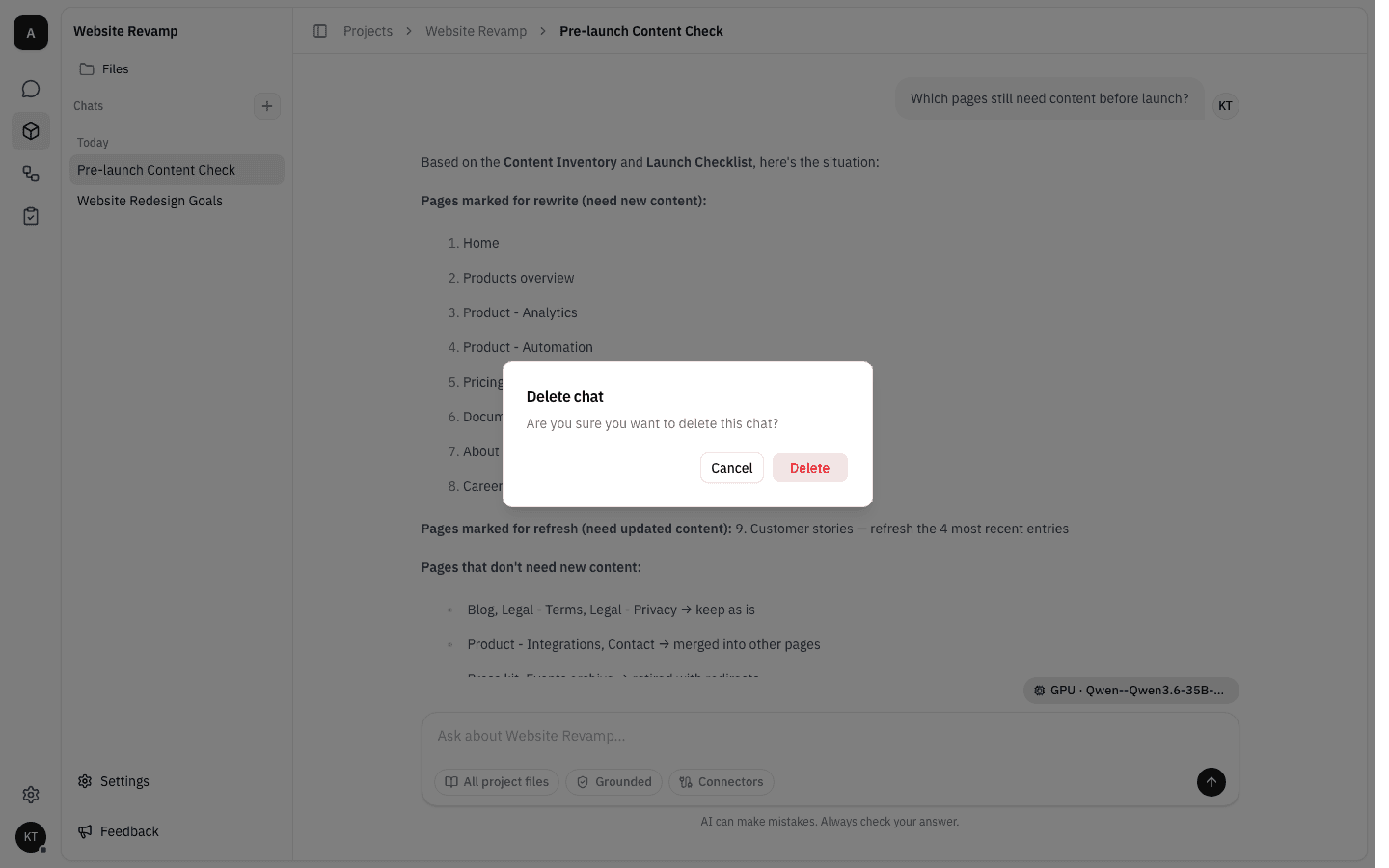
Deleting the conversation you are reading drops you back to an empty new chat for the same project.
Notes
- The project is the landing page. There is no separate project overview screen; a project's name in the breadcrumb, and the Projects link beside it, are how you move back out. Project details and deletion live under Settings in the project sidebar.
- Scope is not a filter you can widen. Nothing in project chat reaches the workspace library or another project. When a question needs both, ask it in workspace chat, which searches everything you can see — including the projects you belong to.
- Conversations are private to you, the same as workspace chat. Two members of the same project each see only their own list under Chats.
- Losing
file:readhides the conversations, it does not delete them. They come back when the permission does. - Everything else — citations, rating an answer with 👍/👎, Grounded versus Explore, connectors, regenerate and copy — behaves exactly as described in Chat with the assistant.