Share your app
Choose who can open your published App Builder app, add people by name or email, and see what someone without access sees.
A published app starts restricted: only you can open its site. The Share dialog sets who else can: people you name, everyone in the workspace, or anyone with the link.
Prerequisites
- A published app. The Share button appears once a publish has succeeded.
- You own the app, or you hold Manage everyone's apps.
- To open an app to anyone with the link, the Share with anyone with the link permission. Workspace owners and admins have it; members get it through a group. See Permissions.
Open the Share dialog
Any of these opens it:
- Share at the top right of the app in App Builder;
- Share under Access in the app's Settings;
- the first publish, which opens it by itself.
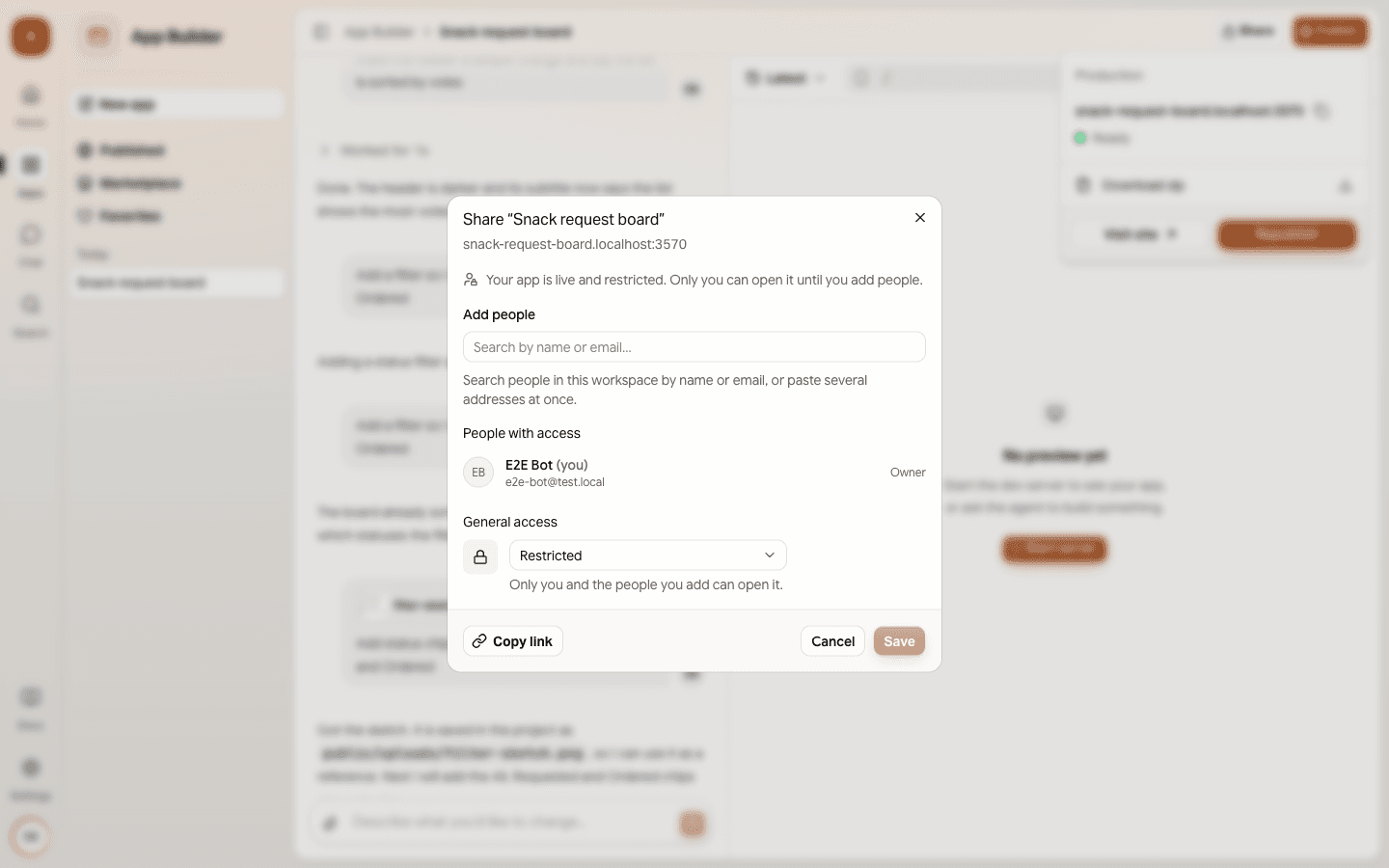
Choose who can open it
Pick one under General access:
| Option | Who can open the site |
|---|---|
| Restricted | "Only you and the people you add can open it." |
| Anyone in {workspace} | "Everyone in {workspace} can open it after signing in." |
| Anyone with the link | "Anyone with the link can open it. No sign-in." |
Click Save to apply. The button counts your changes, such as Save 1 change.
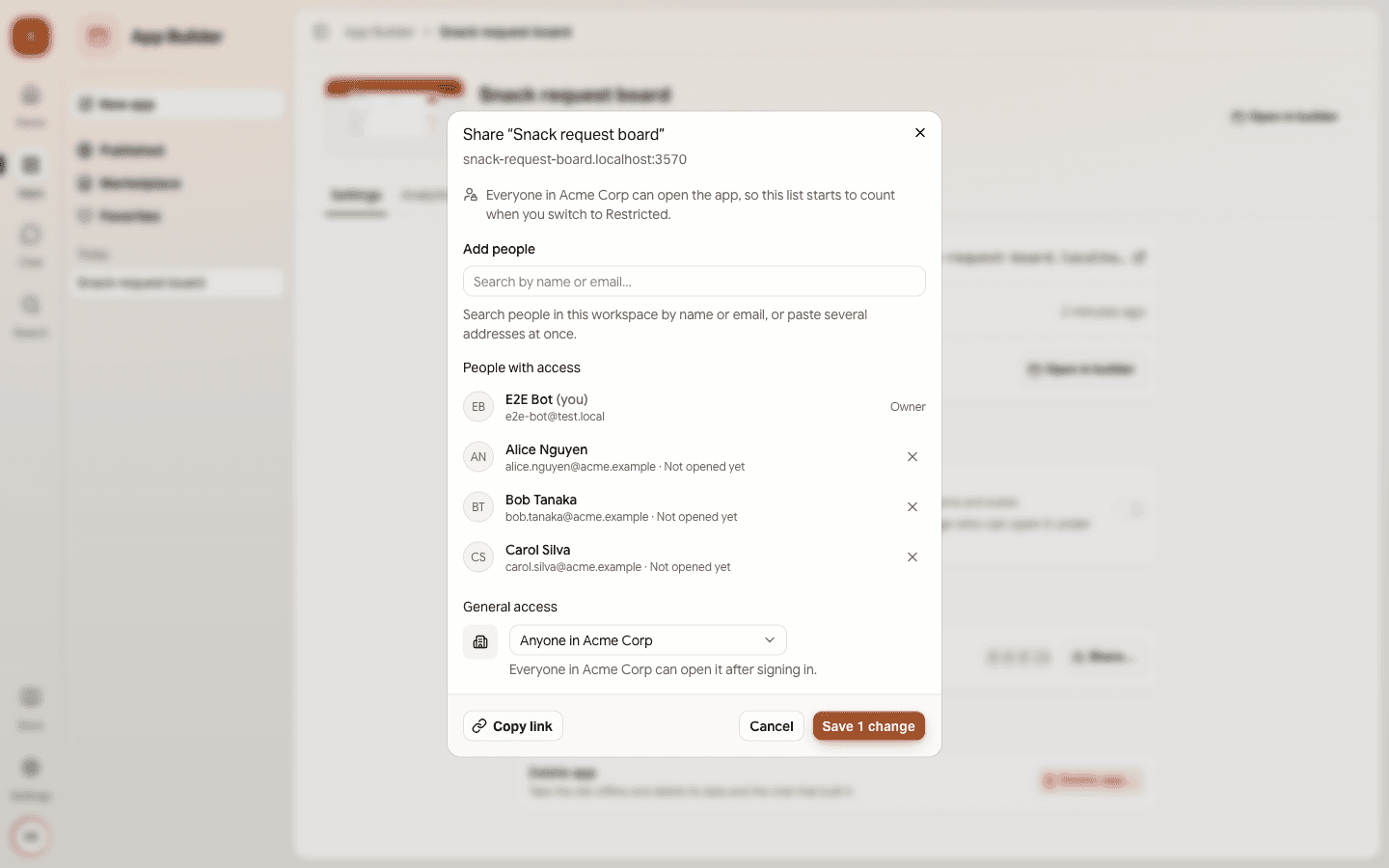
Without the Share with anyone with the link permission, that option is greyed out and the dialog says "A workspace admin can allow you to open apps to anyone with the link."
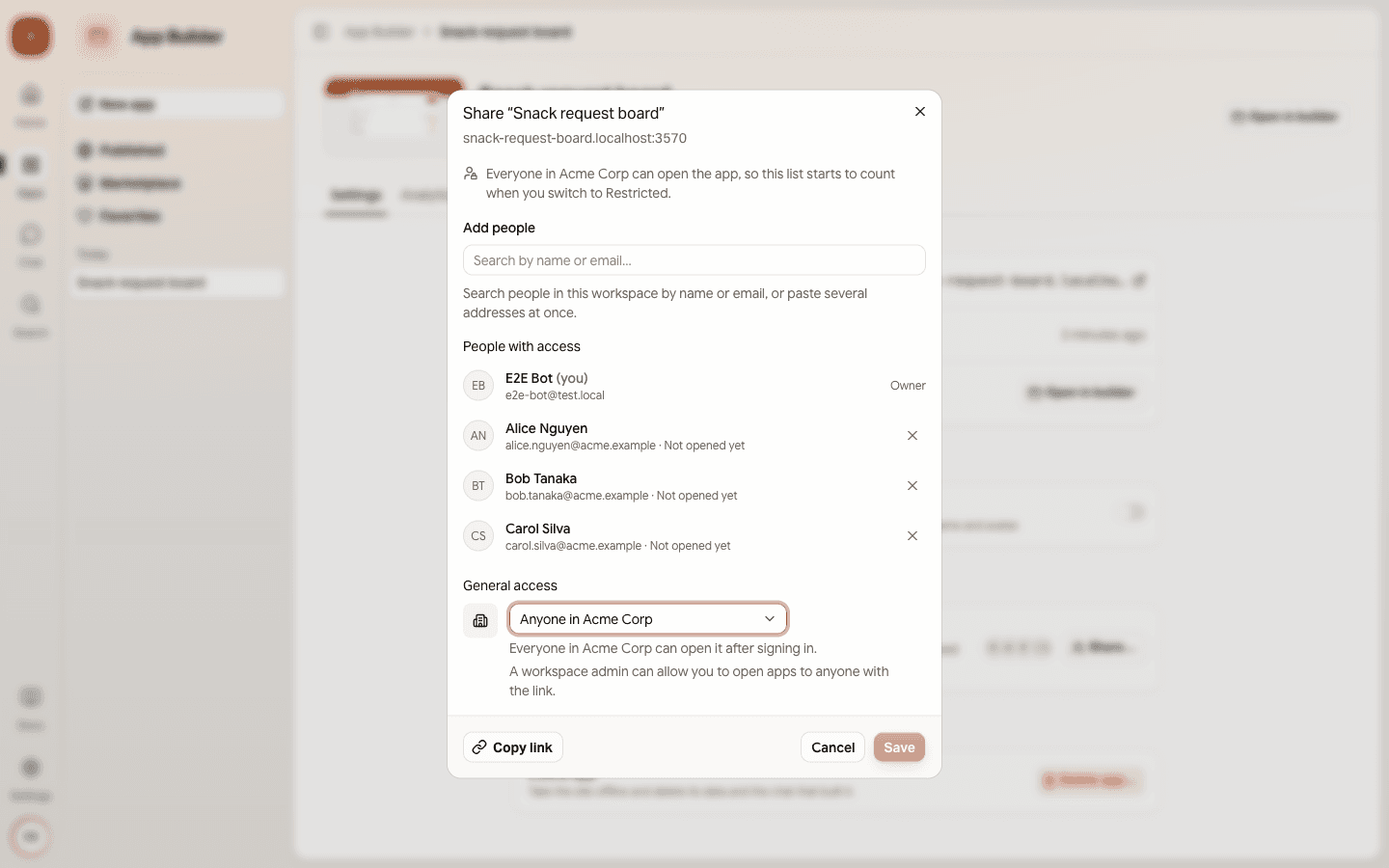
If an app is already open to anyone with the link and you lack the permission, narrowing it warns: "After you save, only a workspace admin can allow you to open it to anyone with the link again."
An app listed in the Marketplace must stay open to the workspace or to anyone. Switching it to Restricted warns "Saving removes it from the Marketplace, since only apps everyone in {workspace} can open can be listed." and takes it off the Marketplace when you save.
Add people
People you add can open a Restricted app.
-
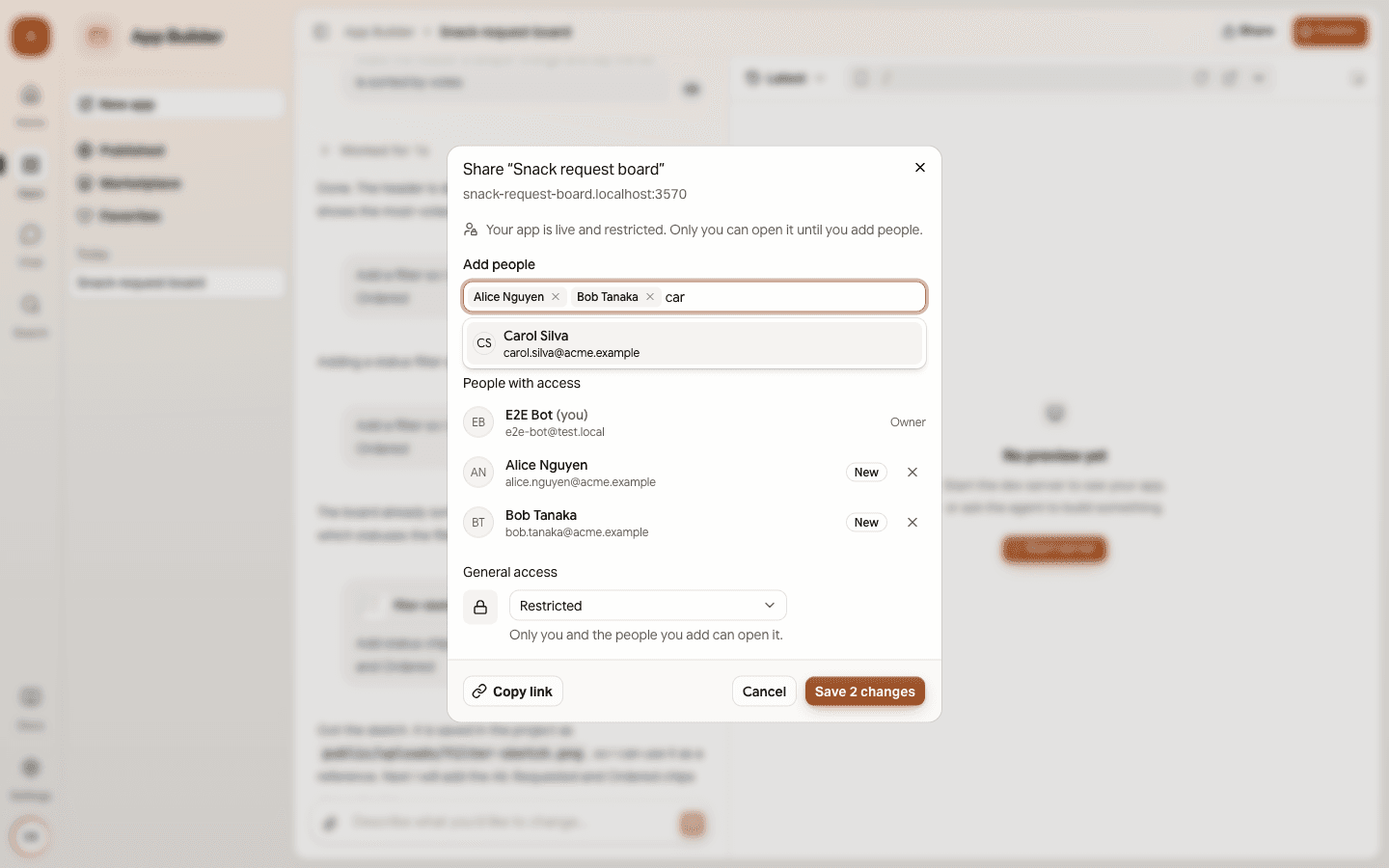
Type a name or email in Add people. Up to 6 people from the workspace are suggested. To add many at once, paste several email addresses.
-
Pick each person. They appear as chips and under People with access with a New badge.
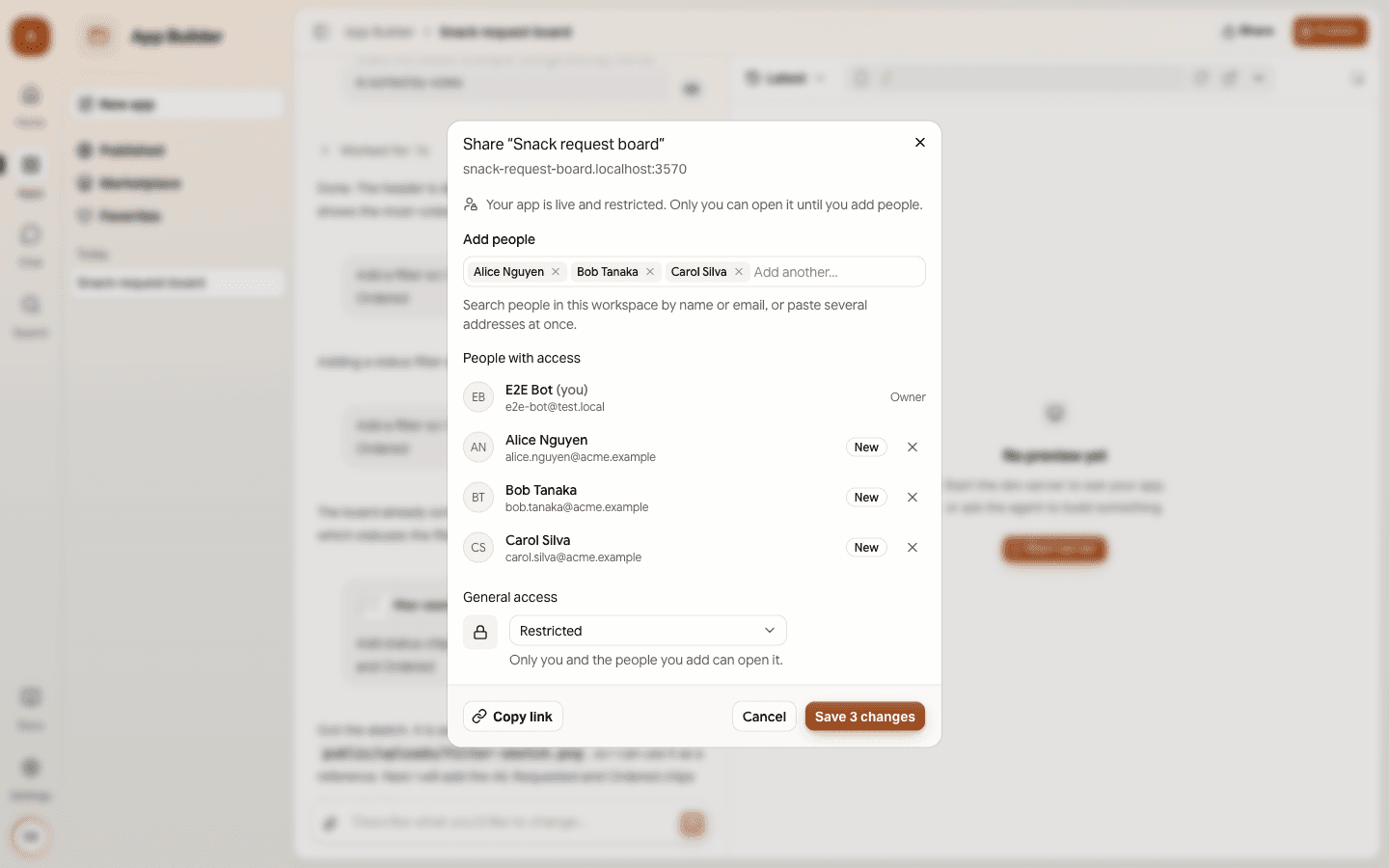
-
Click Save. The toast says Sharing saved.
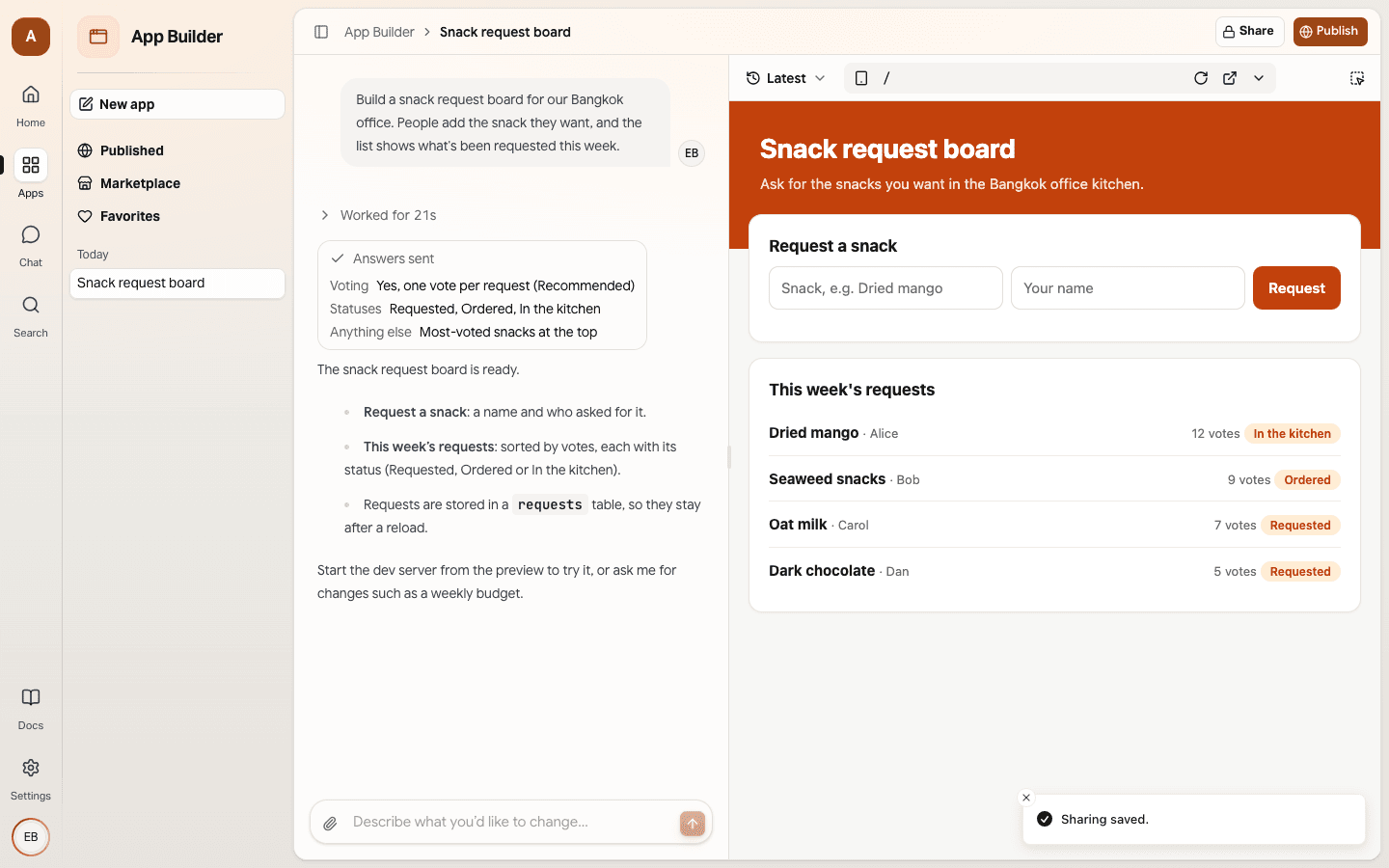
Each person shows "Not opened yet" until they first open the app. Only workspace members can be added, and an app can have up to 500 people.
To remove someone, click the × on their row and save. The toast adds "People you removed lose access the next time they load the app."
People you add stay on the list when you switch to Anyone in {workspace} or Anyone with the link. The dialog says the list "starts to count when you switch to Restricted".
Copy link copies the site's address to send to people.
What visitors see
Anyone with the link apps open straight away.
Anyone in {workspace} and Restricted apps ask visitors to sign in first, with their AINOX account:
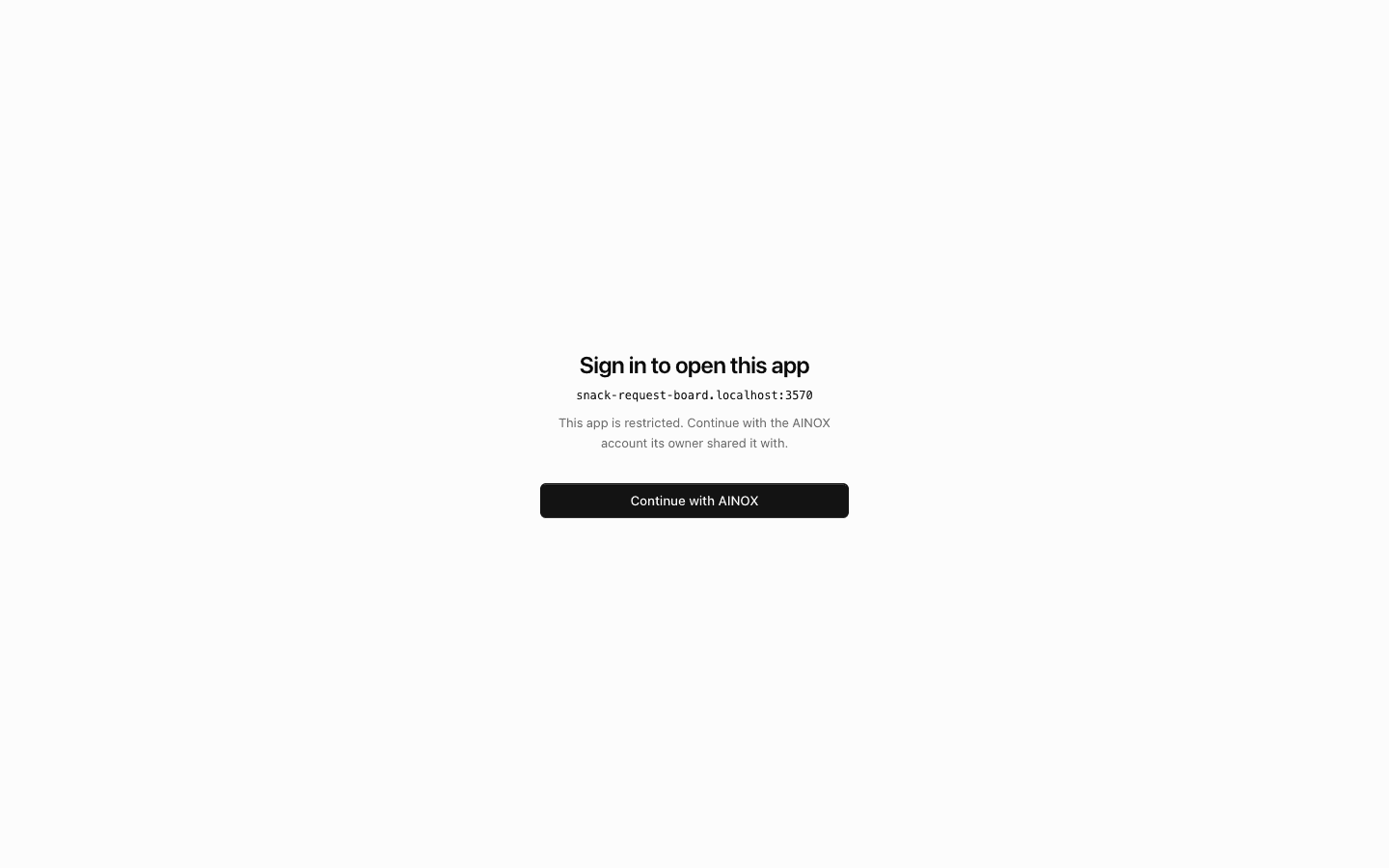
After Continue with AINOX, a visitor who may open the app lands on it. A sign-in lasts 12 hours on that site.
A visitor who is not allowed
A signed-in visitor who is not on the list, or not in the workspace, sees You don't have access: "This app isn't open to {email}. Ask the person who shared it for access, or use another account."
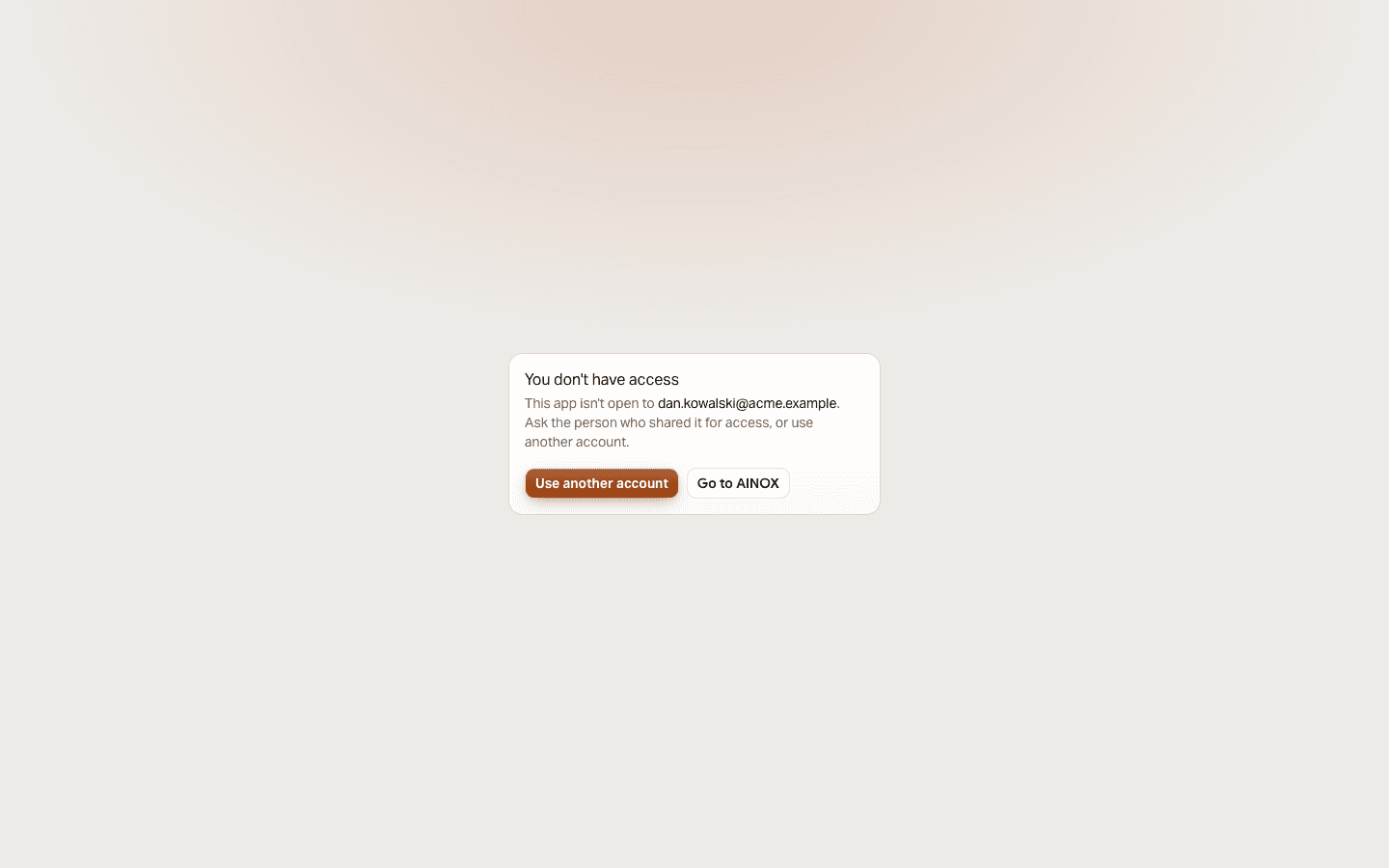
- Use another account signs them out, then opens the sign-in page so they can sign in with a different account.
- Go to AINOX takes them to AINOX.
The same sentence shows for an app open to the workspace when the visitor is not in that workspace. A visitor whose account is in no workspace at all reads "Your account isn't in a workspace, so no app can be shared with it. Ask the person who shared the app to invite you.", with only Go to AINOX.
If the visitor is removed after signing in, the site itself refuses them with Switch account: "The AINOX account you signed in with isn't on this app's list…" for a restricted app, or "The AINOX account you signed in with isn't a member of this app's workspace…" for an app open to the workspace.
An address that has no app, whose app was deleted, or whose site was taken down shows App not found: "There's no published app at this address. Check the link, or ask the person who shared it."
Notes
- Changes to access reach the site within a few seconds.
- Every access change is recorded in the workspace's Audit Log, with the people added or removed.
- An MCP client cannot change who can open an app. Do it here.