Review queue
Approve or reject the documents a knowledge source syncs before they reach the knowledge base.
A knowledge source normally publishes everything it syncs straight into the workspace knowledge base. When a source is set to Require approval instead, every new or updated document it finds is held — the assistant cannot use it yet. The Review queue is where a reviewer reads what changed and decides: file by file, or a whole source in one go.
Prerequisites
-
Either the manage knowledge sources workspace permission — which lets you review every source — or being mapped as a reviewer on a specific source, which lets you review only that one.
-
At least one knowledge source whose effective import policy is Require approval. Open Admin → Knowledge Sources, pick the source, and set Import policy. Sources left on Publish automatically never put anything in the queue.

The Reviewers section on the same page decides who gets the queue. Leave it empty and everyone who can manage knowledge sources sees the source and receives its digest emails; map specific members and only they (plus managers) do.
Work through the pending changes
-
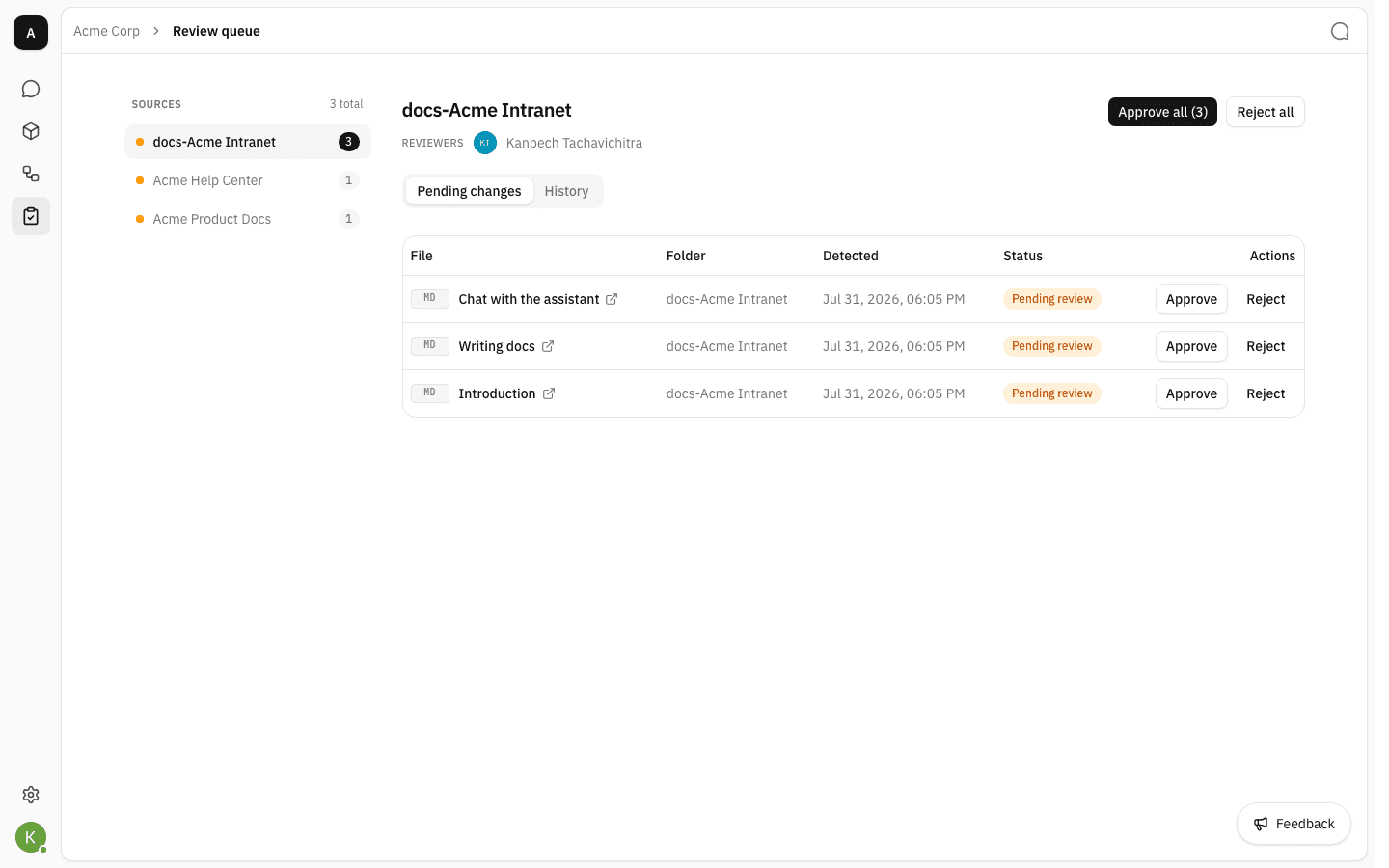
Open Review queue from the workspace sidebar. The left pane lists every source you may review, most-pending first — the amber dot and the number are that source's open items. The right pane shows the selected source: who reviews it, the whole-source actions, and the Pending changes table of files waiting on a decision.
Each row shows the file type, its name, the folder it will land in, when the sync detected it, and its status. The name links out to the document at its source — a pending file has no stored copy yet, so opening the original is how you read what you are approving.
-
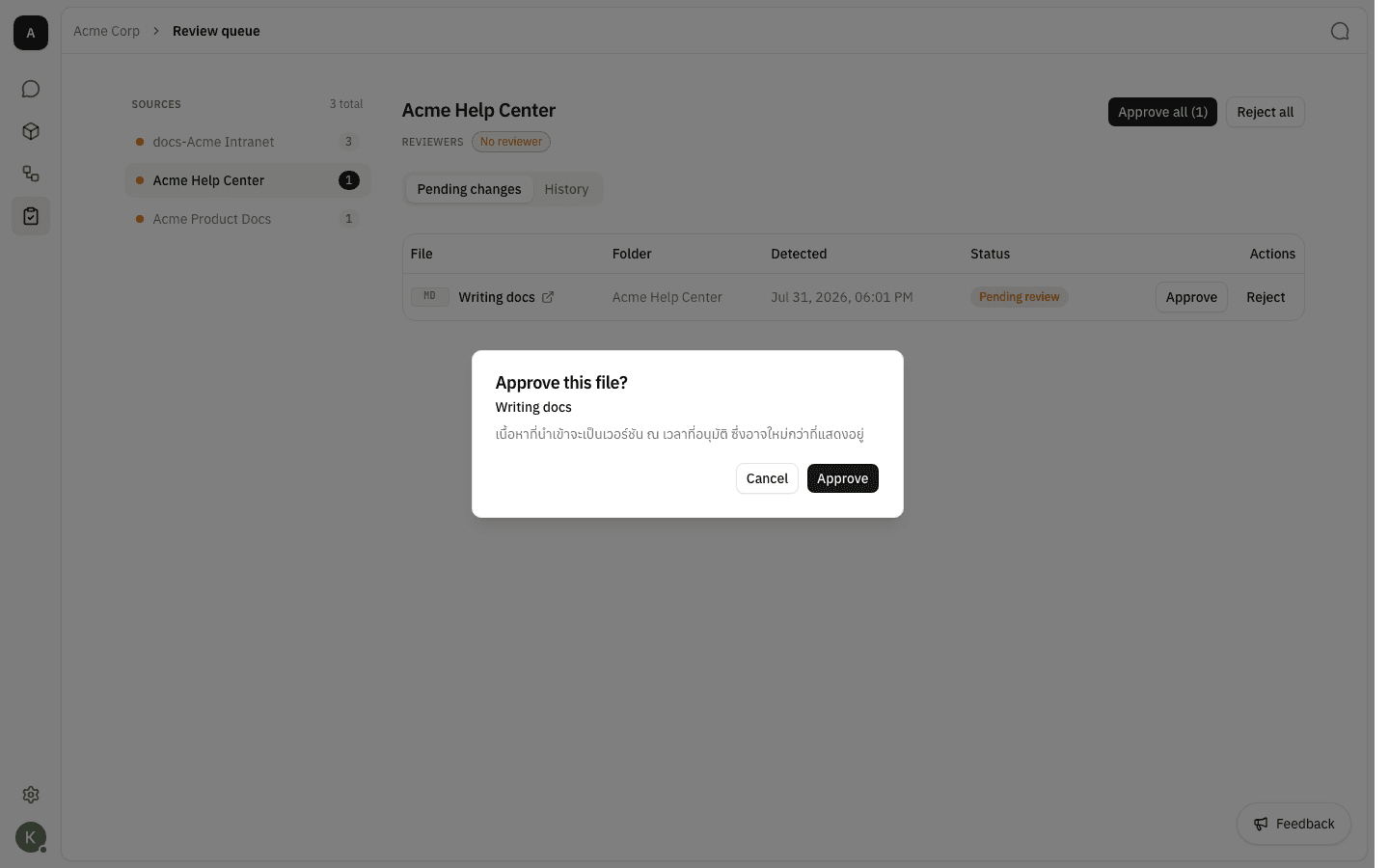
To accept one file, click Approve on its row and confirm. The imported content is the version at the moment you approve, which may be newer than what the table shows.
-
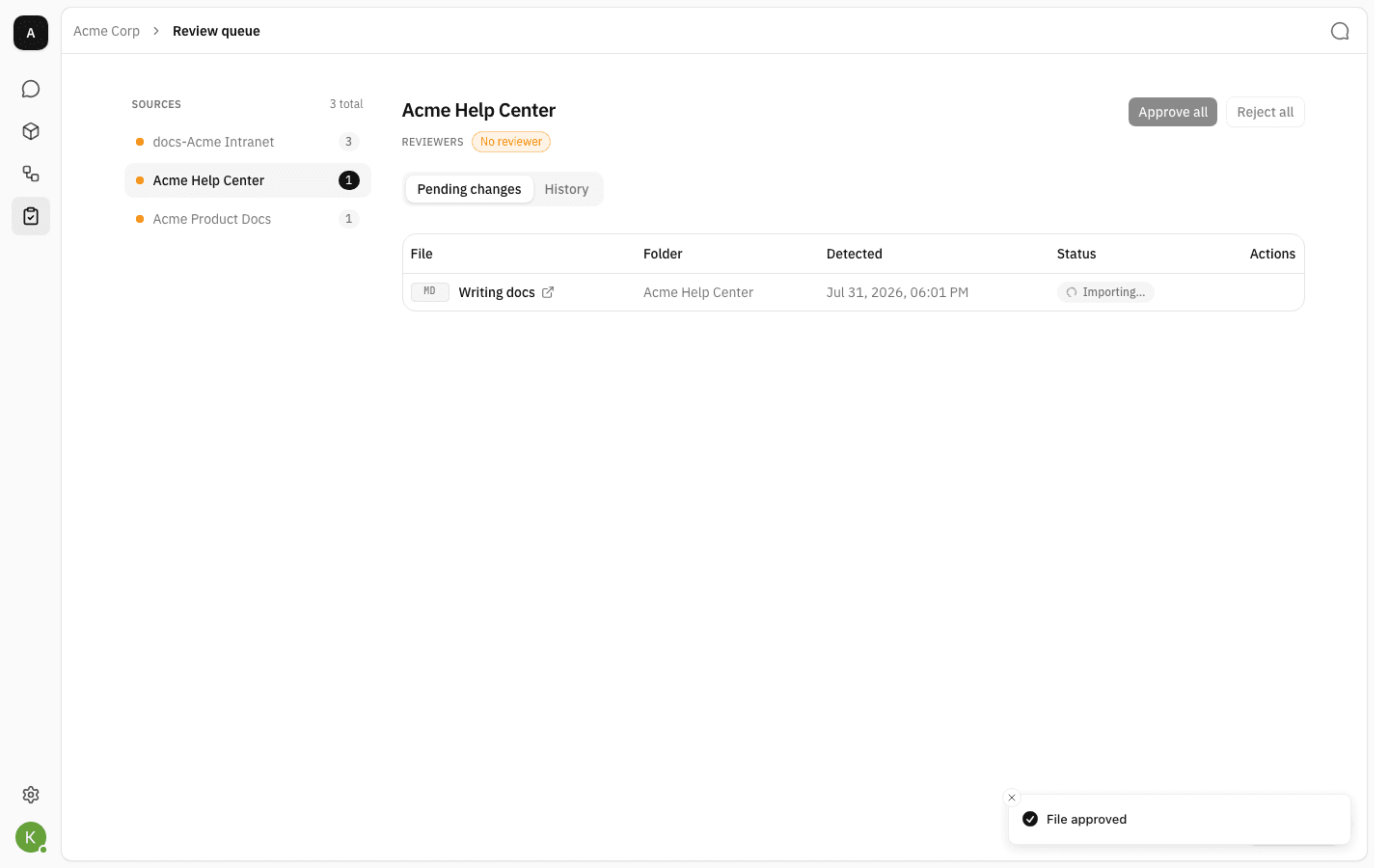
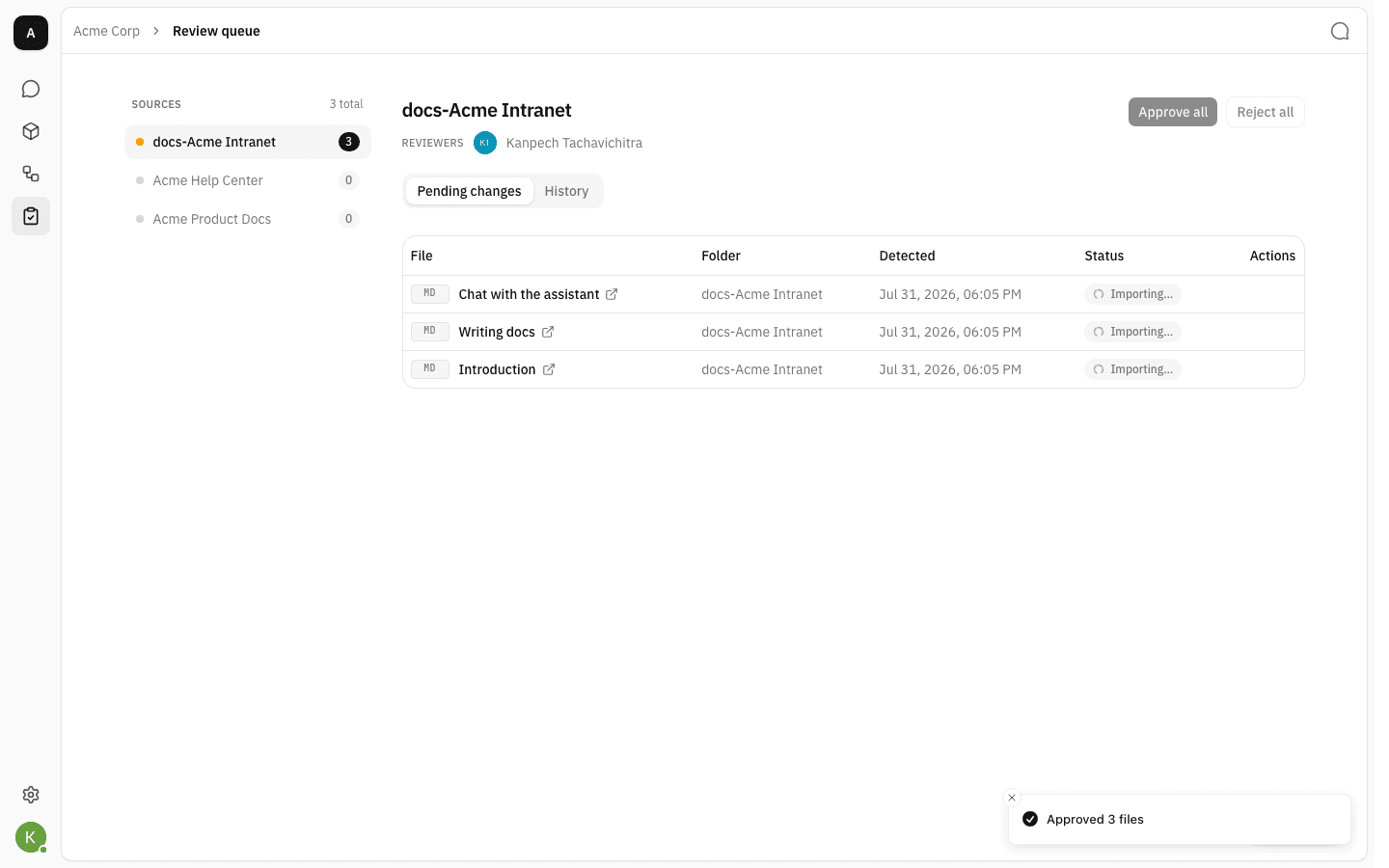
The row switches to Importing… while the document is fetched, extracted and indexed, then disappears from the queue once it is part of the knowledge base.
-
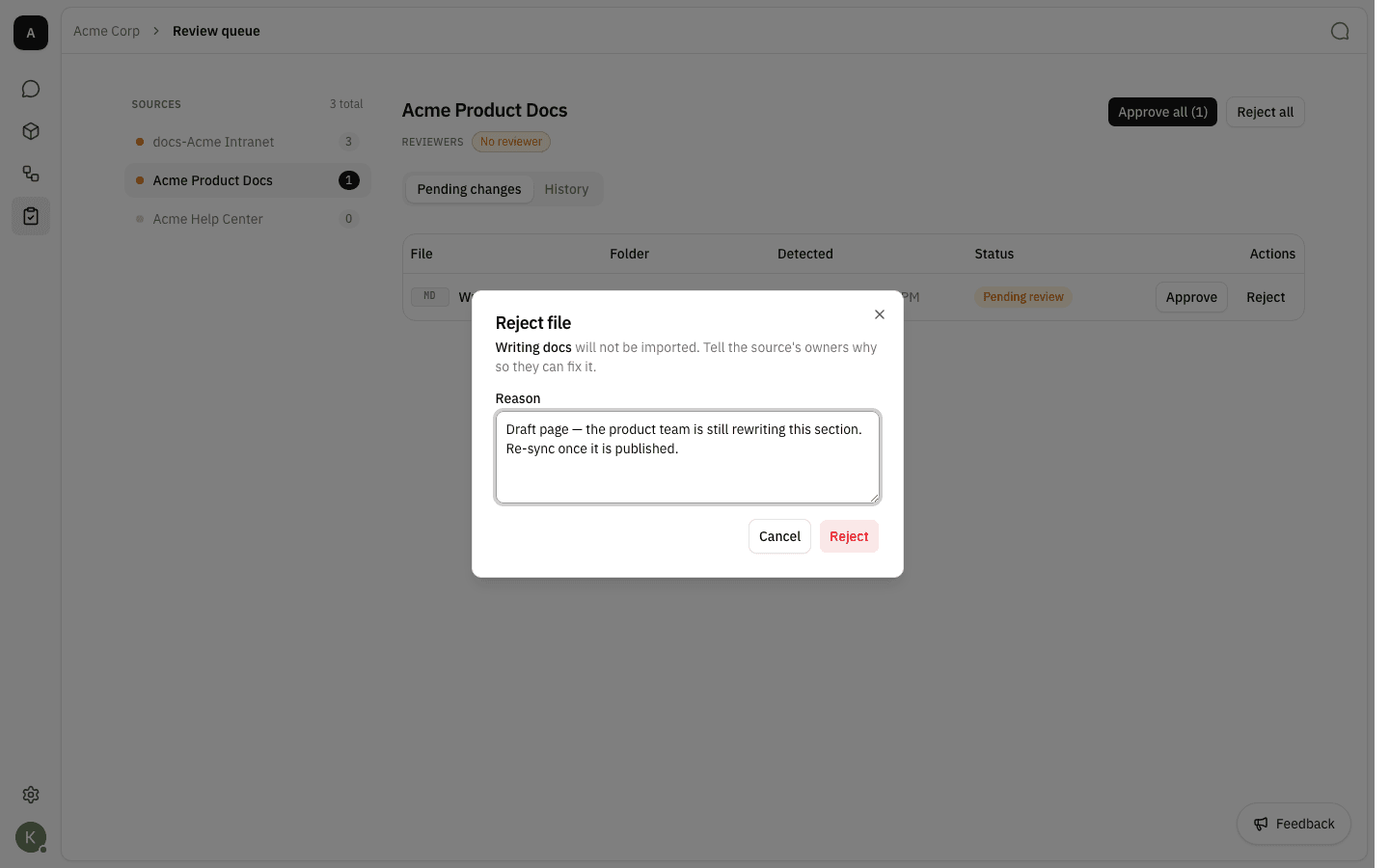
To turn one down, click Reject. A reason is required — it is recorded on the audit trail so the people who own the source know what to fix.
-
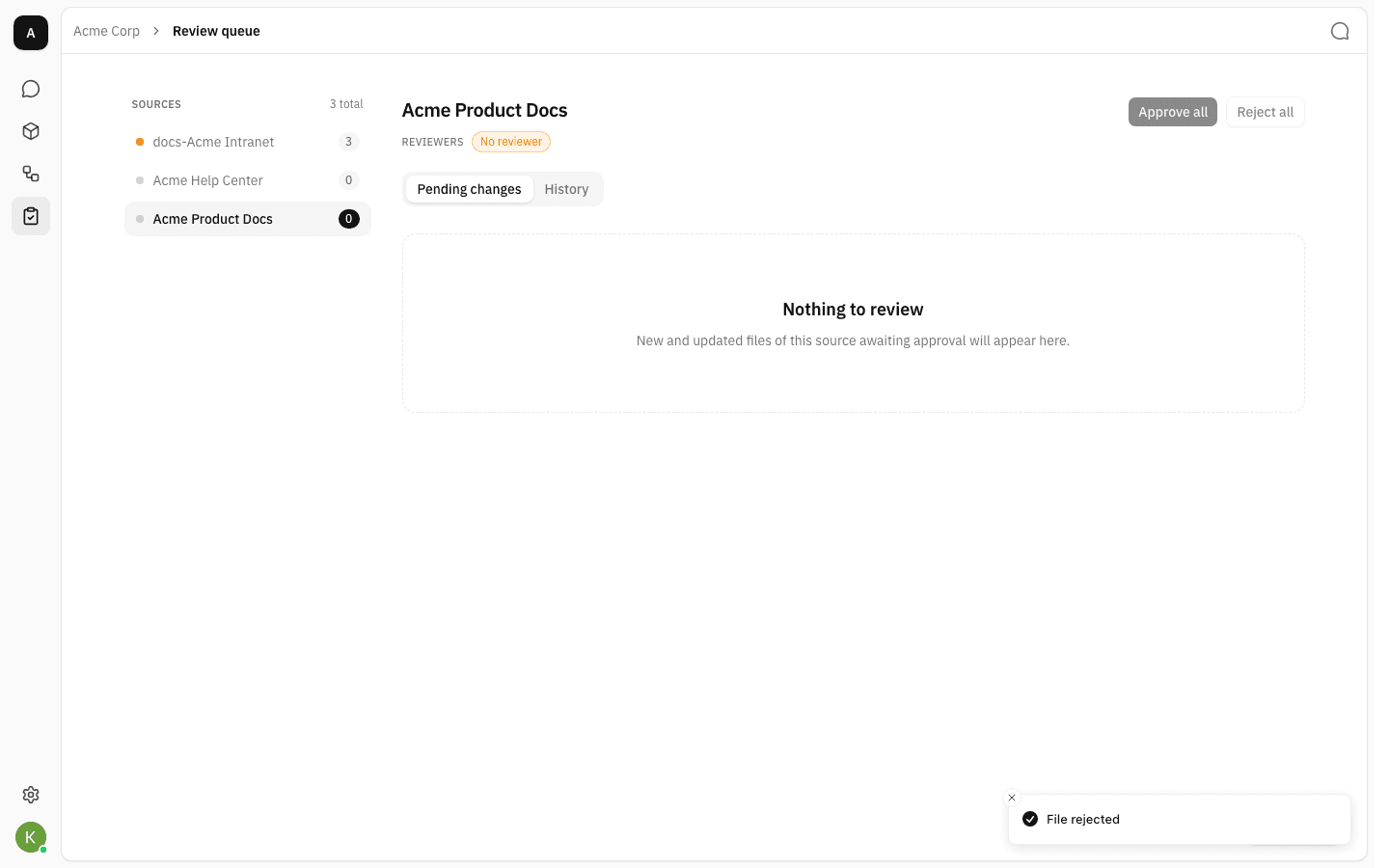
The rejected file leaves the queue and is not imported. When a source has nothing left awaiting a decision you get the Nothing to review empty state.
Decide a whole source at once
When a sync brings in a batch that clearly belongs together, decide it as one round instead of clicking through every row.
-
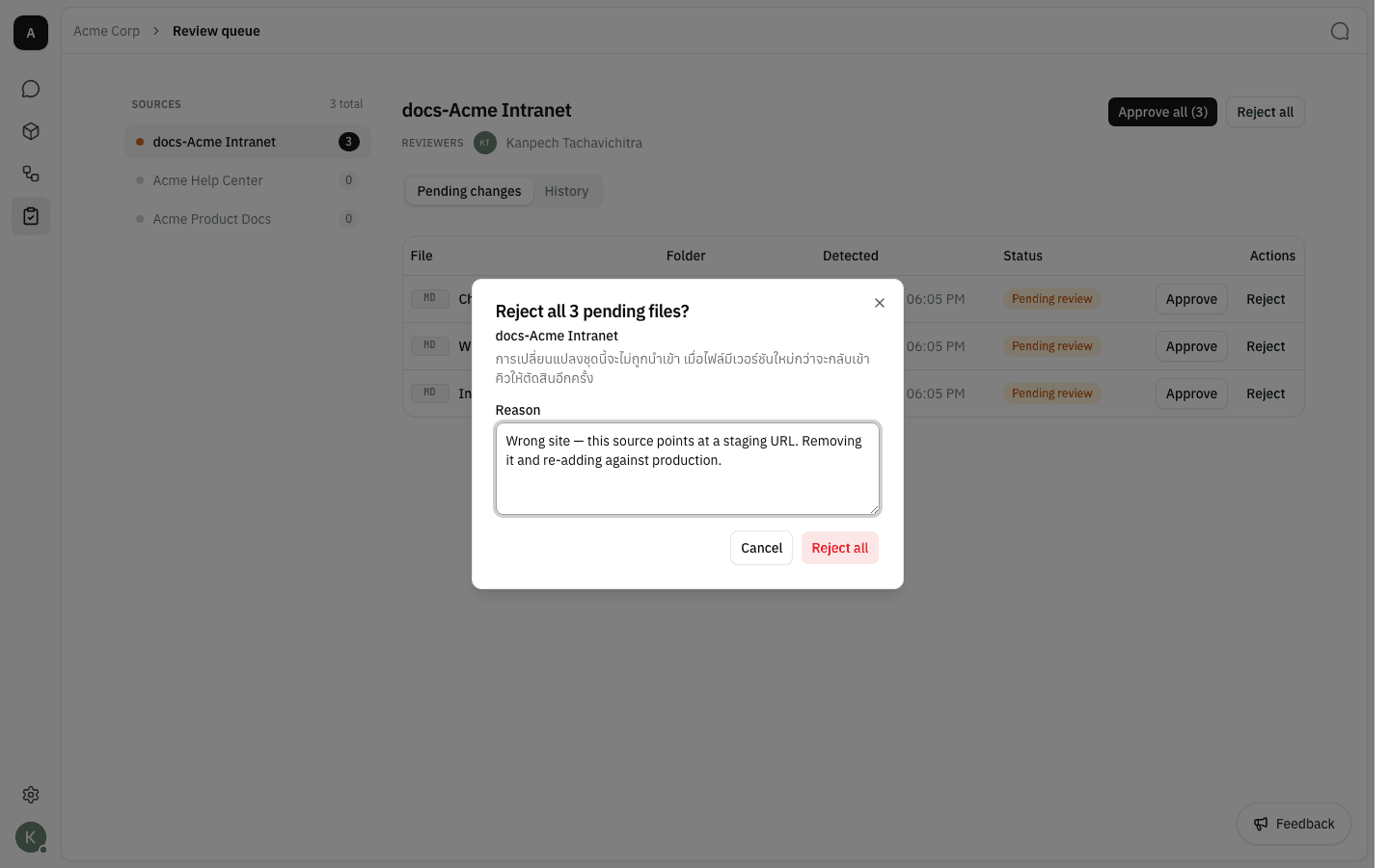
Reject all turns down everything currently pending for the source. As with a single file, the reason is required.
-
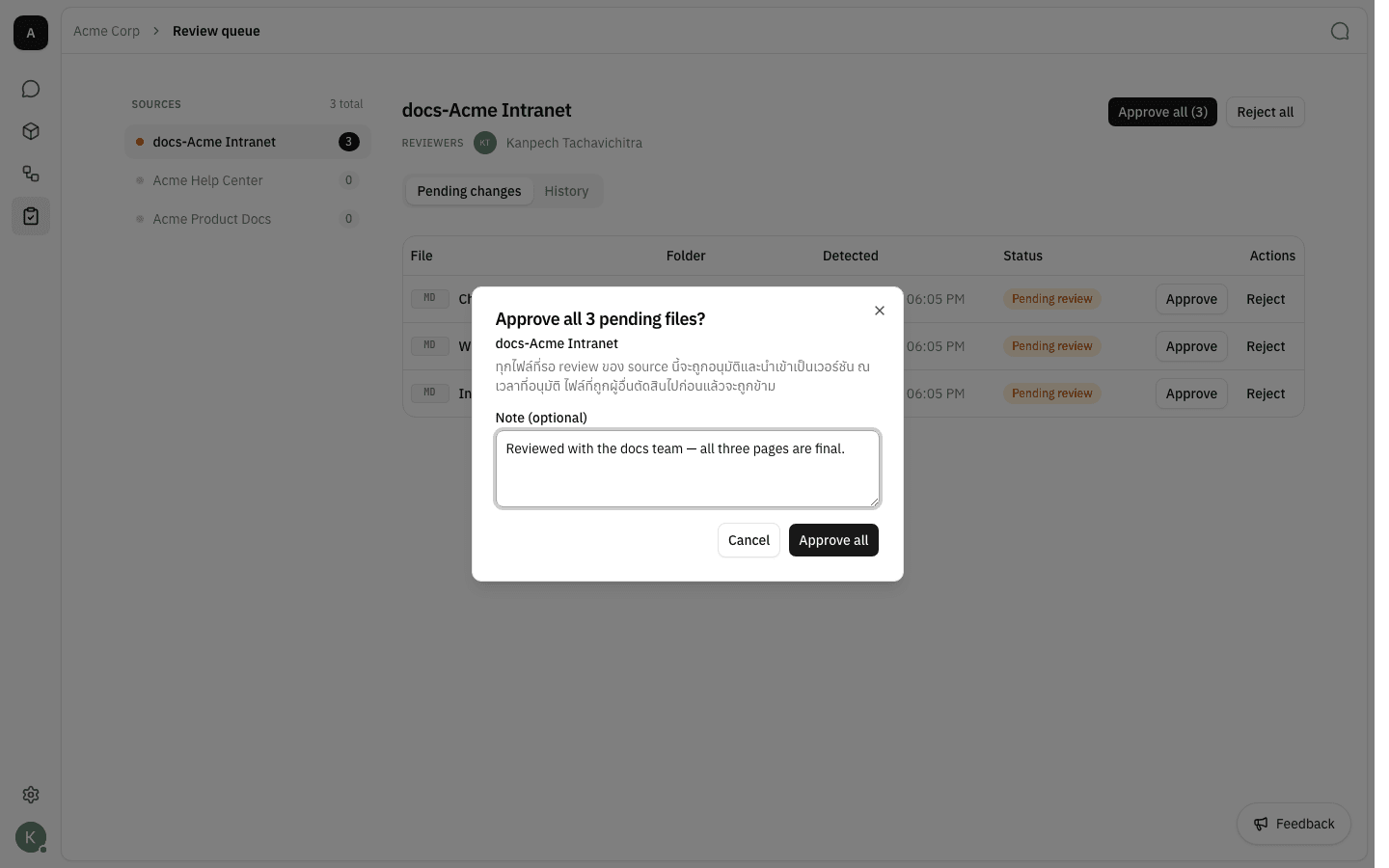
Approve all accepts them. The button carries the pending count, and the note is optional. The set is resolved when you confirm, so anything that synced since you last loaded the page rides along, and files another reviewer already decided are skipped.
-
Every file in the round moves to Importing… together and the confirmation names how many were approved.
Check what was already decided
-
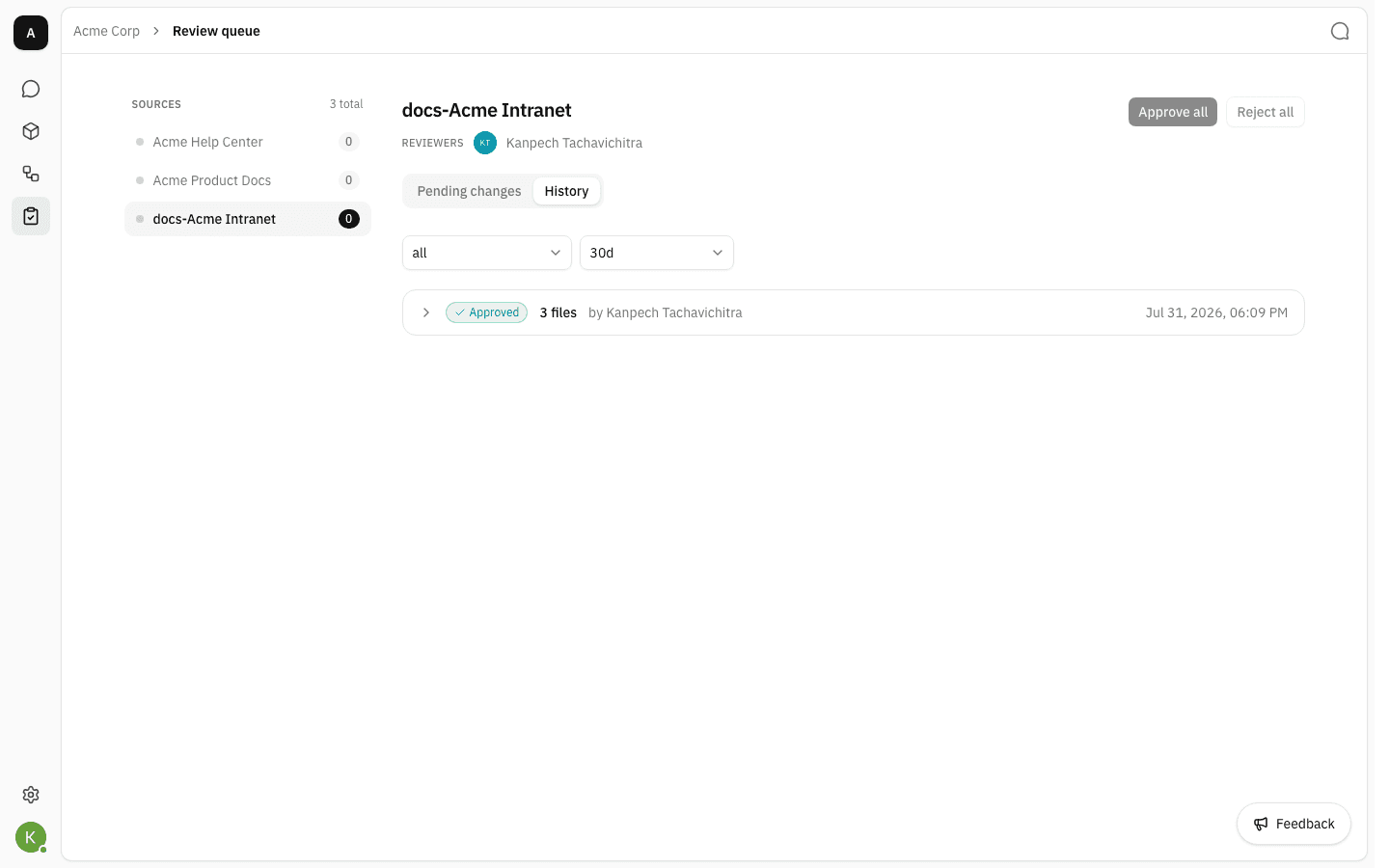
Switch to the History tab to see the source's past decision rounds — what happened, how many files, who did it, and when. The two dropdowns filter by action and by time range.
-
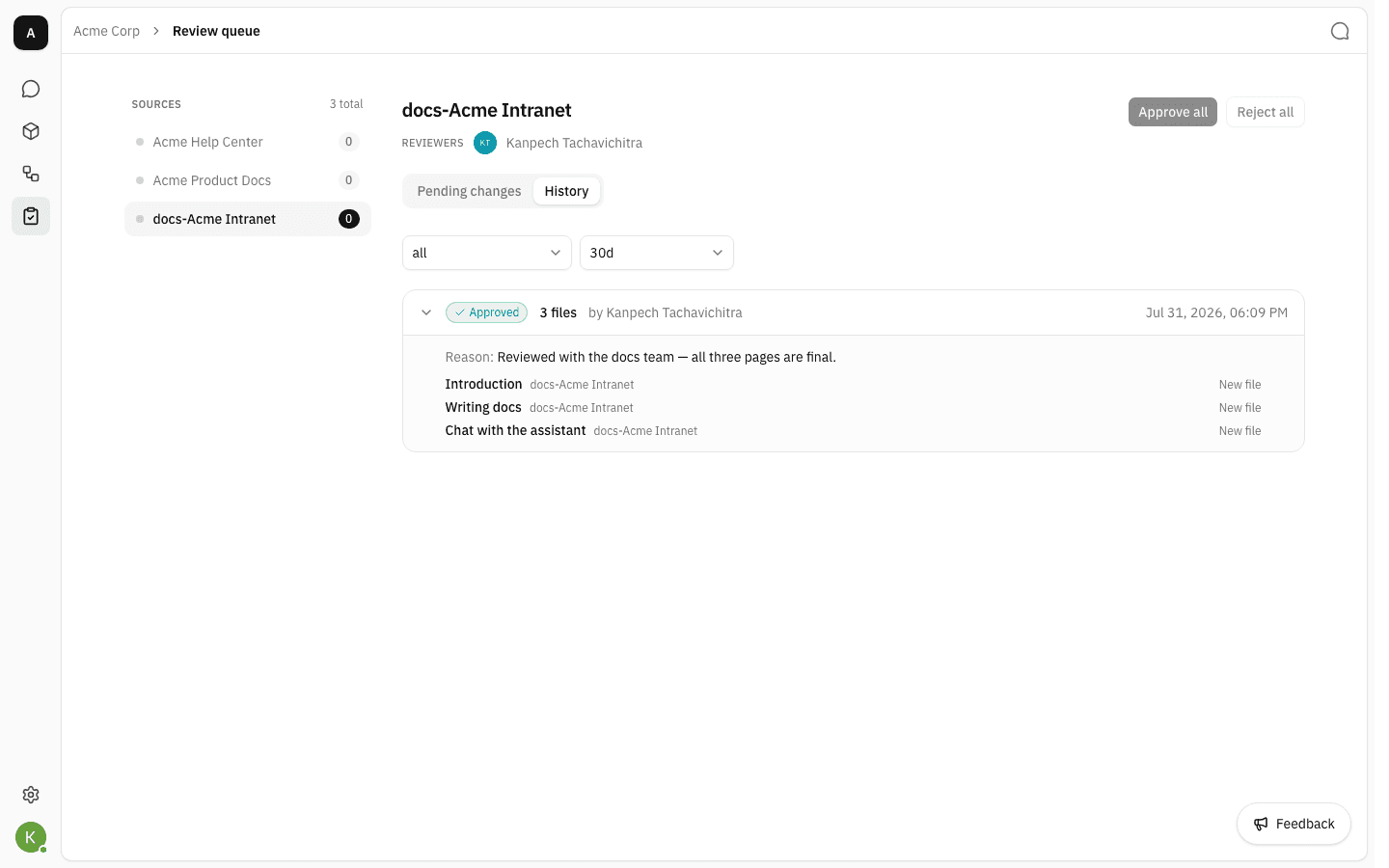
Expand a round to read the note or rejection reason and the exact files it covered, each marked as a new file or an update.
Notes
- A source stays in the left pane even with nothing pending, so its history is always reachable.
- Rejecting is not permanent for the document, only for that version: the file comes back to the queue when the source publishes a newer one.
- If an approved file fails to import, its row stays visible as Import failed with a Retry button. A file that imported but had no readable text — an empty or image-only page — reads No importable content and needs nothing from you.
- If two reviewers decide the same file at once, the second one is told it was already decided rather than overwriting the first decision.
- Switching a source (or the workspace default) back to Publish automatically immediately imports everything still waiting for a decision. Files already rejected are left alone.