Preview your app
Run your app next to the chat, switch device sizes, start and stop its dev server, and point at what should change.
The right half of App Builder is a live preview of your app. It runs in the app's own sandbox, with its own database, so you can click through it, fill in forms and try it on a phone-sized screen before anyone else sees it.
Prerequisites
- An app you built in App Builder. See Build an app by chatting.
- Nothing else. On a new app, the preview starts the dev server of the starter project by itself: it shows Starting the dev server…, then the starter's "Ready to build." page until the agent writes your app.
The preview toolbar
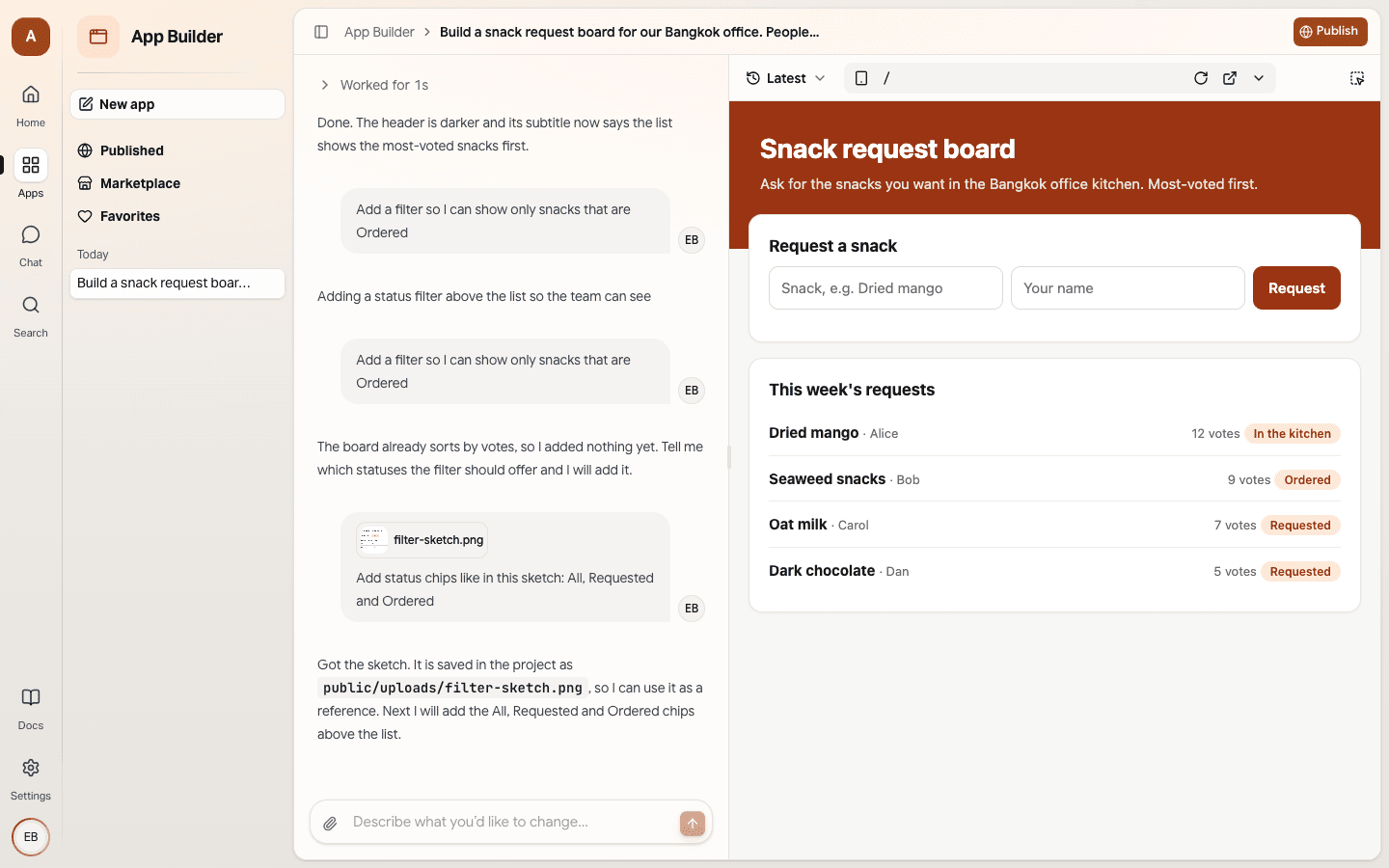
From left to right:
| Control | What it does |
|---|---|
| Latest | The version picker. See Versions. |
| Device button | Switches the preview between Desktop, Tablet and Mobile widths. |
| Address bar | The path inside your app. Type a path, such as /admin, and press Enter to open it. |
| Reload preview | Reloads the page in the preview. |
| Open in new tab | Opens the preview on its own, at full size. |
| Dev server (chevron) | Shows whether the dev server runs, and starts or stops it. |
| Annotate elements | Lets you click parts of the app and say what should change. |
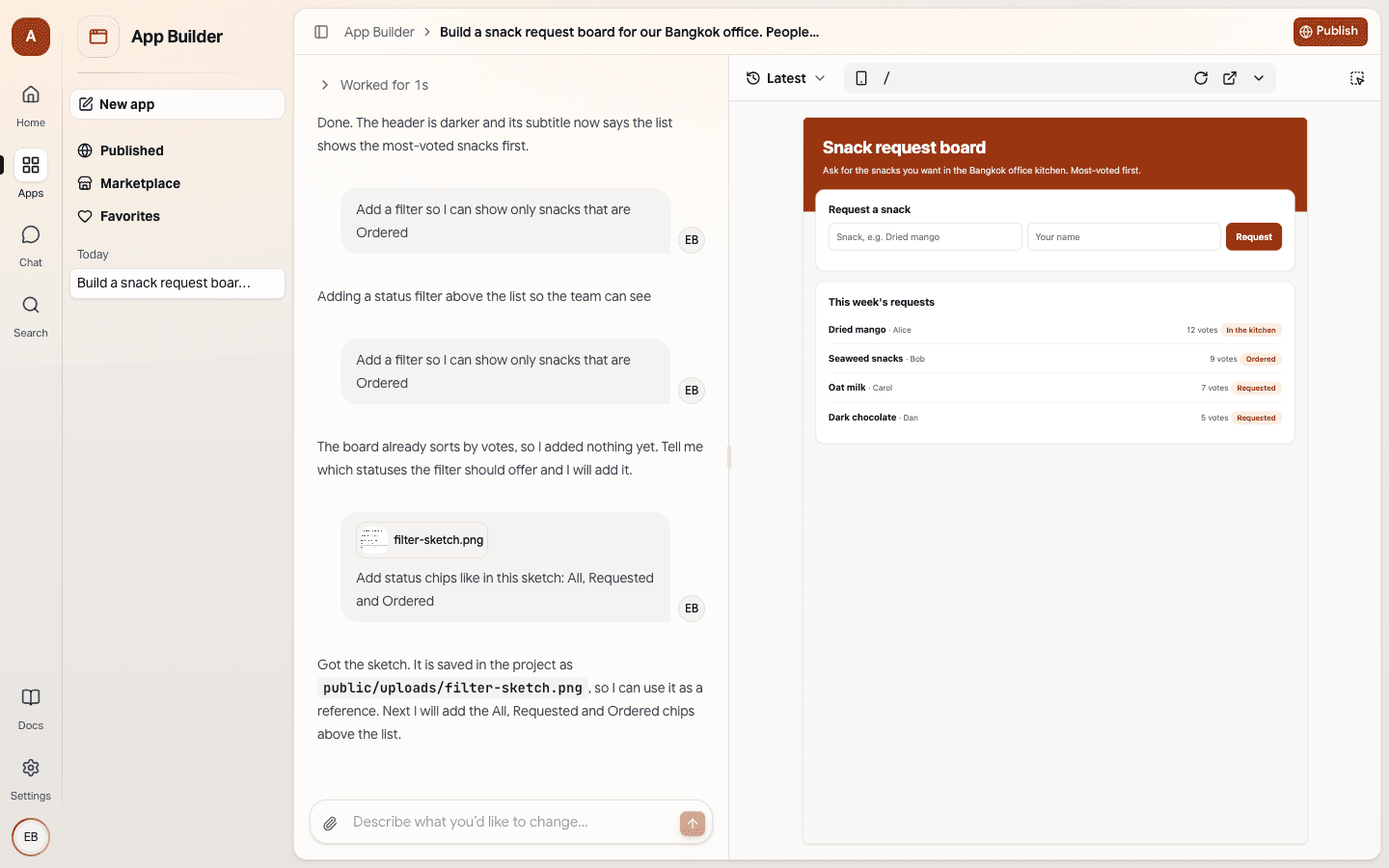
On a narrow screen, chat and preview take turns: use Show preview and Show chat in the header to switch.
Start and stop the dev server
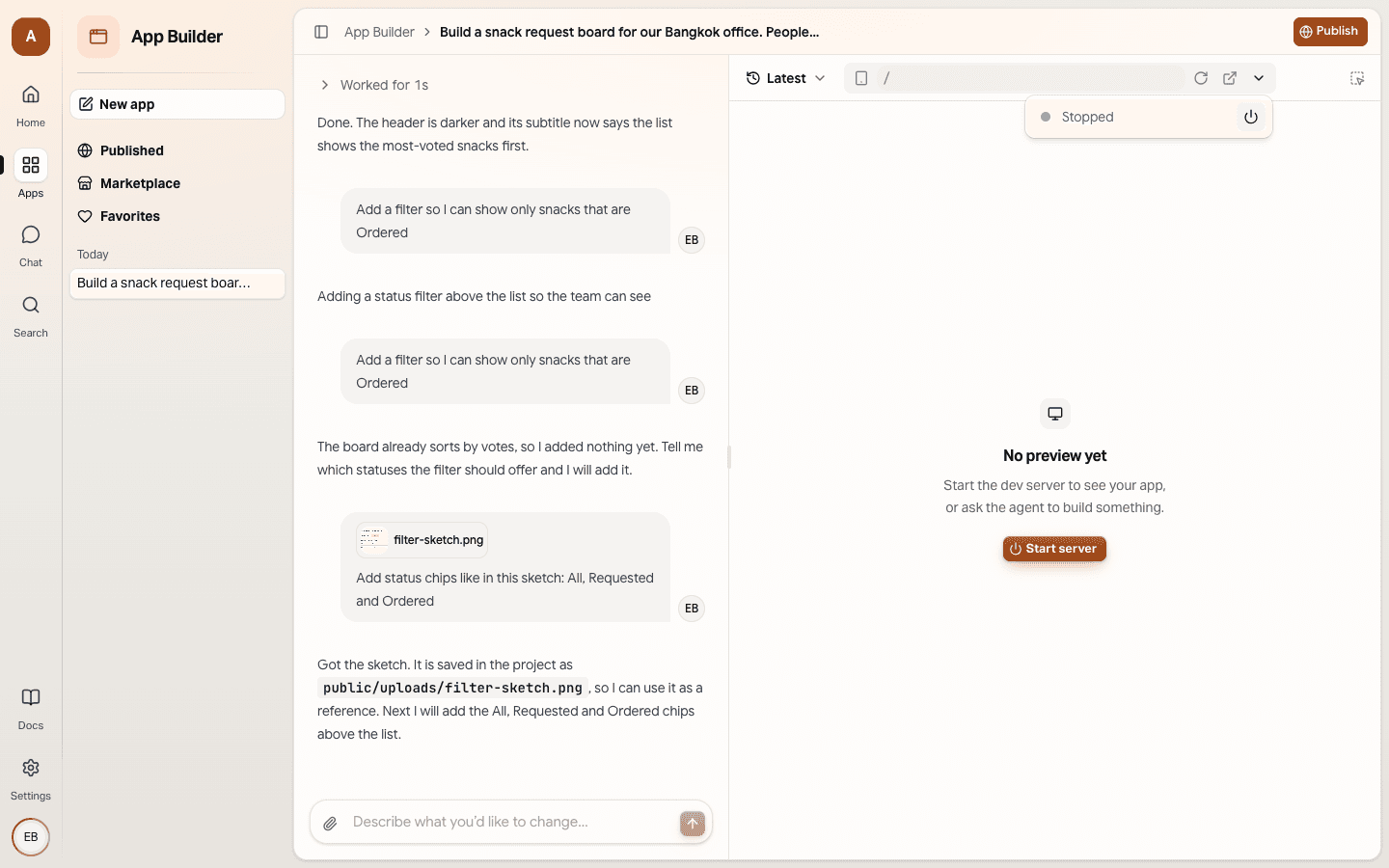
The agent starts the dev server when it builds. To start it yourself, click Start server on the empty preview.
Open the Dev server menu to see its state, and use the power button in it to stop or start the server.
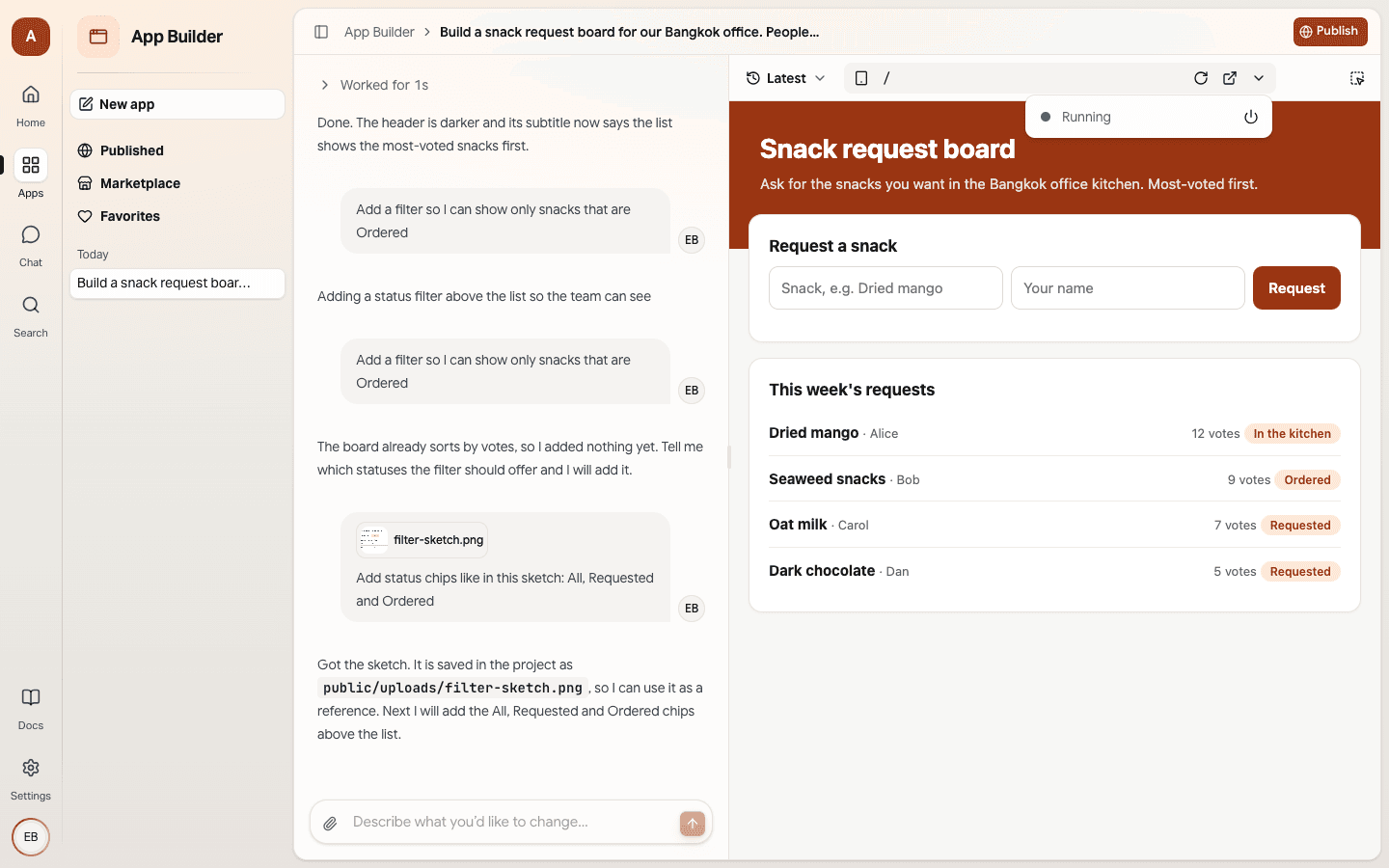
| State | Meaning |
|---|---|
| Running | The preview is live. |
| Starting… | The sandbox is waking up or the server is booting. Starting the dev server… shows over the preview meanwhile. |
| Stopping… | The server is shutting down. |
| Checking… | App Builder is reading the server's state, for a moment after the app opens. |
| Stopped | Nothing is running. The preview shows No preview yet and a Start server button. |
| Unavailable | This server has no sandboxes, so nothing can run. See below. |
When the preview is unavailable
When the dev server cannot give you a preview, a toast says why:
| Toast | Meaning and what to do |
|---|---|
| Nothing to run yet — "Ask the agent to build an app first." | The project has no dev script yet. Send the agent a prompt. |
| The preview didn't open — "The dev server stopped, or it runs without a preview address. Ask the agent to check the dev server." | The server exited, or never printed an address. Ask the agent to fix the dev server. |
| Could not start the dev server. or Could not stop the dev server. | The request failed, or the sandbox reported an error. The toast shows the error, or "Try again in a moment." Try again; if it persists, ask the agent to check the dev server. |
If the server this workspace runs on has no sandboxes, the preview cannot run at all: the menu reads Unavailable and the preview says Previews are off — "This server has no sandboxes to run apps in. Ask your administrator to set them up." It is a server setting: ask whoever runs your AINOX server.
The sandbox may go to sleep when nobody uses the preview; it wakes up the next time you open the app.
Mark up the preview
Annotations let you point at a part of the app instead of describing it.
-
Click Annotate elements at the right of the toolbar.
-
Click the part of the app you mean. It is outlined, and a box asks What should change?
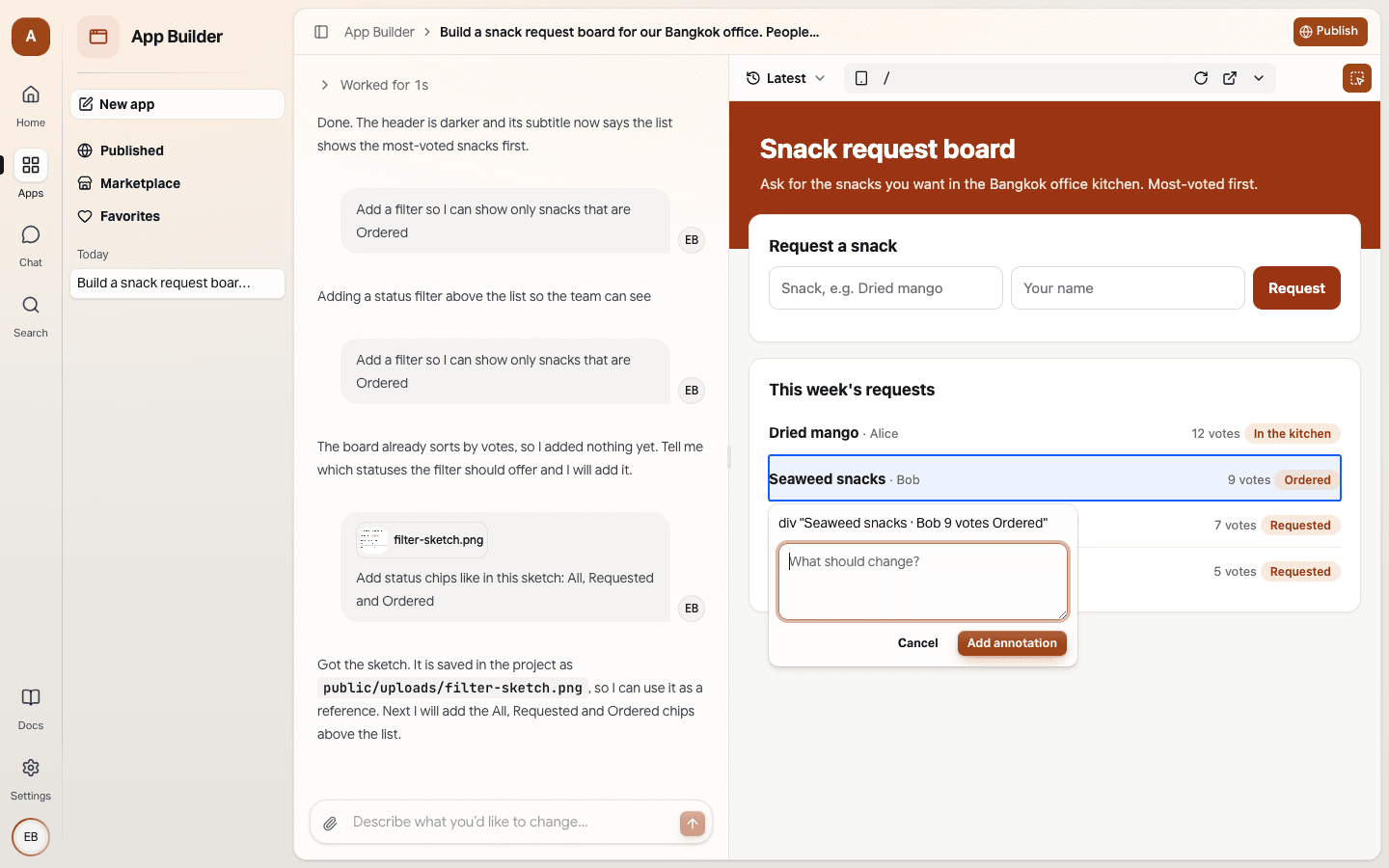
-
Type what should change and click Add annotation. A numbered marker stays on the element, and the note appears above the composer with the other notes.
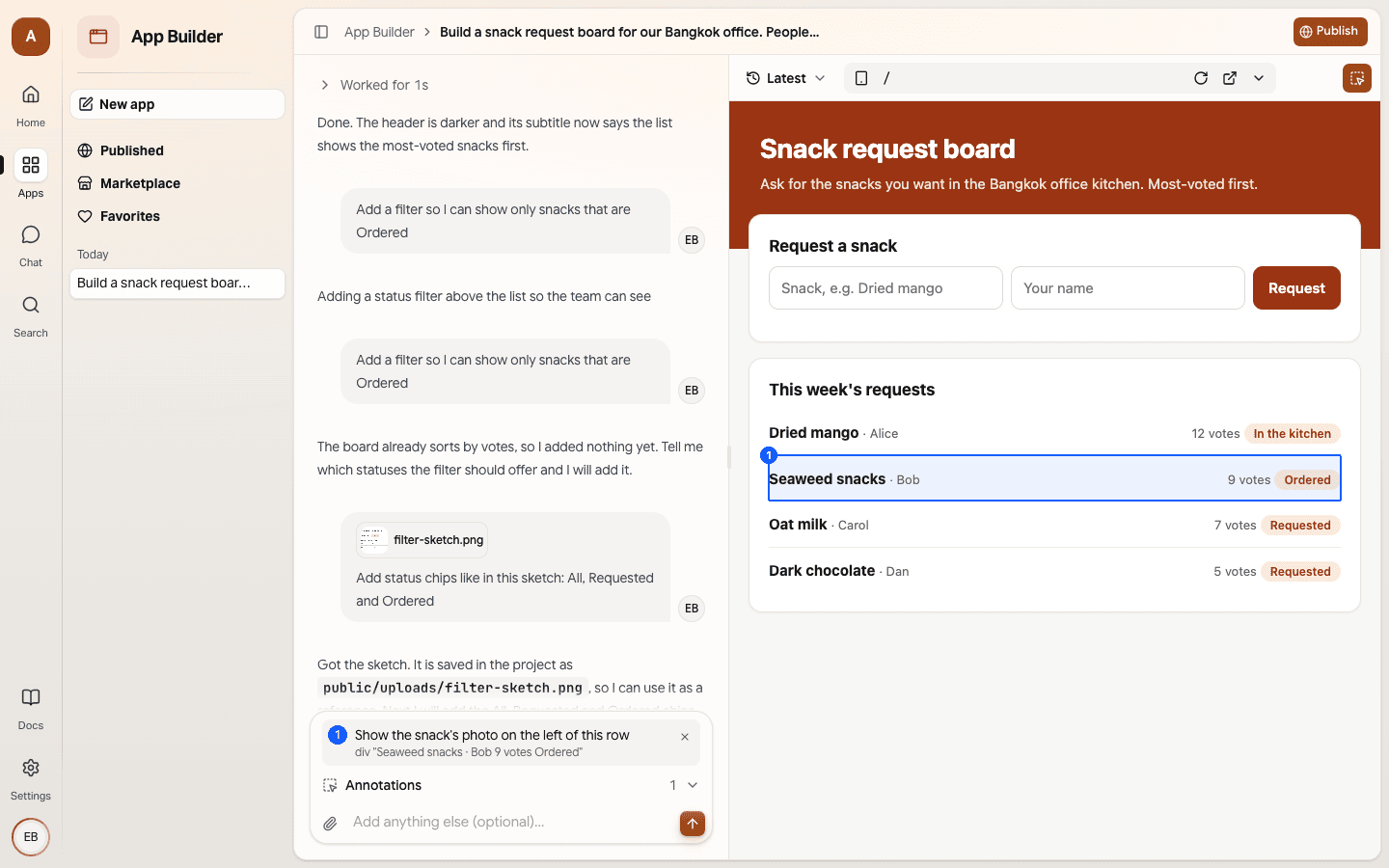
-
Add more annotations if you like, add anything else in the composer ("Add anything else (optional)…"), and send.
The agent receives each note with the element it points at. To drop a note before you send, click its ×.
Look at the code
App Builder has no code view or file browser. To read the files the agent wrote:
- download the project as a zip, or
- connect an MCP client and use
list_filesandread_file. See App Builder over MCP.
Notes
- The preview has its own database. Data you enter there never reaches the published site, and the published site's data never shows in the preview.
- Restoring a version rebuilds the preview database, which clears its data.