Chat with the assistant
Ask questions in plain language and get answers drawn from your workspace's documents, with the sources behind every claim.
Chat is the main way to use the platform. You ask a question the way you would ask a colleague, and the assistant answers from the documents in your workspace — the shared Files library, anything brought in by a knowledge source, and the projects you belong to. Every answer carries the sources it came from, so you can check the original wording instead of taking the reply on trust.
Chats are private to you. Nobody else in the workspace sees your conversations from their own Chat page.
Prerequisites
- Membership of the workspace. Chat comes with the workspace role itself — no group permission is needed.
- A working model provider. Until an admin adds one, the composer shows a Configure a model warning and the send button stays disabled.
- Documents worth asking about. The assistant can only search files that have finished indexing and reached Ready.
Ask your first question
-
Open Chat from the sidebar. A new conversation starts empty, with four starting points under the box if you are not sure what to ask.
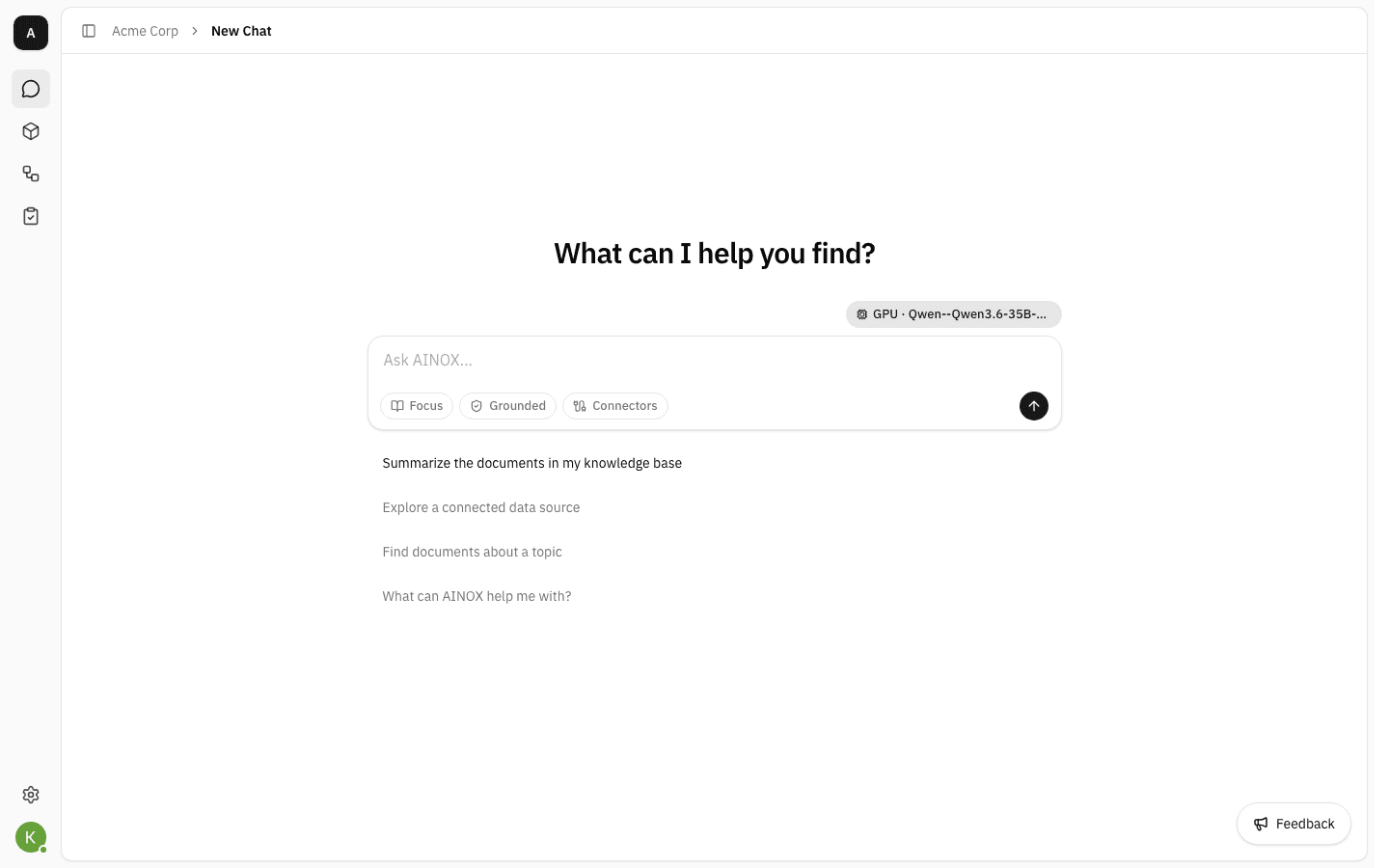
The chip above the box on the right shows which model will answer. The three chips inside it — Focus, Grounded and Connectors — control where the answer may come from; each one is covered below.
-
Type your question and press Enter. Clicking a suggestion fills the box for you instead of sending straight away, so you can edit it first.
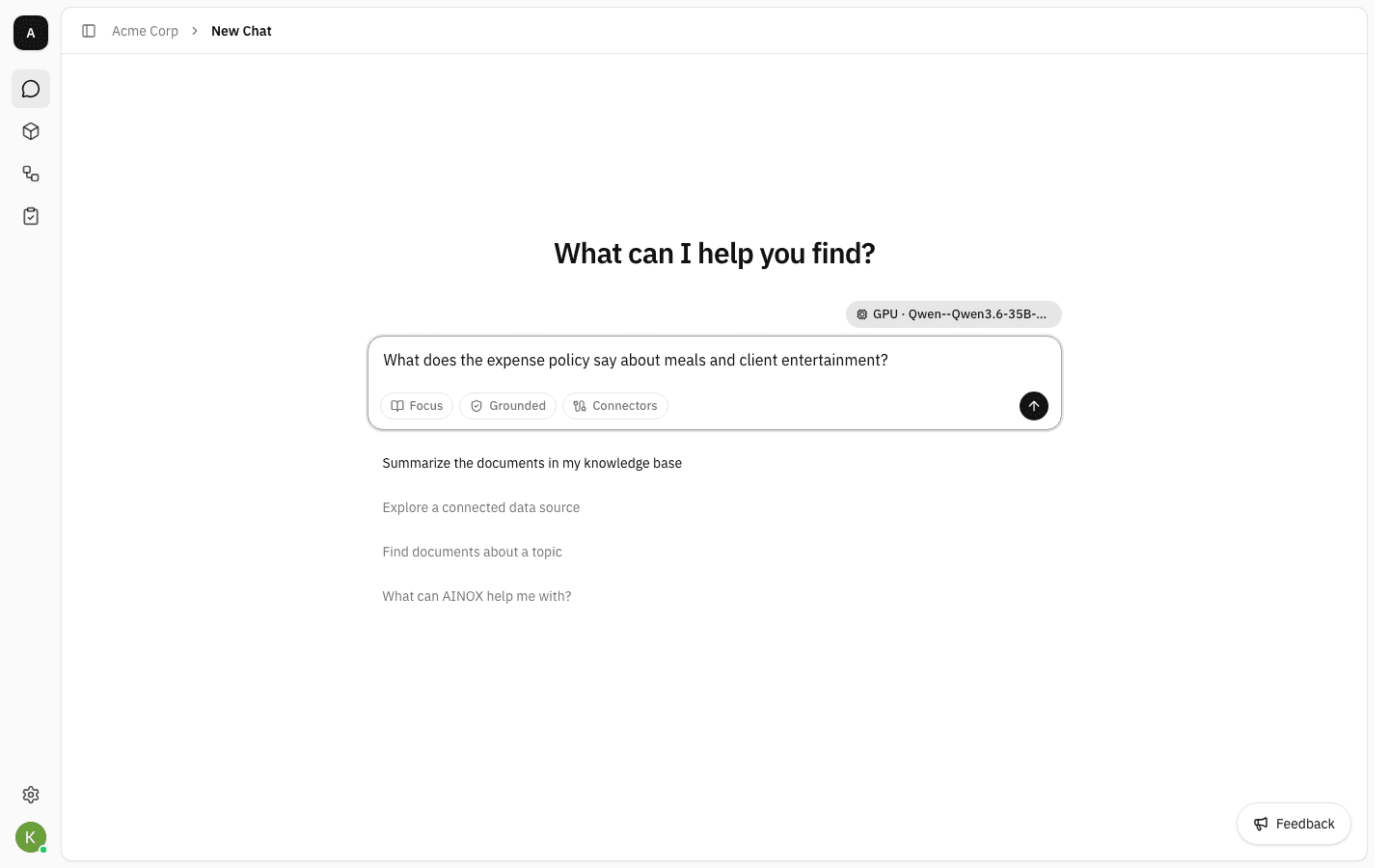
-
The answer streams in as it is written, and the conversation gets a title of its own based on what you asked. Short answers arrive in a few seconds; longer ones build up a paragraph at a time.
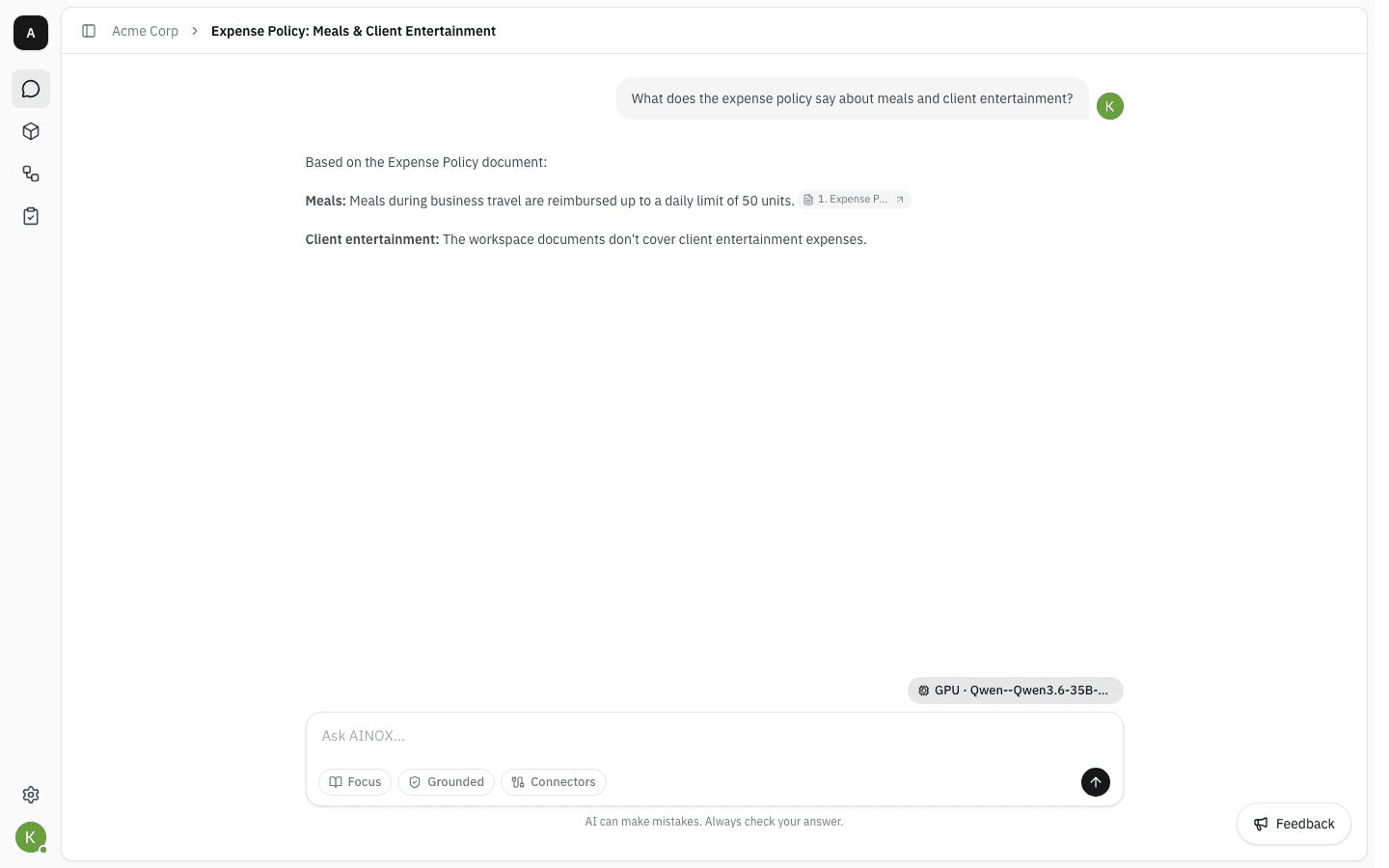
Notice the second half of this answer: the assistant says the documents don't cover client entertainment rather than inventing a figure. That is Grounded mode doing its job — see Choose how the assistant answers.
Check where an answer came from
-
The small numbered chips inside the text mark the passages the answer leaned on. Hover an answer to reveal its action row — copy, the two feedback buttons, regenerate, and Sources.
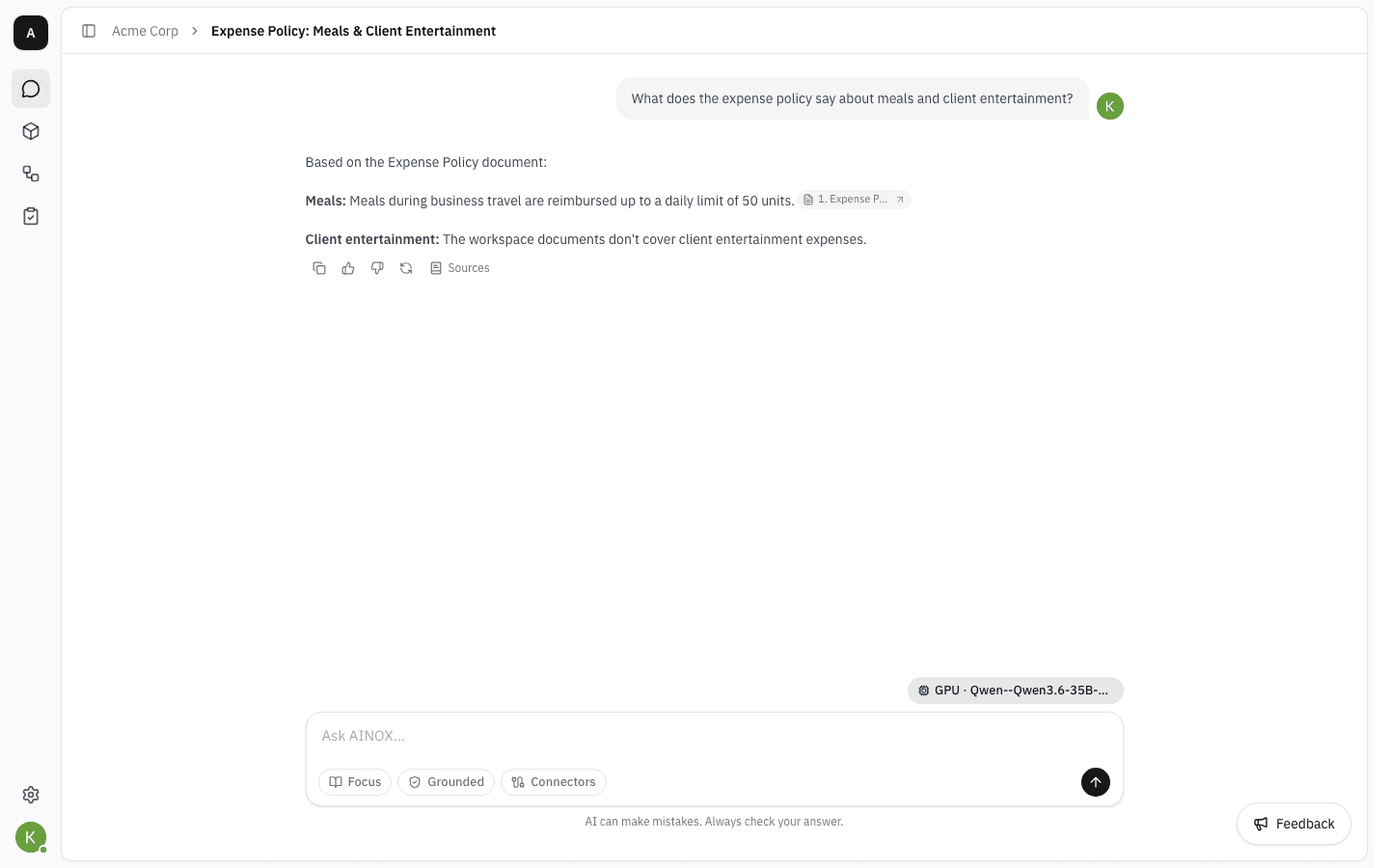
Sources only appears when the answer actually cited something. An answer with no citations was not drawn from your documents.
-
Click Sources to open the full list. Each entry shows the document it came from and how closely it matched your question, strongest first.
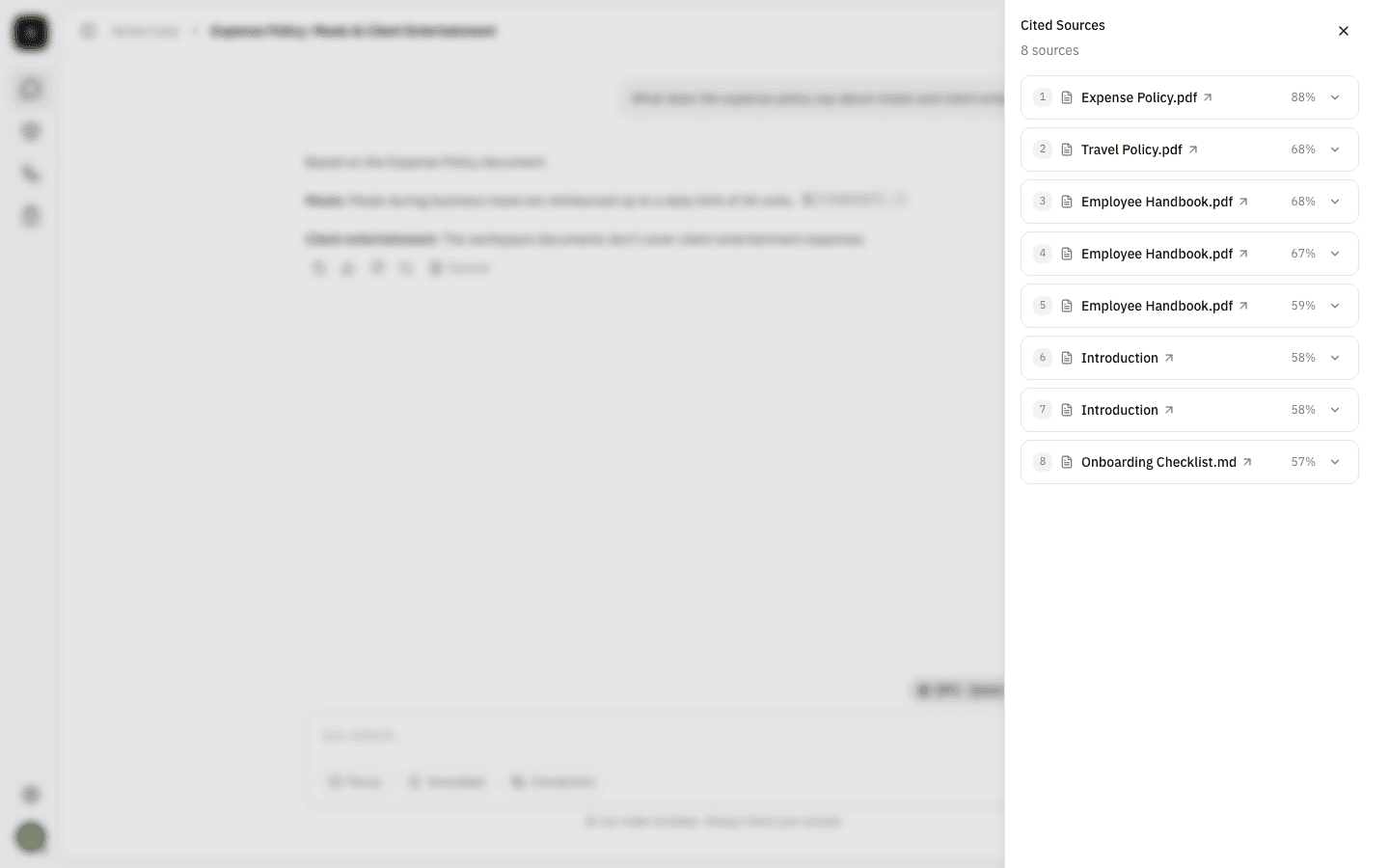
The same document can appear more than once when several separate passages in it were used.
-
Expand an entry to read the exact passage the assistant saw, and use the arrow next to the document name to open the document itself.
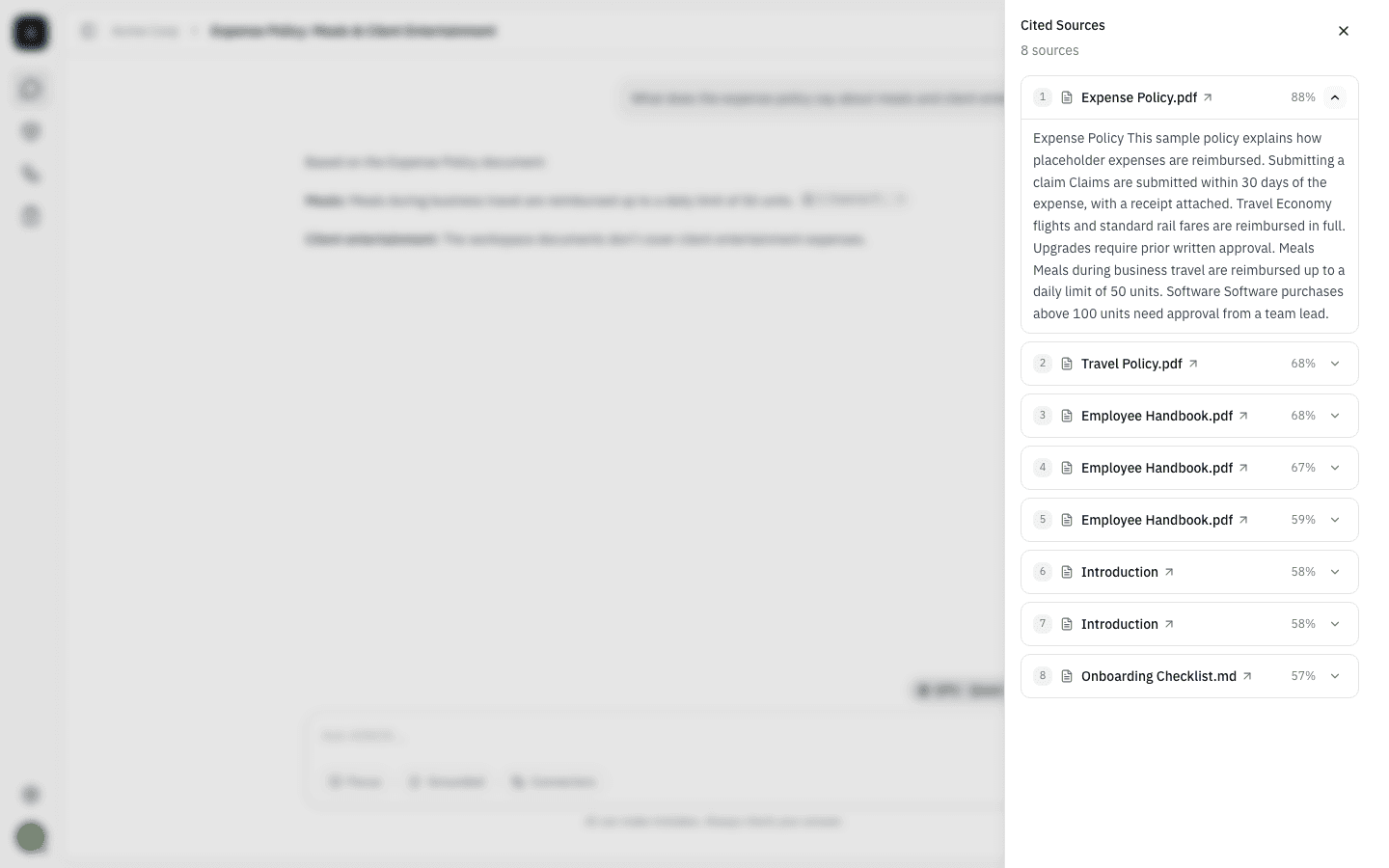
This is the quickest way to settle whether an answer is right: the sentence the reply paraphrased is usually visible in the passage.
Rate an answer
Feedback is how the workspace learns which answers are working. It feeds the Feedback and Top Questions pages that admins review.
-
Hover an answer and click 👍. Add a comment if you want to say what was good, then Submit — the comment is optional.
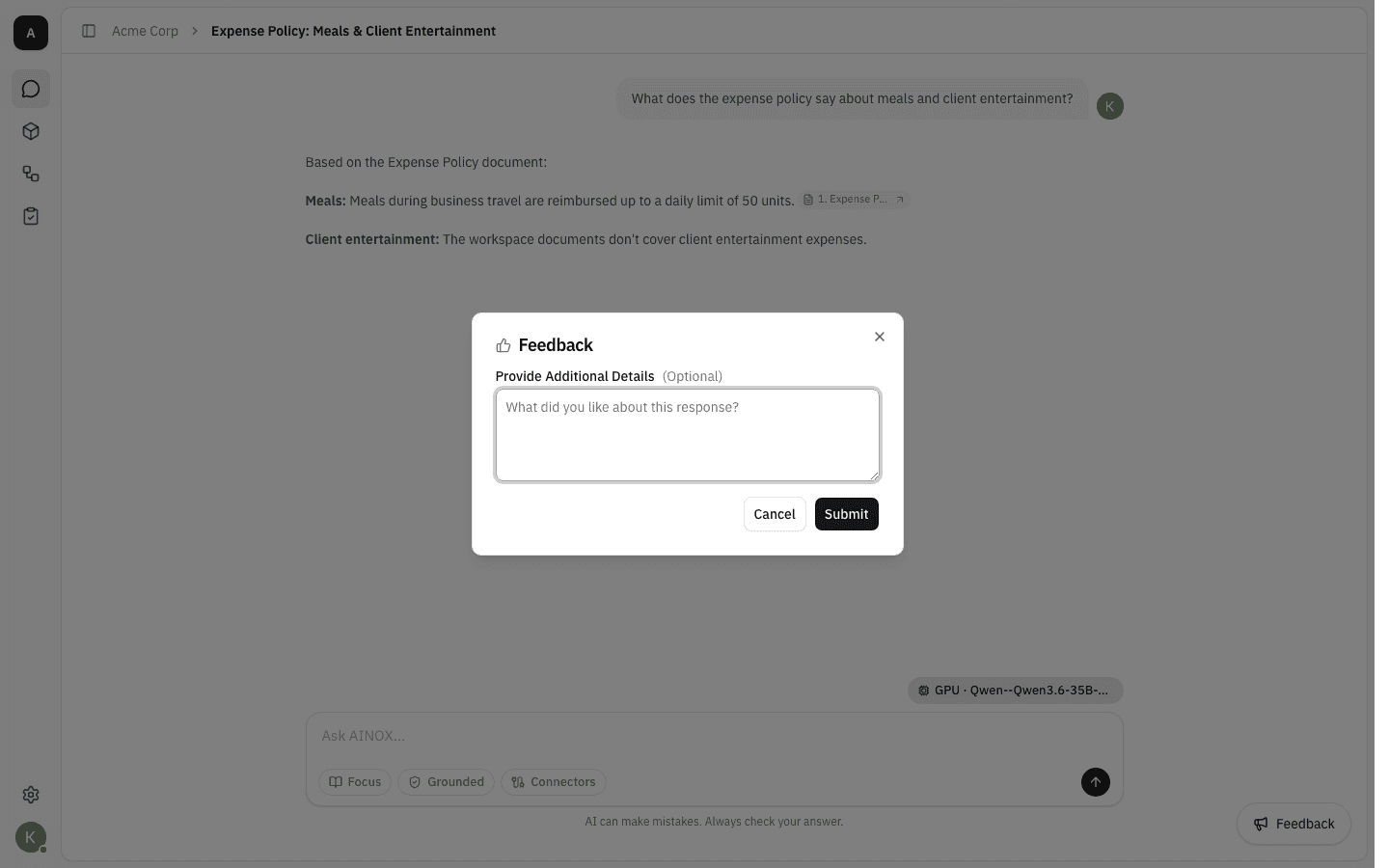
-
👎 asks for a bit more: tick whichever reasons apply, and add details if the list doesn't cover it.
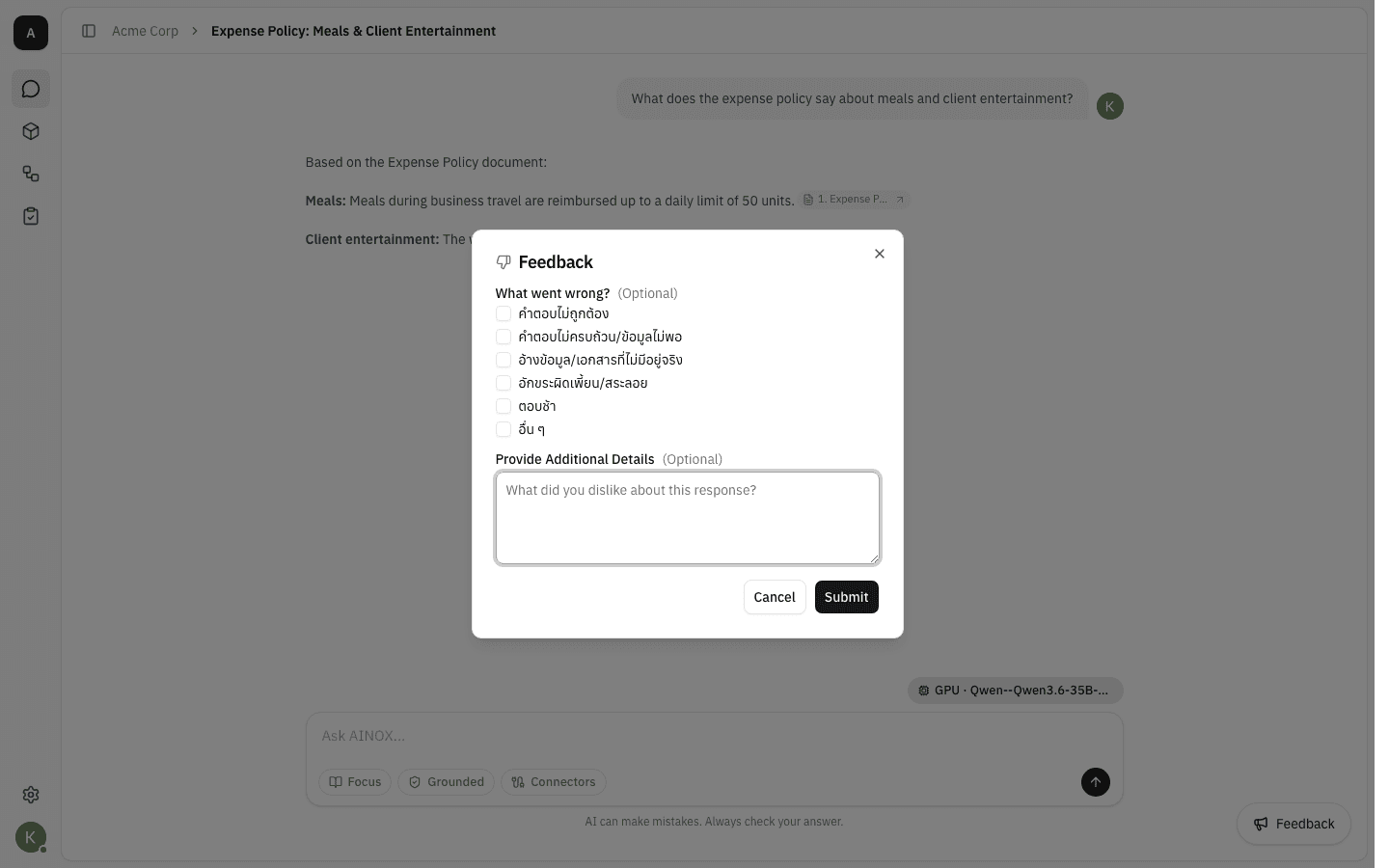
Your rating stays highlighted on the answer afterwards, so you can see at a glance what you already rated.
Narrow a question to specific documents
By default the assistant searches everything you can see. When you already know which documents matter, pointing it at them gives tighter answers.
-
Click Focus, search for the documents you want, and tick them. The counter at the bottom tracks the selection, and Clear empties it.
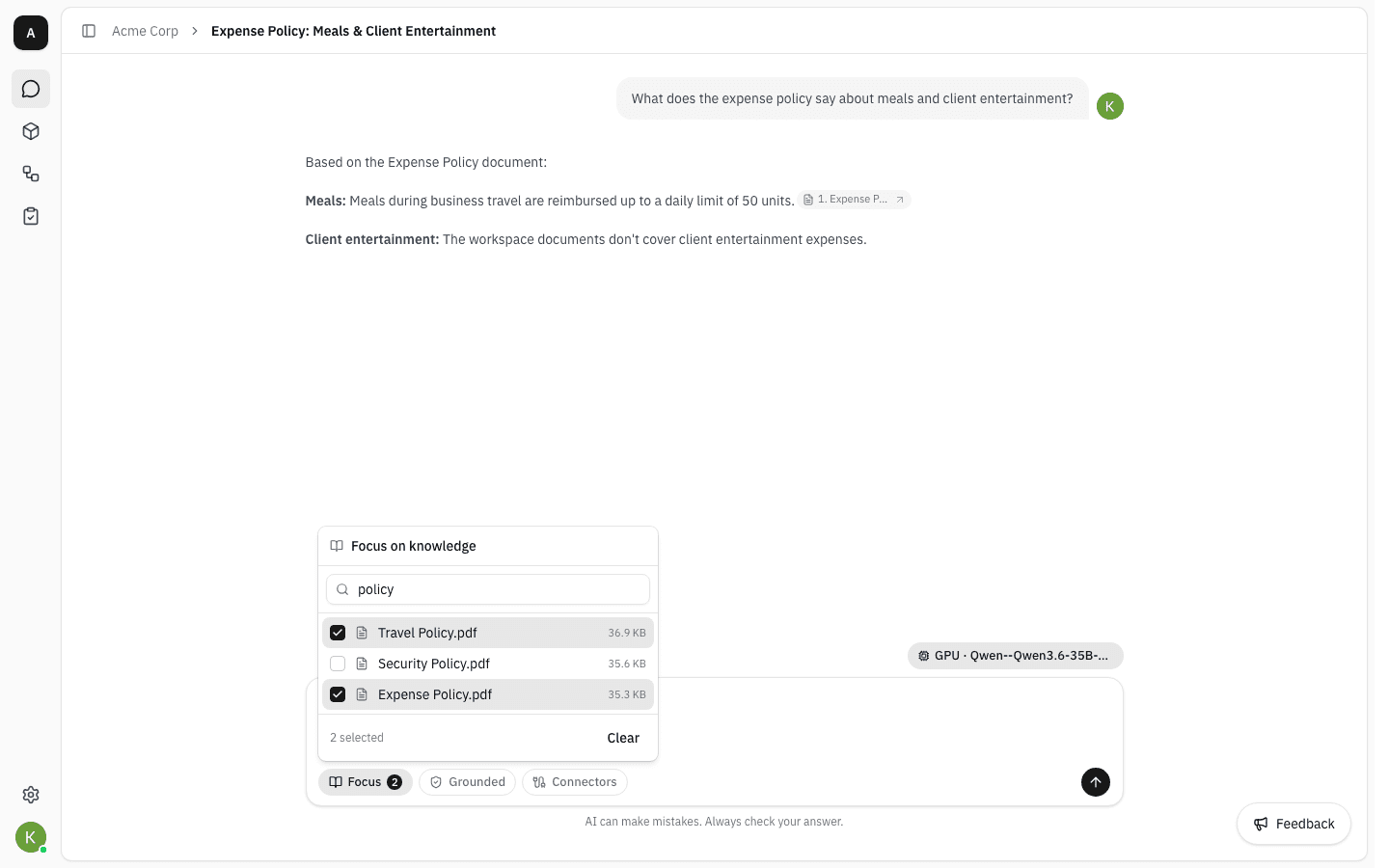
The list covers workspace files, project files you have access to, and documents synced in by a knowledge source.
-
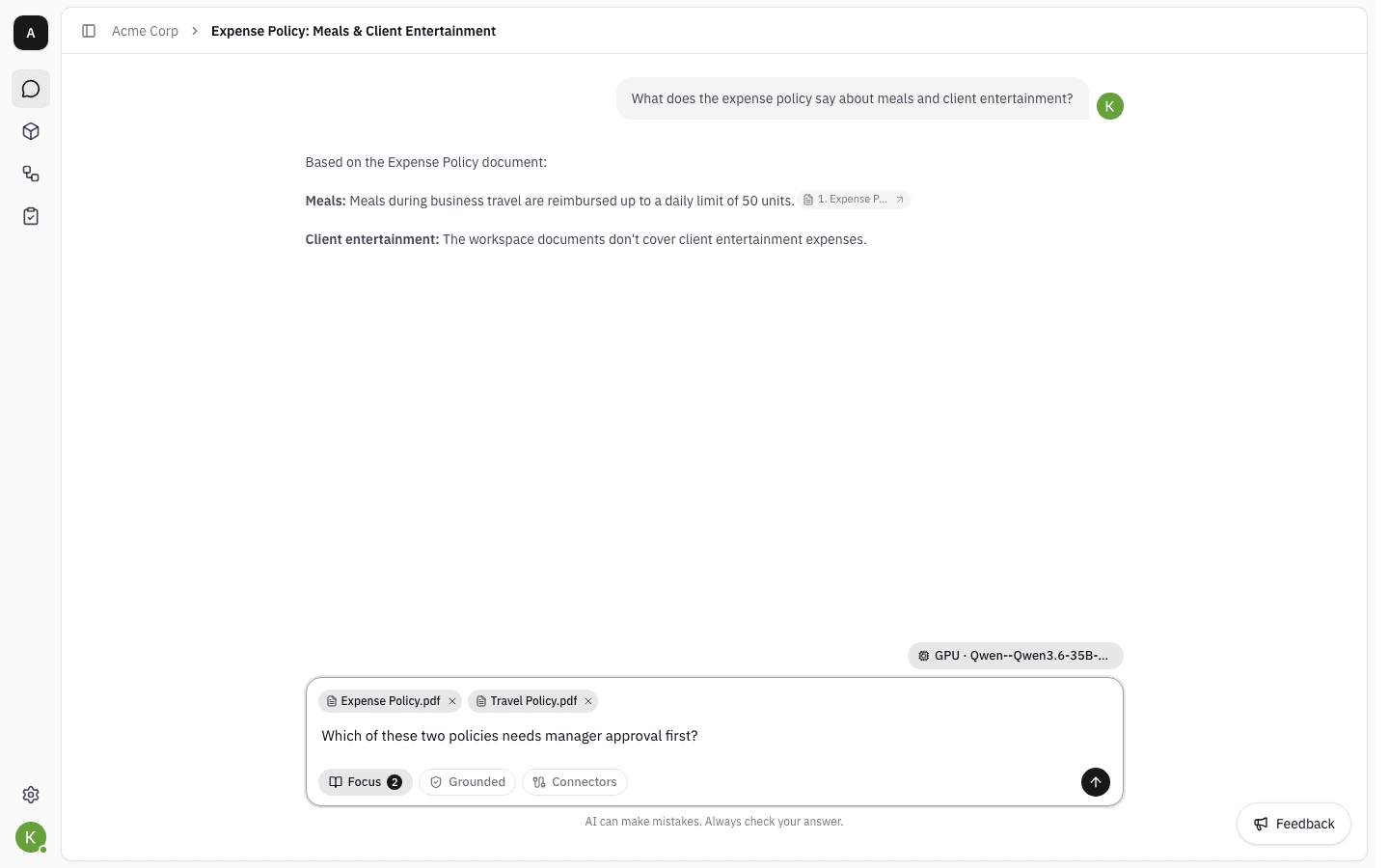
Close the picker and your choices sit above the message box as chips. Remove one with its ×.
-
Ask your question. The answer is now built only from those documents, and the citations confirm it.
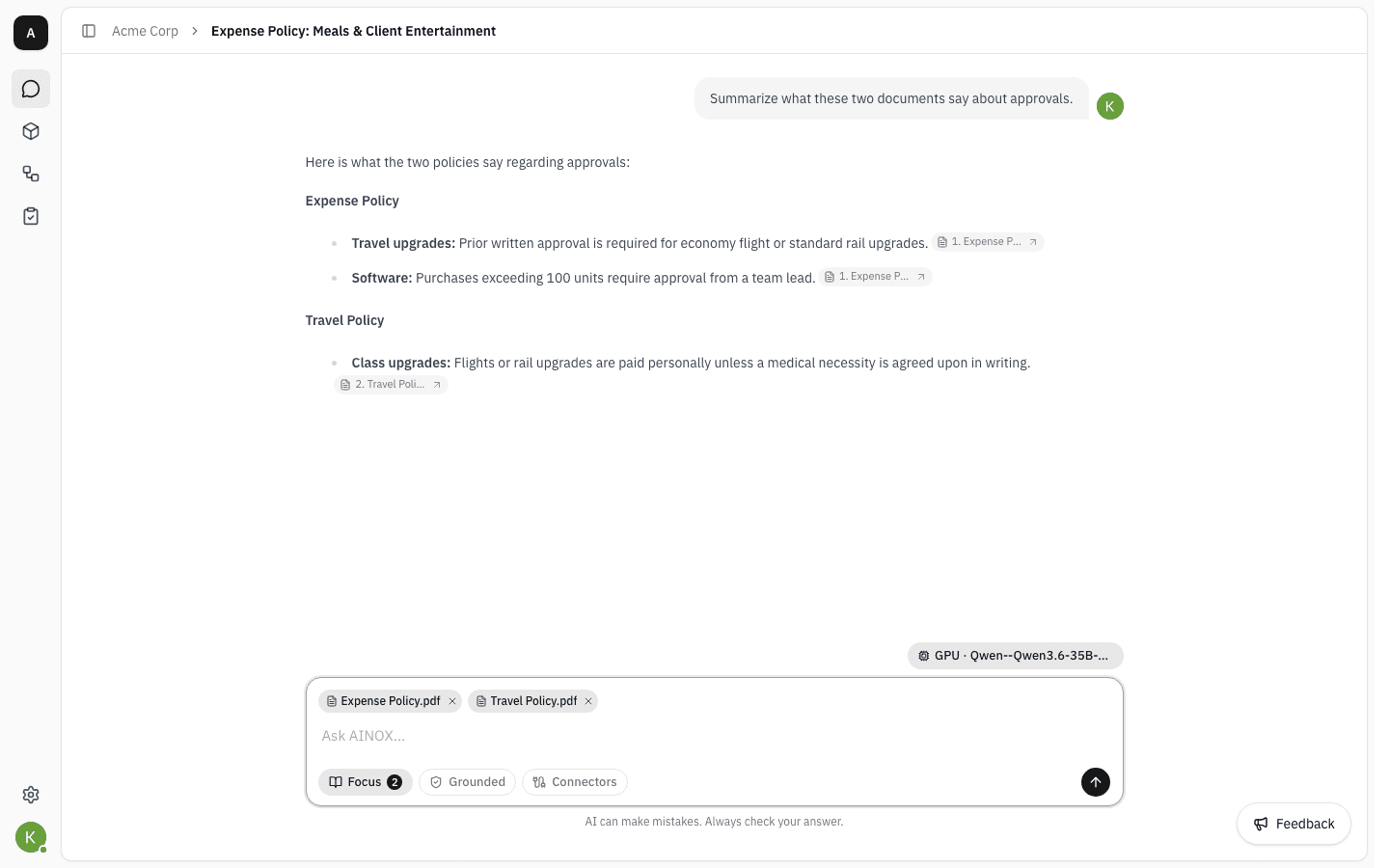
The focus stays on for the rest of the conversation until you remove the chips, so follow-up questions keep the same narrow scope.
Choose how the assistant answers
-
The middle chip switches between the two ways an answer may be sourced.
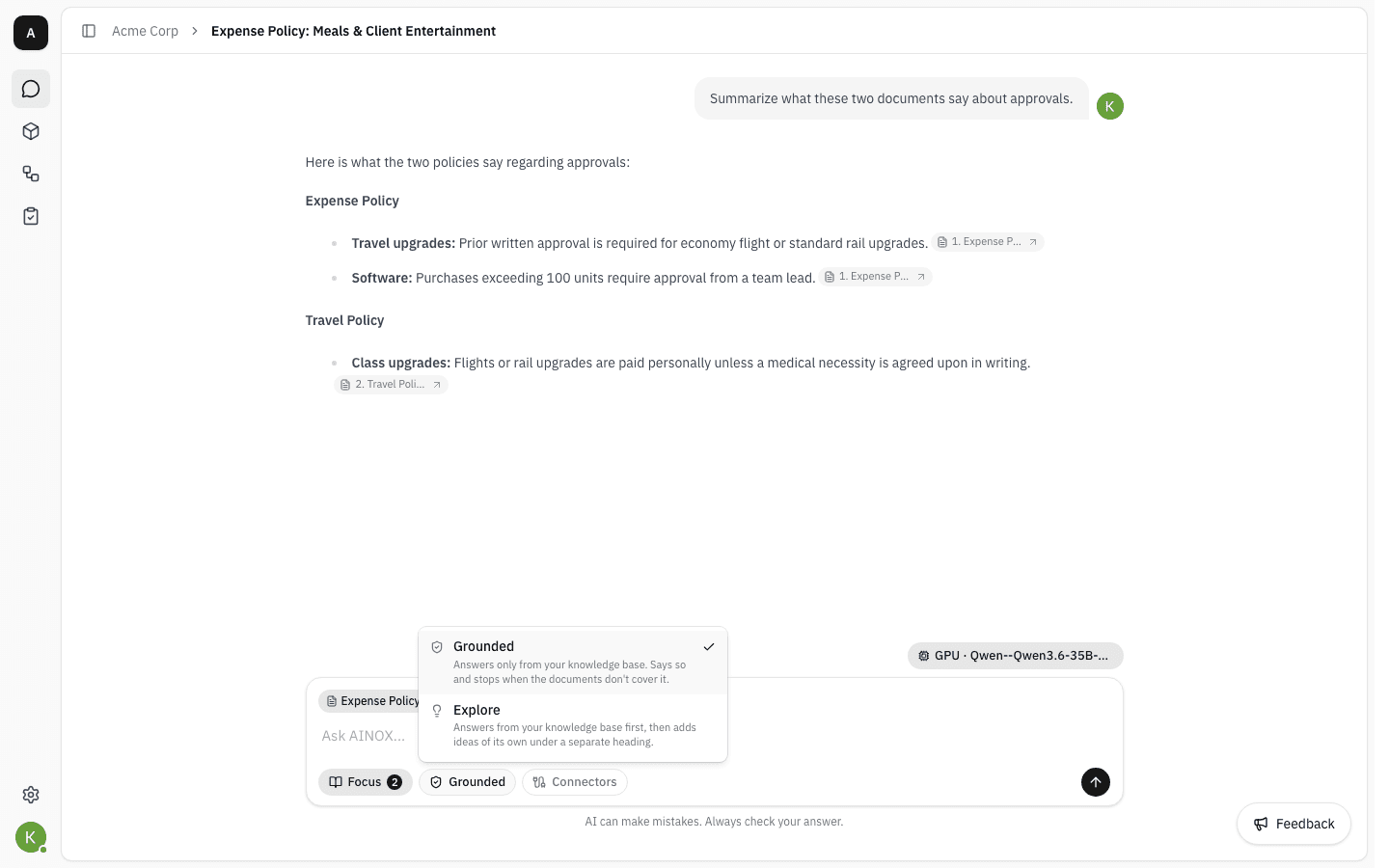
- Grounded (the default) answers only from your documents. When they don't cover the question it says so and stops — which is what you want for policy, compliance and "what does the contract say" questions.
- Explore answers from your documents first, then adds ideas of its own under a separate heading. Useful for brainstorming, as long as you keep track of which half is which.
The choice applies to this message and every later one in the same conversation until you change it again.
Query a connected data source
-
Connectors brings databases and external AI tools into a conversation, so the assistant can query live data instead of documents. A workspace with none set up yet points you at where they are added.
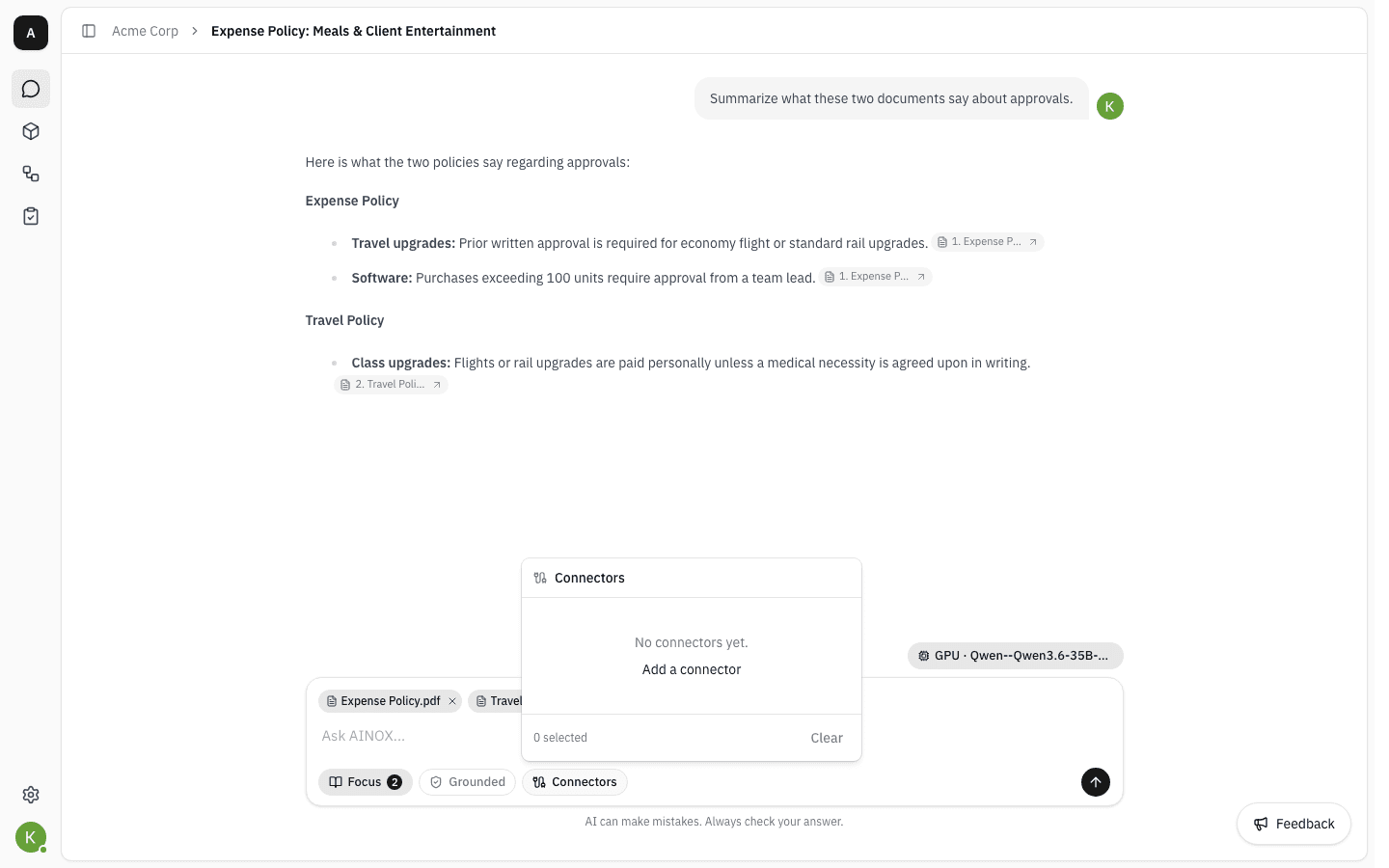
Once connectors exist, tick the ones this question needs and the assistant will query them while answering. The query itself is not shown — you get the result, so treat a number from a connector the way you would treat a figure quoted from a document and check it if it matters.
Switch models
-
Click the model chip above the message box to pick a different model. The list shows every model an admin has enabled, grouped as provider · model.
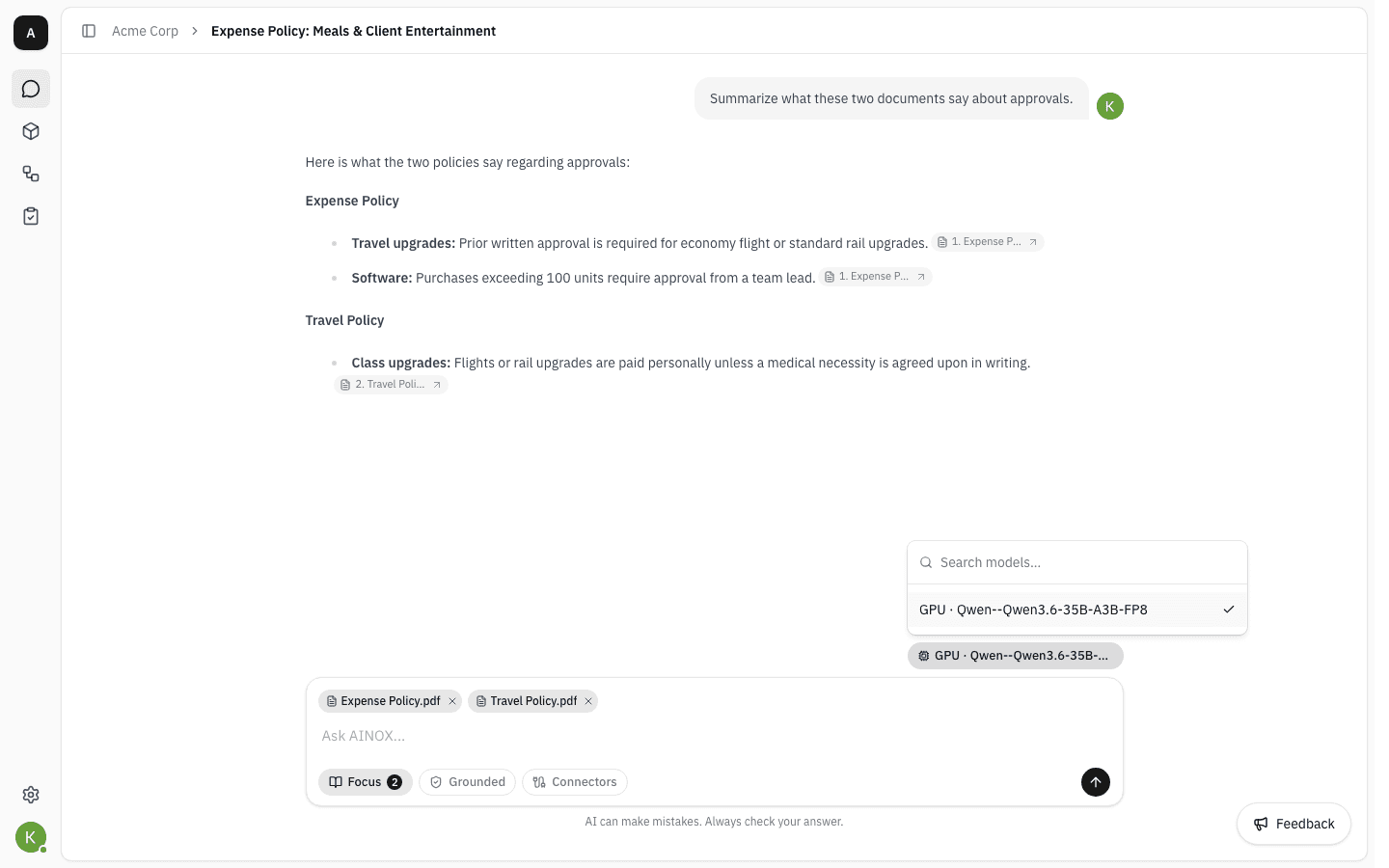
Your choice is remembered for the next conversation you start. If a model is later disabled or its provider removed, the chip warns you and you will need to pick another before sending.
Find and reopen past chats
-
Click the panel icon next to the breadcrumb — or press ⌘ + \ — to open the chat history.
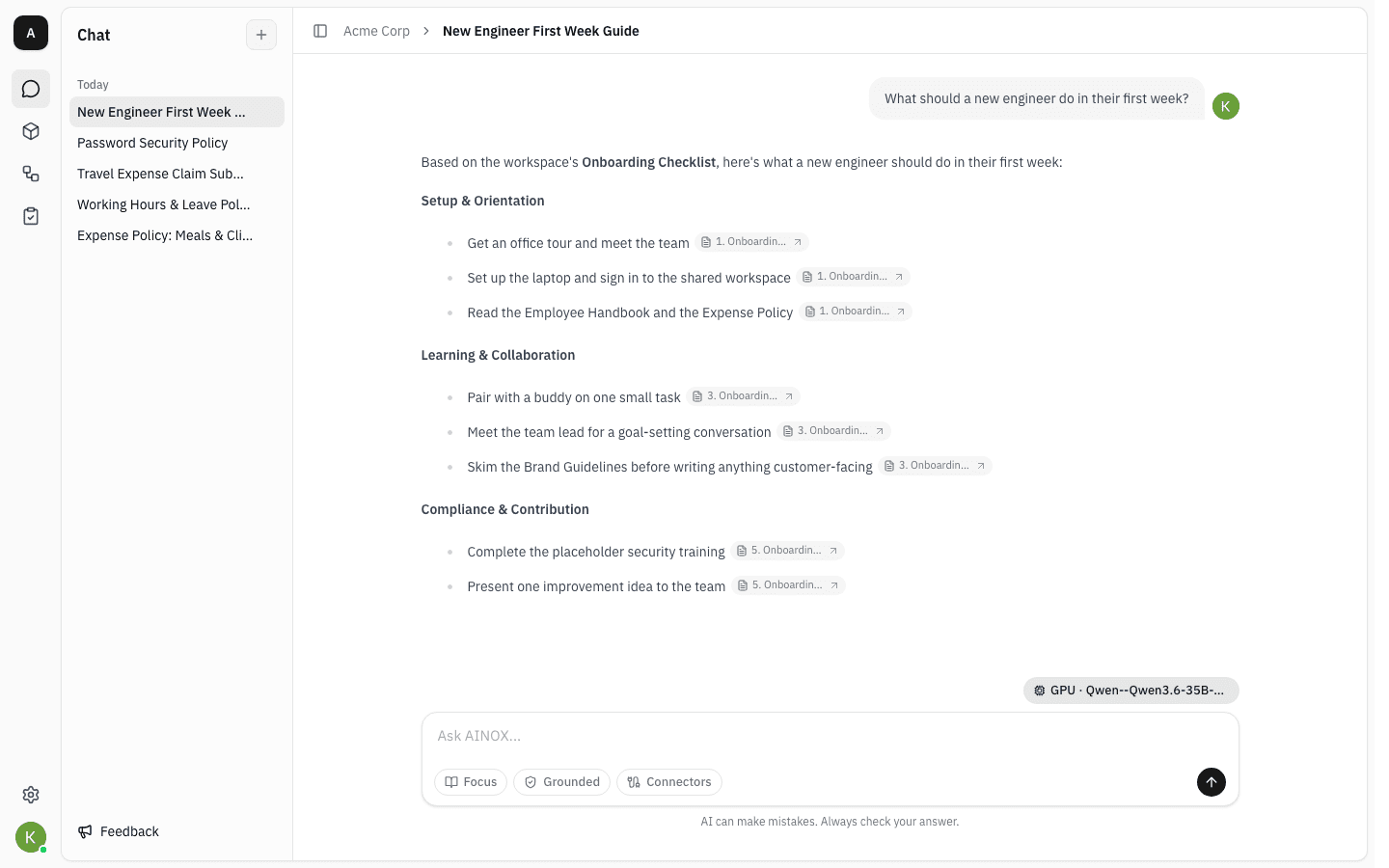
Conversations are grouped by when they were last used, newest first, and the list loads more as you scroll. + at the top starts a fresh chat.
Delete a chat
-
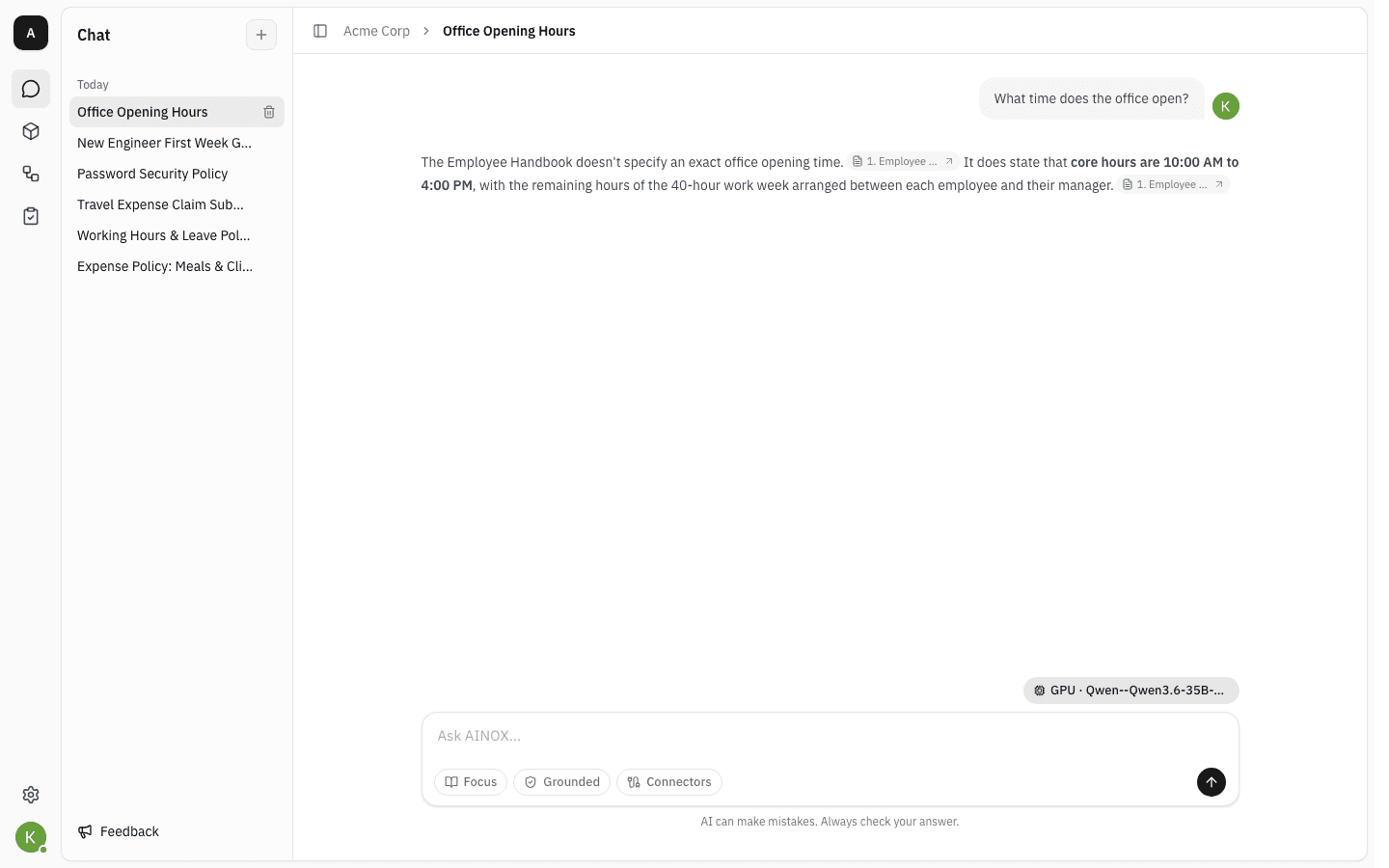
Hover a conversation in the sidebar and click the bin icon at the end of the row.
-
Confirm. Deleting is permanent — the conversation and its messages go, and there is no undo.
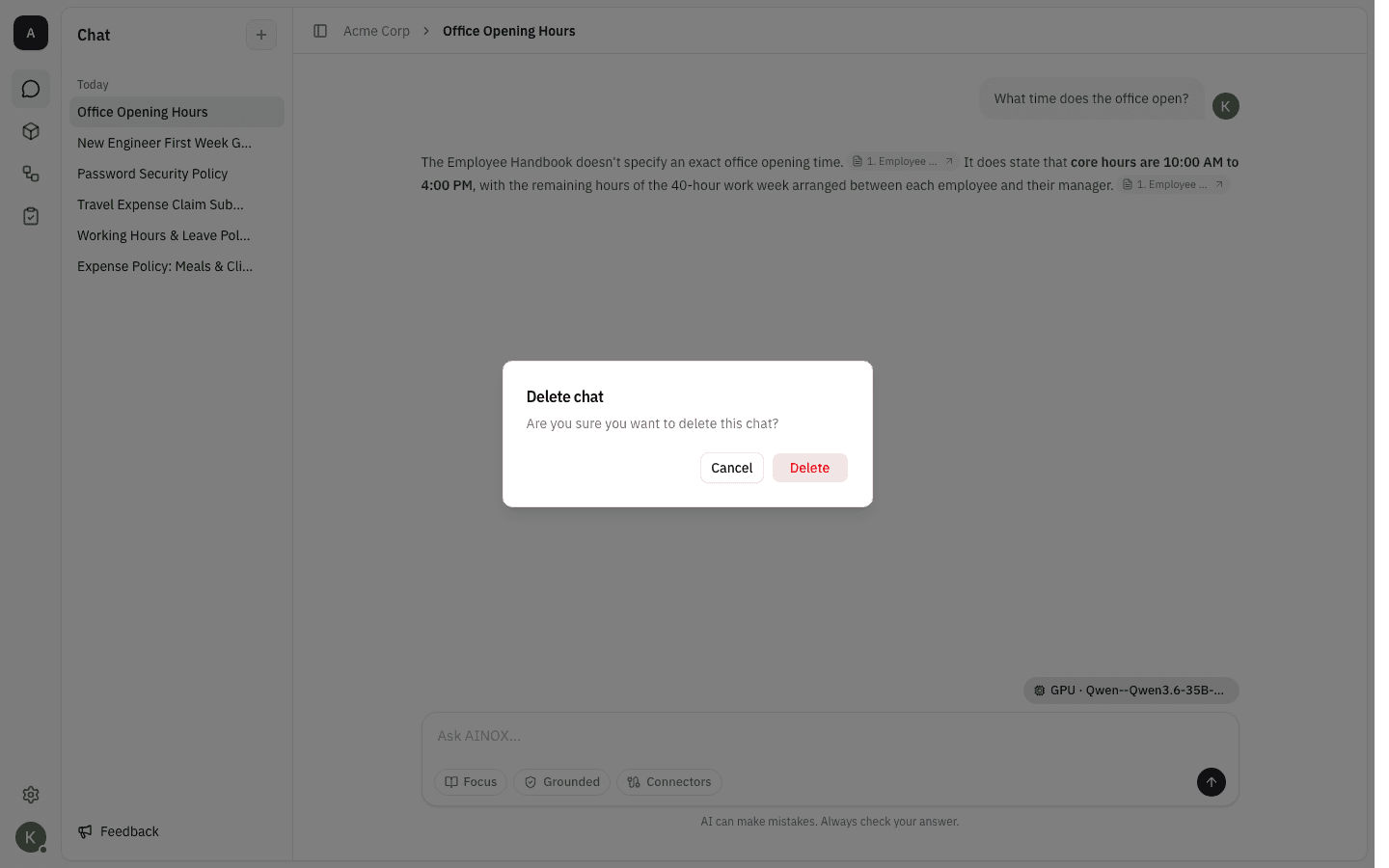
Deleting the conversation you are currently reading takes you back to a new empty chat.
Notes
- Check the answer. The line under the message box says it for a reason: the assistant can misread a document or stitch two passages together wrongly. The Sources panel is there so that checking takes seconds.
- Regenerate re-runs the last answer with the same question, which is worth a try when a reply is oddly short or misses the point. It replaces the answer rather than adding a second one.
- Copy is available on your own messages as well as the assistant's; copying an answer leaves the citation markers out of the text.
- Only indexed documents are searchable. A file that is still indexing, or that ended up Unsupported or Failed, is invisible to chat even though you can see it in Files.
- You only ever see your own documents. Project files are searched only for projects you belong to, so two people can ask the same question in the same workspace and get different answers.
- Rate limits: sending many messages in quick succession pauses chat with a countdown and a retry button. Waiting it out is all that is needed.
- The reasons offered under 👎 are listed in Thai; the rest of the dialog follows the language of the interface.
Personal settings
Manage your own profile, appearance, chat preferences, memory and personal API access keys.
Workflows
Hand a blank Word, Excel or PDF form to a workflow and get it back filled in from your workspace documents, with every answer traced to its source and yours to approve before you download it.