Project Audit Log
Review the history of one project — its files, folders, members and groups — without the noise of the rest of the workspace.
Every project keeps its own audit log: an immutable record of who changed what inside that project. It is the same viewer as the Workspace Audit Log, narrowed to a single project and available to people who administer that project rather than the whole workspace. Use it to answer "who deleted this file?" or "when was this group's access changed?" without wading through workspace-wide activity.
What it records — and what it does not
An event reaches the project log only if it was tagged with this project when it happened. In practice that is four families of event:
| Recorded here | Examples |
|---|---|
| The project itself | project created, updated, deleted, restored, ownership transferred |
| Project members | member added, removed, role updated |
| Project groups | group created, renamed, deleted, permissions updated, members added/removed |
| Files and folders inside the project | upload requested, upload confirmed, moved, deleted, folder created/renamed/moved/deleted |
Everything else stays in the workspace log. In particular the project log does not show workspace administration (members invited, connectors, knowledge sources, model settings), chat activity that happened inside the project, or the document processing / indexing of the project's own files — those events are recorded against the workspace, not the project.
Prerequisites
- The
project:read_auditpermission. Project owners hold it by default; project members do not. - Being a workspace owner or admin is not enough on its own — unlike most project screens, the audit log is not inherited from the workspace tier. You must be a project owner, or belong to a project group that grants it.
- Without the permission the Audit Log item does not appear in the project sidebar at all, and visiting the URL directly shows a Project audit log access-denied panel.
Read the log
-
Open the project and choose Audit Log under Access in the project sidebar. The page opens on the last 7 days, newest first, grouped under a day heading. The counter reads loaded of total for the period — here
28 of 28 events (Last 7 days), so the whole period fits on one page.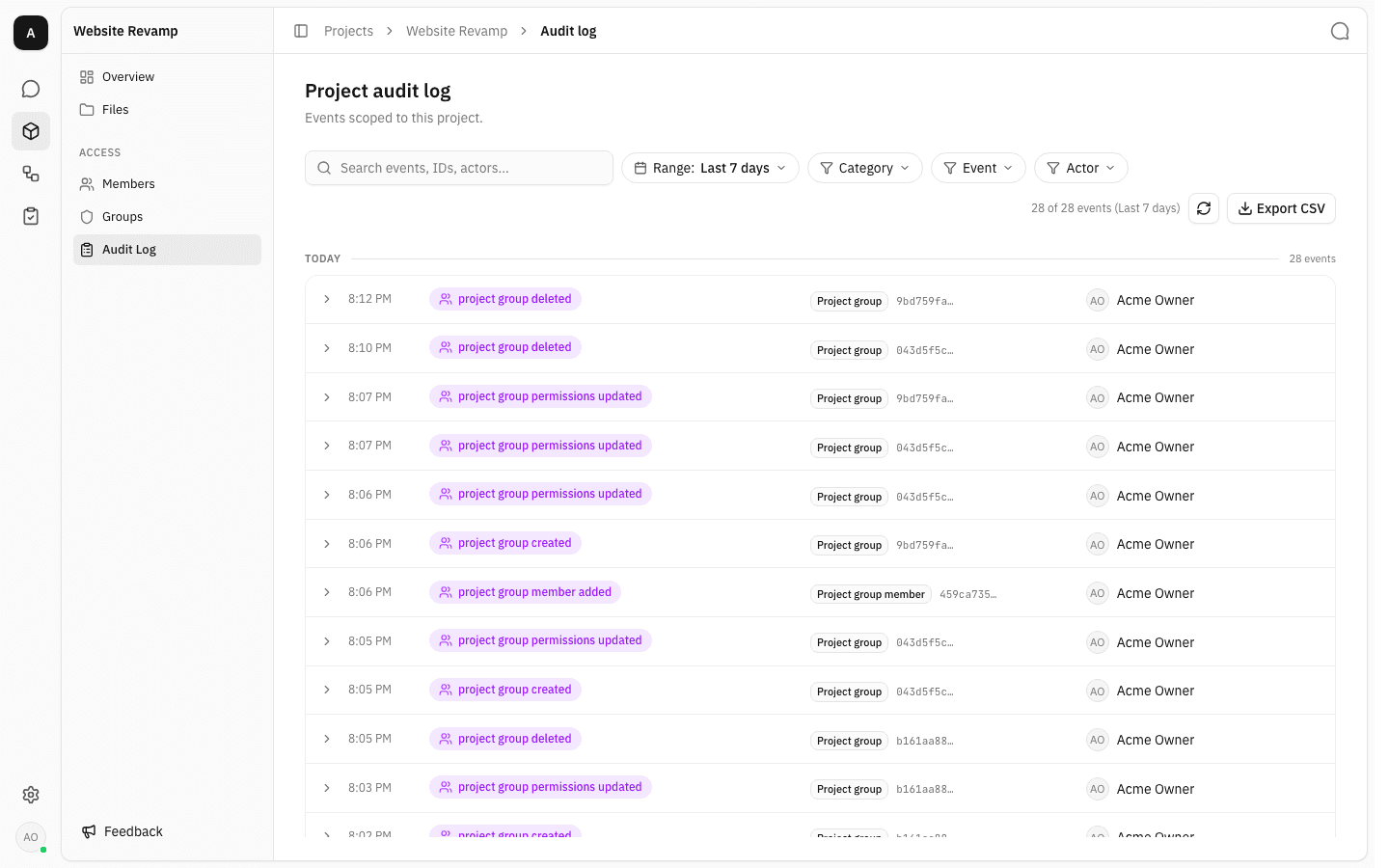
Each row shows the time, a colour-coded category badge naming the event type, the entity it happened to, and the actor who caused it.
-
Click any row to expand its detail strip and full JSON record. The oldest entry in a project's log is always its own
project_createdevent — the log starts the moment the project does.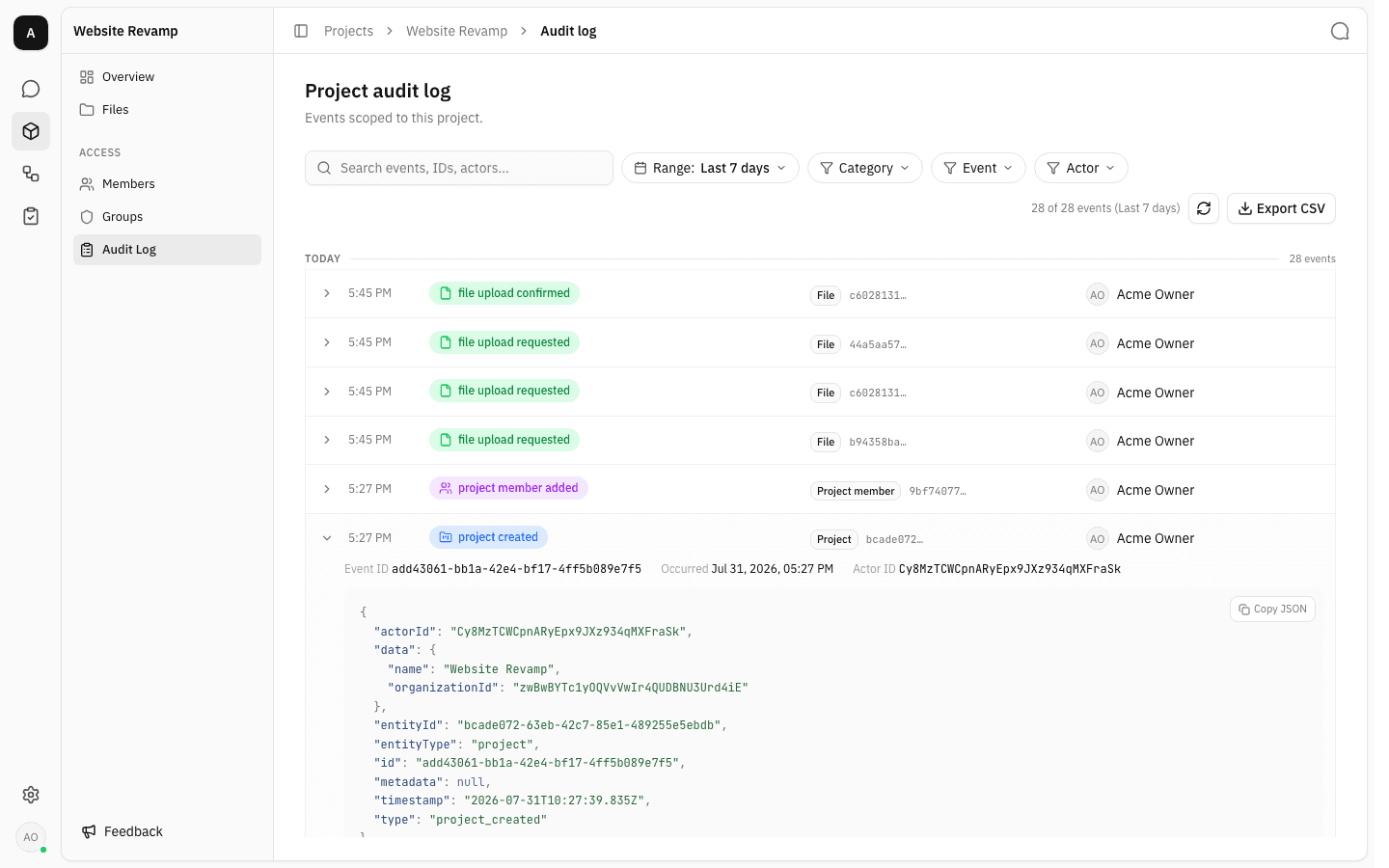
Copy JSON puts the whole record on the clipboard. Note that group and member events carry the project id inside their
datapayload, which is what scopes them to this page.
Narrow it down
The Range, Category, Event and Actor chips, the search box, paging and Export CSV all behave exactly as they do in the workspace log — see Narrow the period and the sections after it for the full explanation. Two things are worth pointing out in the project context:
-
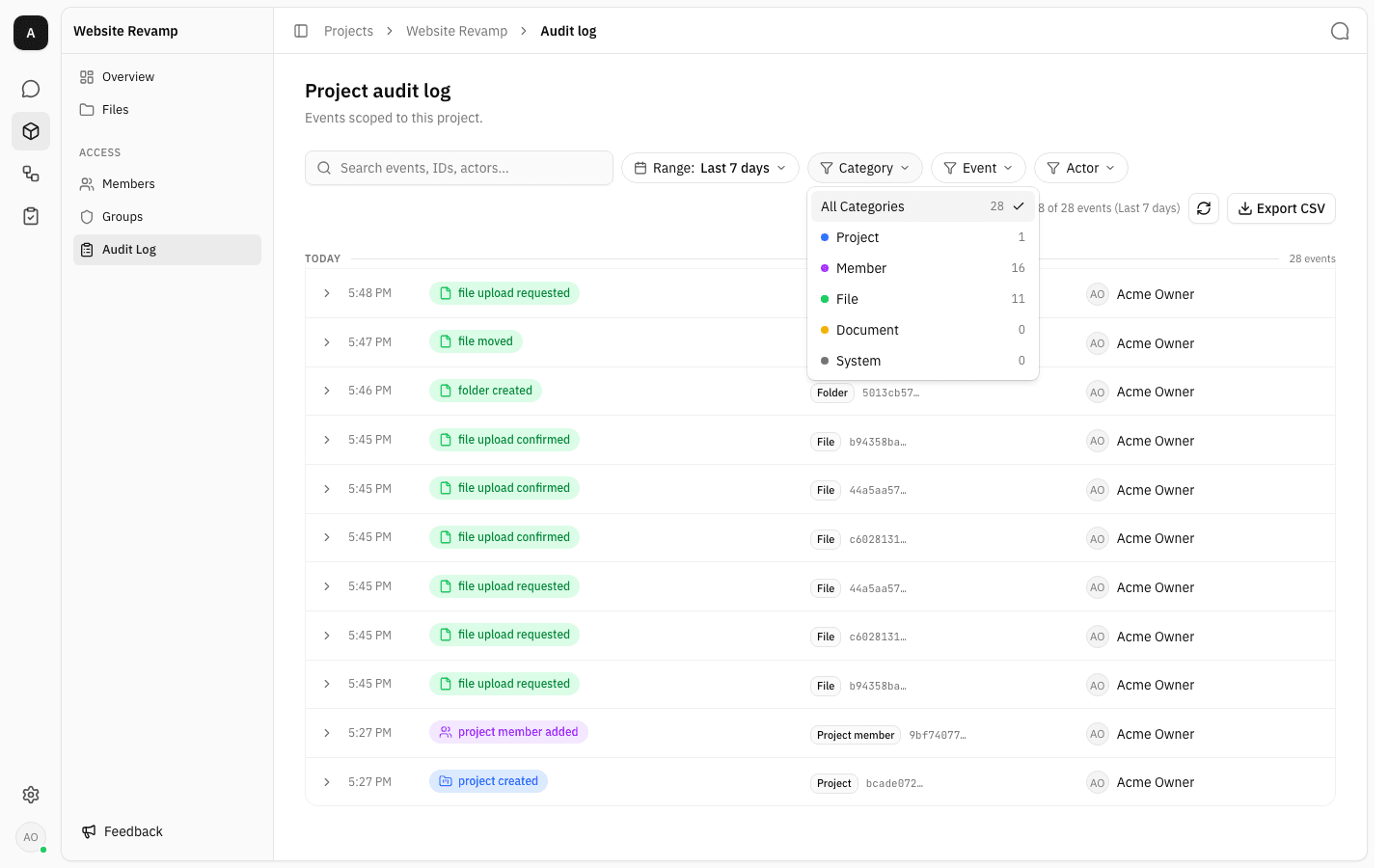
The Category chip is the quickest way to see the shape of a project's history. Here Project 1, Member 16 and File 11 account for all 28 events, while Document and System sit at 0 — the two categories a project log structurally cannot fill.
-
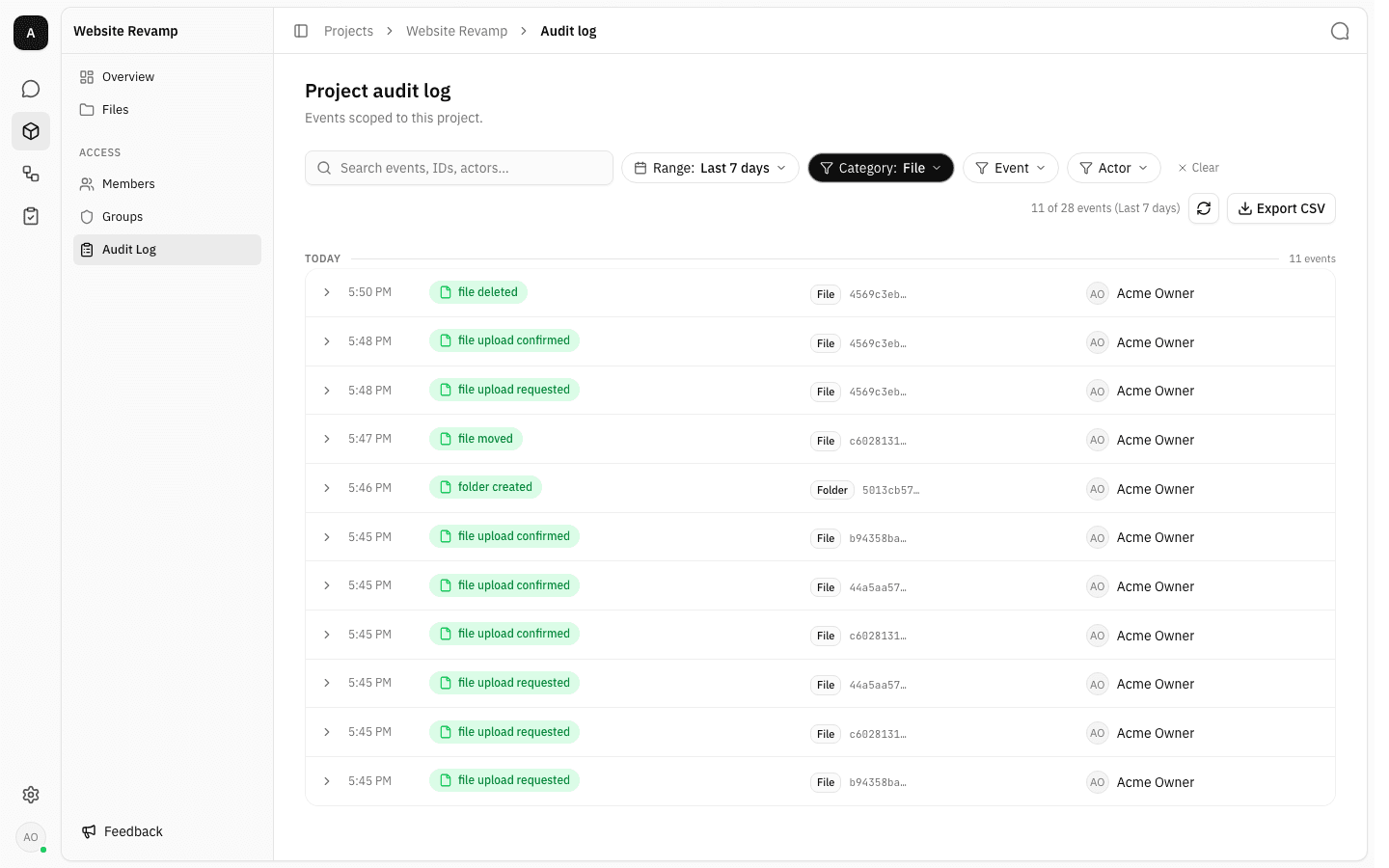
Picking a category keeps only its rows. File here leaves the eleven upload, move, delete and folder events.
-
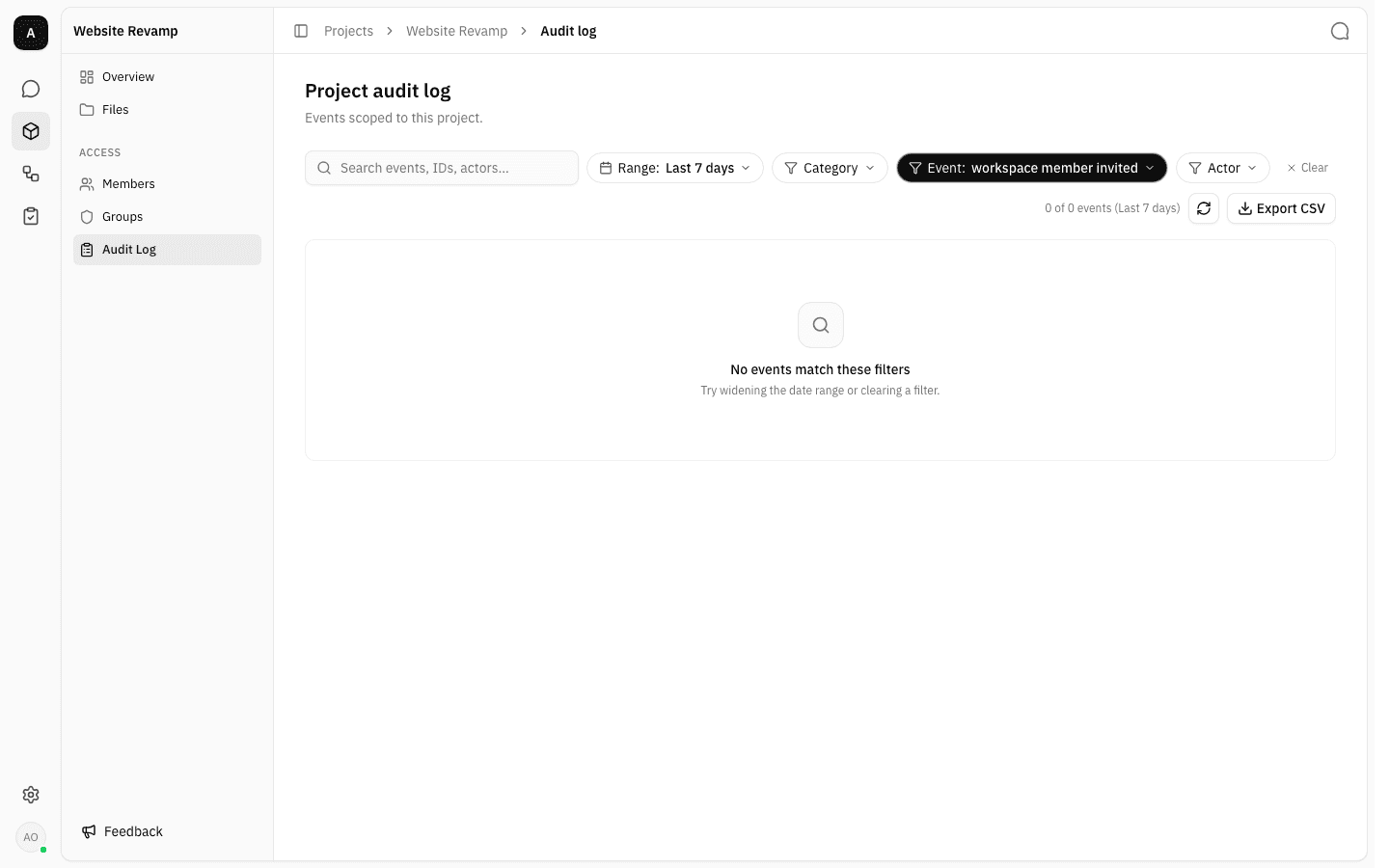
The Event chip offers the same fixed list of event types as the workspace log, including workspace-level ones. Selecting one of those is not an error — it simply returns nothing, because such events are never tagged with a project.
Grant access to someone else
To let a project member read the log without making them an owner, put them in a project group that has the permission.
-
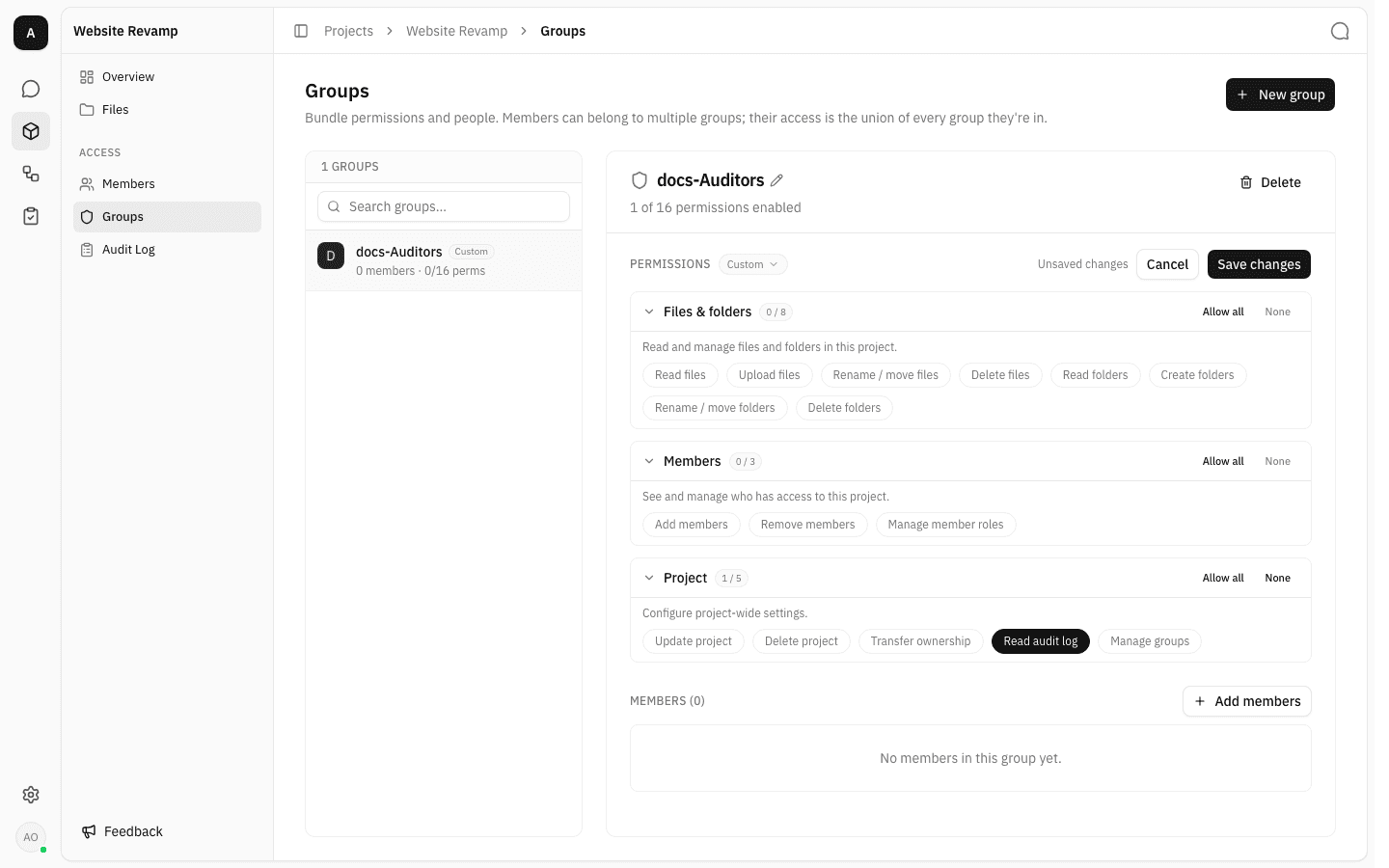
Open the project's Groups page, select the group, and switch on Read audit log under the Project permission section. Save the change; every member of that group gets the Audit Log sidebar item on their next visit.
See Project Groups for how groups and permissions work in general.
Notes
- Audit events are append-only. Deleting a group or a file removes the entity but leaves its history — the log will still show the group being created, changed and then deleted.
- The log is scoped by project, not by folder. Every file and folder event from anywhere in the project's tree lands in the same list.
- Because a project's history is usually small, the Category counts often match the true totals for the period. In a busier project they revert to being a facet over the rows loaded so far, exactly as in the workspace log.
- Deleting the project does not erase its events — they remain in the workspace log, and reappear here if the project is restored.
- A workspace owner or admin who needs a cross-project view should use the Workspace Audit Log instead, which includes every project's events alongside everything else.
Project models
See which language models a project can call today, ask the workspace owner for one it cannot, and follow what happened to earlier requests.
Workspace files
Upload and organize the shared document library that everyone in the workspace can use, and that the assistant searches when it answers.