Project groups & permissions
Bundle project members into groups and grant them project-tier permissions — file access, member management and project settings — in one place.
A project group is a bundle of permissions plus a list of people. Everyone in the group gets everything the group grants, so you set access up once and then only ever move people in and out.
Groups are where a project's day-to-day access actually comes from. Being on the project's member list decides whether someone can open the project at all; the groups they belong to decide what they may do once inside — read files, upload, rename folders, manage members, change project settings.
Owner and Member are roles, not groups
Every project has exactly one Owner and any number of Members — those are roles, managed on the project's Members page, and they never appear in the group list. A brand-new project therefore has no groups at all, even though it already has people on it.
Project groups are also separate from workspace groups & permissions. Workspace groups hand out workspace-tier permissions (invite members, manage connectors, read usage); project groups hand out the 16 project-tier permissions described below, and only inside the one project they live in.
Prerequisites
- You need the project's Manage groups permission — the project owner has it, and anyone else gets it through a group that grants it.
- Without it the page still opens read-only: you can see every group, its permissions and its members, but New group, Delete, the permission pills, the preset menu and the member controls are all absent or disabled.
- Only people who have accepted their workspace invitation can be put into a group. Someone still shown as Pending on Admin → Members cannot be picked.
Open the groups page
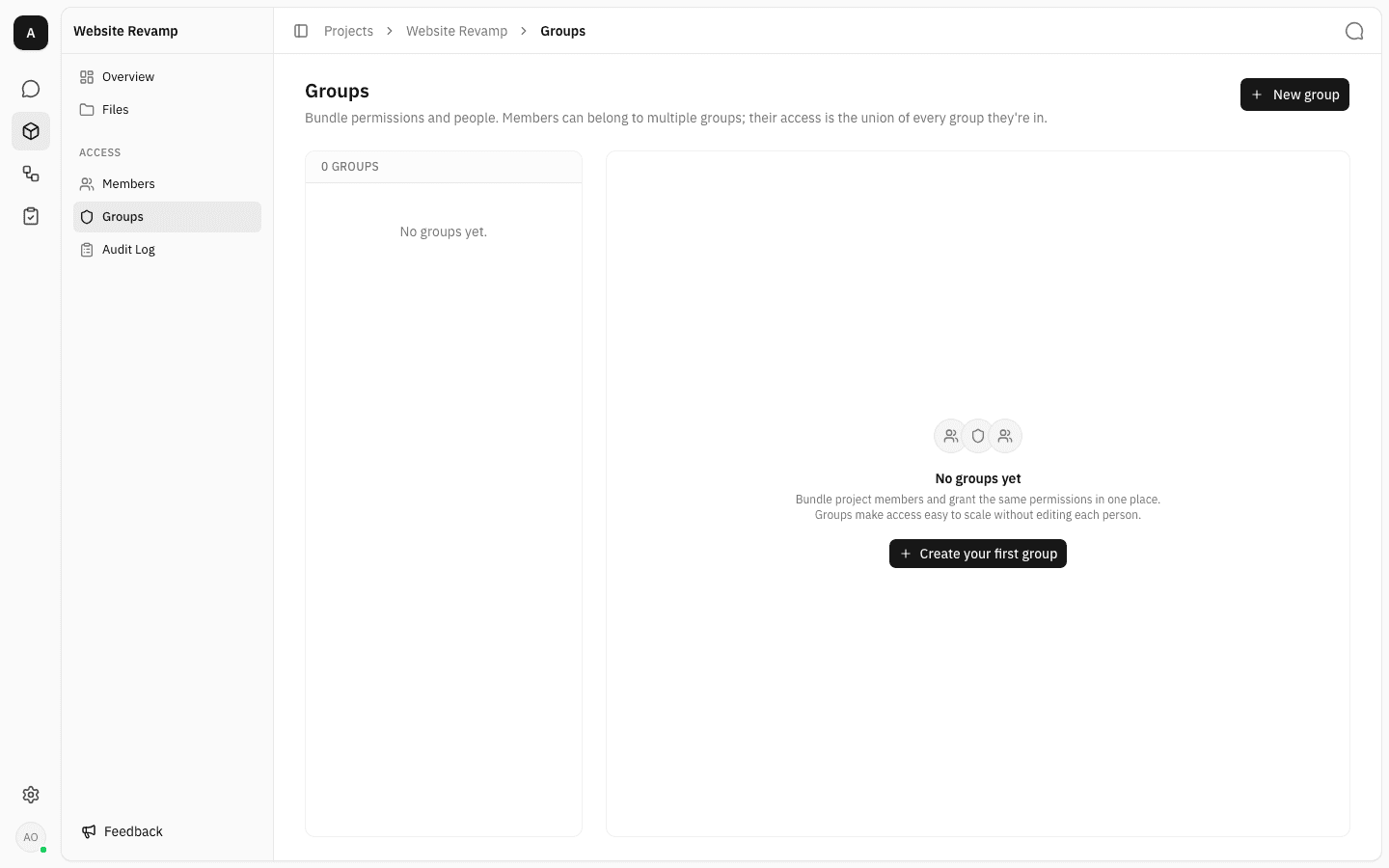
Open the project from Projects, then choose Groups under ACCESS in the project sidebar. On a project that has never had a group, the page explains what groups are for and offers a single button.
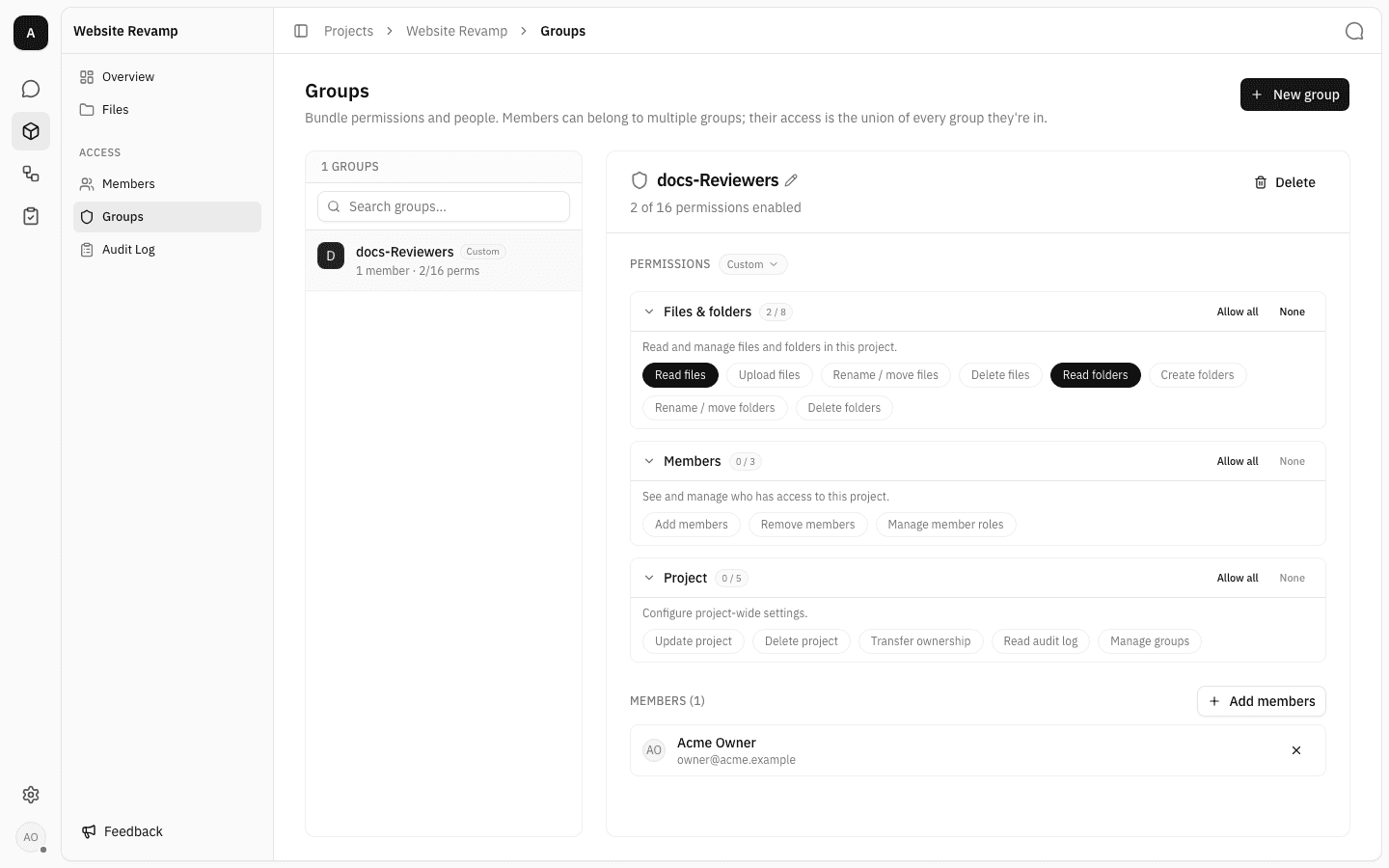
Once groups exist, the page is a two-pane layout: every group in the project on the left, the selected group's details on the right.
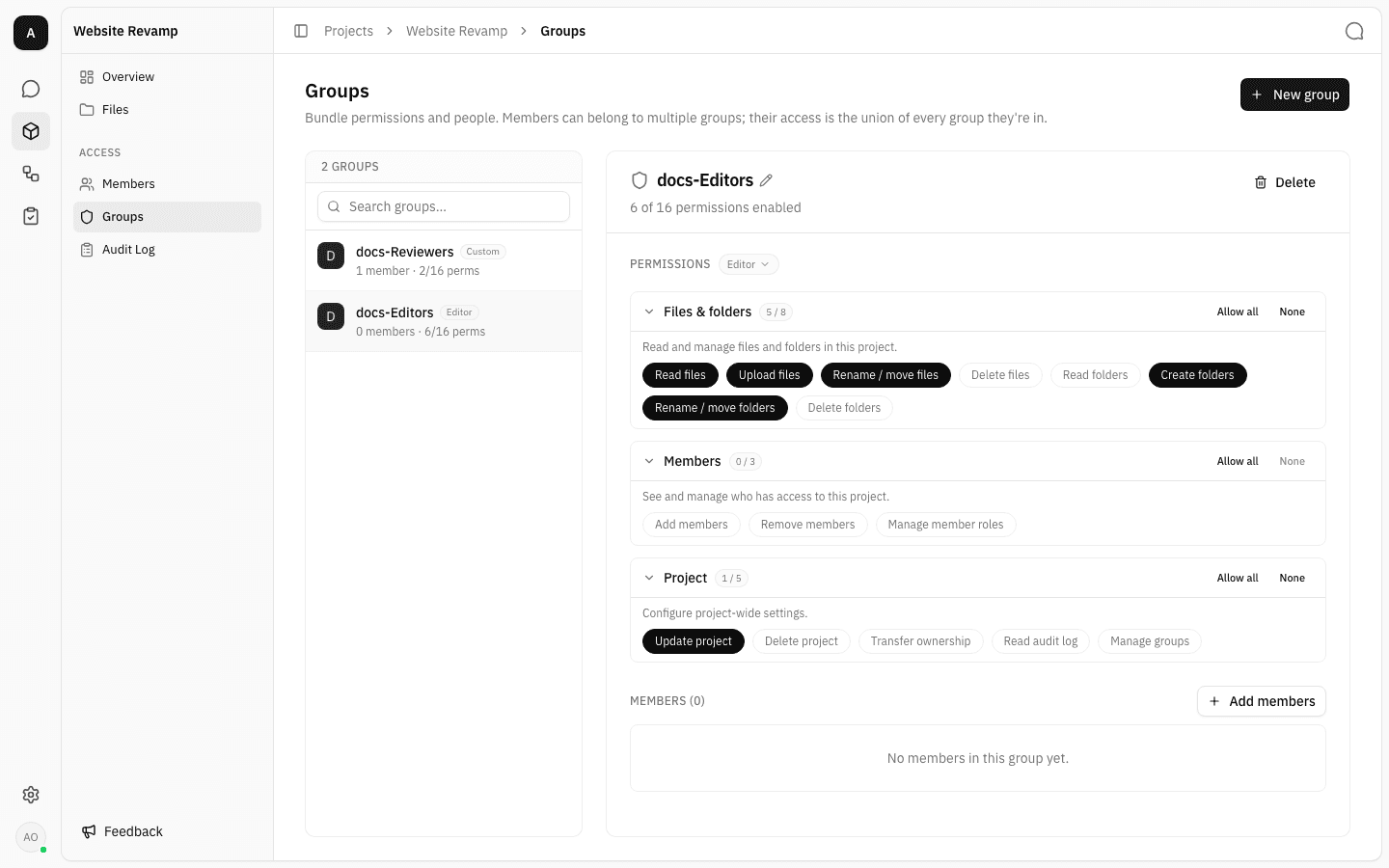
Each row shows the group name, a badge naming the preset its permissions match
(or Custom), the member count, and how many of the 16 project-tier
permissions it grants — for example 1 member · 2/16 perms. The search box above
the list filters by name once the list gets long.
Create a group
-
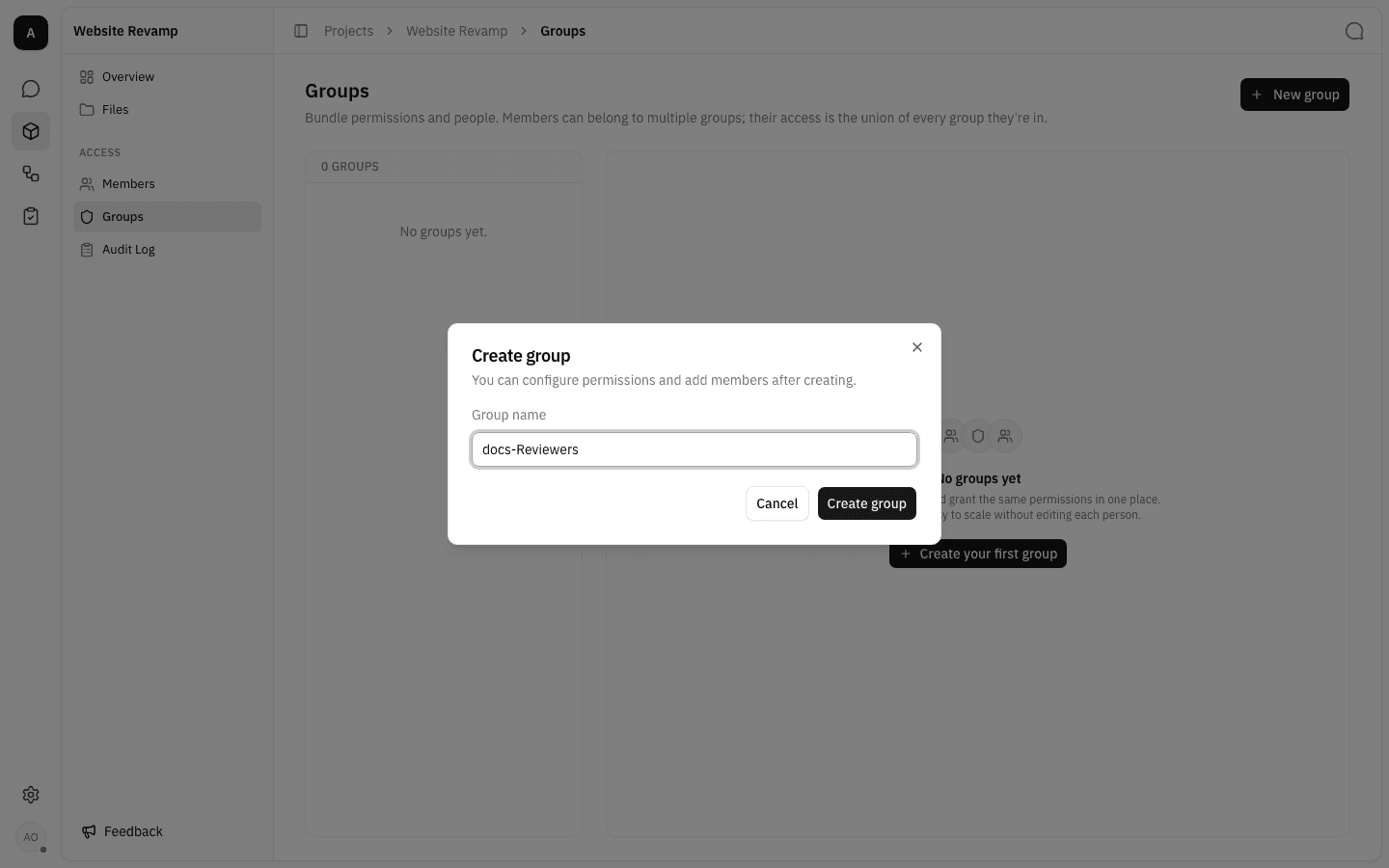
Click New group and give it a name. Names are just labels, so pick one that describes the job the group does — "Design team", "Reviewers", "Contractors".
-
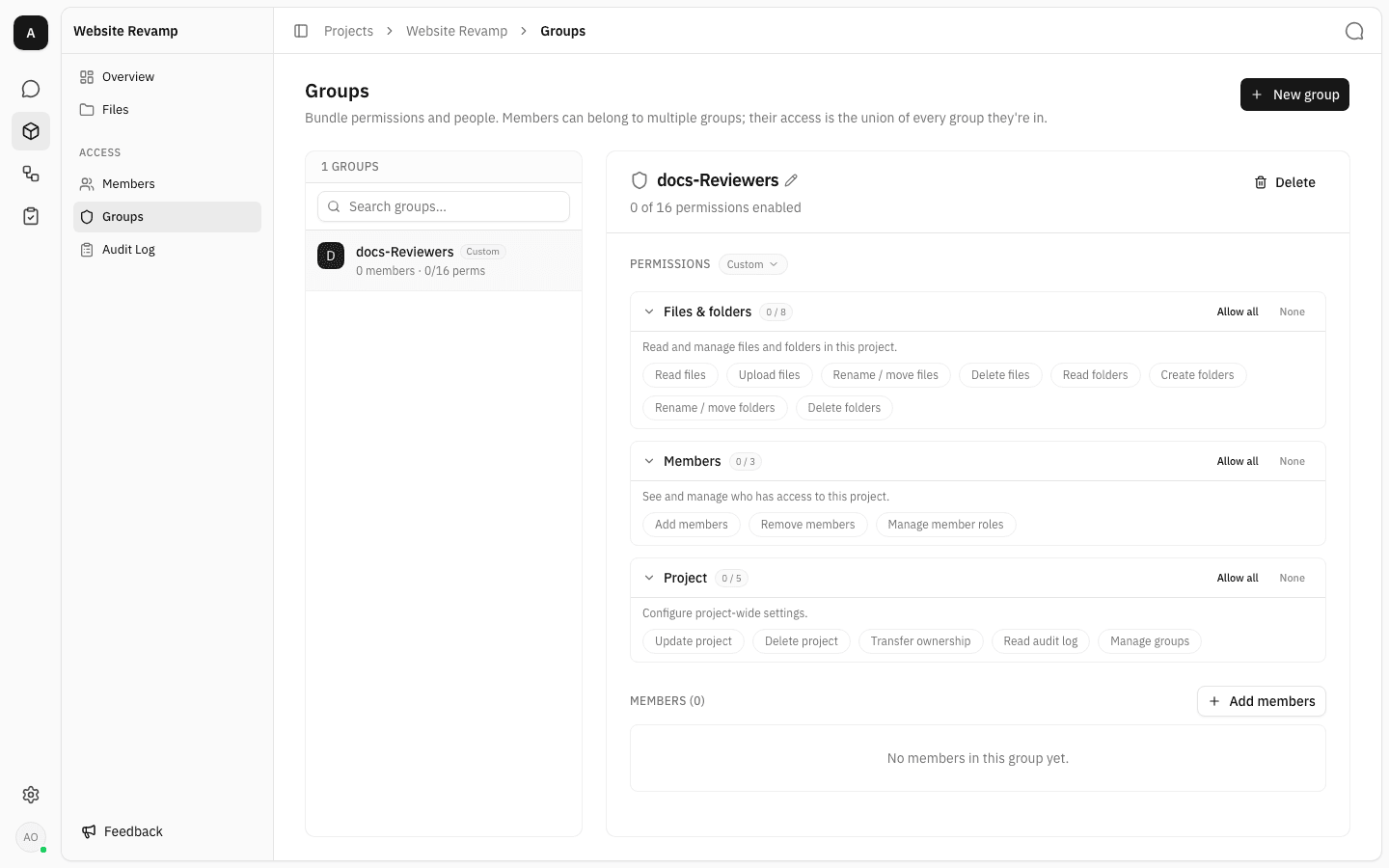
Click Create group. The group opens in the detail pane with 0 of 16 permissions enabled and no members — it grants nothing yet.
Grant permissions
The 16 project-tier permissions are organised into three collapsible scopes, each showing how many of its permissions are on:
- Files & folders (8) — read, upload, rename/move and delete files; read, create, rename/move and delete folders.
- Members (3) — add members, remove members, manage member roles.
- Project (5) — update project, delete project, transfer ownership, read audit log, manage groups.
-
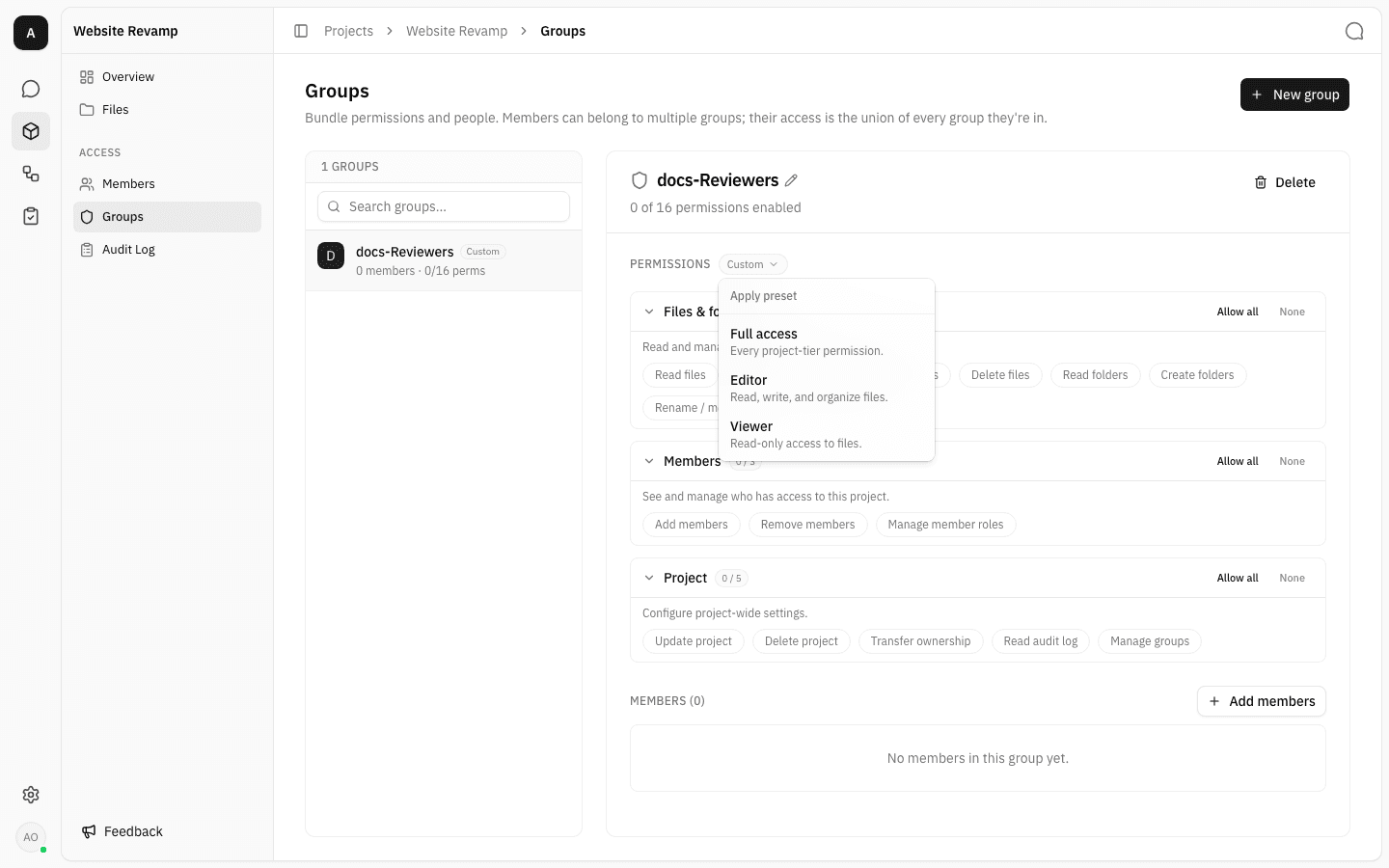
To fill a whole set in at once, open the preset menu next to PERMISSIONS and pick one:
- Full access — every project-tier permission.
- Editor — read, write and organise files (read/upload/rename files, create and rename folders, update project).
- Viewer — read-only access to files.
-
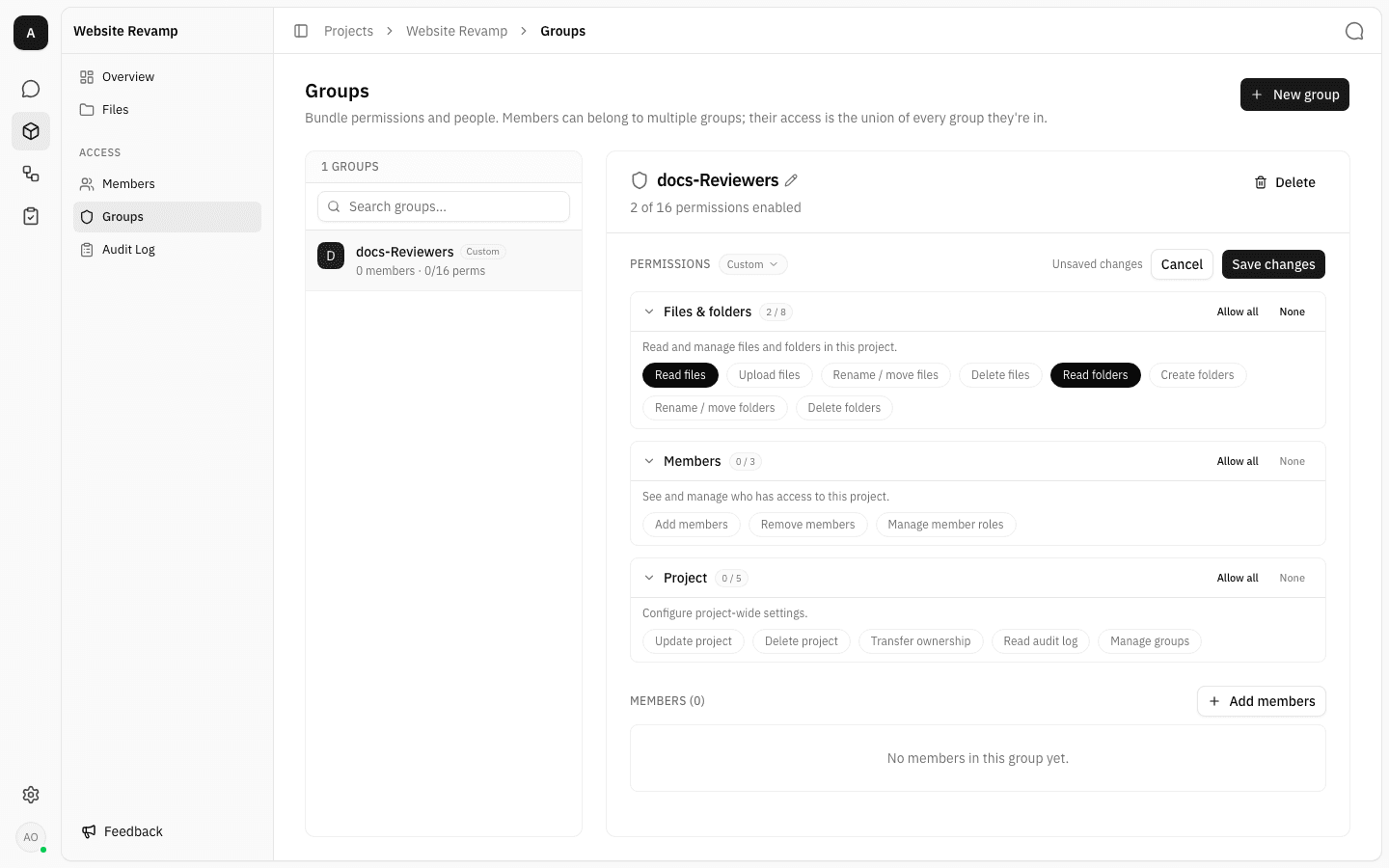
Fine-tune by clicking the individual pills — filled means granted, outlined means not. Allow all and None on a scope header switch that whole scope at once. As soon as the draft differs from what is saved, an Unsaved changes marker appears with Cancel and Save changes, and the badge next to PERMISSIONS flips to Custom because the selection no longer matches a preset.
-
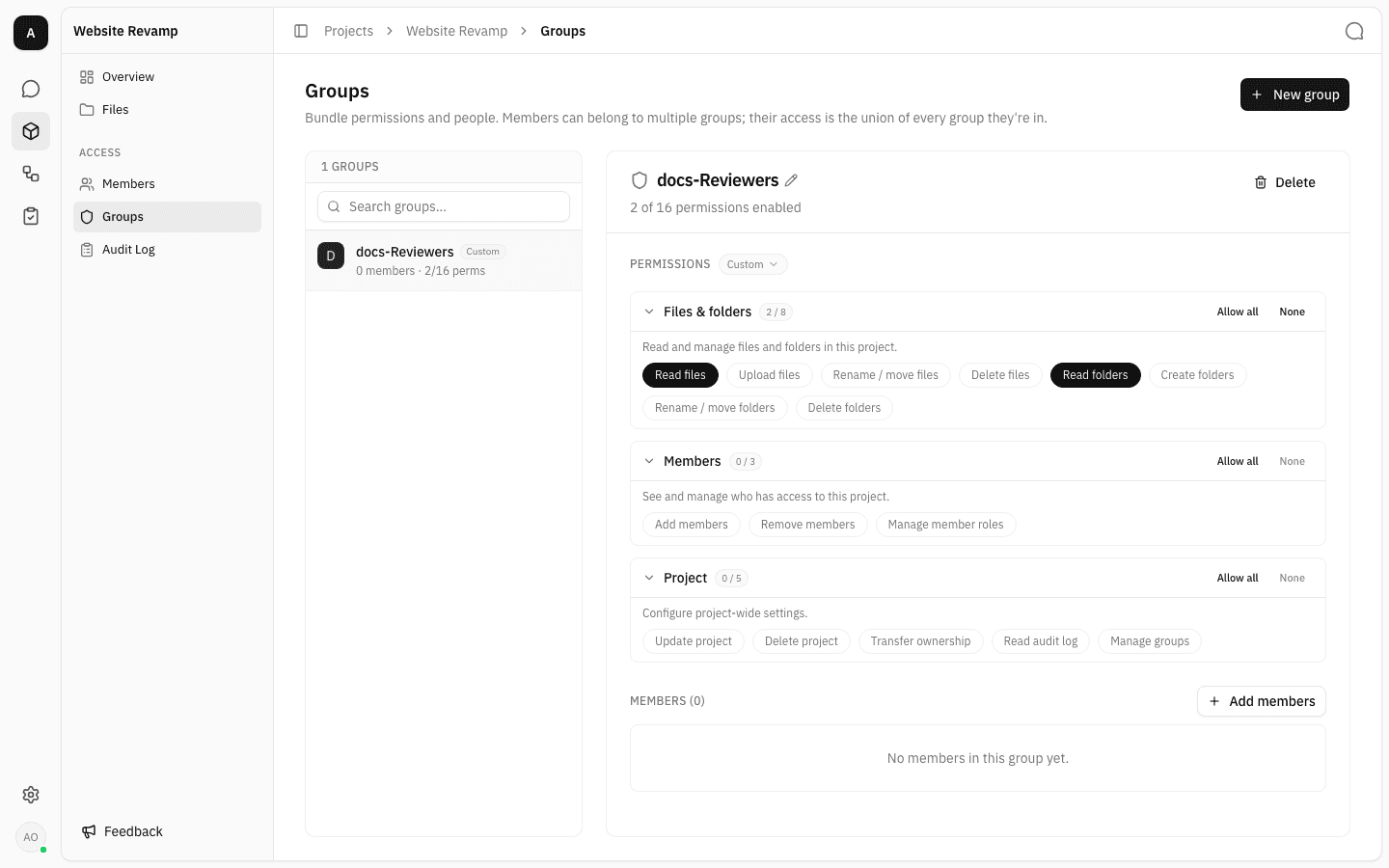
Click Save changes. The marker clears and the group's row in the list updates to the new count. Nothing takes effect until you save — Cancel throws the draft away, and the page warns you if you try to navigate away with unsaved edits.
Add and remove members
-
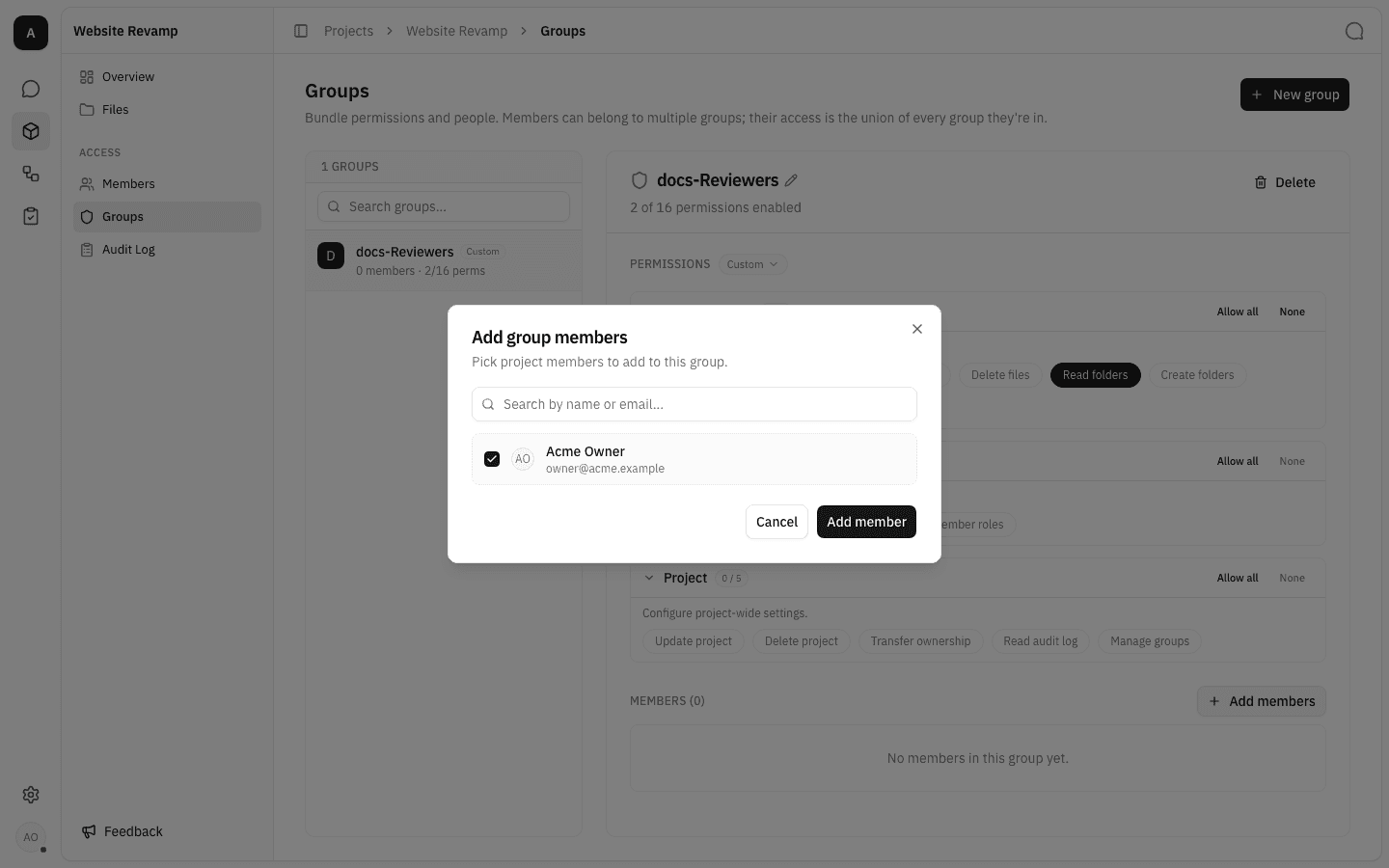
Scroll to the MEMBERS section at the bottom of the detail pane and click Add members. Search by name or email and tick everyone you want; the confirm button counts your selection, so several people can go in at once.
-
Confirm, and they appear in the group's member list with its permissions immediately in effect. Remove someone with the ✕ at the end of their row — that applies straight away and takes back only what this group granted.
The picker offers everyone in the workspace who is not already in this group. It reads "Everyone is already in this group." when there is nobody left to add — which is also what a workspace whose only accepted member is you will show, because outstanding invitations are not offered here.
Someone's groups also show up as chips in the Groups column of the project's Members page, which is read-only — group membership is only edited here.
Rename a group
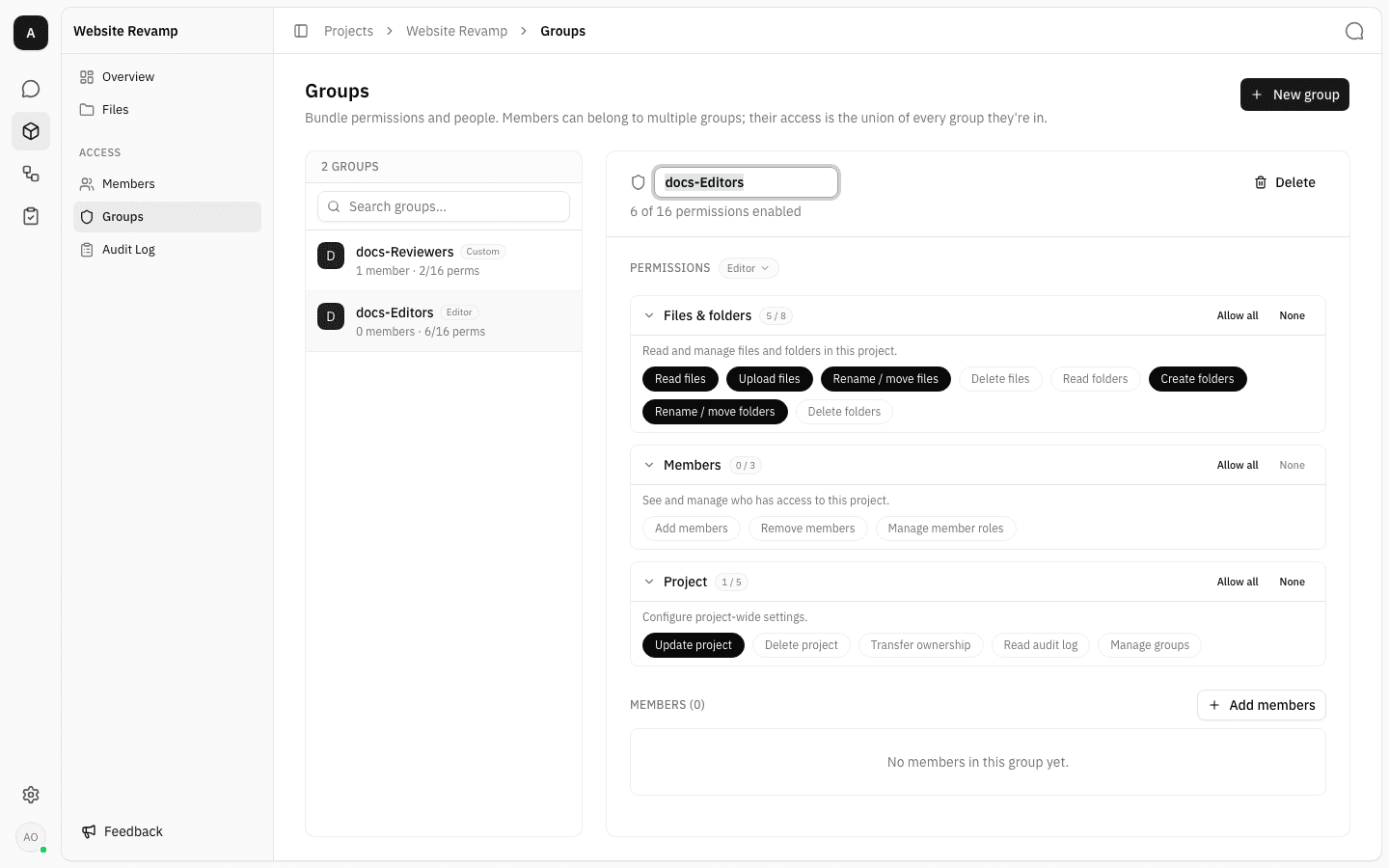
Click the group's name in the detail header, type the new one, and press Enter to save or Escape to cancel. Renaming changes the label only; permissions and membership are untouched.
Delete a group
Click Delete in the detail header. When the group still has members, the dialog names them under AFFECTED MEMBERS and makes you tick "I understand this will revoke permissions for these members." before Delete group becomes available.
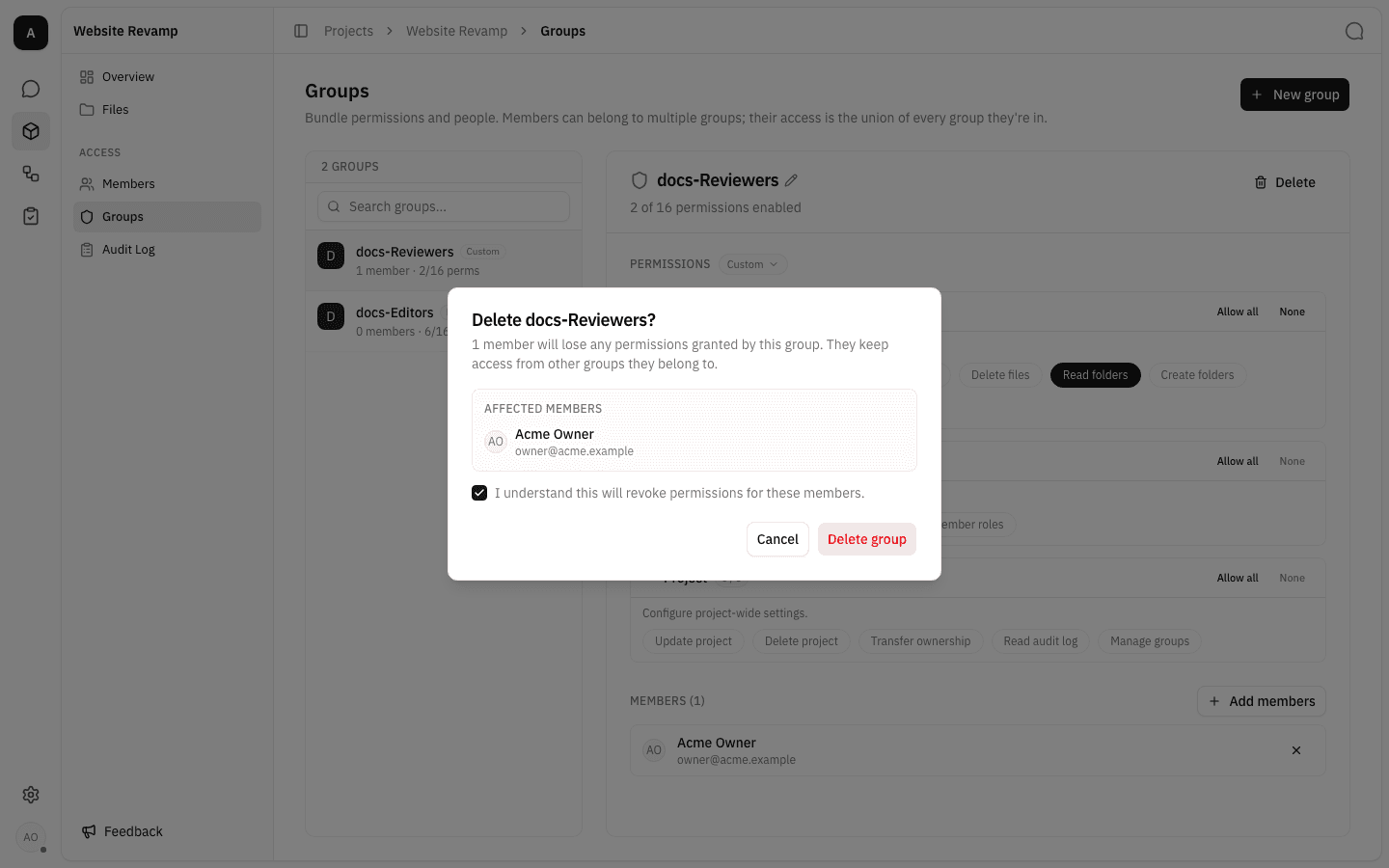
Deleting a group takes back only what that group granted. The people in it stay on the project, keep their project role, and keep everything any other group still gives them.
Notes
- Access is a union. Someone in several groups gets every permission any one of those groups grants. To take a permission away you have to remove it everywhere it is granted.
- Groups never restrict. Putting a person in a thin group does not narrow what their project role or their other groups already allow.
- Permission edits are batched, member changes are not: toggling pills only edits a local draft until you click Save changes, whereas adding or removing a member applies at once.
- Groups are per project. A group belongs to the project it was created in; another project's groups are entirely separate, and workspace-tier access comes from workspace groups instead.
- Manage groups is itself a permission. A group that grants Manage groups lets its members edit every group in the project, including their own — hand it out deliberately.
Project members & roles
Control who can open a project by adding workspace members to it, hand the project over to someone else, and remove access when it is no longer needed.
Project models
See which language models a project can call today, ask the workspace owner for one it cannot, and follow what happened to earlier requests.