Personal settings
Manage your own profile, appearance, chat preferences, memory and personal API access keys.
Personal settings hold everything that belongs to you rather than to the workspace: the name other people see, the light/dark theme on this device, the standing instructions and memories the assistant uses in chat, and the personal API keys that let scripts call AINOX on your behalf. Nothing on these pages changes anything for your colleagues.
Open them from the gear icon at the bottom of the left sidebar. The page has three sections — General, Chat Preferences and Accounts & Access — and always opens on General.
Prerequisites
- Any signed-in account. No workspace role or permission is required — every member sees the same three sections.
- Memory and chat preferences apply per workspace, so switch to the workspace you want them to affect before editing them.
General: profile, appearance and chat history
-
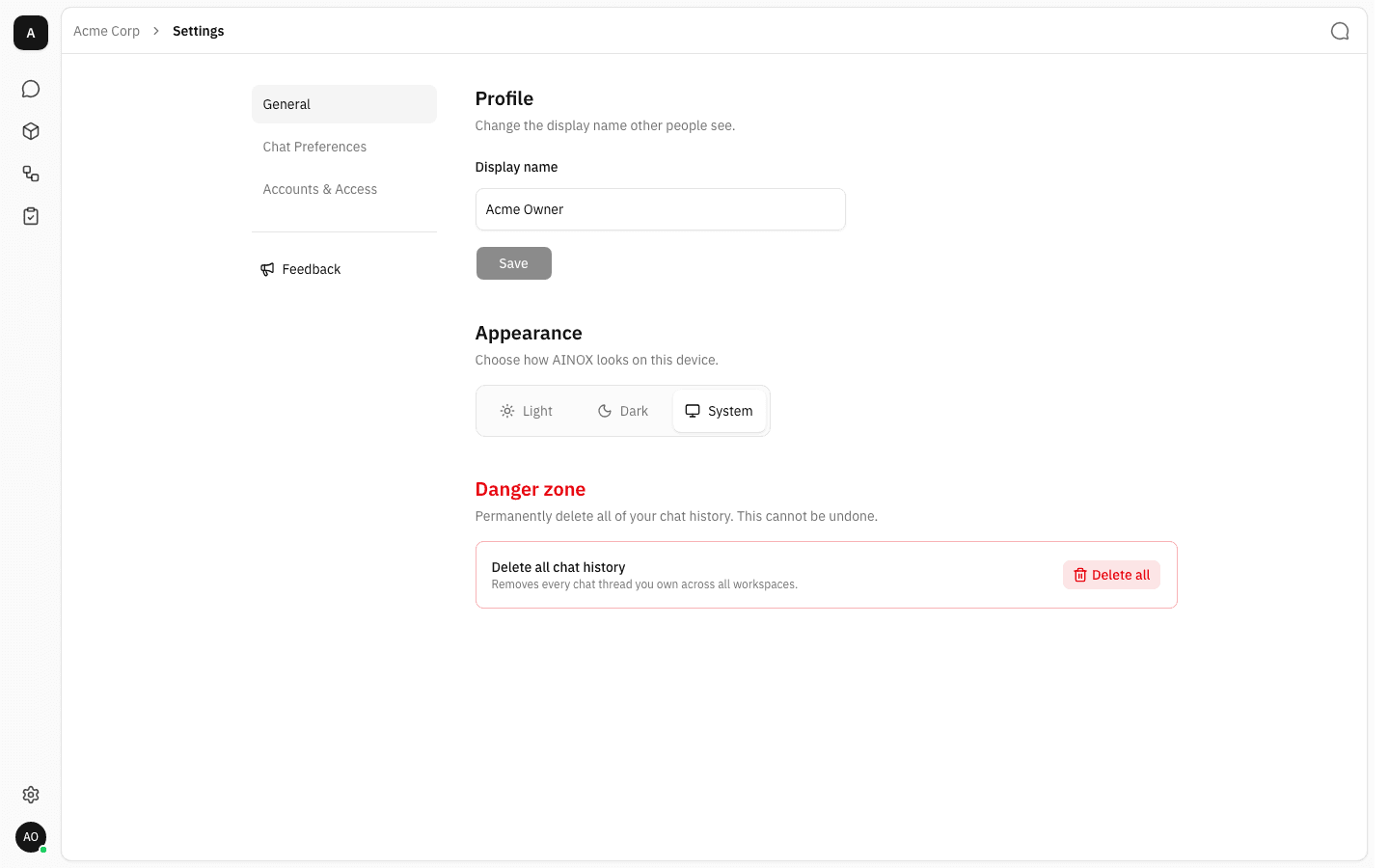
Open Settings. The General section shows three blocks: Profile, Appearance and a red Danger zone.
-
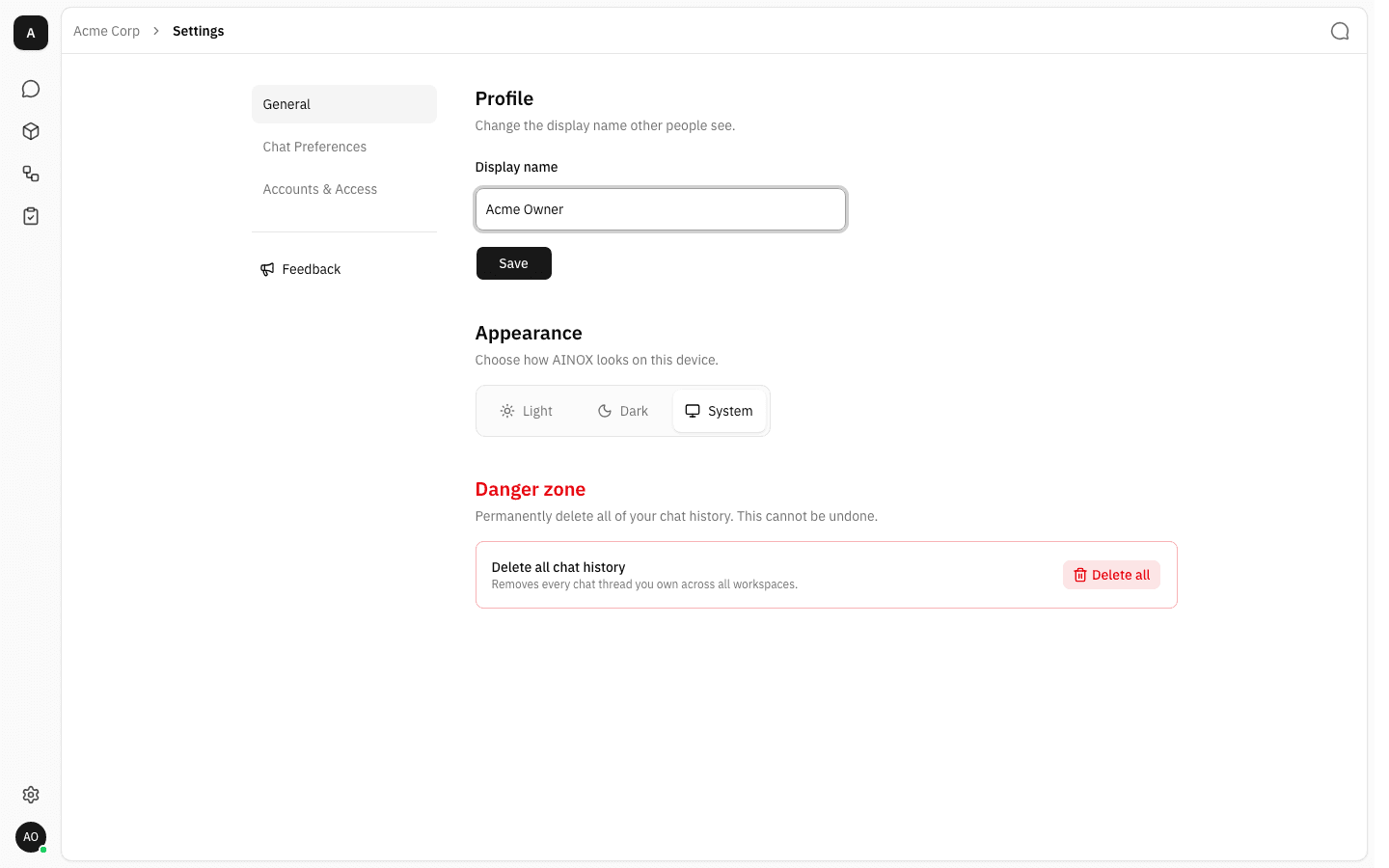
To change the name others see, type a new Display name (up to 64 characters) and click Save. The button stays greyed out until the name actually differs from the current one, and a confirmation appears once it is saved.
-
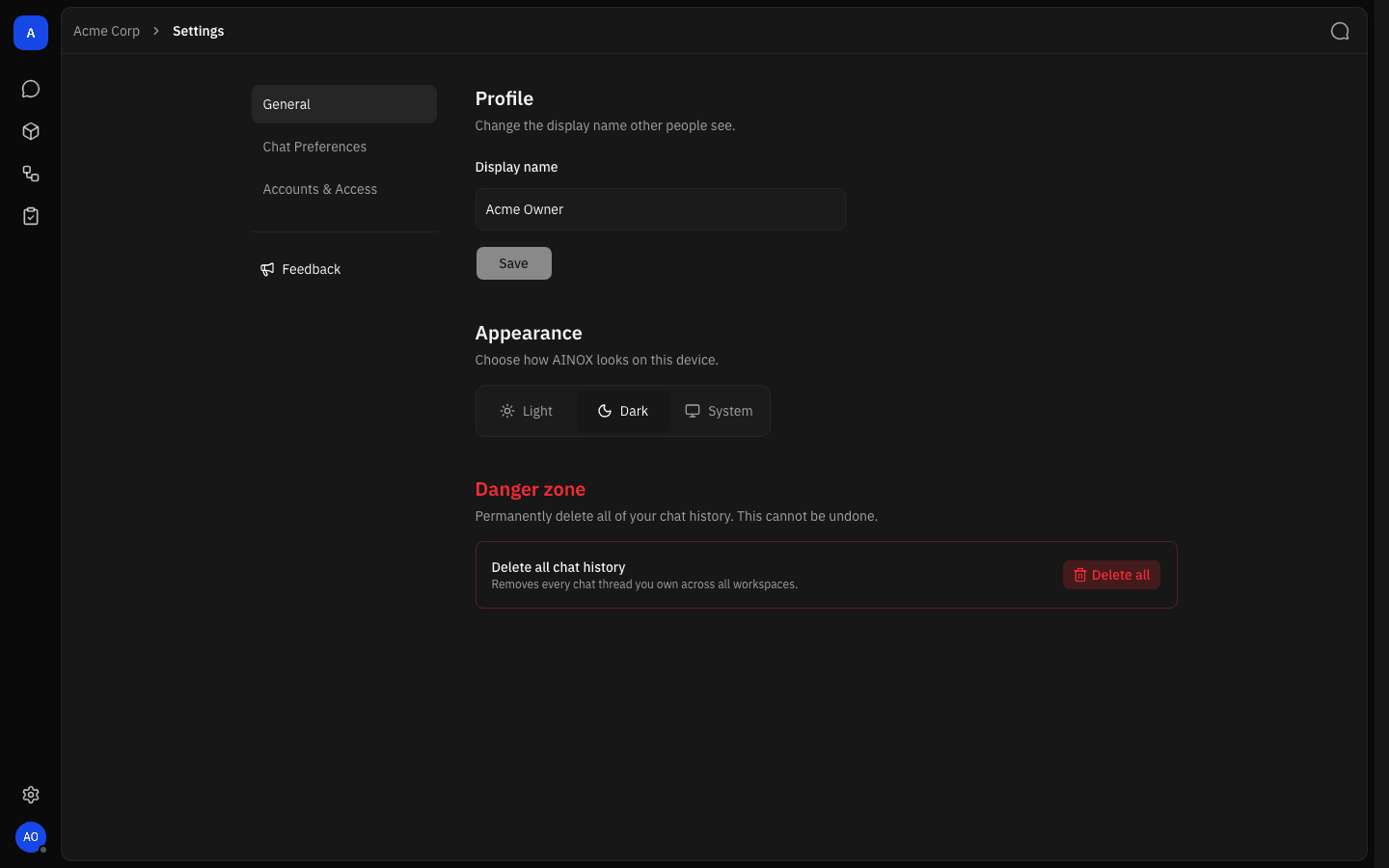
Under Appearance, pick Light, Dark or System. The choice applies immediately and is remembered for this browser only — sign in on another device and you can pick a different look there. System follows your operating system's setting.
-
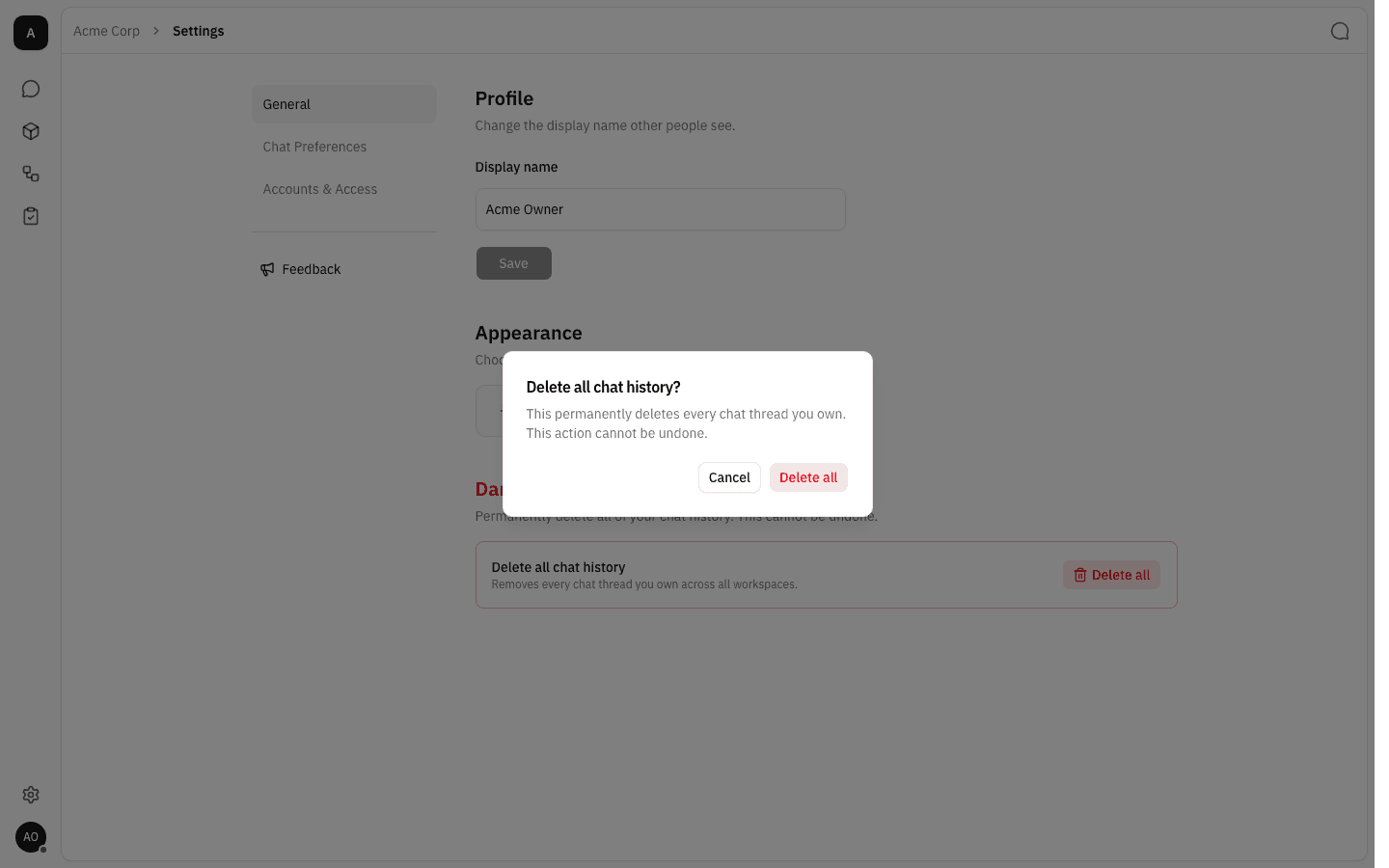
Danger zone → Delete all removes every chat thread you own, in all workspaces, not just this one. Clicking it opens a confirmation dialog; choose Cancel to back out, or Delete all to go ahead. There is no undo and no export step, so copy anything you want to keep first.
Chat Preferences: standing instructions and memory
-
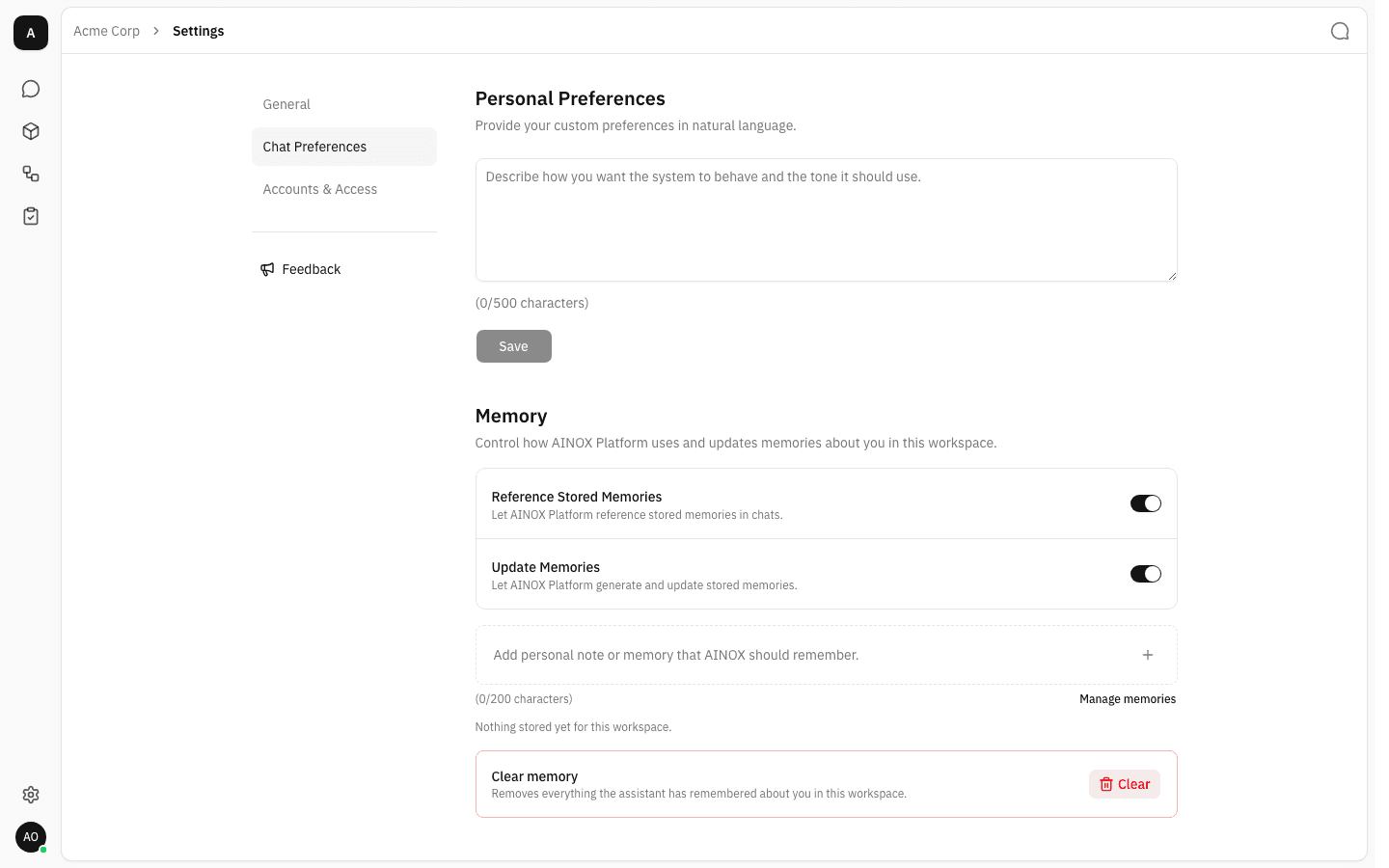
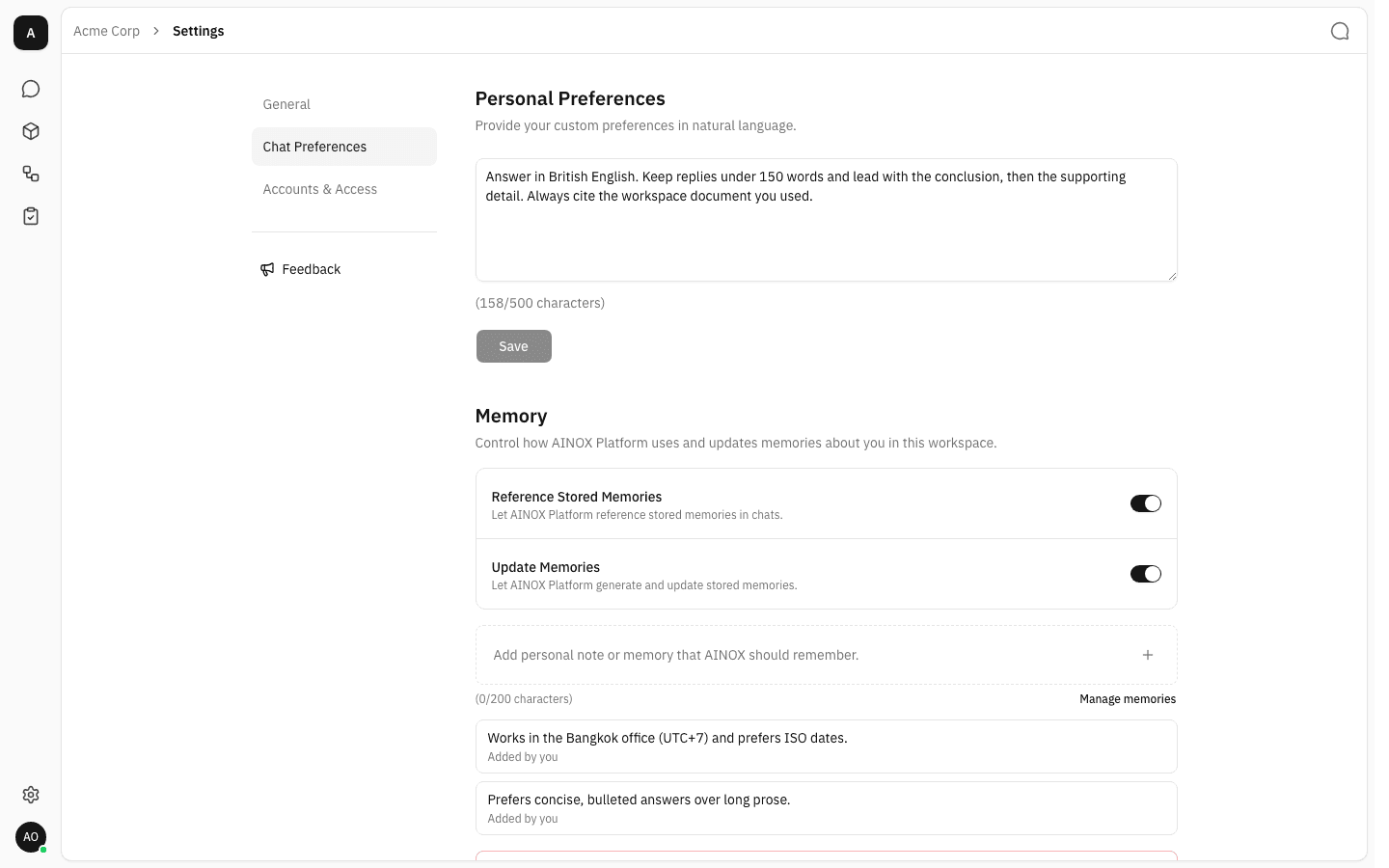
Click Chat Preferences. The section has Personal Preferences (a free-text instruction the assistant follows in every chat) and Memory (facts it keeps about you in this workspace).
-
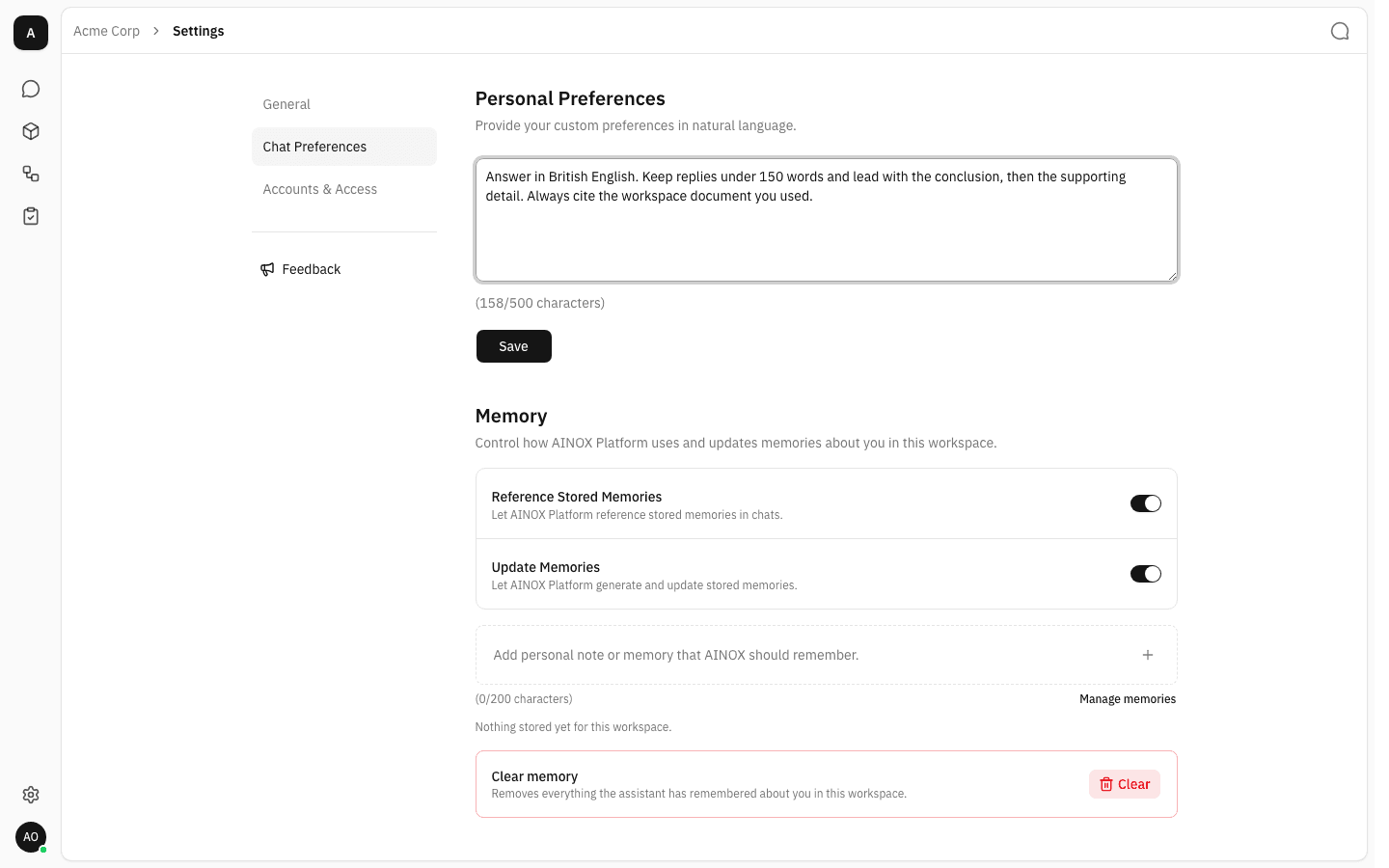
Describe how you want the assistant to answer — tone, language, length, formatting habits. The counter under the box tracks the 500-character limit.
-
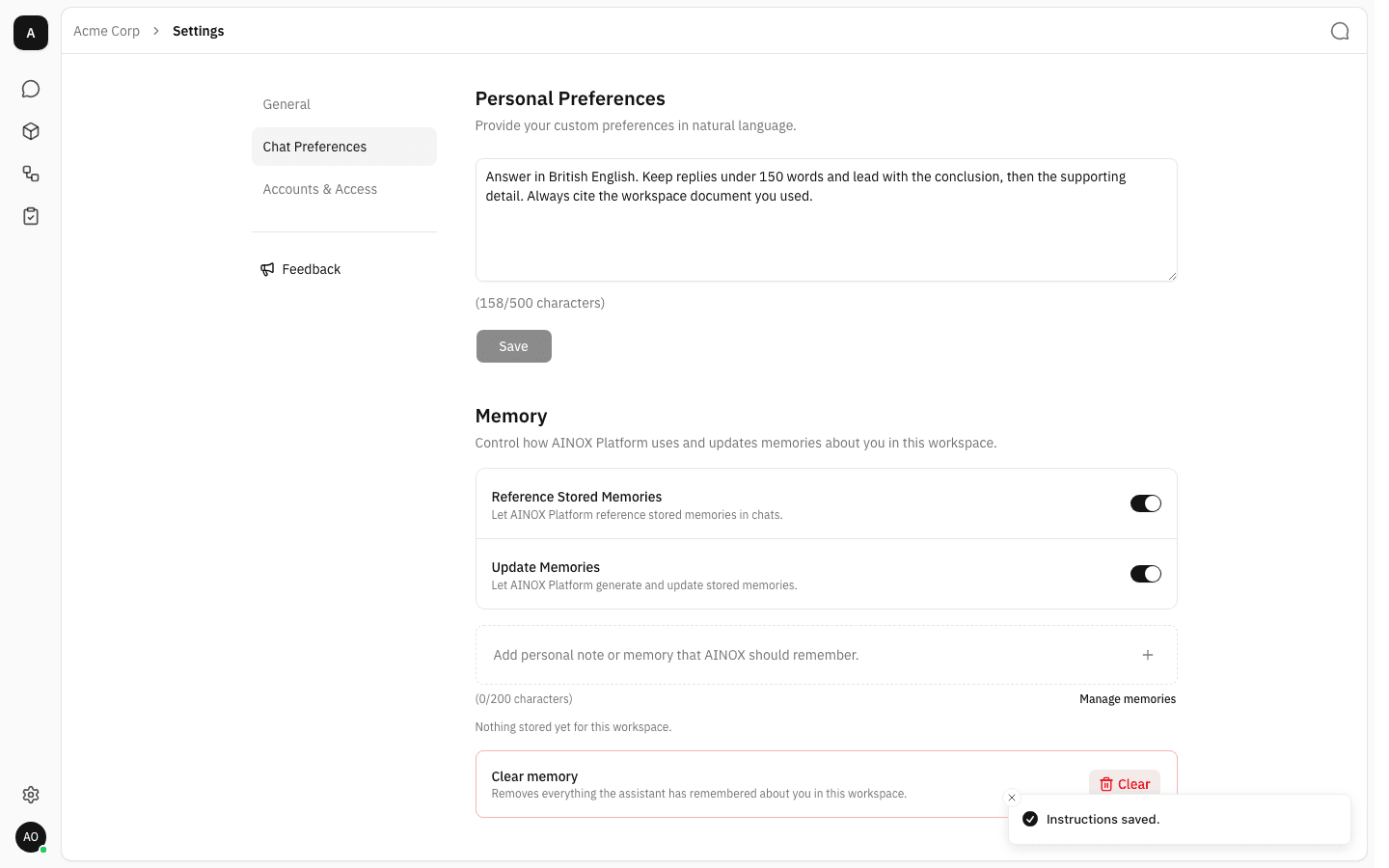
Click Save. A short Instructions saved. confirmation appears and the instruction takes effect in your next message — existing chats included.
-
Memory has two independent switches. Reference Stored Memories lets the assistant read what it already knows about you; Update Memories lets it write new memories while you chat. Turning writing off does not erase what is already stored — it only stops new entries.
-
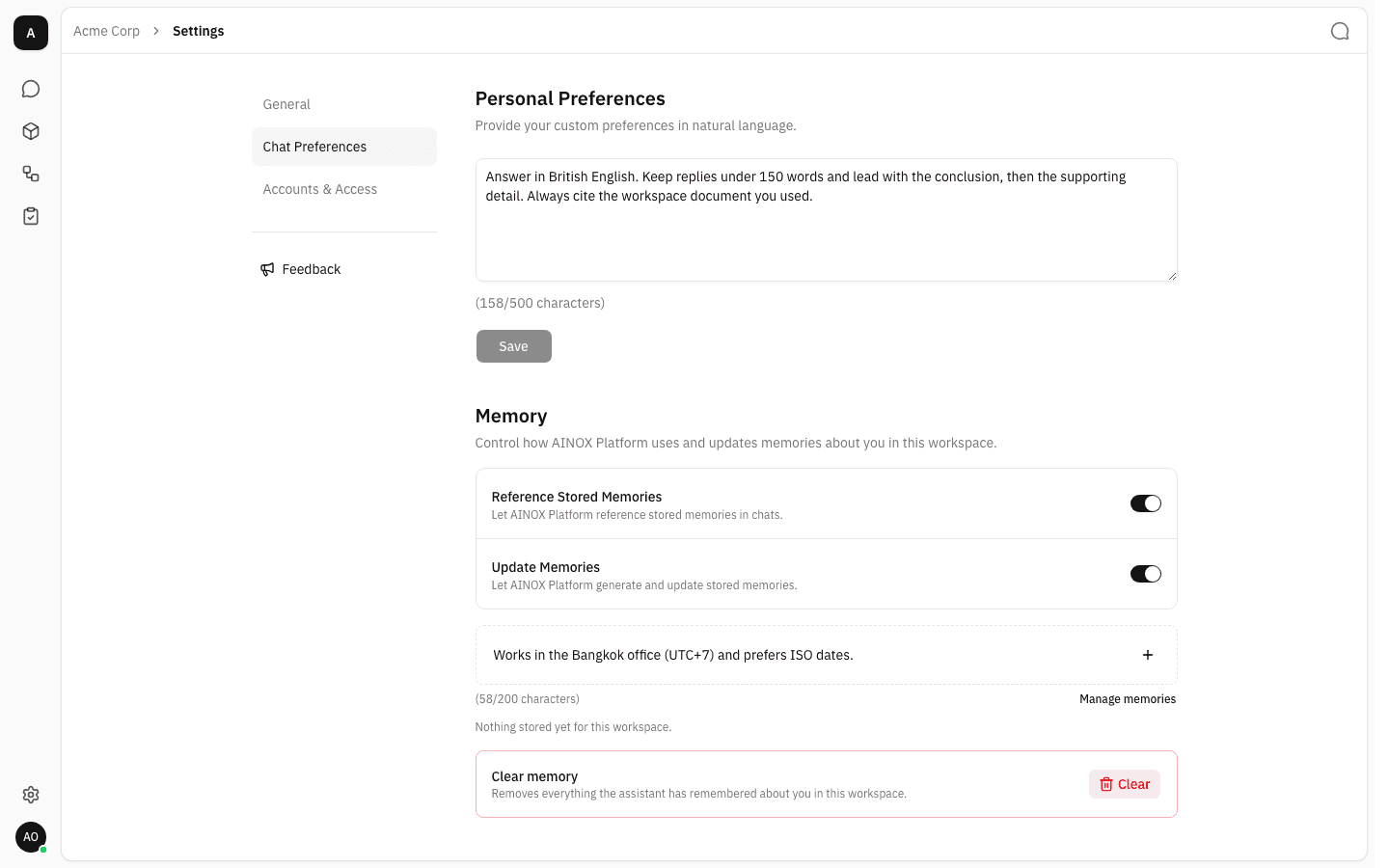
To add a memory yourself, type it in the dashed box under the switches and press Enter or the + button. Entries are capped at 200 characters each.
-
Saved memories are listed below the box, each tagged Added by you or Saved by assistant so you can tell your notes apart from what the assistant inferred. Only the first five are previewed.
-
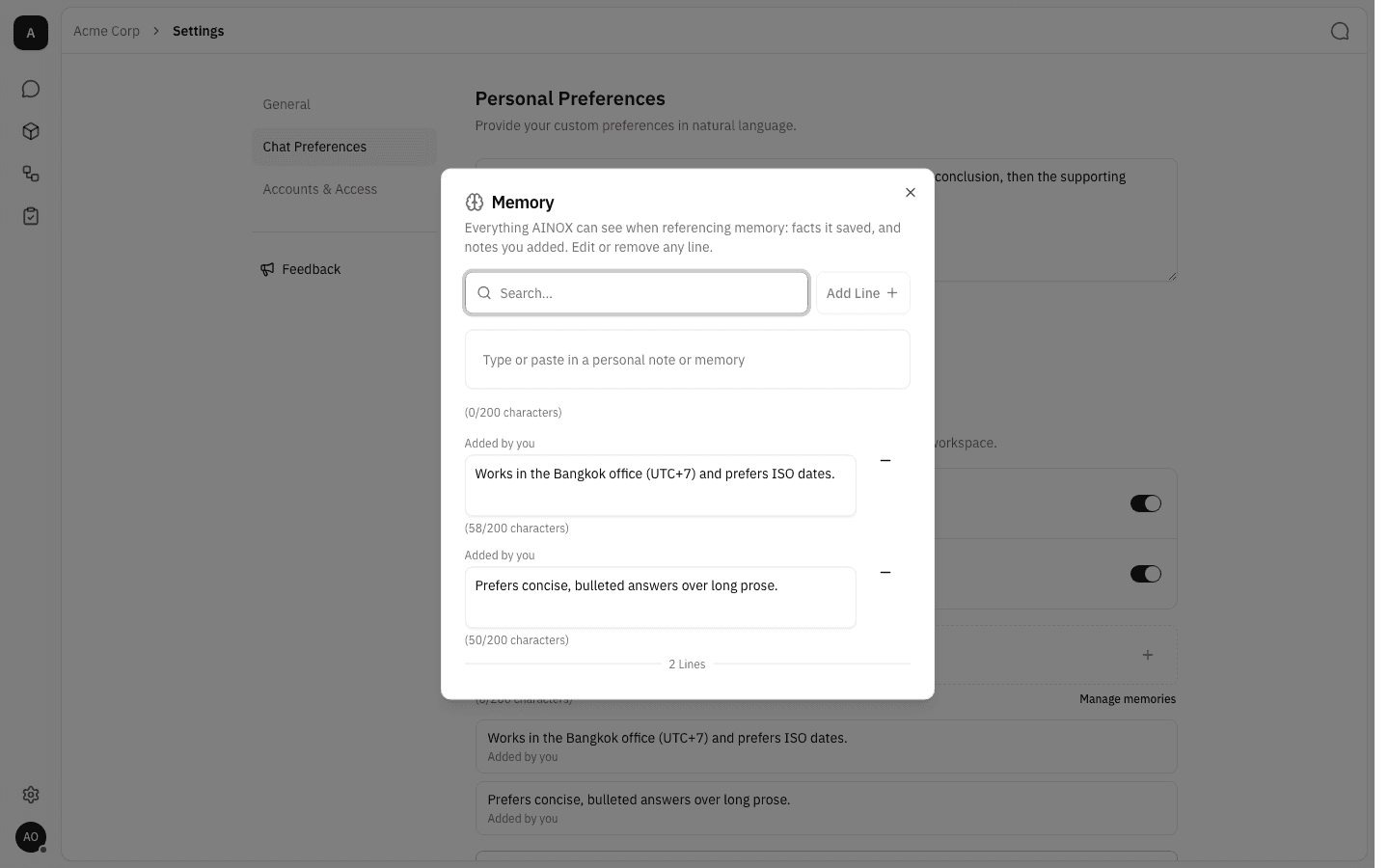
Click Manage memories for the full list. Here you can search, add a line, edit any entry in place (changes save when you leave the field or press Enter) and remove single entries with the – button. The footer counts the total lines.
-
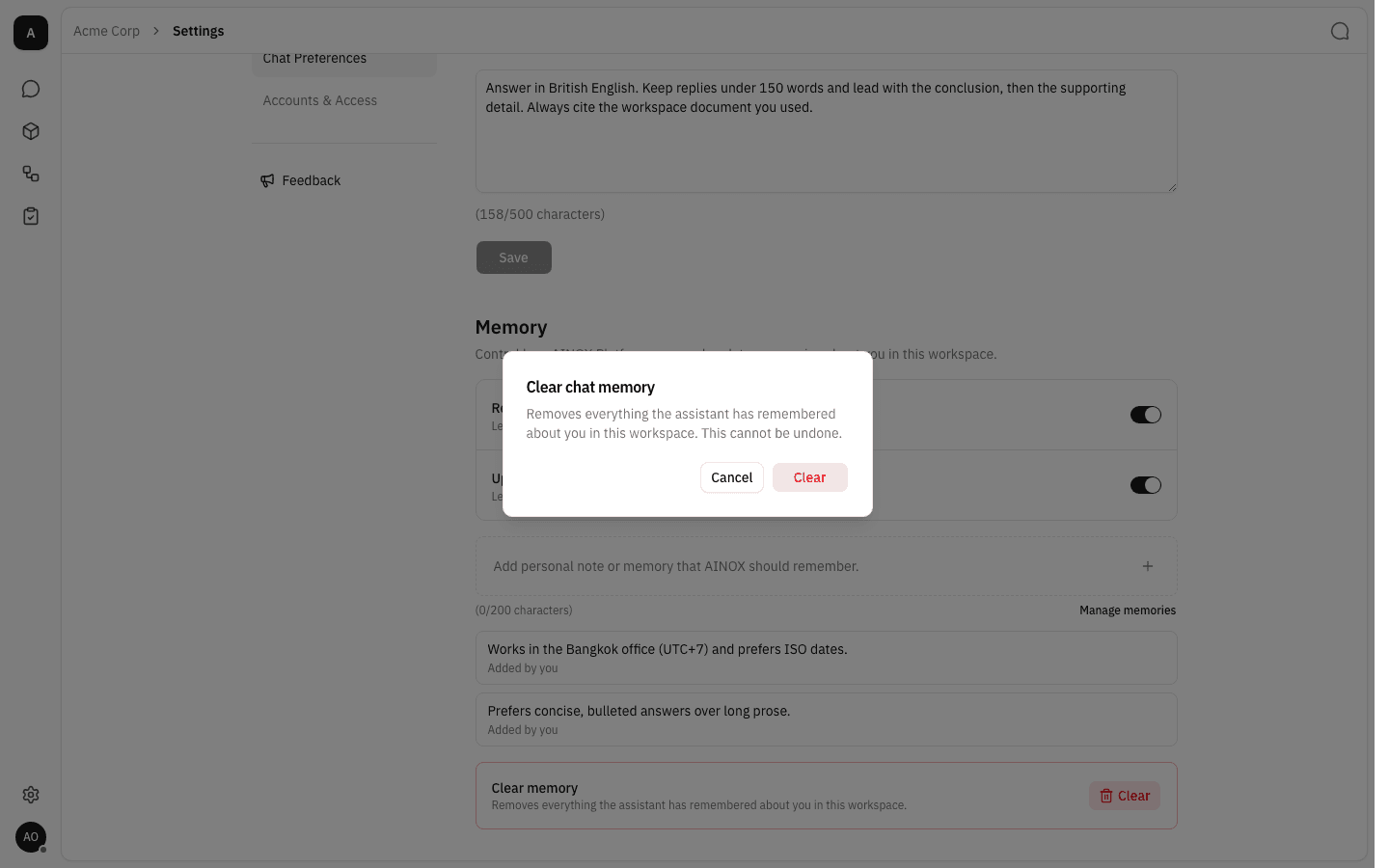
Clear memory wipes every memory for this workspace at once, after a confirmation. Memories in your other workspaces are untouched.
Accounts & Access: your email and API keys
-
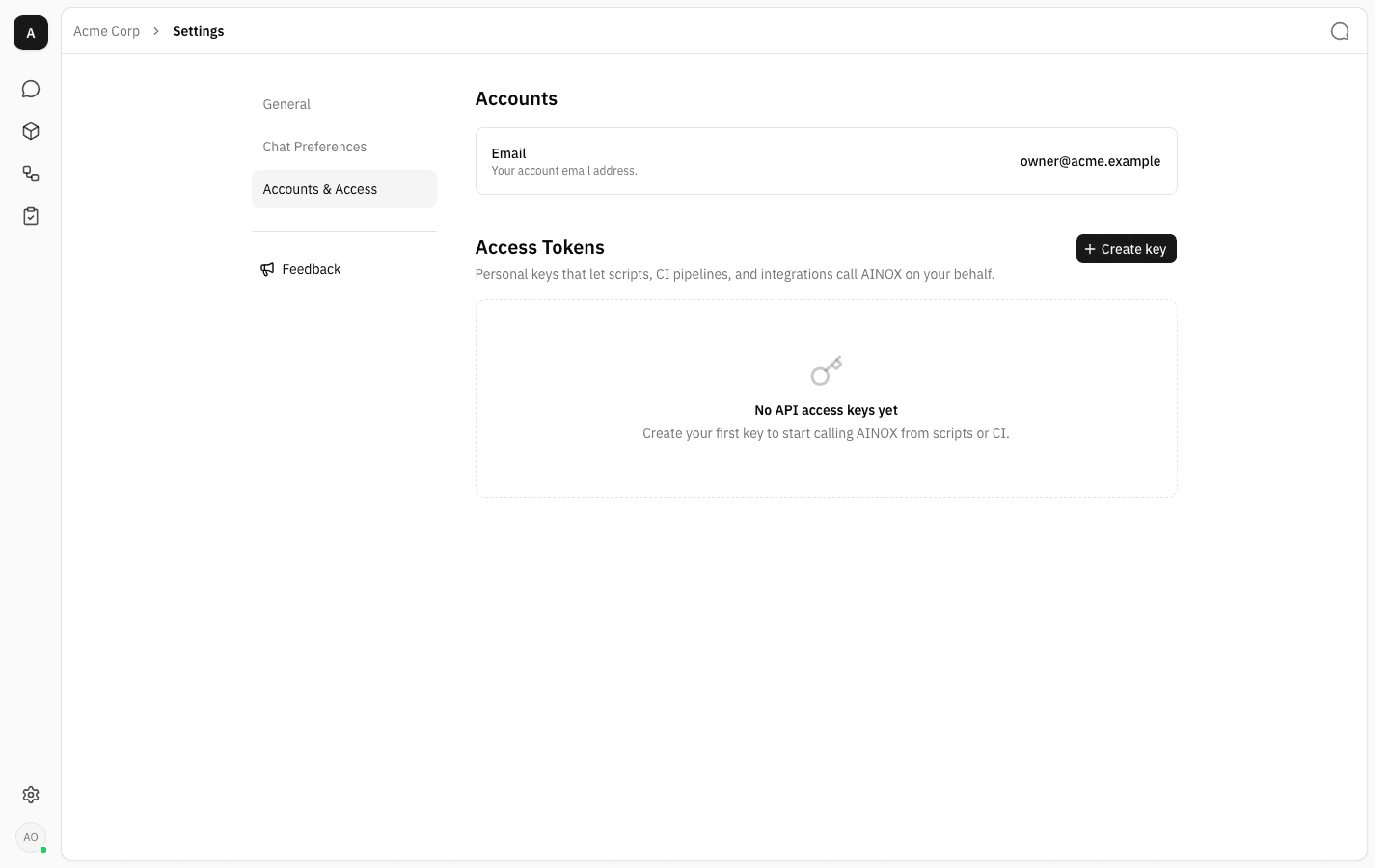
Click Accounts & Access. Accounts shows the email address your account signs in with, and Access Tokens lists your personal API keys — empty until you create one.
-
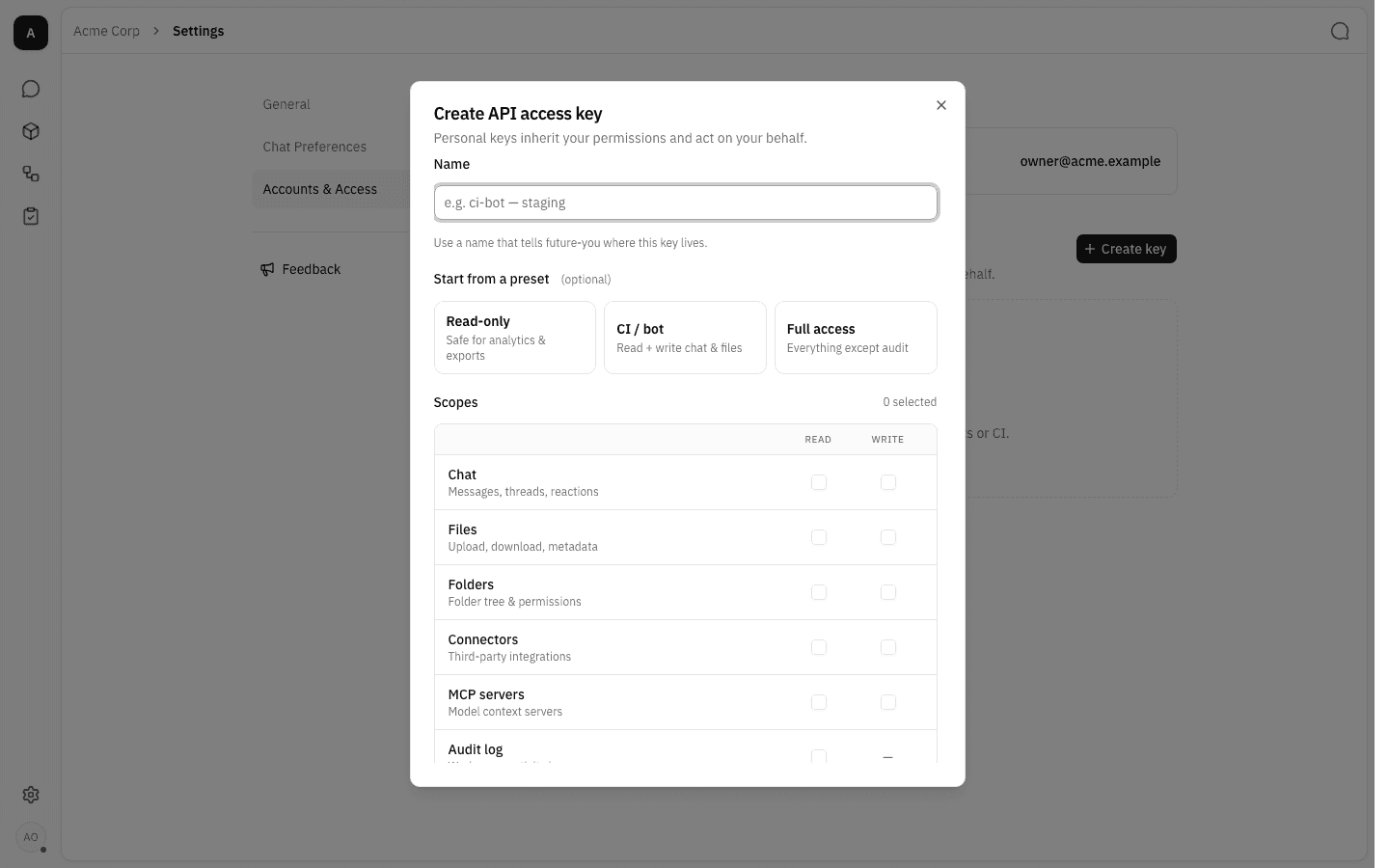
Click Create key. A key acts as you: it inherits your permissions, so it can never do more than you can.
-
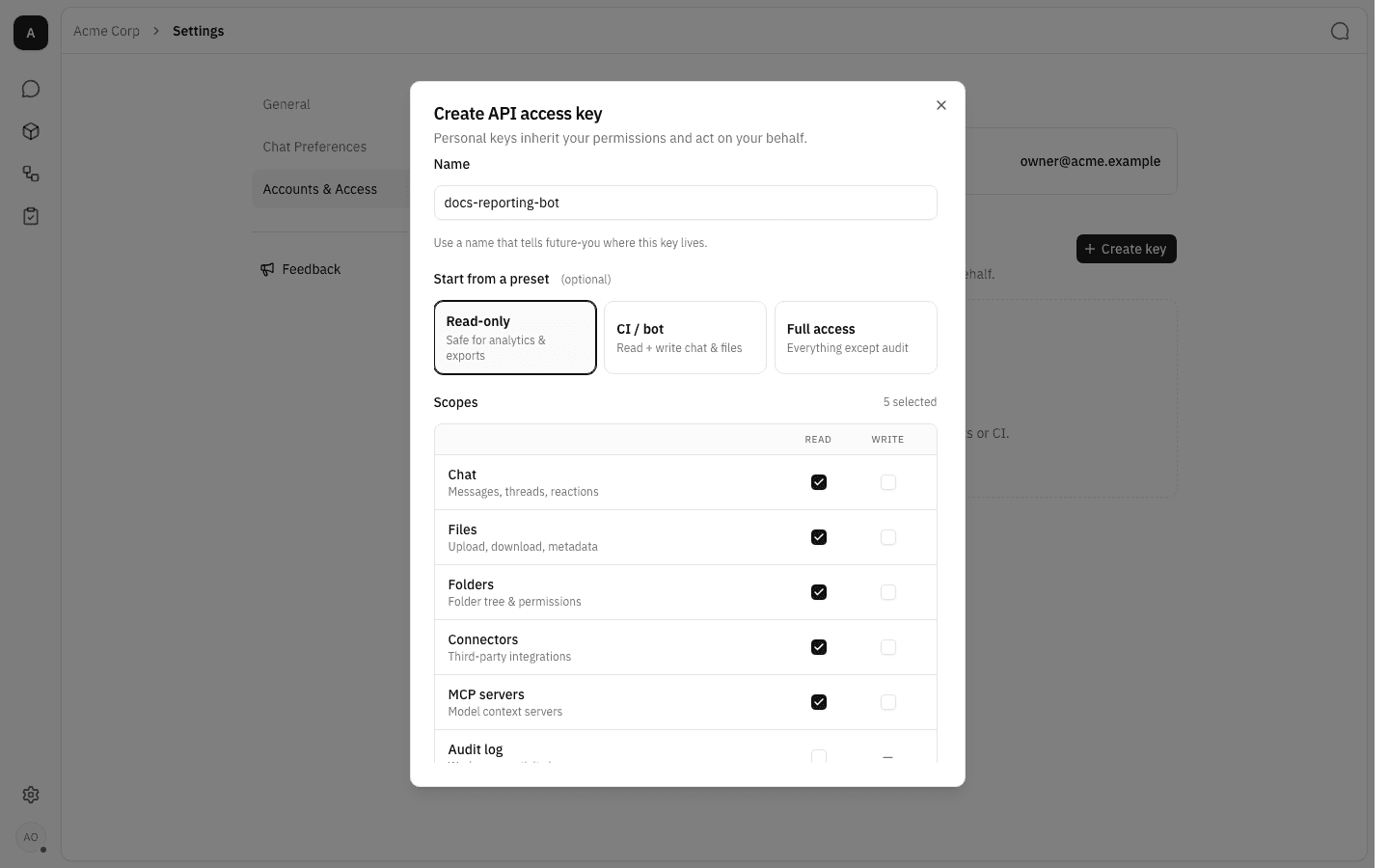
Give the key a name that says where it will live, then pick the access it needs. The three presets — Read-only, CI / bot, Full access — tick a set of scopes for you, and you can adjust individual Read / Write boxes afterwards. Write scopes are highlighted in orange, and the Audit log row is read-only by design.
-
Choose an expiry under Expires in — 30 to 365 days, or Never (which warns you, because a key that never expires is a standing risk). Under Advanced options you can cap how many requests the key may make per time window; requests over the cap get
429 Too Many Requests. Leave both fields blank to skip rate limiting. Click Create key.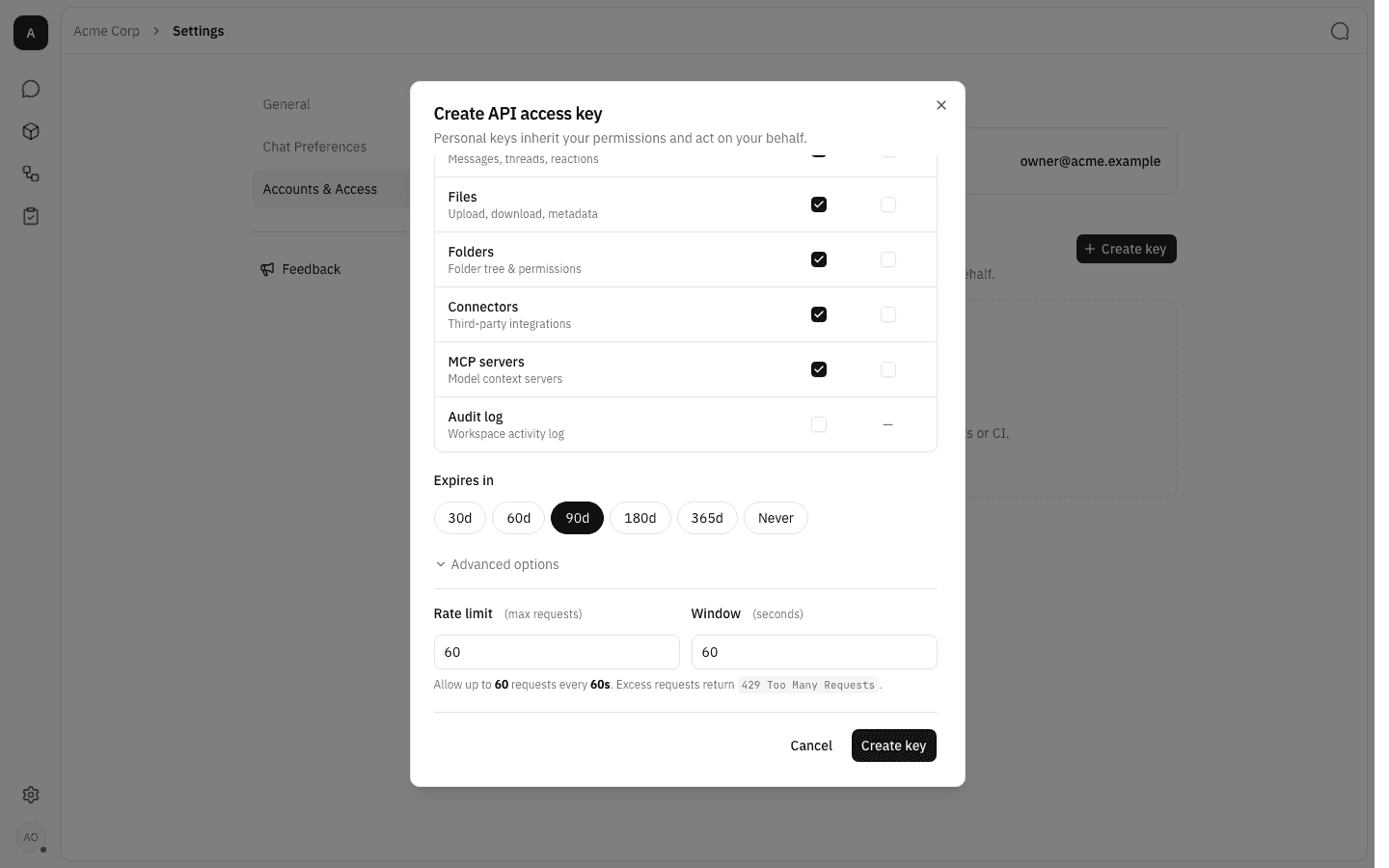
-
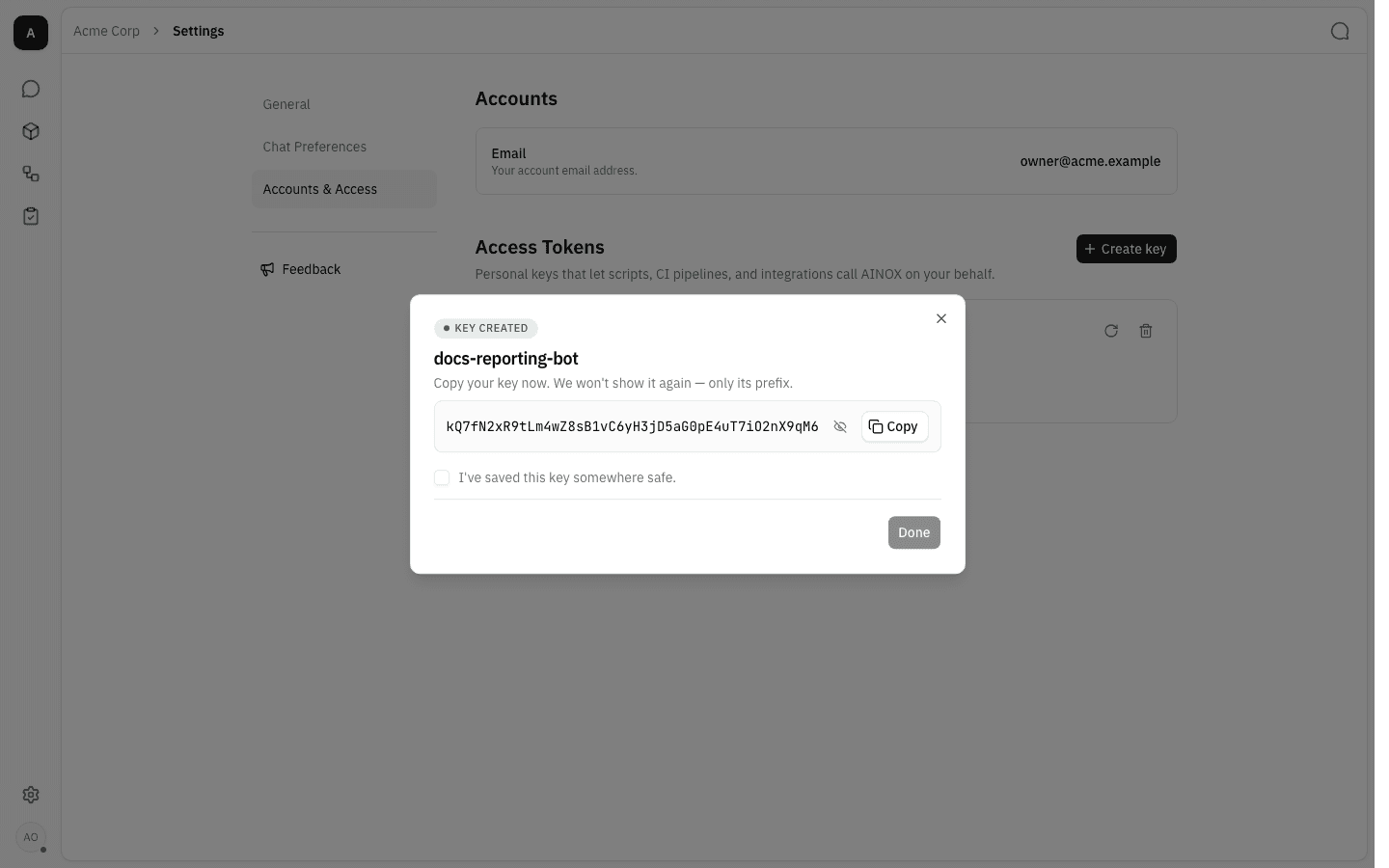
The key is shown once. Copy it, store it in your secret manager, tick I've saved this key somewhere safe and click Done. The eye icon hides the value while you are on a shared screen. Once the dialog closes the value cannot be retrieved again — you can only rotate the key.
-
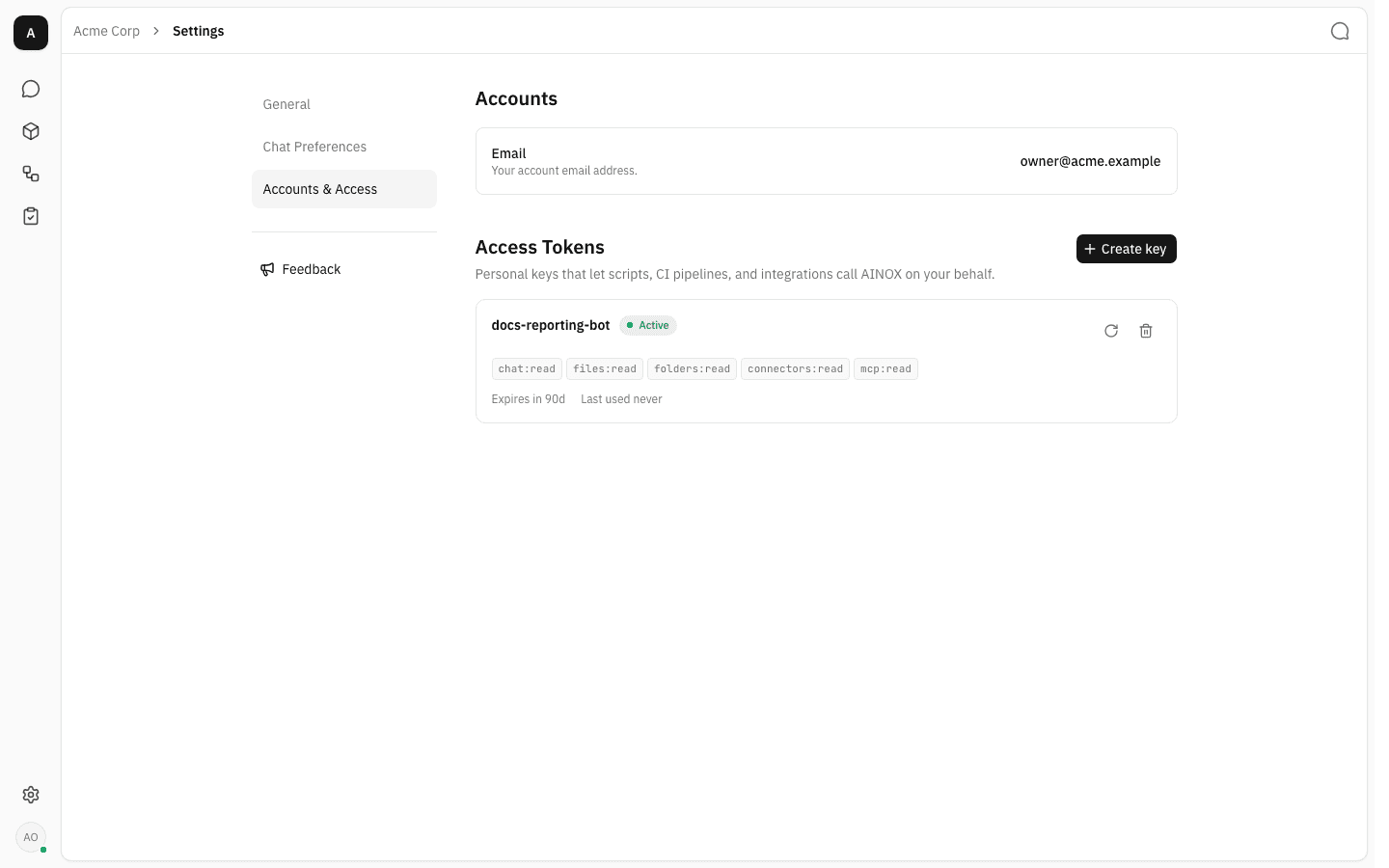
Each key appears as a card with its status, its scopes, when it expires and when it was last used, plus rotate and revoke buttons.
-
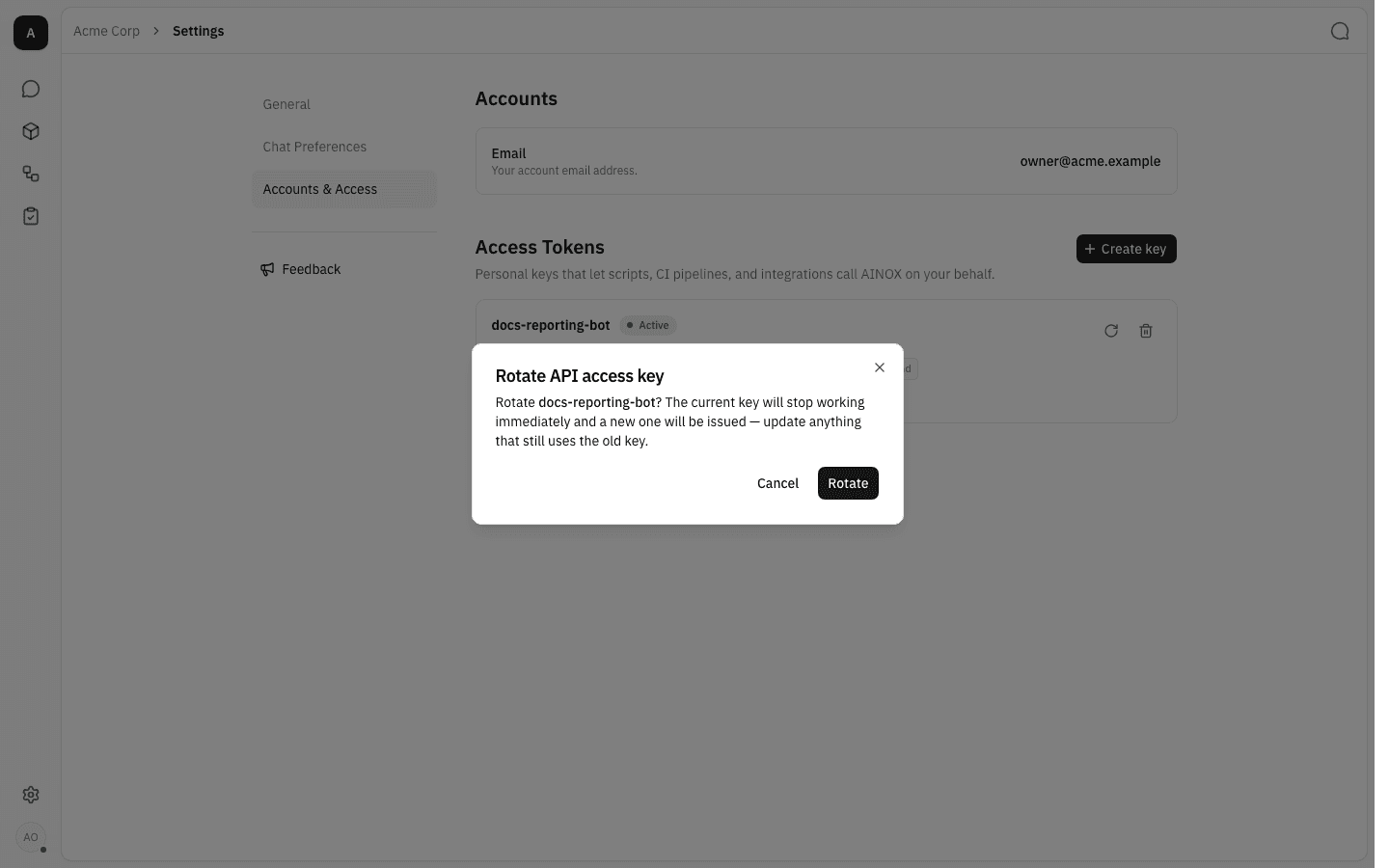
Rotate (the circular arrow) issues a replacement and kills the current value immediately — use it when a key may have leaked. The new value is shown once, exactly like a new key, so update whatever uses the old one first.
-
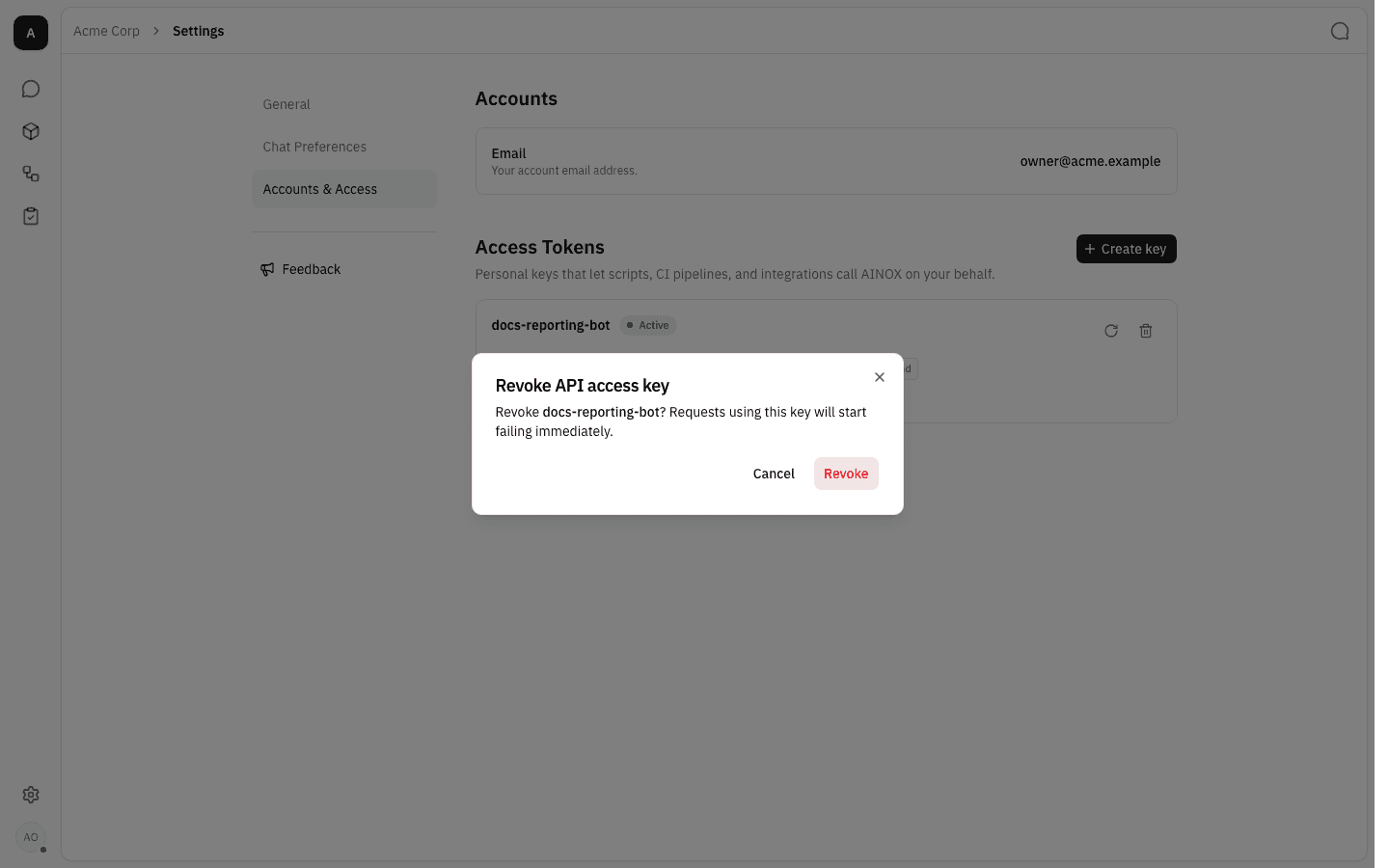
Revoke (the bin) switches the key off for good. Confirm in the dialog; requests using it start failing straight away.
-
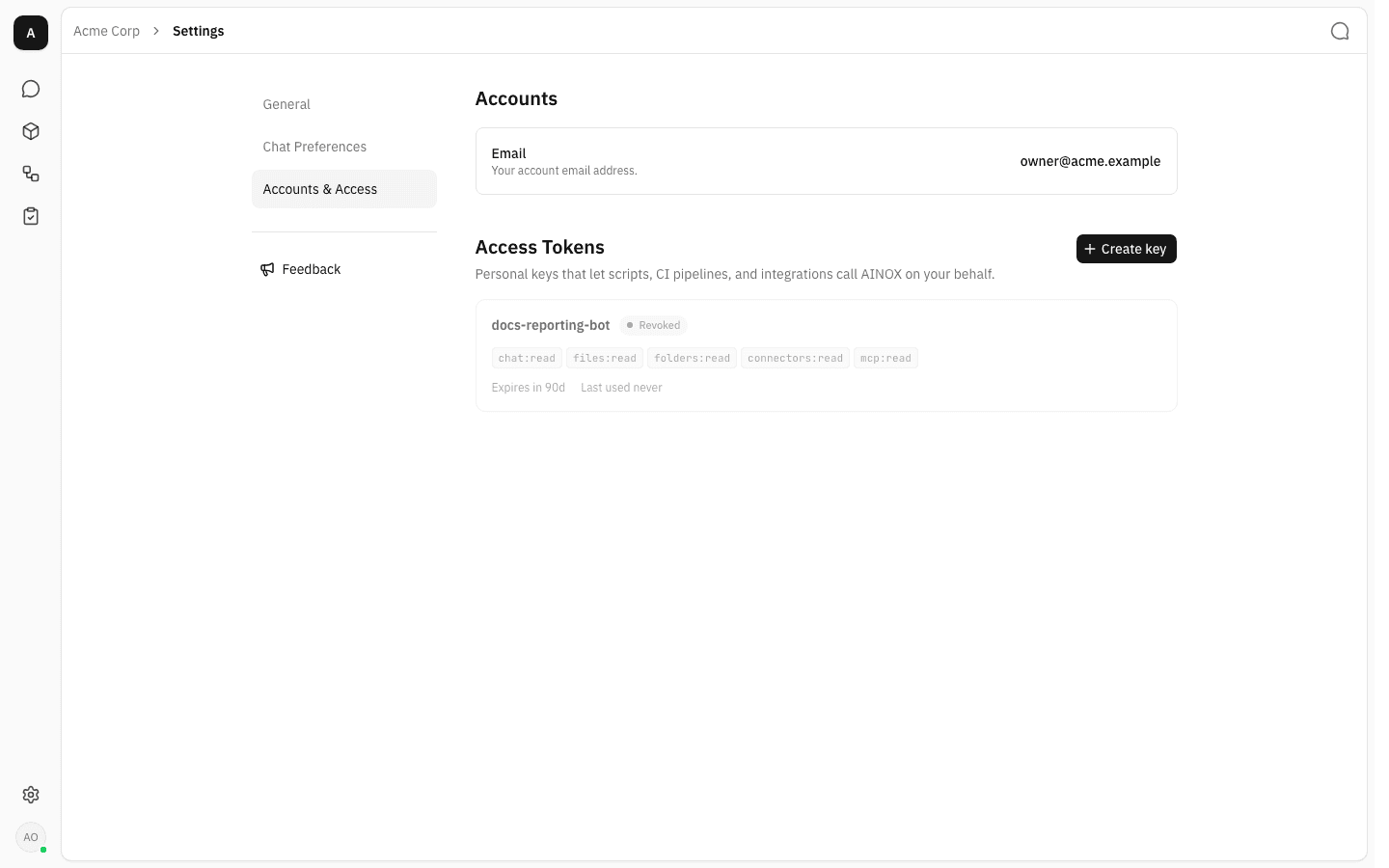
A revoked key stays in the list, greyed out and marked Revoked, as a record that it existed. It has no rotate or revoke buttons any more and can never be reactivated — create a new key instead.
Notes
- Display name and email belong to your account and are shared across every workspace; theme is per browser; personal preferences and memory are per workspace.
- The character limits are 64 for the display name, 500 for personal preferences and 200 per memory entry.
- Deleting chat history and clearing memory are separate actions: clearing memory leaves your threads intact, and deleting threads does not erase memories.
- API keys cannot outlive your permissions. If your workspace role changes, the key's effective access changes with it, without needing to be recreated.