Members & invitations
Invite teammates into a workspace, track pending invitations, and revoke or remove access from Admin → Members.
Everyone who can open a workspace appears on Admin → Members: the people who have already joined, and the invitations that have been sent but not yet accepted. This is where you bring teammates in and where you take their access away again.
Prerequisites
- Sending an invitation needs the invite members workspace permission — owners and admins have it, and it can be granted to a group.
- Revoking a pending invitation needs the workspace owner or admin role.
- Inviting someone as an Owner, and changing an existing member's role, needs the owner role — no permission or group can grant it.
- Removing a member who has already joined needs the remove members workspace permission.
- If you have none of these, the page is read-only: you see the list, but no invite box and no row actions.
Review who is in the workspace
-
Open Admin from the top navigation, then Members under Workspace in the sidebar.
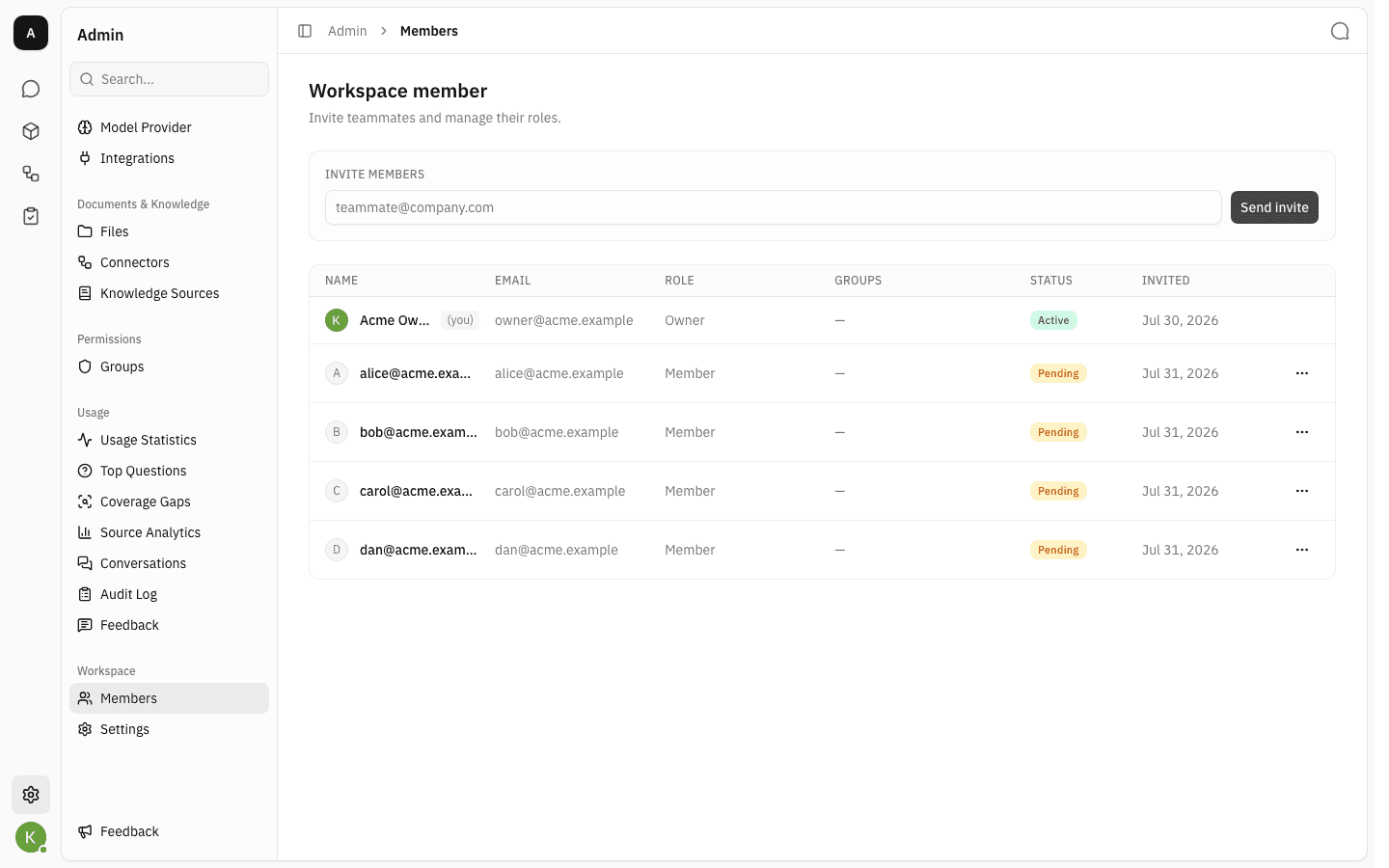
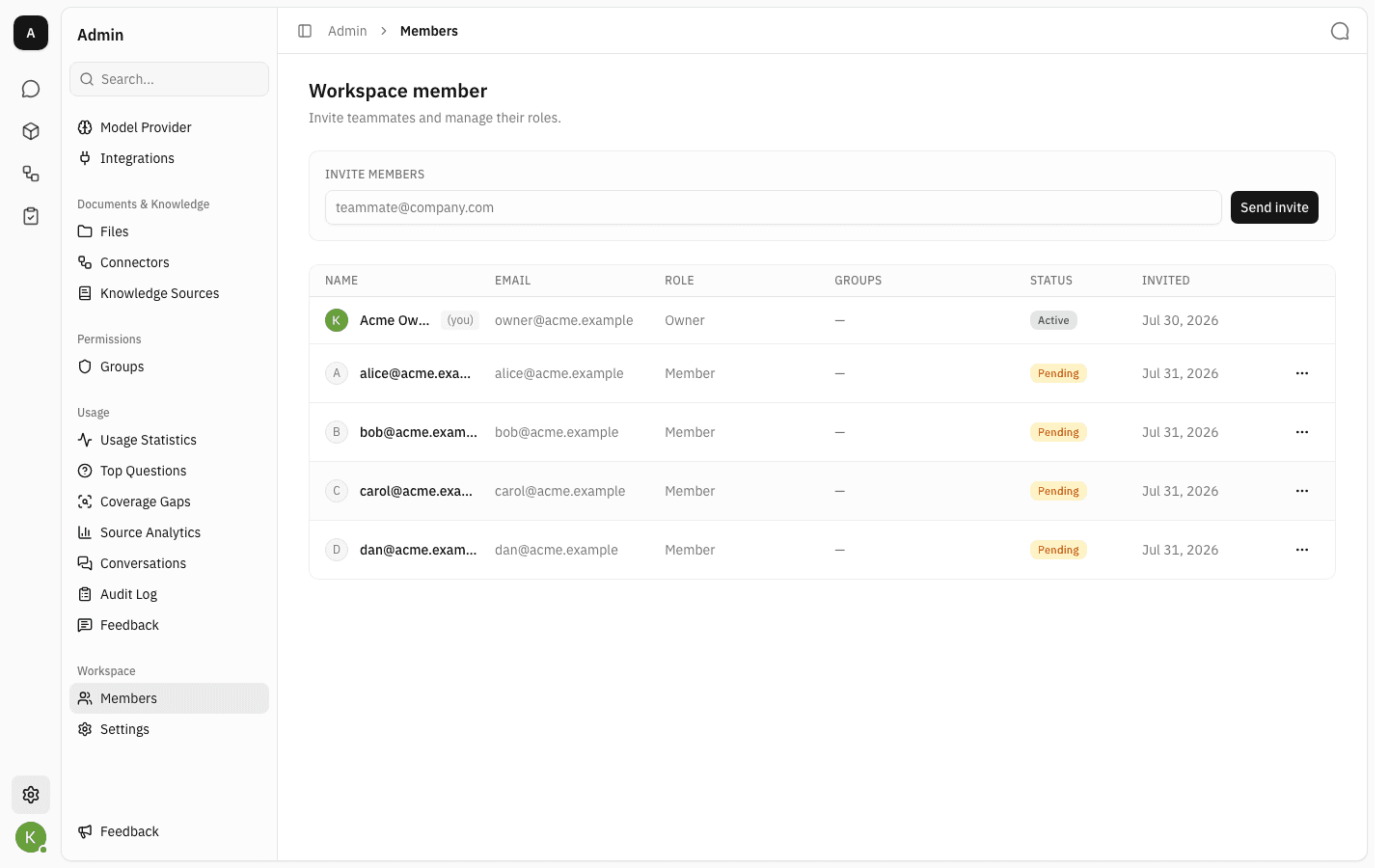
Each row is either a person who has joined or an invitation that is still outstanding:
- Name — the person's account name, or their email address while the invitation is still pending. Your own row is marked (you).
- Role —
Owner,AdminorMember.Adminis a legacy role that is no longer handed out; existing admins keep it until an owner changes it. - Groups — the workspace groups the person belongs to. Pending invitees have none yet, because a group can only contain people who have joined.
- Status —
Activefor members,Pendingfor unaccepted invitations. - Invited — when the membership or the invitation was created.
Invite a teammate
-
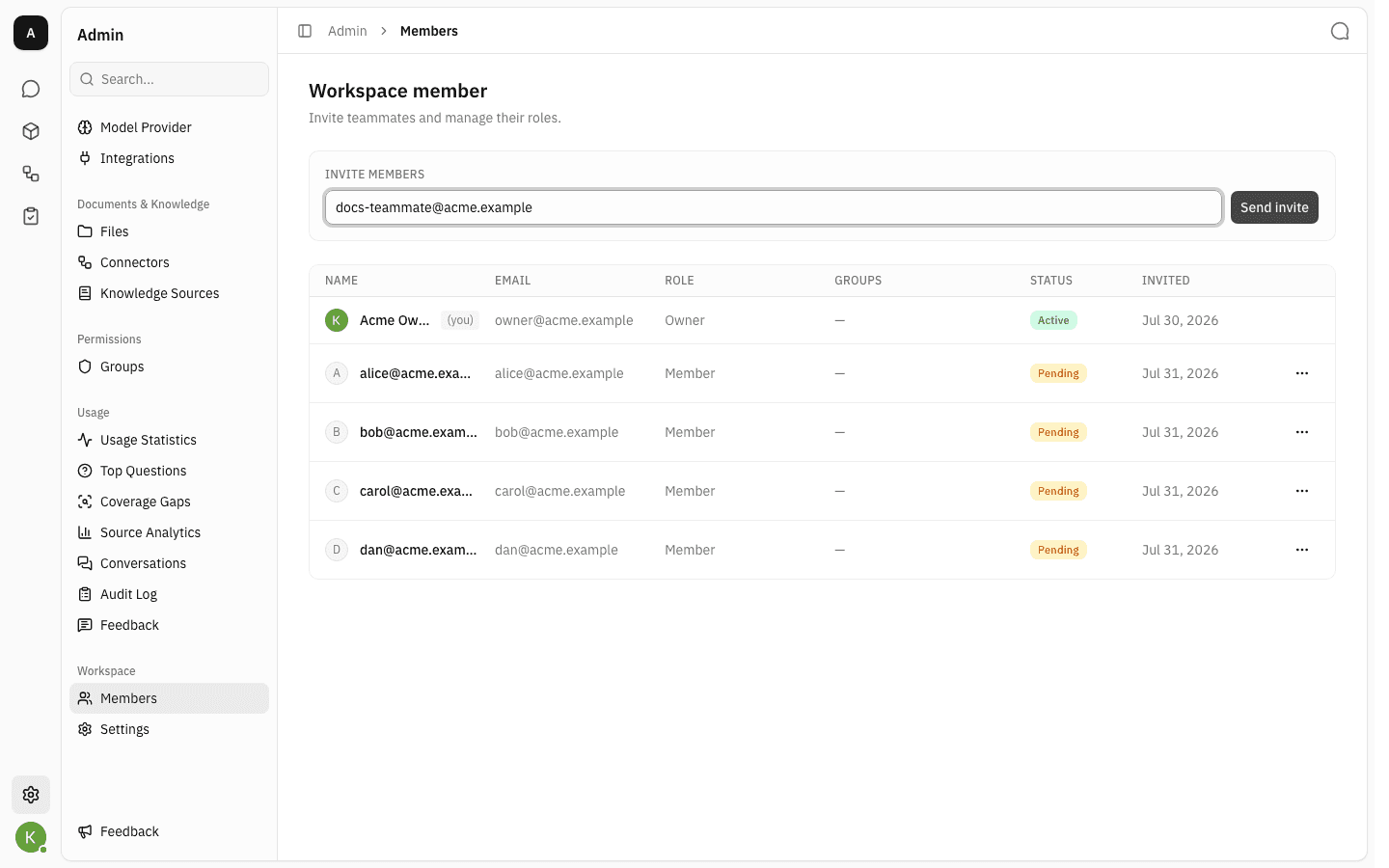
Type the teammate's email address into the Invite members box at the top of the page.
-
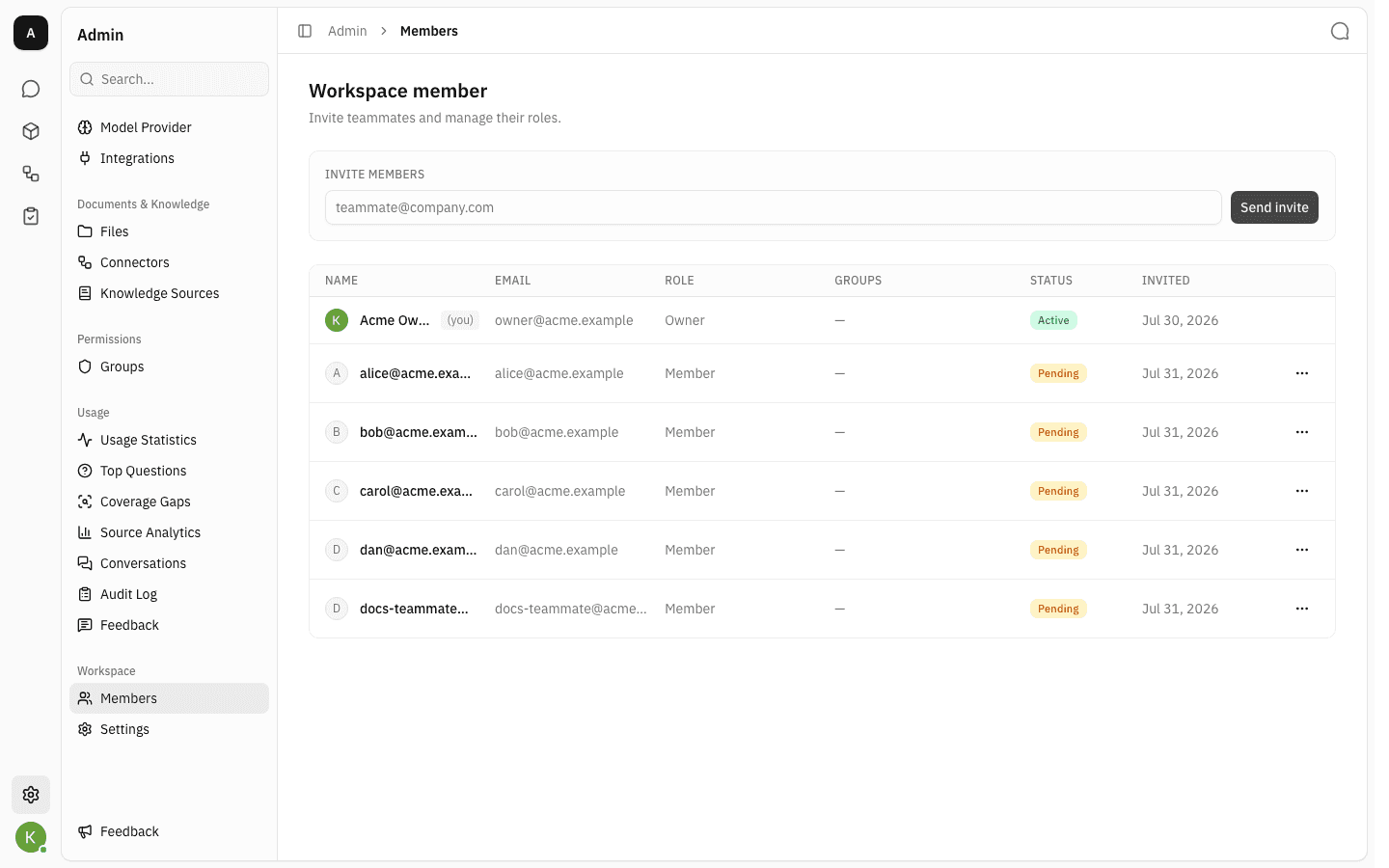
Click Send invite. The address is emailed an invitation link, and a new row appears at the bottom of the list with the status Pending. Owners see a Role picker next to the address and can invite the person as an Owner or a Member; everyone else invites members only.
The invitee stays
Pendinguntil they open the link and accept. Only then do they becomeActive, get a real name in the Name column, and become selectable when you add people to groups or projects.
Revoke a pending invitation
-
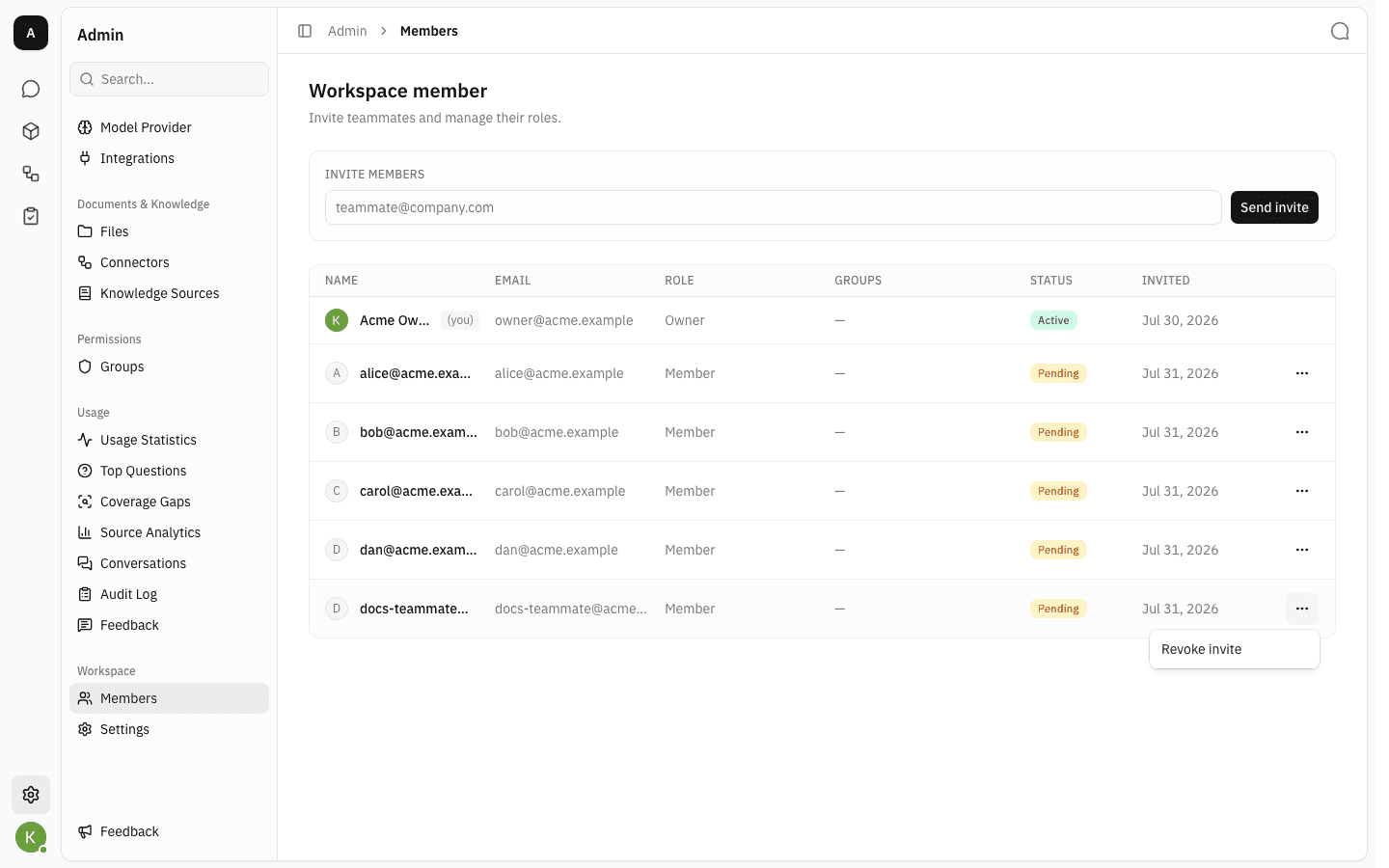
Open the ⋯ menu at the end of the pending invitation's row and choose Revoke invite.
-
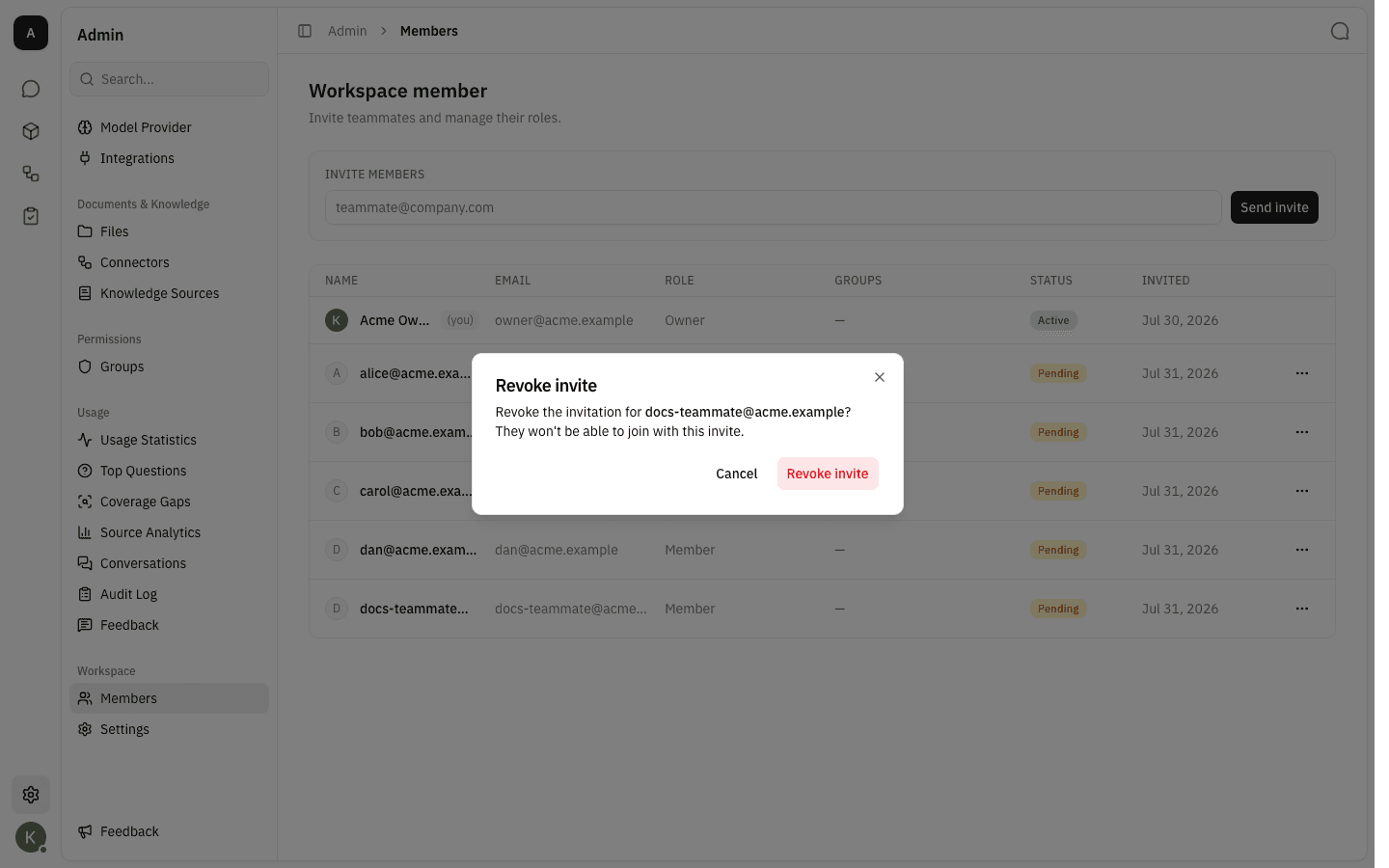
Confirm in the dialog. It names the address so you can check you are cancelling the right one.
-
Click Revoke invite. The row disappears from the list and the link that was emailed no longer works.
Notes
- Changing a member's role — as an owner, open the ⋯ menu on an active member's row and choose Change role, then pick Owner or Member and Save role. You cannot change your own row, and the last owner of a workspace cannot be demoted — promote someone else first.
- Removing a member who has joined works the same way: open the ⋯ menu on their row and choose Remove member. Two rows never offer it — your own, and the workspace owner's. If the person is the last owner of a project, the removal is refused with a message naming those projects; transfer the projects first, then remove them.
- Re-sending an invitation to an address that is already pending does not create a second row — it refreshes the existing invitation and re-sends the email.
- A revoked or expired invitation can simply be sent again from the same invite box; nothing needs cleaning up first.
- Group membership and project membership are managed elsewhere (Admin → Groups, and each project's own Members tab). This page only controls whether someone is in the workspace at all.