Knowledge sources
Connect an Outline wiki, a documentation website, a SharePoint site or Slack channels so their content is synced into the workspace knowledge base.
A knowledge source is somewhere your content already lives. AINOX PLATFORM copies it into the workspace knowledge base ahead of time, so the assistant can answer from it and cite it. There are four kinds of source:
| Kind | What it syncs |
|---|---|
| Outline | A subtree of an Outline wiki — a document and its children, or a whole collection. |
| Website | A documentation site, crawled from a seed URL by following links. |
| SharePoint | A document library on a SharePoint site, or selected folders within it. |
| Slack | Answered threads from the channels you name — one thread becomes one document. |
Every kind ends up in the same list and shares the same settings — auto-sync schedule, import policy, reviewers. They differ only in what the connection form asks for. This page covers adding a source of each kind, configuring how its documents enter the knowledge base, choosing who reviews them, replacing its stored credential, and removing a source again.
Prerequisites
- The manage knowledge sources workspace permission — owners and admins have it. Without it the page shows an access-denied notice.
- Whatever the source itself needs: nothing for a public documentation website, a personal API token for an Outline wiki, a Microsoft Entra app registration with a certificate for SharePoint, or a Slack app's bot token for Slack.
- The source must be reachable from the platform. Adding one runs a connection check first, and a source that cannot be reached is not created.
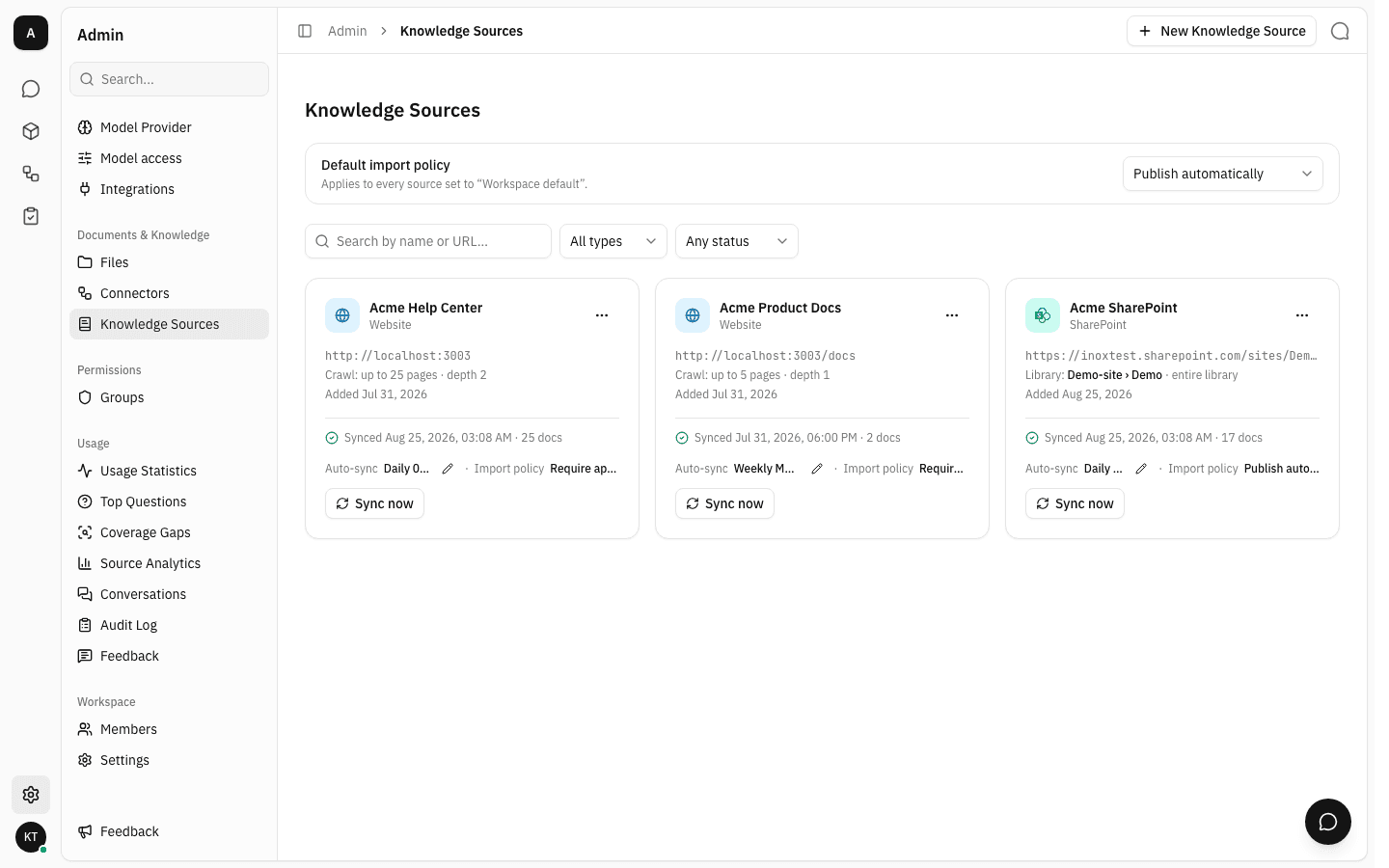
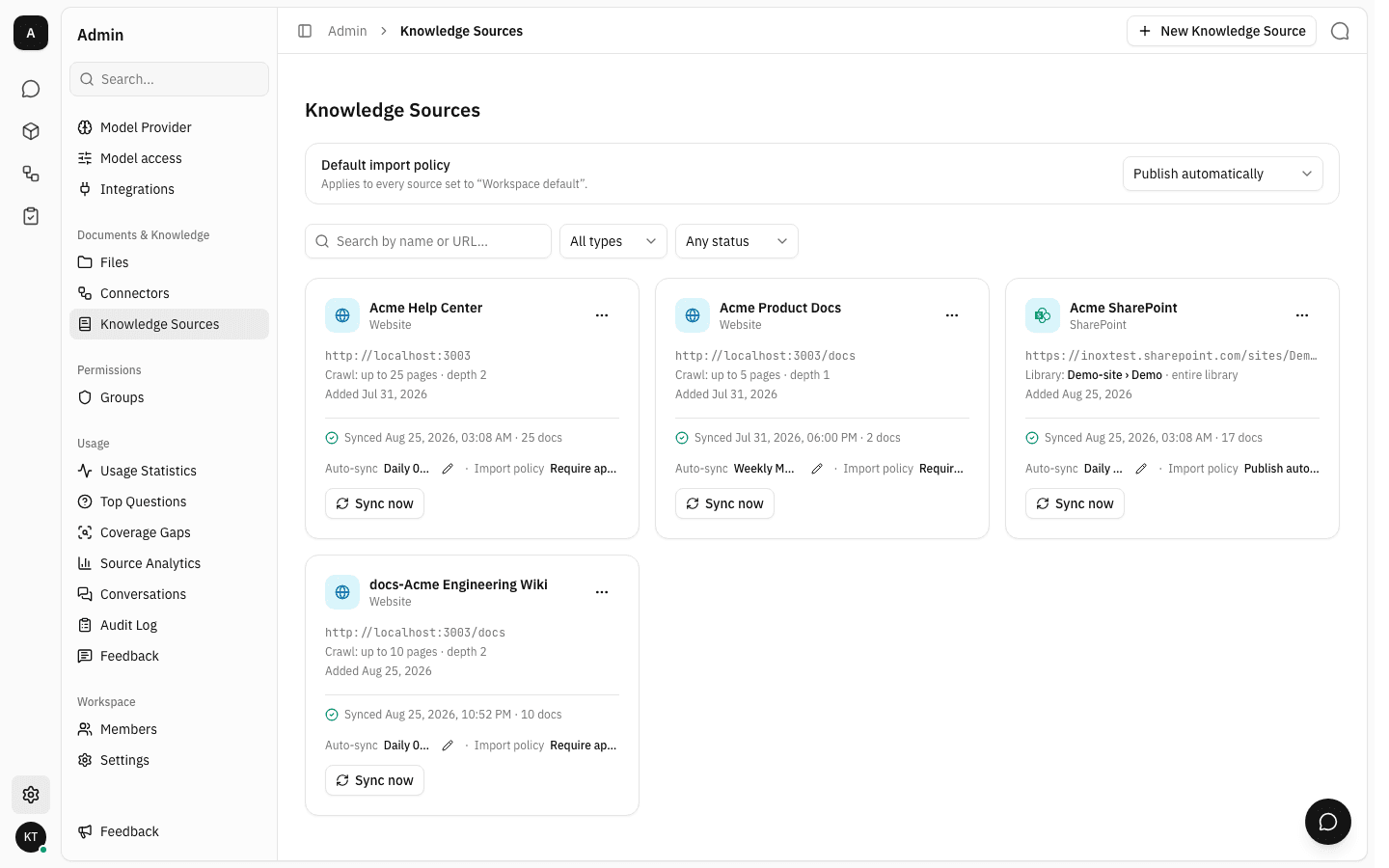
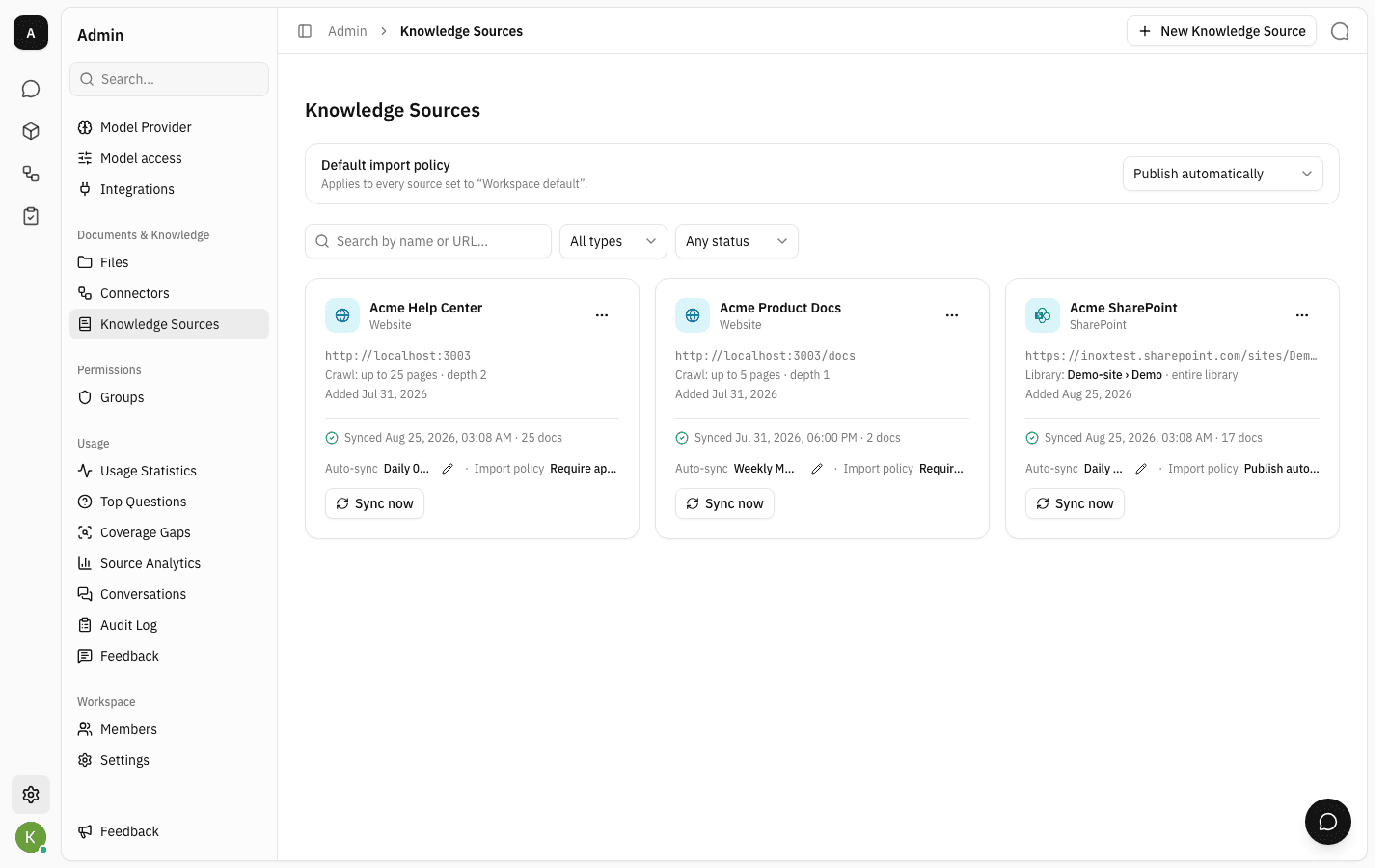
Admin → Knowledge Sources lists every source in the workspace as a card: where it points, how it is scoped, when it last synced, how many documents it holds, its auto-sync schedule and its import policy.
Add a documentation website
-
Click New Knowledge Source and pick the kind of source you are connecting. The menu is the full list of kinds: Outline, website, SharePoint and Slack.

-
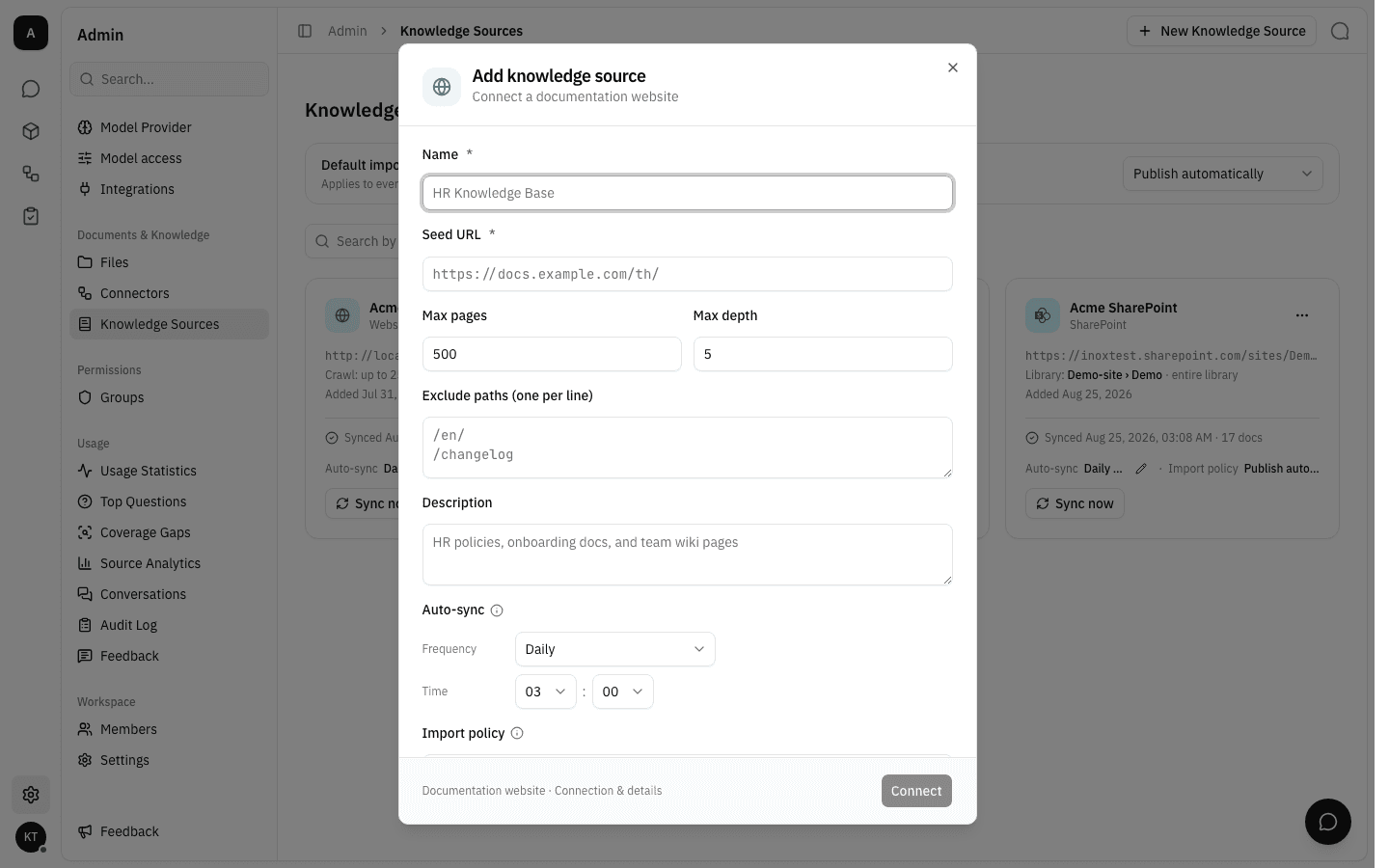
Sync from website opens a one-step form. Name is what the source is called inside the workspace, and Seed URL is the page the crawler starts from — it follows links from there.
-
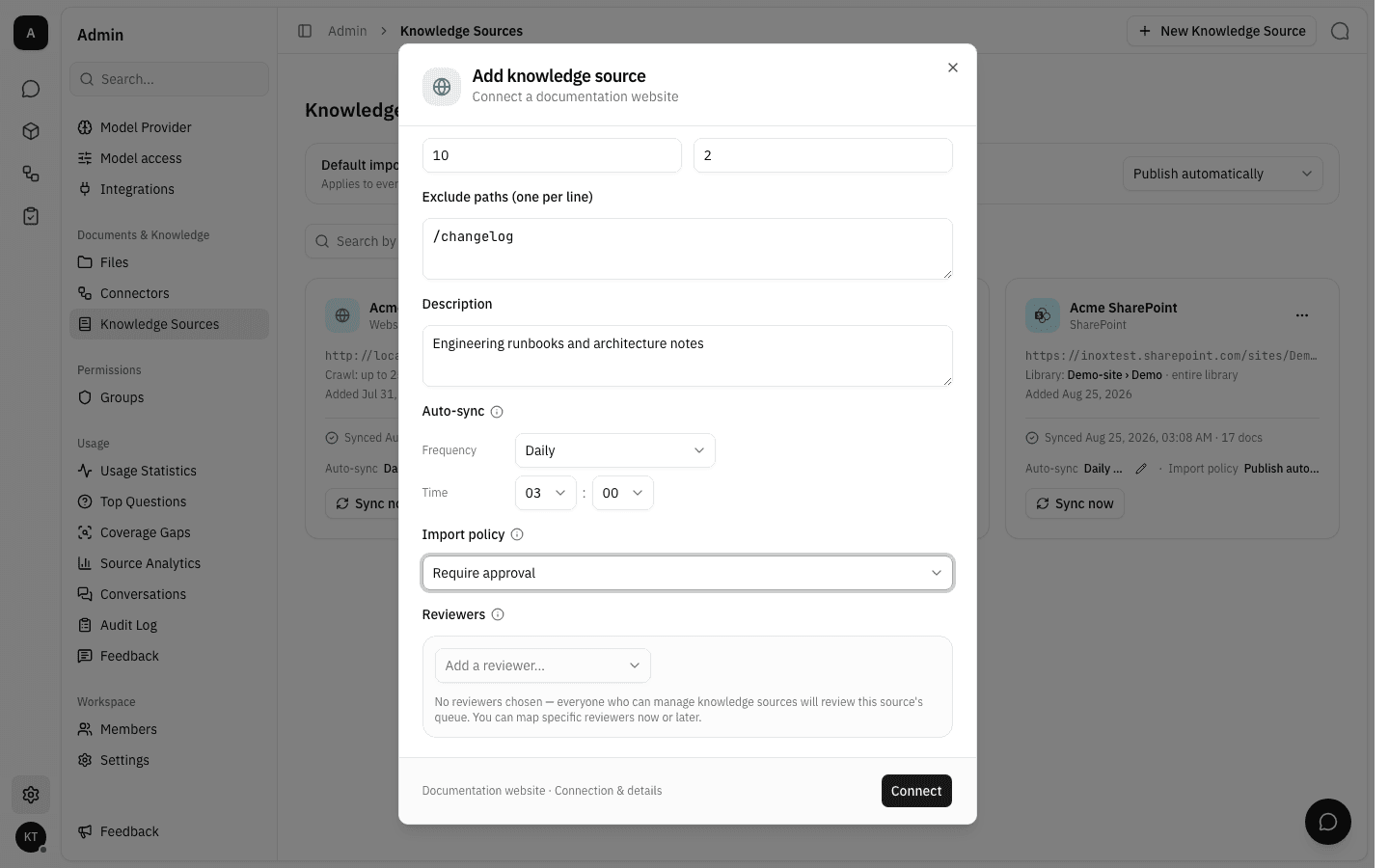
Max pages and Max depth bound the crawl: how many pages it may fetch in total, and how many links deep it may follow from the seed. Exclude paths drops any URL containing one of the listed path fragments — one per line — which is how you keep changelogs or other language versions out. Description is a note for your colleagues.
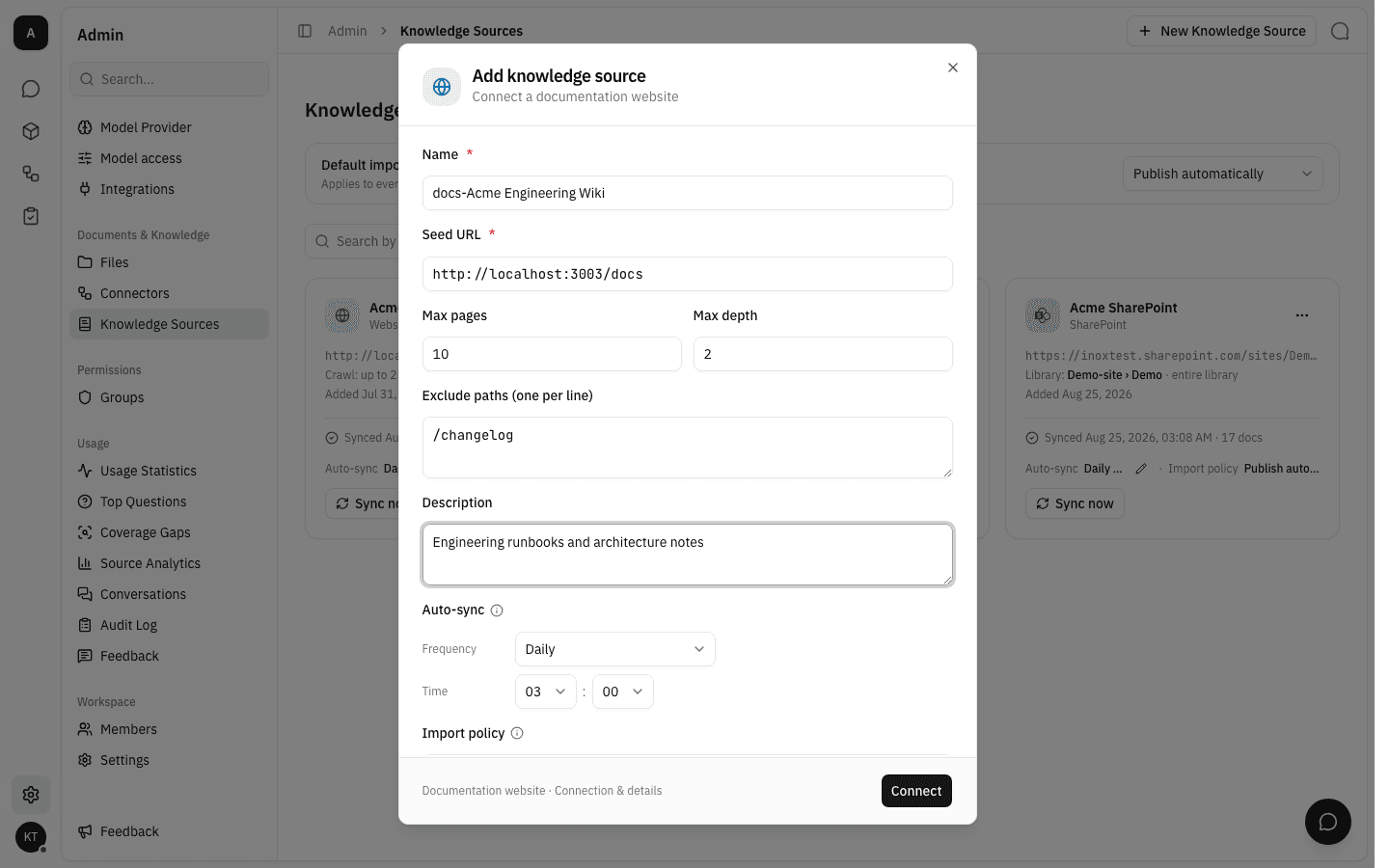
Keep the excluded paths and the seed compatible: the connection check requires the seed to reach at least one other page that is still in scope, so excluding everything the seed links to makes the source fail to connect. For a genuinely single-page source, set Max pages to 1 instead.
-
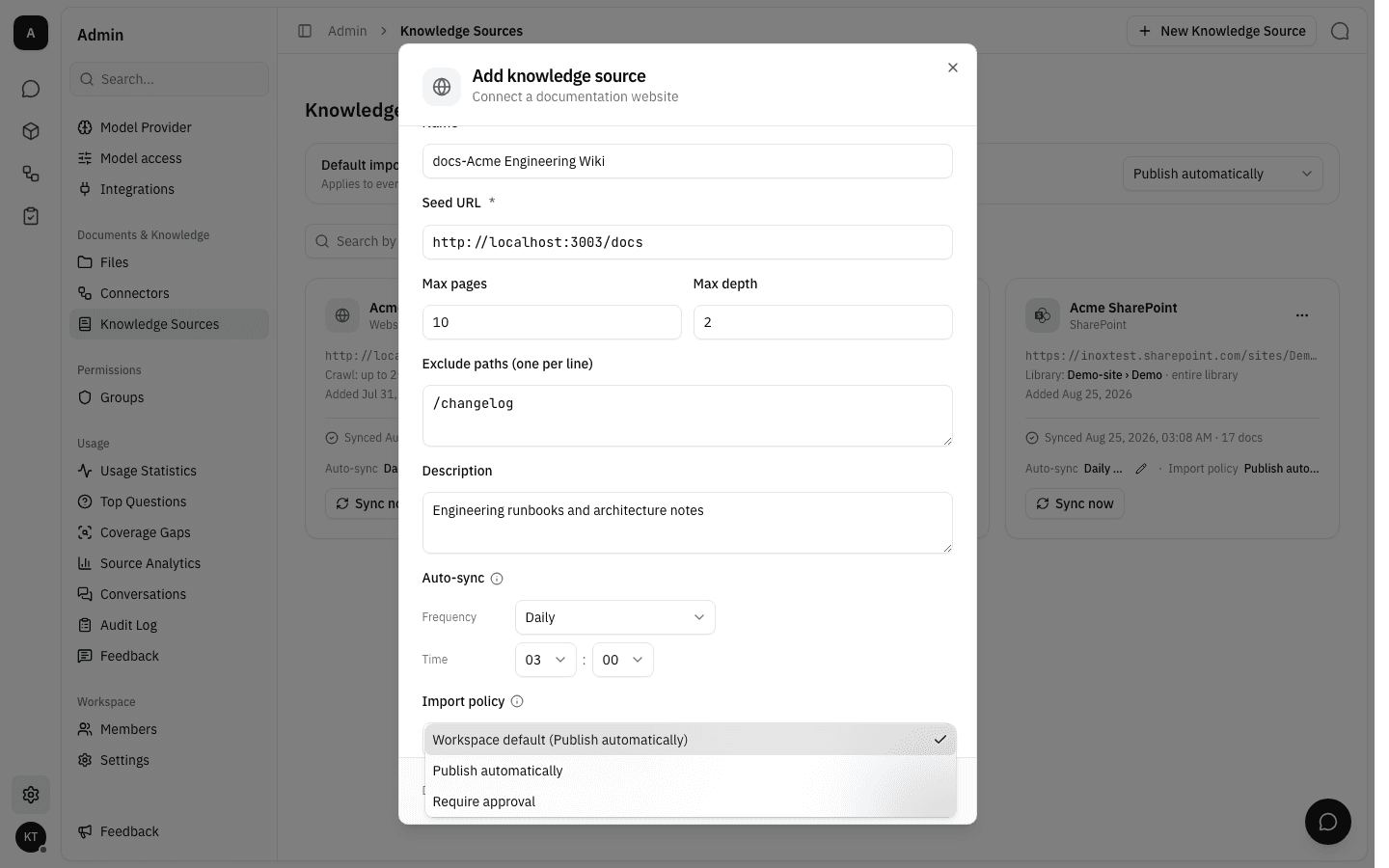
Import policy decides what happens to the documents this source finds. Publish automatically puts them straight into the knowledge base. Require approval holds each new or changed document until a reviewer accepts it. Workspace default follows the workspace-wide setting and names the policy it currently resolves to.
-
Choosing Require approval reveals a Reviewers picker. It is optional: leave it empty and everyone who can manage knowledge sources reviews this source, or name specific members and the queue becomes theirs. You can change this later.
-
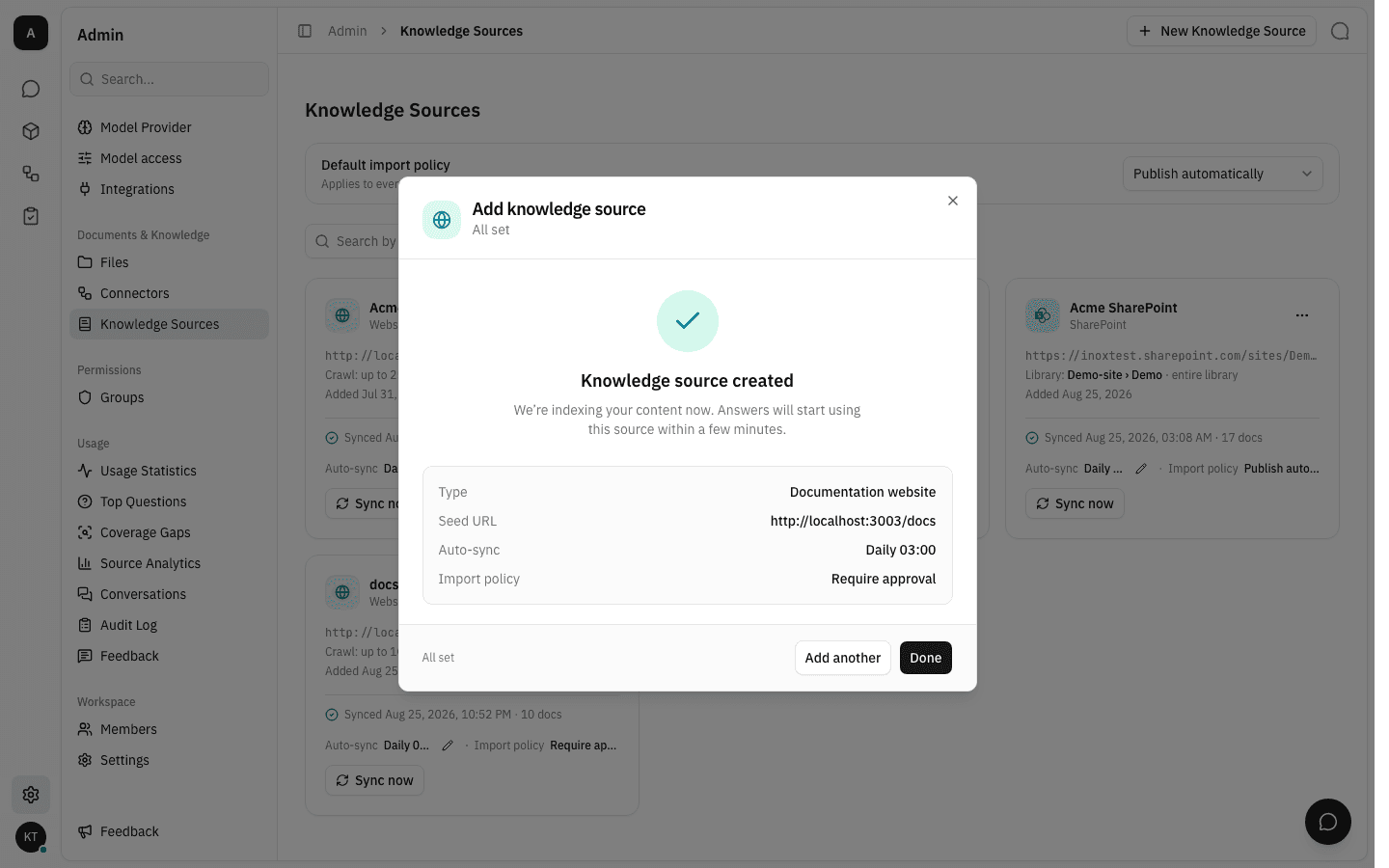
Click Connect. The platform checks the source is reachable, creates it, and starts the first sync immediately. The summary repeats what you configured; Add another keeps the dialog open for the next source.
-
Done returns to the list, where the new source now has its own card.
Find a source in the list
Once a workspace has more than a handful of sources, use the toolbar above the grid: the search box matches a source's name or its URL. A counter on the right shows how many of the total match, and Clear resets everything.
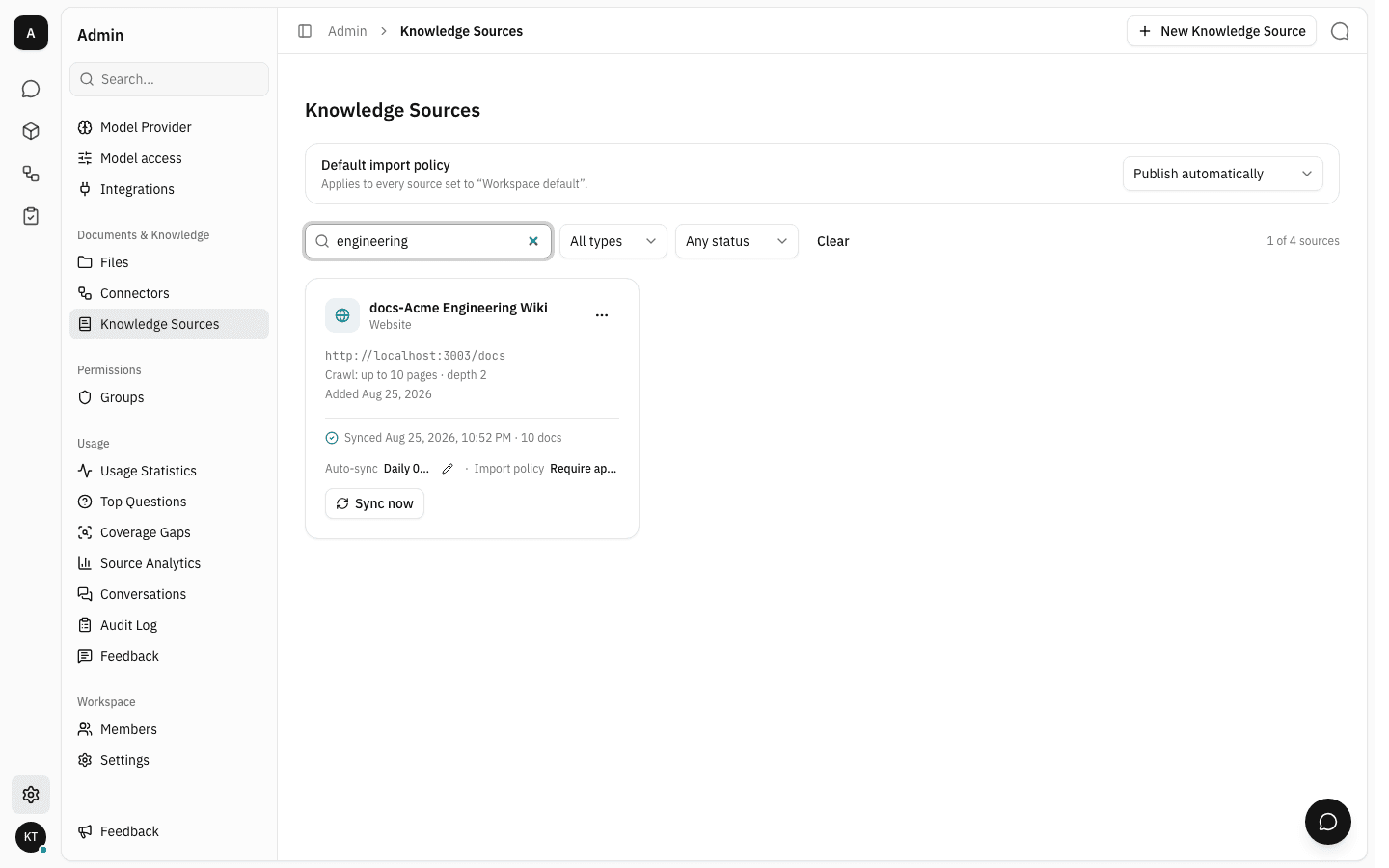
The two dropdowns narrow the grid further. All types lists every source kind, so you can show only the SharePoint sources or only the Slack ones; Any status narrows by sync status instead — not synced yet, partially synced, or sync failed.

Open a source's settings
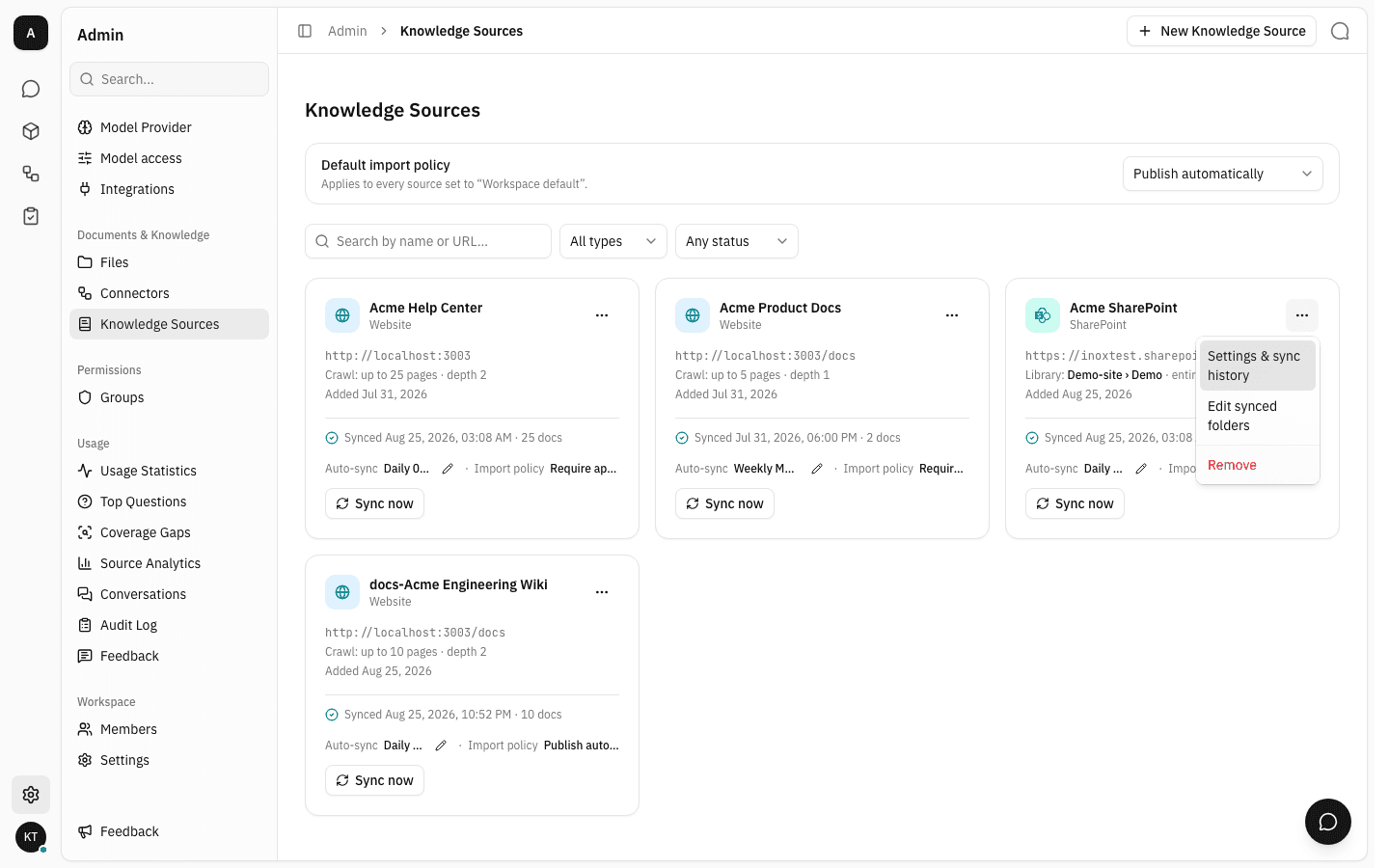
Every card has a … menu with the actions for that source: opening it, and removing it.
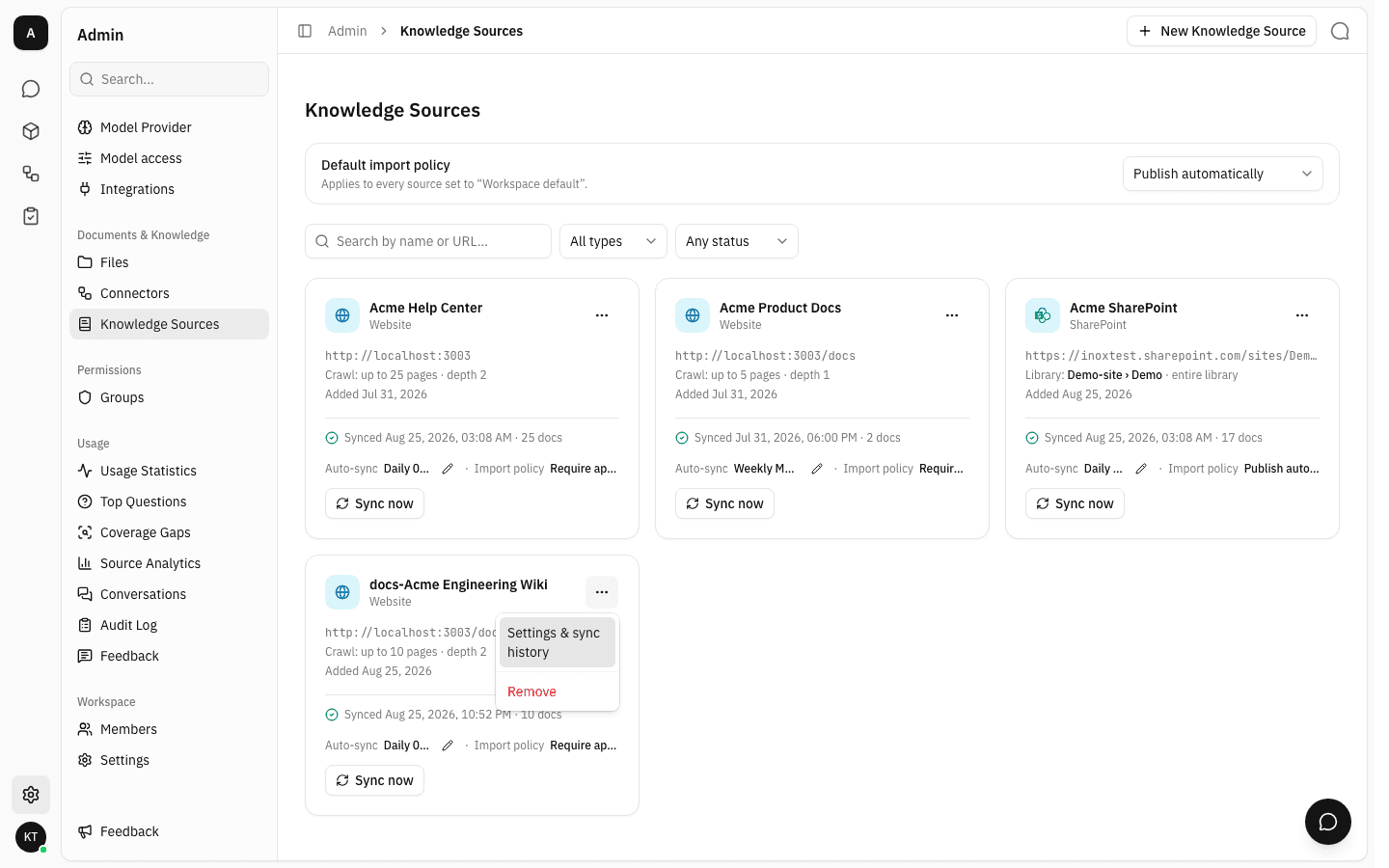
Settings & sync history opens the source's own page. The identity header carries its type, document count, URL and scope, alongside View synced files and Sync now. Below it sit the source's settings cards — import policy, reviewers, and for a source that authenticates with a credential, that credential — and below those, two tabs: Documents and Sync history.
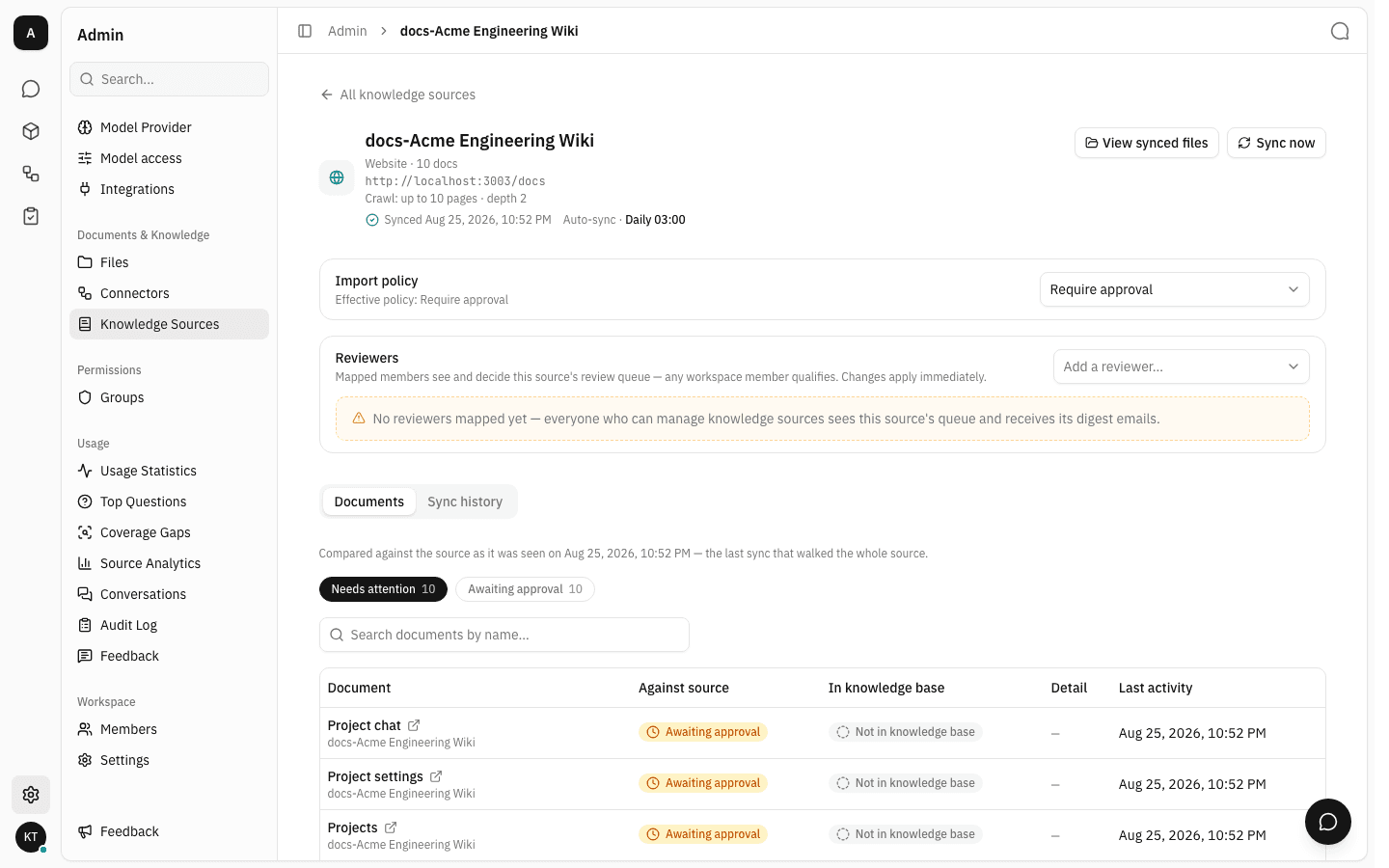
Choose who reviews the incoming documents
While a source has no reviewer mapped, an amber note explains the fallback: everyone who can manage knowledge sources sees its review queue and receives its digest emails.
-
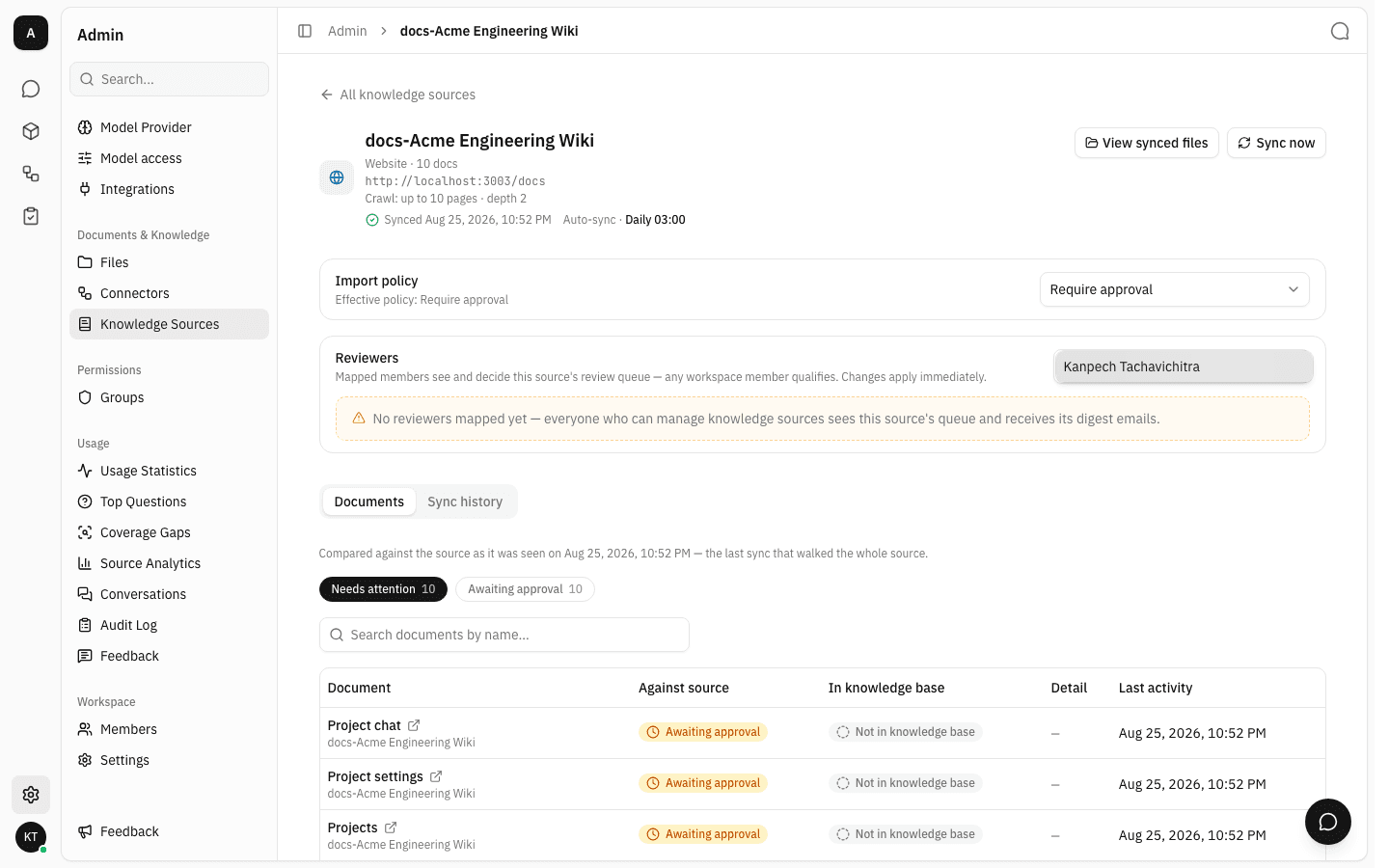
Pick a member from Add a reviewer…. Any workspace member qualifies — reviewing a source does not require the manage permission, so you can hand a source to the team that owns its content.
-
The member appears in the list straight away. Mapping is the grant: from now on this source's queue is theirs, and the digest emails go to them instead of to the managers. Remove a reviewer with the
✕on their row.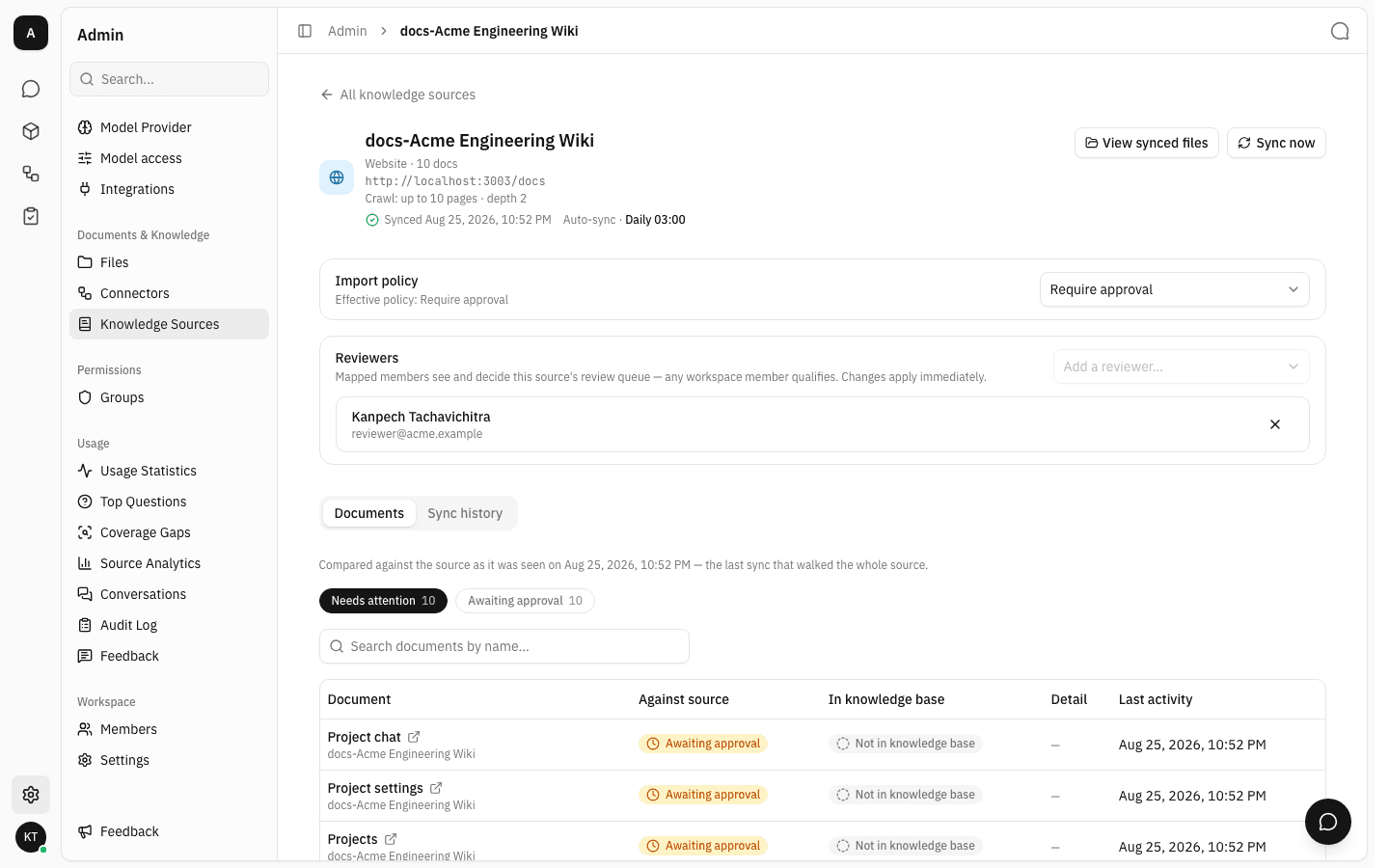
Change a source's import policy
The Import policy card carries the same three options as the create form, plus a caption naming the effective policy — the one actually in force once Workspace default has been resolved.
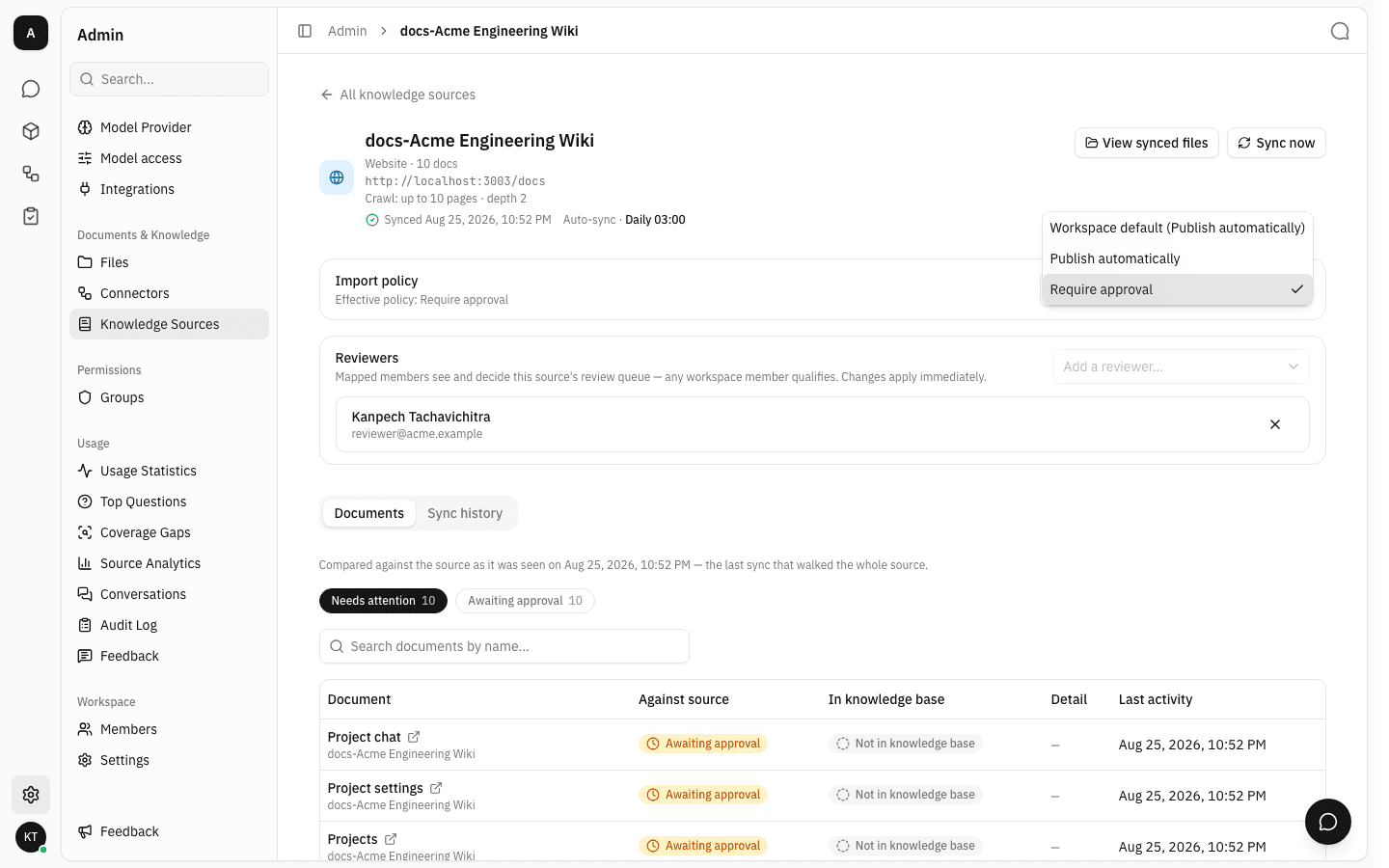
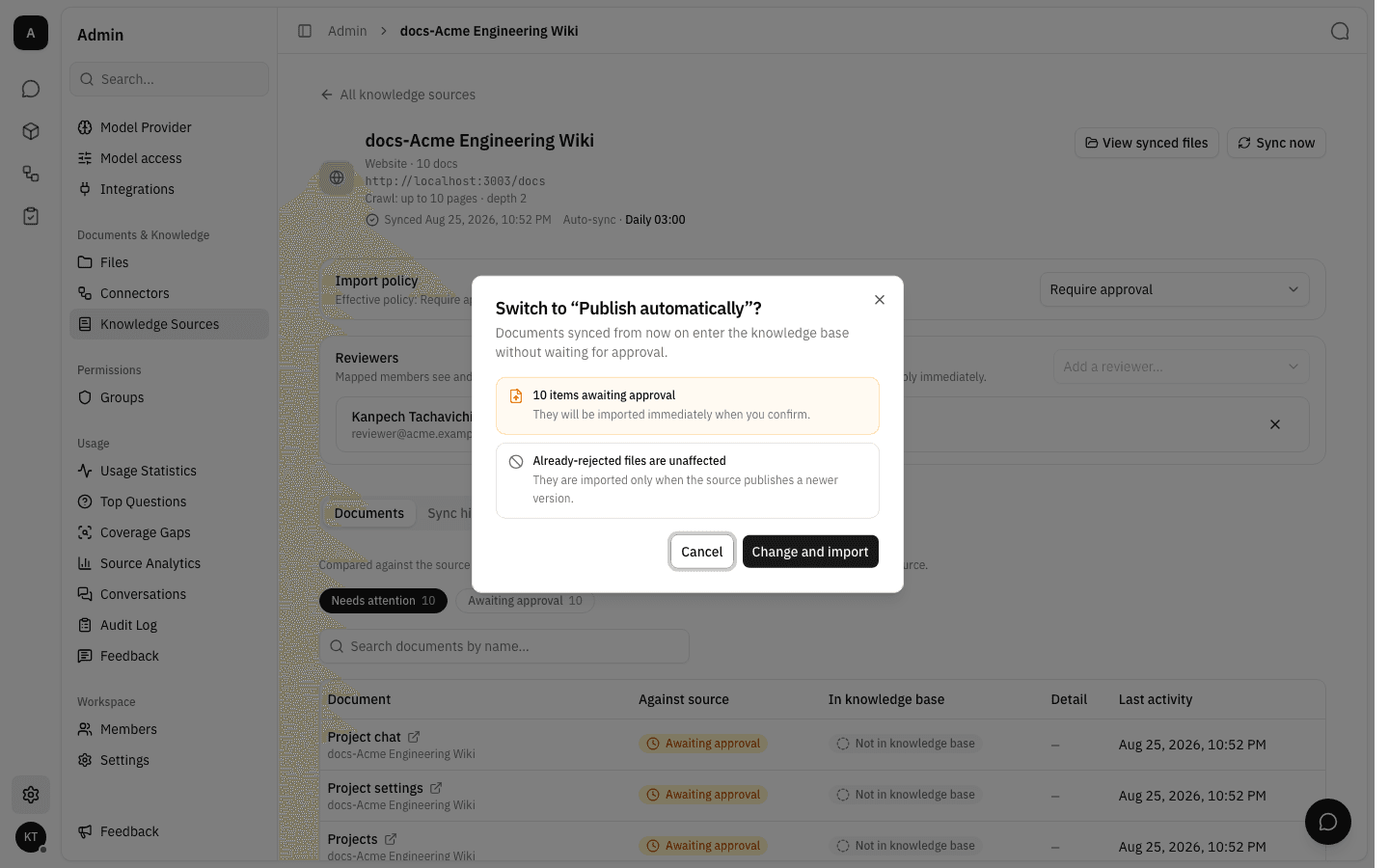
Switching a source to a policy that publishes automatically always asks first, because the change is not only forward-looking: everything currently waiting for approval is imported the moment you confirm. The dialog names how many documents that is. Files a reviewer already rejected are left out — they only return if the source publishes a newer version of them.
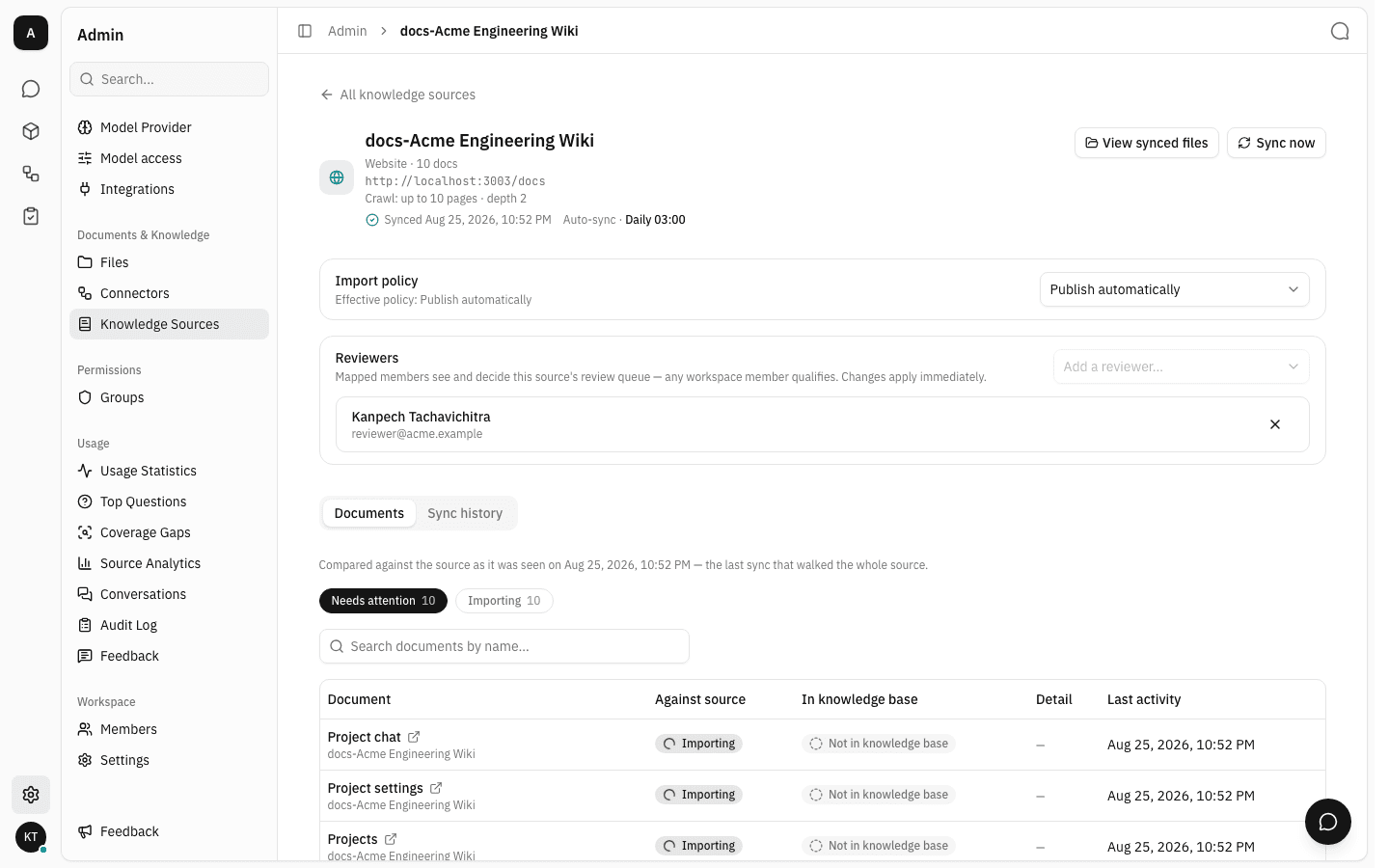
After confirming, the caption reflects the new effective policy and the released documents move into the knowledge base — the Documents tab shows them as Importing while that runs.
Read what a source holds
The two tabs below the settings cards answer different questions about the same source.
Documents lists every document the source has produced and scores each on two axes: Against source — whether the copy in the knowledge base still matches what the source published, including documents awaiting approval and ones the source has retired — and In knowledge base — whether the assistant can currently answer from it. Needs attention counts the documents on one of those axes that are not settled, and doubles as a filter. The caption above names the sync the comparison is made against.
Sync history is the record of every attempt: its status, what triggered it and who, how many documents it changed, when it started and how long it took. Click a run to see the individual documents it touched.
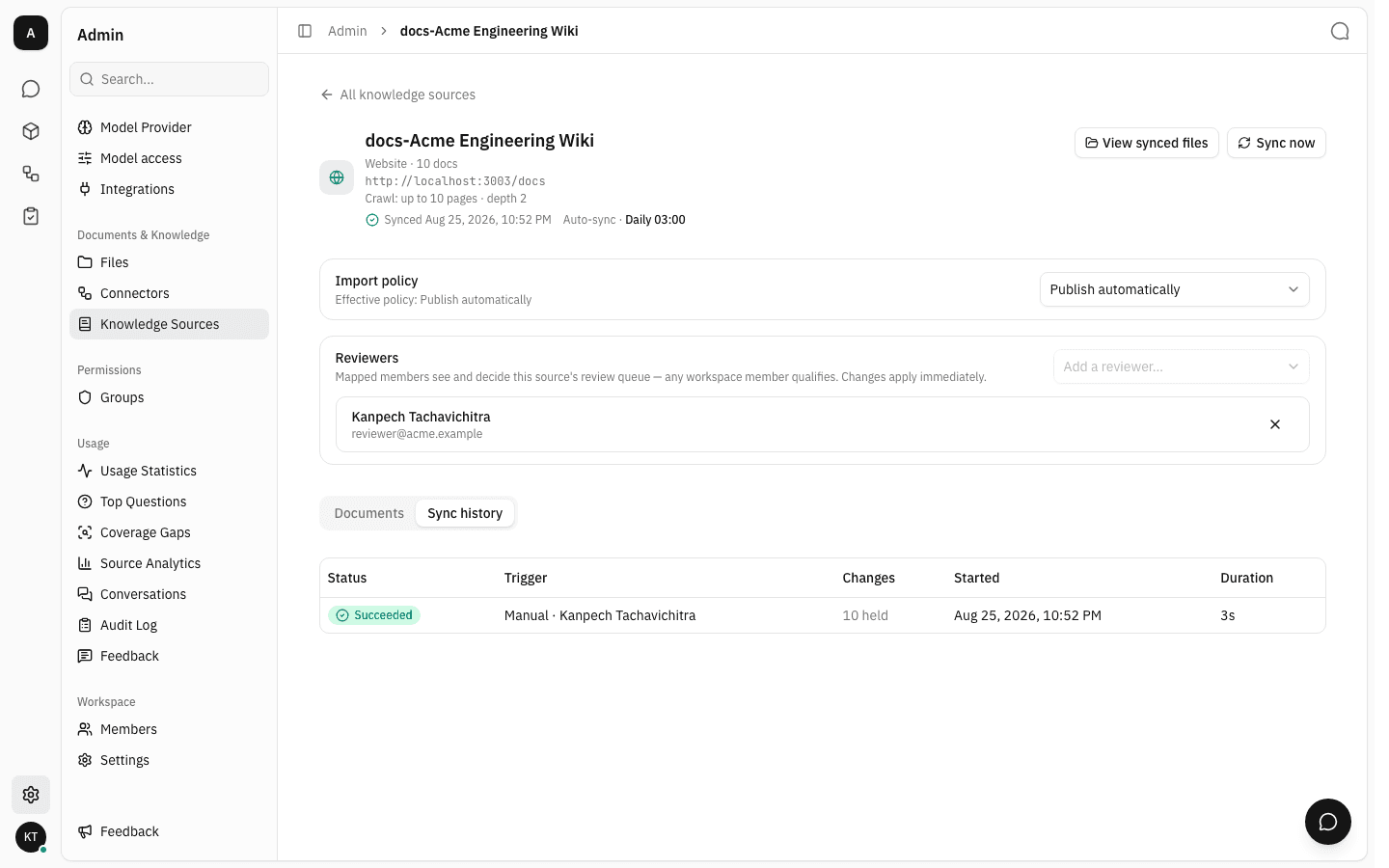
Running and scheduling syncs is covered on the Sync a knowledge source page.
Set the workspace default import policy
The Default import policy card at the top of the list page governs every source left on Workspace default, so you can set the rule once instead of per source.
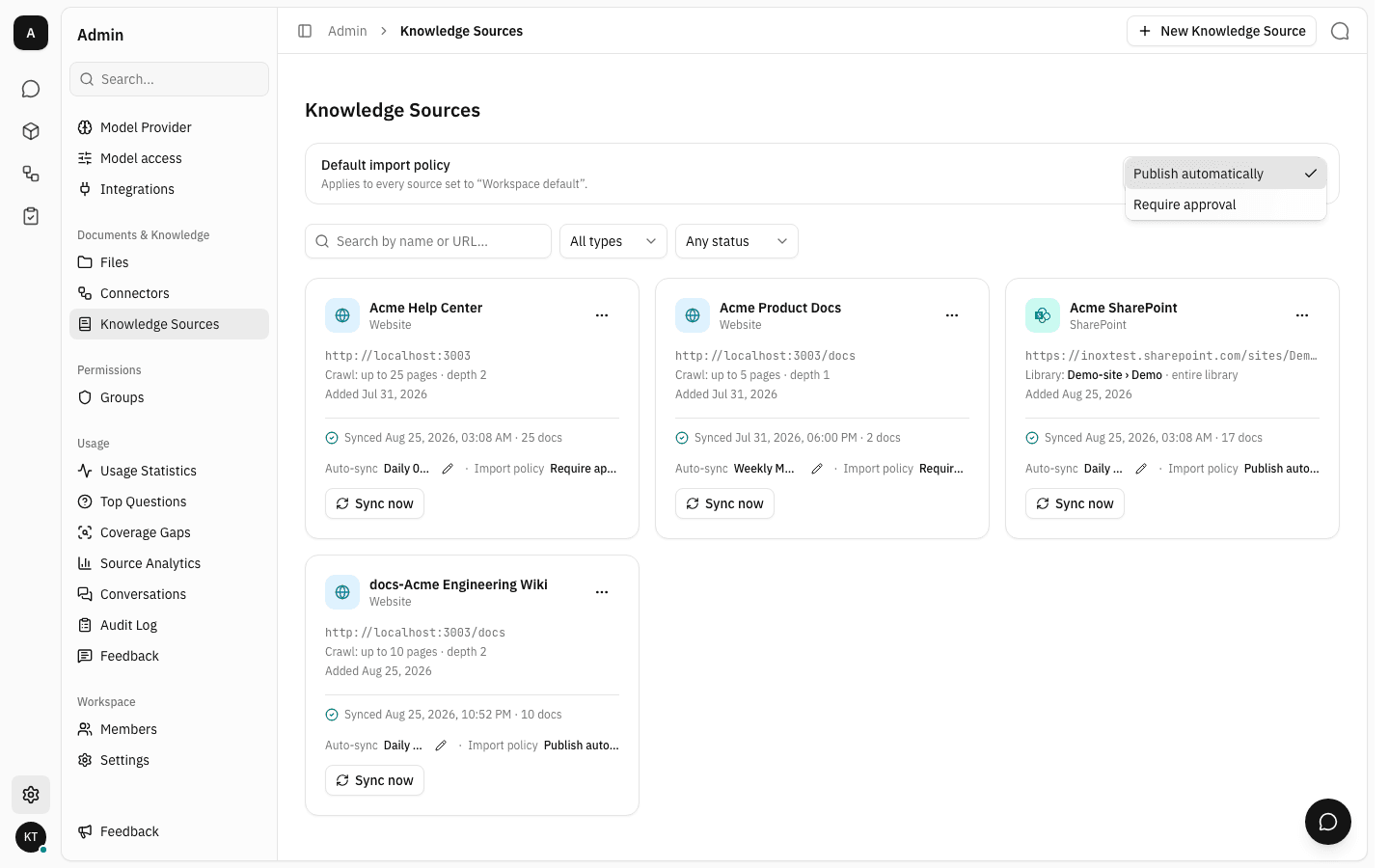
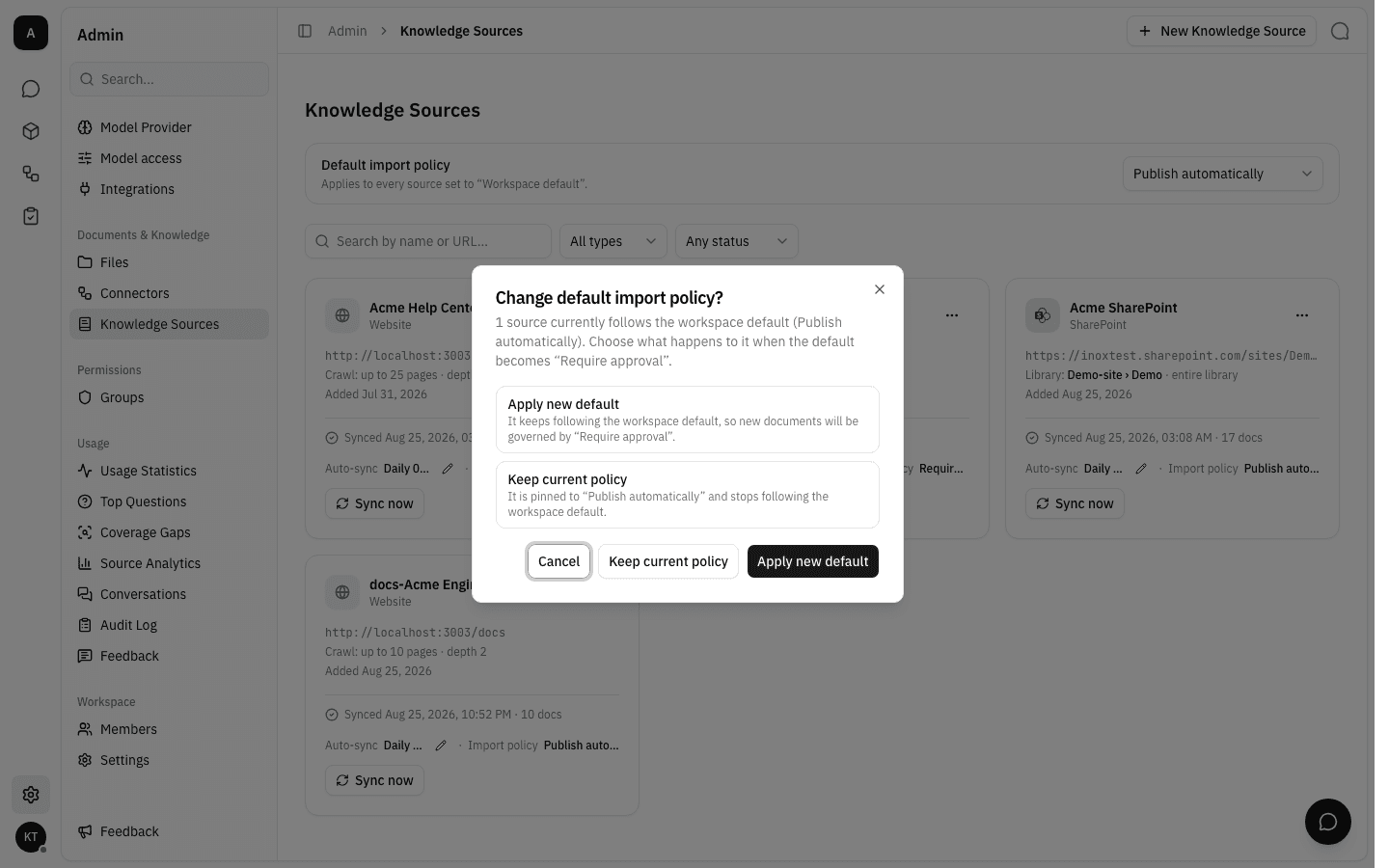
If any source currently follows the default, changing it asks what should happen to those sources: Apply new default keeps them following along, so the new policy governs their documents; Keep current policy pins them to the old policy and stops them following the default. When the new default publishes automatically, the dialog also names how many pending documents would be imported immediately.
Connect an Outline wiki
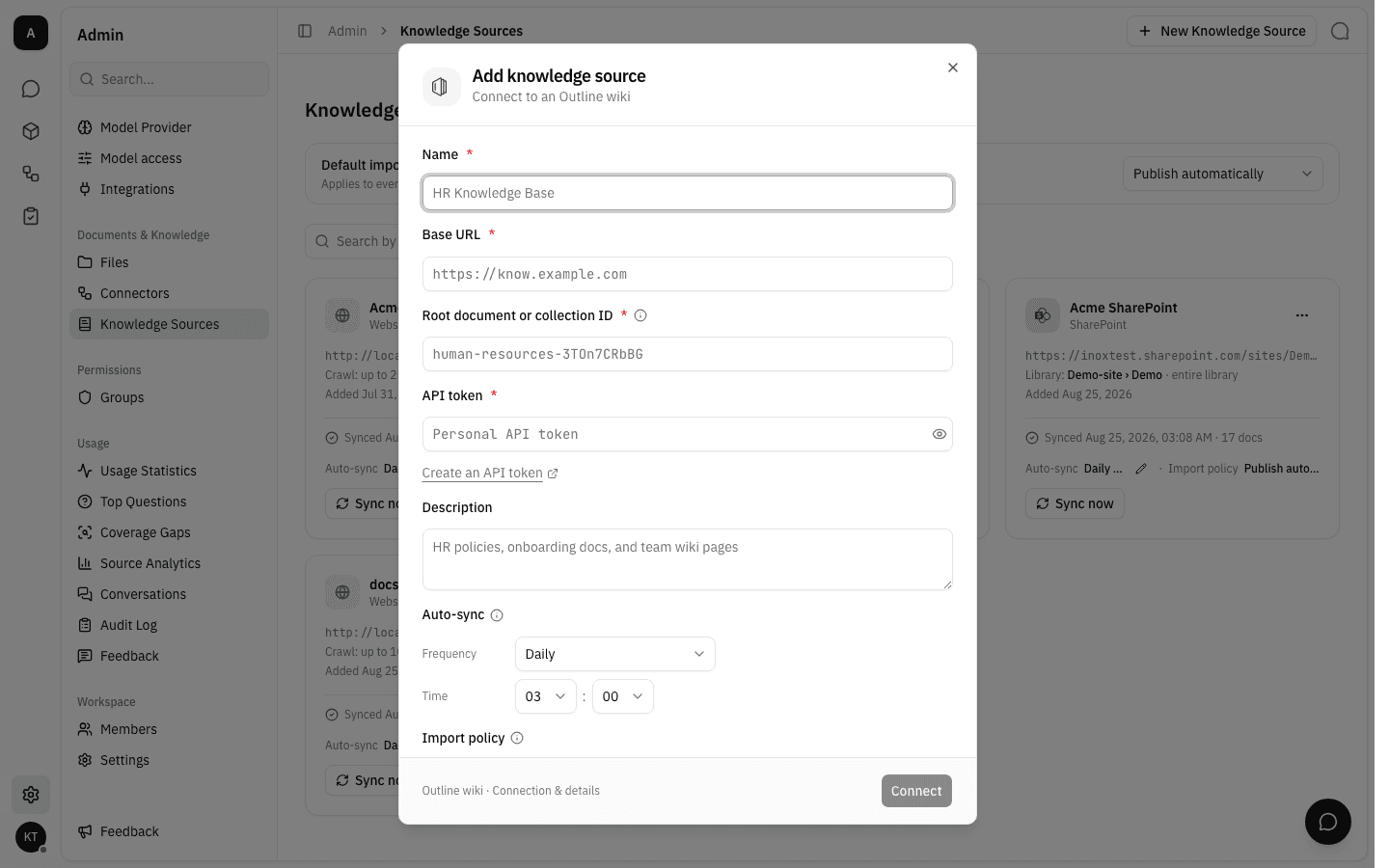
Sync from Outline is a one-step form like the website one. Alongside the name it needs:
- Base URL — the address of your Outline instance.
- Root document or collection ID — the id from the Outline URL that marks the subtree to sync. For a document, the slug after
/doc/syncs that document and everything below it; for a collection, the id after/collections/syncs every document in it. A slug or a UUID both work. - API token — a personal API token from Outline. Create an API token links to Outline's own instructions. The token is encrypted before it is stored and is never shown again.
Connect Slack channels
Sync from Slack ingests answered threads from the channels you name — each thread becomes one document, so the assistant can cite the conversation that already solved a problem. Standalone messages are not ingested; a thread needs at least one reply.
- Bot token — the token of a Slack app installed in your Slack workspace, starting
xoxb-. It needs thechannels:history,groups:historyandusers:readscopes. Like every stored credential it is encrypted and never shown again. - Channel IDs — one channel id per line, in the form shown in the placeholder. To find a channel's id in Slack, click the channel name, open View channel details, and read it from the bottom of the About tab. Invite the bot to every channel you list (
/invite) — the connection check walks all of them, so a channel the bot cannot read stops the source from being created rather than failing quietly on the first sync. - Max thread age (months) — how far back to look. Threads older than this are skipped, so a busy support channel does not drag years of stale answers into the knowledge base.
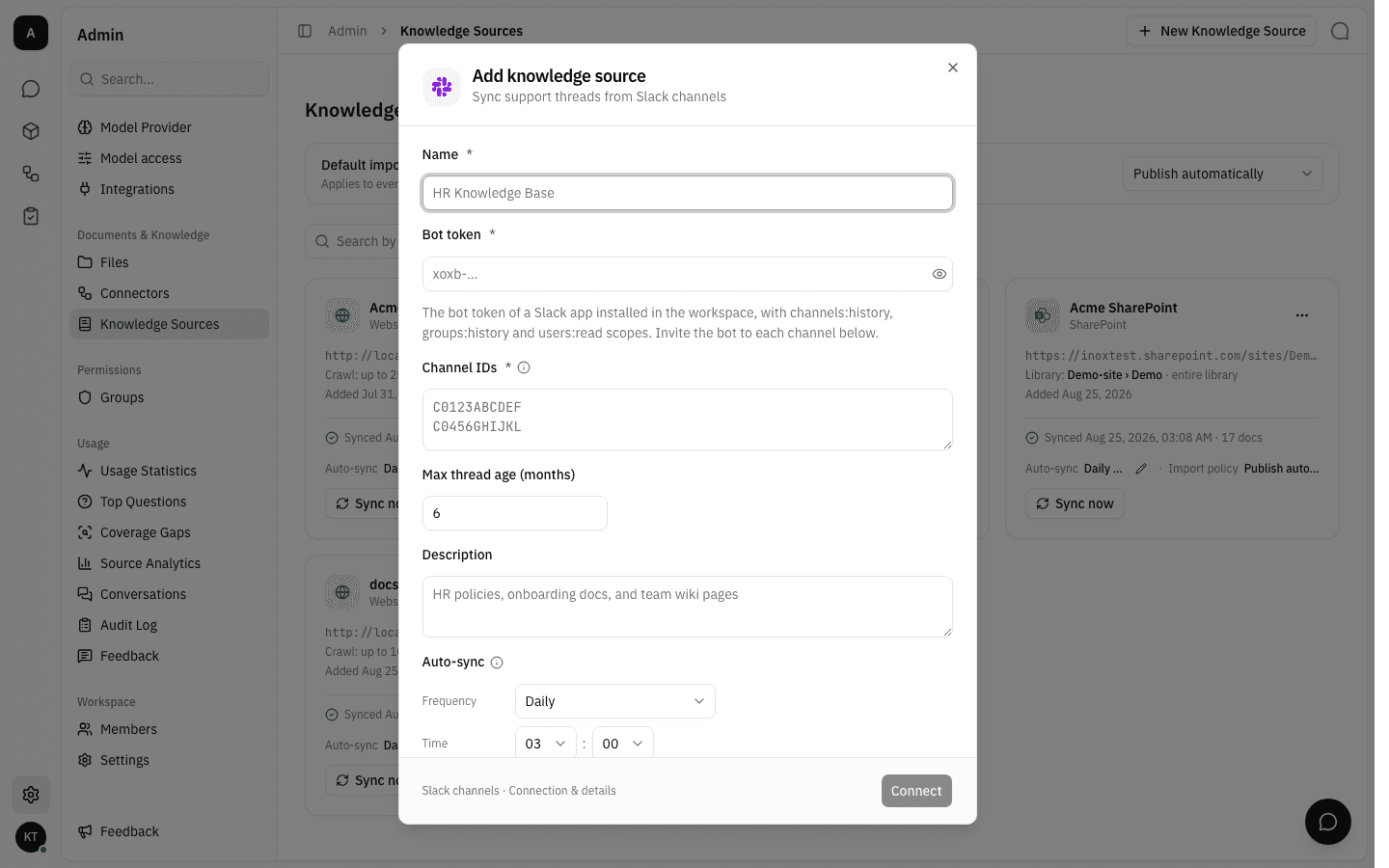
Once created, the card and the source page name the Slack workspace the token belongs to, how many channels are configured and the lookback window. The platform reads the workspace name from the token itself — you never type it.
Connect a SharePoint site
Sync from SharePoint is a three-step wizard. Step 1 takes the Microsoft Entra app registration details, and the built-in Setup guide expands to explain where each one comes from:
- Tenant ID and Client ID from the app registration.
- Certificate (PEM) — one PEM file holding the certificate and its private key. This is the app's only credential for SharePoint: there is no password or secret to type. The private key is stored encrypted and never shown again.
- Site URL — the address of the SharePoint site to sync from.
- Sync source permissions — off by default. Left off, imported files are readable by the whole workspace. Switched on, imported files keep SharePoint's own access rules instead, so someone who cannot open a file in SharePoint cannot see it here or get answers from it. This is fixed at creation and cannot be switched on later, and it needs the SharePoint API permission Sites.Read.All granted separately from the Graph permission of the same name. The certificate signs those calls too.
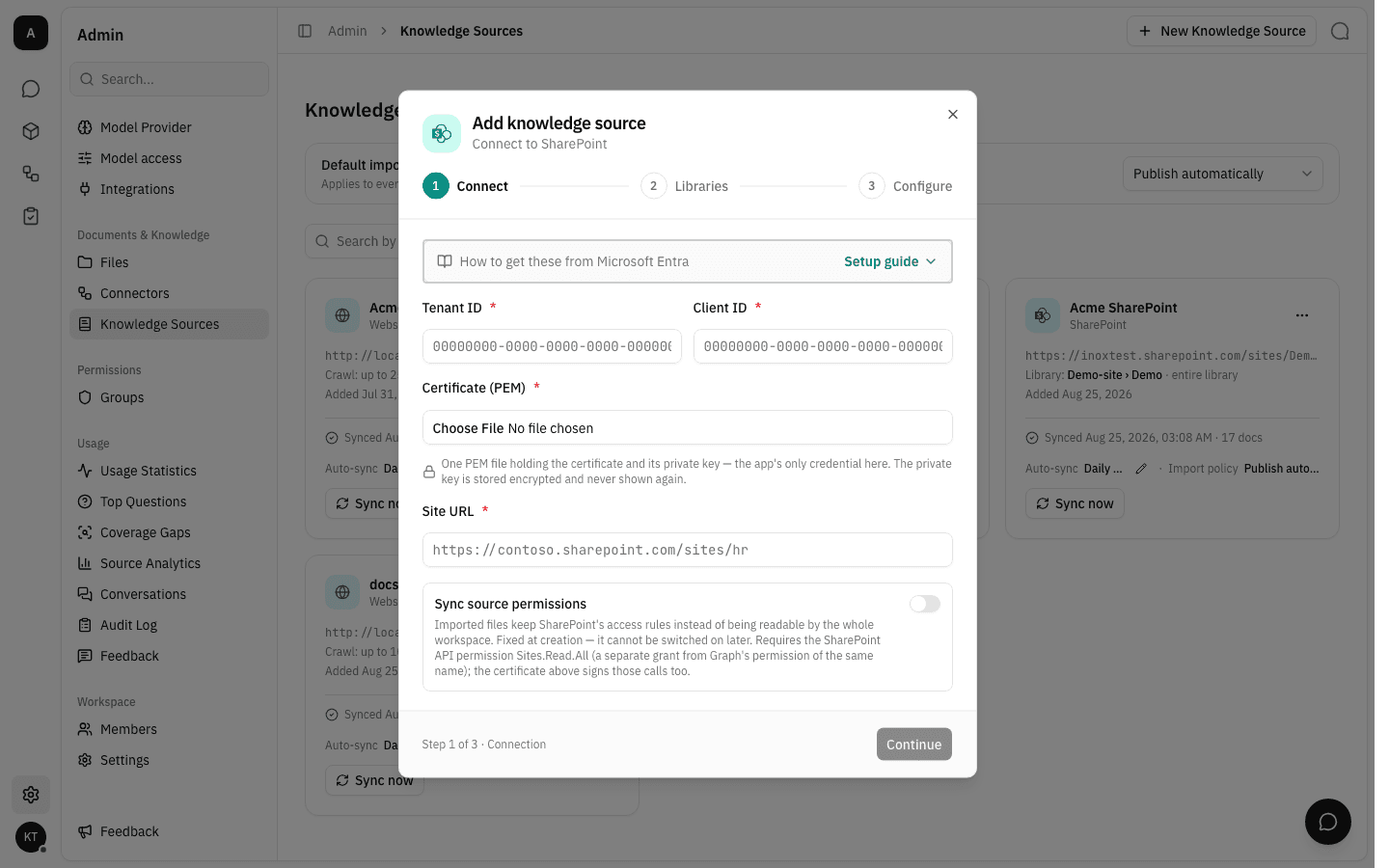
Step 2 picks the document libraries and folders to sync, and step 3 sets the same schedule and import-policy options as the other kinds.
A SharePoint source's card menu carries one extra action the other kinds do not have — Edit synced folders, for changing which folders are in scope after the fact.
Replace an expiring certificate
Certificates expire, and an expired one stops the source syncing. The Certificate card on a SharePoint source's page shows its fingerprint and the date it expires so the deadline is visible before it bites.
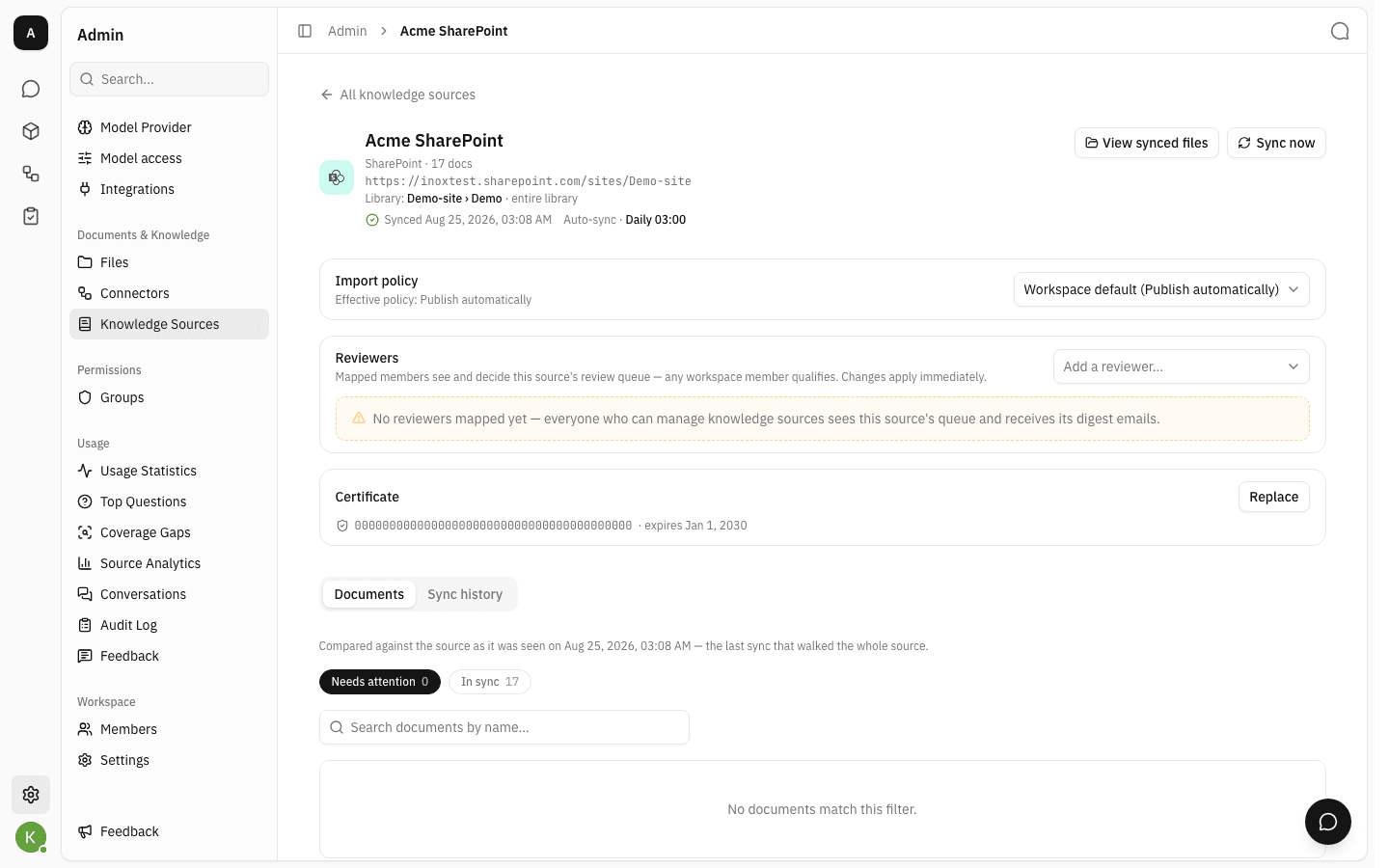
Inside the last 30 days the card adds an amber warning naming the number of days left; once the date has passed it turns into an explicit notice that the source cannot sync until the certificate is replaced.
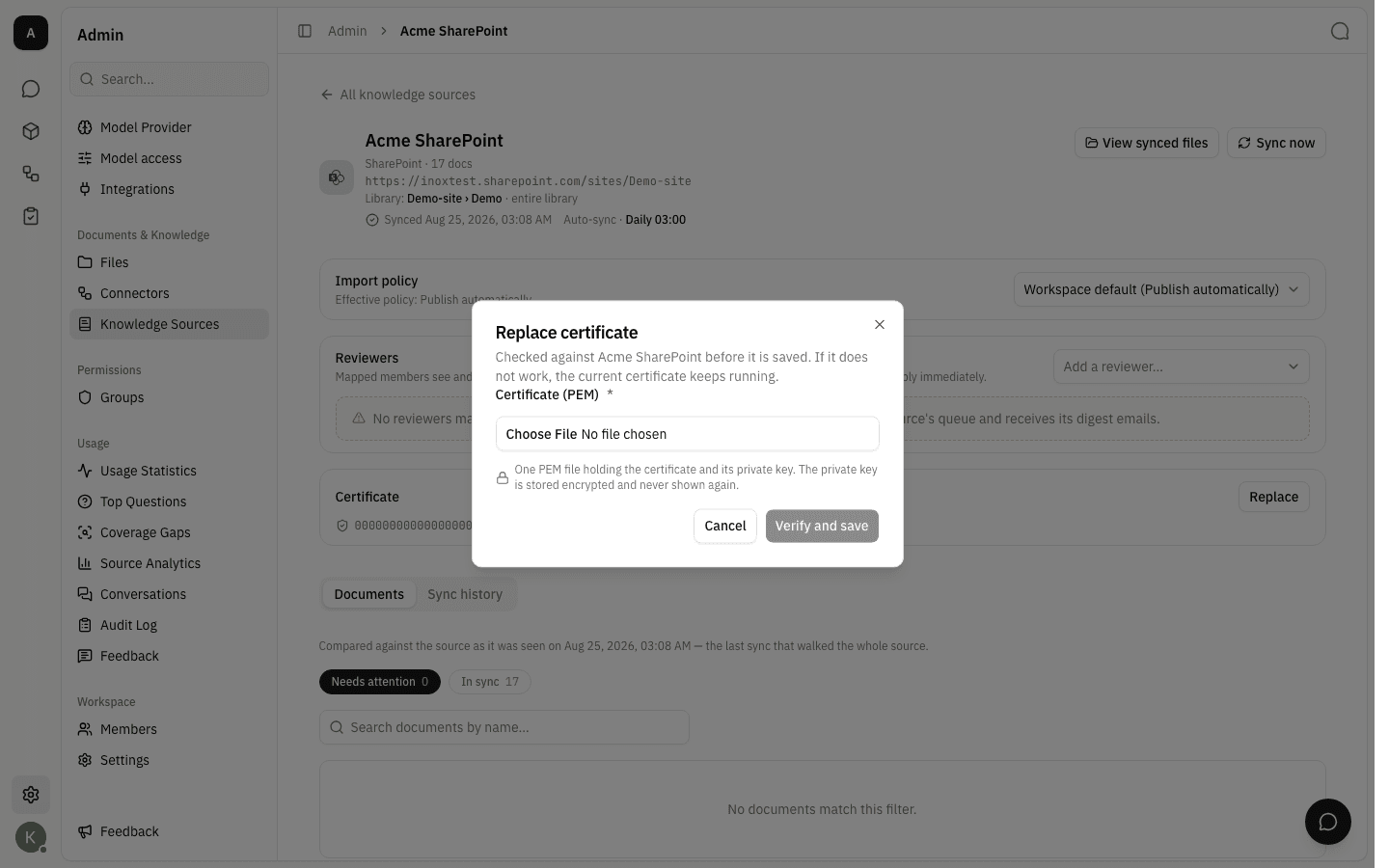
Replace is the remedy in both cases:
-
Choose a PEM file holding the renewed certificate and its private key.
-
Verify and save. The platform checks the new certificate against this source's own site before storing it. If it does not work, the dialog stays open with the reason and the current certificate keeps running — a bad rotation cannot break a working source.
-
On success the card shows the new fingerprint and expiry date. Documents already synced are left untouched; the next sync run uses the new certificate.
Replace an Outline API token
An Outline source's page carries an API token card in the same place. Only a masked hint is ever displayed — the token is write-only from the moment it is saved, so the card reads stored encrypted, never shown in full. Update replaces it without recreating the source: enter the new token, and the platform verifies it against the source's existing location before storing it. If Outline rejects it, the old token keeps working.
A documentation website has no credential, so no such card appears for that kind. A Slack source's bot token cannot currently be replaced from its settings page — if the token is revoked or rotated in Slack, remove the source and add it again with the new token.
Remove a source
-
Choose Remove from the card's
…menu. The confirmation names the source and warns that its synced documents go with it.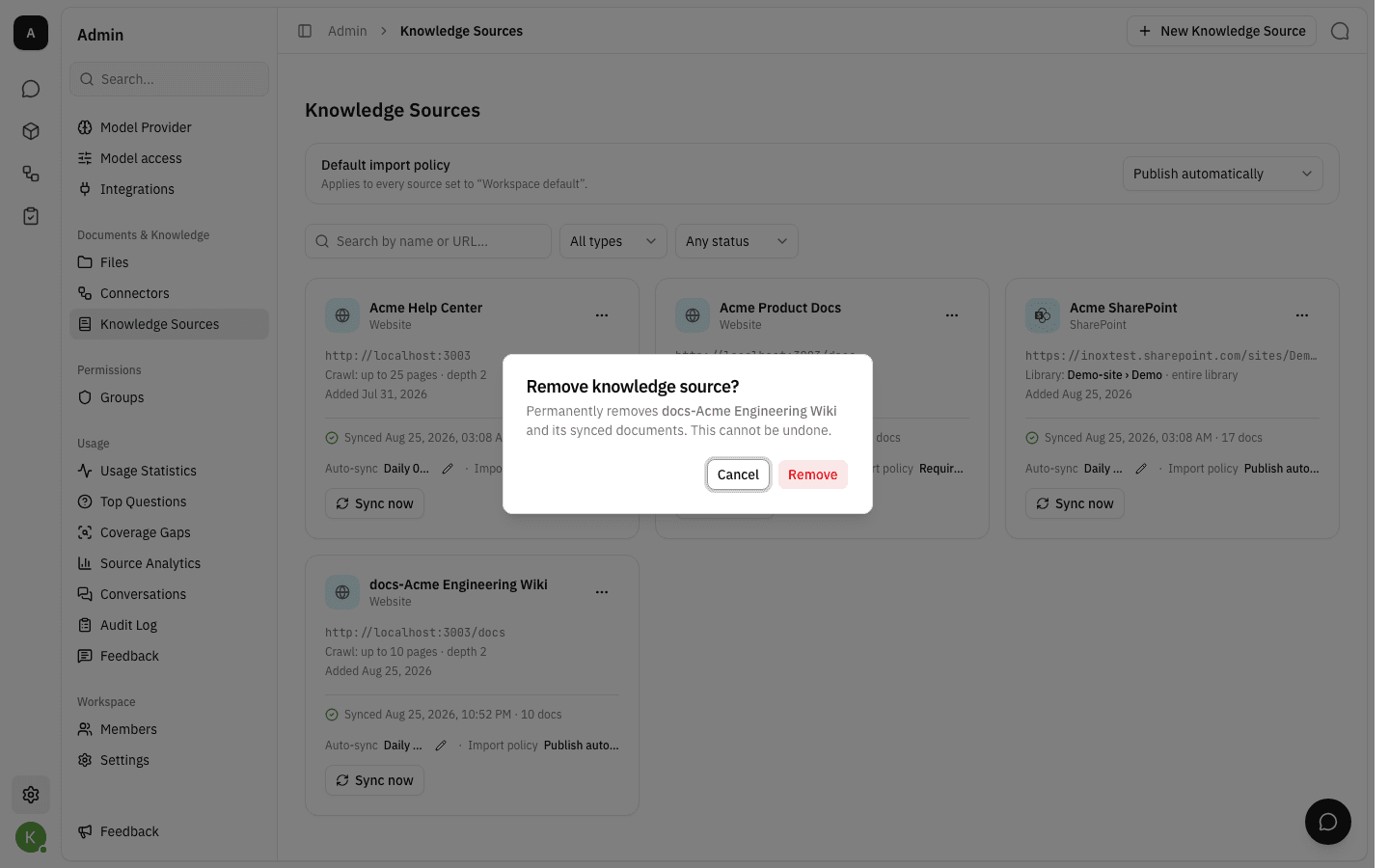
-
Confirm and the card disappears, together with the source's synced folder under Admin → Files. This cannot be undone; re-adding the source syncs everything again from scratch.
Notes
- Sources are synced ahead of time, not queried live. Answers use the copy in the knowledge base, so a change at the source only reaches the assistant after the next sync.
- Documents held by Require approval wait in the Review queue, where a reviewer approves or rejects them.
- Changing reviewers takes effect immediately, so a member you remove loses the queue on their next request.
- Removing a source also discards the credential it had stored, so re-adding it means supplying the token or certificate again.