Model providers & language models
Connect the workspace to an OpenAI-compatible endpoint, choose which of its models people can chat with, and pick the workspace default.
A model provider is the connection between your workspace and the service that actually runs the language models — a hosted API, a self-hosted inference server, or anything else that speaks the OpenAI API. Until a workspace has at least one provider with an enabled model, the chat composer shows a Configure a model warning and nothing can be asked.
Registering a provider does two things: it stores the endpoint and its credentials, and it asks the endpoint which models it offers. You then decide which of those models the workspace is allowed to use, and which one is the default.
Prerequisites
- Workspace admin or owner. Managing providers needs the
ai_provider:writepermission — without it the page is read-only and the Add Model Provider, refresh and edit controls are hidden. - An endpoint that answers
GET {base URL}/modelswith an OpenAI-style model list, plus its API key if the endpoint requires one.
Open the Model Provider page
-
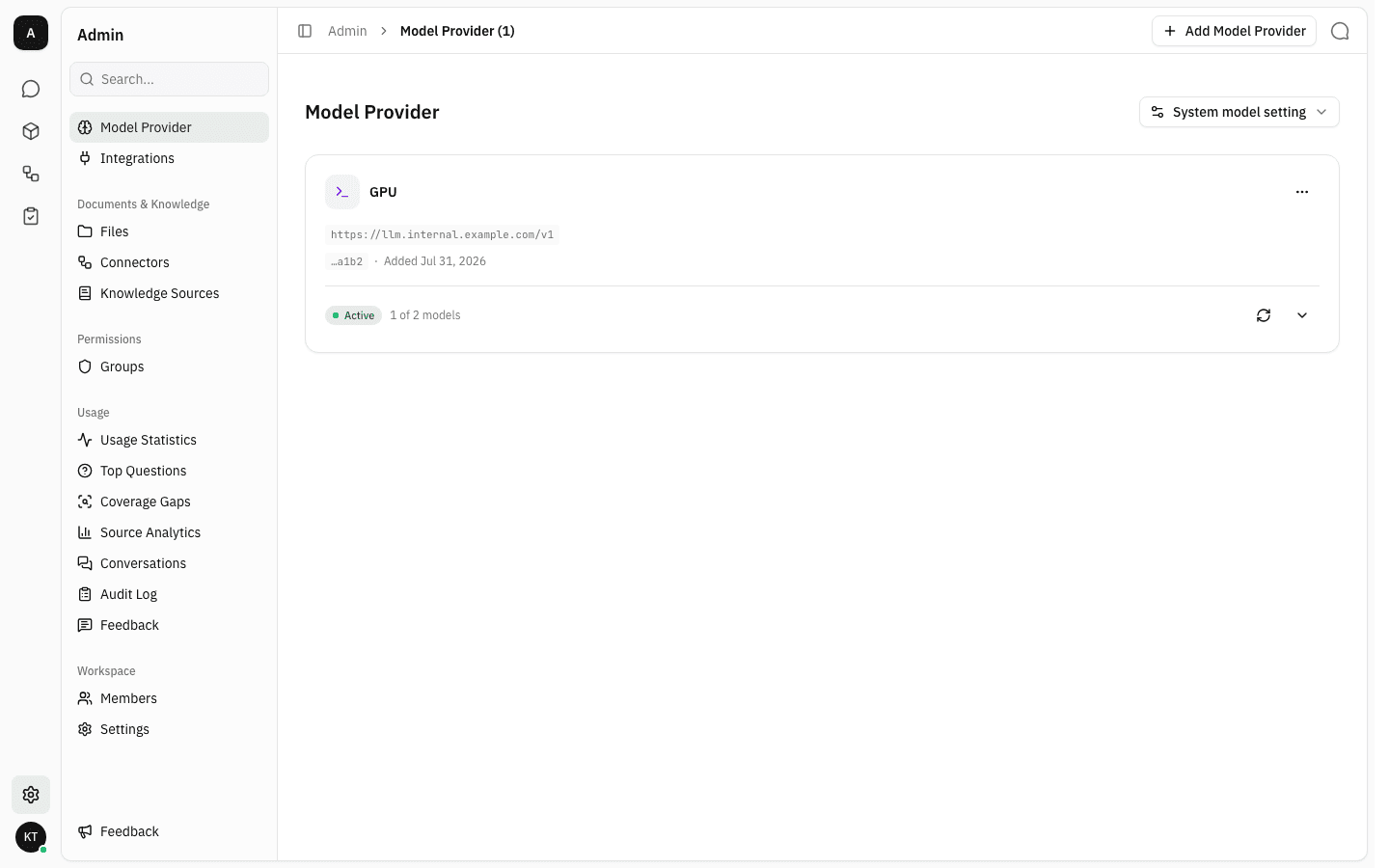
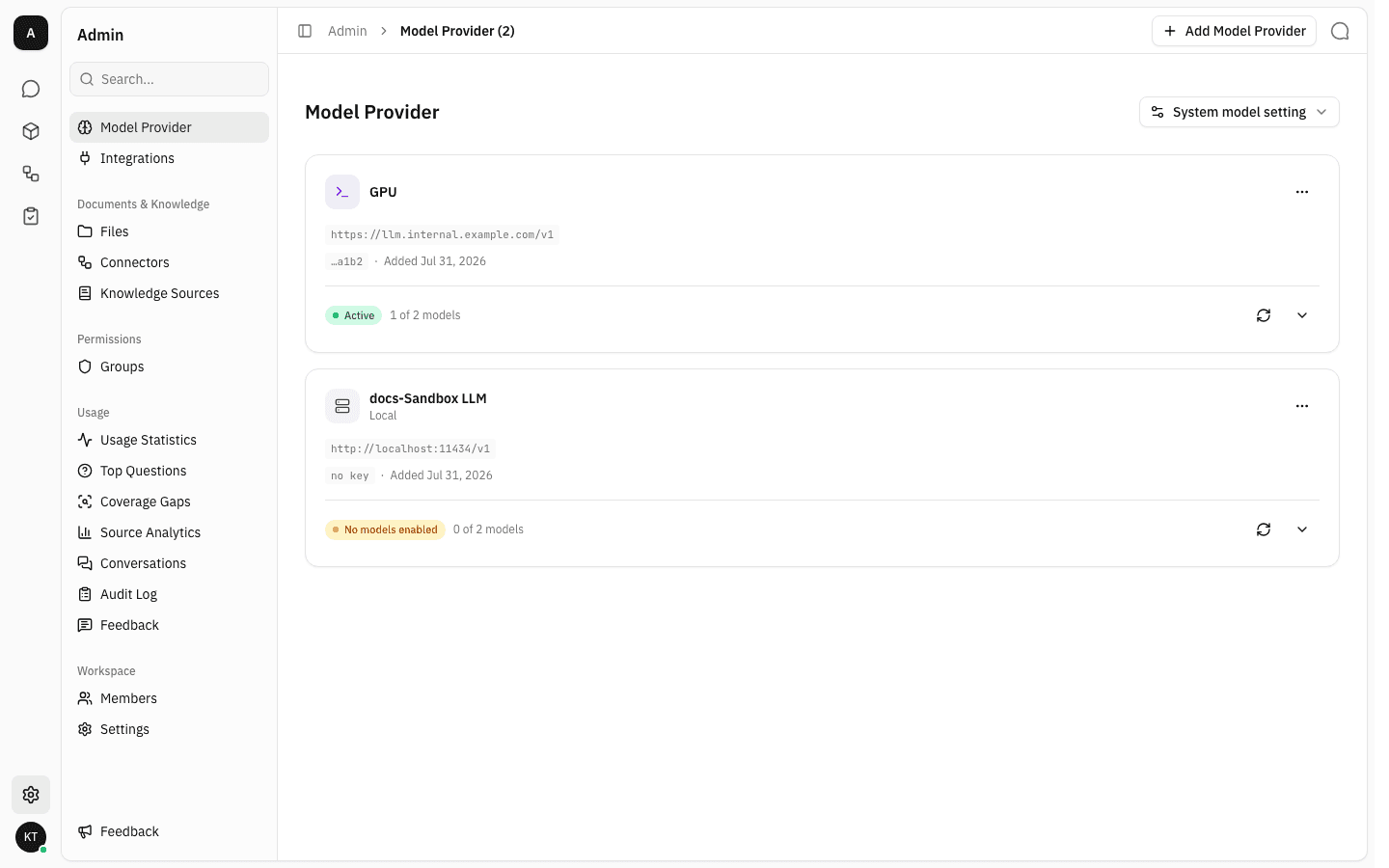
In the sidebar, open Admin. Model Provider is the first entry and the page Admin opens on by default. Each registered provider is a card showing its base URL, an API-key hint, when it was added, and how many of its models are enabled.
Add a provider
-
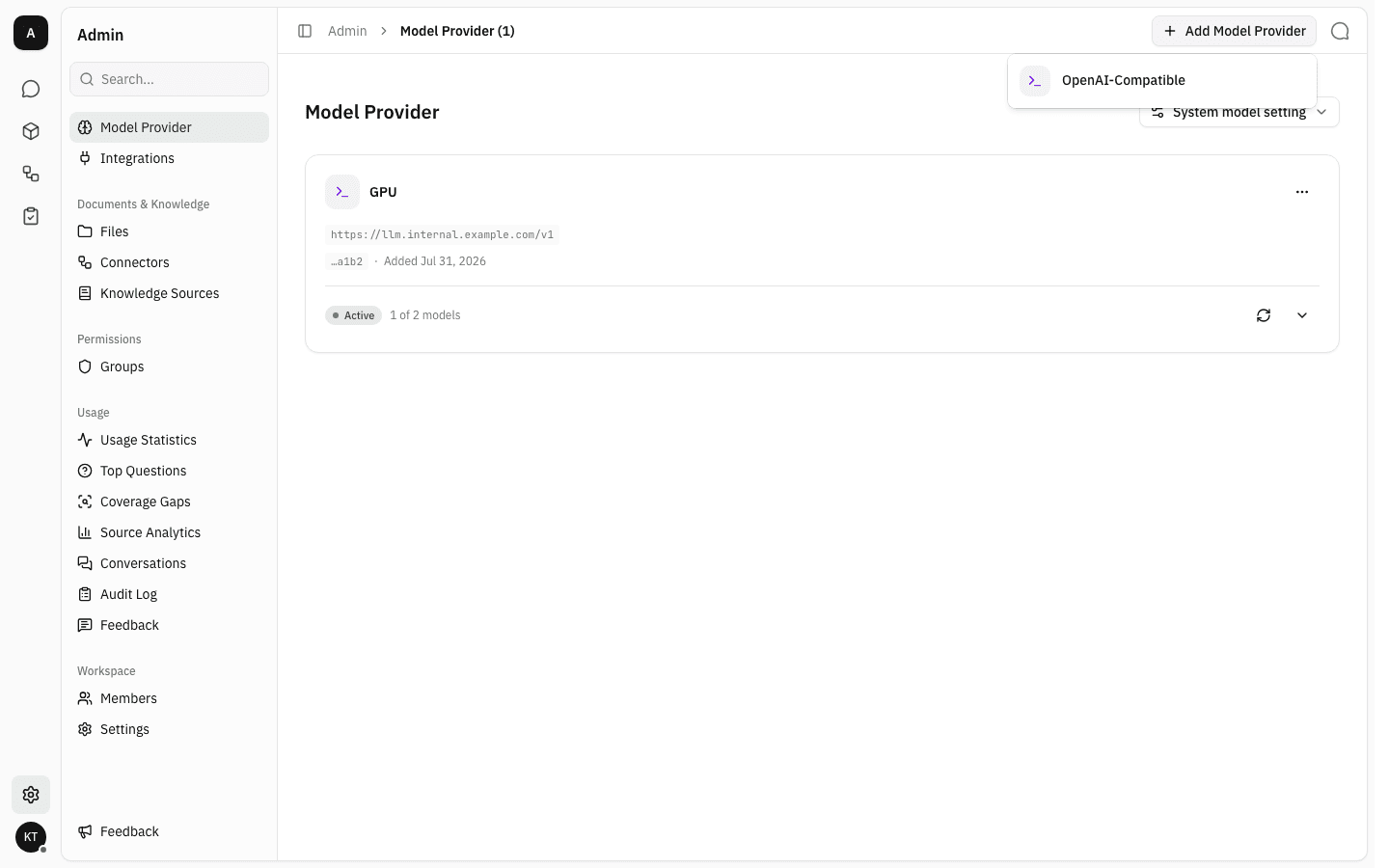
Click Add Model Provider and pick a provider type. Today there is one: OpenAI-Compatible, which covers OpenAI itself and any server that implements the same API.
-
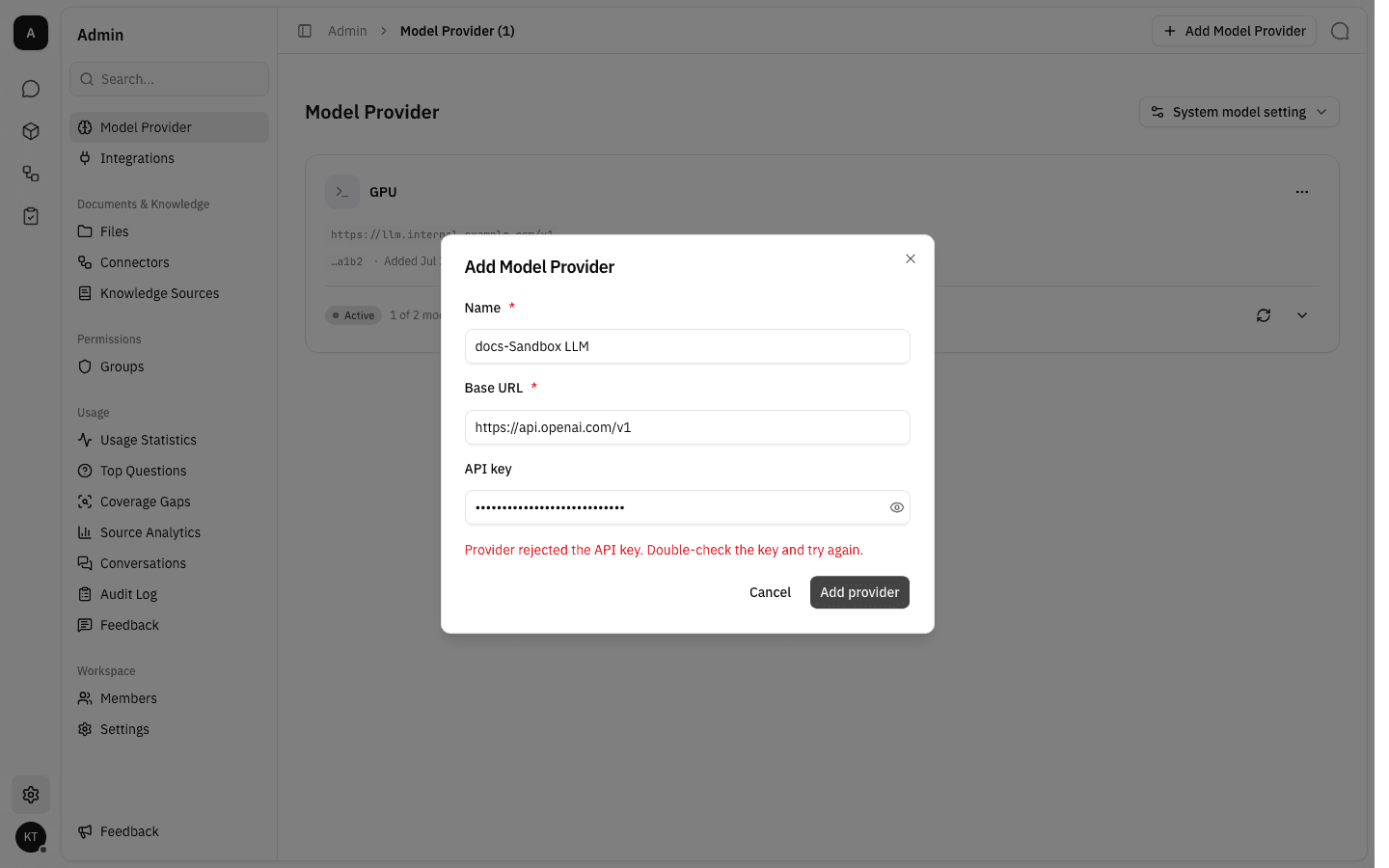
The dialog asks for three things. Name is just a label for this list, so use something recognisable. Base URL is the API root — the part before
/models, usually ending in/v1. API key is optional and can be left blank for endpoints that do not authenticate.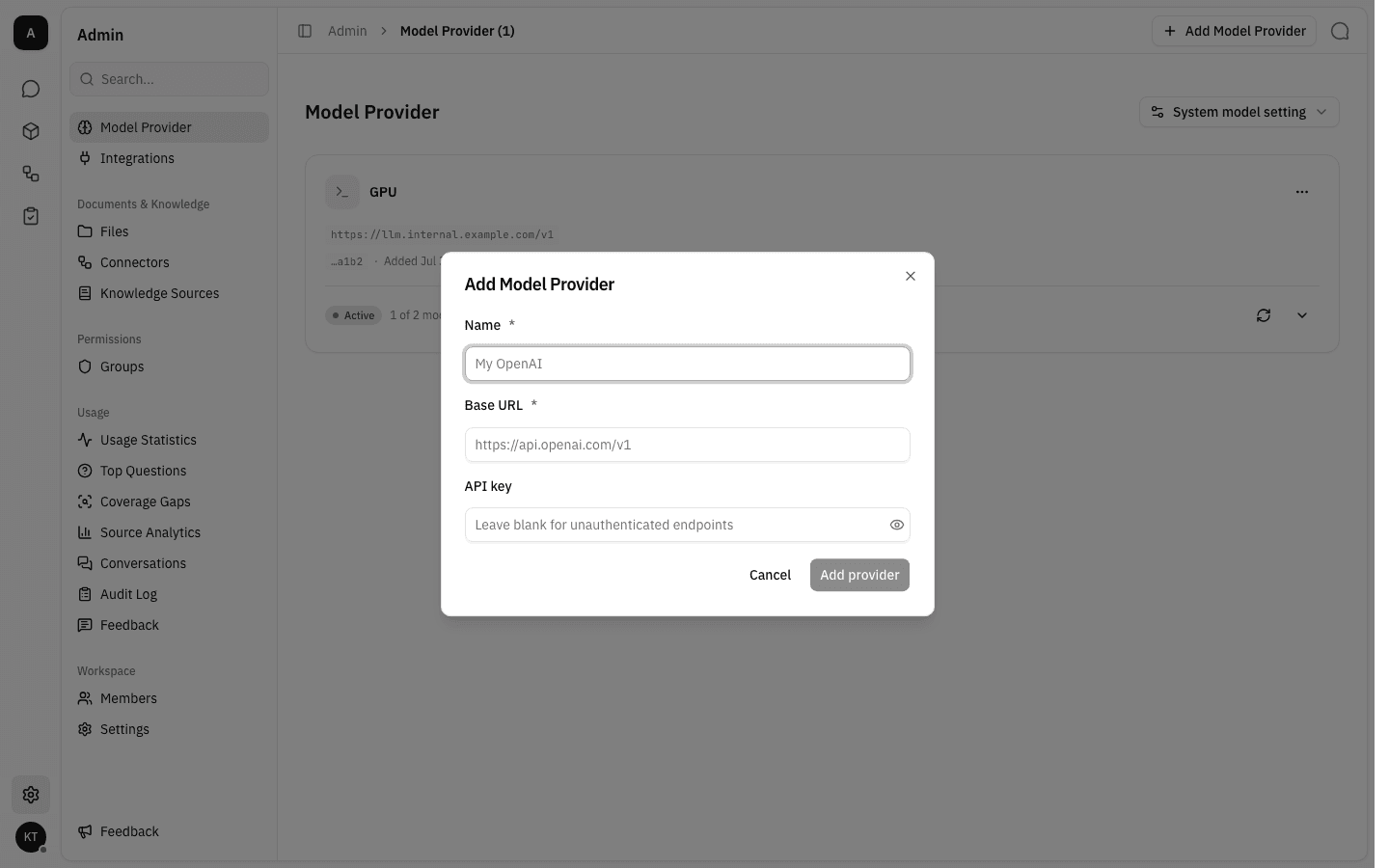
-
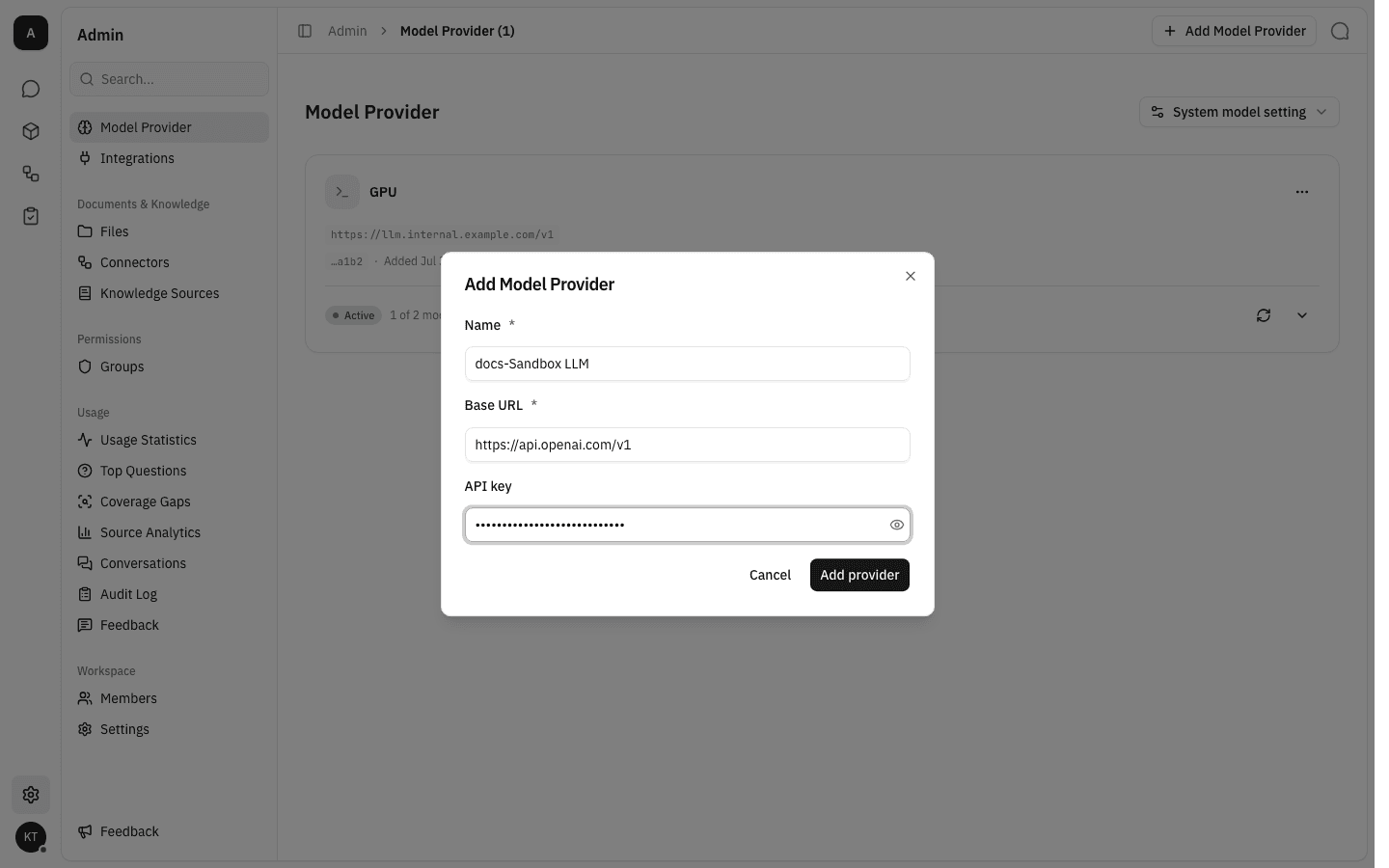
Fill the fields in. The API key is masked as you type; use the eye icon at the end of the field to check it before saving.
-
Click Add provider. The workspace calls the endpoint straight away to fetch its model list, and the provider is only saved if that call succeeds. A wrong key, an unreachable host or an endpoint that does not return a model list all stop the save and explain themselves in the dialog, with your input preserved so you can correct it.
-
Once the endpoint answers, the provider appears in the list. It starts with an amber No models enabled pill: the connection works and the models were discovered, but nobody can use them yet.
Choose which models people can use
-
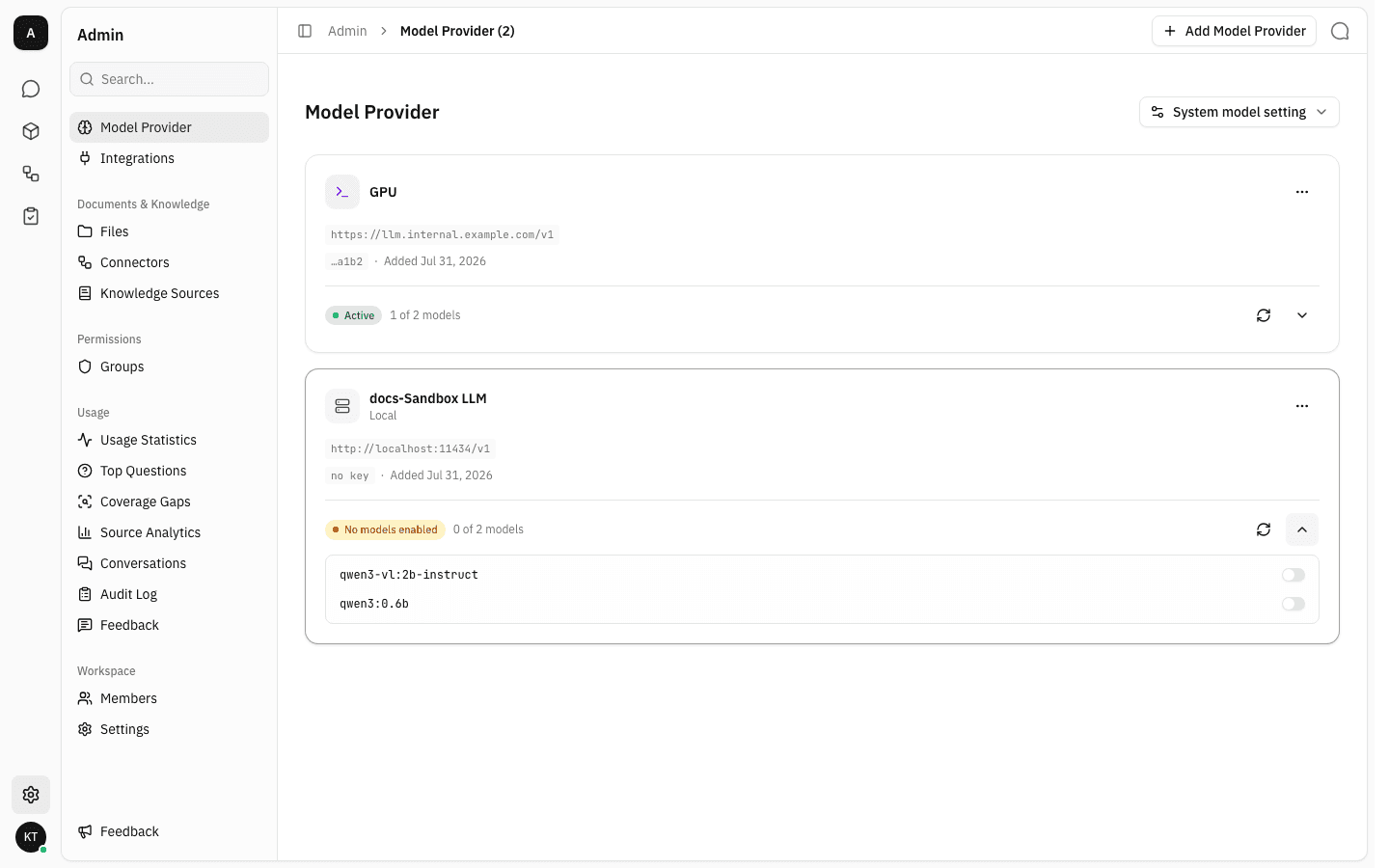
Click the chevron on the right of a provider card to expand its discovered models. Every model has a switch, and all of them start off.
-
Switch on the models you want available. The change saves immediately, the counter updates, and once at least one model is on the pill turns green and reads Active.
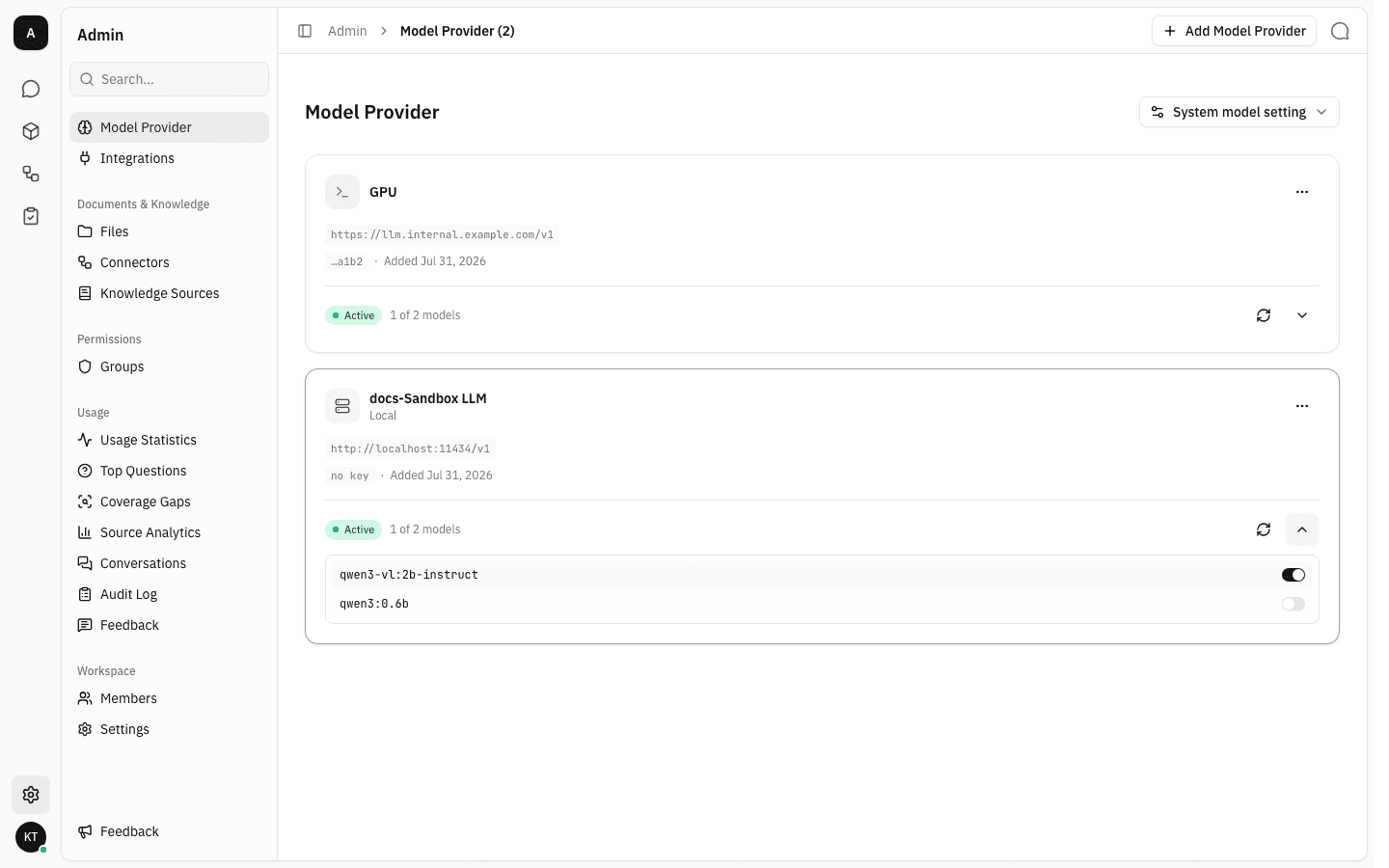
Only enabled models appear in the chat model picker, so this is the list people in the workspace actually get to choose from. Use the refresh icon next to the chevron whenever the endpoint gains or loses models — it re-reads the model list without touching anything else.
Set the workspace default model
-
Click System model setting at the top of the page. The picker lists every enabled model across all providers, written as
provider · model, with a search box for long lists. Choosing one makes it the model new chats start with; it is marked with a tick here and with a Default badge next to the model in its provider card.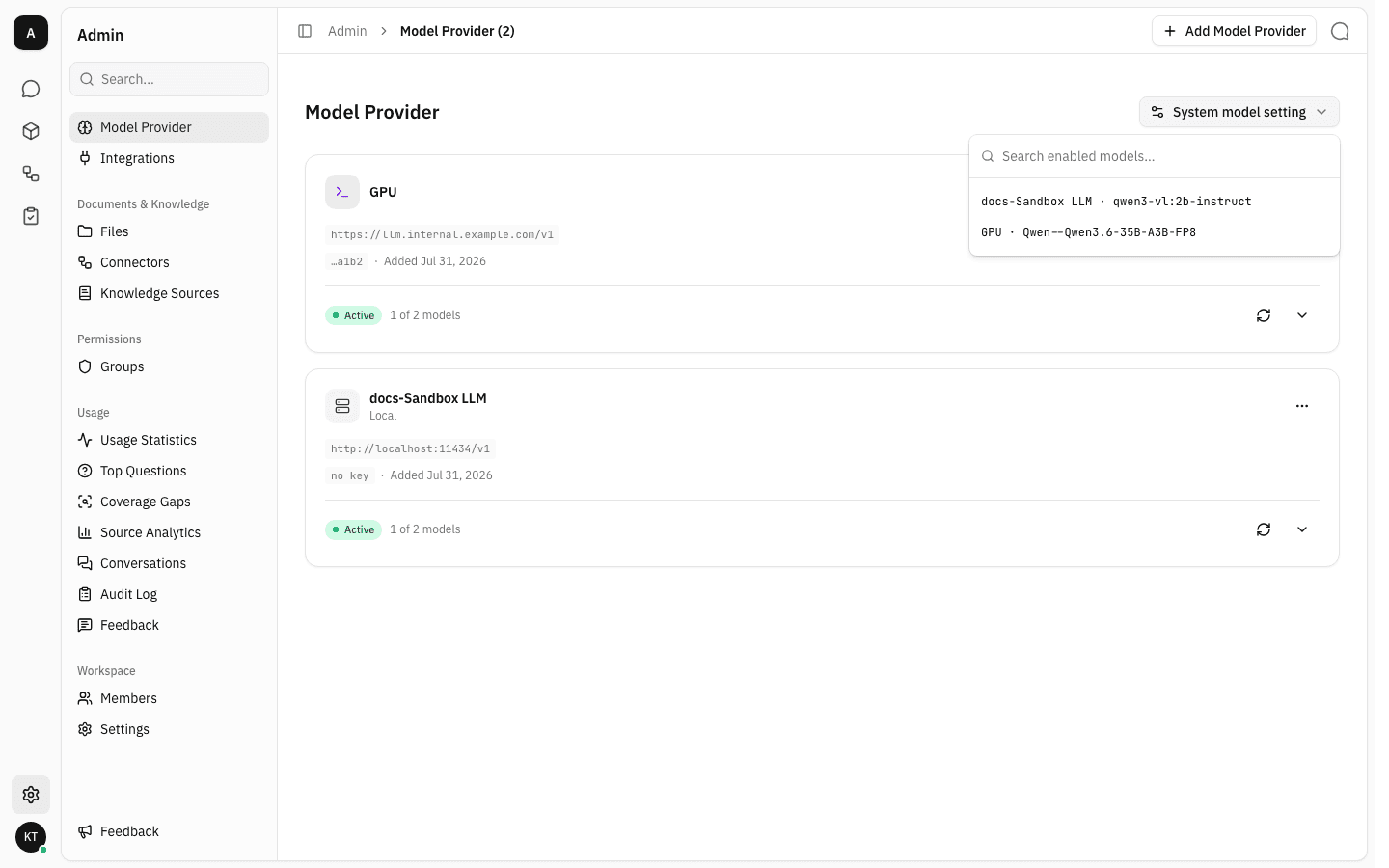
If no model is enabled anywhere, the button is disabled — enable one first.
Edit or remove a provider
-
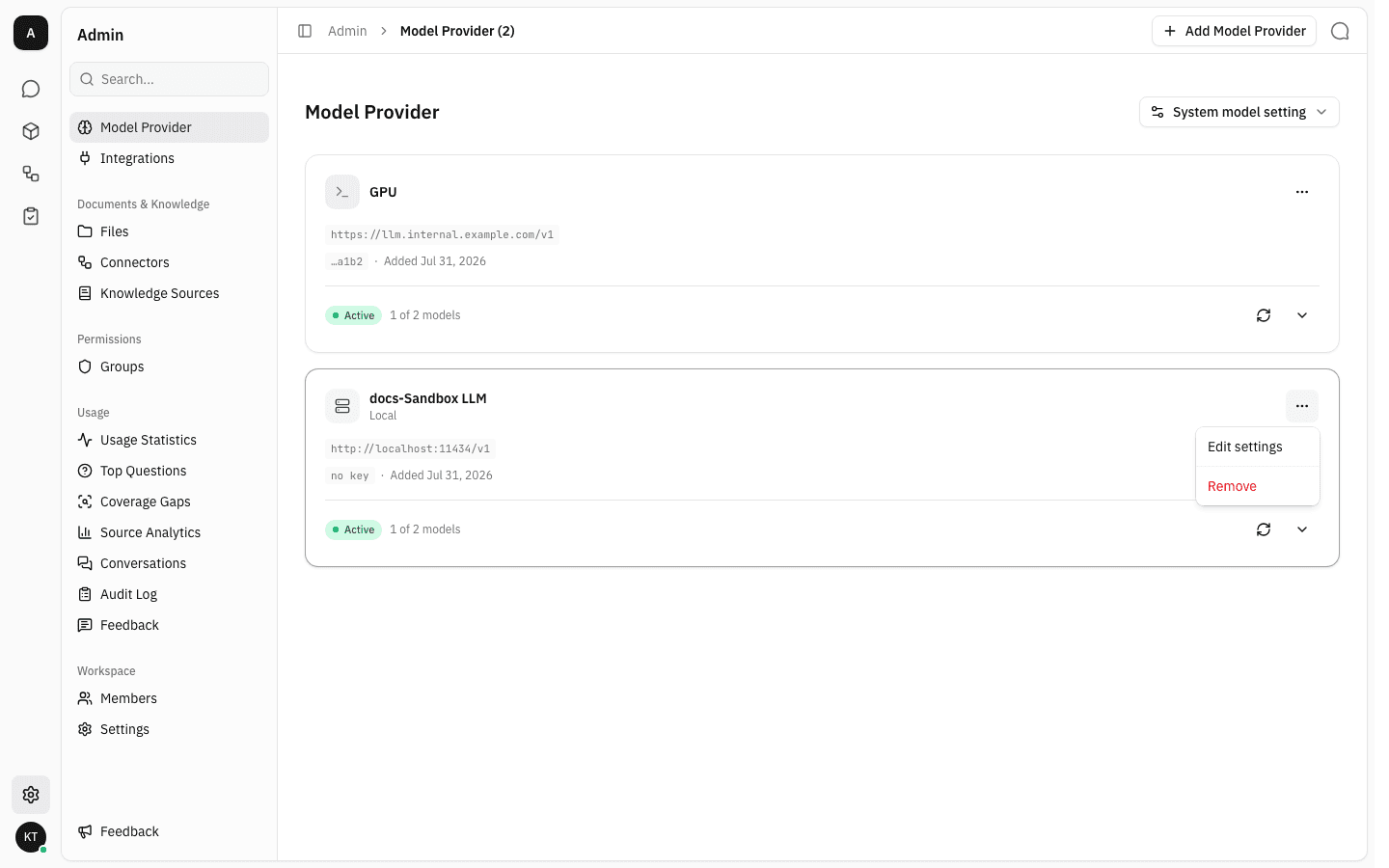
Open the … menu on a provider card.
-
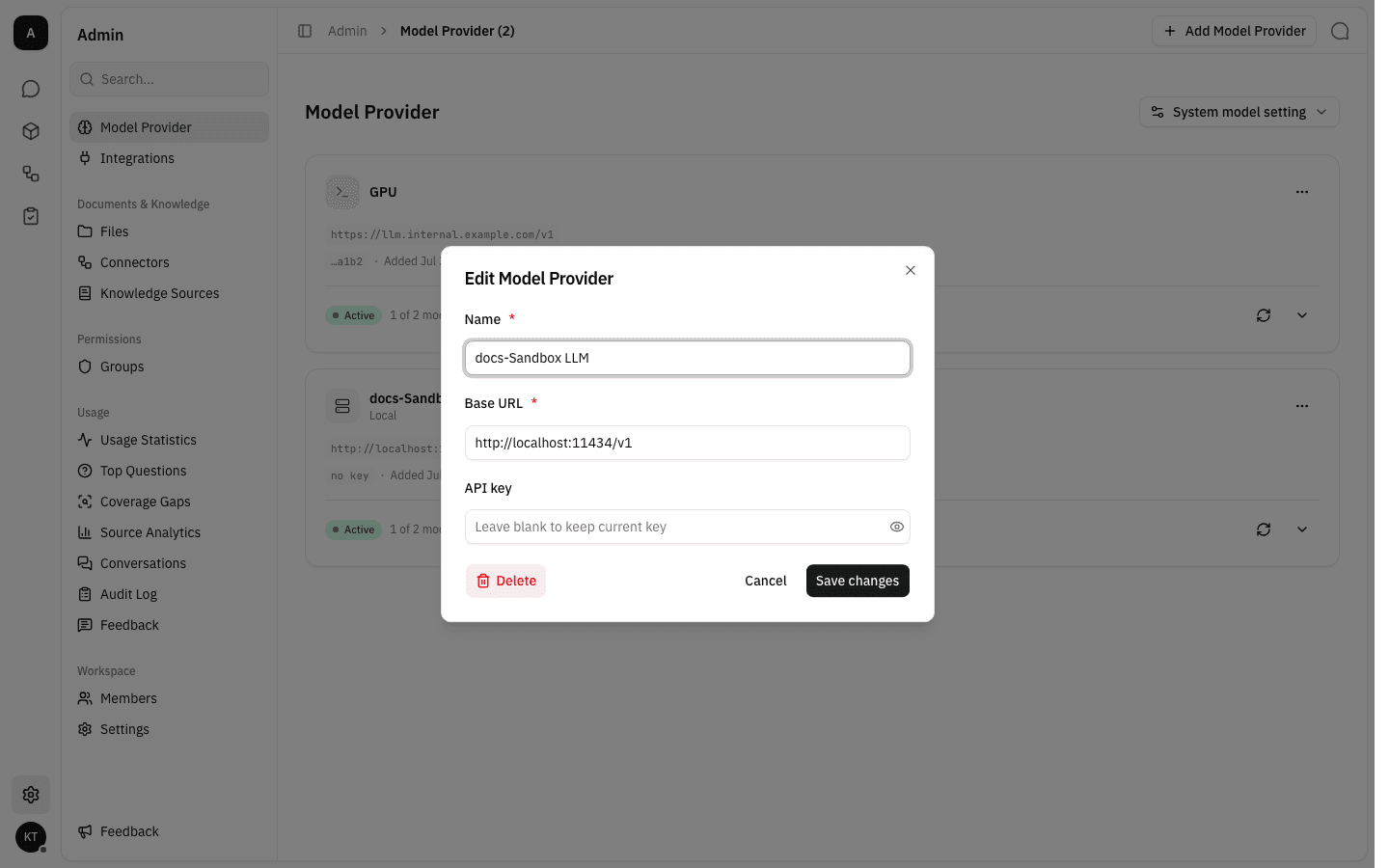
Edit settings reopens the same three fields. The API key box is blank on purpose: leave it that way to keep the current key, or type a new one to replace it. The stored key is never shown back to you — only a short hint of its last characters appears on the card.
-
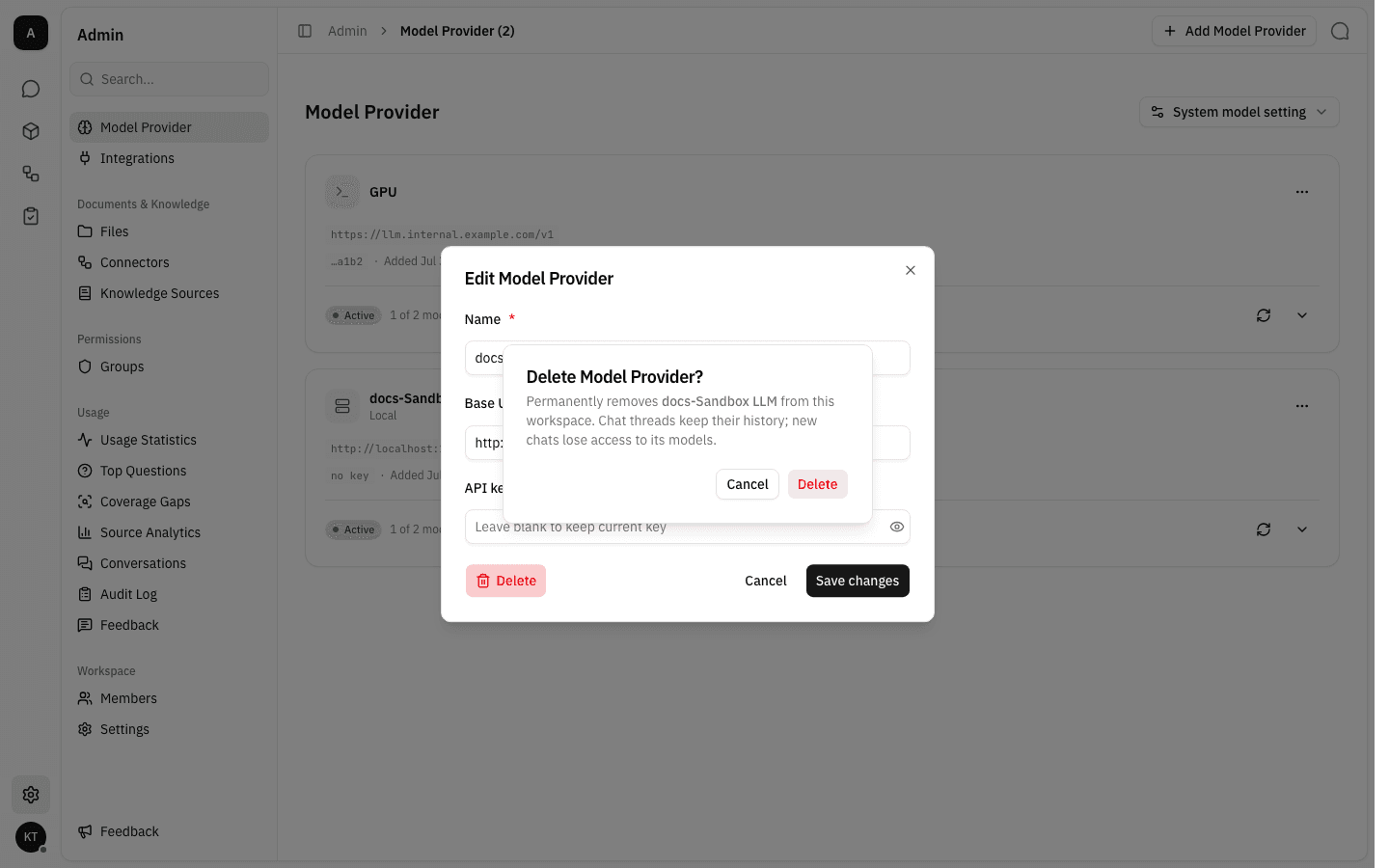
Remove — or the Delete button inside the edit dialog — asks for confirmation first. Existing chat threads keep their full history, but new chats lose access to that provider's models.
Check the default before removing
Removing the provider that owns the workspace default model leaves new chats without one. Point System model setting at a model on another provider first.
Notes
- The three statuses. Green Active means reachable with at least one model enabled. Amber No models enabled means reachable but unusable — switch a model on. Red Not connected means no models were discovered; refresh the provider to retry, then check the base URL and key.
- Embedding, reranking and OCR models are hidden. The list only shows models that can hold a conversation, so an endpoint that also serves an embedding model will show fewer models here than it reports.
- The base URL must be the API root. The workspace appends
/modelsto it during discovery, so give it the root (for example ending in/v1), not a full model-list URL. - API keys are stored encrypted and never returned to the browser, which is why the card and the edit dialog only ever show a hint.
- Providers are workspace-scoped: adding one here does not affect any other workspace.