Project models
See which language models a project can call today, ask the workspace owner for one it cannot, and follow what happened to earlier requests.
Every project in AINOX PLATFORM chats with a fixed list of language models. The Models page inside a project is where that list is visible from the inside: what the project can call right now, what it cannot, and how to ask for the rest. It is the member's half of Model access — that page is where a workspace admin decides, this one is where a project asks.
The two views share one list, so nothing here can widen a project on its own. That is deliberate: model spend stays under workspace control, and a project owner's only route to a new model is a request.
Prerequisites
- Access to the project. Any project member can open the page, read the list and file a request — no workspace admin permission is needed.
- At least one model provider with an enabled model in the workspace, otherwise the card reads The workspace has no chat models in its catalog yet and there is nothing to request.
See what the project can call
-
Open the project, then Models in its settings sidebar. The Catalog card lists every model the workspace has enabled, and the line above it counts how many of them this project may use. A model the project can call is marked Available to project.
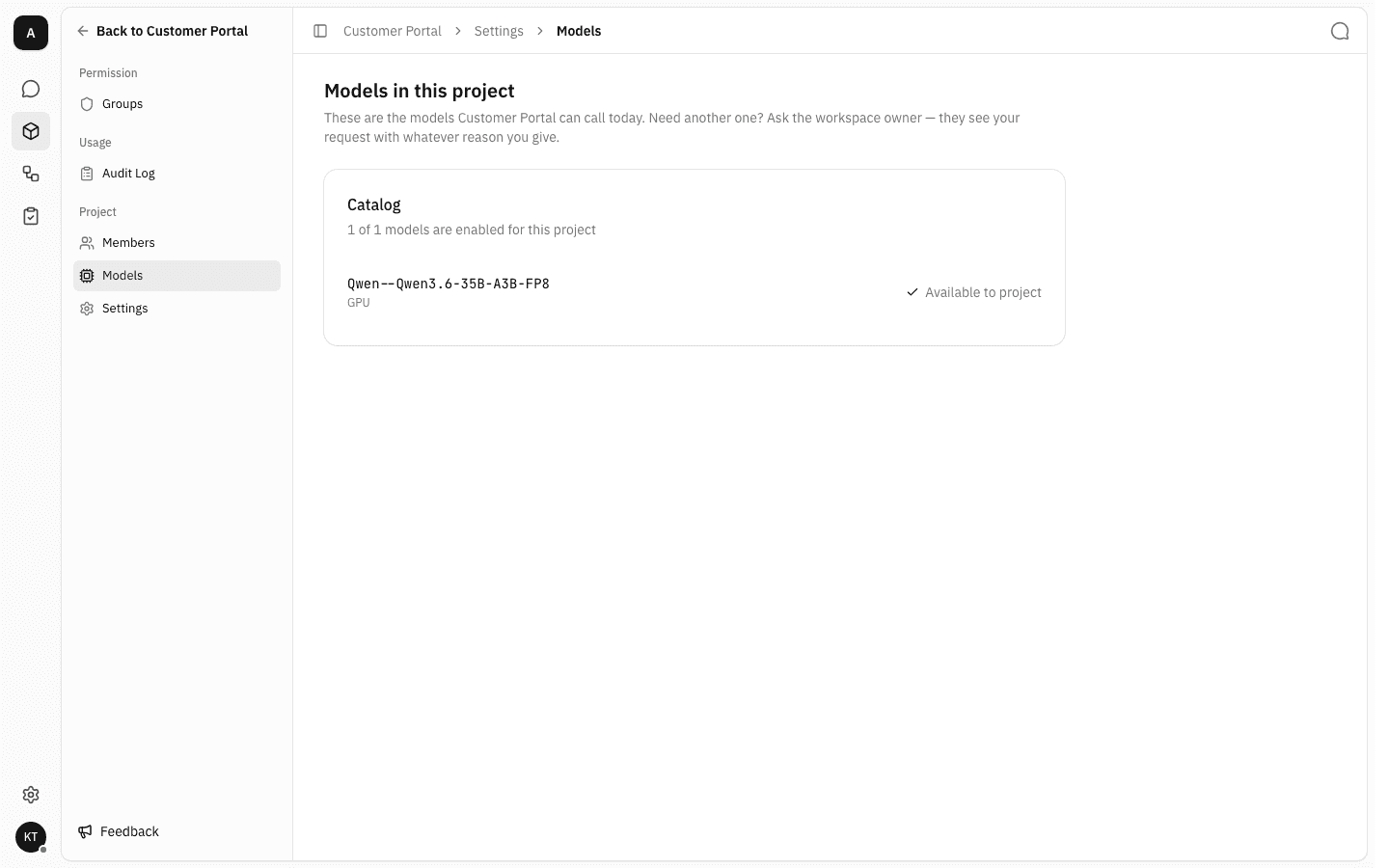
The list is read-only here. There are no switches, because the decision is not the project's to make.
-
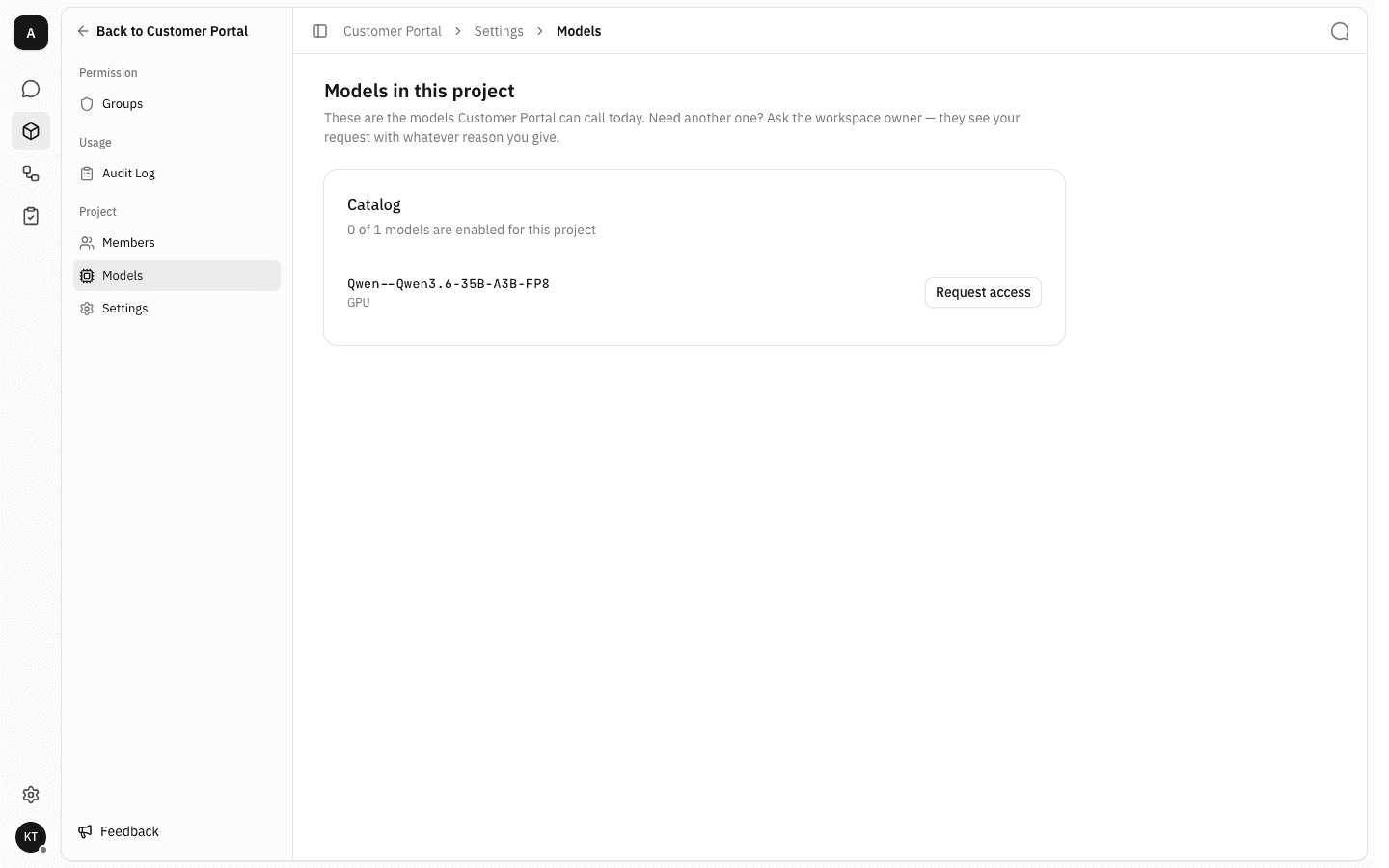
A model the project cannot call keeps its row but swaps the tick for a Request access button, and the count above drops accordingly. A project at 0 of 1 models cannot chat at all until something is allowed — an empty list is a real setting, not "unrestricted".
Ask for a model
-
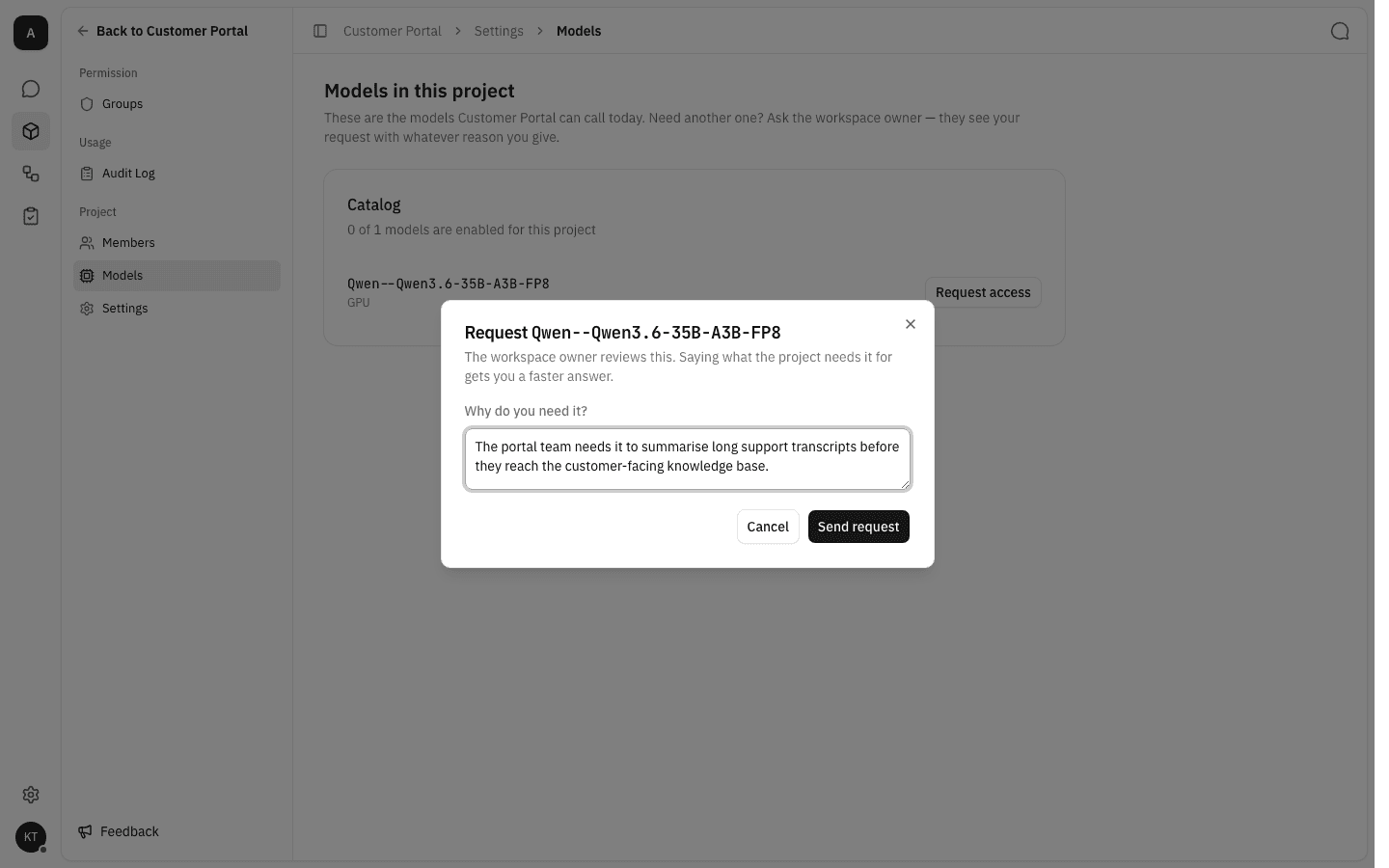
Click Request access on the model's row. The dialog asks what the project needs it for. The reason is optional, but the workspace owner sees it next to the request, so a specific one gets a faster answer.
-
Click Send request. A Waiting on the workspace owner card appears at the top of the page with the model, your reason, your name and how long ago you asked, and the model's own row now reads Request pending instead of offering the button again.
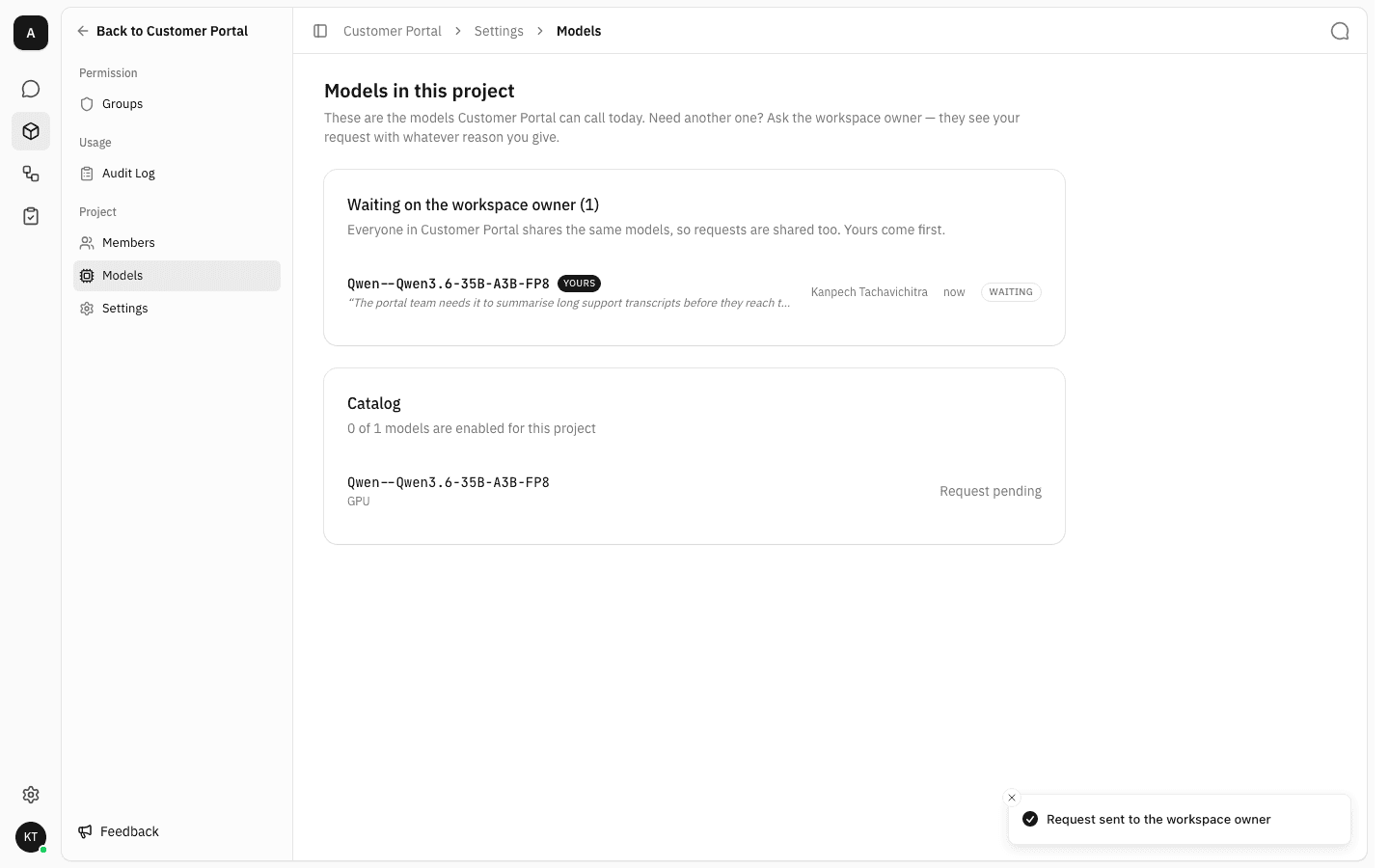
The request belongs to the project, not to you. Everyone in the project sees the same card, so a teammate who wants the same model does not have to file a second one — and if someone else asked first, their request is what you find waiting here. Your own requests are tagged Yours and sorted to the top.
Follow what happened
-
Once the workspace owner decides, the waiting card empties out to No requests waiting right now and the decision moves under Show earlier requests. Expand it to see each past request with who asked, when it was decided, and whether it came back Approved or Declined.
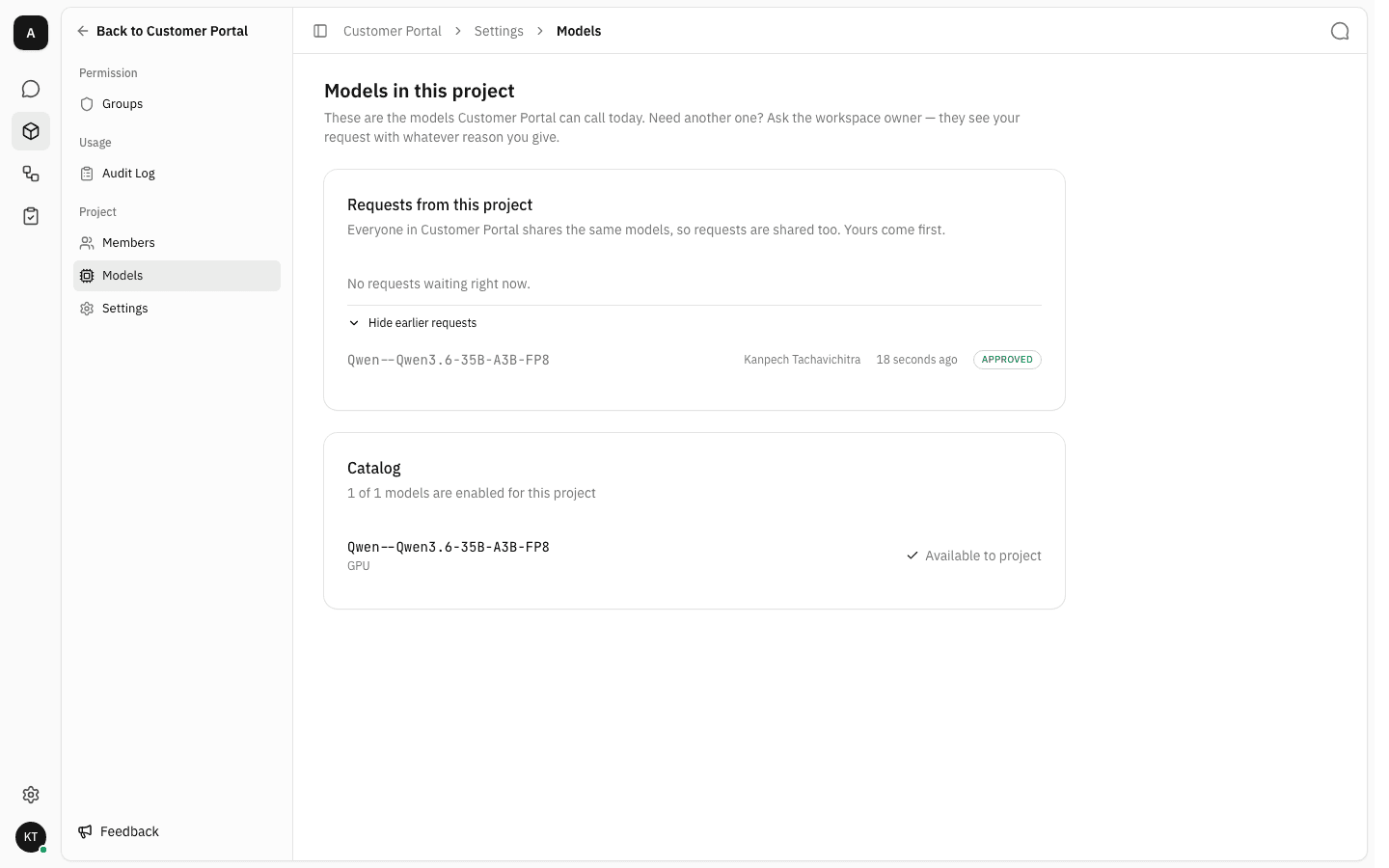
An approval takes effect immediately — the model moves back into the catalog list as Available to project with no further step. A decline leaves the model where it was; the pair can be asked for again later.
Notes
- Requests are per (project, model) pair. The same model can be requested by several projects independently, and each gets its own answer.
- A request nobody decides expires after 90 days and is filed under the earlier requests as Expired.
- The page shows the workspace catalog as it stands today. A model the workspace removes from its catalog disappears from this list for everyone, and comes back if it is re-enabled.
- Chat outside any project runs on a separate workspace-wide list, which has no request flow — see Model access.
Project groups & permissions
Bundle project members into groups and grant them project-tier permissions — file access, member management and project settings — in one place.
Project Audit Log
Review the history of one project — its files, folders, members and groups — without the noise of the rest of the workspace.