Conversations
Browse every chat thread in the workspace, filter by feedback, and read full transcripts with admin comments.
Chat happens in private threads, but as a workspace admin you often need to see the whole picture: what people are actually asking, whether the assistant answered well, and which questions keep failing. Admin → Conversations is that view — a read-only browser over every chat thread in the workspace, with a slide-over panel showing the full transcript, the rating each answer received, and a place for admins to leave notes for each other.
Nothing on this page changes a conversation. You can read, filter and annotate; you cannot edit or delete somebody's chat from here.
Prerequisites
- The
conversation:readworkspace permission. Workspace owners and admins have it; other members can be granted it through a group. If you do not have it, the page shows "The conversations dashboard is restricted to admins and owners." - Some chat activity in the workspace. Until somebody chats, the page shows a No conversations yet empty state.
Holding conversation:read means seeing both the content and the identity of every conversation in the workspace — the participant's real name and email are shown on each row and in the detail panel, and full transcripts are readable. Treat it as a privileged permission and grant it deliberately.
Browse the conversation list
-
Open Admin from the top navigation, then choose Conversations under Usage in the admin sidebar.
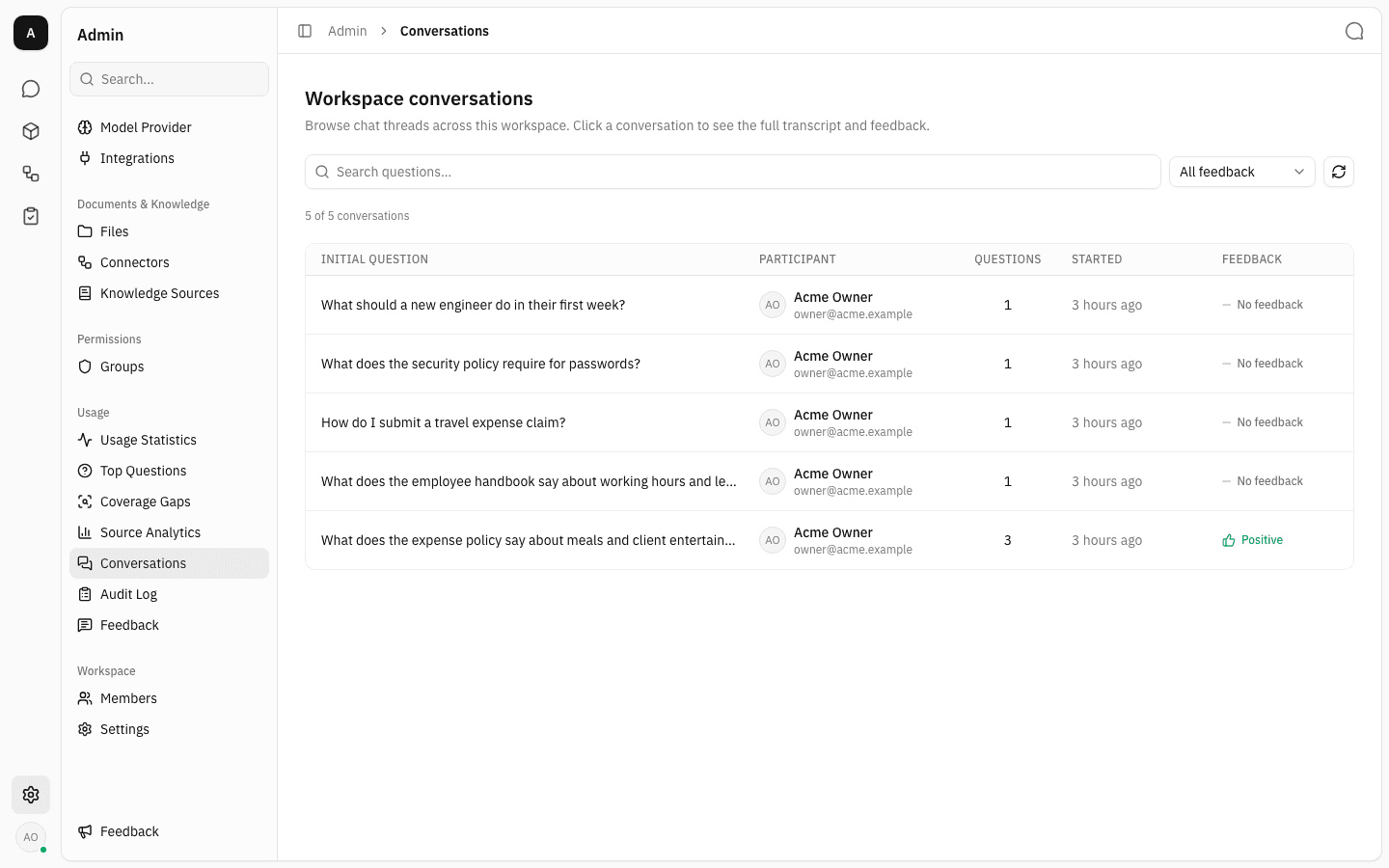
The list shows one row per chat thread, newest first. Initial question is the first thing the participant asked — it acts as the thread's title. Participant is who was chatting, Questions counts how many questions they asked in that thread, Started is when the thread began, and Feedback rolls up the thumbs-up/thumbs-down ratings left on that thread's answers.
-
The counter above the table ("5 of 5 conversations") tells you how many rows are loaded against how many match your current filters. Long lists page in as you scroll, with a Load more button at the bottom; the circular arrow beside the filters refetches the list if you think something new has arrived.
Narrow the list down
-
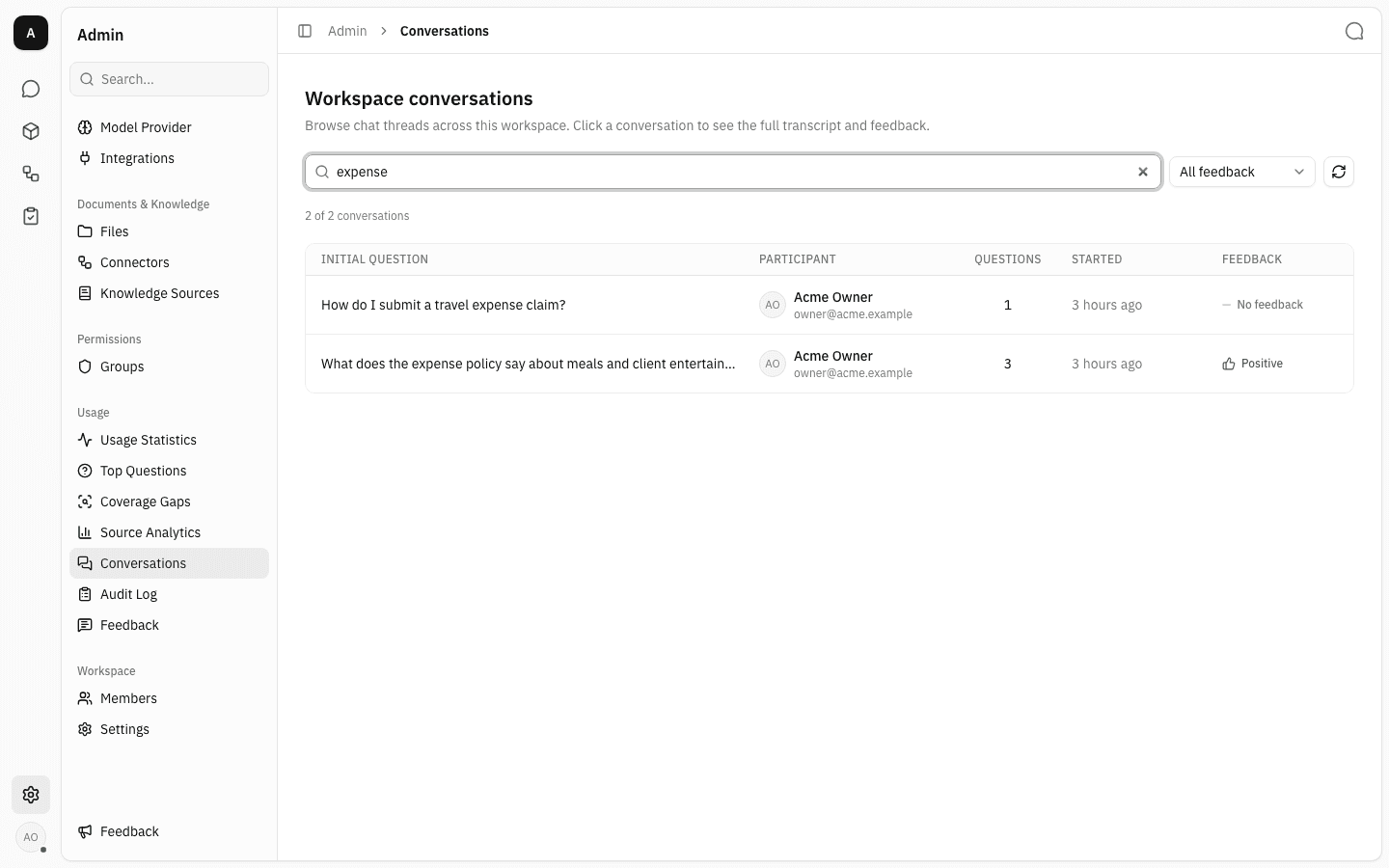
Type into Search questions… to match against the questions asked. The list updates as you type, and the counter follows it.
-
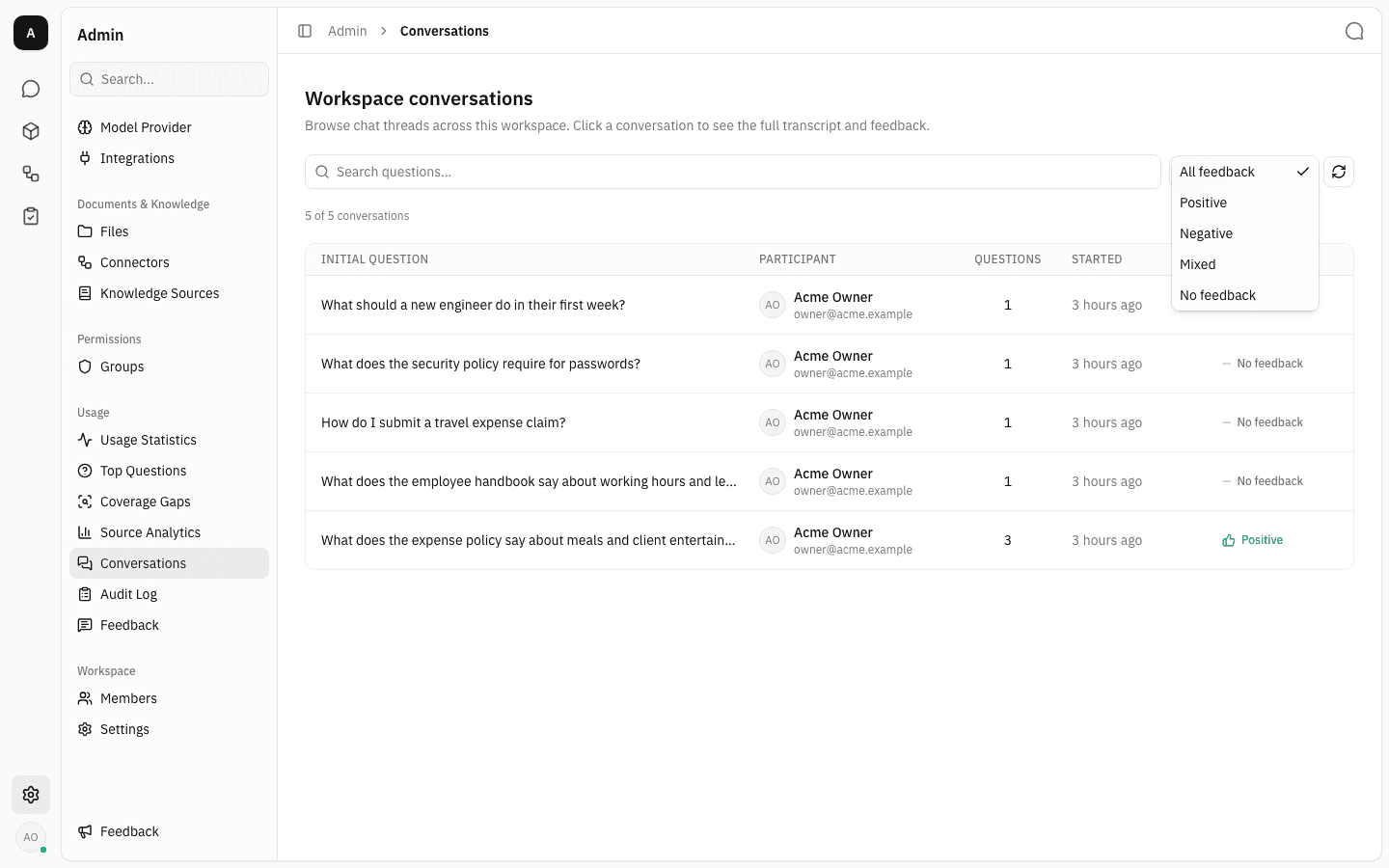
Use the feedback dropdown to filter by how a thread was rated. All feedback is the default; the other options are Positive, Negative, Mixed and No feedback.
-
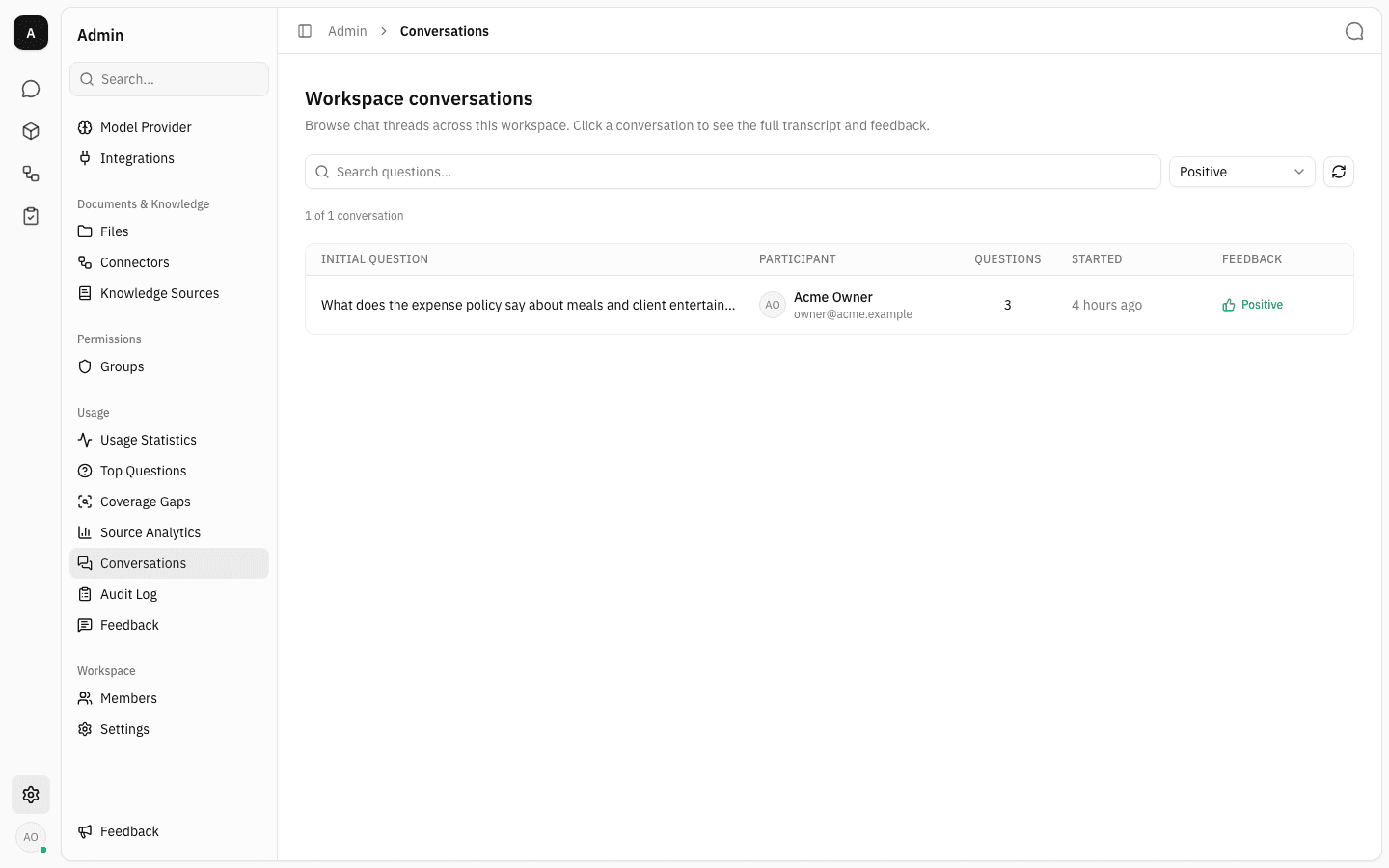
Picking Positive leaves only threads where the answers were rated helpful. Mixed means one thread received both a thumbs up and a thumbs down — usually the most interesting case, because something in the middle of the conversation went wrong.
-
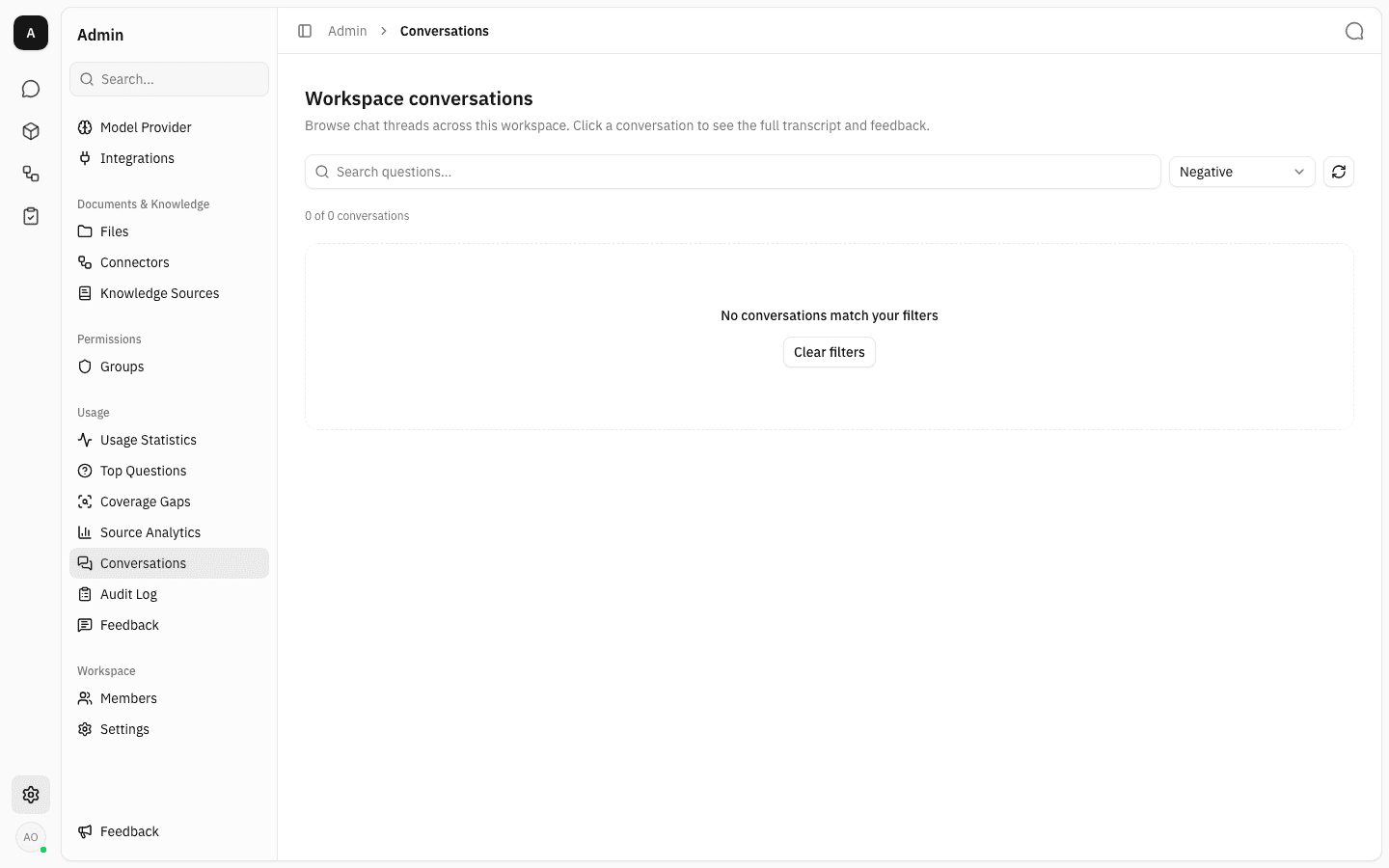
Search and feedback combine, so it is easy to filter down to nothing. When that happens you get No conversations match your filters and a Clear filters button that resets both facets at once.
Read a full transcript
-
Click any row to open the Conversation Detail panel.
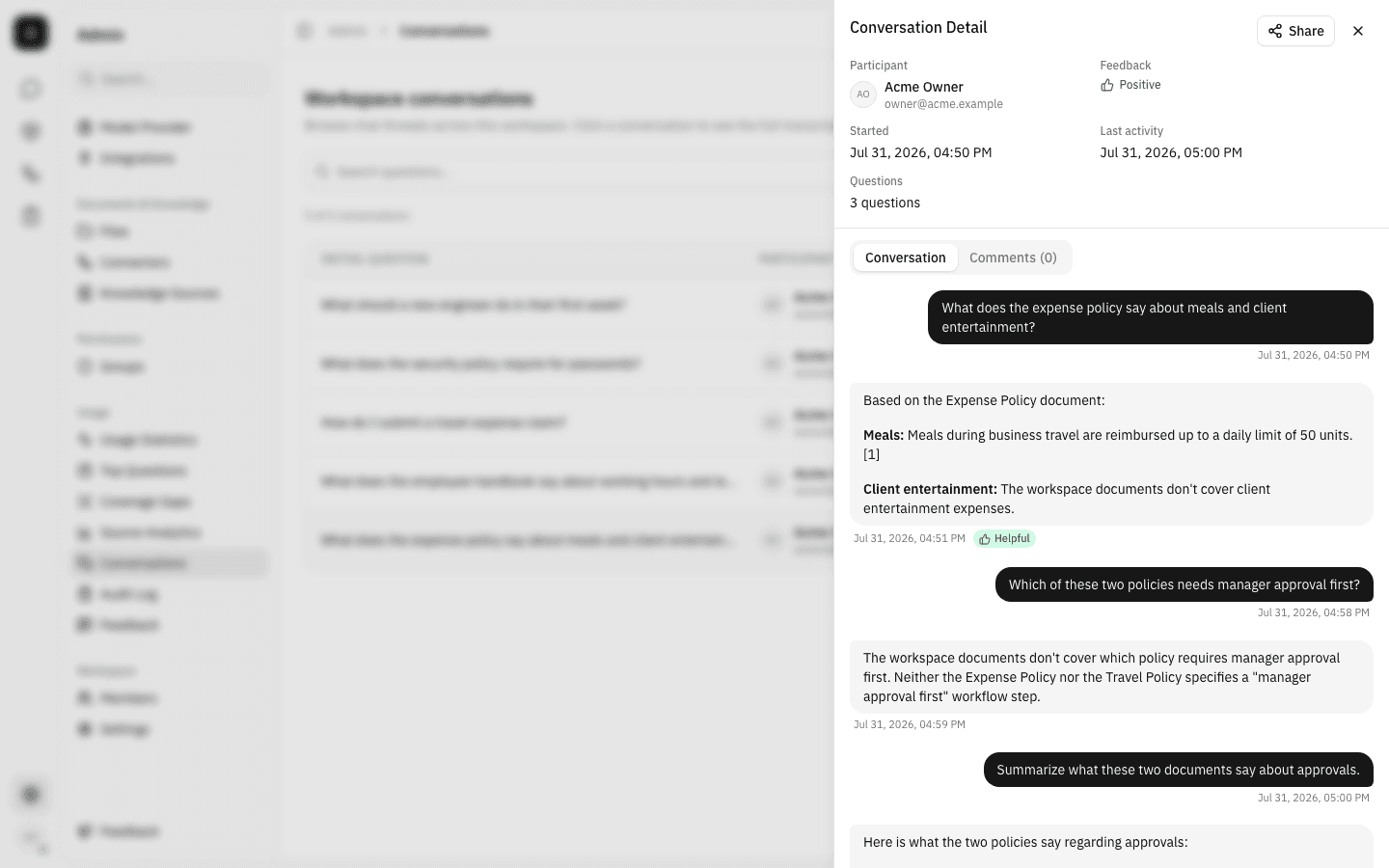
The header repeats the metadata you can filter on — Participant, aggregate Feedback, Started, Last activity and the Questions count — and below it the Conversation tab replays the thread as a chat: the participant's questions on the right, the assistant's answers on the left, oldest first, with Markdown rendered as the participant saw it.
-
Answers the participant rated carry a small tag under the timestamp — Helpful for a thumbs up, Not helpful for a thumbs down. That is how you find the exact turn behind a Negative or Mixed rating, rather than guessing from the thread as a whole.
-
Scroll the panel to follow the rest of the thread. Bracketed markers such as
[1]are the assistant's citations back to the workspace documents it used.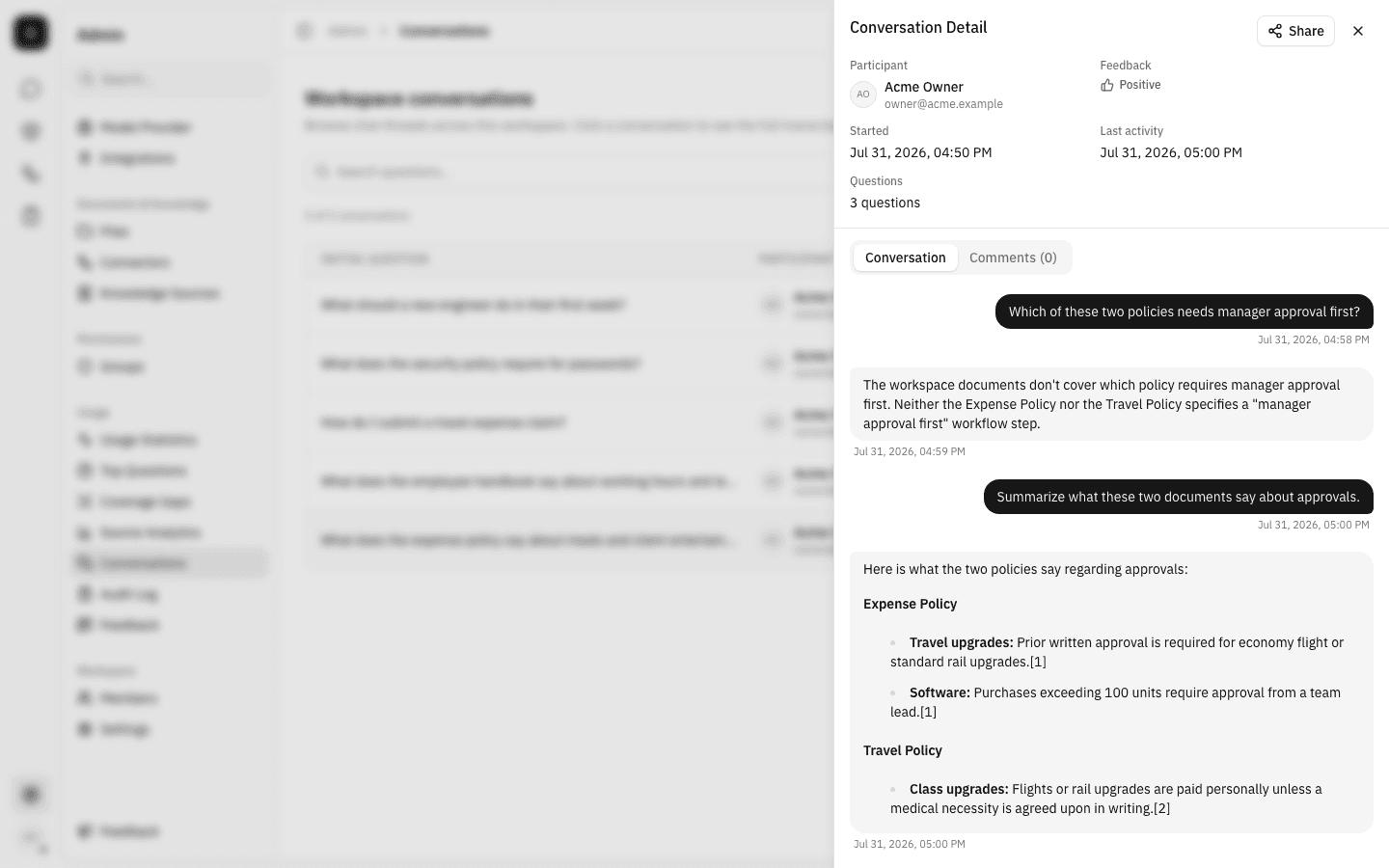
-
Share in the panel header copies a direct link to this conversation. Anyone with
conversation:readwho opens that link lands on the Conversations page with this same panel already open — useful for handing a problem thread to a colleague. If you are on the Comments tab when you copy, the link opens on Comments too.
Leave a note for other admins
Comments are admin-only annotations on a conversation. They are never shown to the participant and never sent to the model — they are your team's shared margin notes.
-
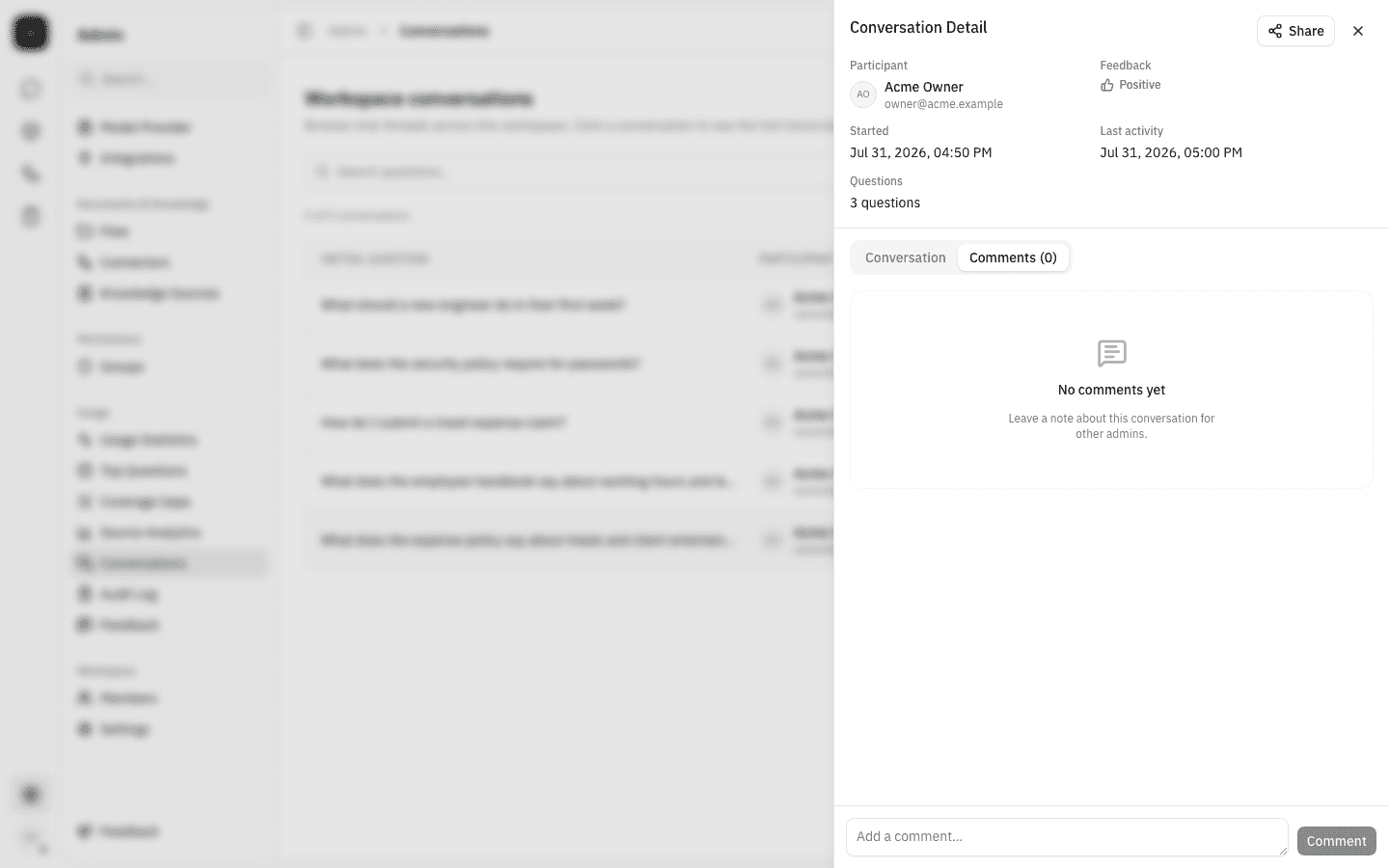
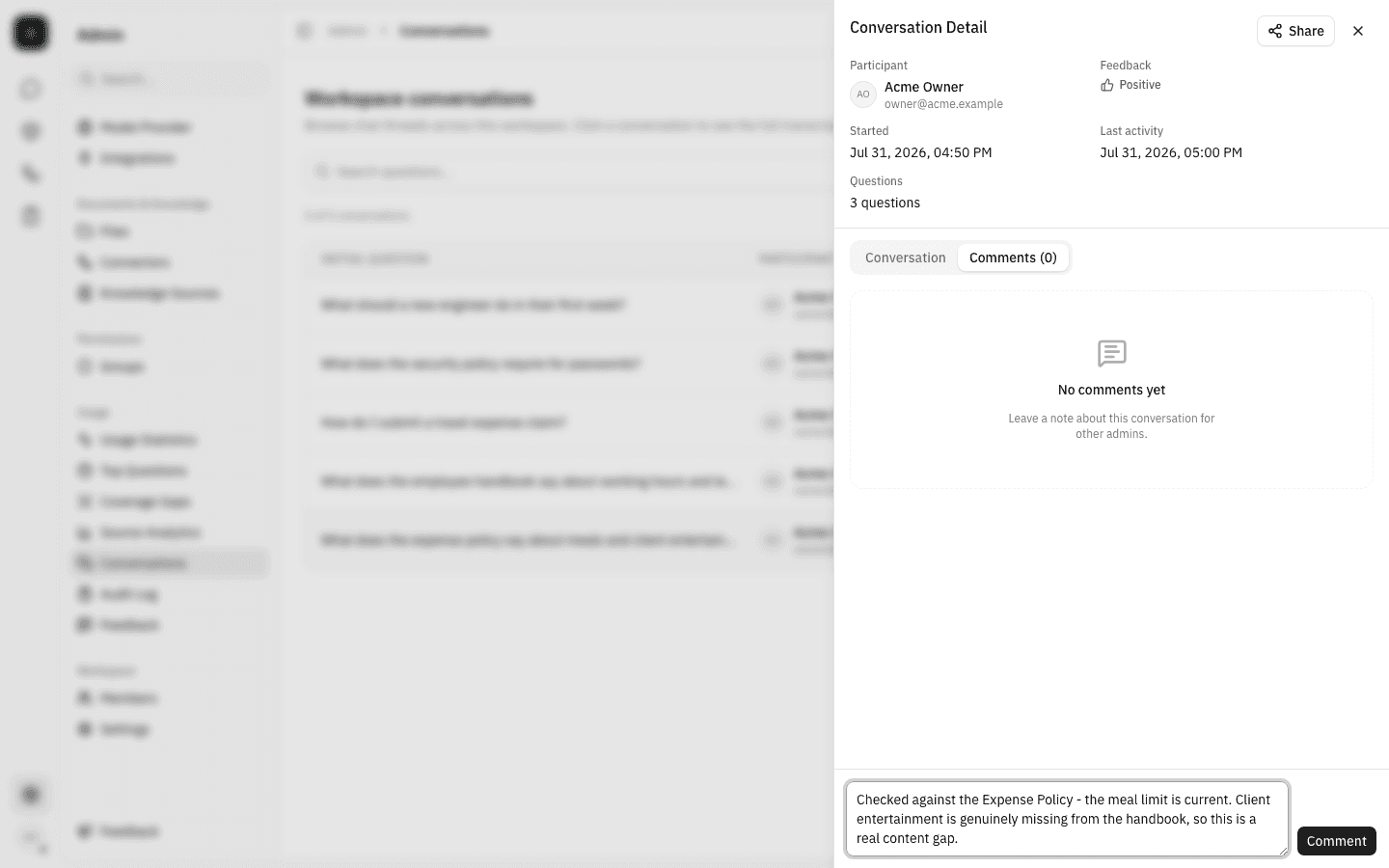
Switch to the Comments tab in the detail panel. The tab label carries the current count, and an empty conversation shows No comments yet.
-
Write your note in Add a comment… at the bottom of the panel. Press Enter to post, or Shift+Enter for a line break.
-
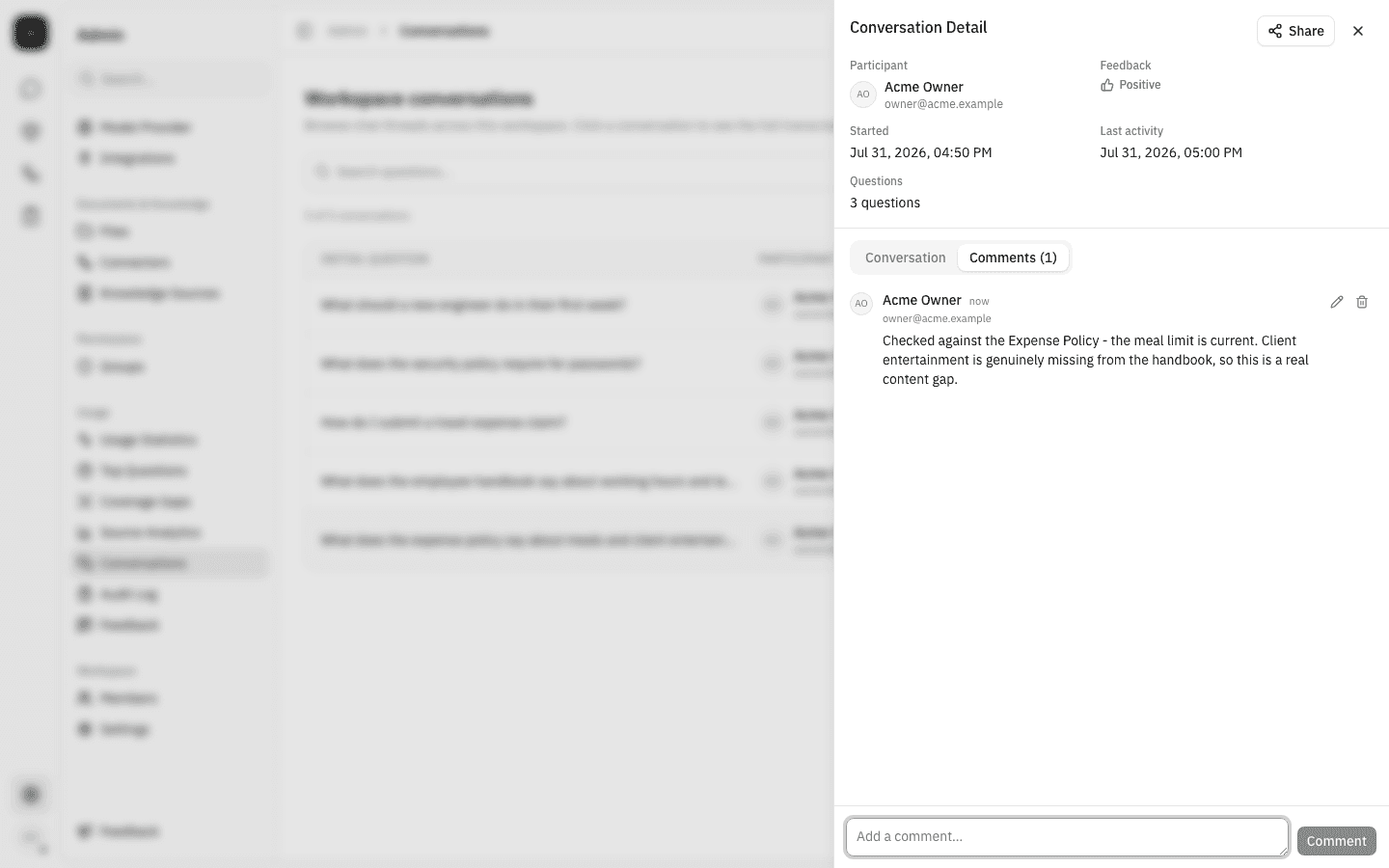
The comment appears immediately with your name, email and a relative timestamp, and the tab count goes up.
-
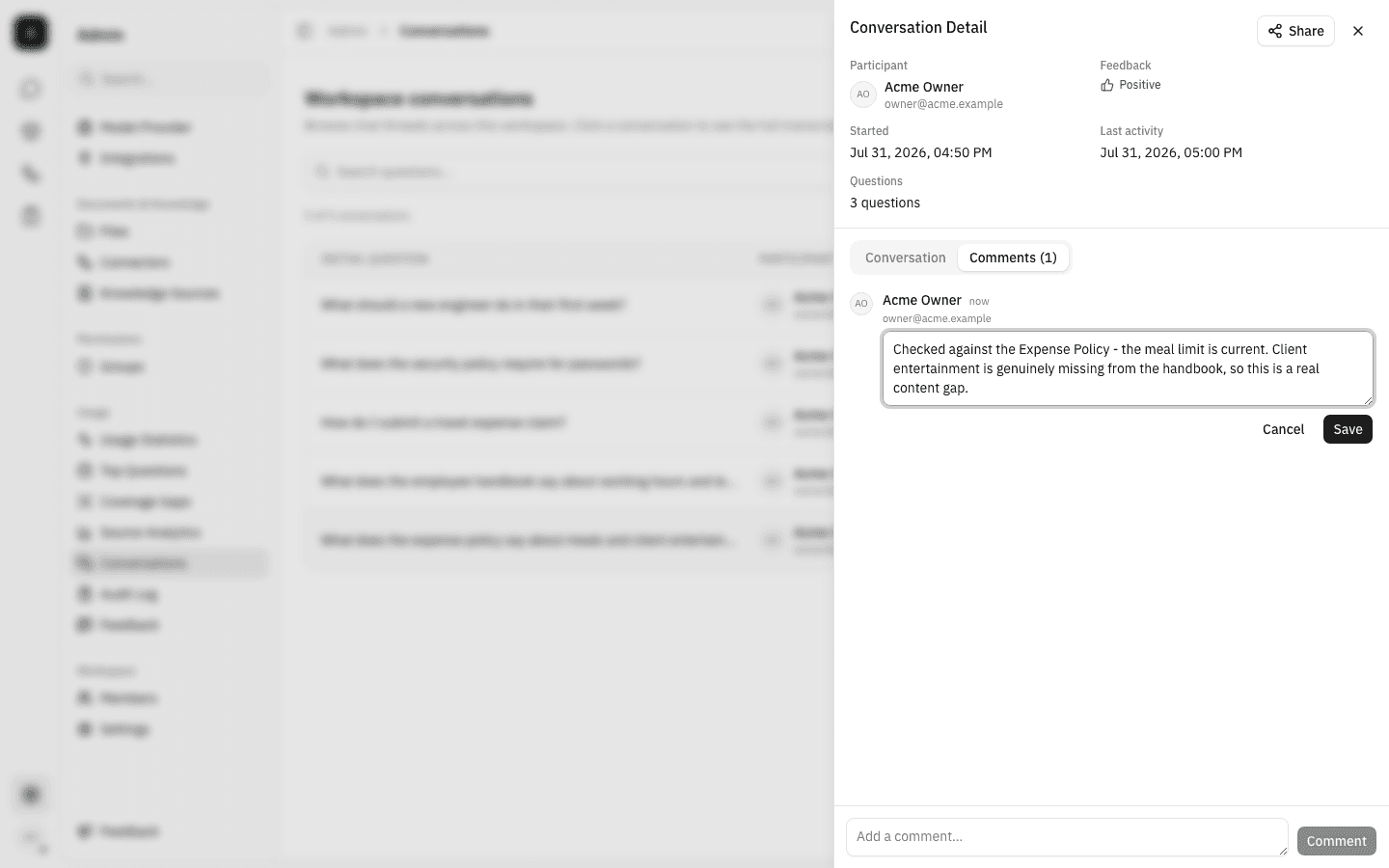
Hover your own comment and use the pencil icon to edit it in place. Save keeps the change and marks the comment (edited); Cancel — or the Escape key — discards it.
-
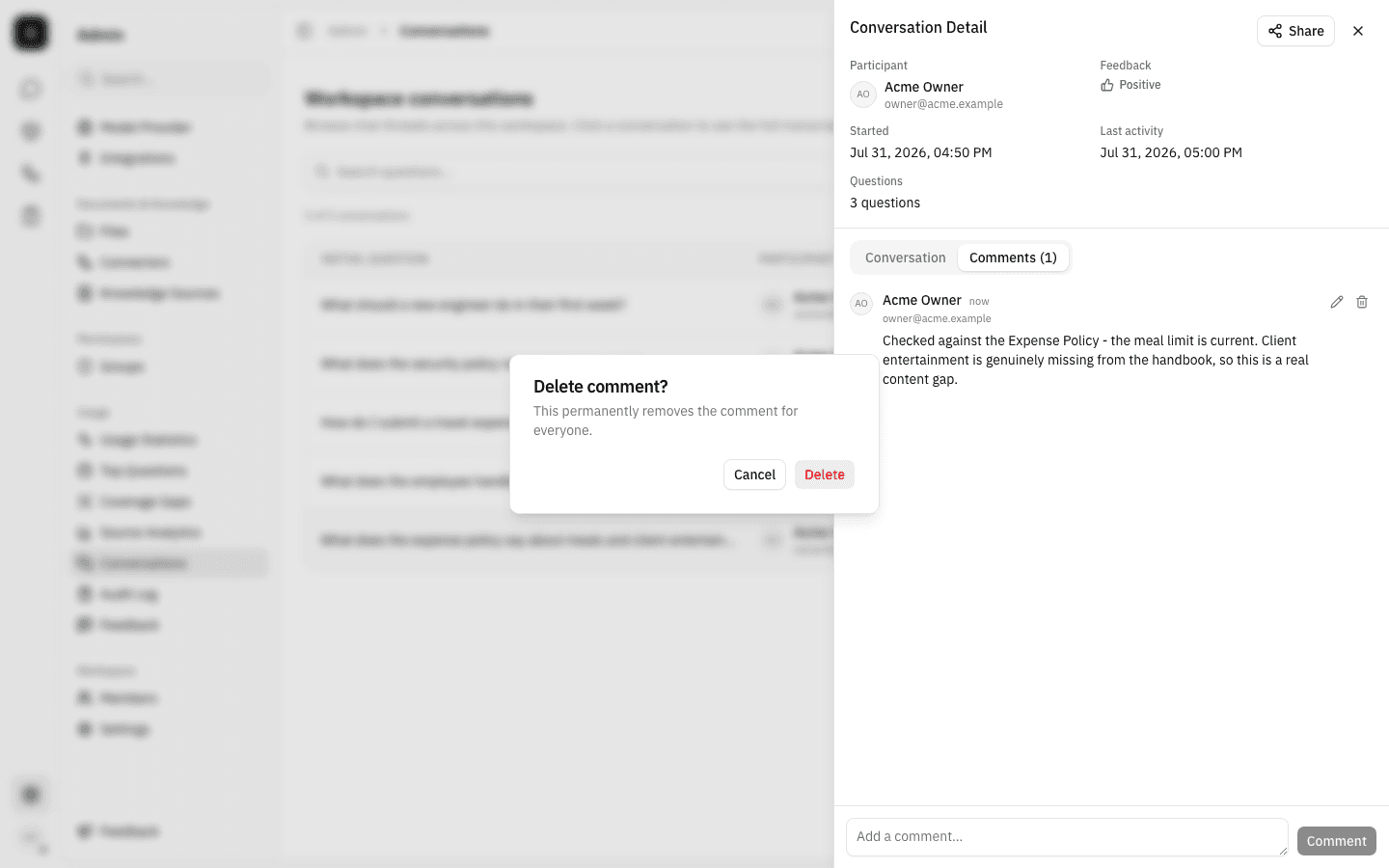
The bin icon removes a comment after a confirmation. Deletion is permanent and applies for everyone. You can always delete your own comments; workspace owners can delete anyone's.
Notes
- Drilling in from Top Questions. Clicking a sample question inside a cluster on Top questions does not bring you to this page — it opens the same Conversation Detail panel in place, over the cluster list. This page can also narrow itself to a single cluster, shown by a Topic: … chip above the filters; removing the chip — or Clear filters — restores the full list.
- Transcripts are text only. The panel replays the wording of each turn. Tool calls, attached files, and the interactive citation sheet from the chat screen are not reproduced here.
- Deleted participants still resolve. If someone has been removed from the workspace, their past conversations remain listed; the row keeps the attribution it can and falls back to the user id when the name is gone.
- Filtering by participant is not supported. Search matches question text only. To find one person's threads, scan the Participant column or search for wording you know they used.