Signing in
How to sign in with a one-time password sent to your email — including the code screen, the errors you may see, and why there is no sign-up form.
Signing in takes two screens and no password. You type your email address, the platform emails you a six-digit one-time password, and you type that code in. There is nothing to remember and nothing to reset.
There is no sign-up form
Accounts cannot be created from the sign-in screen — self-registration is
switched off in this build. If you have no account yet, somebody in the
workspace has to
invite you; the invitation is what creates
your access. The /auth/registration address still exists for old links, but
it does nothing except send you to the sign-in screen below.
Prerequisites
- An account with your email address. Only addresses that already exist can sign in — see the callout above.
- Access to that mailbox, since the code is only ever delivered by email.
- No role or permission of any kind. What you can do after signing in depends on your workspace role, but signing in itself does not.
Sign in with a one-time password
-
Open the platform. If you are not signed in, any address you visit sends you to the sign-in screen, headed Welcome back / Sign in to your account.
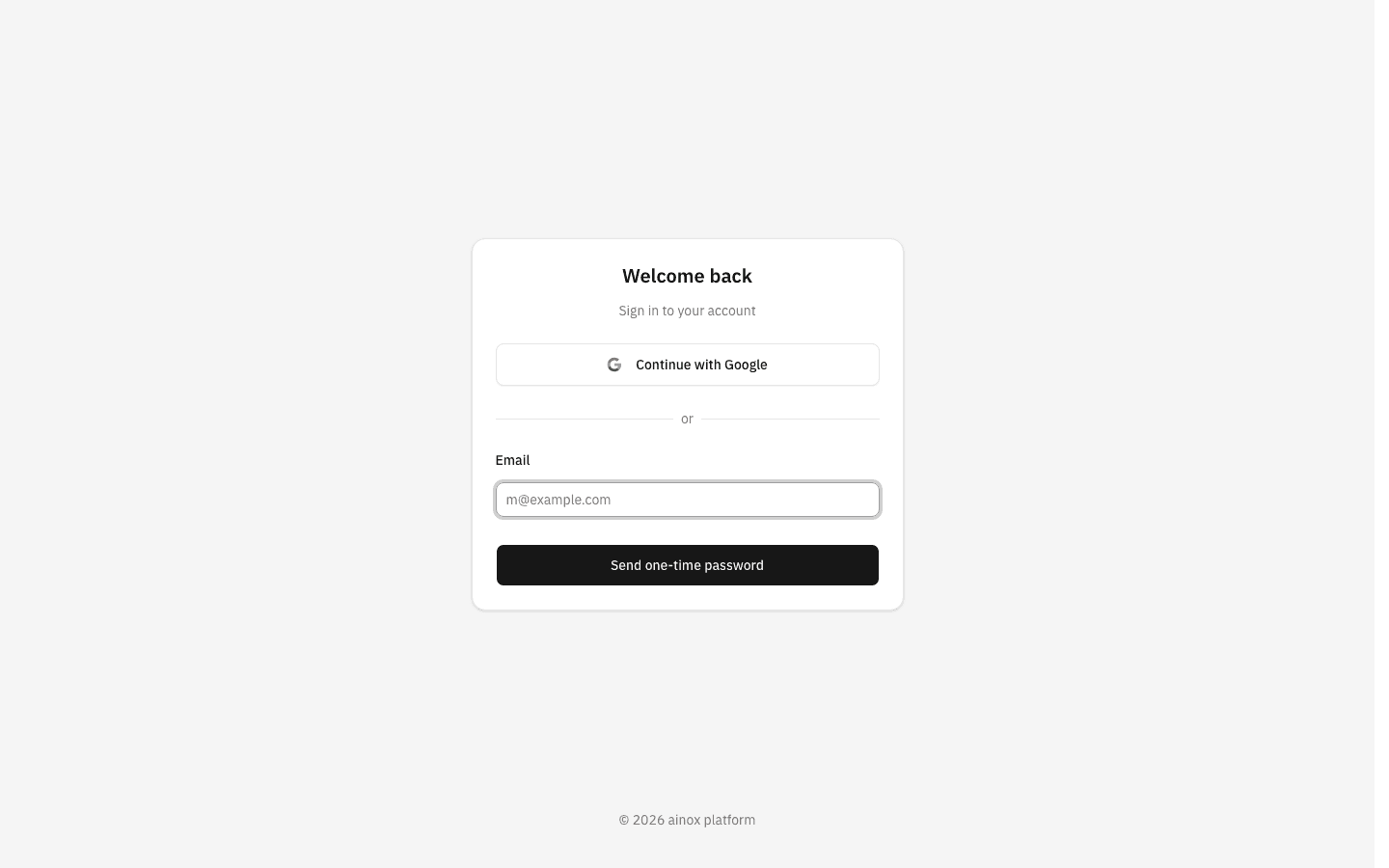
There are two ways in: Continue with Google at the top, or the email field underneath. This page describes the email route; Google is a single click that hands you to Google's own sign-in and brings you straight back.
-
Type the address your account uses and click Send one-time password. Two things are checked before anything is sent — an empty field gives Email is required…
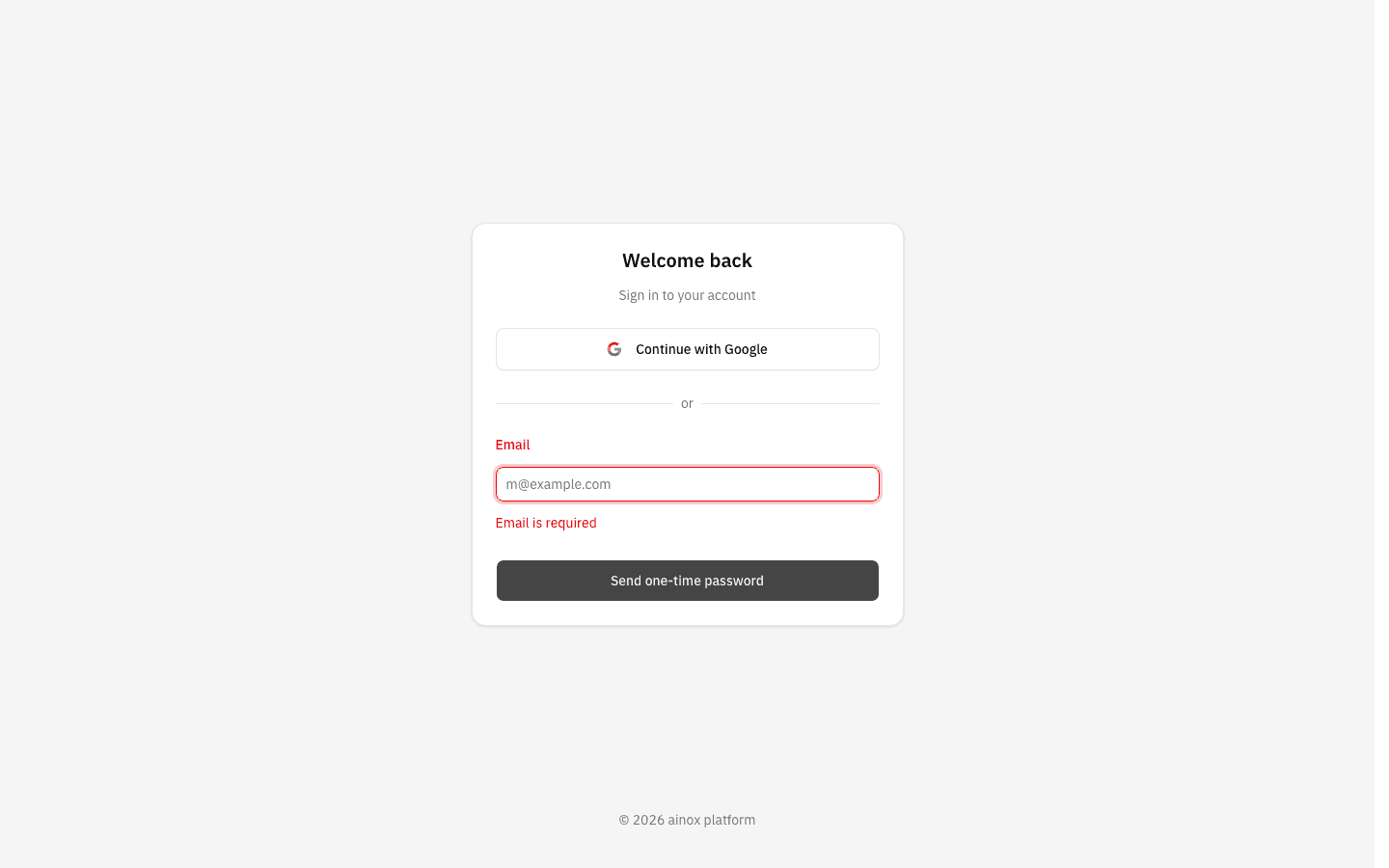
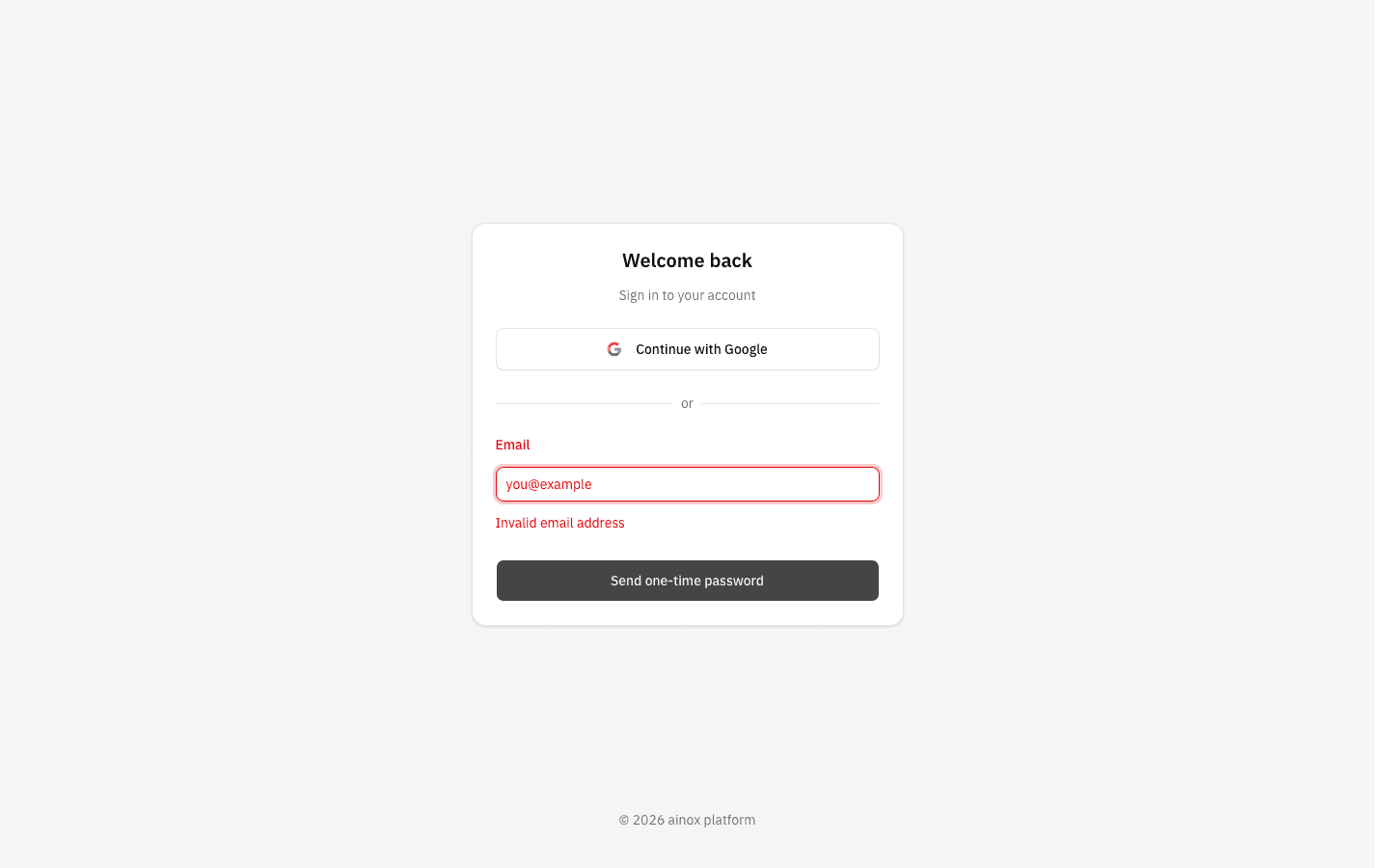
…and anything that is not a well-formed address gives Invalid email address.
-
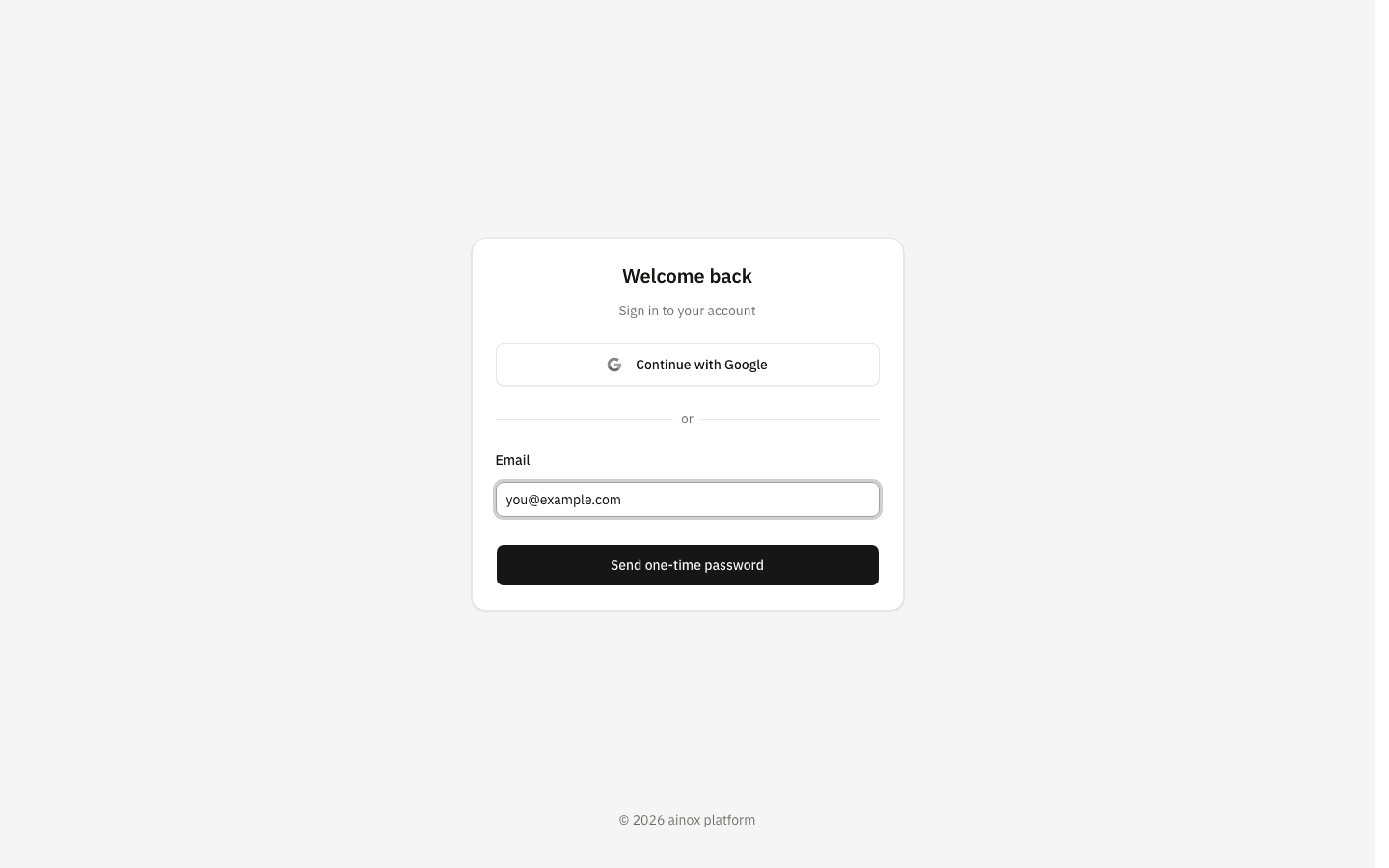
With a valid address in the field, the button is ready.
-
Click Send one-time password. You move to a second screen, headed Check your email, with six empty boxes waiting for the code. The address is shown back to you partly hidden —
y***@example.com— so you can confirm you typed the right one without the whole address being readable over your shoulder.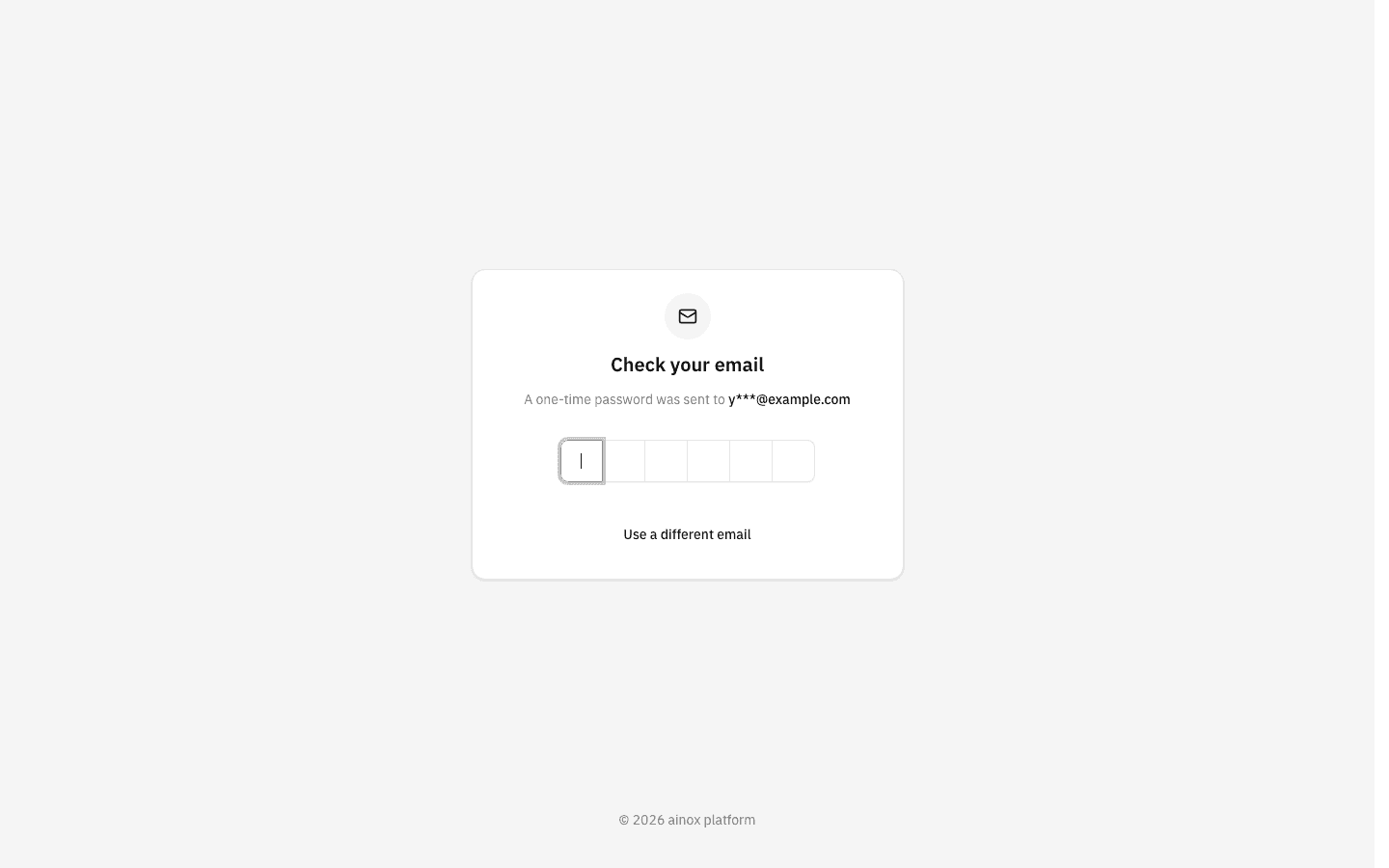
-
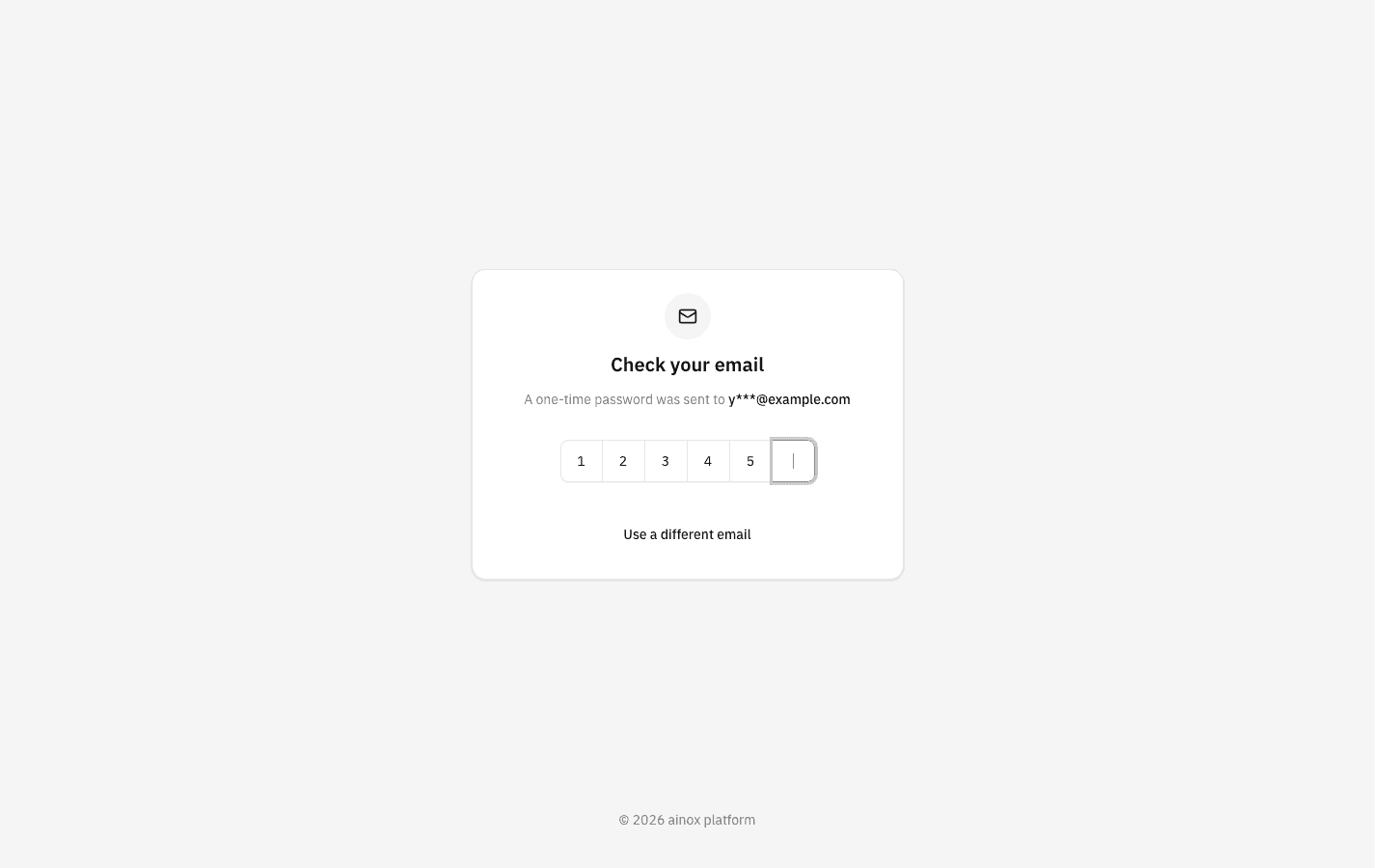
Open the email — its subject is Your ainox platform sign-in code — and type the six digits into the boxes. Each digit moves the cursor along by itself, and you can paste the whole code at once.
-
There is no Submit button: the moment the sixth digit lands, the code is checked. If it is right you are signed in and the platform takes you where you were going — your workspace's Chat page normally, or straight back to an invitation if that is what sent you here. Brand-new accounts that do not belong to a workspace yet go into workspace setup instead.
No screenshot of the signed-in result. Capturing it would require signing a real account in, which cannot be scripted here — the code is only ever delivered by email.
If the code is refused
A code that does not match — mistyped, already used, or more than 5 minutes old — is rejected with a short Invalid OTP message in the corner, and the six boxes empty themselves so you can try again.
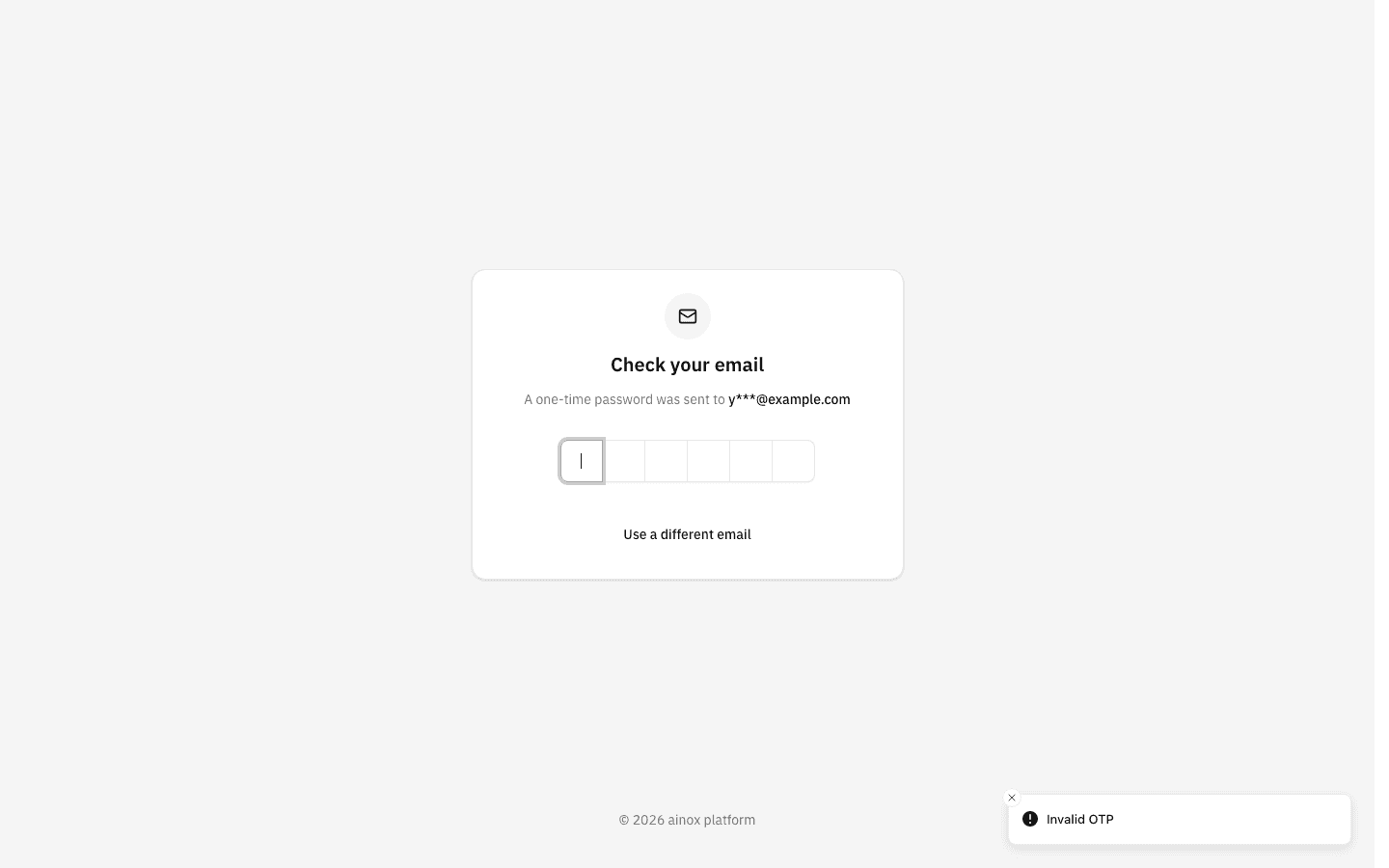
Retyping the same code will not help once it has expired. To get a fresh one, click Use a different email at the bottom of the card, which returns you to the sign-in screen with the email field empty, and send yourself a new code. That link is also how you correct a typo in the address — there is no Resend button on the code screen itself.
If a Google sign-in is refused
Coming back from Google can also land you on the sign-in screen with a red message above the button. The most common is a domain that is not permitted:
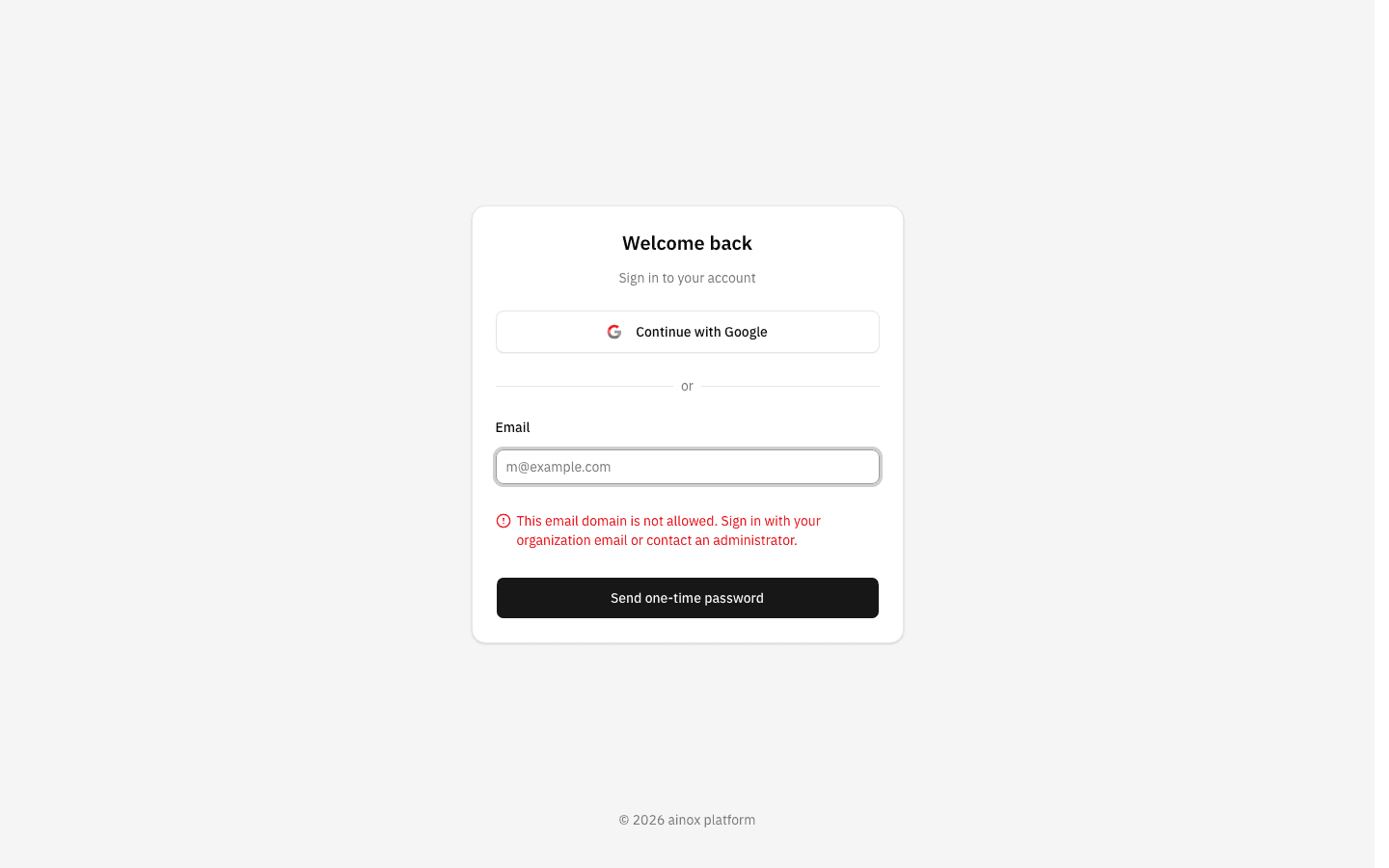
- This email domain is not allowed… — the Google account you chose is outside the domains this platform accepts. Pick your organisation account, or use the email route below it, which is not restricted by domain.
- Sign-up is disabled for this account. — the Google account has no account here. Ask to be invited.
- Sign-in was cancelled. — you closed or declined Google's own screen. Nothing went wrong; click again.
Notes
- Codes last 5 minutes. After that you need a new one; there is no way to extend one.
- Six digits, numbers only. The code screen accepts nothing else, and the code is single-use — once it signs you in it cannot be used again.
- Requests are rate-limited. Asking for codes over and over is capped (roughly three sends and five attempts a minute), so if the button stops working, wait a minute rather than clicking harder.
- The platform never says whether an address has an account. Any well-formed address moves you to Check your email and shows the same "a one-time password was sent" line, so reaching the code screen is not confirmation that an account exists. If no code arrives and you are sure of the address, you probably need an invitation.
- Signing in verifies your email as a side effect, which is what makes invitations openable — see the notes on accepting an invitation.
- Already signed in? The sign-in screen never shows for a live session — the platform sends you into the app instead. To sign in as somebody else, click your avatar at the bottom of the sidebar and choose Sign out first.