Build an app by chatting
Describe an app in App Builder, answer the agent's questions, attach sketches and files, and stop a reply when it goes the wrong way.
App Builder turns a description into a working web app. You chat with an agent; it writes the code, runs it in a private sandbox, and shows the result in the preview next to the chat. When the app is ready, you publish it at its own address and share it with your workspace.
This page covers the chat. The rest of App Builder has its own pages:
| Task | Page |
|---|---|
| Try the app, mark up what to change | Preview your app |
| Go back to an earlier version | Versions |
| Take the code with you | Download the code |
| Put the app on the web | Publish your app |
| Choose who can open it | Share your app |
| Rename, delete, see visitors and data | Your published apps |
| Find what others built | Marketplace and Favorites |
| Search, audit and permissions | App Builder in your workspace |
| Take a site down, manage categories | Manage App Builder in your workspace |
| Build from Claude Code or Cursor | App Builder over MCP |
Prerequisites
- Membership of the workspace. App Builder comes with it: every member can build apps and share them inside the workspace. If App Builder is missing from the Apps panel, or App Builder says "Ask a workspace admin for access to App Builder.", ask a workspace admin.
- A workspace model for App Builder, set up by an admin. Each prompt spends tokens, so usage limits apply.
Start an app
-
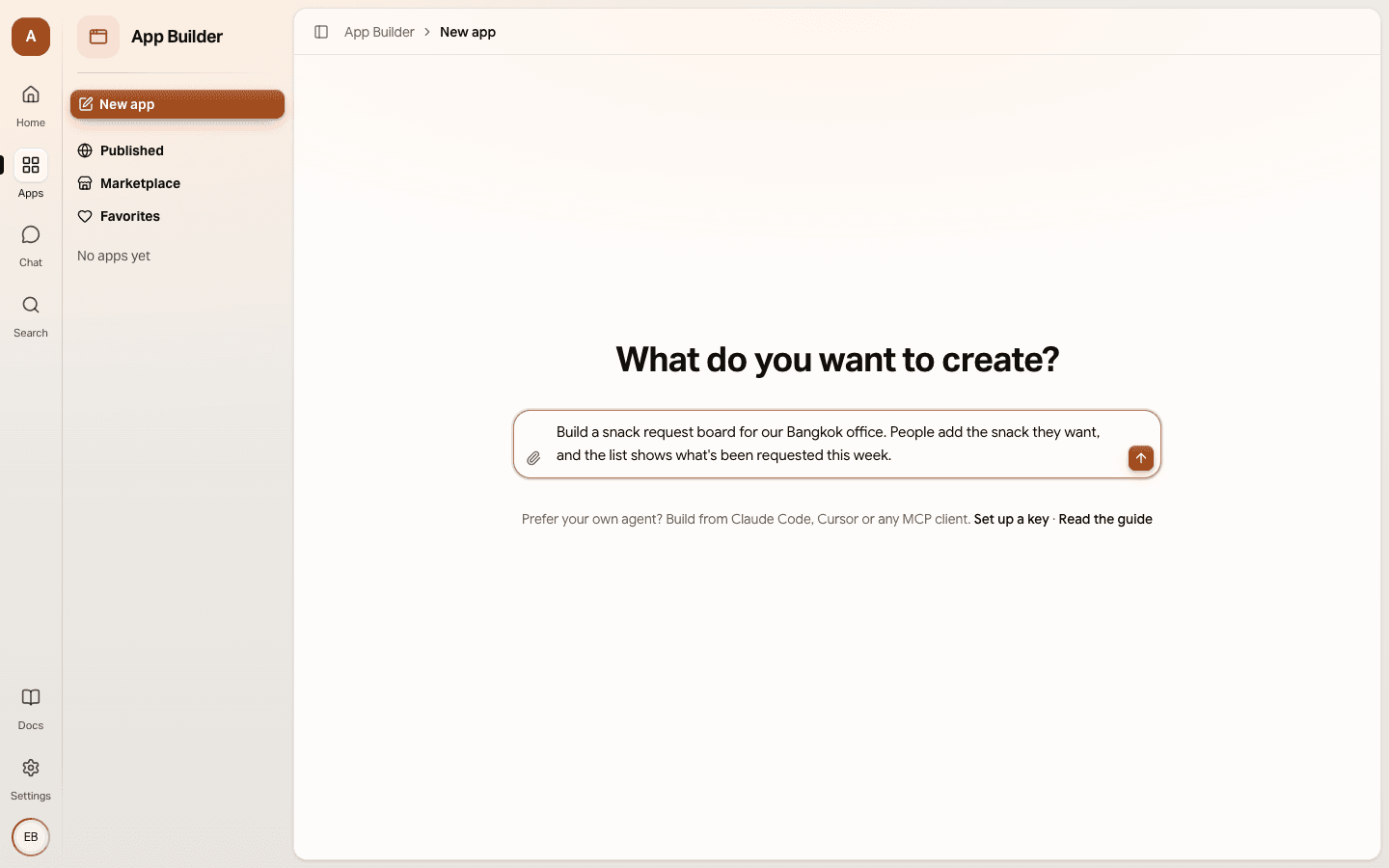
Click Apps in the left rail, then App Builder. App Builder opens on New app.
-
Describe the app in the box under What do you want to create?: who uses it, what they do in it, and what it should remember. Press Enter to send, Shift+Enter for a new line.
-
The app appears in the sidebar under Today, named after the first line of your prompt. Rename it any time from the sidebar's ⋯ menu (see Your published apps).
A message can be up to 20,000 characters, and annotations count toward it. A longer message is not sent and its text stays in the box: "Could not send. A message can be up to 20,000 characters; shorten it, or attach the text as a file." With annotations waiting, it says "Could not send. A message and its annotations can be up to 20,000 characters together; shorten the message, remove an annotation, or attach the text as a file."
Every app starts from a Vite, React, TypeScript, Tailwind CSS and shadcn/ui project. Name another stack in your prompt if you want one.
Answer the agent's questions
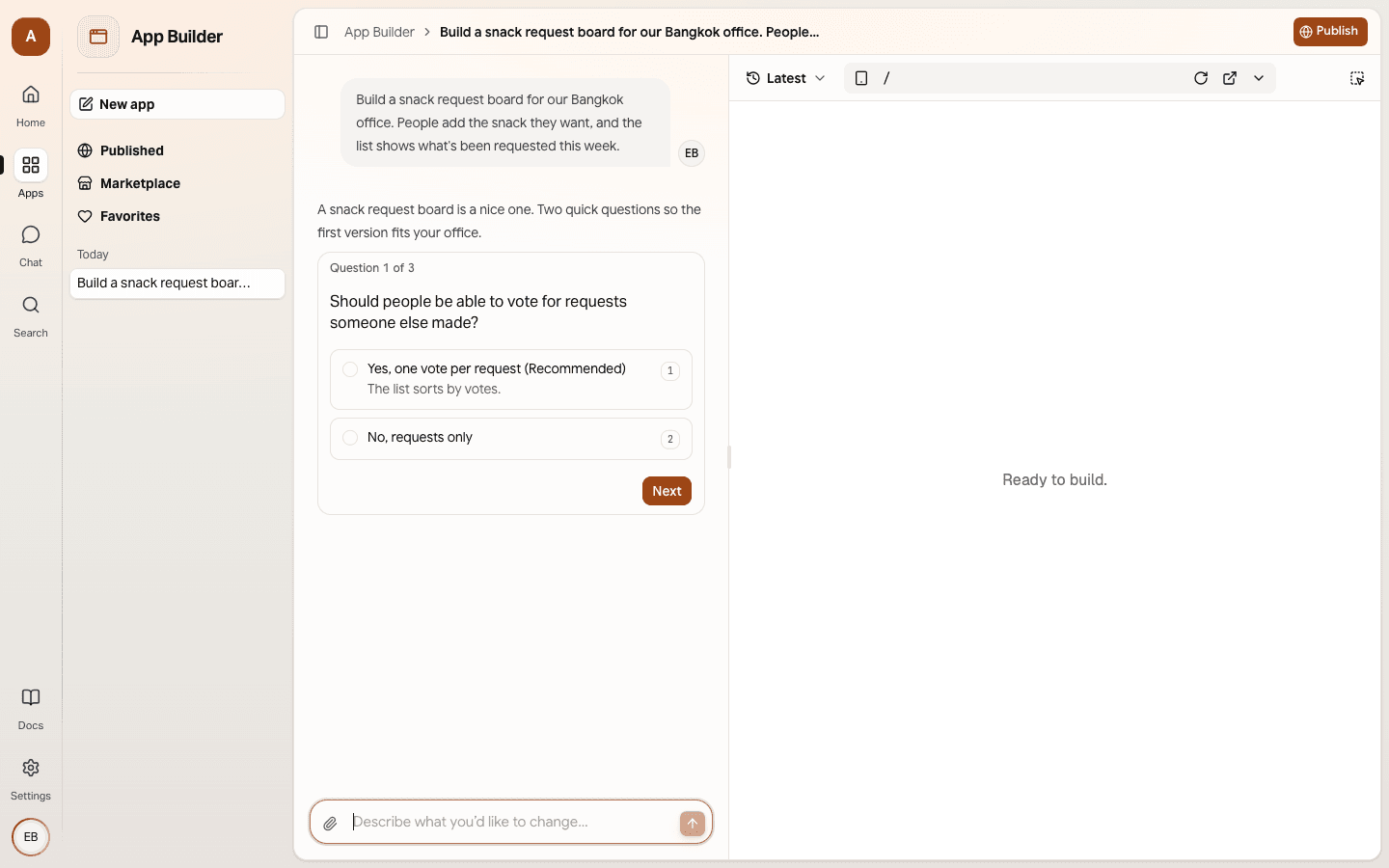
When a request leaves real choices open, the agent asks before it builds. A card in the chat shows one question at a time, with Question 1 of 3 above it.
-
A question with one answer shows its options as a list. Click one, or press its number key. The agent marks the option it would choose with "(Recommended)".
-
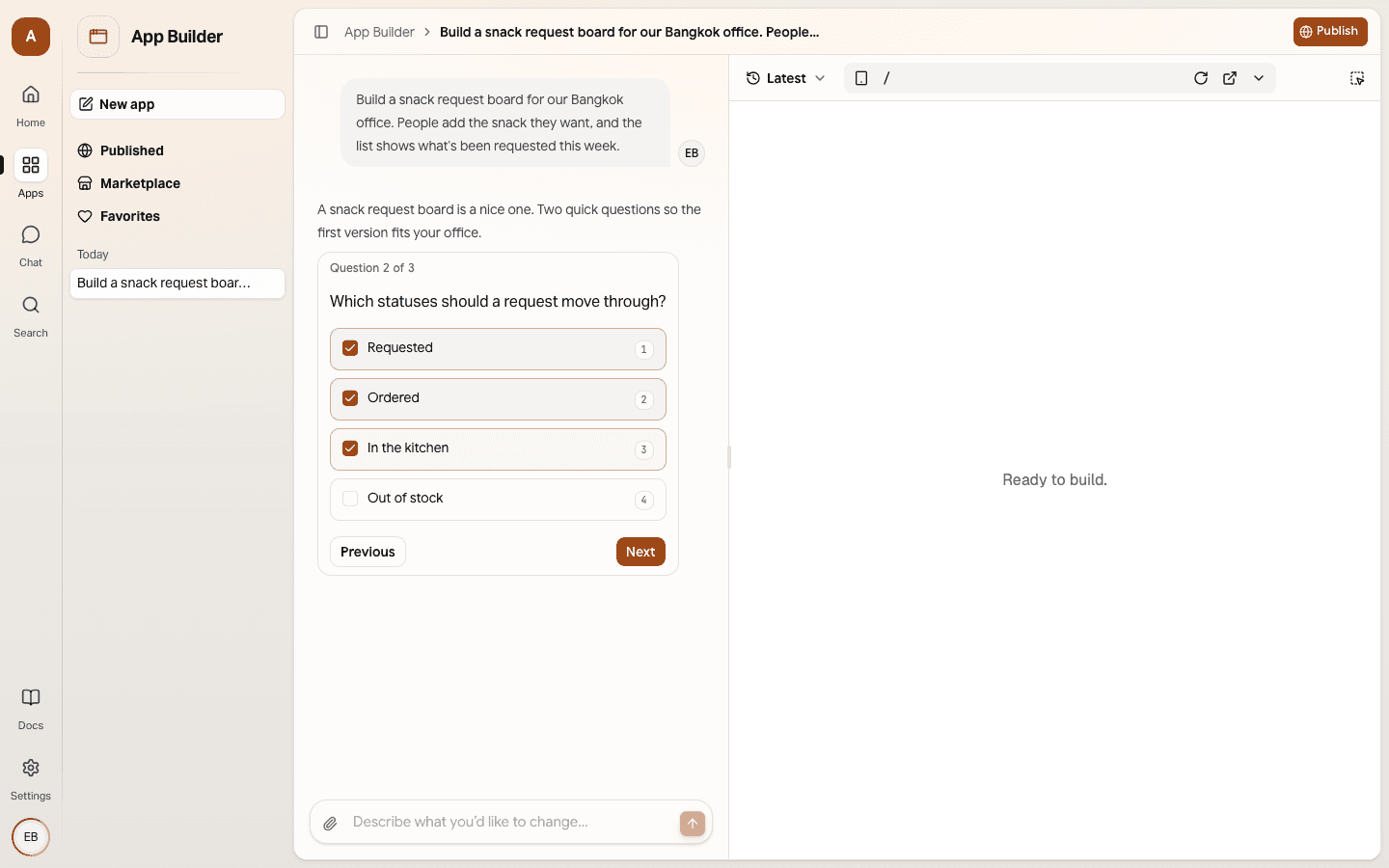
A question with several answers shows checkboxes.
-
A written question shows a text box. To leave an optional question empty, click Skip.
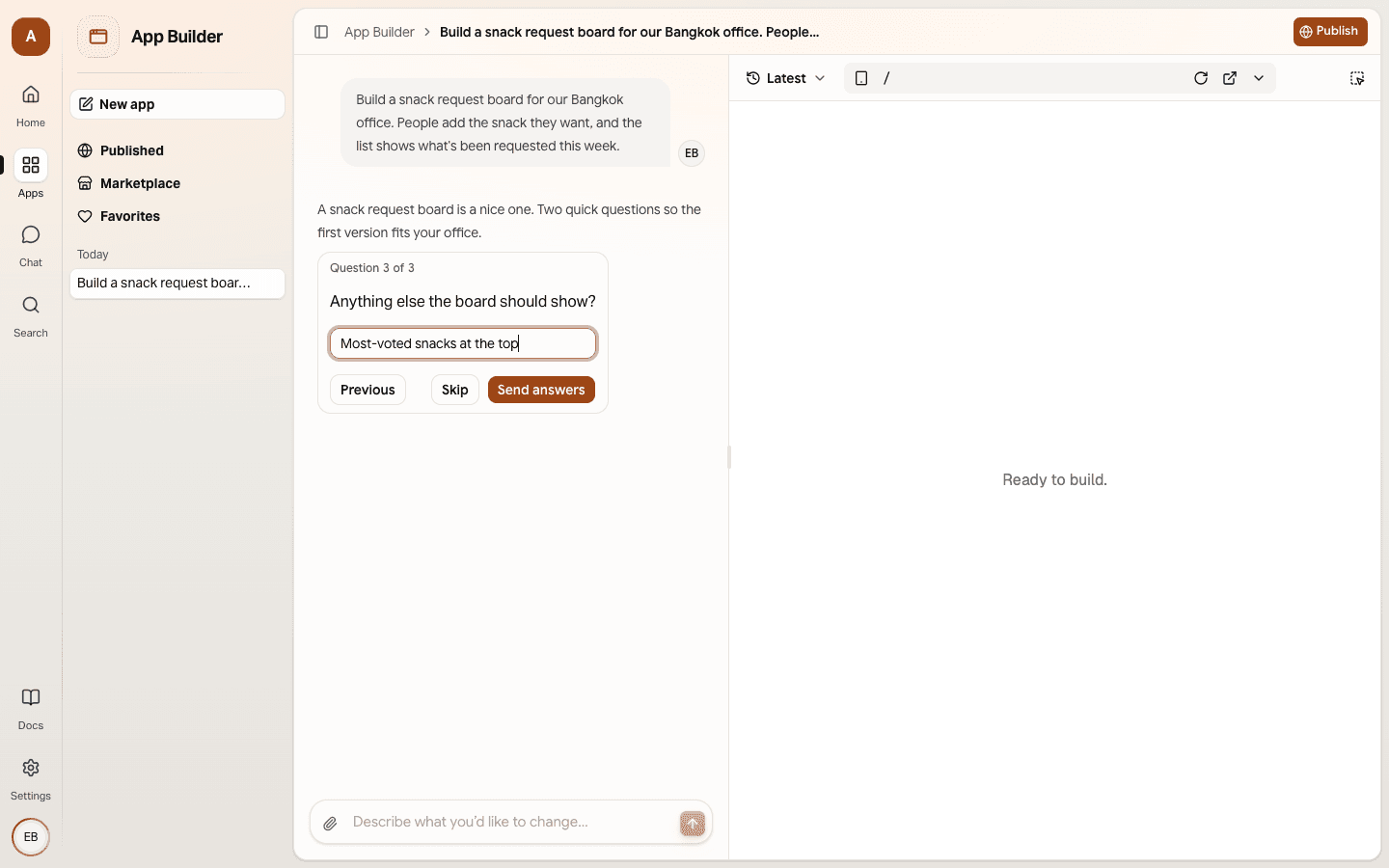
Click Next to move on, and send the answers from the last question. The card folds into Answers sent with your choices, and the agent starts building.
A card asks 1 to 8 questions with up to 9 options each; a written answer can be up to 4,000 characters. If you send a new message instead of answering, the card shows "This questionnaire is no longer active." and the agent reads your message instead.
The answers go as soon as every required question has one. An optional question left empty is sent as skipped, and Answers sent shows "No preference" for it.
If a required question has no answer, the card shows why under it: "Choose an answer to continue." for a question with options, "Enter an answer to continue." for a written one. An optional question without an answer reads "Choose an answer, or skip this question." or "Enter an answer, or skip this question."
Follow the build
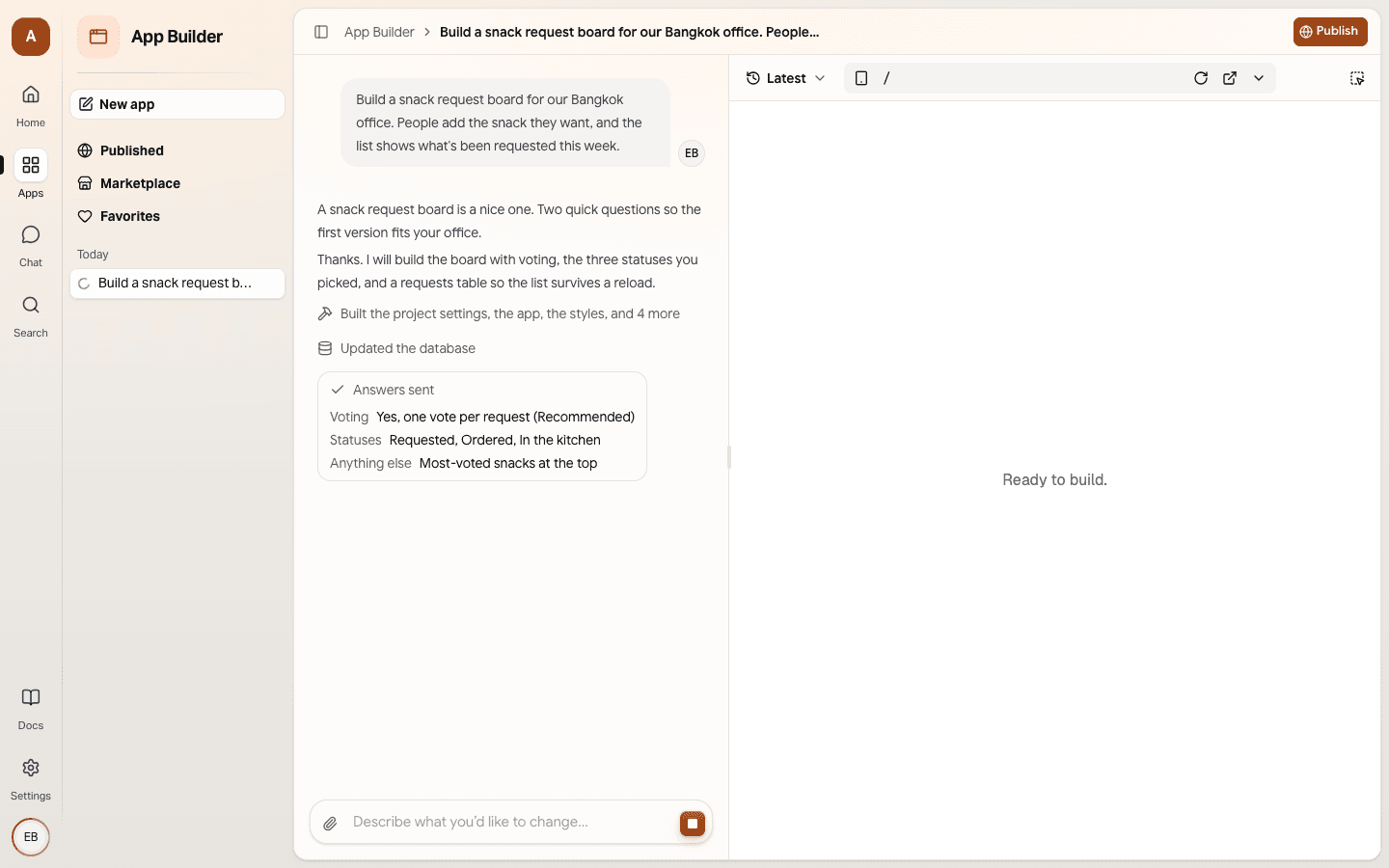
While the agent works, the sidebar shows a spinner on the app and the send button turns into a stop button. On a new app the preview shows Building your preview… until the agent opens it; if you answered questions first, it keeps the starter's "Ready to build." page instead. Each step appears in the chat as it happens: files written, database changes, the dev server started. On larger jobs, a task list above the composer tracks the agent's plan until All tasks done. When the agent checks its own work, a screenshot of the app appears under that step.
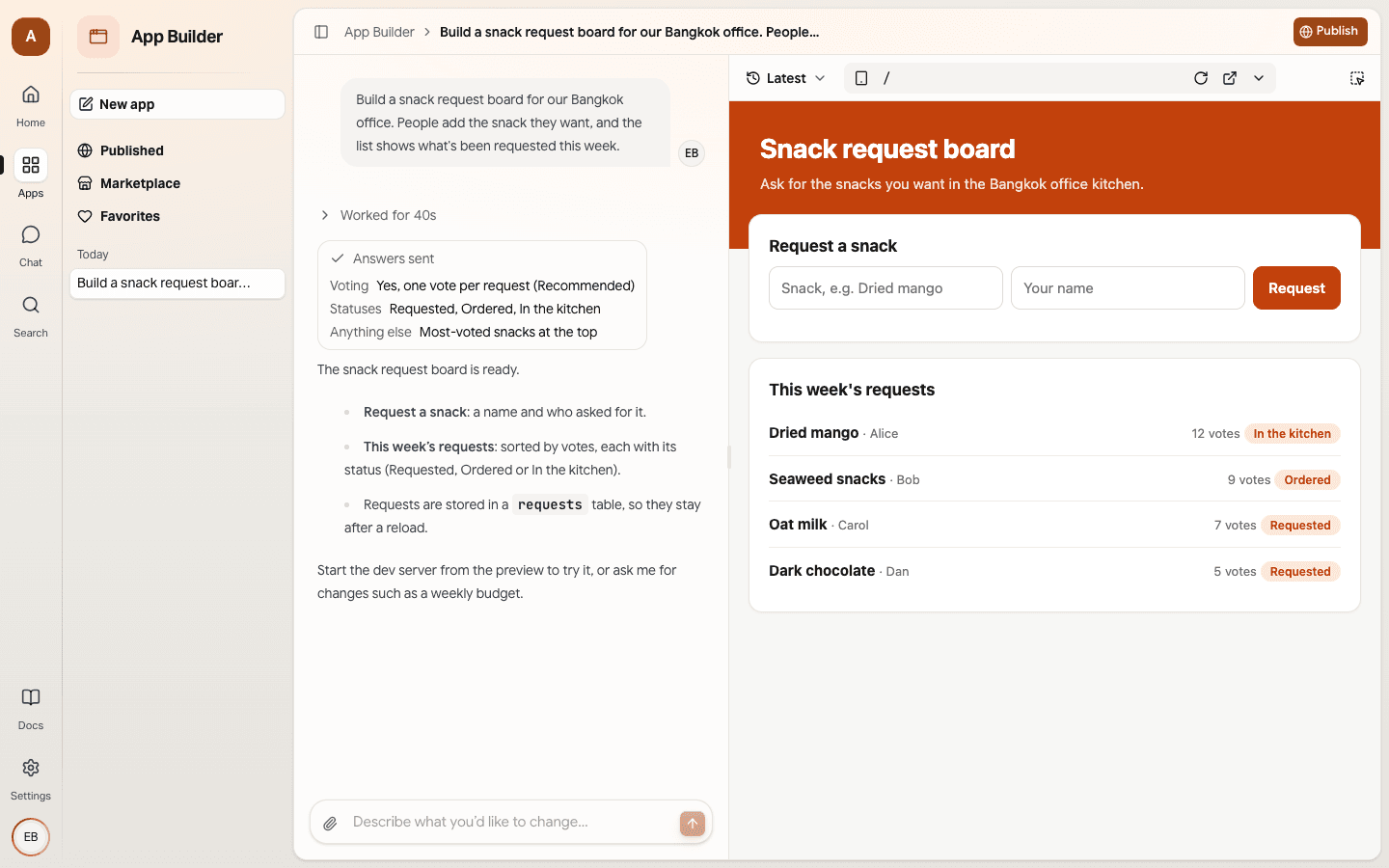
When the reply ends, the steps fold into Worked for 40s; click it to see them again. The agent's summary stays below.
One reply runs at most 40 steps. A large request may stop there; send "continue" and the agent picks up where it left off.
Stop a reply
Click the stop button (the square, where the send button was) to cancel a reply that is going the wrong way.
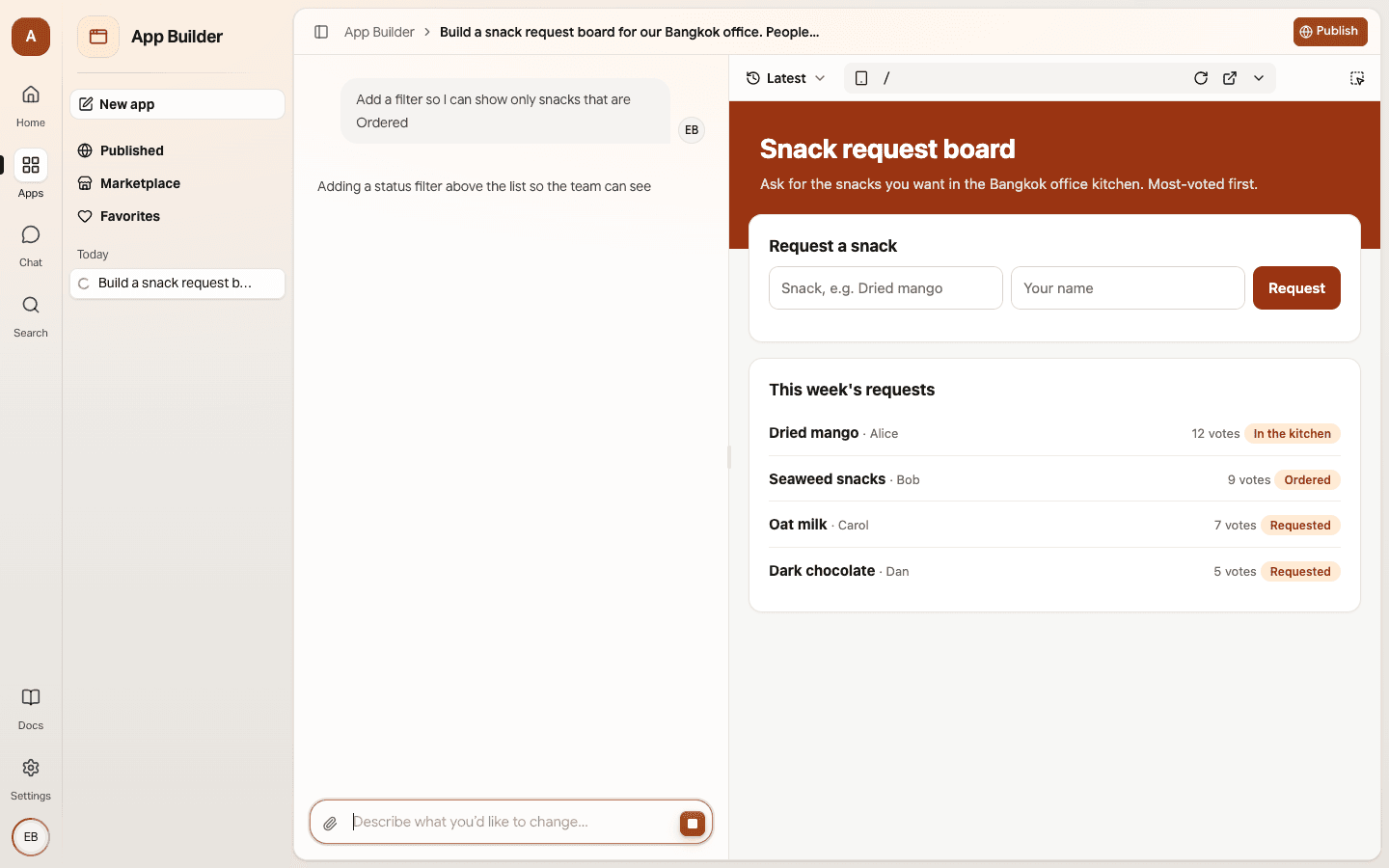
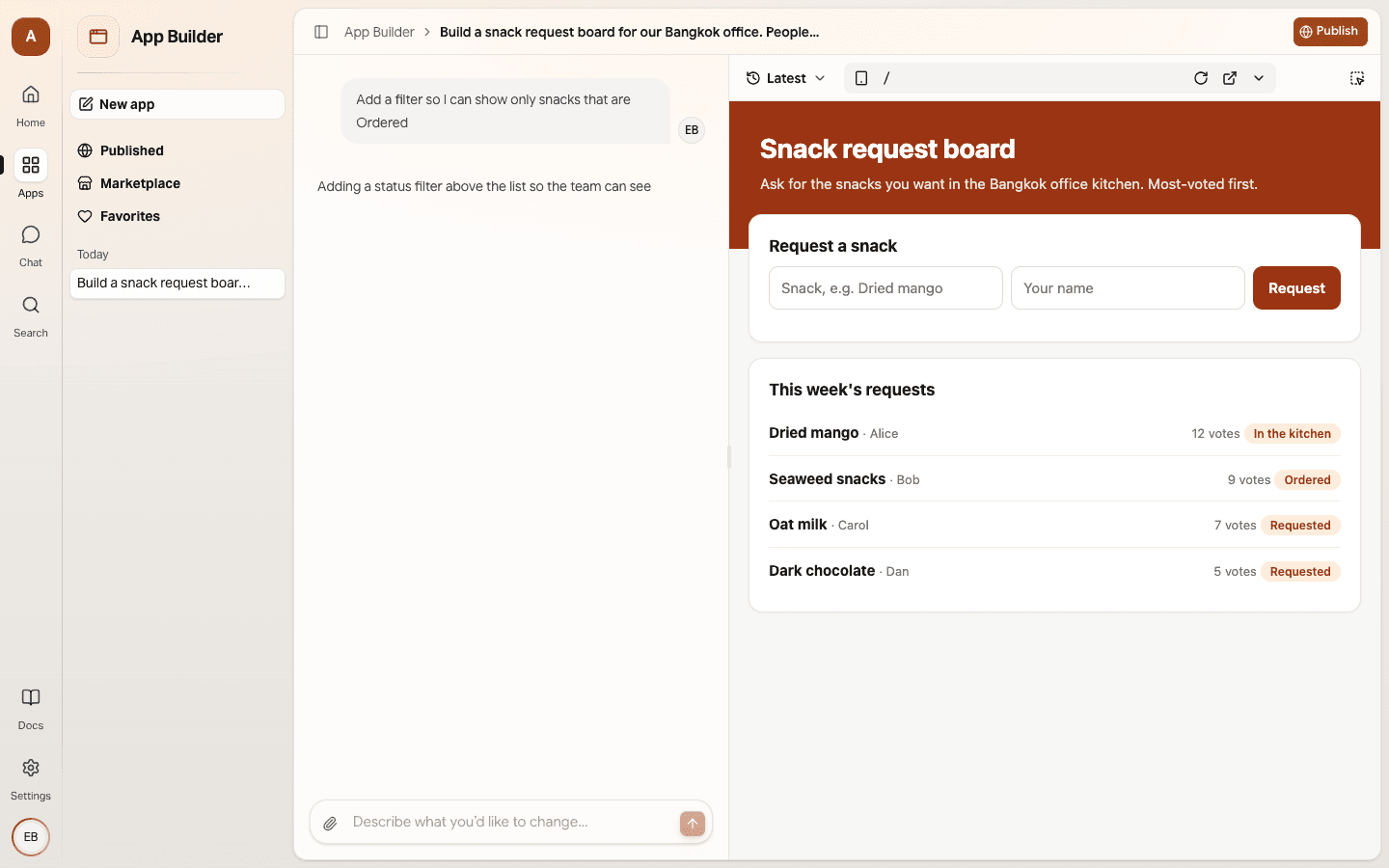
The text written so far stays in the chat, and the files the agent already changed stay changed. The next message starts a new reply.
If the agent does not confirm the stop, the chat says "The running turn did not confirm the stop. Try again." If App Builder cannot reach the server, it says "The agent didn’t confirm it stopped and may still be working. Try Stop again." Click stop again in either case.
When a reply fails
A reply that cannot finish shows Could not complete the reply with the reason, and a Retry button that sends the same message again. A spending limit shows its own title instead (see below).
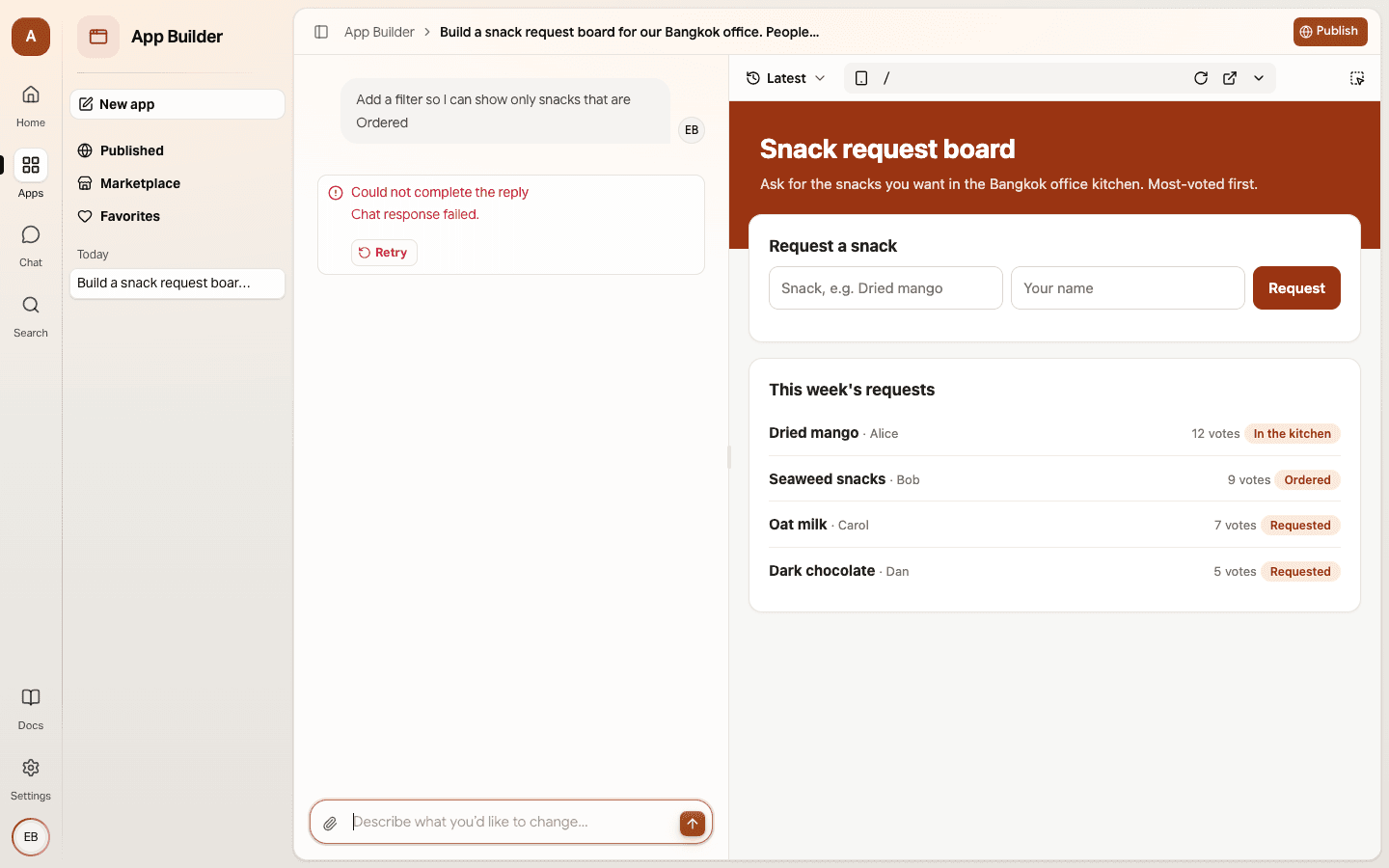
The usual reasons:
| Message | What to do |
|---|---|
| Workspace token limit reached, Your token limit reached or Group token limit reached (or … budget limit reached), with "Resets at {date, time} (Asia/Bangkok). Ask a workspace admin to change or pause the limit." | A usage limit ran out. Wait until it resets, or ask a workspace admin. See Usage limits. |
| "Chat response failed." | The model did not answer. Click Retry. |
Attach sketches and files
Click the paperclip in the composer to attach images, sketches or text files
such as .md, .csv, .json and .txt. You can also drop files onto the
chat.
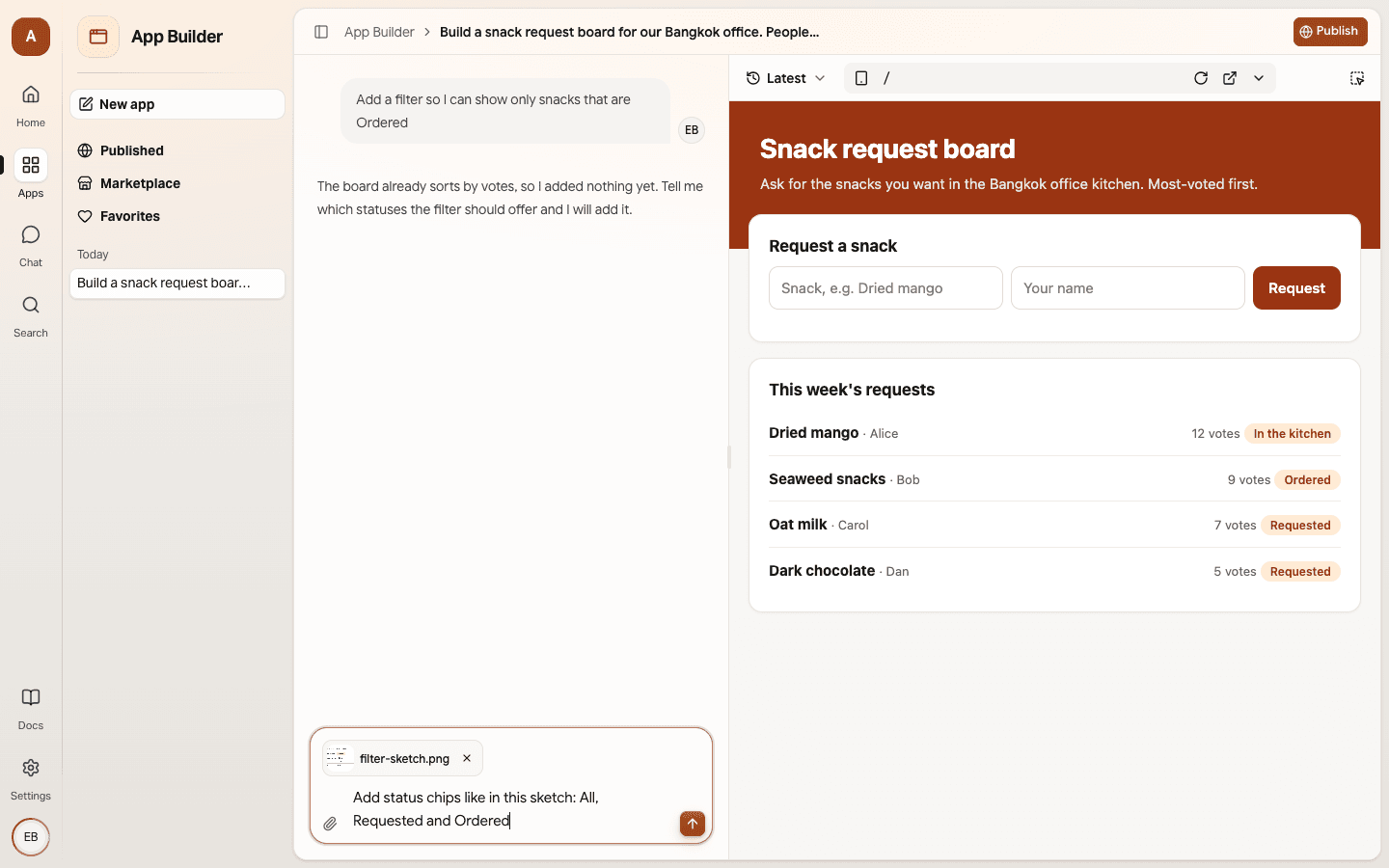
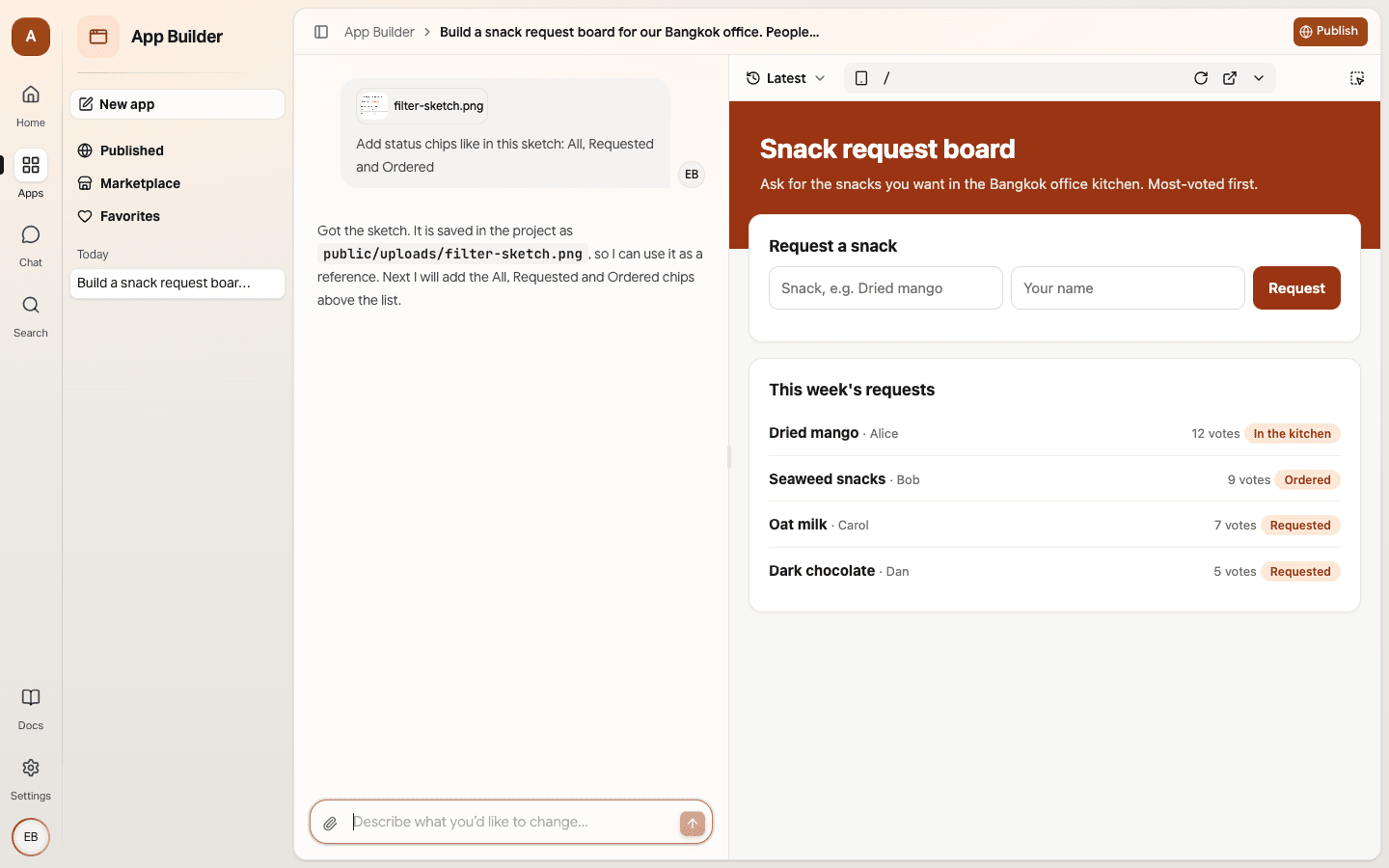
The agent sees the files with your message. It saves PNG, JPEG, GIF, WebP,
AVIF, SVG and ICO images into the project under public/uploads, so it can
use them in the app.
| Limit | Value |
|---|---|
| Files per message | 10 |
| Size of each file | about 5 MB |
A file the chat refuses shows a toast with the reason:
- "{file} is larger than 5 MB."
- "{file} isn't an image or text file."
- "Could not read {file}."
- "Attach up to 10 files per message."
To point at a part of the running app instead of describing it, use annotations.
Notes
- Your apps are private to you and to members who manage everyone's apps (workspace owners and admins by default; see Permissions). Other members see them only once you share or list them in the Marketplace.
- Each finished reply that changed files saves a version.
- The sidebar lists your own apps by the day you last used them.
Autofill
Hand a blank Word, Excel or PDF form to Autofill and get it back filled in from your workspace documents, with every answer traced to its source and yours to approve before you download it.
Preview your app
Run your app next to the chat, switch device sizes, start and stop its dev server, and point at what should change.