Answer feedback
Review the thumbs-up and thumbs-down ratings employees left on AI answers, filter them by rating, reason and date, and export them as CSV.
Every 👍 and 👎 someone leaves on an answer in chat lands here. Admin → Feedback is the workspace-wide review surface for those ratings: how many there are, how many were negative, which reasons people picked, and the exact question-and-answer pair behind each one.
Giving feedback is covered on the Chat page — this page is about reading it back. It is read-only: you can filter, copy and export, but you cannot edit or delete a rating.
Prerequisites
- The
feedback:readworkspace permission. Workspace owners and admins have it; other members can be granted it through a group. Without it the page shows "The feedback dashboard is restricted to admins and owners." - Some rated answers. Feedback only exists once people actually rate answers in chat, so a quiet workspace shows the empty state below.
Feedback records carry the rater's real name and email alongside the full question and answer text. Grant feedback:read as deliberately as you would conversation:read.
Read the dashboard
-
Open Admin from the top navigation, then choose Feedback under Usage in the admin sidebar.
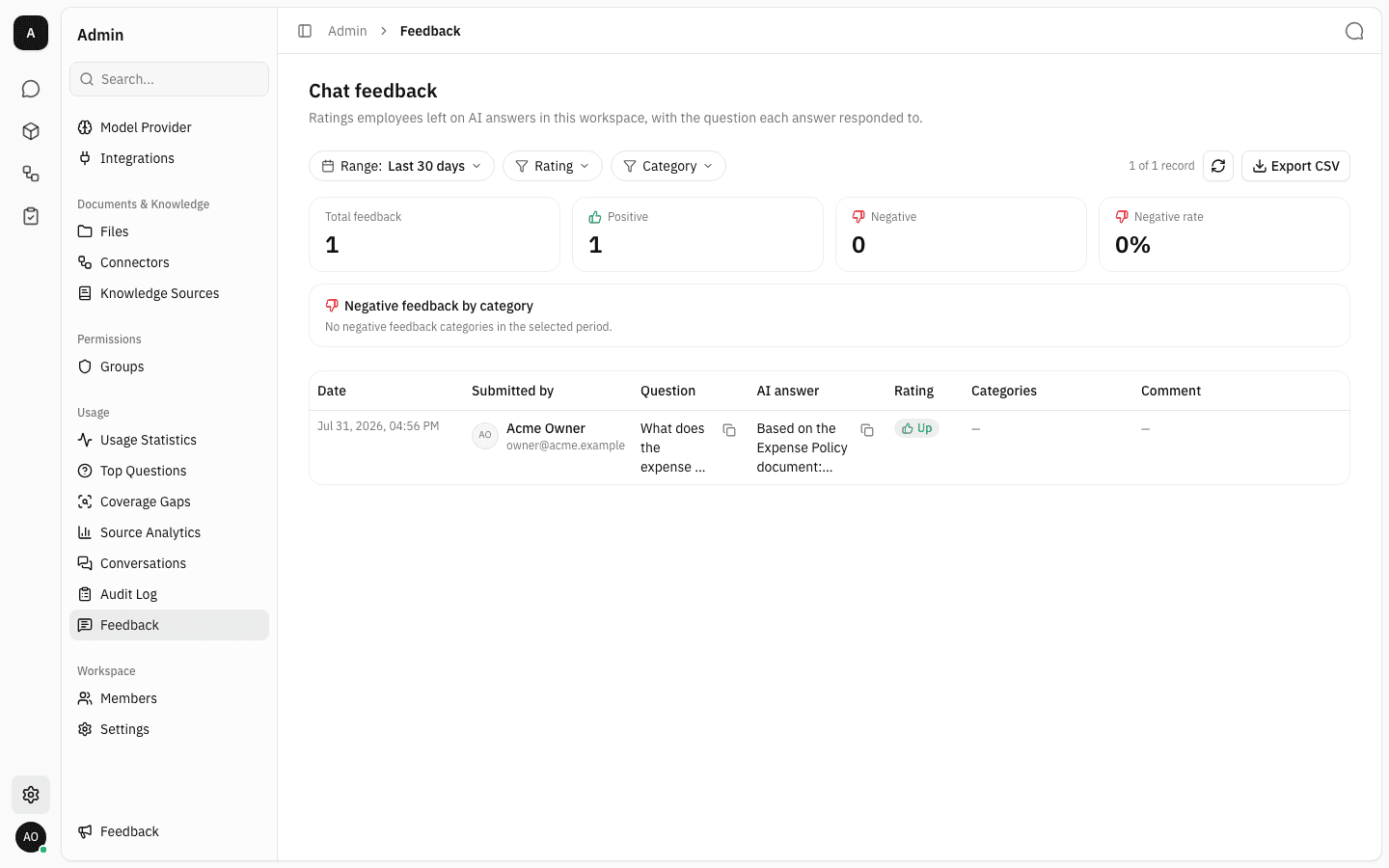
The page opens on the last 30 days. Four cards summarise the period — Total feedback, Positive, Negative and Negative rate (negatives as a share of all ratings) — followed by the Negative feedback by category breakdown and then the record table.
-
Each table row is one rating. Date is when it was submitted, Submitted by is who submitted it, Question and AI answer are the turn that was rated, Rating is Up or Down, Categories lists the reasons ticked on a thumbs-down, and Comment is whatever free text they added. Question and answer are clipped to three lines — hover the text to see the whole thing, or use the copy icon beside it to put the full text on your clipboard.
-
The counter above the table reads "1 of 1 record": how many rows are loaded against how many match the current filters. Longer lists load more as you scroll and offer a Load more button; the circular arrow refetches both the table and the summary cards.
Filter to what you are investigating
-
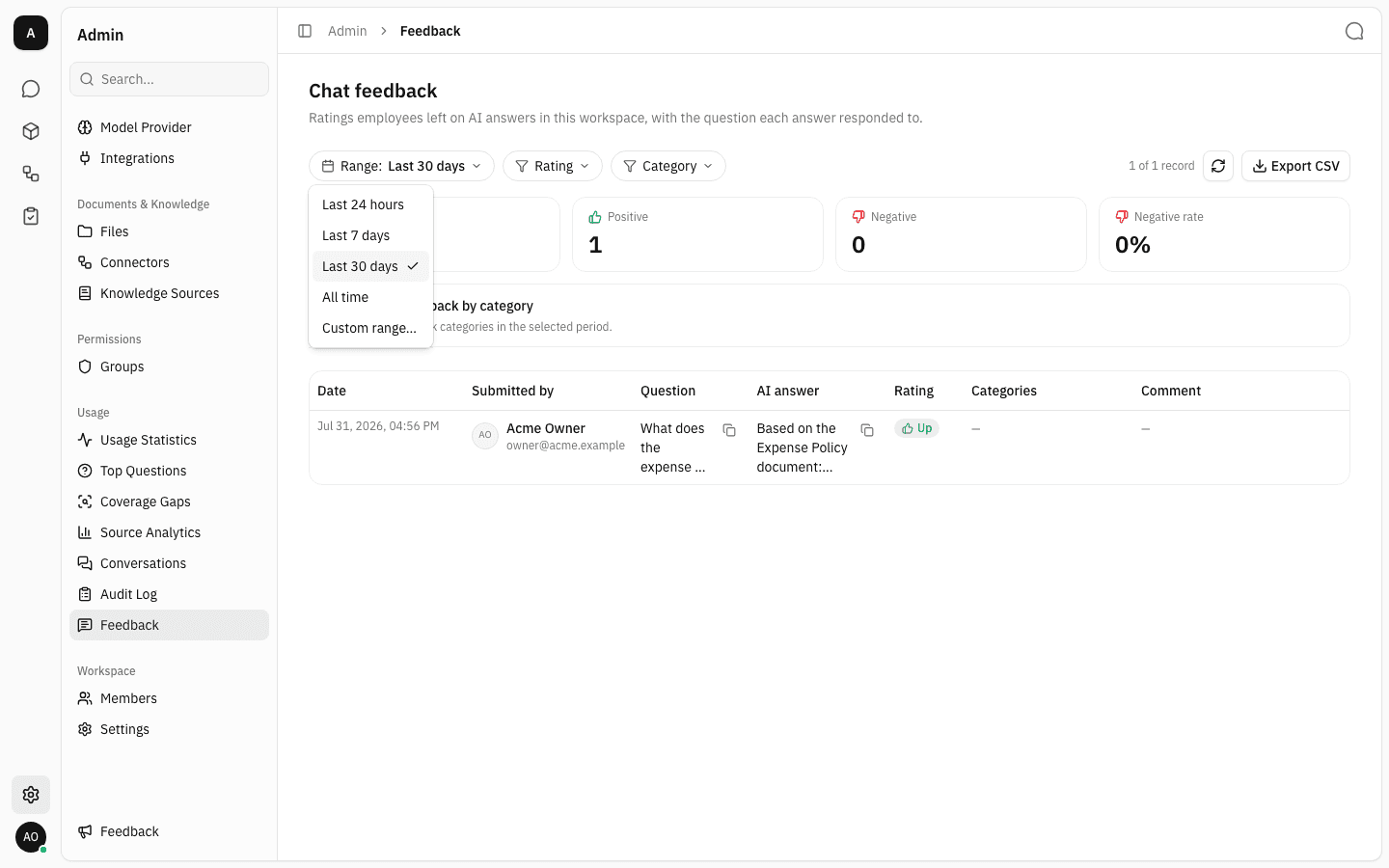
Range controls the period every number on the page is calculated over. The presets are Last 24 hours, Last 7 days, Last 30 days (the default) and All time.
-
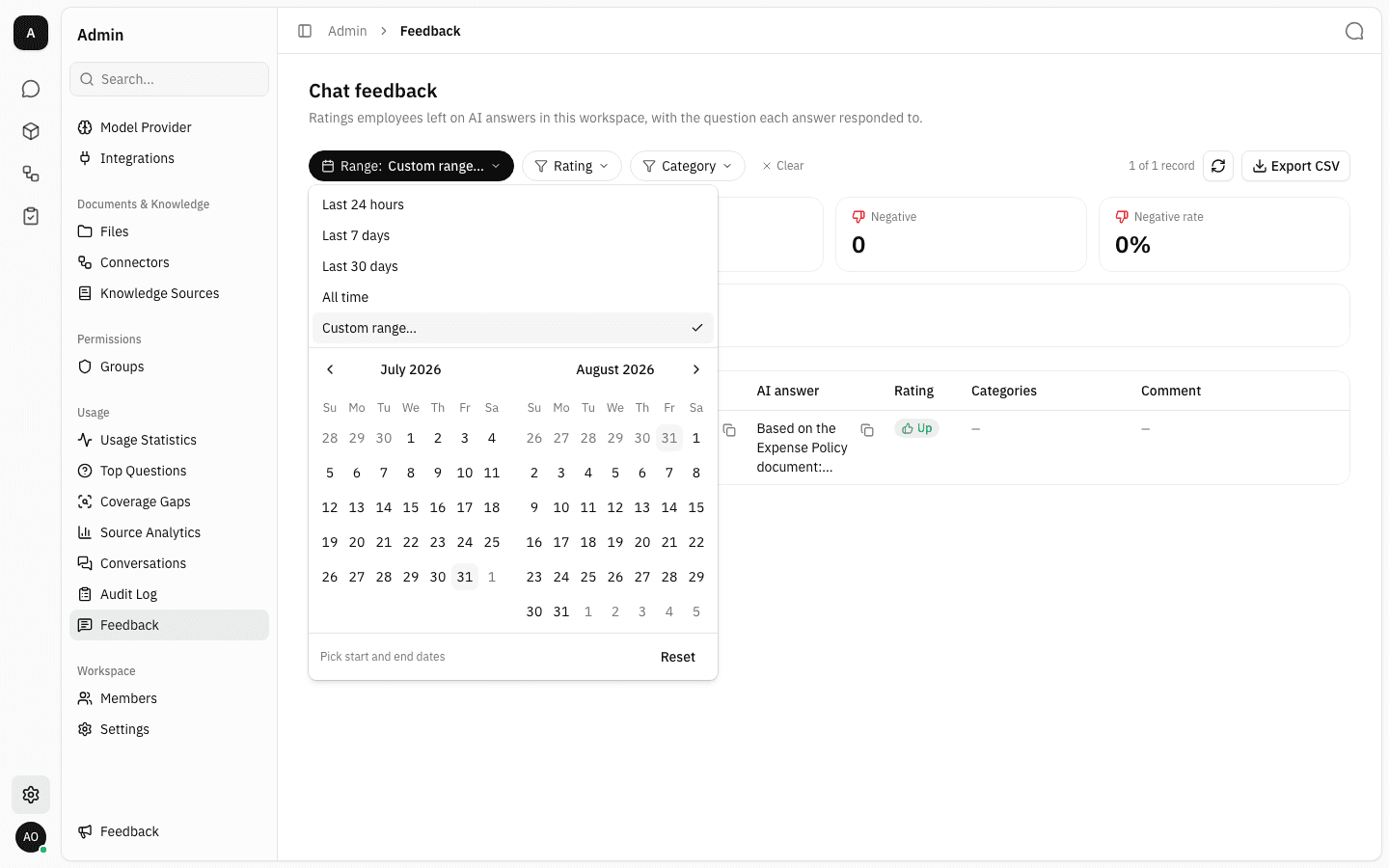
Custom range… opens a two-month calendar underneath the presets. Click a start date and then an end date; the whole of both days is included. Reset puts you back on Last 30 days.
-
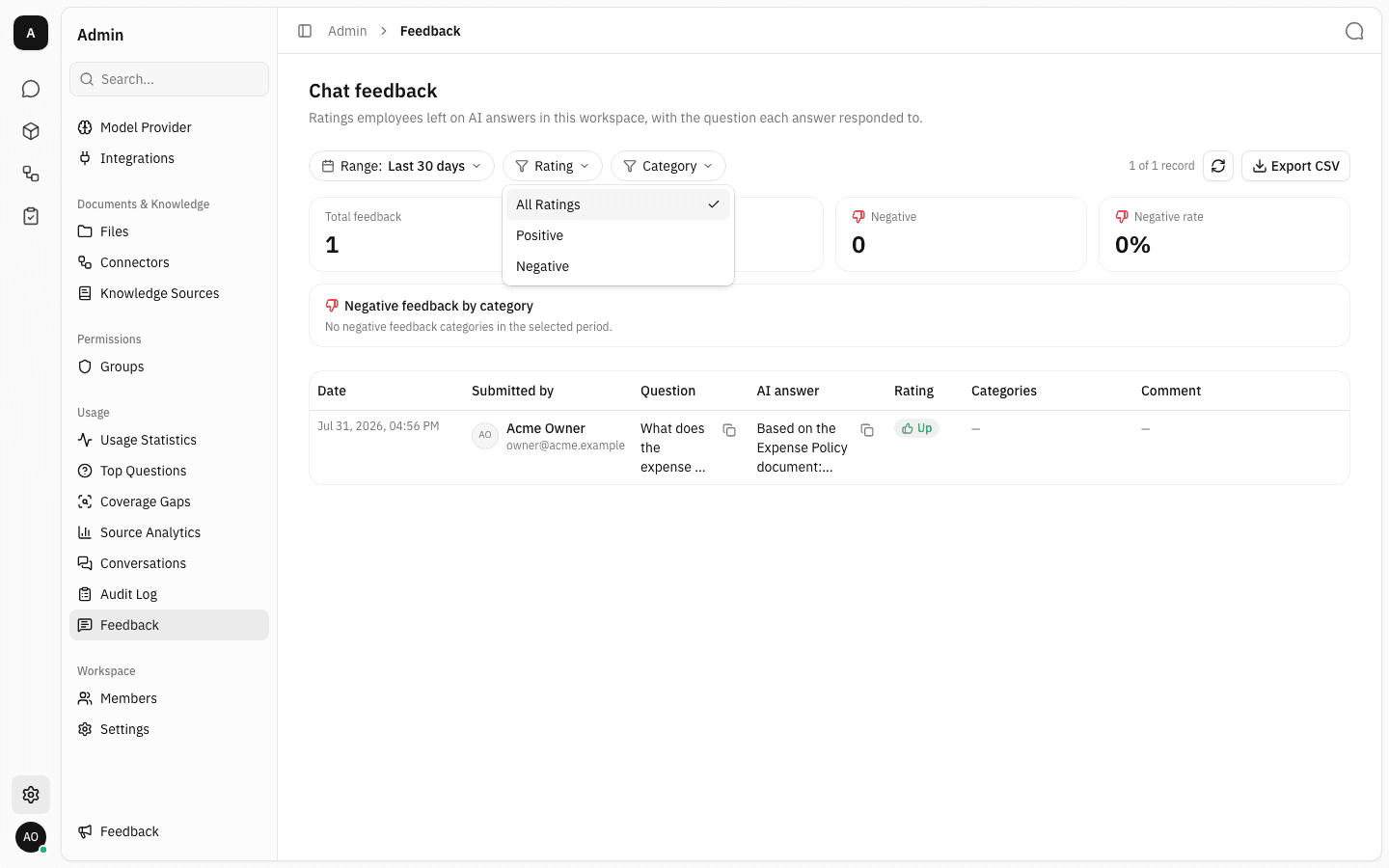
Rating narrows the table to Positive or Negative ratings only. All Ratings is the default.
-
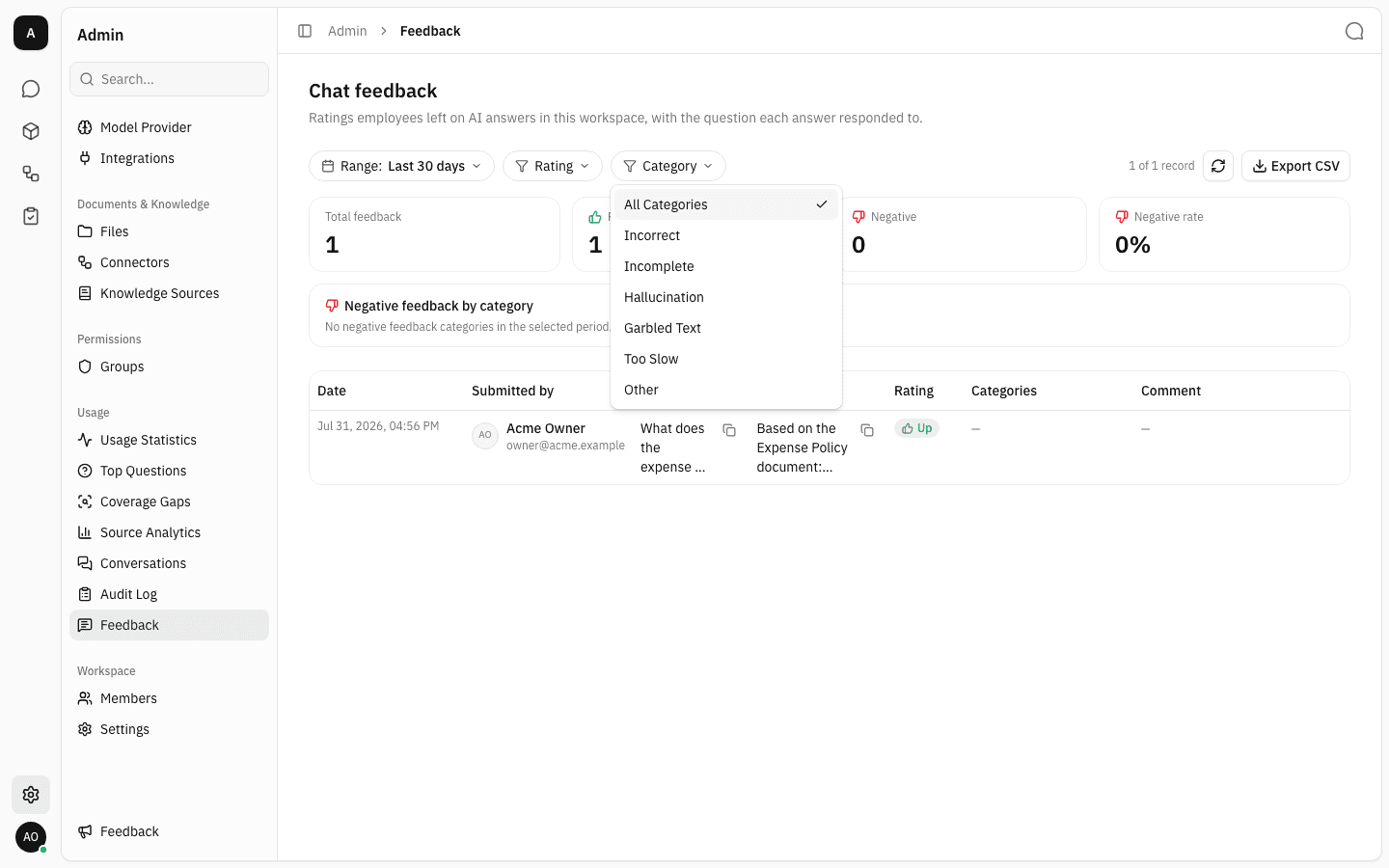
Category narrows to one thumbs-down reason: Incorrect, Incomplete, Hallucination, Garbled Text, Too Slow or Other. These are the same reasons the 👎 dialog offers in chat, and a single rating can carry several of them.
-
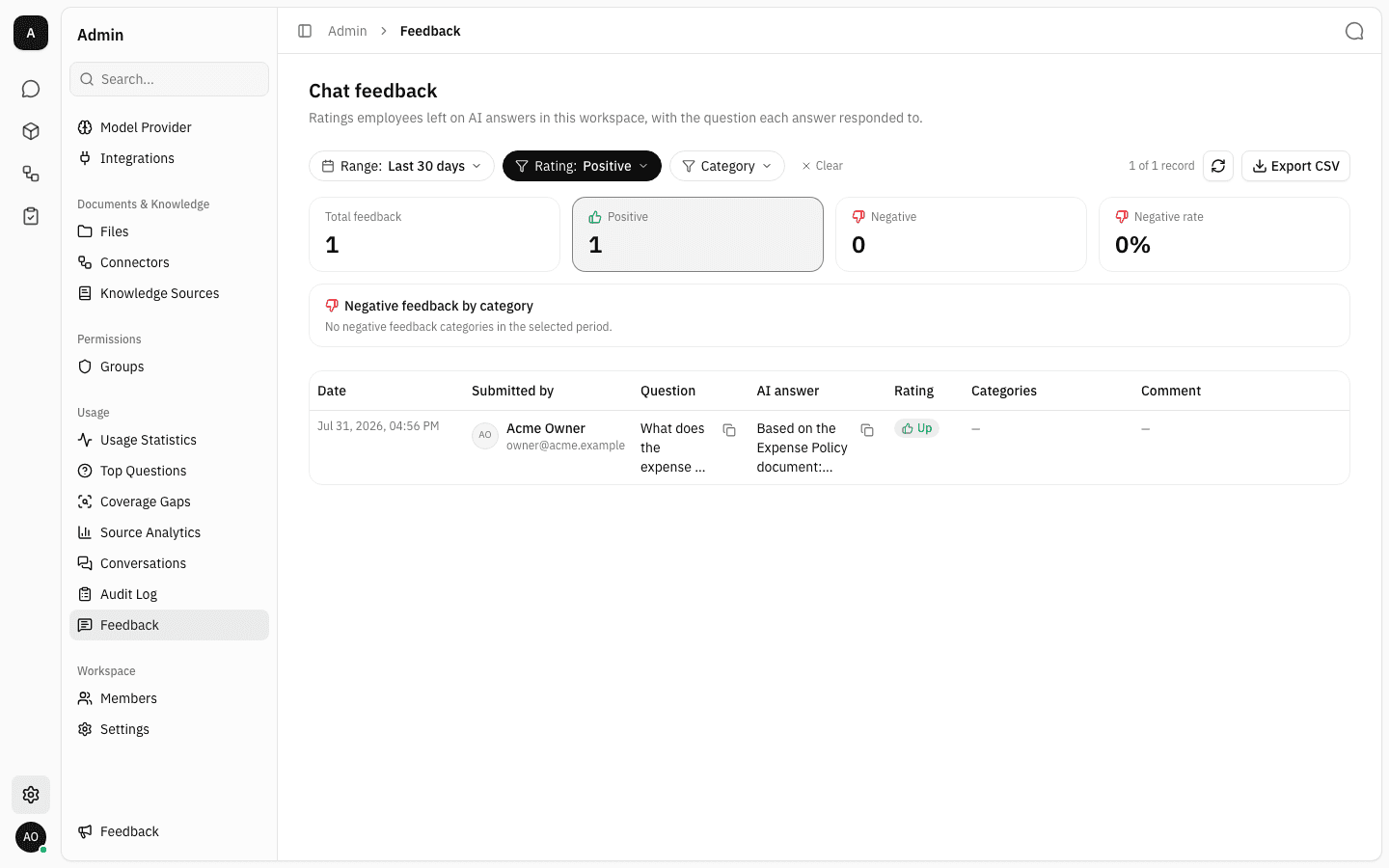
The Positive and Negative summary cards double as filters. Clicking one outlines it and sets the Rating chip to match; clicking it again clears it. A Clear button appears next to the chips whenever anything is off its default and resets range, rating and category in one go.
-
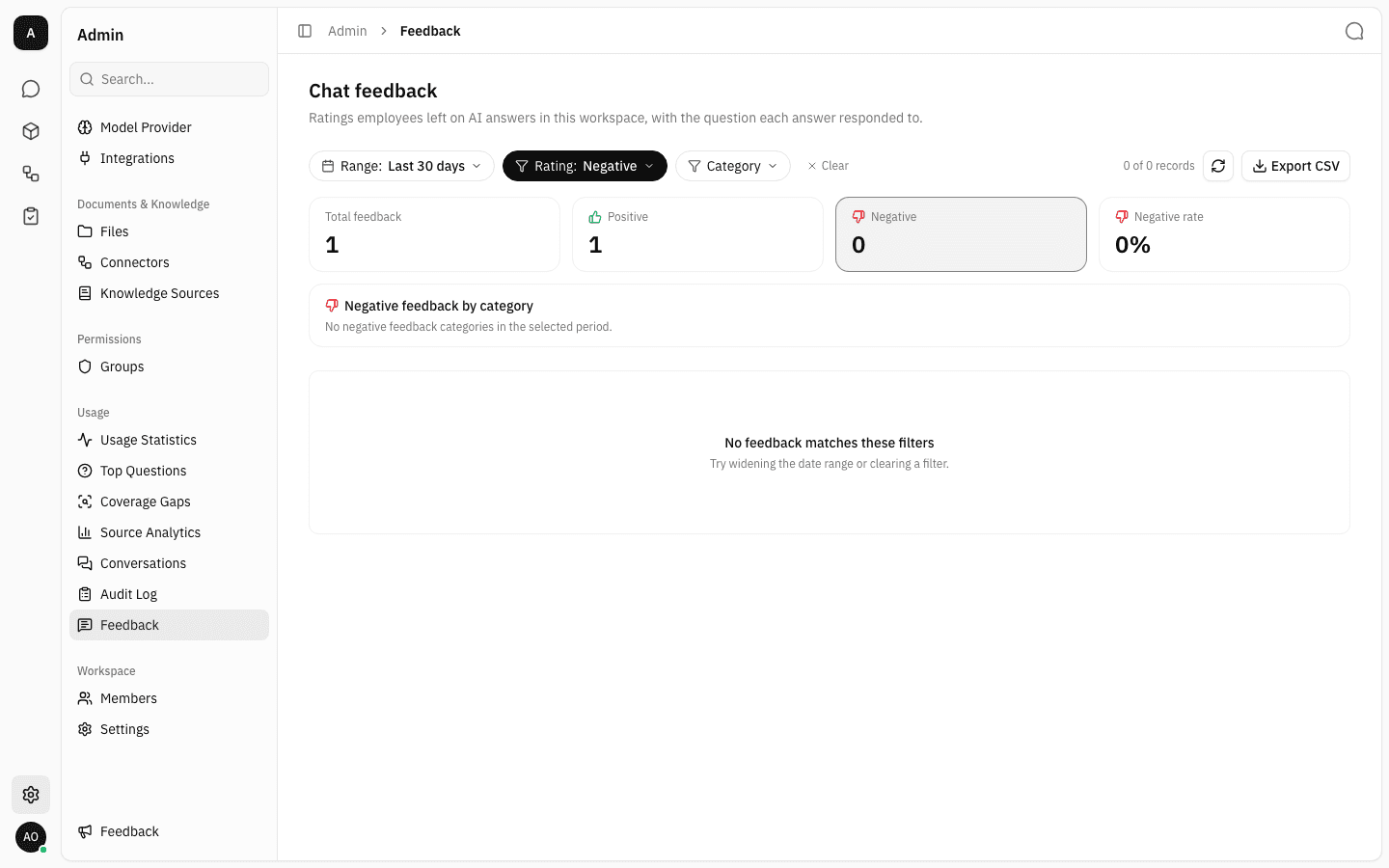
Filters combine, so it is easy to reach nothing — here the workspace has no negative ratings at all. The table then shows No feedback matches these filters with a nudge to widen the range or drop a filter, while the summary cards keep reporting the whole period.
Work through the negative reasons
The Negative feedback by category panel ranks the reasons behind the thumbs-down ratings in the selected period, each with a bar, a count and its share of all negative records. It is the fastest way to see whether a bad week was mostly wrong answers, mostly missing content, or mostly slowness.
Clicking a row filters the table to that reason and flips Rating to Negative, so you go straight from "hallucination is 40% of complaints" to the individual answers that caused it. Clicking the same row again clears the category.
When there are no negative ratings in the period — as in the screenshots above — the panel reads "No negative feedback categories in the selected period." instead.
Export to CSV
Export CSV downloads the records currently matching your filters, not the whole history — so if you have narrowed to Hallucination in the last 7 days, that is exactly what the file contains. The file is named feedback-YYYY-MM-DD.csv for the day you exported, and holds one row per rating with the columns date, user, user_email, user_id, question, answer, rating, categories and comment.
The export carries full question and answer text plus rater identity, so treat the file as workspace-confidential.
Notes
- This page counts ratings, not conversations. One thread can produce several ratings, and most answers are never rated at all — so these totals are a sample of opinion, not a measure of usage. For per-thread rollups and full transcripts use Conversations; for what people ask most, use Top Questions.
- Comments are optional on both sides. A 👍 can be submitted with no comment and a 👎 with no reasons ticked, which is why Categories and Comment often show
—. - Timestamps use one fixed time zone. Dates are rendered in the platform's time zone (Asia/Bangkok) rather than your browser's, and the range presets are counted back from the moment you opened the page or last changed the filter.
- Nothing here is editable. Ratings can only be changed by the person who left them, from the answer in chat.