Integrations
Connect a Slack workspace so the assistant can answer questions in Slack channels, threads and DMs using this workspace's knowledge.
An integration puts the assistant somewhere other than this app. Today there is one kind: Slack. Connecting a Slack workspace installs a bot that answers in channels, threads and direct messages, drawing on the same files, knowledge sources and connectors this workspace already uses — so people can ask a question without leaving Slack.
Integrations are workspace-wide, managed from Admin → Integrations.
Connecting Slack finishes on Slack's own website, in an authorization screen that belongs to Slack rather than to this app. The screenshots below stop at that hand-off — everything from the Slack authorization screen onwards is described in prose only.
Prerequisites
- Workspace admin or owner. Managing integrations needs the
slack:managepermission — without it the page reads Only admins and owners can manage integrations. This permission comes with the admin and owner roles; it is not one of the toggles a workspace group can grant, so a plain member cannot be given it through a group. - Your deployment must be registered as a Slack app, and the server configured with that app's credentials. Without them the connect button stops with a "Slack integration is not configured" message (see below). This is a one-time setup done by whoever operates the deployment, not something you can do from this page.
- On the Slack side you need permission to install apps into the Slack workspace you are connecting.
Open the Integrations page
-
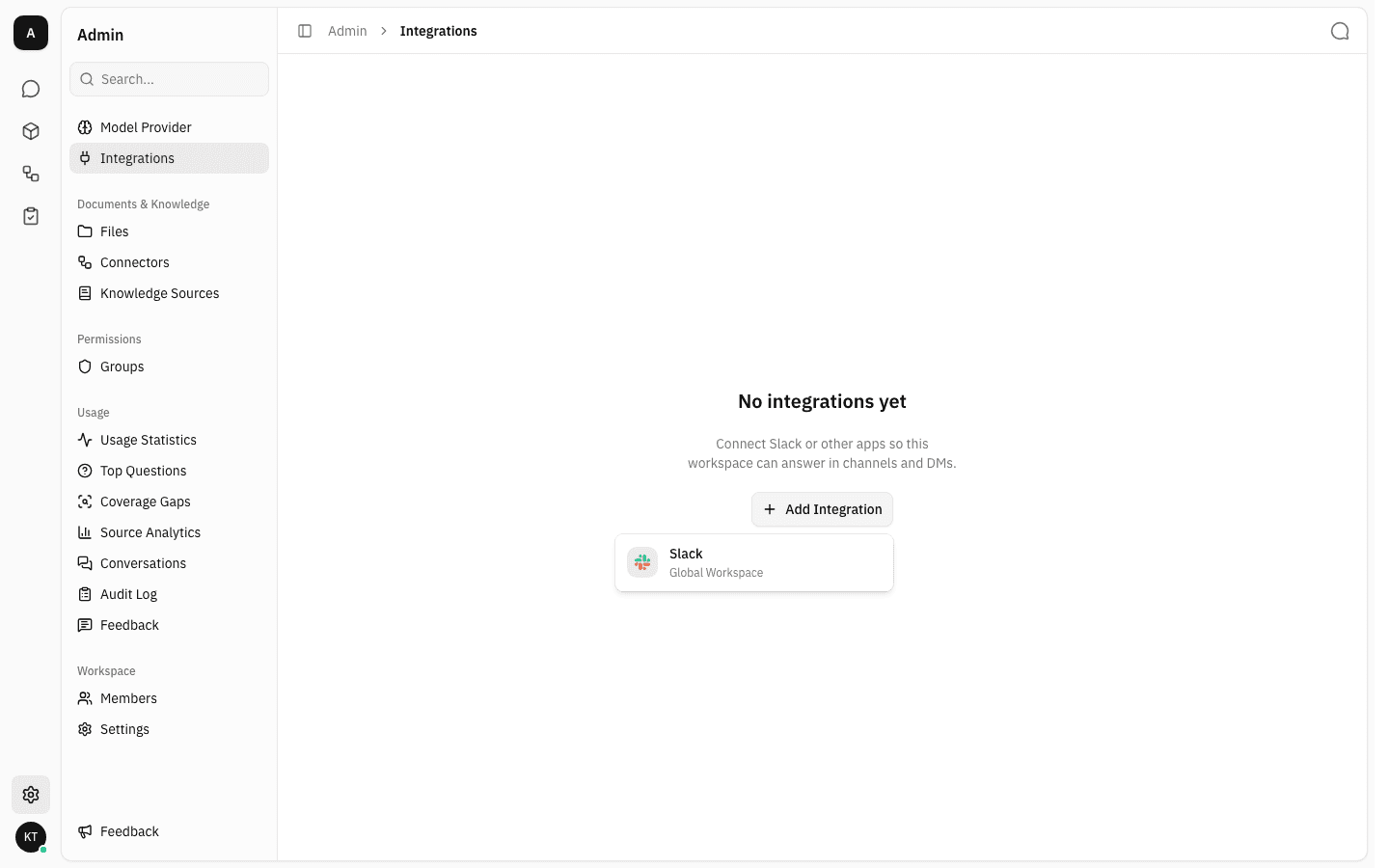
In the sidebar, open Admin, then Integrations — it sits at the top of the admin menu, next to Model Provider. A workspace with nothing connected shows an empty state: No integrations yet, with a single Add Integration button.

The older
/admin/slack-workspacesaddress still works — it redirects here, so old bookmarks and links keep working.
Connect a Slack workspace
-
Choose Add Integration. The menu lists the integration kinds available; right now that is Slack, labelled Global Workspace — meaning the bot is installed once for an entire Slack workspace rather than per channel.
-
Choose Slack. This leaves the app and hands you over to Slack's own authorization screen — the standard "… is requesting permission to access your Slack workspace" page, with a workspace picker at the top right and an Allow button at the bottom.
This is where the screenshots stop. The remaining steps happen on
slack.com, under your Slack account:- Pick the Slack workspace you want the assistant to join.
- Review the permissions the app asks for. It requests read access to mentions, channel/group/DM history and the user directory, and permission to post messages — enough to see a question addressed to it and reply.
- Choose Allow.
Slack then sends you back to this Integrations page. On success a Slack workspace connected confirmation appears and the Slack workspace shows up under a Connected integrations heading as a card carrying its team name, its Slack team ID, a masked hint of the stored bot token, and the date it was installed.
-
If your deployment has not been set up with Slack app credentials yet, step 2 never reaches Slack. Instead the browser lands on a bare page reading Slack integration is not configured. Nothing is created, and going back to the Integrations page leaves it unchanged. Ask whoever operates the deployment to register the Slack app and add its credentials, then try again.

-
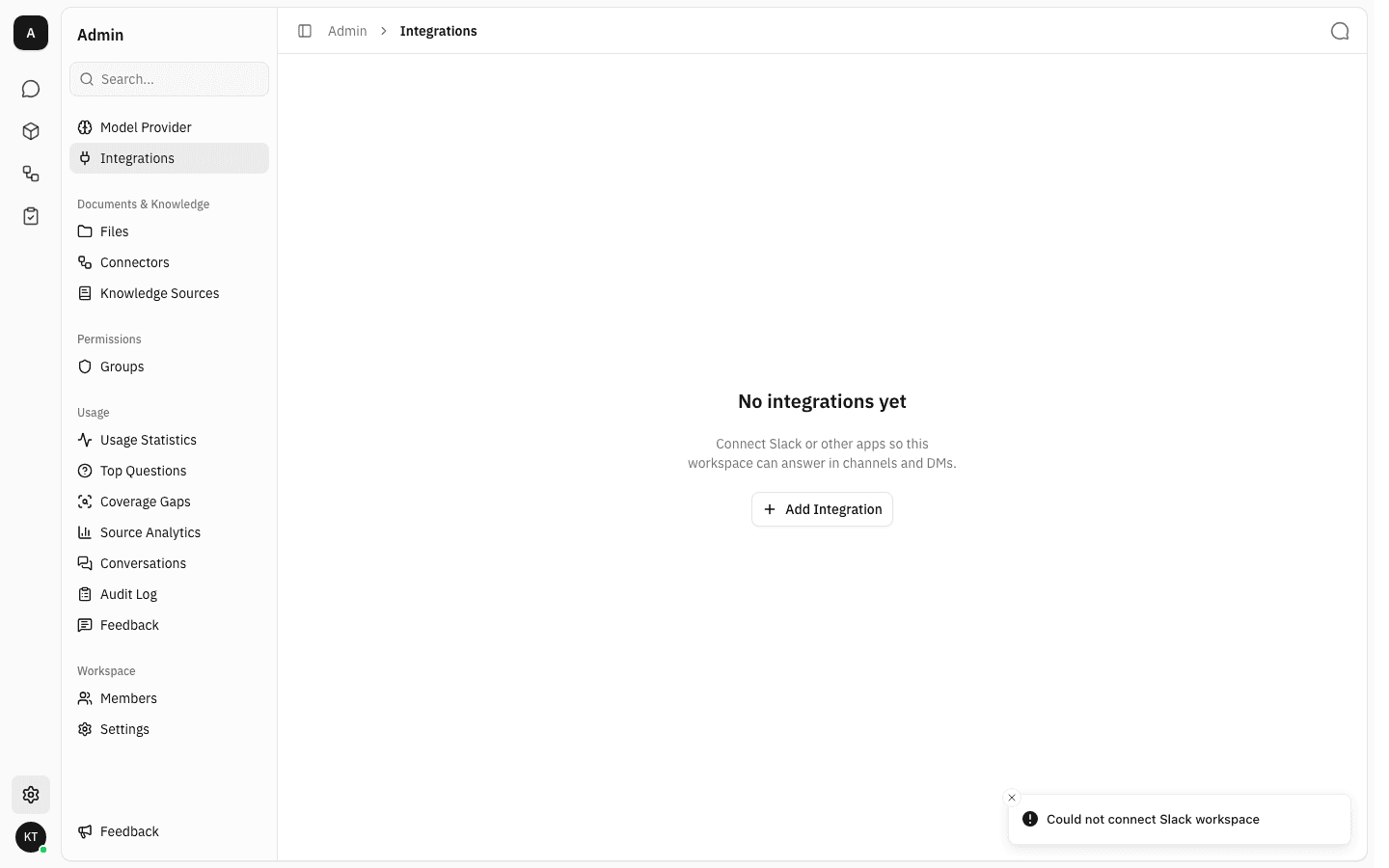
If the hand-off starts but does not complete — you cancel on Slack's screen, the authorization expires, or Slack rejects the exchange — you are returned to the Integrations page with Could not connect Slack workspace. Nothing is saved; start again from Add Integration.
Use the assistant in Slack
Once a Slack workspace is connected, no further setup is needed in this app. In Slack:
- In a channel, invite the bot to the channel and
@mentionit with your question. It replies in a thread, so follow-up messages in that thread keep the same conversation. - In a direct message, just message the bot — no mention needed.
- While it works it posts a short placeholder ("Thinking…", "Searching your knowledge…") which is replaced by the answer.
- Each answer carries 👍 / 👎 buttons. Ratings given in Slack land in the same place as ratings given in the app, under Admin → Feedback.
The bot answers with the permissions of the admin who installed it, against the workspace the Slack workspace is linked to — so it can reach whatever that workspace's files, knowledge sources and connectors expose.
Remove a Slack workspace
- On the connected integration's card, choose Remove. A confirmation asks you to confirm: it explains that this uninstalls the bot from that Slack workspace and scrubs the stored bot token, that the bot stops answering there, and that it cannot be undone.
- Confirm with Remove. The card disappears and a Slack workspace removed confirmation appears. With the last integration gone the page returns to the No integrations yet empty state.
To reconnect afterwards, run Add Integration → Slack again — it is a fresh install and a fresh authorization on Slack's side.
Notes
- Only admins and owners see this page at all. Everyone else gets an access message instead, and there is no way to delegate it through a workspace group.
- A Slack workspace is linked to exactly one workspace here at a time. Installing the same Slack workspace again replaces the existing link rather than creating a second card — the most recent install wins, even if it was started from a different workspace.
- The bot token is stored encrypted and is never shown in full — the card only ever displays a short masked hint of it.
- Removing an integration is immediate and permanent: the token is scrubbed, not archived.