Top questions
See the topics your workspace asks about most — chat questions grouped into themes by an analysis model, recomputed nightly for the current week, month or quarter.
Admin → Top Questions turns raw chat history into a shortlist of themes. It takes the opening question of every conversation in the workspace for the chosen period, groups the similar ones together with an analysis model, and shows the resulting clusters biggest-first — so you can see what people keep asking about without reading every transcript.
It is a precomputed report, not a live query: nothing appears until a computation has run. Once one has, each cluster expands into the questions behind it, and each of those opens the full transcript. For browsing and filtering individual conversations, use Conversations; for the questions the assistant could not answer, use Coverage gaps; for volume and adoption numbers, use Usage statistics.
Prerequisites
- The
workspace:read_usagepermission — listed as Read usage & top questions when you build a group. Workspace owners and admins have it; other members need it granted through a group. Without it the page shows "Top Questions is restricted to admins and owners." - The
conversation:readpermission, if you want to click a question through to its transcript. It is optional — without it the sample questions are still listed, just not clickable, and a note reads "Conversations access is required to open transcripts." - An analysis model configured by whoever runs the platform. This is a server-side setting, separate from the model provider that powers chat, and there is no screen for it — an operator sets it in the worker's environment. Until they do, every period reports Analysis model not configured.
- Real chat activity: at least 10 distinct questions inside the selected period. Duplicates do not help — ten people asking the same thing counts as one question.
Read the report
-
Open Admin from the left navigation, then choose Top Questions under Usage in the admin sidebar.
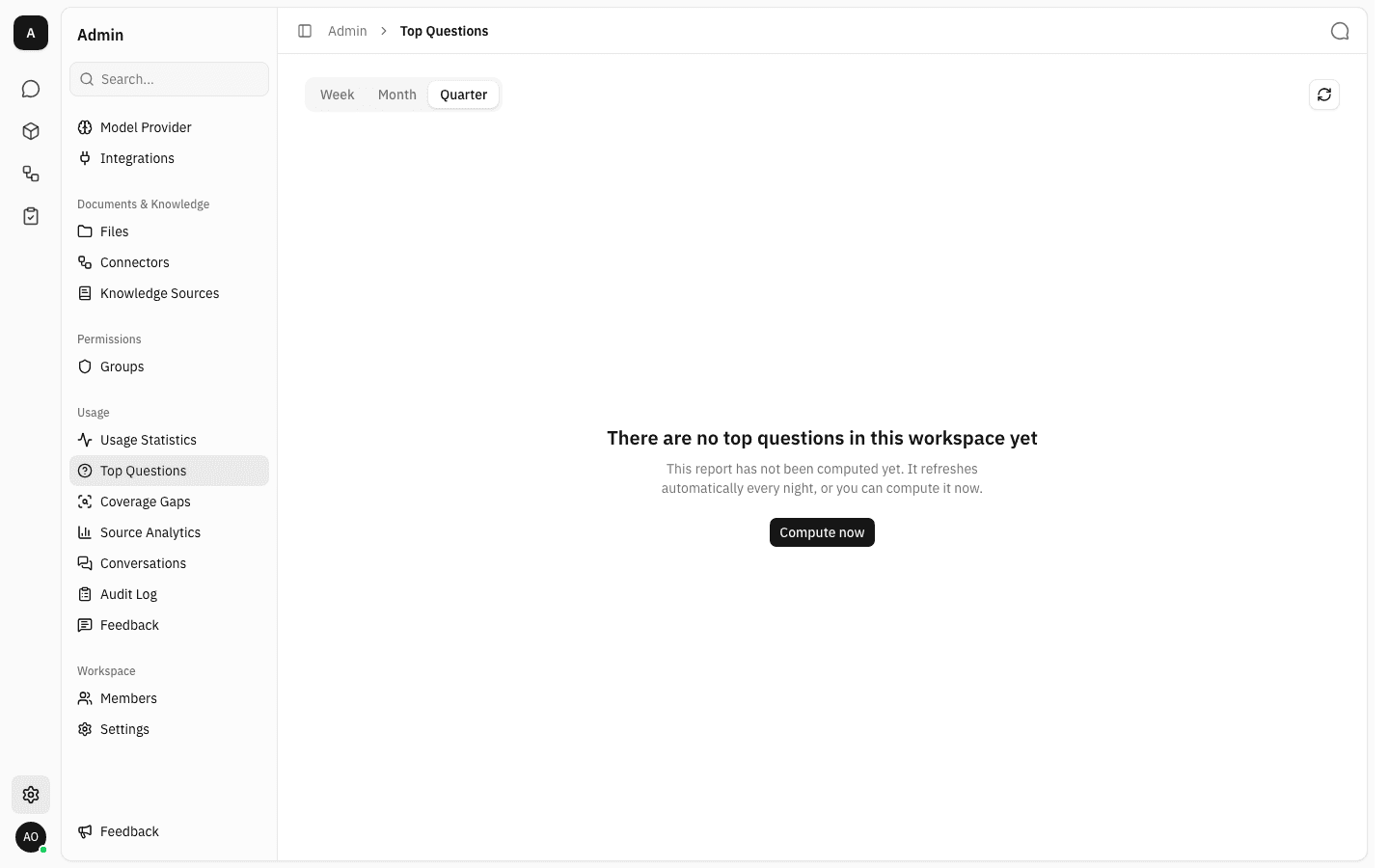
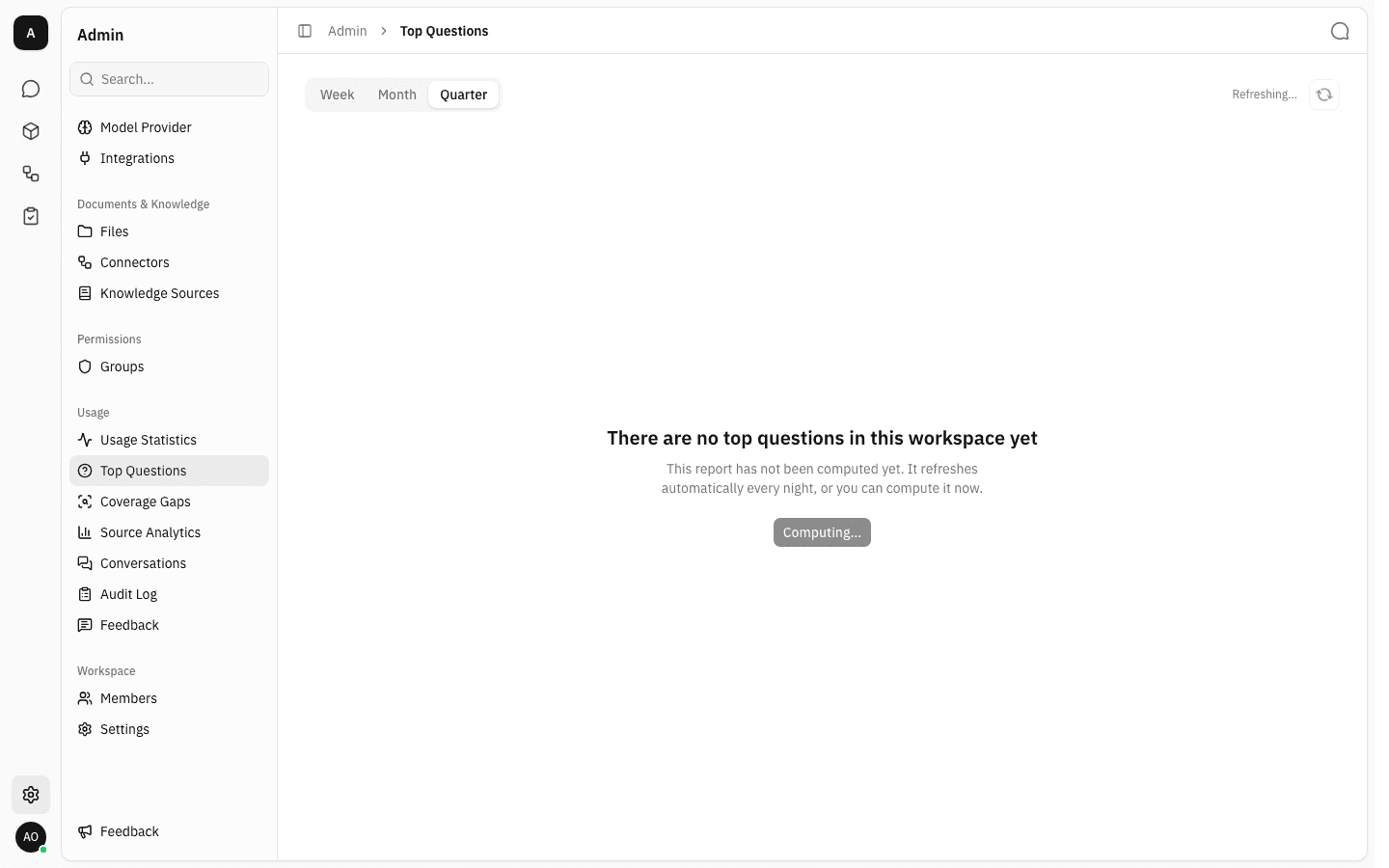
A period that has never been computed shows There are no top questions in this workspace yet with the explanation "This report has not been computed yet. It refreshes automatically every night, or you can compute it now." The three period tabs and the refresh button in the top-right corner are still active, and the refresh caption is blank because nothing has been computed.
-
Week, Month and Quarter are three separate reports, each stored and computed on its own. They are calendar periods, not rolling windows: Week starts on Monday, Month on the 1st, and Quarter on 1 January, 1 April, 1 July or 1 October — all running up to right now. Switching tabs changes the
periodin the page address, so a particular period can be linked to or bookmarked.Because each period is stored independently, one tab can hold a full report while another is still empty or still showing an older outcome. Recomputing one tab never touches the others.
-
A computed report opens with an Overview heading, the caption Computed <time> ago beside the refresh button, and two stat cards: Conversations processed — the number of distinct questions that went into the grouping — and Clusters identified. Below them, Question clusters lists every theme the model found, sorted biggest-first. Each row carries a topic name, an N conversations badge and a one-line description of what the topic covers.
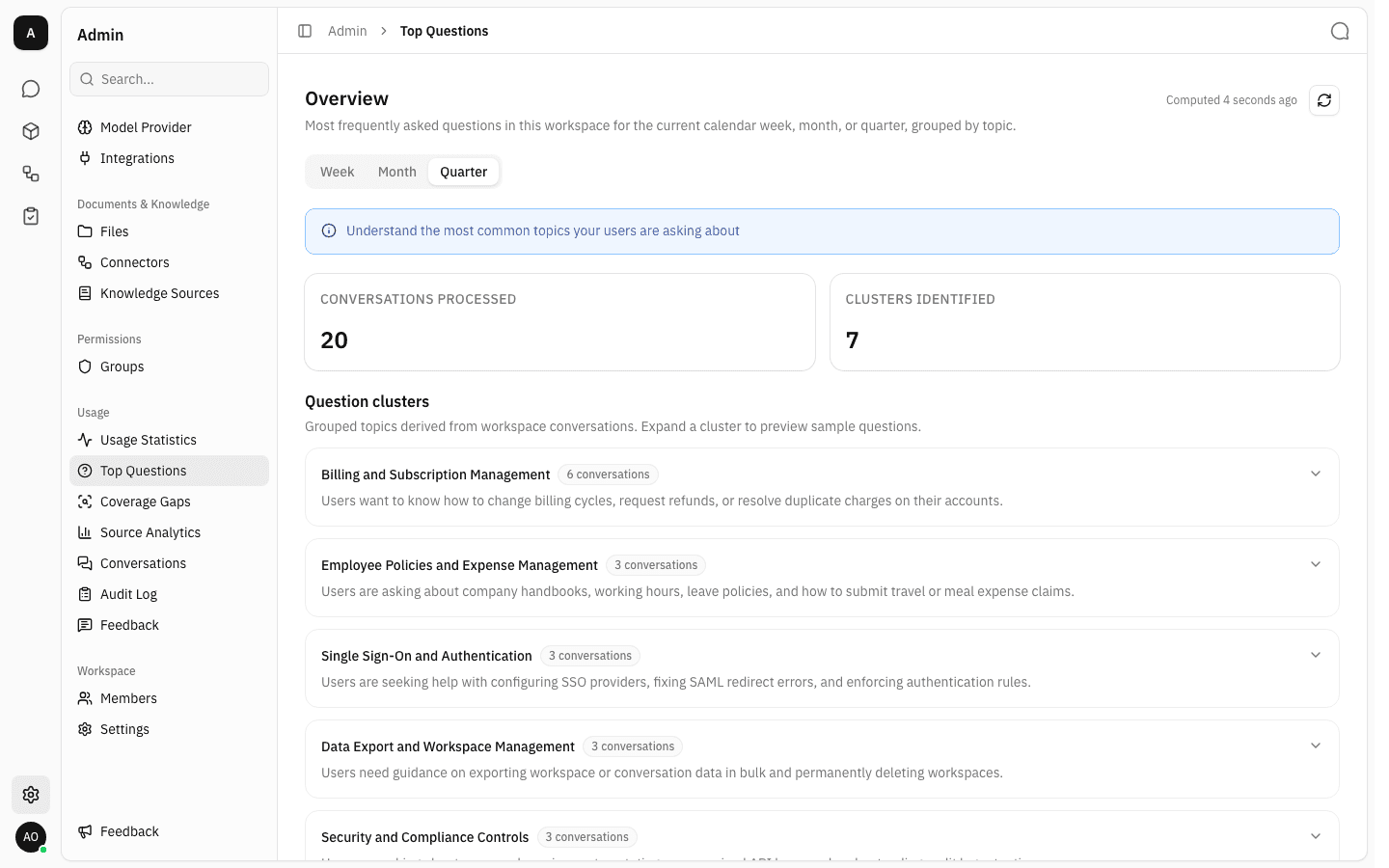
The names and descriptions are written by the analysis model, not chosen from a fixed list — they describe whatever your workspace happened to ask about.
-
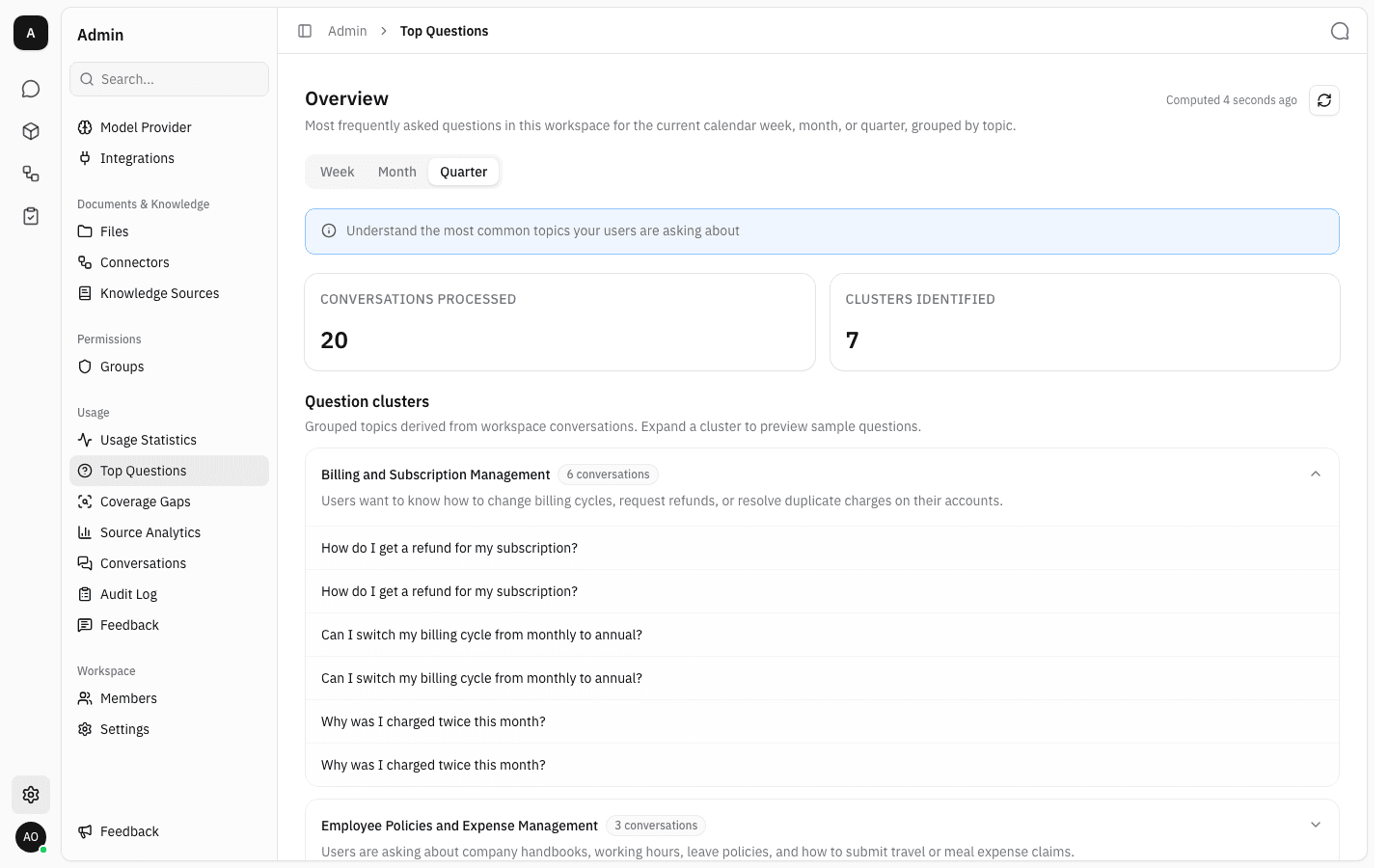
Click a cluster row to expand it and see the individual conversations inside. One cluster is open at a time; opening another closes the first.
The rows are conversations, not unique wordings, so a question two people asked separately appears twice — each row opens its own transcript. If a cluster holds more conversations than were stored as samples, a line at the bottom reads "Showing X of Y sampled conversations."
-
With
conversation:read, click any sample question to open that conversation in the Conversation Detail side panel — the same panel used on the Conversations page, with the participant, feedback rating, start and last-activity times, the full transcript, and a Comments tab. Close it with the ✕ in the corner to return to the cluster list, which stays expanded where you left it.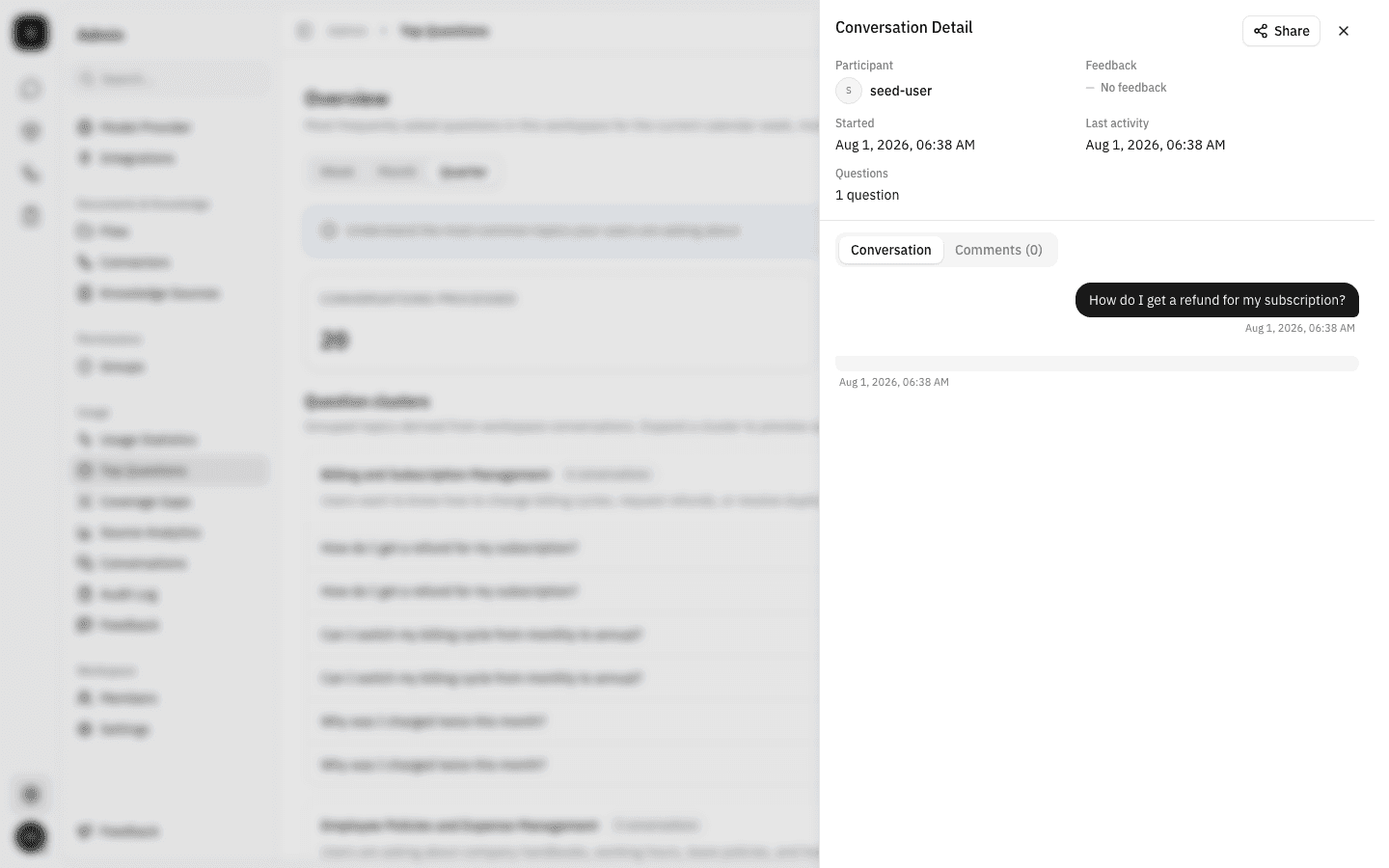
Compute a report
-
The report refreshes by itself once a night for every workspace that has had chat activity in the last hundred days, so in normal use you never have to press anything. When you do want it sooner — you have just seeded a batch of conversations, say — press Compute now on the empty state, or the circular refresh button in the top-right corner of a report that already exists.
-
The request is queued rather than run in the browser. The button changes to Computing…, the caption beside the refresh button reads Refreshing…, and the page polls in the background until the result arrives. You can leave the page and come back; the work continues. Only the period whose tab you are on is recomputed.
-
How long it takes depends on how much the analysis model has to read — grouping twenty questions took well under a minute. When it finishes, the caption changes to Computed <time> ago and the body shows either the clusters or the reason there are none.
-
Pressing Compute now repeatedly does nothing extra. A refresh that is already in flight is reused for up to ten minutes, and duplicate requests for the same workspace and period are collapsed into one job.
What the other outcomes look like
A computation that produces no clusters keeps the same centred layout — heading, explanation, and sometimes a button. The wording tells you which case you are in:
-
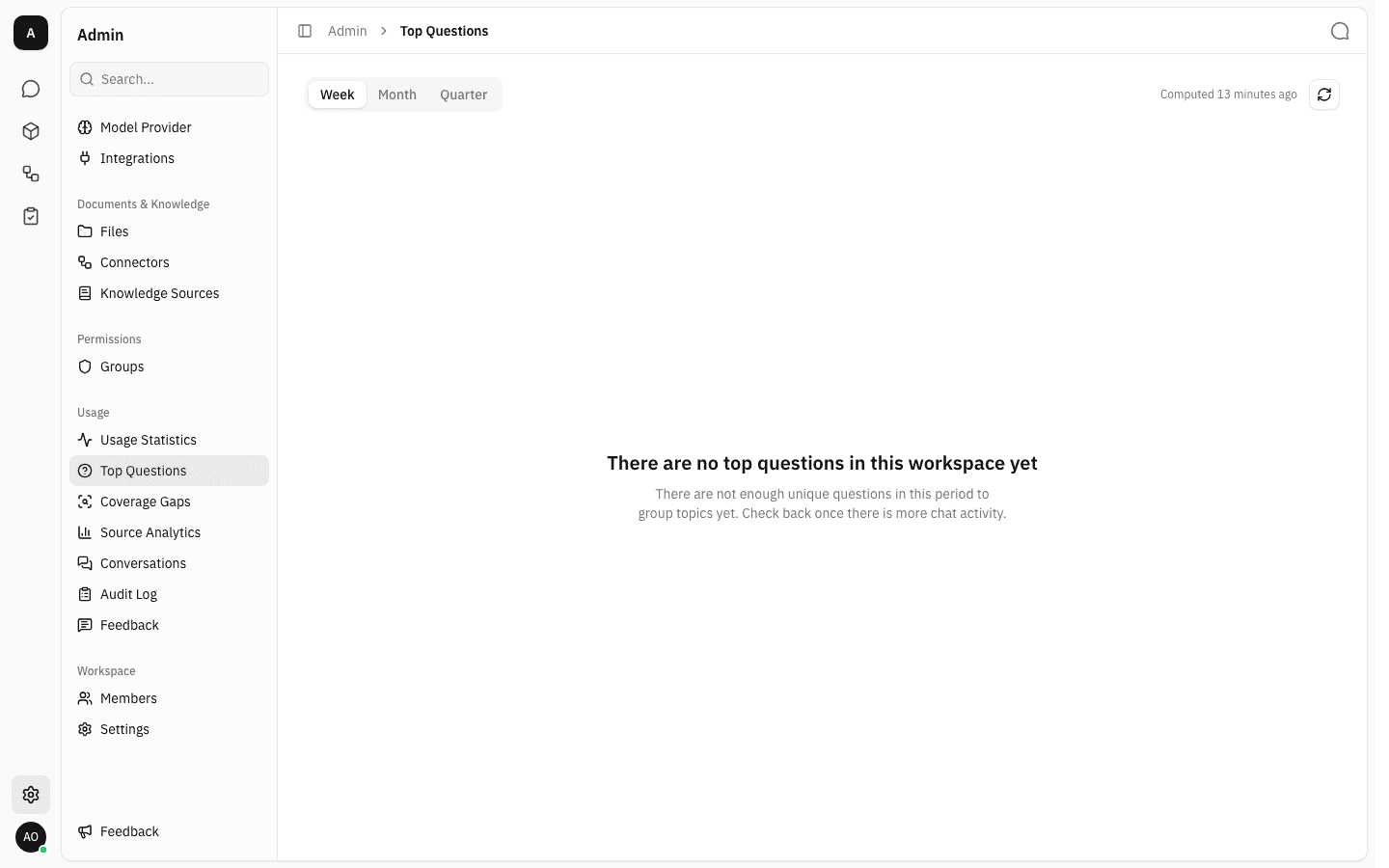
There are no top questions in this workspace yet / "There are not enough unique questions in this period to group topics yet. Check back once there is more chat activity." — the report ran, but fewer than ten distinct questions were asked in the period. This is the most common outcome early in a week, when the Quarter tab may already be full.
-
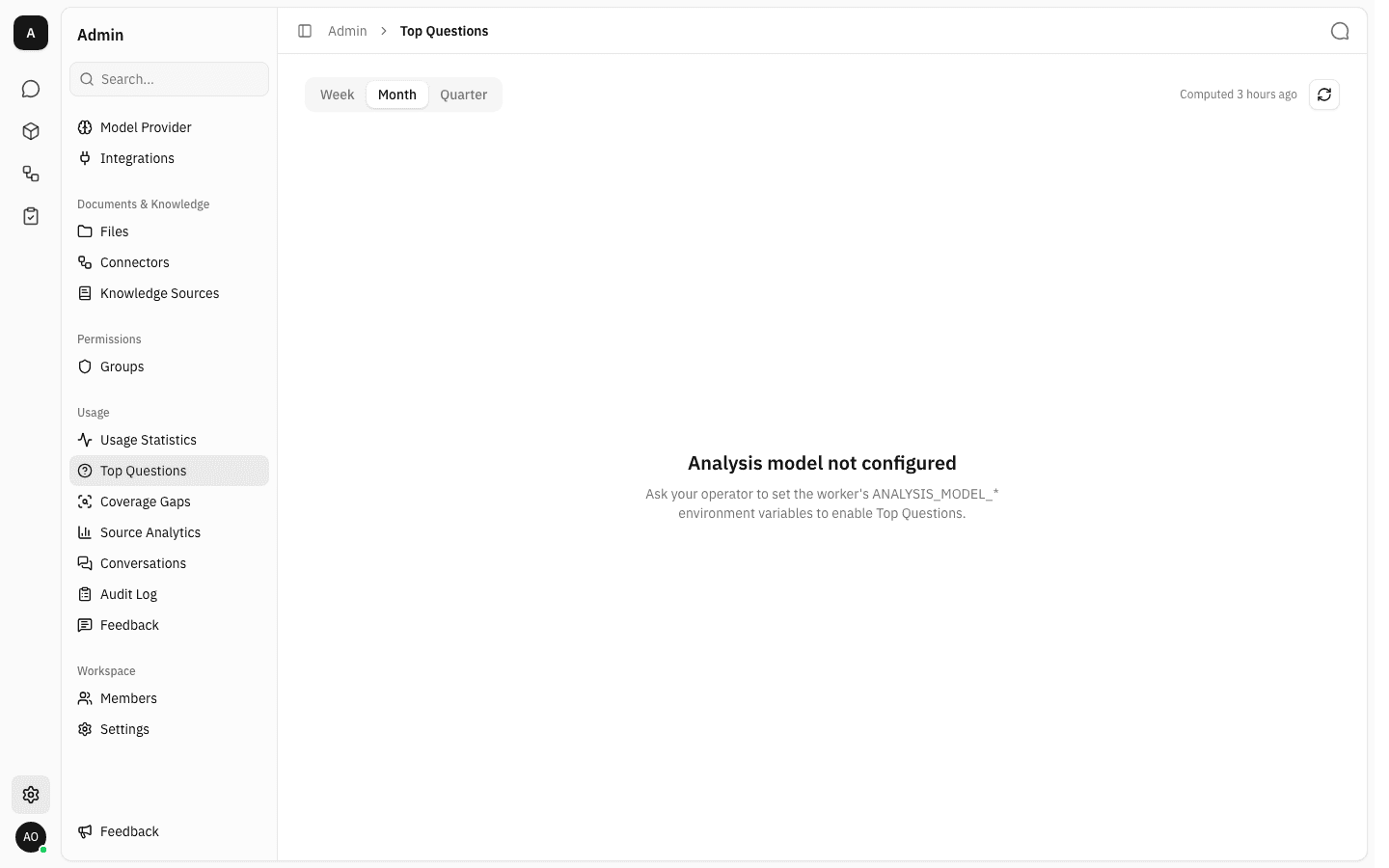
Analysis model not configured / "Ask your operator to set the worker's ANALYSIS_MODEL_* environment variables to enable Top Questions." — no analysis model has been set up on the server. There is nothing an admin can do about this from inside the app; it needs a change on the server. Note that this verdict is stored, so a period keeps saying it until that period is recomputed — even after an operator has fixed the configuration and other periods are producing clusters.
-
Computation failed / "The last computation failed and no earlier results exist for this period." with a Retry button — the analysis model was reachable but the run errored. Retry queues it again.
-
A Last refresh failed — showing previous results. line above an otherwise normal report — a refresh failed, but an earlier successful report exists, so the old clusters stay on screen rather than disappearing.
Notes
- Only the first question of each conversation is analysed. Follow-up turns inside a thread are ignored, so a cluster's N conversations count is a count of threads, not of messages.
- A period samples at most the 500 most recent conversations, so a very busy quarter is summarised from a sample rather than from everything. At most 50 sample conversations are stored per cluster — that is when the "Showing X of Y sampled conversations." line appears.
- Identical questions are collapsed before grouping. The ten-question minimum and the Conversations processed figure both count the distinct wordings; the per-cluster N conversations badge counts every copy.
- Only the current week, month and quarter are kept. There is no history: once a new week starts, last week's report is replaced rather than archived, and there is no export.
- A conversation deleted from someone's chat history drops out of the next computation, but stays in the current report until it is recomputed.
- Cluster names and descriptions are written in whichever language dominates the questions, so a Thai-speaking workspace gets Thai topic names.
Usage statistics
See how much the workspace is actually being used — projects, chats, AI answers and uploaded files, month by month, plus the most active people and projects.
Coverage gaps
Find the topics your workspace knowledge does not cover — questions the assistant answered without resolving them, clustered into gaps with a finding and a recommendation.