Model access
Decide which of the workspace's language models each project may call, set the baseline for workspace chat, and answer the requests members file for models they cannot reach.
Connecting a model provider publishes a catalog of models the workspace is allowed to use. Model access is the layer above that: it decides who may call which of those models. Every project gets its own list of allowed models, workspace chat gets a baseline list of its own, and members who hit a model they cannot use can ask for it instead of being stuck.
The catalog is the ceiling — nothing on this page can hand out a model the workspace has not enabled on a provider. Adding models to the catalog in the first place is covered in Model providers & language models.
Prerequisites
- Workspace admin or owner. This page needs the same
ai_provider:writepermission as the model catalog; without it the page says You need the Model Provider permission to manage model access and shows nothing else. - At least one model provider with an enabled model, otherwise there is no catalog to hand out.
How the three lists relate
- Catalog — every model the workspace has enabled on a provider. The ceiling for everything below.
- Project allowed models — what one project's chat may call.
- Workspace models — the baseline for chat that is not inside a project.
The baseline is a sibling of the project lists, not a ceiling over them. A model switched off for workspace chat keeps working in any project that allows it — which is how an expensive or specialised model can be kept out of everyday chat and enabled only where the work justifies it.
A model that is dropped from the catalog goes dormant everywhere at once, and comes back if it is re-enabled. Nothing is silently pruned from a project's list.
Review which projects can call what
-
In the sidebar, open Admin → Model access. The Projects tab lists every project with how many catalog models it allows, the model names, and whether Auto-allow is on. The count on the right tells you how large the catalog itself is.
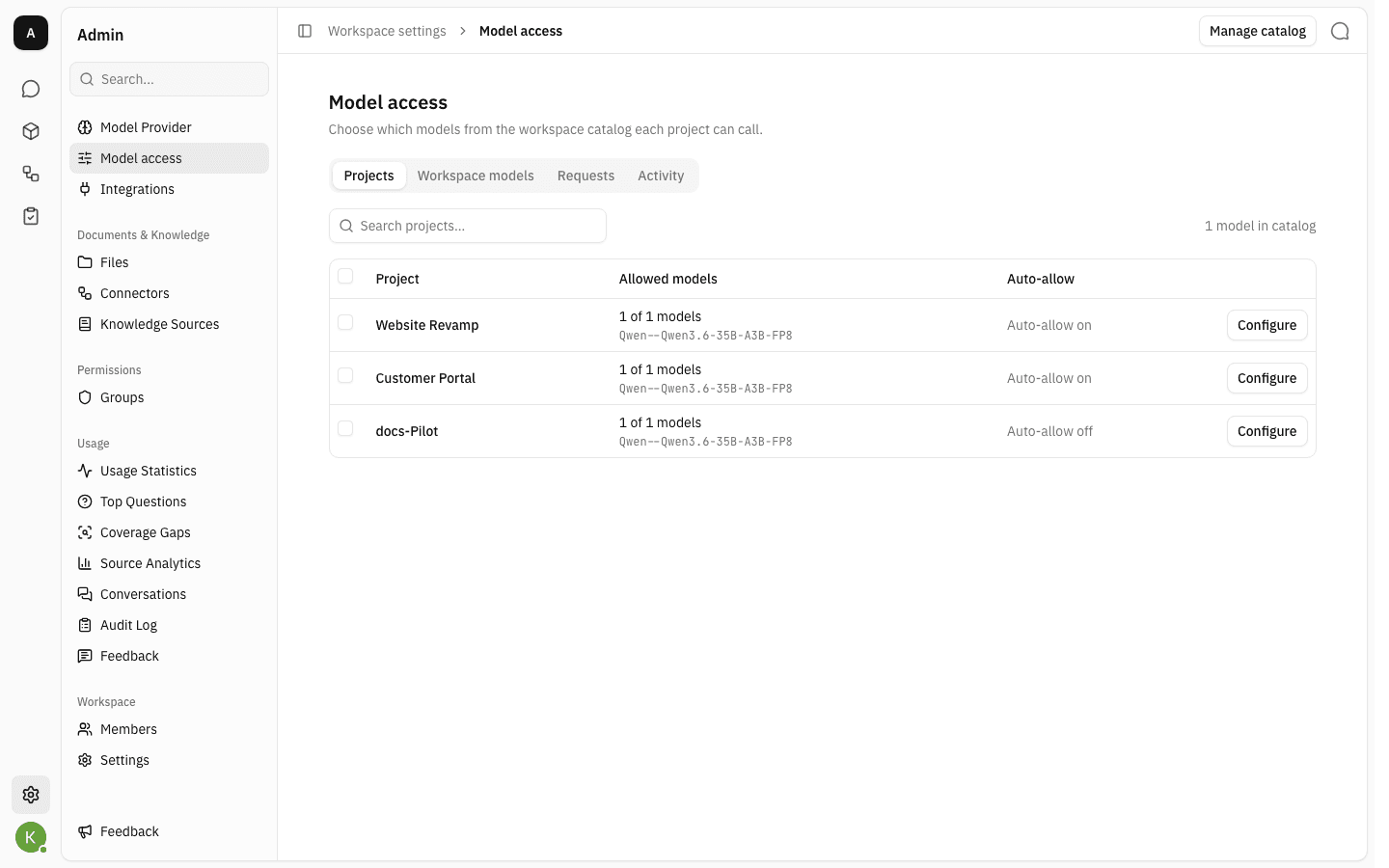
Use Search projects… to narrow a long list. The checkboxes select several projects at once so one model can be turned on or off across all of them.
Change one project's allowed models
-
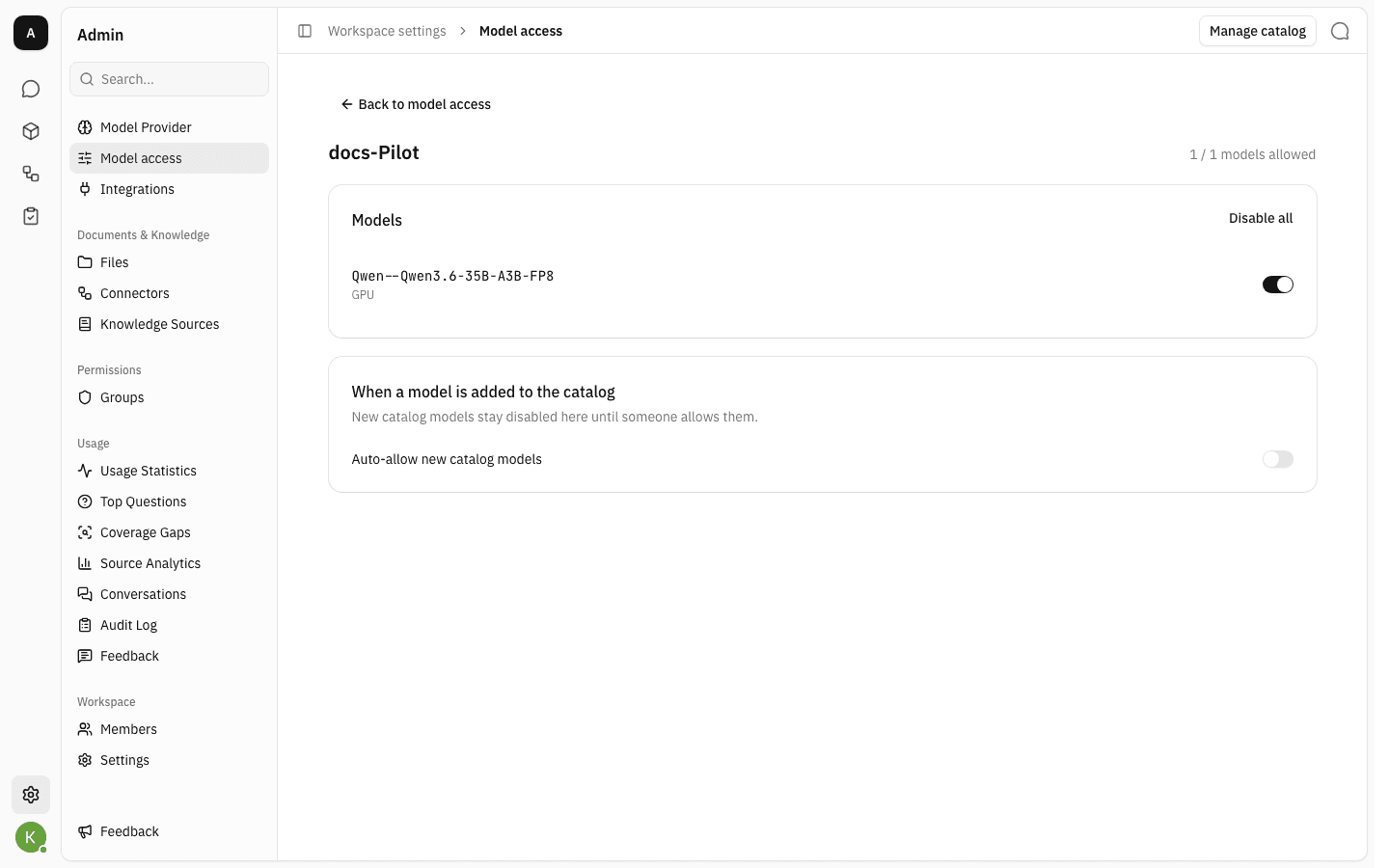
Click Configure on the project's row. The detail view lists every catalog model with a switch, and shows how many are currently allowed.
-
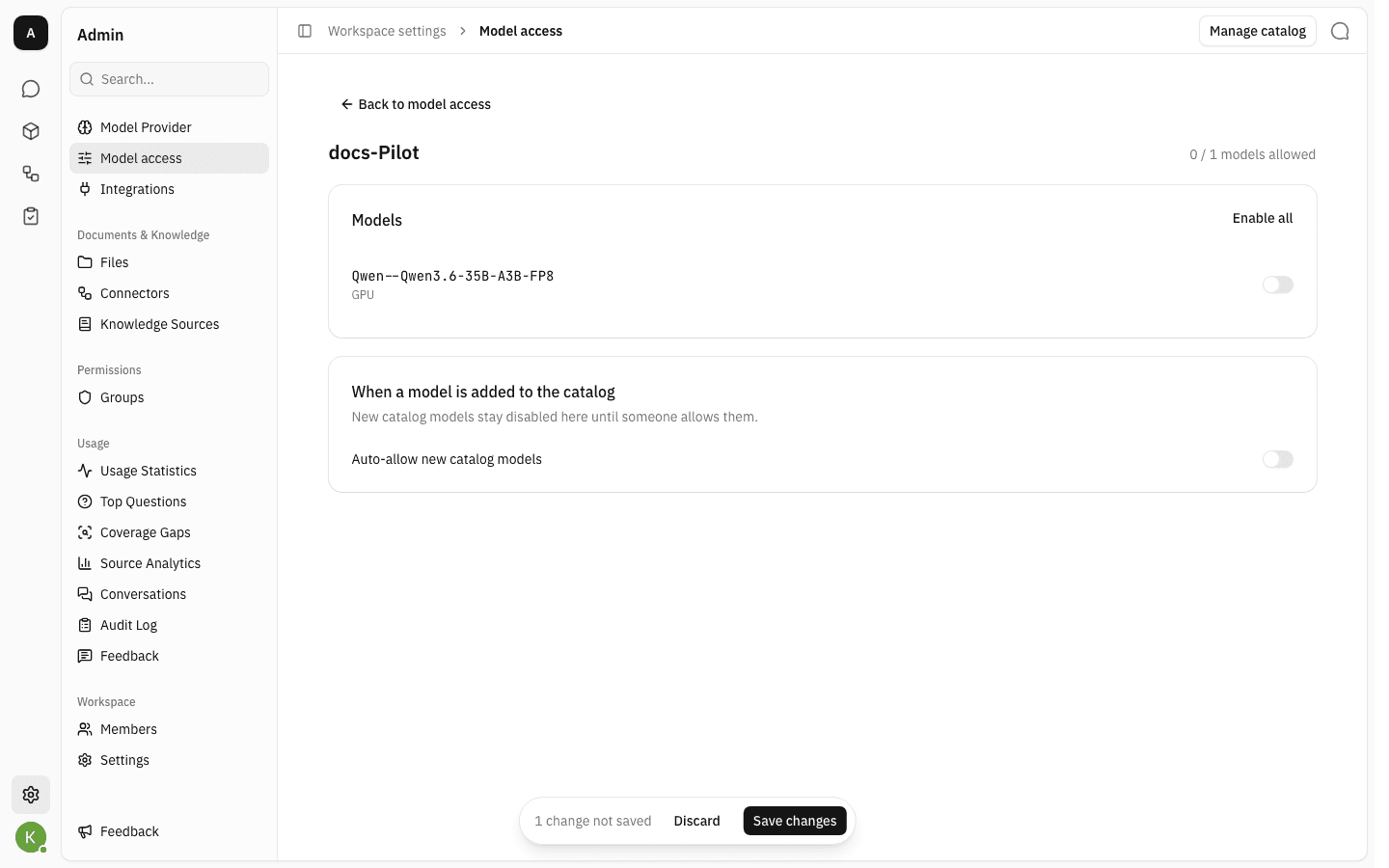
Flip the switches for the models this project should be able to call. Disable all / Enable all at the top of the card does the whole catalog in one go. Nothing is written yet — a bar appears at the bottom counting the unsaved changes, with Discard next to it.
-
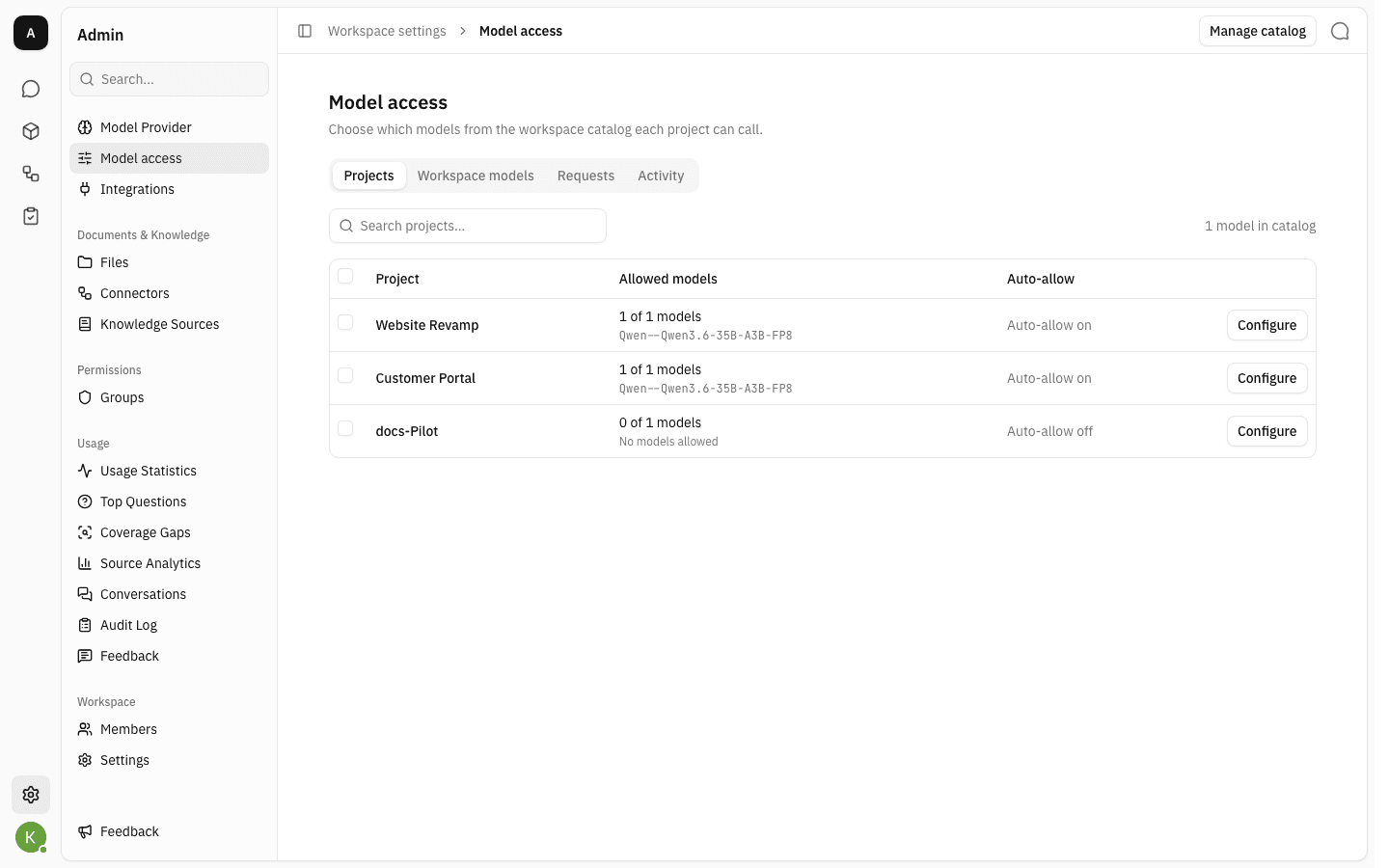
Click Save changes. Back on the Projects tab the row now reflects the new list — a project with nothing allowed reads No models allowed and its chat cannot call any model at all.
Auto-allow new catalog models on the same screen answers a different question: what should happen to this project when a new model is added to the catalog later. Left off, new catalog models arrive switched off here until someone allows them.
Set the baseline for workspace chat
-
Open the Workspace models tab. These are the models a member can pick when chatting outside any project. Each row shows where the model is already in use, so you can see what turning it off would affect.
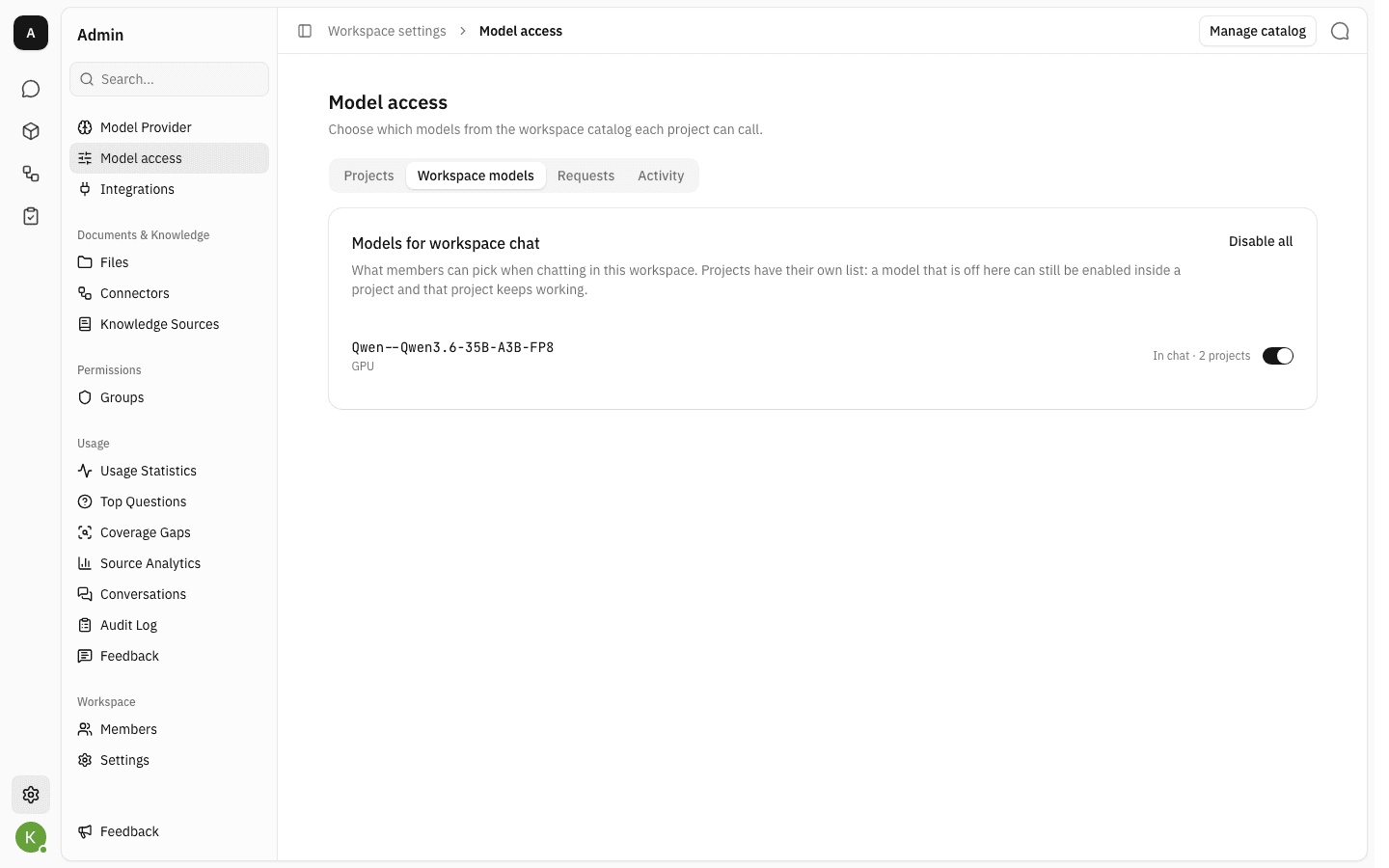
Baseline switches save as you flip them — there is no separate save step here. Turning a model off only closes it for project-less chat; the projects that allow it keep working.
Answer model access requests
A request is filed by a project member, not by you. It belongs to the (project, model) pair rather than to the person, so the whole project shares one request, and a declined pair can be asked for again later.
-
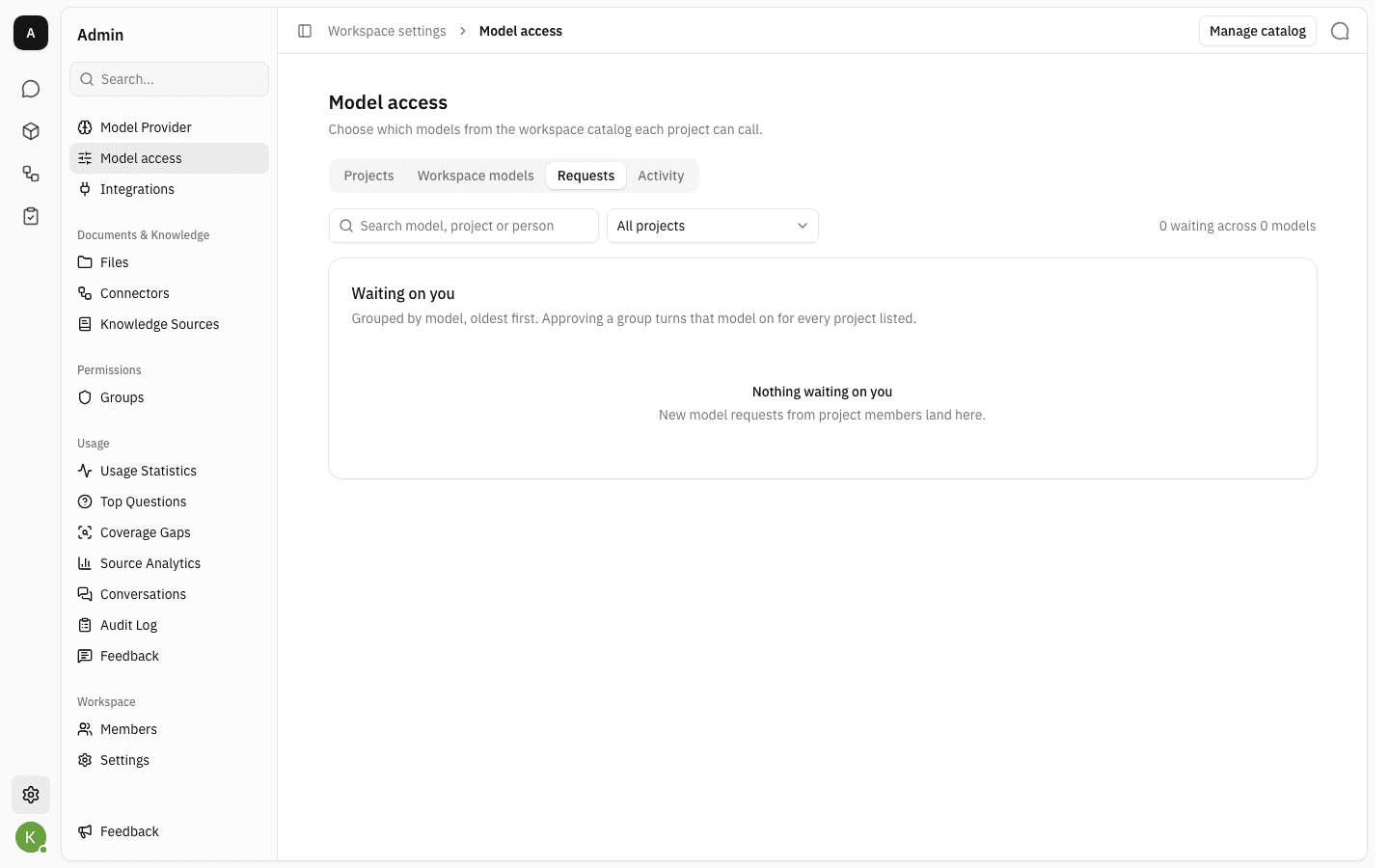
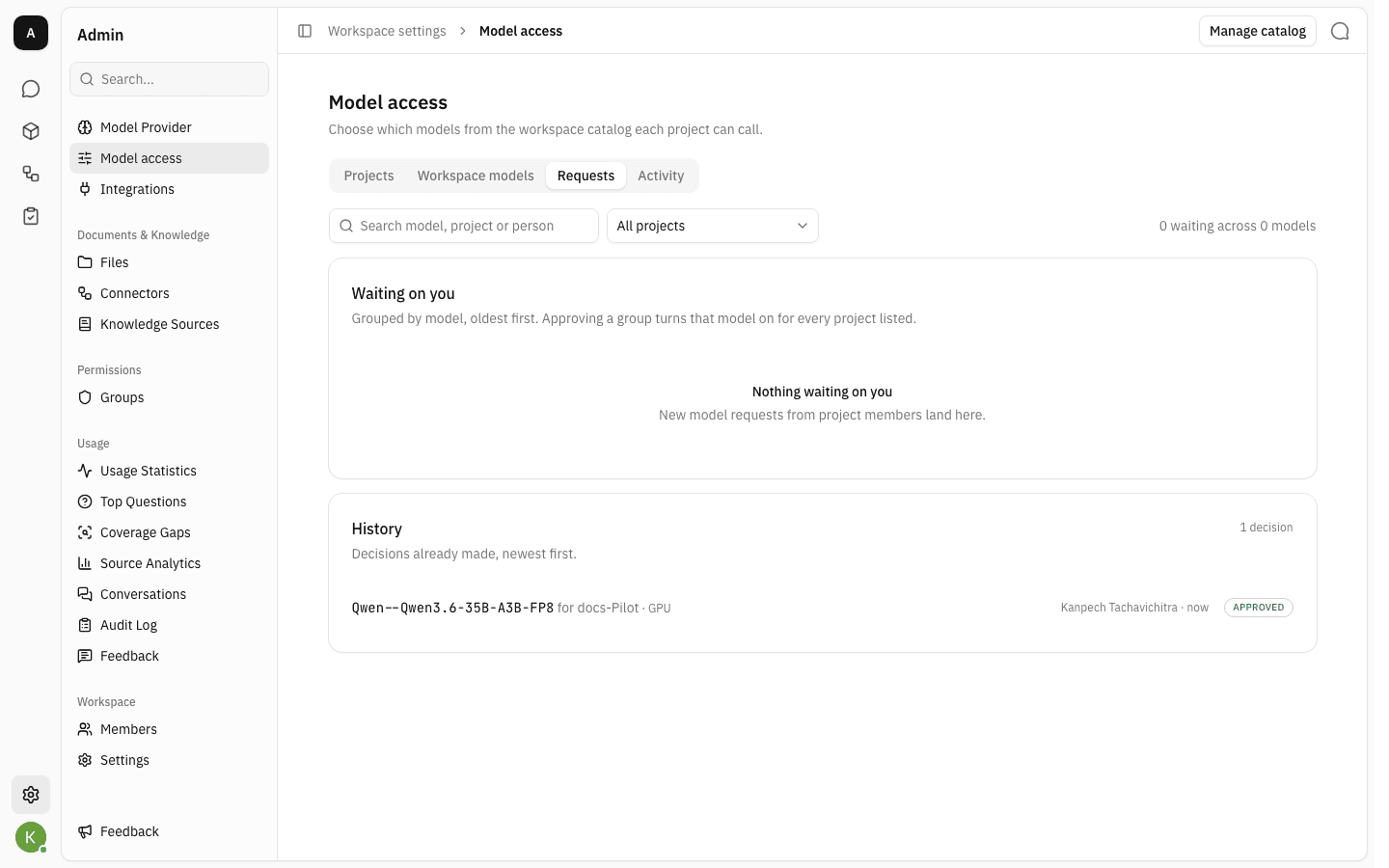
The Requests tab is where they land. With nothing outstanding it reads Nothing waiting on you.
-
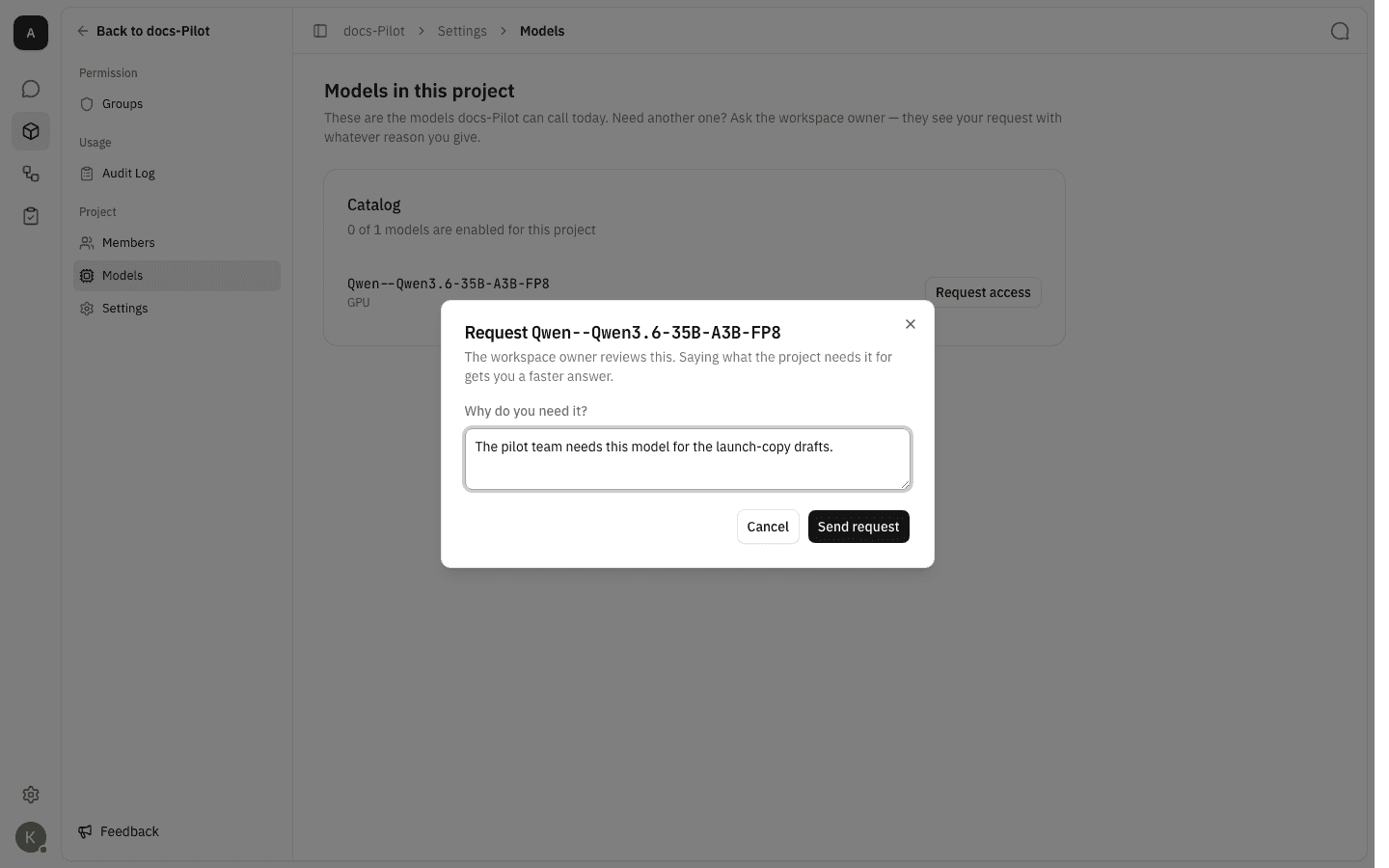
On the member's side, a project's Models page lists the catalog models the project cannot call, each with a Request access button. The dialog asks what the model is needed for — an optional note that you will see with the request.
-
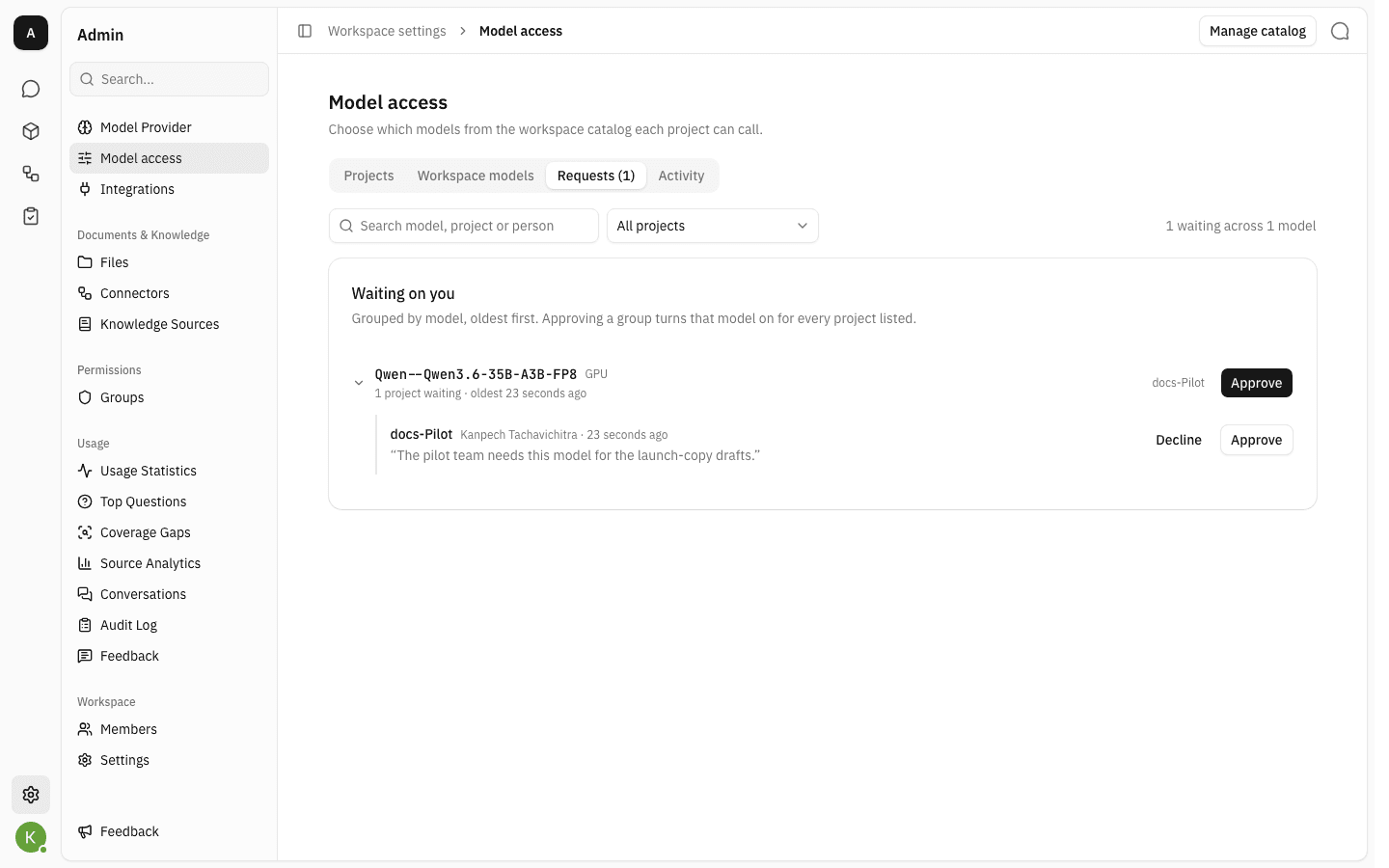
Back on Requests, pending items are grouped by model, oldest first, and the tab label carries the count. Expand a group to see each project that is waiting, who asked, when, and the reason they gave. Approve on the group header turns that model on for every project listed; Approve or Decline on a row decides just that project. Use the search box and the project filter when the queue is long.
-
Approving grants the model into that project's allowed list immediately — there is no save step, unlike editing the switches by hand. The decision moves to History, newest first, tagged Approved or Declined.
See what changed and who changed it
-
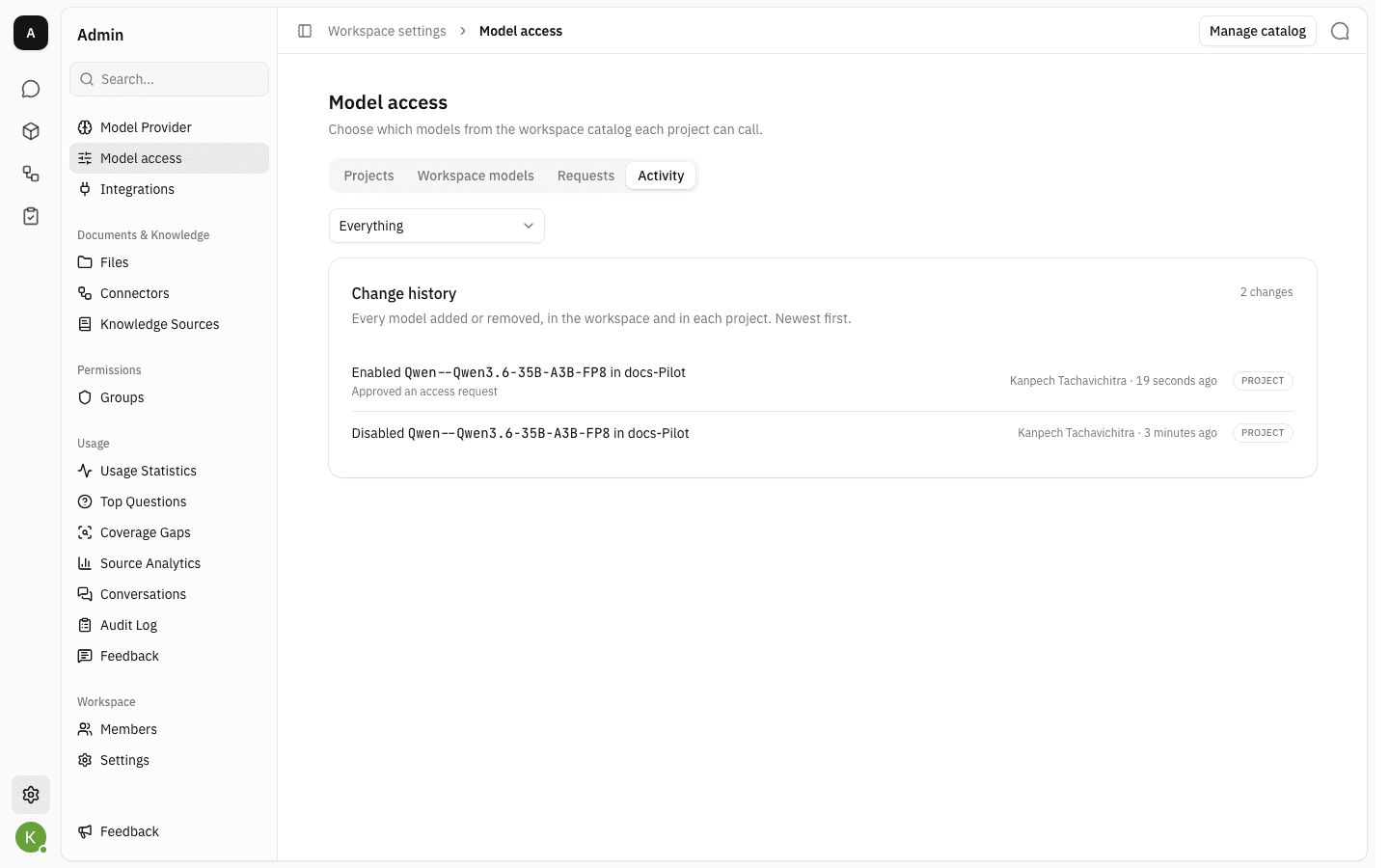
The Activity tab is the change history for model access: every model added or removed, in the workspace baseline and in each project, newest first. Entries name the person and say when, and an entry created by a request approval says so underneath. The dropdown filters to Workspace only or a single project.
Notes
- A project created after model access was introduced starts with a snapshot of the workspace baseline as it stood at that moment, with auto-allow off. It does not widen on its own as the catalog grows.
- An empty allowed list is a real setting, not "unrestricted" — it blocks chat in that project entirely.
- Project owners cannot widen their own project's list. Requesting is the only route, which is what keeps model spend under workspace control.
- Undecided requests expire after 90 days.
- Workspace chat has no request flow. A member who wants a change to the baseline has to ask out of band.
- Approving or declining a request is not written to the workspace Audit Log — the Activity tab on this page is where those decisions are recorded.
Model providers & language models
Connect the workspace to an OpenAI-compatible endpoint, choose which of its models people can chat with, and pick the workspace default.
Connectors
Connect the workspace to SQL databases and MCP tool servers so the assistant can query live data and call external tools during a chat.