Project settings
Open a project's settings panel, rename the project, and delete it permanently when the work is finished.
A project's everyday screens — its chat and its files — sit in the project sidebar. Everything that configures the project sits behind one control: the Settings toggle at the bottom of that sidebar. Flipping it swaps the sidebar for a settings panel listing every administrative page the project has, and the last entry in that panel, Settings, is where the project's own name and its deletion live.
There is no project overview page
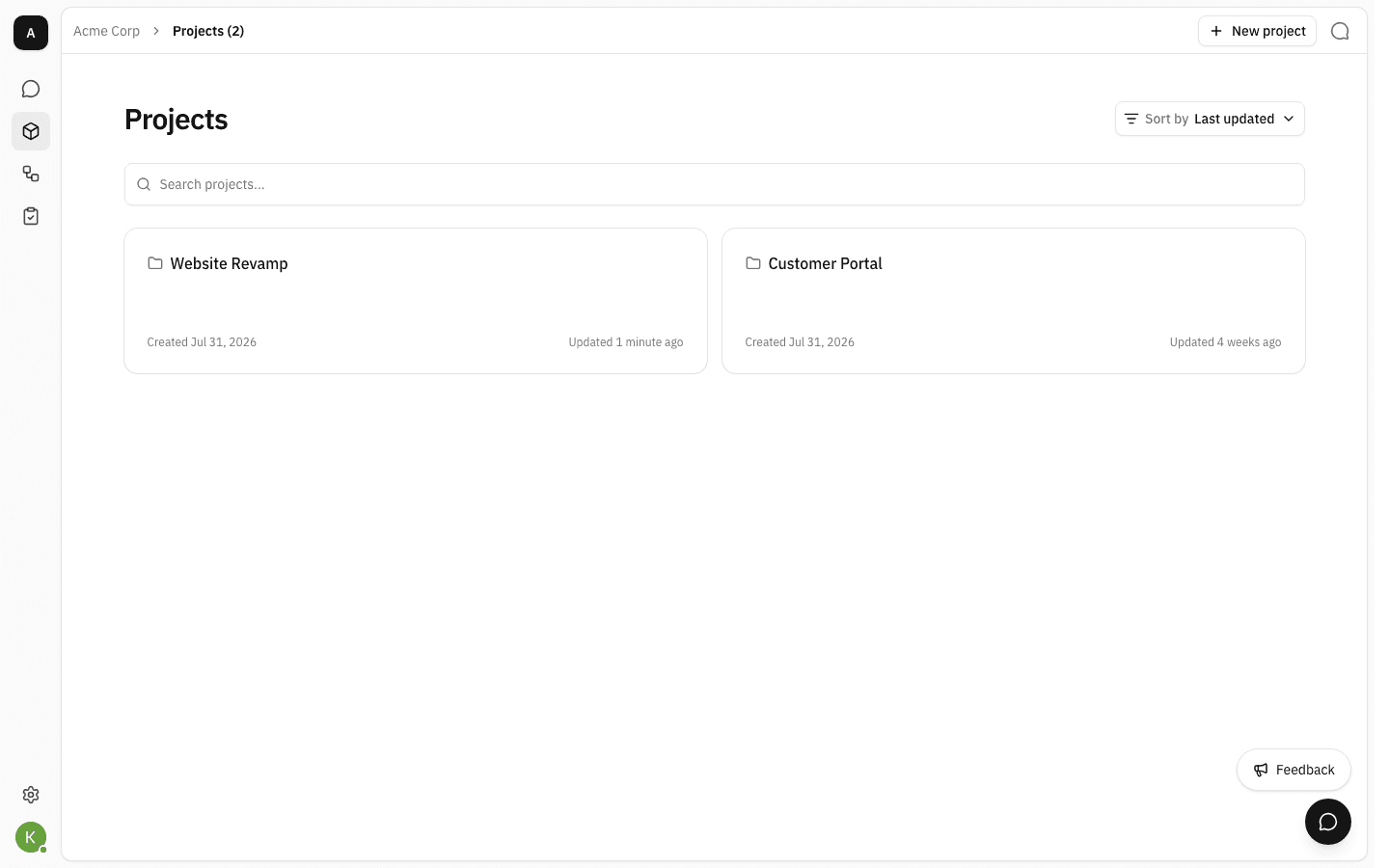
Opening a project takes you straight to its chat — a project has no summary or landing page. Its created date and last-updated time are shown on its card in the Projects list instead.
Prerequisites
- Membership of the project, or the workspace owner/admin role, to open it at all.
- Renaming needs the Update project permission. The project's Owner has it; everyone else needs it from a project group. Workspace owners and admins do not inherit it, so a workspace admin who is not the project owner cannot rename the project.
- Deleting needs the Delete project permission — held by the project Owner, by any project group granting it, and inherited by workspace owners and admins on every project in their workspace.
- Without either permission the page renders a single line, Project name and lifecycle settings are restricted, and there is nothing to click.
Open a project's settings
-
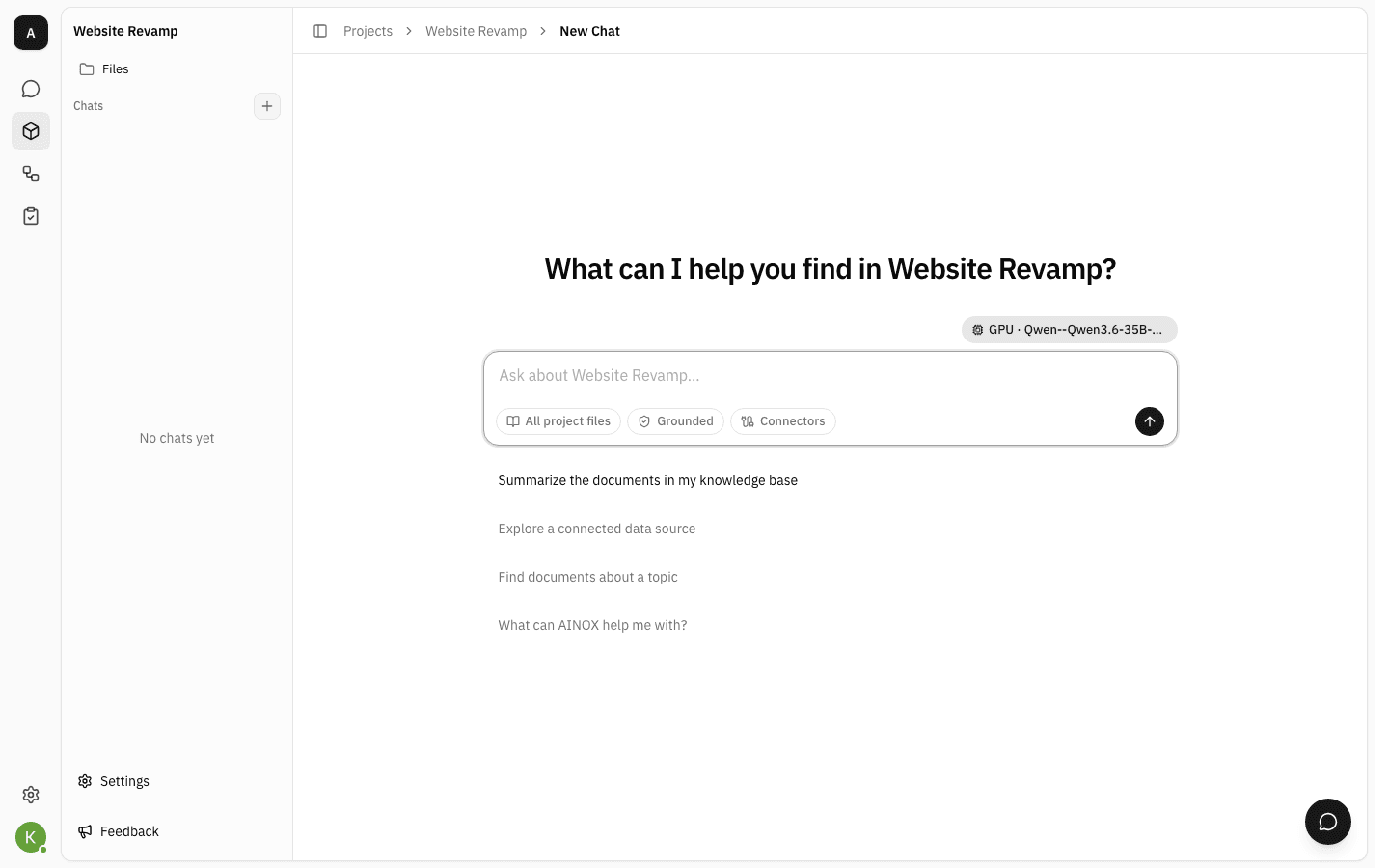
Open a project from the Projects list. You land on the project's chat, and the left sidebar becomes the project's own: Files at the top, the project's Chats below it, and Settings in the footer.
-
Click Settings. The sidebar swaps to the settings panel and opens Groups, its first page.
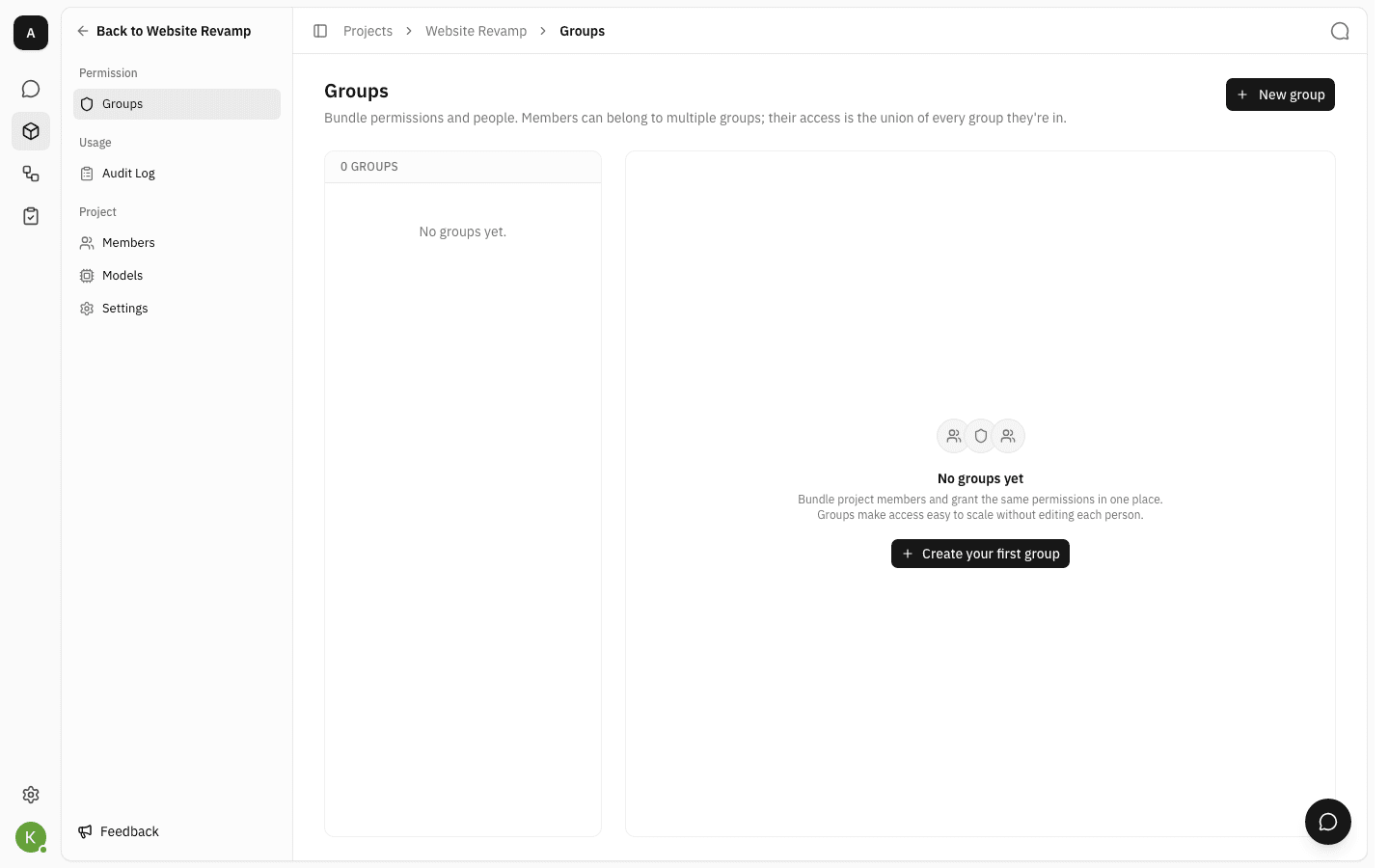
The panel groups the project's administrative pages under three headings:
- Permission — Groups, the permission bundles that decide what people may do inside the project.
- Usage — the Audit Log of everything that has happened in the project. This heading only appears if you have the Read audit log permission; without it the panel shows just Permission and Project.
- Project — Members, Models, and Settings.
The panel stays put while you move between those pages, and the app remembers it per project: leave a project with the panel open and it is still open the next time you come back to that one. Back to project name at the top returns you to the project's chat and its normal sidebar.
-
Click Settings, the last entry under Project.
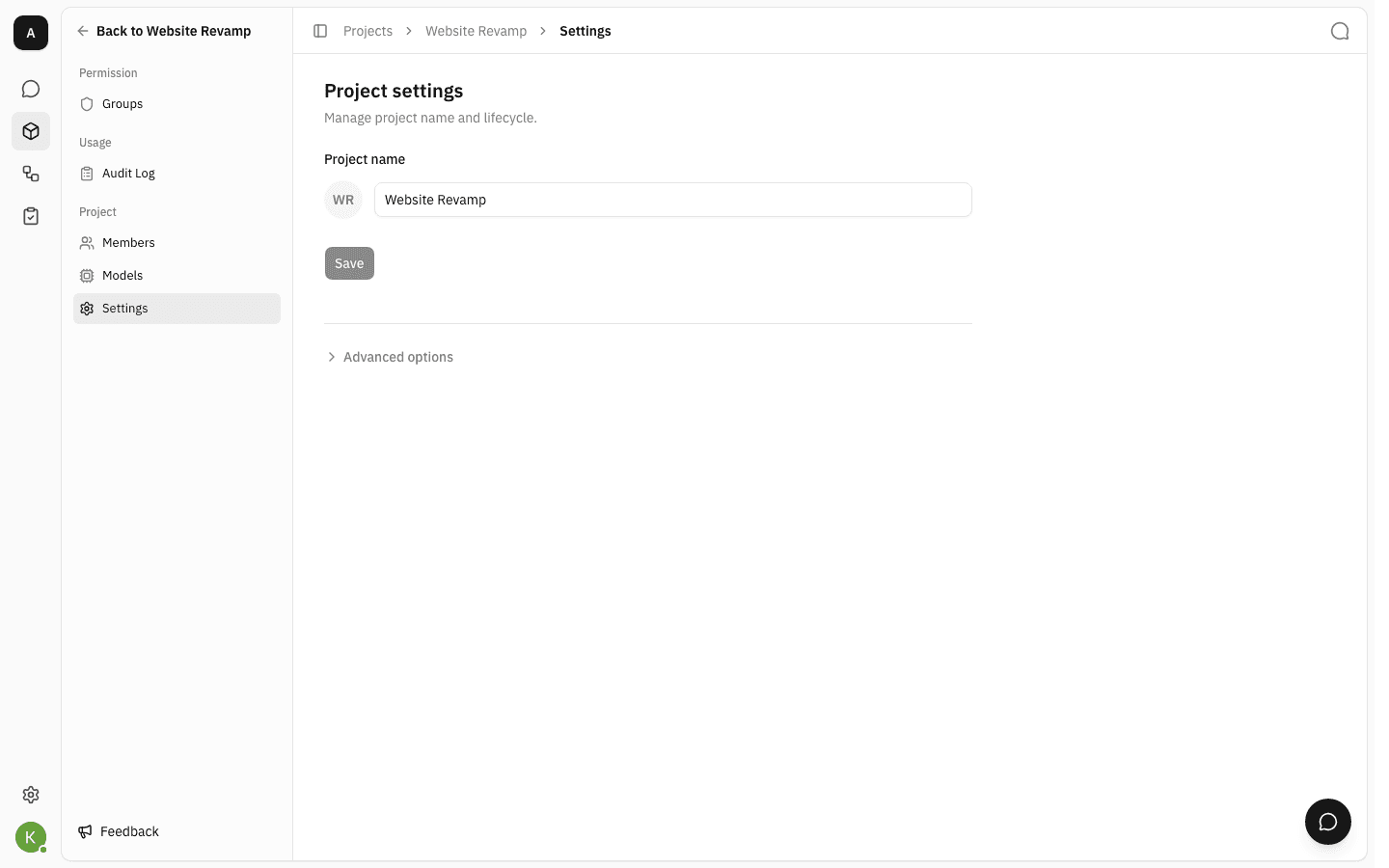
The page holds exactly two things: the project's name, and — folded away under Advanced options — its deletion. Save starts disabled, because nothing has changed yet.
Rename a project
-
Type the new name over the old one in Project name. Save activates as soon as the text differs from the saved name, and a Cancel button appears next to it.
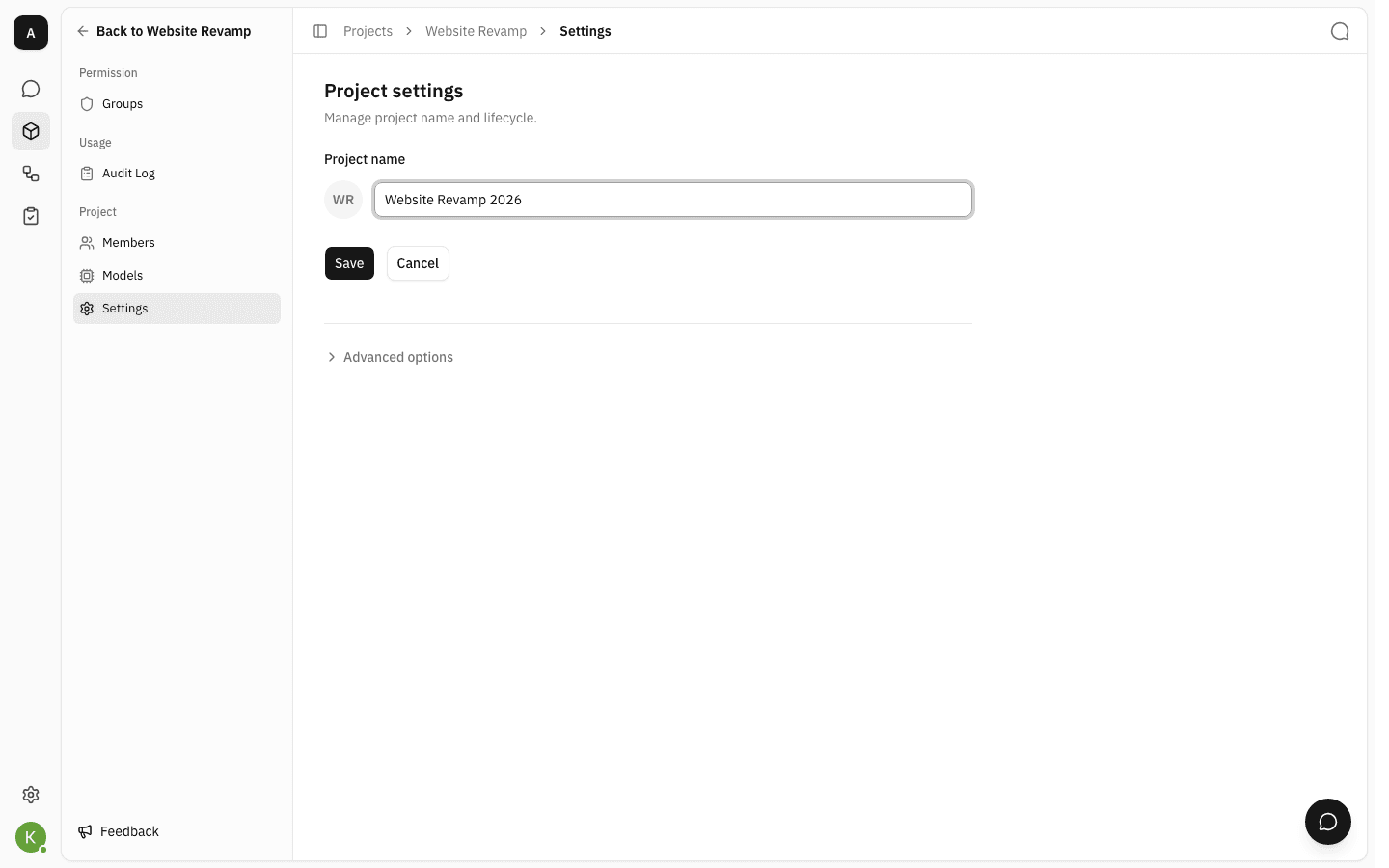
Cancel puts the saved name back and leaves the project untouched. Leaving the page without saving has the same effect — nothing is stored until you press Save.
-
Click Save.
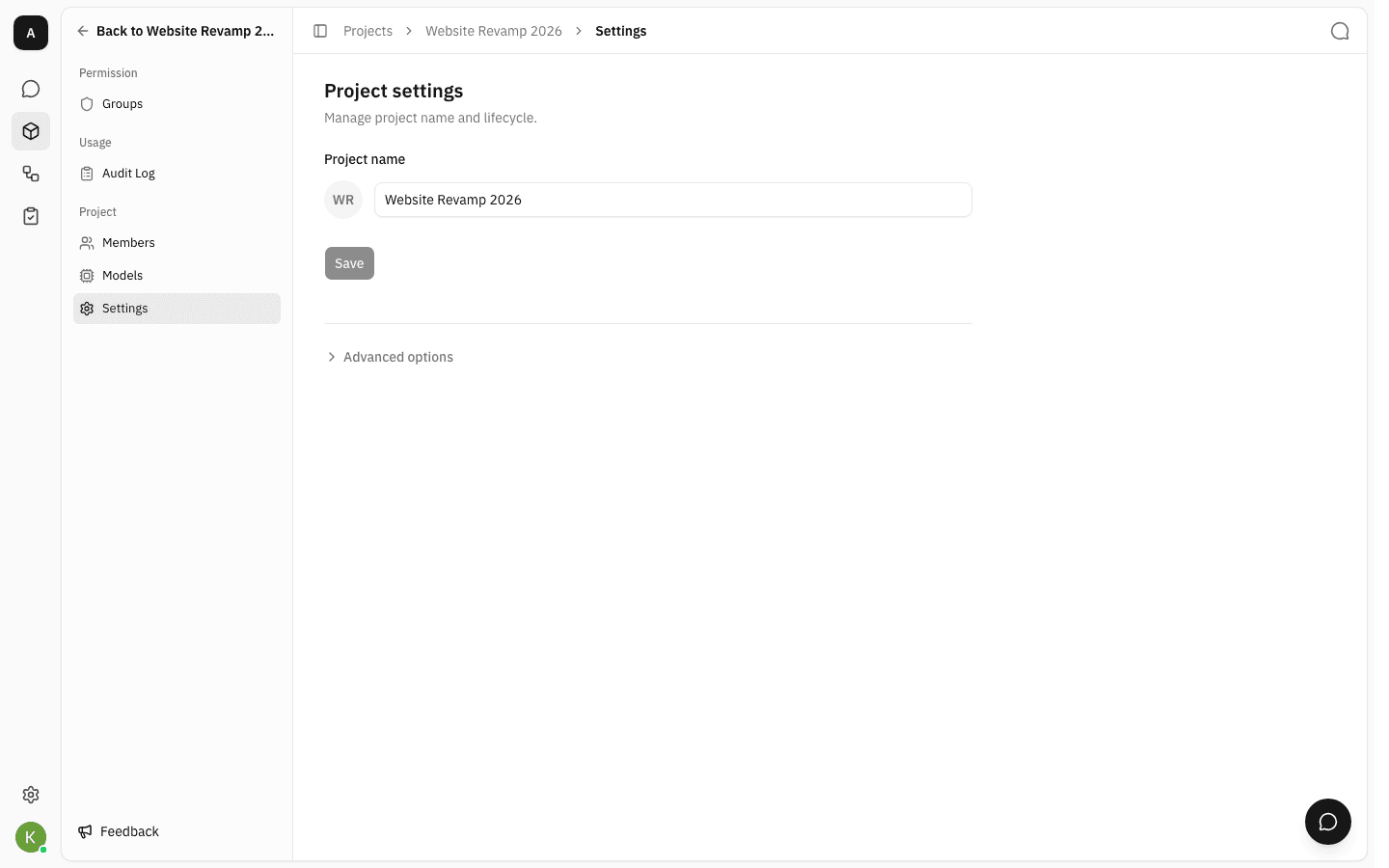
The new name appears everywhere at once: the breadcrumb, the Back to… link at the top of the settings panel, the project's card in the Projects list, and the project's chat heading. Save goes back to disabled and Cancel disappears, which is how you know the change landed.
Renaming changes nothing else. Files, members, groups and model settings all stay as they were, and any link you have already shared keeps working — a project is addressed by its id, not by its name.
Delete a project
Deleting a project takes its files, its members and its groups with it, so the control is folded away and gated behind typing the project's name.
-
Click Advanced options.
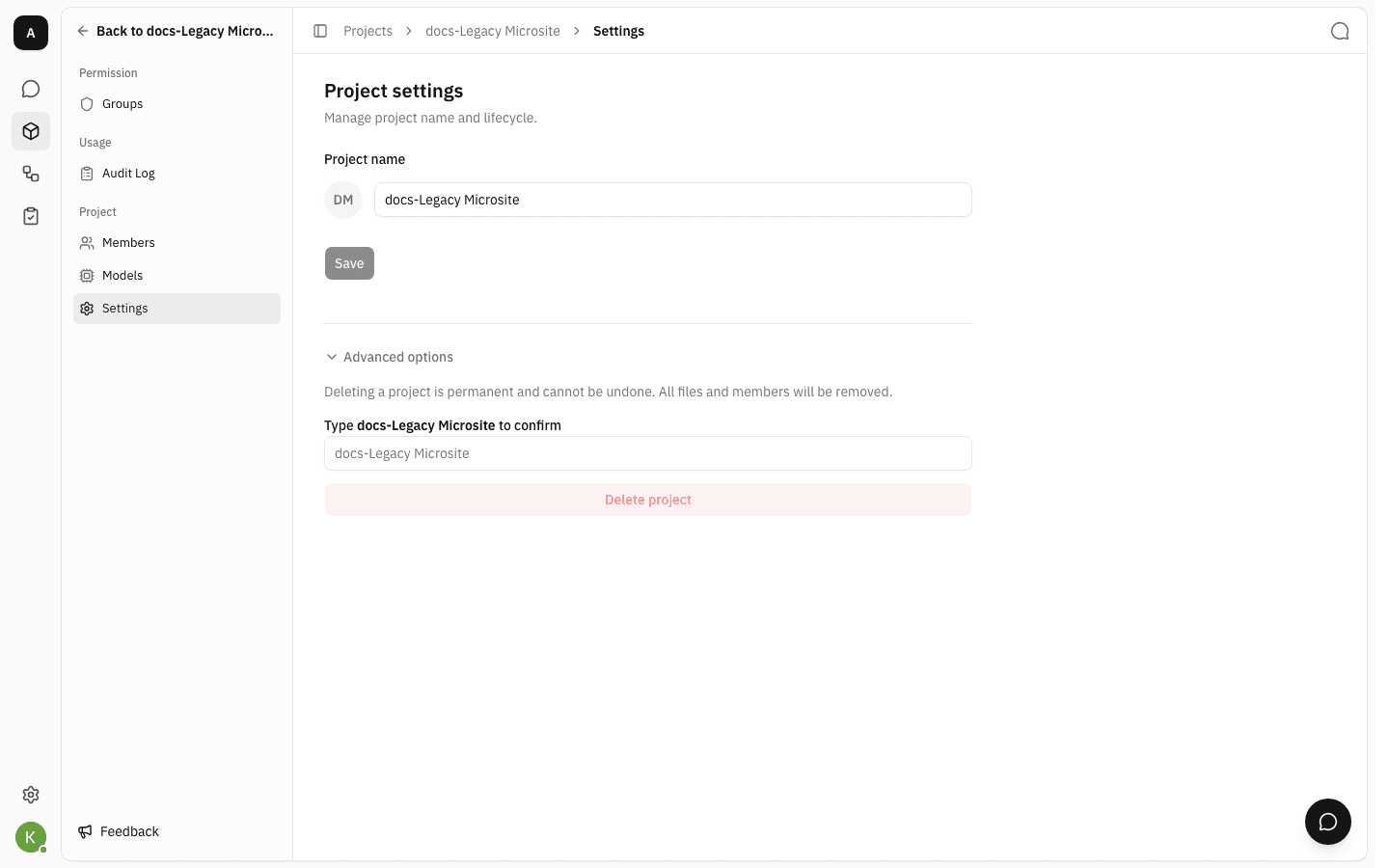
The section warns you plainly — Deleting a project is permanent and cannot be undone. All files and members will be removed — and Delete project is disabled.
-
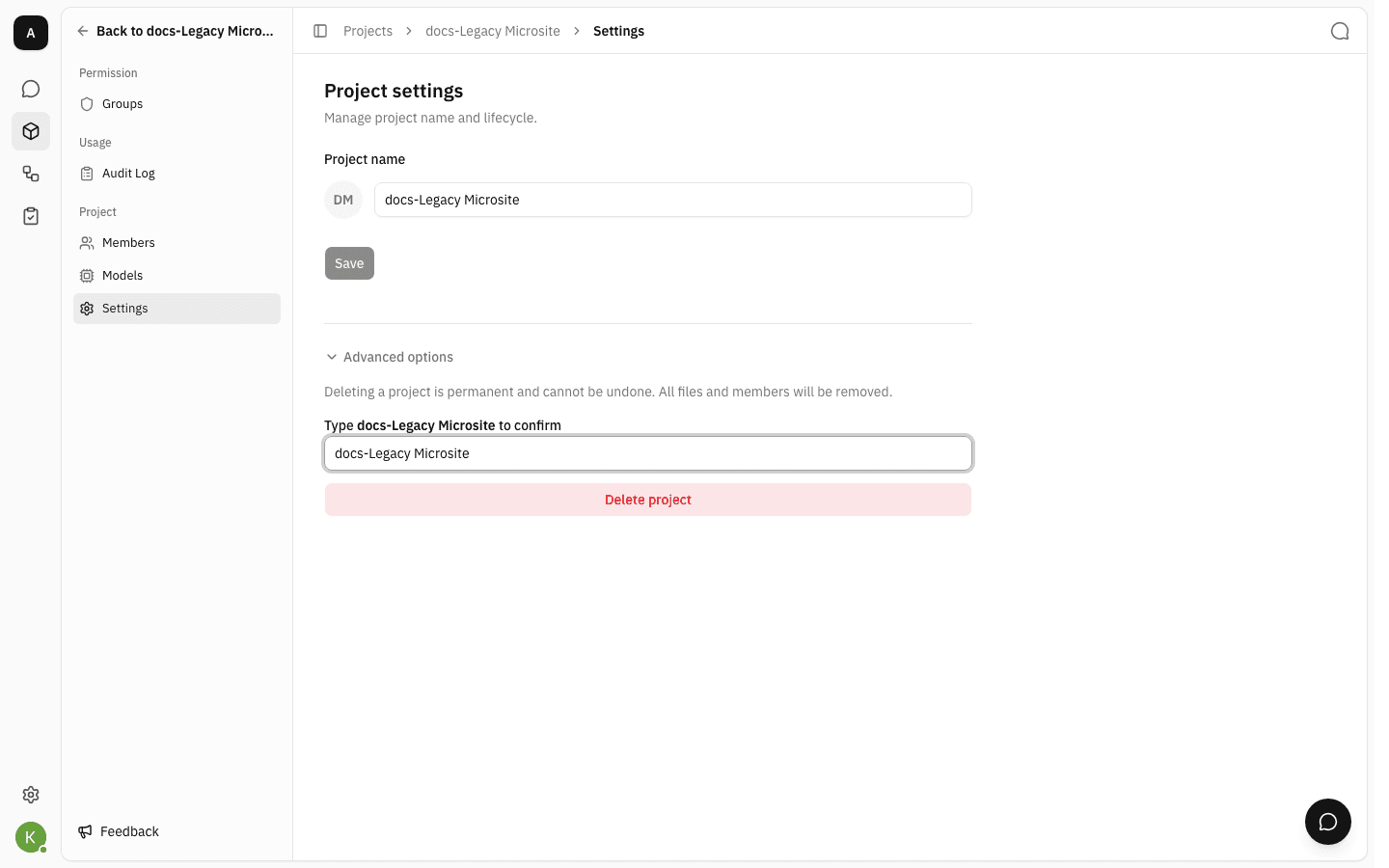
Type the project's name into the confirmation field. The match must be exact: same capitalisation, same spacing, no stray characters. Delete project stays disabled until it matches, and the field shows the name it wants as placeholder text so you can copy it.
-
Click Delete project. The project is gone and you are returned to the Projects list.
This cannot be undone from the app
There is no trash and no restore for projects. If you are not certain, remove people from the project's Members list instead — that takes the project out of their reach while leaving its contents intact.
Collapsing Advanced options again is always safe: it clears whatever you typed and changes nothing.
Notes
- The panel adapts to your permissions. Entries you cannot use are not rendered rather than disabled, so two people looking at the same project can see settings panels of different lengths.
- Renaming is recorded. Each save adds a project updated event to the project's Audit Log, so a renamed project can still be traced back to what it used to be called.
- A blank or whitespace-only name cannot be saved — Save stays disabled until there is real text in the field. Surrounding spaces are trimmed off before the name is stored.
- Project names do not have to be unique. That matters most at the delete step: if two projects share a name, check the breadcrumb before you type the confirmation.
- Transferring ownership is a separate permission (Transfer ownership) and is handled on the project's Members page, not here.