Accepting a workspace invitation
What happens when you open an invitation link — signing in, joining the workspace, declining, and the errors you may hit.
When somebody invites you to their workspace, the platform emails you a link. That link opens a single small card that tells you which workspace you have been invited to and offers two buttons: Accept invitation or Decline. This page walks through that card, the sign-in step in front of it, and every other state the same link can show you.
Accepting an invitation is how almost everyone gets their first workspace — it is the alternative to setting one up yourself.
Prerequisites
- An invitation link, sent by email by someone in the workspace who can invite members. See Workspace members for the sending side.
- An account you can sign in to, using the invited email address. The invitation is tied to the exact address it was sent to; no other account can open it.
- Nothing else. You do not need to already belong to a workspace, and you do not need any role or permission — the invitation itself is the authorisation.
The invitation link
The email contains one link of the form
https://<your-platform-address>/accept-invitation/<invitation-id>. The long id
at the end is the invitation itself, so treat the link as private: anyone signed
in as the invited address can use it. There is no way to look an invitation up
by hand — if the email is lost, ask the workspace's admin to invite you again,
which produces a fresh link.
Step 1 — Open the link
Opening the link while you are not signed in gives you a card headed You're invited, with the line Sign in to view this invitation.
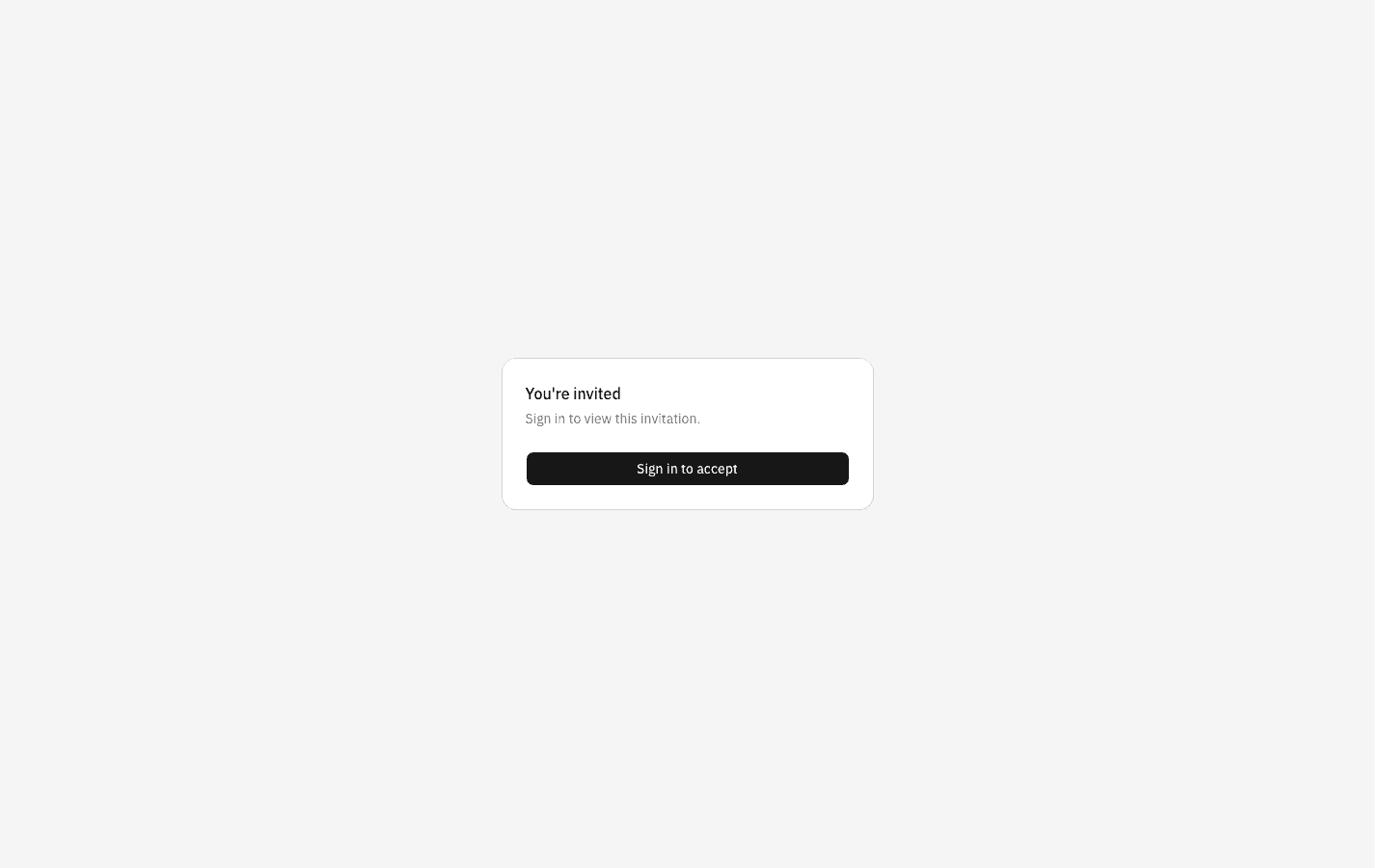
Nothing about the workspace is shown yet, and no name or email appears — the platform deliberately reveals nothing until it knows who you are. This is also the card you get from a link that is mistyped or long expired, so reaching it is not yet a sign that the invitation is good.
Click Sign in to accept.
Step 2 — Sign in as the invited address
You land on the ordinary sign-in screen, headed Welcome back.
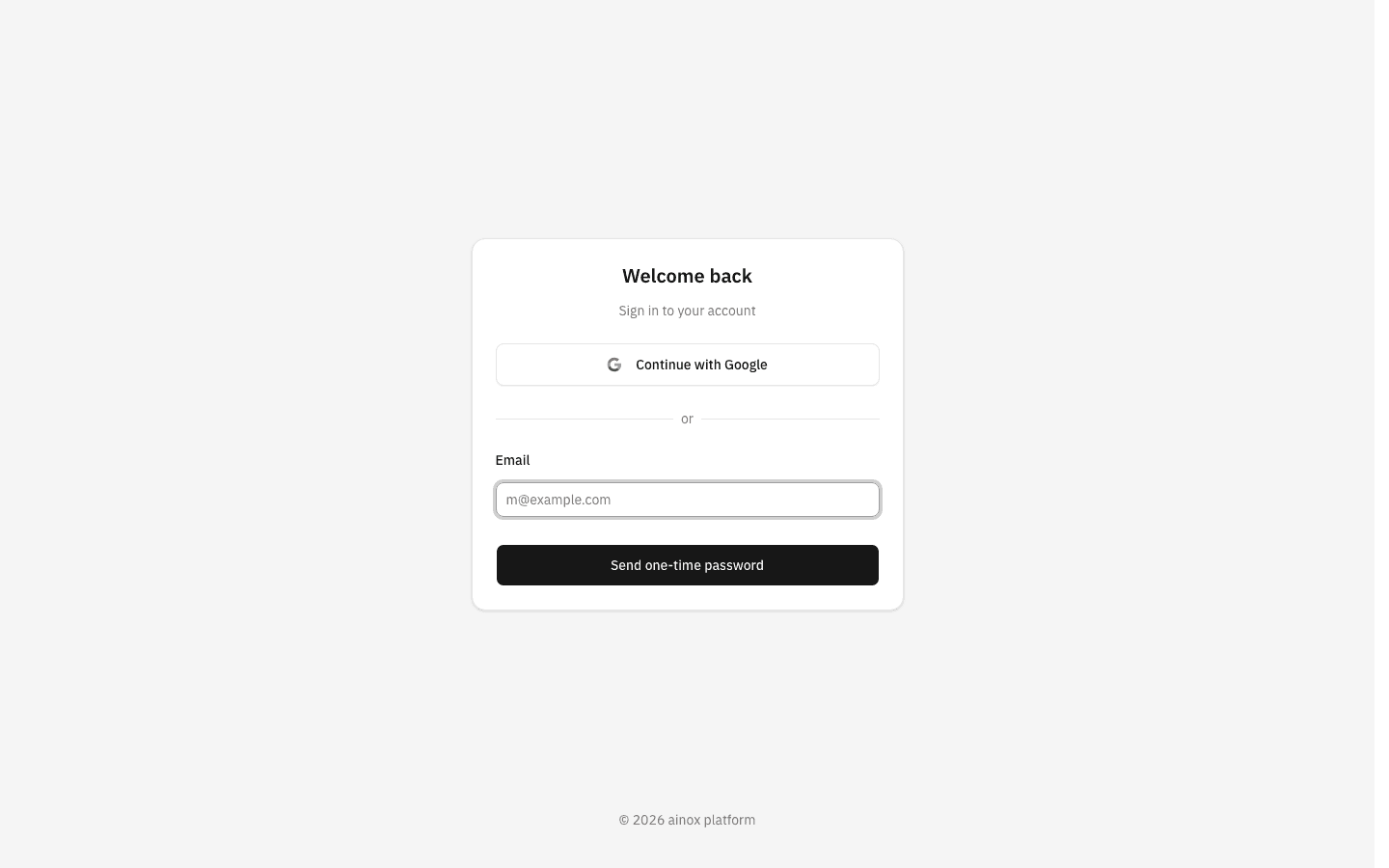
Sign in with the address the invitation was sent to — see Signing in for the one-time-password step. The invitation is remembered while you do this, so as soon as you are signed in the platform takes you straight back to the invitation instead of dropping you on a home page.
Step 3 — Join the workspace
Now the card names the workspace: Join Acme Corp, with the line You've been invited to join Acme Corp as member.
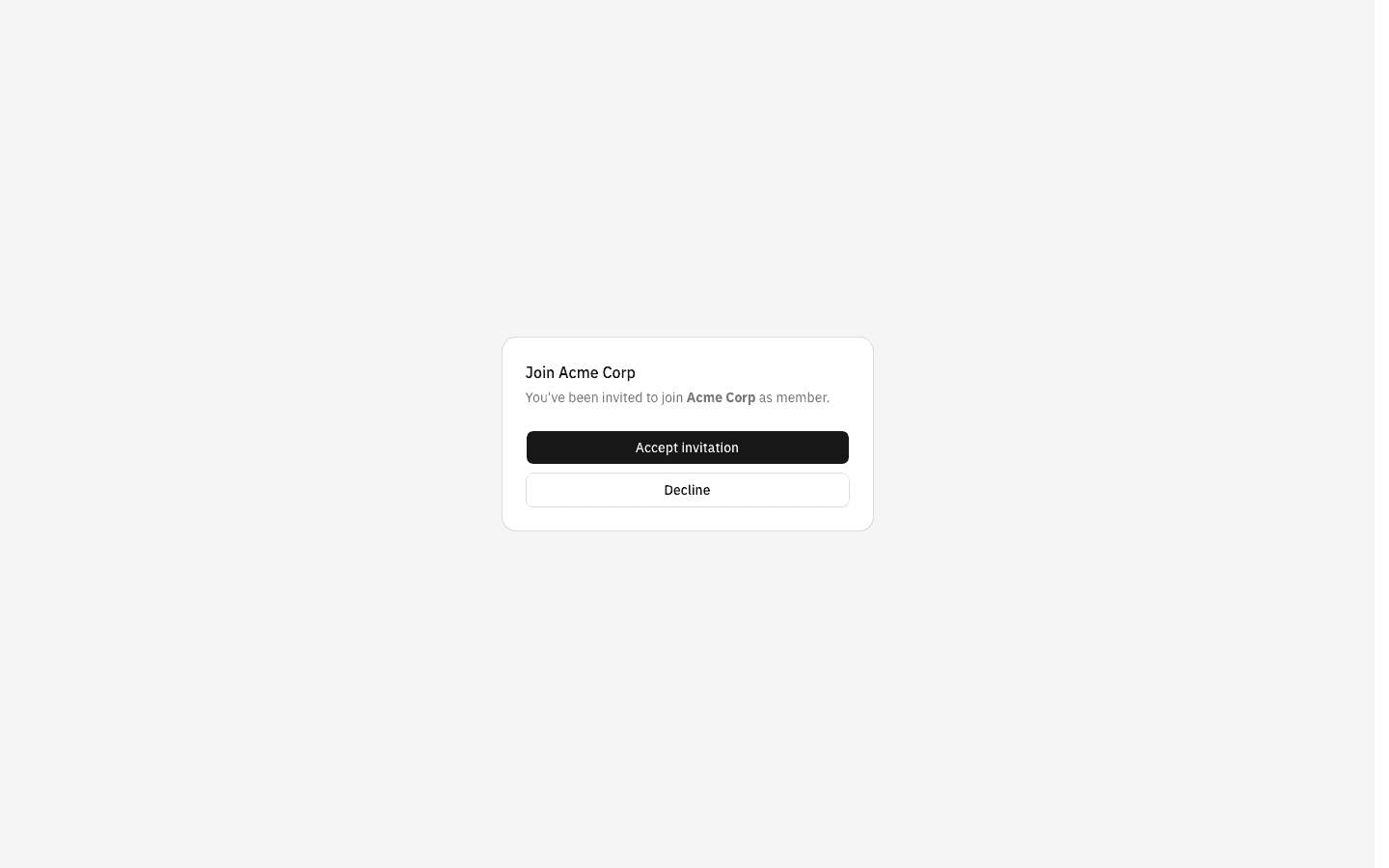
Click Accept invitation. The button shows a spinner while it works, then:
- a green Joined Acme Corp confirmation appears, and
- you are taken into the app — the workspace's Chat page if this is the only workspace you belong to.
No screenshot of the joined state. The moment after accepting cannot be photographed in this environment: it needs an account that has been invited but is not yet a member, and this build does not allow self-registration, so no such account can be created here. Everything above and below is captured from the real UI; only the successful join is described from the platform's behaviour rather than shot.
From that point on you hold the role the invitation carried — Member unless an owner invited you as an Owner. The workspace appears in the workspace switcher at the top of the sidebar, and everything a member can see — chat, projects you are added to, the shared file library — is available. If you need more, ask a workspace owner to change your role on the Members page after you have joined.
Declining instead
Decline on the same card turns the invitation down. An Invitation declined confirmation appears and you are returned to wherever the platform would normally send you.
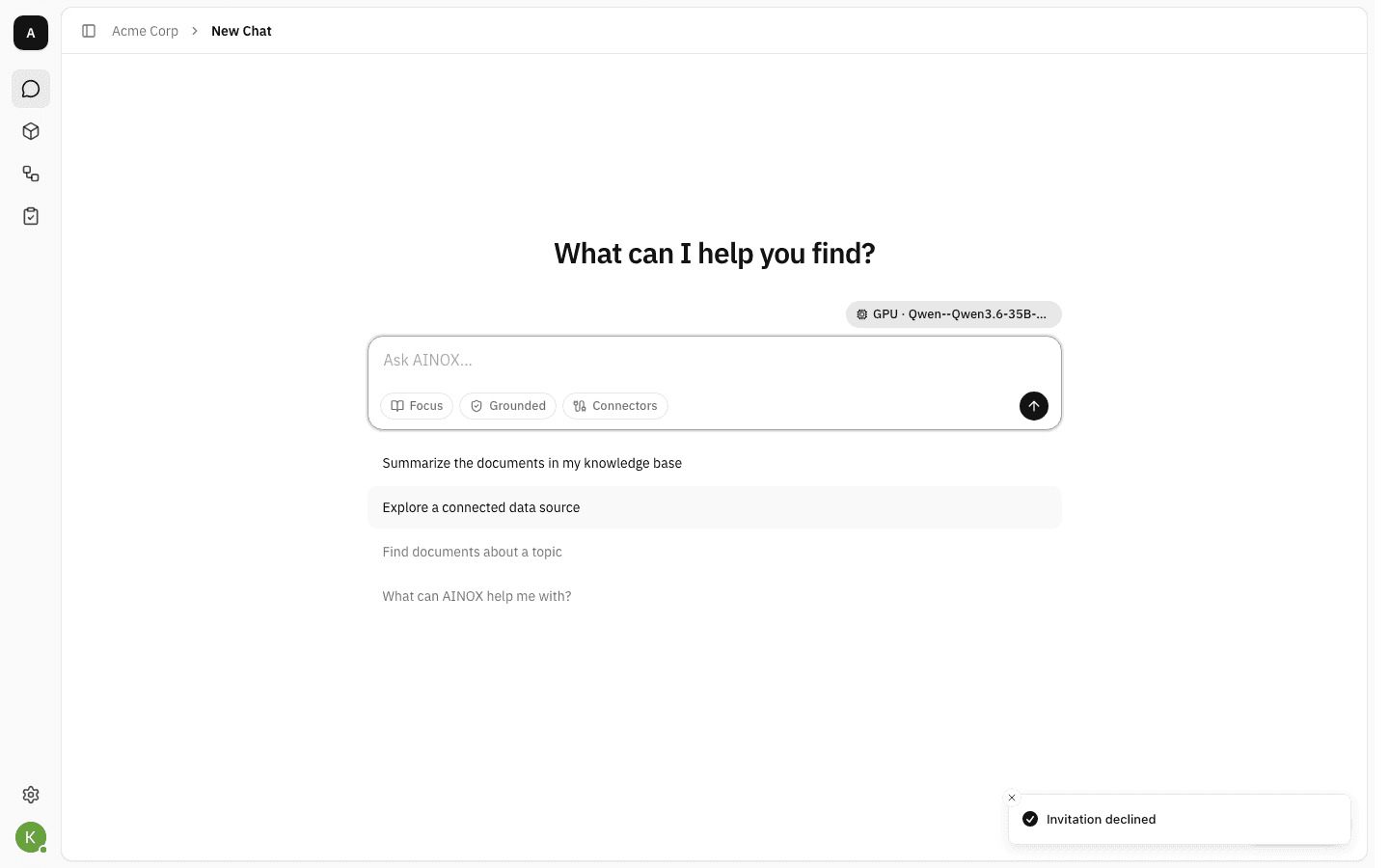
Declining is final for that link: the invitation is used up, and re-opening the same link afterwards gives the Invitation unavailable card below. It does not block you from the workspace permanently — an admin can simply invite you again.
When the invitation cannot be opened
Every failure lands on one card, headed Invitation unavailable, with the reason on the first line and Sign out / Go home underneath.
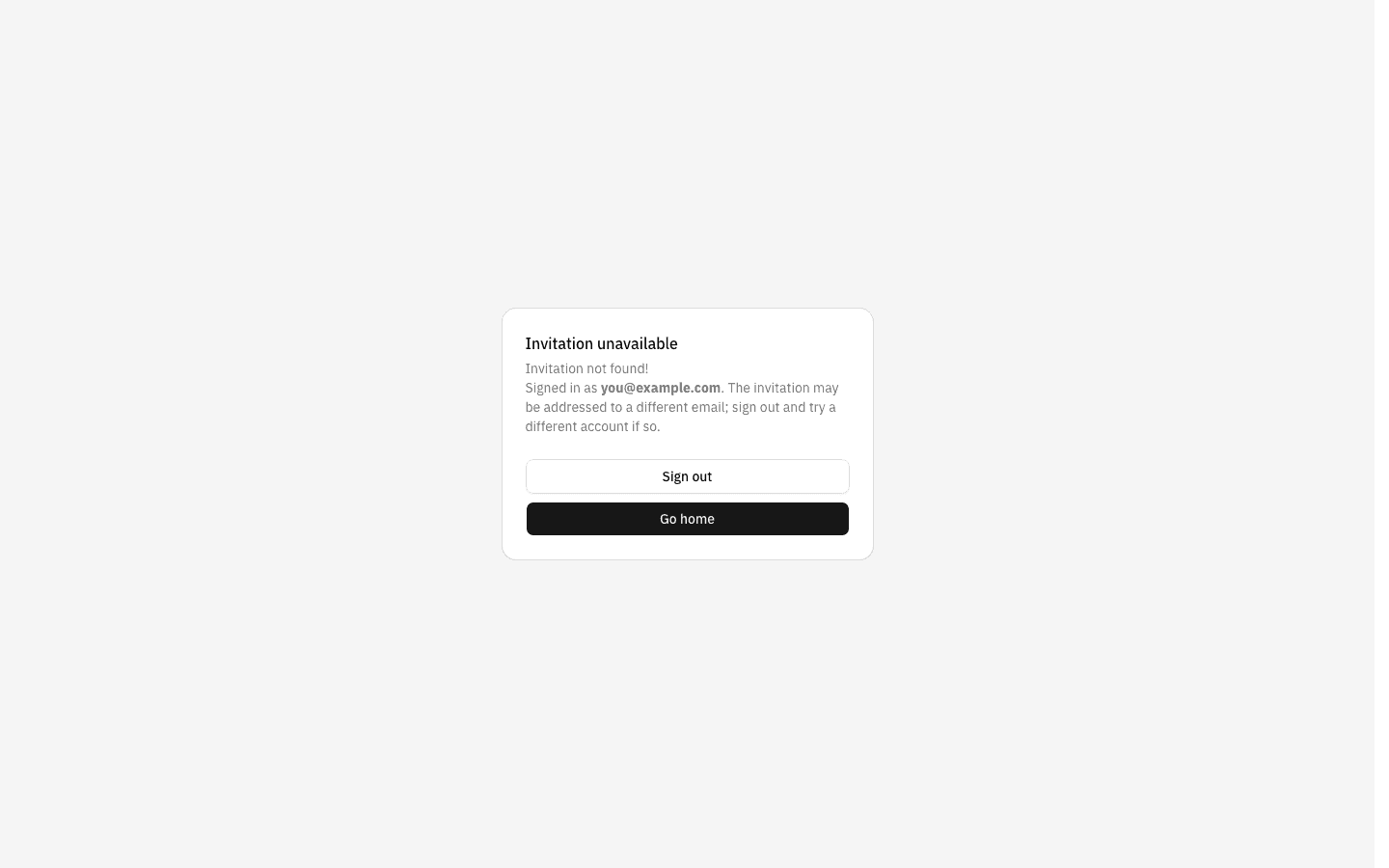
Invitation not found! covers everything about the invitation itself being unusable:
- the link is mistyped or incomplete
- the invitation has expired — invitations are valid for 7 days
- it has already been accepted, declined, or revoked by an admin
- a newer invitation to the same address replaced it (re-inviting somebody cancels their previous invitation)
You are not the recipient of the invitation means the link is fine but the account you are signed in as is not the one it was addressed to.
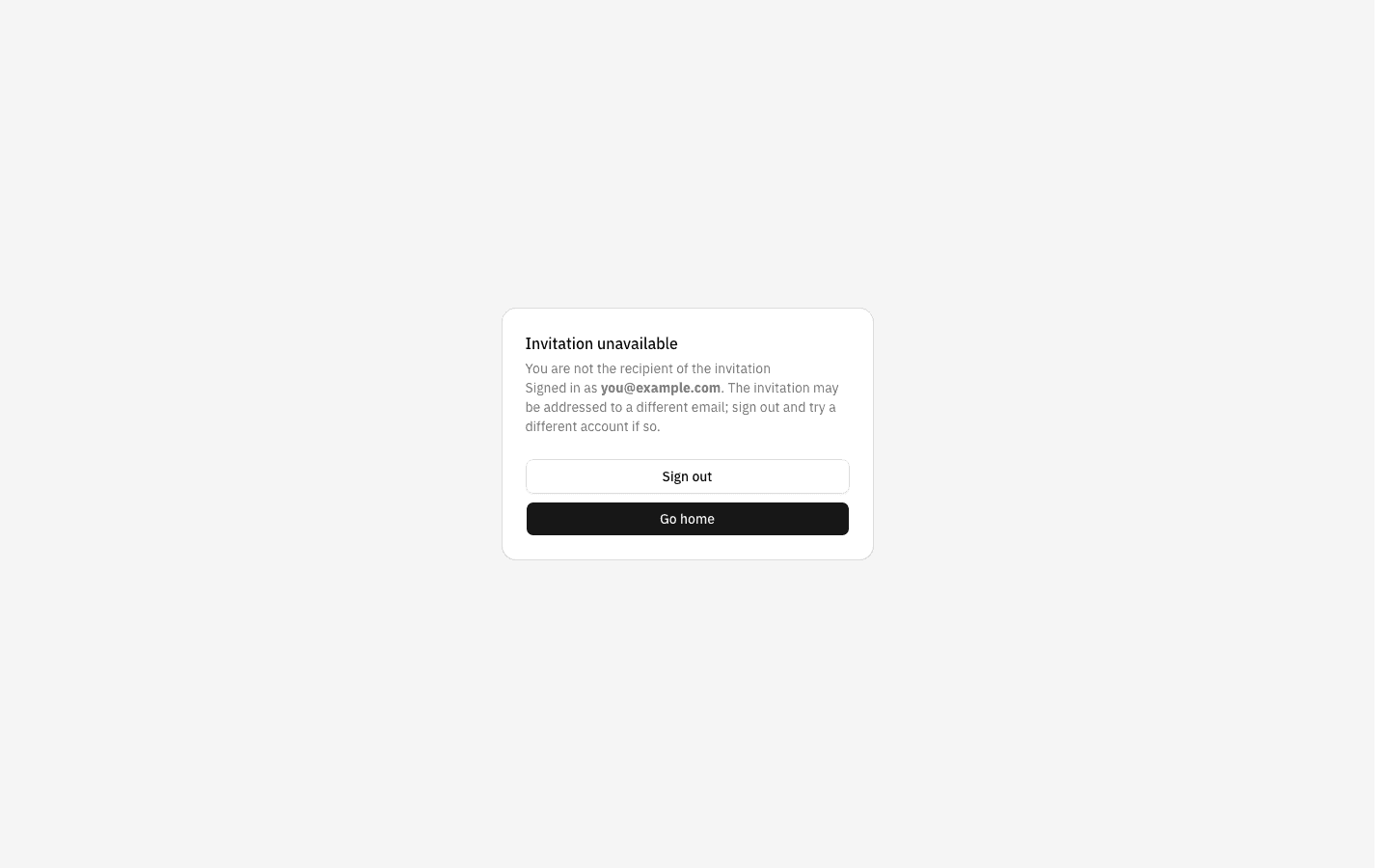
Both variants also remind you which account you are using — Signed in as … — because the wrong signed-in account is by far the most common cause. Use Sign out, then open the link again and sign in with the invited address.
Notes
- Invitations expire after 7 days. There is no warning beforehand and no way to extend one — the fix is always a fresh invitation.
- Only the invited address works. Aliases, plus-addresses and forwarded mail do not count; the address you sign in with must match the address on the invitation, letter for letter (capitalisation aside).
- The address must be verified. Signing in with a one-time password verifies it as a side effect, so this only bites accounts created another way — they see Email verification required to view or list invitations for the session email on the Invitation unavailable card.
- Everyone joins as a member. The invite form has no role picker, so the
role on the card is always
member; roles are changed afterwards on the workspace's Members page. - Accepting does not replace your other workspaces. If you already belong to one, accepting simply adds the new one to the workspace switcher.
- You can be invited to the same workspace more than once. Each new invitation cancels the previous one, so always use the newest email.