Project overview
The front page of a project — where you read its details, rename it in place, and delete it when the work is finished.
Overview is the page you land on when you open a project. It is deliberately small: it names the project, tells you when it was created and last touched, and carries the two actions that apply to the project as a whole — rename and delete. Everything else about a project lives on the other pages in its sidebar.
Prerequisites
- Membership of the project, or workspace owner/admin, to open it at all.
- Renaming needs the
project:updatepermission. Without it the name is plain text and clicking it does nothing. - Deleting needs the
project:deletepermission. Without it the Delete button is not rendered at all. Project owners have both by default.
Read a project's details
-
Open a project from the Projects list. It opens on Overview, and the left sidebar switches to the project's own navigation.
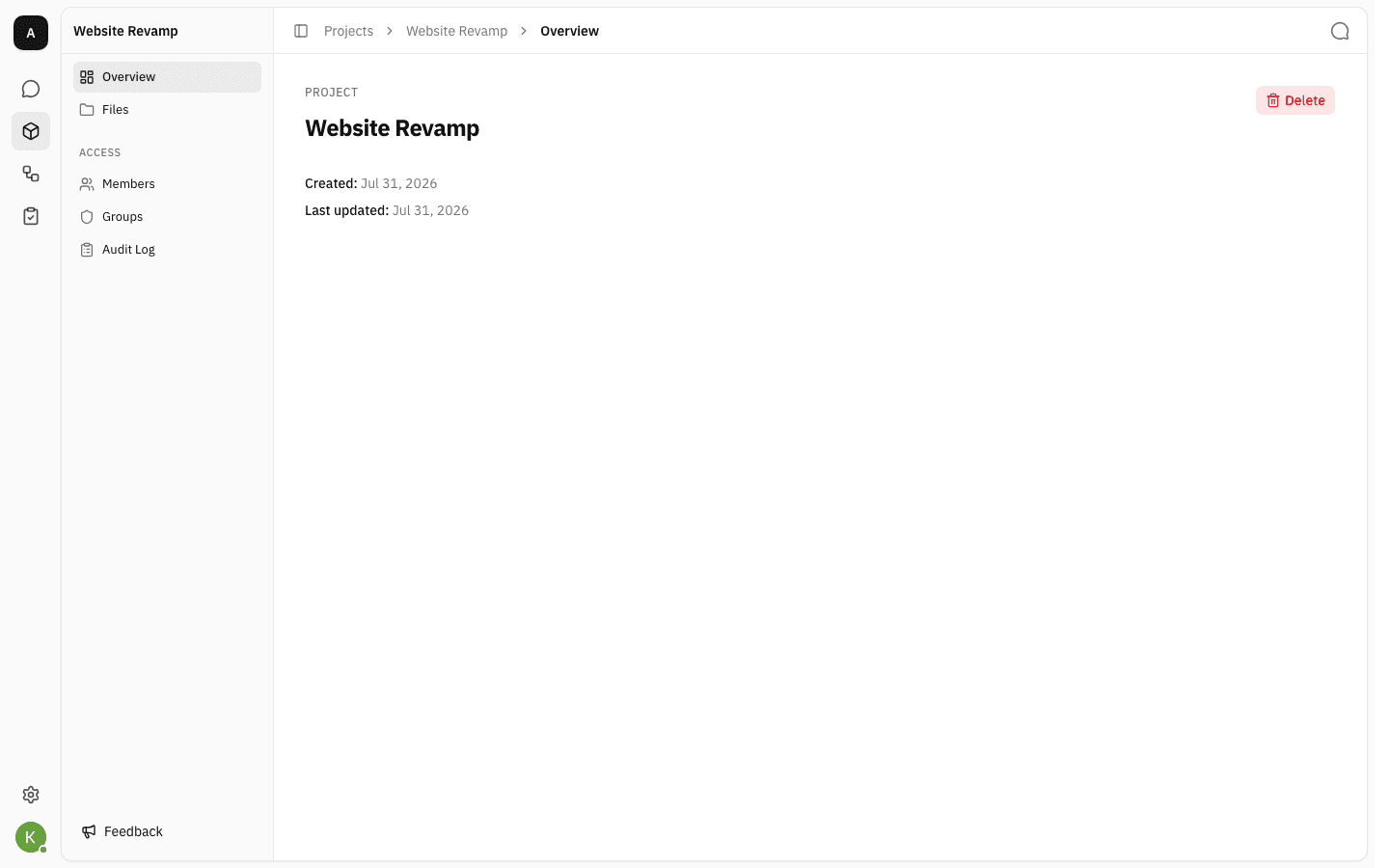
The page shows two dates:
- Created — when the project was made.
- Last updated — the last time anything about the project changed.
Both are shown as calendar dates, so a change made earlier the same day will not visibly move Last updated. The Projects list shows the same value as a relative time ("Updated 10 minutes ago") if you need the finer reading.
The sidebar groups the rest of the project: Files for its documents, and under Access, Members and Groups for who can reach them, plus Audit Log for what has happened. The breadcrumb's Projects link takes you back to the list.
Rename a project
The name is edited in place — there is no settings page and no Save button.
-
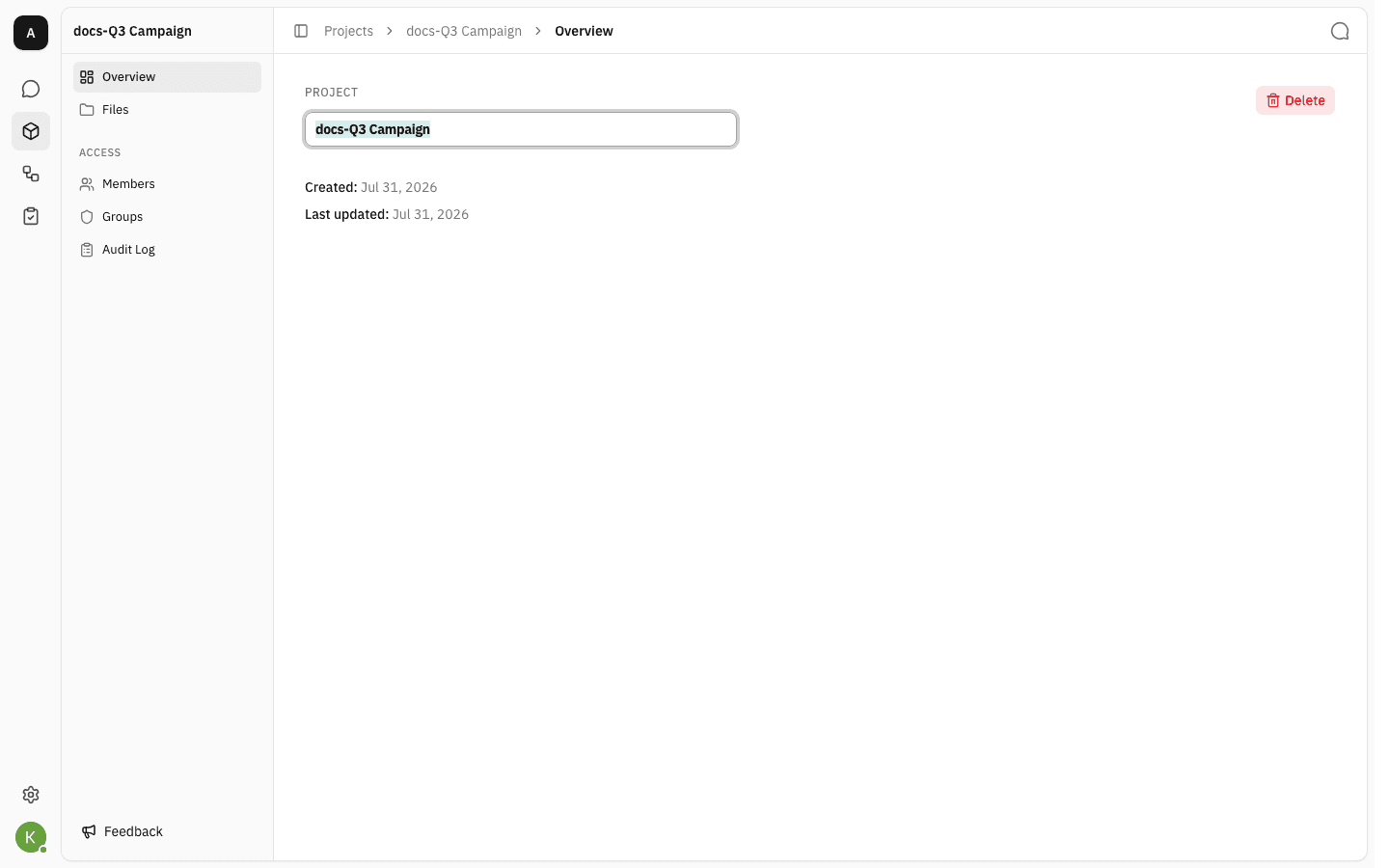
Click the project name. It turns into a text box with the current name selected, ready to be typed over.
-
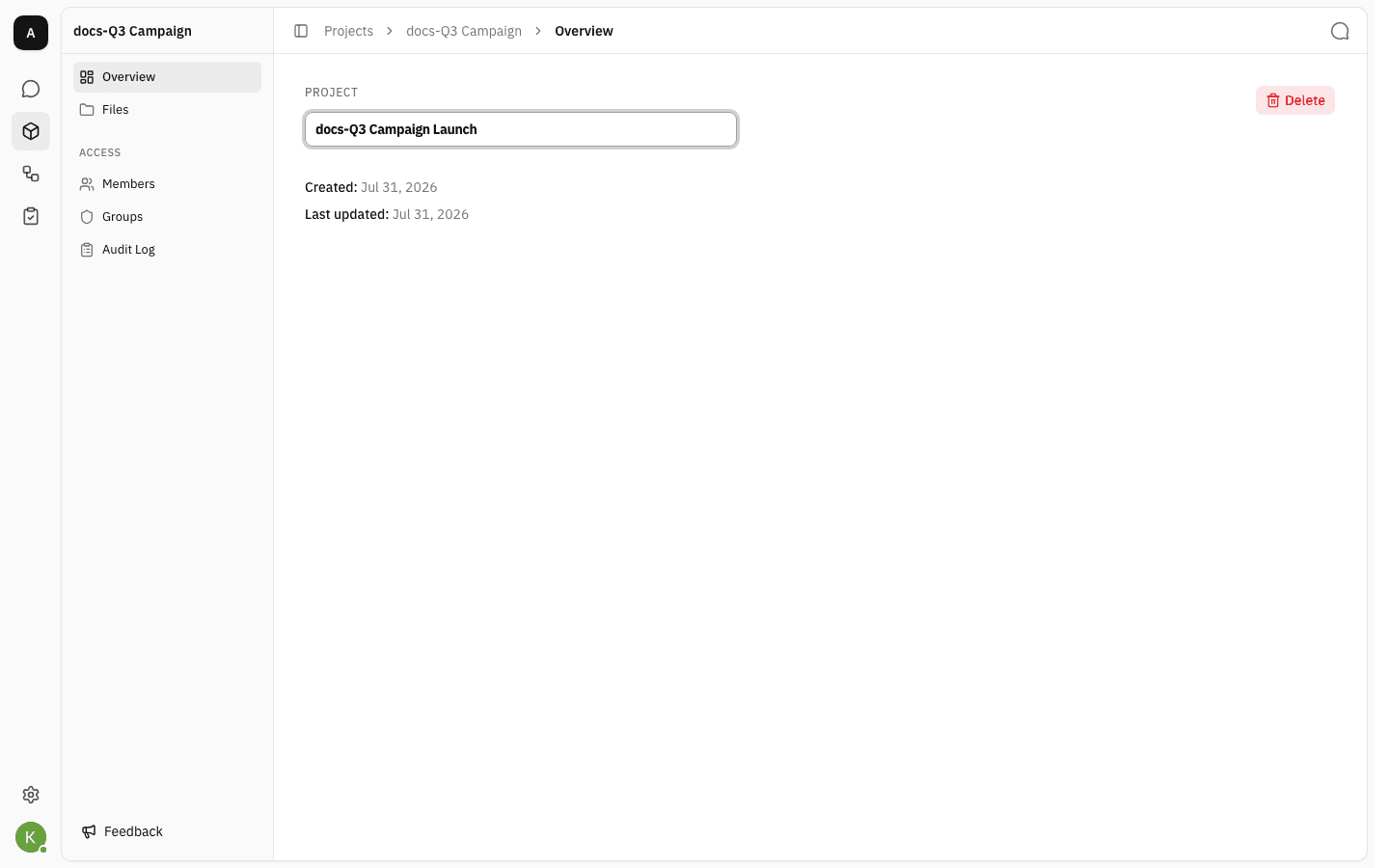
Type the new name.
-
Press Enter to save, or click outside the box — both commit the change. Press Escape to abandon it and keep the old name.
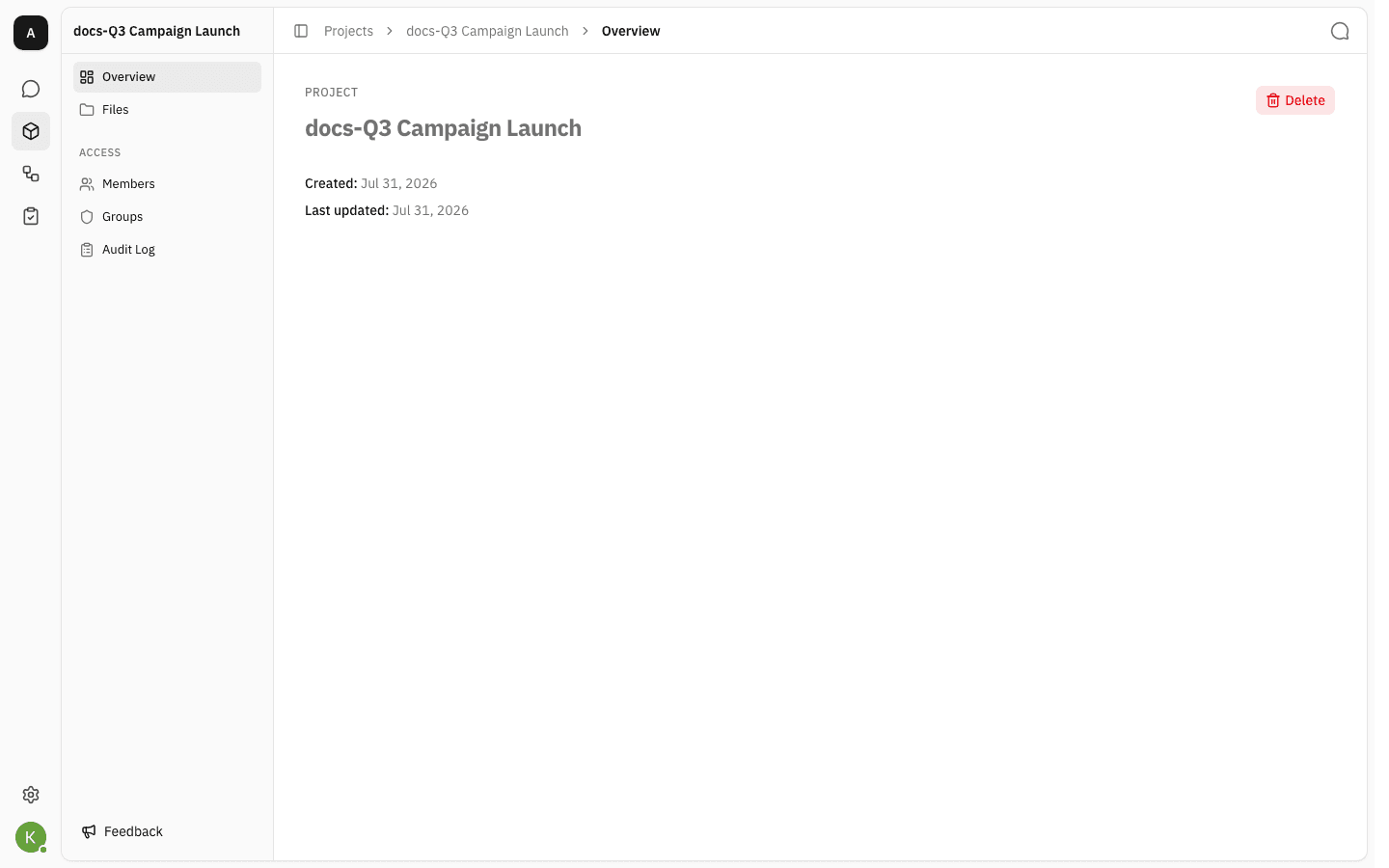
The new name replaces the old one everywhere at once: the heading, the breadcrumb, the sidebar header, and the project's card back in the Projects list. Nothing else about the project changes — its files, members and permissions all stay exactly as they were, and any link you have already shared keeps working, because a project is addressed by its id and not by its name.
Delete a project
Deleting a project takes its files, members and groups with it, so the dialog asks you to type the name before it will let you through.
-
Click Delete, top right of the Overview page.
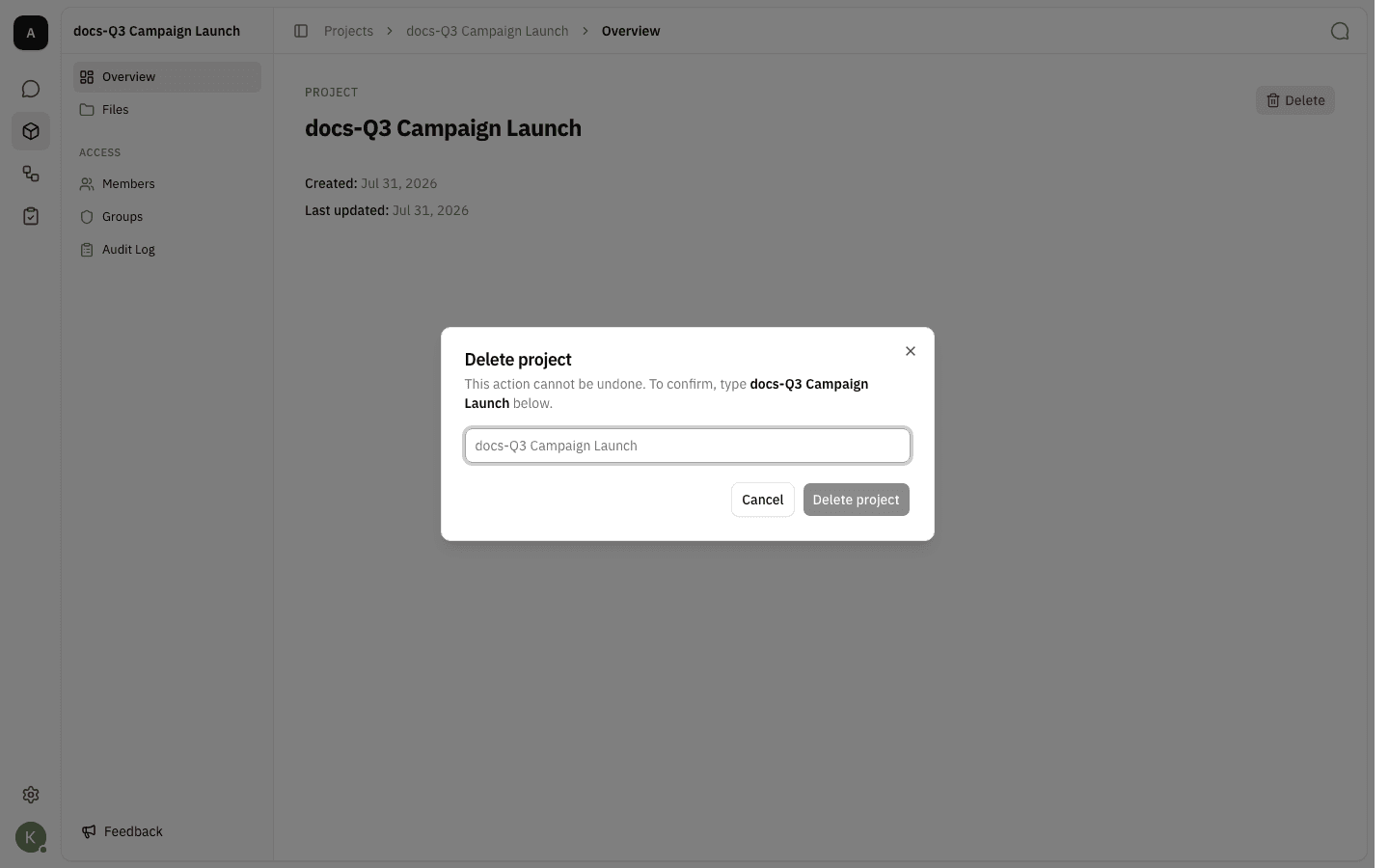
-
Type the project's name into the box, exactly as the dialog quotes it — the match is case-sensitive. Delete project stays disabled until it matches.
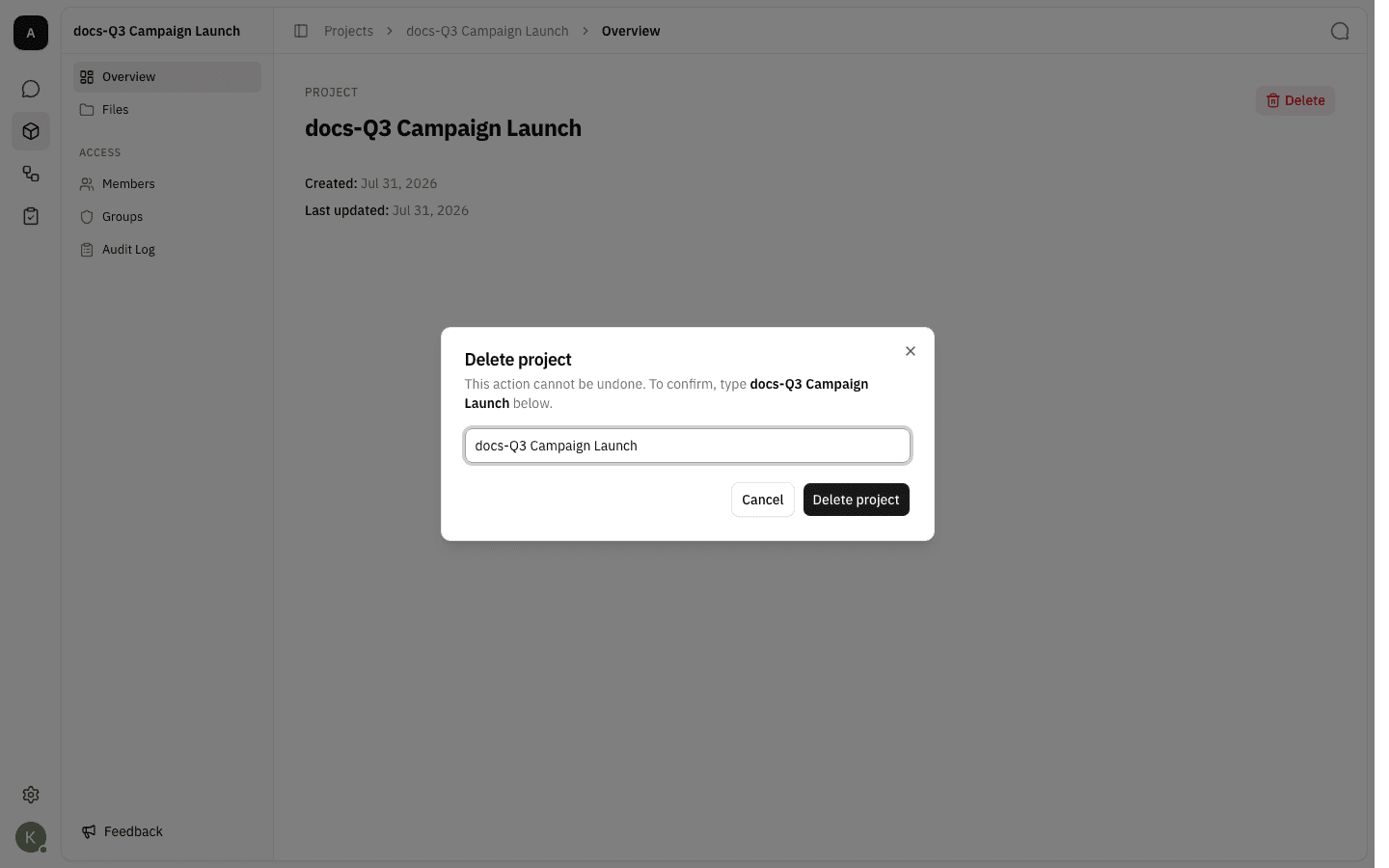
-
Click Delete project. The dialog closes and you are returned to the Projects list, one project lighter.
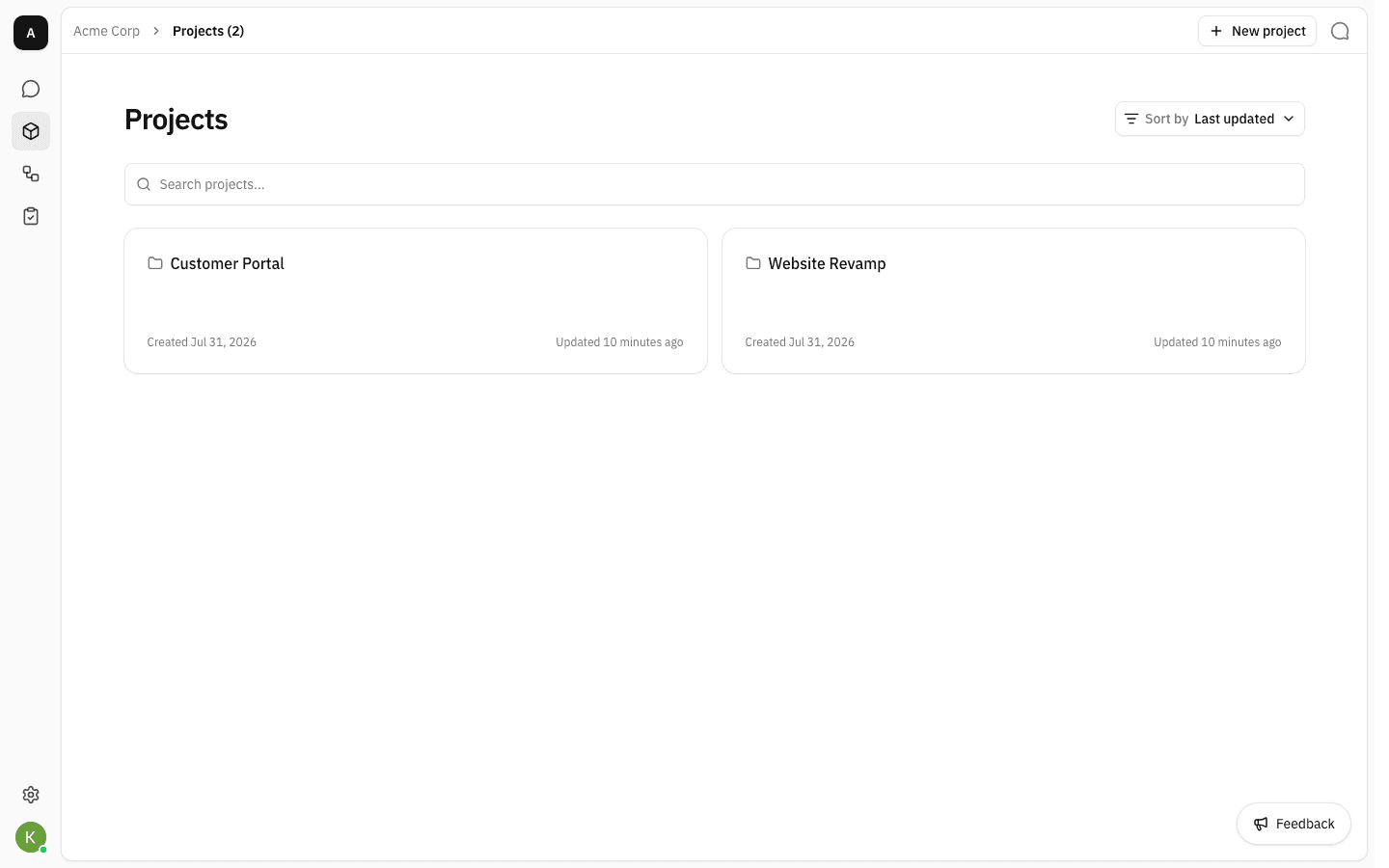
This cannot be undone from the app
There is no trash and no restore for projects. If you are unsure, remove the members instead — that hides the project from them while leaving its contents intact.
Notes
- The page adapts to your permissions. A member who can open the project but cannot change it sees the same details with a non-clickable name and no Delete button, so there is nothing to accidentally trigger.
- Renaming is recorded. The project's Audit Log keeps the change, so a renamed project can still be traced back to what it used to be called.
- Names do not have to be unique, which matters most at the delete step: if two projects share a name, check the breadcrumb before you type the confirmation.
- Cancel is always safe. Closing the delete dialog with Cancel, the ✕, or Escape clears whatever you typed and changes nothing.
Projects
Create projects to give a piece of work its own document library, its own members and its own permissions, separate from the rest of the workspace.
Project files
Upload and organize the documents that belong to one project, visible only to that project's people, and ask the assistant about them.